# How to Automate Real Estate Property Listings for Instagram & Facebook
> Automate property listing visuals for Instagram and Facebook using Orshot. Generate professional real estate marketing images from MLS data with API or no-code tools
- **Author**: Rishi Mohan
- **Published**: 2026-02-10
- **Tags**: Real Estate, Automation, Templates, Social Media
- **Read time**: 5 min read
- **URL**: https://orshot.com/blog/automate-real-estate-listings-instagram-facebook
---
You have 40 active listings. Each one needs an Instagram post, a Facebook ad, an "Open House" story, and a "Just Sold" graphic. That's 160+ images—before you even think about seasonal promotions or price updates
Doing this manually eats hours. Doing it with [Orshot](https://orshot.com/pricing) takes seconds per listing
This guide shows you how to automate real estate property listing visuals for Instagram and Facebook using Orshot's templates and API
**Relevant** → [Auto-generate Real Estate Banners](https://orshot.com/use-cases/t/auto-generate-real-estate-banners)
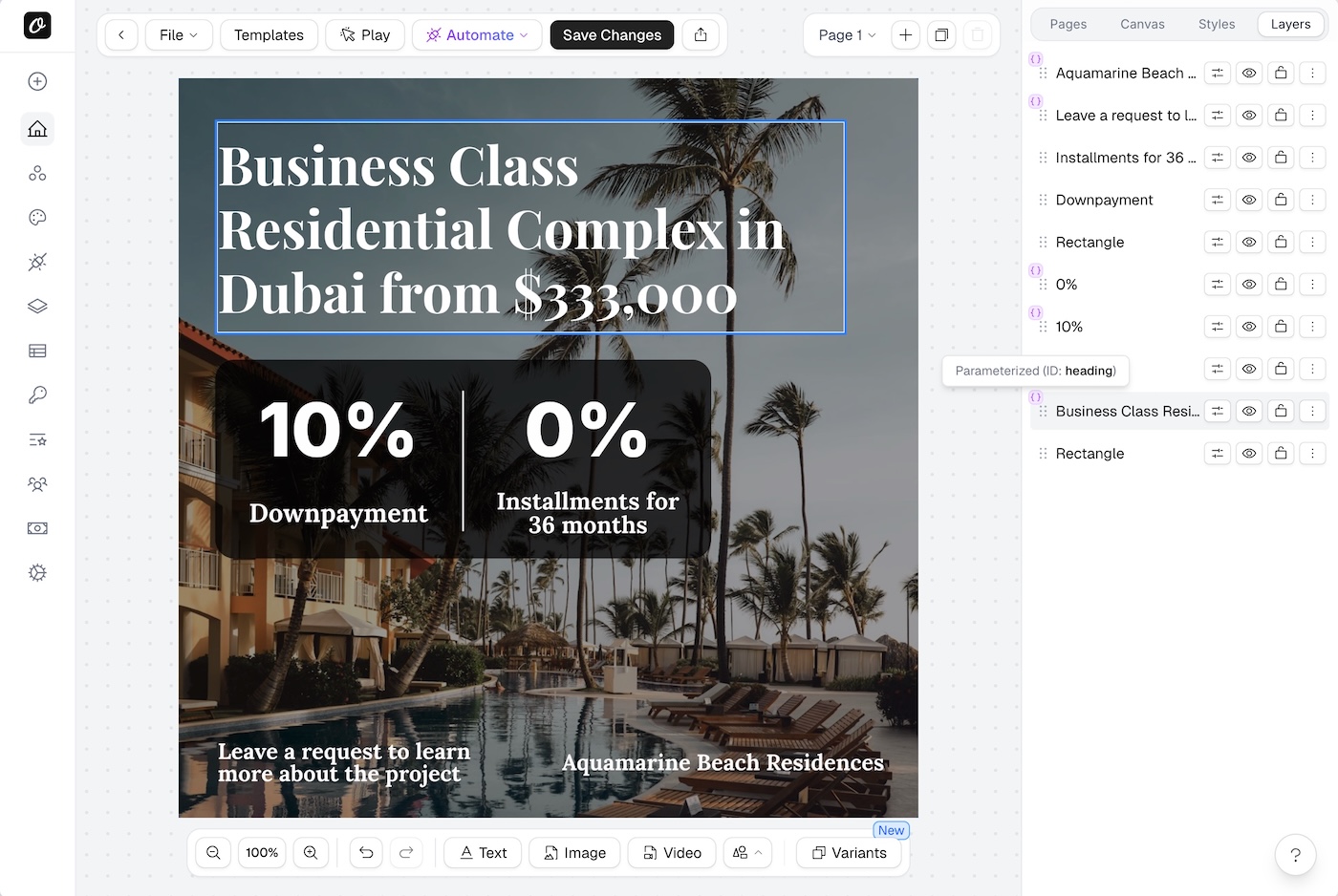
## What You'll Build
An automation that takes your property data (address, price, photos, bedrooms, etc.) and generates ready-to-post social media visuals—automatically
- **New Listing** → Instagram post + Facebook ad generated instantly
- **Price Change** → All visuals update automatically
- **Sold/Closed** → "Just Sold" graphic generated and ready to post
### Bonus: Post Directly with Social Publish
With [Orshot Social Publish](https://orshot.com/docs/publish/introduction), you can skip the manual posting step entirely. Add a `publish` object to your API call and Orshot posts the generated image directly to Instagram, Facebook, LinkedIn, or any of [13+ supported platforms](https://orshot.com/blog/social-media-automation-tools). No Buffer, no Zapier — just render and post.
## What You'll Need
- [Orshot Account](https://orshot.com/pricing "target=_blank") (Free Trial): For real estate templates and dynamic image generation API
- Property data source (Google Sheets, CRM, MLS export, or database)
- Optional: [n8n](https://n8n.io), [Make](https://make.com), or [Zapier](https://zapier.com) for no-code automation
## Step 1: Pick a Real Estate Template
Orshot has ready-to-use real estate templates designed for social media. Browse the collection and pick one that fits your brand
Here's a property sale banner template you can copy to your workspace and start using right away:
Or build your own from scratch using [Orshot Studio](https://orshot.com/features/orshot-studio). You can also import existing designs from [Canva](https://orshot.com/docs/importing-templates/import-from-canva) or [Figma](https://orshot.com/docs/importing-templates/import-from-figma)
## Step 2: Parameterize Your Template
Open your template in Orshot Studio and make the dynamic fields parameterizable. For a typical property listing, you'll want:
| Field | Parameter Key | Example Value |
| -------------- | --------------- | ------------------------------- |
| Property Image | `propertyImage` | `https://mls.com/photo-123.jpg` |
| Price | `price` | `$875,000` |
| Address | `address` | `123 Oak Avenue, Austin TX` |
| Bedrooms | `bedrooms` | `4` |
| Bathrooms | `bathrooms` | `3` |
| Square Footage | `sqft` | `2,400 sq ft` |
| Agent Name | `agentName` | `Sarah Johnson` |
| Status Badge | `status` | `Just Listed` |
To parameterize a field:
1. Select the layer in Orshot Studio
2. Toggle **"Parameterize"** in the properties panel
3. Assign the parameter key
Once saved, this template becomes an API endpoint. Every property listing can now generate a unique image by passing different data to the same template
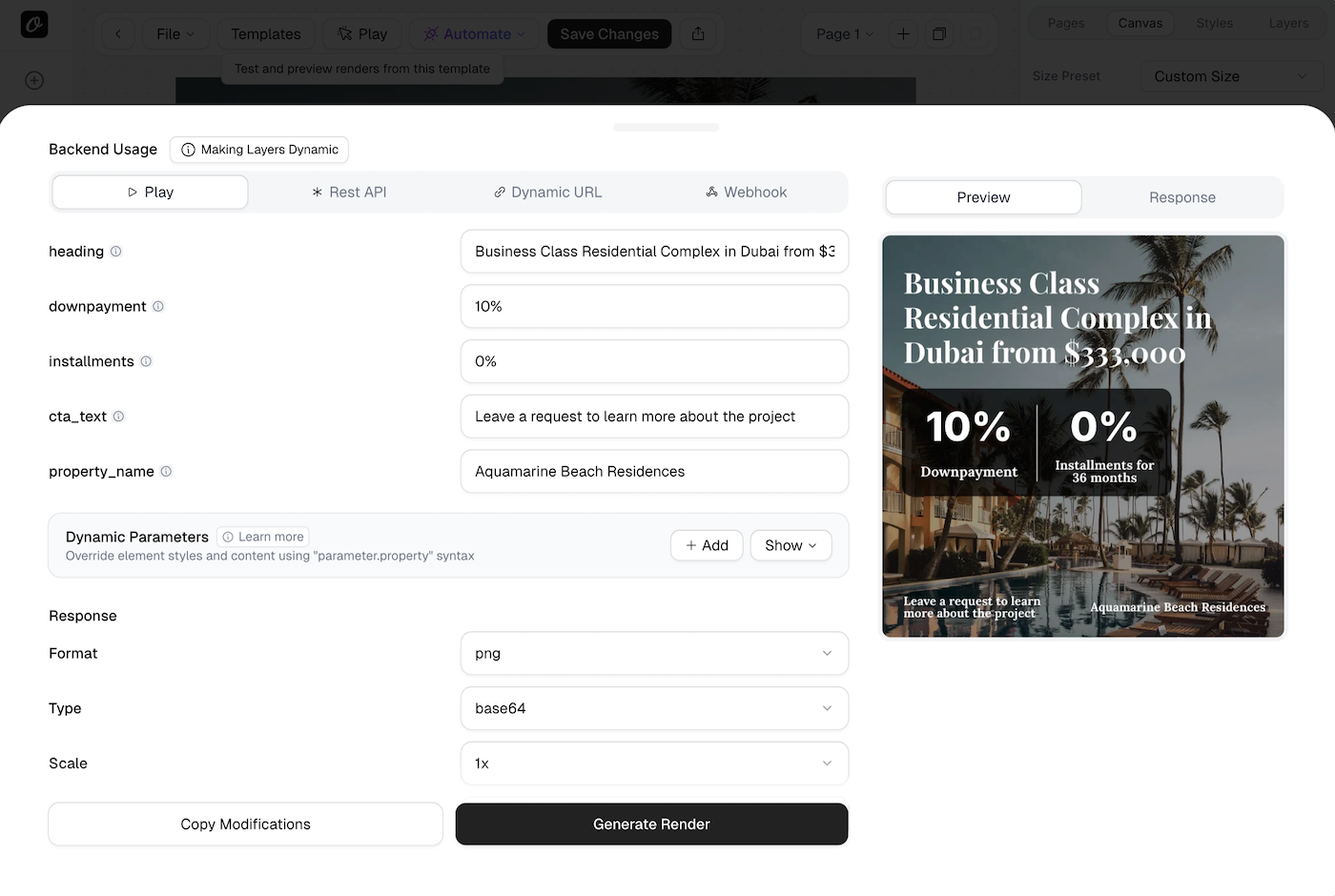
## Step 3: Generate Listing Images with the API
With your template ready, generate images by sending property data to Orshot's [Image Generation API](https://orshot.com/solutions/image-generation-api)
### API Endpoint```markdown
POST https://api.orshot.com/v1/studio/render
```### JavaScript Example```javascript
async function generateListingImage(property) {
const response = await fetch("https://api.orshot.com/v1/studio/render", {
method: "POST",
headers: {
"Content-Type": "application/json",
Authorization: "Bearer YOUR_API_KEY",
},
body: JSON.stringify({
templateId: "YOUR_TEMPLATE_ID",
modifications: {
propertyImage: property.photo_url,
price: property.price,
address: property.address,
bedrooms: `${property.beds} Beds`,
bathrooms: `${property.baths} Baths`,
sqft: `${property.sqft} sq ft`,
agentName: property.agent,
status: "Just Listed",
},
response: {
type: "url",
format: "png",
},
}),
});
const result = await response.json();
return result.content; // Image URL ready to post
}
// Example usage
const listing = {
photo_url: "https://images.mls.com/property-456.jpg",
price: "$875,000",
address: "123 Oak Avenue, Austin TX",
beds: 4,
baths: 3,
sqft: "2,400",
agent: "Sarah Johnson",
};
const imageUrl = await generateListingImage(listing);
console.log(`Listing image: ${imageUrl}`);
```### Python Example```python
import requests
def generate_listing_image(property_data):
url = "https://api.orshot.com/v1/studio/render"
payload = {
"templateId": "YOUR_TEMPLATE_ID",
"modifications": {
"propertyImage": property_data["photo_url"],
"price": property_data["price"],
"address": property_data["address"],
"bedrooms": f"{property_data['beds']} Beds",
"bathrooms": f"{property_data['baths']} Baths",
"sqft": f"{property_data['sqft']} sq ft",
"agentName": property_data["agent"],
"status": "Just Listed"
},
"response": {
"type": "url",
"format": "png"
}
}
response = requests.post(url, json=payload, headers={
"Authorization": "Bearer YOUR_API_KEY",
"Content-Type": "application/json"
})
return response.json()["content"]
# Generate for a single listing
listing = {
"photo_url": "https://images.mls.com/property-456.jpg",
"price": "$875,000",
"address": "123 Oak Avenue, Austin TX",
"beds": 4,
"baths": 3,
"sqft": "2,400",
"agent": "Sarah Johnson"
}
image_url = generate_listing_image(listing)
print(f"Listing image: {image_url}")
```### Batch Generation for Multiple Listings
When you have dozens of listings to process at once:```python
def generate_all_listing_images(listings):
results = []
for listing in listings:
try:
url = generate_listing_image(listing)
results.append({
"address": listing["address"],
"image_url": url,
"status": "success"
})
except Exception as e:
results.append({
"address": listing["address"],
"status": "failed",
"error": str(e)
})
return results
```## Step 4: Automate with No-Code (Make / n8n / Zapier)
Prefer not to write any code? Use no-code platforms to connect your data source directly to Orshot
**Explore integrations**: [Orshot Integrations](https://orshot.com/integrations)
### Example Workflow with Make
1. **Trigger**: New row added to Google Sheets (or CRM webhook)
2. **Action 1**: Orshot — Generate image from studio template
3. **Action 2**: Save image URL back to Google Sheets
4. **Action 3** (optional): Post to Instagram/Facebook via Buffer or Meta API
### Example Workflow with n8n
1. **Google Sheets Trigger**: New property row added
2. **Orshot Node**: Generate listing image with property data mapped to template parameters
3. **Google Drive Node**: Save the generated image
4. **Slack/Email Node**: Notify the agent with the image link
Learn more: [n8n Integration Docs](https://orshot.com/docs/integrations/n8n) · [Make Integration Docs](https://orshot.com/docs/integrations/make) · [Zapier Integration Docs](https://orshot.com/docs/integrations/zapier)

## Dynamic URLs: The Simplest Approach
For email campaigns or landing pages, use [Dynamic URLs](https://orshot.com/docs/integrations/dynamic-urls) to generate listing images without any backend code:```markdown
https://orshot.com/v1/studio/dynamic-url/property-listing.png?price=$875,000&address=123+Oak+Avenue&bedrooms=4+Beds&status=Just+Listed
```Change the URL parameters, and the image updates instantly. Use this in:
- Property alert emails (unique image per listing)
- MLS website embeds
- Facebook dynamic ads
## Why This Works for Real Estate
- **Speed**: Generate a listing image in under 3 seconds
- **Consistency**: Every listing follows your brand guidelines via [Brand Assets Library](https://orshot.com/features/brand-assets-library)
- **Scale**: 10 listings or 1,000—same effort
- **Multi-format**: Generate Instagram square (1080×1080), Facebook ad (1200×628), and Story (1080×1920) from the same data
- **Always current**: Price change? Regenerate the image with updated data instantly
## Common Questions
**Q: Can I automatically post listings to Instagram and Facebook?**
Yes, by connecting Orshot with tools like Zapier, Make (formerly Integromat), or n8n, you can create workflows that automatically generate images from your property data and post them directly to your social media accounts.
**Q: How do I pull property data from my MLS or CRM?**
Most Real Estate CRMs (like Follow Up Boss, LionDesk, or Salesforce) support webhooks or have APIs. You can use these to trigger image generation in Orshot whenever a new listing status is updated or added.
**Q: Does this work for "Sold" and "Open House" posts too?**
Absolutely. You can set up different templates for "Just Listed", "Price Reduced", "Open House", and "Sold" statuses. The logic in your automation tool (Zapier/Make) can choose the right template based on the property status.
**Q: Can I generate carousels for Instagram?**
Yes! Orshot supports multi-page templates. You can generate a slide for the living room, kitchen, bedroom, and details, and Orshot will export it as a multi-page PDF or separate images that you can post as a carousel.
**Q: Is it possible to include the agent's photo and contact info?**
Yes. You can pass dynamic images (like agent headshots) and text (phone numbers, emails) into the template just like property photos. This is great for keeping branding consistent across a team.
**Q: What if my property photos are different sizes?**
Orshot's Smart Object-contain/cover features and auto-resizing capabilities handle this. You can set images to "cover" their containers so they always look professional, regardless of the original aspect ratio.
**Q: Do I need to know how to code?**
No. While Orshot has a powerful API for developers, you can achieve full automation using "No-Code" platforms like Zapier or Make. You just map fields from your data source to the Orshot template.
**Q: Can I save the images in Google Drive or Dropbox?**
Yes, you can connect your Google Drive, Dropbox or S3-enabled storage in Orshot to automatically upload generated images in your account.
## Getting Started
1. **Browse templates**: Start with a [real estate template](https://orshot.com/templates/g/real-estate) or design your own in [Orshot Studio](https://orshot.com/features/orshot-studio)
2. **Parameterize fields**: Mark property data fields as dynamic
3. **Connect your data**: Use the [API](https://orshot.com/solutions/image-generation-api), [no-code integrations](https://orshot.com/integrations), or [Dynamic URLs](https://orshot.com/docs/integrations/dynamic-urls)
4. **Automate**: Set up workflows so every new listing automatically gets professional visuals
Stop spending hours on Canva for every listing. Design one template, generate images for every property in your portfolio automatically