# How to Auto-Generate Social Media Graphics at Scale using AI
> Learn how to automate social media graphics with AI. Create templates, generate branded visuals via API, and publish to 13+ platforms — no designer needed.
- **Author**: Rishi Mohan
- **Published**: 2026-04-06
- **Tags**: Social Media, Automation, Templates, AI, Tutorial
- **Read time**: 7 min read
- **URL**: https://orshot.com/blog/automate-social-media-graphics
---
Every blog post, product launch, or customer quote needs graphics sized for Instagram, Twitter/X, LinkedIn, and Facebook. That's 4+ visuals per piece of content — resized, branded, and captioned. Manually. Every time.
In this guide, you'll set up a workflow that automatically generates branded social media graphics whenever you add a row to a spreadsheet. No design skills, no code. By the end, you'll have an automation that turns data into ready-to-post visuals in seconds using [Orshot](https://orshot.com/pricing) and [Make](https://orshot.com/docs/integrations/make "target=_blank nofollow")
## Why Automate Your Social Visuals?
If you're still making each social graphic by hand, you already know the pain:
- **Hours lost on repetitive work** — Same template, different headline, different image. Over and over.
- **Brand inconsistency** — When three people make graphics in Canva, you get three different versions of your brand.
- **Designer bottleneck** — Your designer is swamped. Marketing waits. Posts get delayed.
- **Missed posting windows** — By the time the graphic is ready, the moment has passed.
- **Scaling means more manual work** — More content = more graphics = more hours in Canva. It doesn't scale.
The fix isn't hiring more designers. It's automating the graphics themselves. Design the template once, then let data do the rest.
## What You'll Build
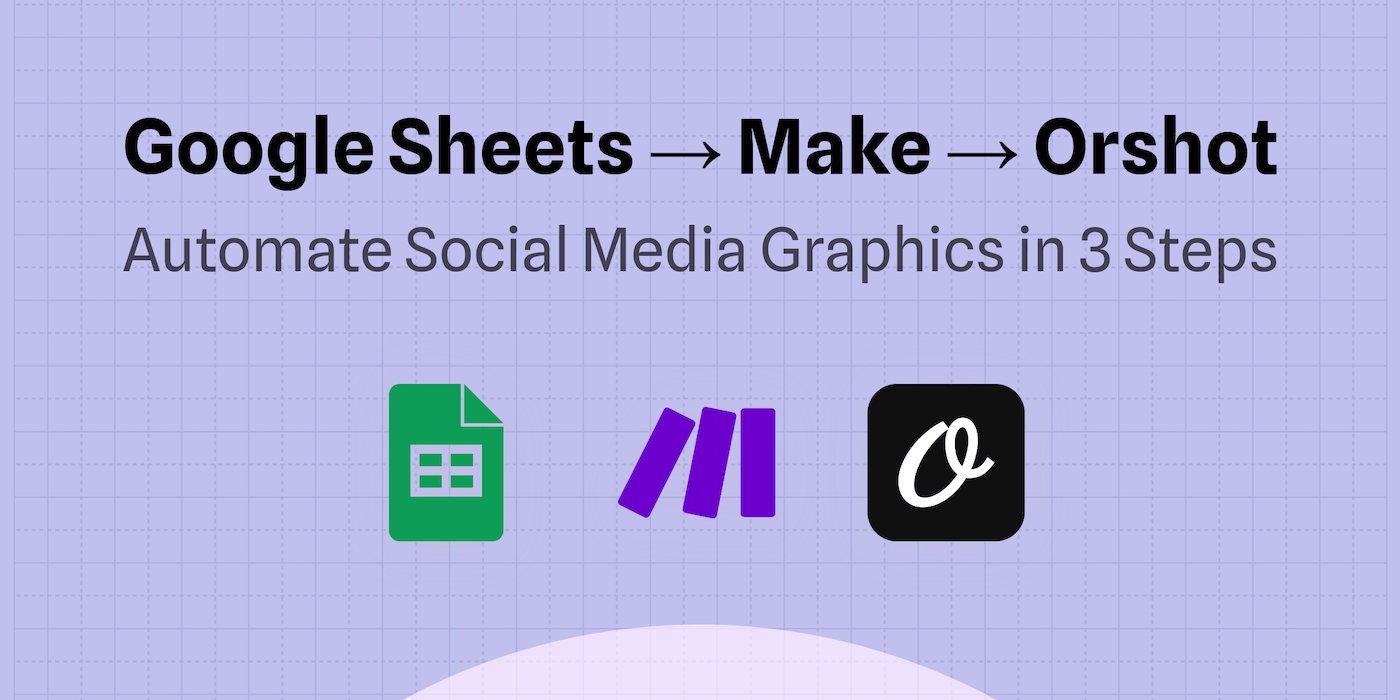
A no-code workflow where adding a row to Google Sheets automatically generates a branded social media graphic via Orshot and saves the image URL back to your sheet — ready to post or feed into your publishing pipeline
**The flow:**
### What You'll Need
- **[Orshot Account](https://orshot.com/pricing)** — Free trial, no credit card required. This is where your templates and image generation API live.
- **A social media template in Orshot** — We'll pick one in Step 1.
- **Google Sheets** — Your data source (headlines, images, colors).
- **[Make.com account](https://make.com "target=_blank nofollow")** — Free tier works fine for this. This connects everything.
> **Using n8n or Zapier?** The same approach works. See our [n8n tutorial](https://orshot.com/blog/automate-ecommerce-product-images) or [Zapier docs](https://orshot.com/docs/integrations/zapier) for platform-specific setup.
## Step 1: Pick a Social Media Template
Head to Orshot's template library and pick a social media template that fits your use case — quote cards, product promos, event announcements, or general-purpose social graphics. Here's a template you can copy and start using:
You can also design your own from scratch in [Orshot Studio](https://orshot.com/features/orshot-studio), or import existing designs from [Canva](https://orshot.com/docs/importing-templates/import-from-canva) or [Figma](https://orshot.com/docs/importing-templates/import-from-figma).
Or skip manual design entirely — use Orshot's [AI Design Agent](https://orshot.com/blog/introducing-design-agent) to generate a complete template from a text prompt. Describe what you need ("Instagram promo card with headline, subtitle, logo, and CTA button on a gradient background") and the agent builds it for you in seconds, ready to parameterize.
Once you have a template, open it in Orshot Studio and **parameterize** the dynamic fields — the parts that change between posts. Select a layer, toggle **"Parameterize"** in the properties panel, and assign a key name.
For a typical social media graphic, you'll want these parameters:
| Field | Parameter Key | Example Value |
| ---------------- | ------------- | ---------------------------------- |
| Headline | `headline` | `Summer Sale: 50% Off` |
| Subtitle | `subtitle` | `Limited time offer — ends Friday` |
| Background Image | `bg_image` | `https://cdn.example.com/bg.jpg` |
| Logo | `logo` | `https://cdn.example.com/logo.png` |
| Brand Name | `brand_name` | `Your Brand` |
| CTA Text | `cta_text` | `Shop Now` |
Once saved, this template becomes an API endpoint. Every social post can now generate a unique branded graphic by passing different data to the same template.
## Step 2: Set Up Your Data Source (Google Sheets)
Create a new Google Sheet with columns that match your template parameters, plus an output column for the generated image:
| headline | subtitle | bg_image | logo | brand_name | cta_text | imageUrl |
| ---------------------- | ------------------------------------------ | ---------------------------------- | -------------------------------- | ---------- | ----------- | --------------- |
| Summer Sale: 50% Off | Limited time — ends Friday | https://cdn.example.com/summer.jpg | https://cdn.example.com/logo.png | Acme Store | Shop Now | _(auto-filled)_ |
| New Feature: Dark Mode | Now available for all users | https://cdn.example.com/dark.jpg | https://cdn.example.com/logo.png | Acme Store | Try It Free | _(auto-filled)_ |
| Customer Spotlight | "Orshot saved us 10 hours/week" — Sarah K. | https://cdn.example.com/sarah.jpg | https://cdn.example.com/logo.png | Acme Store | Read More | _(auto-filled)_ |
Add 3-5 rows with real data. The `imageUrl` column stays empty — your automation will fill it in.
## Step 3: Build the Automation in Make
Open [Make.com](https://make.com "target=_blank nofollow") and create a new scenario. You'll add three modules:
### 3a. Google Sheets — Watch New Rows
Add the **Google Sheets > Watch New Rows** module as your trigger:
- **Connection**: Connect your Google account
- **Spreadsheet**: Select the sheet you created in Step 2
- **Sheet**: Choose the correct tab
- **Limit**: Set to 10 (processes up to 10 new rows per run)
This module fires every time a new row appears in your sheet.
### 3b. Orshot — Generate Image
Add the **Orshot** module next. Search for "Orshot" in Make's module list — [it's a native integration](https://orshot.com/docs/integrations/make).
- **Connection**: Add your Orshot API key (find it in Orshot Dashboard → Settings → API Key)
- **Operation**: Generate Image From an Orshot Studio Template
- **Template**: Select your social media template from Step 1
- **Response Type**: URL
- **Response Format**: PNG
Then map your Google Sheets columns to the Orshot template parameters:
| Orshot Parameter | Google Sheets Column |
| ---------------- | -------------------- |
| `headline` | `}` |
| `subtitle` | `}` |
| `bg_image` | `}` |
| `logo` | `}` |
| `brand_name` | `}` |
| `cta_text` | `}` |
Make's visual mapper lets you drag column values directly into each parameter field.
### 3c. Google Sheets — Update Row
Add a **Google Sheets > Update a Row** module to save the generated image URL back:
- **Spreadsheet**: Same sheet as the trigger
- **Row Number**: Map from the trigger module's row number
- **imageUrl column**: Map the image URL from the Orshot module's output
That's the full workflow: new row → generate graphic → save URL.
### 3d. Turn It On
Set the scenario to run on a schedule (every 15 minutes, hourly, or on-demand) and activate it. Every new row you add will automatically produce a branded social media graphic.
## Step 4: Test and Scale
Add a new row to your sheet and watch the automation run. Within seconds, the `imageUrl` column fills in with a link to your generated graphic. Click it — that's a ready-to-post social media visual, generated from your template and data, with zero manual design work.
Here's an animated graphic generated from the template — with staggered, spring-based entrance animations on every element:
Orshot generates **static images, animated GIFs, and videos** from the same template — just change the format from `png` to `gif` or `mp4`.
Here are four static graphics generated from the **same template** with different data — each row in your spreadsheet produces a unique, branded visual:
Same template, different data. That's the power of parameterized templates — design once, generate thousands.
### Scale It Up
Once the basic workflow runs, you can extend it:
- **Automate posting too** — Add [Orshot Social Publish](https://orshot.com/blog/introducing-orshot-publish) to your API call and post directly to Instagram, X, LinkedIn, Facebook, and [10+ more platforms](https://orshot.com/blog/social-media-automation-tools). No Buffer needed.
- **Trigger from your CMS** — Replace the Sheets trigger with a webhook from WordPress, Shopify, or your headless CMS. New blog post published? Social graphic generated automatically.
- **Multiple sizes from one row** — Generate an Instagram square, Twitter card, and LinkedIn banner from the same data by calling multiple templates in sequence.
- **Connect an RSS feed** — Use Make's RSS module to pull new blog posts and feed titles + images into Orshot automatically.
## Other Ways to Generate Graphics at Scale
The no-code workflow above is the most accessible method, but it's not the only one. Here are three alternatives depending on your setup:
### REST API — For Developers
If you're already writing code, call Orshot's [Image Generation API](https://orshot.com/solutions/image-generation-api) directly:```javascript
const response = await fetch("https://api.orshot.com/v1/studio/render", {
method: "POST",
headers: {
"Content-Type": "application/json",
Authorization: "Bearer YOUR_API_KEY",
},
body: JSON.stringify({
templateId: "YOUR_TEMPLATE_ID",
modifications: {
headline: "Summer Sale: 50% Off",
subtitle: "Limited time offer",
bg_image: "https://cdn.example.com/summer.jpg",
brand_name: "Acme Store",
cta_text: "Shop Now",
},
response: { type: "url", format: "png" },
}),
});
const { url } = await response.json();
```SDKs available for [Node.js](https://github.com/nicepkg/orshot-nodejs-sdk "target=_blank"), [Python](https://github.com/nicepkg/orshot-python-sdk "target=_blank"), [PHP](https://github.com/nicepkg/orshot-php-sdk "target=_blank"), and [Ruby](https://github.com/nicepkg/orshot-ruby-gem "target=_blank").
### Dynamic Image URLs — Simplest Method
Change URL parameters and get a new image instantly — no API call needed. Great for OG images and share cards:```markdown
https://api.orshot.com/v1/dynamic/YOUR_TEMPLATE_ID?headline=Summer+Sale&subtitle=50%25+Off
```Embed this URL anywhere — email signatures, CMS pages, social bios — and it renders a fresh image on the fly. [Learn more about dynamic parameters](https://orshot.com/blog/dynamic-parameters-prompt-href).
### Bulk Generation from Spreadsheets
If you need 100+ graphics at once (campaign launches, product catalogs), use Orshot's built-in spreadsheet import. Upload a CSV, map columns to template parameters, and generate everything in one batch. No Make or Zapier required.
### MCP Server — For AI Agent Workflows
If you're building with AI agents (Cursor, Windsurf, Claude, or custom LLM pipelines), Orshot's [MCP server](https://orshot.com/blog/orshot-remote-mcp-server) lets any AI agent design templates, generate images, and manage your workspace directly. Your AI coding assistant becomes a design assistant too — create and iterate on social media templates without leaving your editor.
## What Types of Graphics Can You Automate?
Pretty much anything that follows a repeatable template:
- **Quote and testimonial cards** — Customer reviews, team quotes, inspirational content
- **Product promotion banners** — Sale announcements, new arrivals, feature launches
- **Blog post share images** — Auto-generate OG images when you publish articles
- **Event announcements** — Webinar promos, conference updates, live stream alerts
- **Sale and discount graphics** — Flash sale banners, seasonal promotions, coupon codes
- **Job posting visuals** — Open roles formatted for LinkedIn, X, and Instagram
- **Real estate listings** — Property cards with price, photos, and details → [full tutorial](https://orshot.com/blog/automate-real-estate-listings-instagram-facebook)
- **eCommerce product cards** — Product shots with pricing overlays → [full tutorial](https://orshot.com/blog/automate-ecommerce-product-images)
- **Tweet-to-Instagram conversions** — Screenshot tweets and repost as images → [full tutorial](https://orshot.com/blog/automate-tweet-to-instagram)
If you're making the same kind of graphic more than twice a week, it's worth automating.
## Why Orshot?
Most social media tools stop at scheduling. They assume you already have your visuals ready. Orshot starts where the real bottleneck is: **creating the graphics themselves**.
- **Canva-like Template Editor**: Design social media templates with a drag-and-drop editor. No design skills required. Or let the AI Design Agent build one from a text prompt.
- **AI Design Agent**: Describe what you need in plain text and the AI agent builds a production-ready template in seconds — layout, styling, and parameterization included.
- **100+ Ready-Made Templates**: Social media graphics, product banners, certificates, and more — ready to customize and automate.
- **REST API, SDKs & MCP Server**: Generate images via API with SDKs for Node.js, Python, PHP, and Ruby — or connect AI agents through the MCP server.
- **No-Code Integrations**: Native integrations with Make, Zapier, and n8n. Connect to Google Sheets, CRMs, databases, and 1000+ apps.
- **Built-in Social Publishing**: Post directly to 13+ platforms — Instagram, X, LinkedIn, TikTok, Facebook, and more. Schedule, draft, or publish instantly.
- **$30/month — All Included**: Visual generation, template editor, API access, and social publishing. No separate subscriptions for scheduling or posting.
**Pricing:** 60 free renders to start, no credit card required. Paid plans from $30/mo with social publishing included.
[Try Orshot free →](https://orshot.com/pricing)
**Q: What does it mean to automate social media graphics?**
It means using a template-based system where you design once and generate unlimited variations by swapping text, images, and colors via an API or no-code tool. With Orshot, you can create templates manually in the visual editor, or have the AI Design Agent generate one from a text prompt. Parameterize the dynamic fields, then generate branded graphics by passing data from Google Sheets, a CMS, or any other source — no manual design work per post.
**Q: Do I need to write code to set this up?**
No. Orshot has native integrations with Make, Zapier, and n8n. You connect your data source (Google Sheets, Airtable, a CRM) to Orshot's module, map columns to template parameters, and every new row automatically generates a graphic. You can even use the AI Design Agent to create your template without touching the editor. The full tutorial in this guide uses Make.com with zero code.
**Q: What formats can Orshot generate — just images?**
Orshot generates PNG, JPEG, WebP, PDF, animated GIF, and MP4 video — all from the same template. Add entrance animations in the Studio editor and switch the format parameter from 'png' to 'gif' or 'mp4'. One template, every format.
**Q: How much does this cost?**
Orshot gives you 60 free renders to start — no credit card required. Paid plans start at $30/month and include the template editor, image generation API, SDK access, and built-in social publishing to 13+ platforms. Make.com and Google Sheets both have free tiers, so you can build the full workflow for $0 upfront.
**Q: Can I publish directly to social media from Orshot?**
Yes. Orshot Publish lets you connect Instagram, X/Twitter, LinkedIn, Facebook, TikTok, Pinterest, YouTube, and 6 more platforms. You can publish directly via the API — generate a graphic and post it in the same automation step, no Buffer or Hootsuite needed.
**Q: Can I generate multiple sizes from one template?**
Yes. Create separate templates for each size — Instagram square (1080×1080), Twitter/X card (1600×900), LinkedIn banner (1200×627) — and call each in a single automation run. Orshot's multi-page templates also let you store all sizes in one template and render specific pages.
**Q: How do I maintain brand consistency across automated graphics?**
Your brand fonts, colors, logos, and layout are locked into the Orshot template. Only the dynamic content — headlines, images, CTAs — changes per generation. Orshot also supports Brand Kits where you store brand colors, fonts, and logos that any template can reference. Every output is pixel-perfect and on-brand, no matter who triggers the automation.
**Q: Can I use my own custom fonts in Orshot templates?**
Yes. Upload any .ttf or .otf font file to your Orshot workspace and use it in templates. The font is embedded during rendering, so your generated graphics always display correctly — even if the font isn't installed on the viewer's device.
**Q: How does Orshot's AI Design Agent work?**
Describe the template you need in plain text — e.g. 'Instagram promo card with headline, logo, and CTA on a dark gradient.' The AI agent generates a fully styled, parameterized template in seconds. You can refine it further in Studio or start generating images immediately. It also works via the MCP server, so AI coding assistants like Cursor or Claude can create and edit templates on your behalf.




 ## Why Automate Your Social Visuals?
If you're still making each social graphic by hand, you already know the pain:
- **Hours lost on repetitive work** — Same template, different headline, different image. Over and over.
- **Brand inconsistency** — When three people make graphics in Canva, you get three different versions of your brand.
- **Designer bottleneck** — Your designer is swamped. Marketing waits. Posts get delayed.
- **Missed posting windows** — By the time the graphic is ready, the moment has passed.
- **Scaling means more manual work** — More content = more graphics = more hours in Canva. It doesn't scale.
The fix isn't hiring more designers. It's automating the graphics themselves. Design the template once, then let data do the rest.
## What You'll Build
A no-code workflow where adding a row to Google Sheets automatically generates a branded social media graphic via Orshot and saves the image URL back to your sheet — ready to post or feed into your publishing pipeline
**The flow:**
## Why Automate Your Social Visuals?
If you're still making each social graphic by hand, you already know the pain:
- **Hours lost on repetitive work** — Same template, different headline, different image. Over and over.
- **Brand inconsistency** — When three people make graphics in Canva, you get three different versions of your brand.
- **Designer bottleneck** — Your designer is swamped. Marketing waits. Posts get delayed.
- **Missed posting windows** — By the time the graphic is ready, the moment has passed.
- **Scaling means more manual work** — More content = more graphics = more hours in Canva. It doesn't scale.
The fix isn't hiring more designers. It's automating the graphics themselves. Design the template once, then let data do the rest.
## What You'll Build
A no-code workflow where adding a row to Google Sheets automatically generates a branded social media graphic via Orshot and saves the image URL back to your sheet — ready to post or feed into your publishing pipeline
**The flow:**
 ### What You'll Need
- **[Orshot Account](https://orshot.com/pricing)** — Free trial, no credit card required. This is where your templates and image generation API live.
- **A social media template in Orshot** — We'll pick one in Step 1.
- **Google Sheets** — Your data source (headlines, images, colors).
- **[Make.com account](https://make.com "target=_blank nofollow")** — Free tier works fine for this. This connects everything.
> **Using n8n or Zapier?** The same approach works. See our [n8n tutorial](https://orshot.com/blog/automate-ecommerce-product-images) or [Zapier docs](https://orshot.com/docs/integrations/zapier) for platform-specific setup.
## Step 1: Pick a Social Media Template
Head to Orshot's template library and pick a social media template that fits your use case — quote cards, product promos, event announcements, or general-purpose social graphics. Here's a template you can copy and start using:
You can also design your own from scratch in [Orshot Studio](https://orshot.com/features/orshot-studio), or import existing designs from [Canva](https://orshot.com/docs/importing-templates/import-from-canva) or [Figma](https://orshot.com/docs/importing-templates/import-from-figma).
Or skip manual design entirely — use Orshot's [AI Design Agent](https://orshot.com/blog/introducing-design-agent) to generate a complete template from a text prompt. Describe what you need ("Instagram promo card with headline, subtitle, logo, and CTA button on a gradient background") and the agent builds it for you in seconds, ready to parameterize.
Once you have a template, open it in Orshot Studio and **parameterize** the dynamic fields — the parts that change between posts. Select a layer, toggle **"Parameterize"** in the properties panel, and assign a key name.
For a typical social media graphic, you'll want these parameters:
| Field | Parameter Key | Example Value |
| ---------------- | ------------- | ---------------------------------- |
| Headline | `headline` | `Summer Sale: 50% Off` |
| Subtitle | `subtitle` | `Limited time offer — ends Friday` |
| Background Image | `bg_image` | `https://cdn.example.com/bg.jpg` |
| Logo | `logo` | `https://cdn.example.com/logo.png` |
| Brand Name | `brand_name` | `Your Brand` |
| CTA Text | `cta_text` | `Shop Now` |
Once saved, this template becomes an API endpoint. Every social post can now generate a unique branded graphic by passing different data to the same template.
## Step 2: Set Up Your Data Source (Google Sheets)
Create a new Google Sheet with columns that match your template parameters, plus an output column for the generated image:
| headline | subtitle | bg_image | logo | brand_name | cta_text | imageUrl |
| ---------------------- | ------------------------------------------ | ---------------------------------- | -------------------------------- | ---------- | ----------- | --------------- |
| Summer Sale: 50% Off | Limited time — ends Friday | https://cdn.example.com/summer.jpg | https://cdn.example.com/logo.png | Acme Store | Shop Now | _(auto-filled)_ |
| New Feature: Dark Mode | Now available for all users | https://cdn.example.com/dark.jpg | https://cdn.example.com/logo.png | Acme Store | Try It Free | _(auto-filled)_ |
| Customer Spotlight | "Orshot saved us 10 hours/week" — Sarah K. | https://cdn.example.com/sarah.jpg | https://cdn.example.com/logo.png | Acme Store | Read More | _(auto-filled)_ |
Add 3-5 rows with real data. The `imageUrl` column stays empty — your automation will fill it in.
## Step 3: Build the Automation in Make
Open [Make.com](https://make.com "target=_blank nofollow") and create a new scenario. You'll add three modules:
### 3a. Google Sheets — Watch New Rows
Add the **Google Sheets > Watch New Rows** module as your trigger:
- **Connection**: Connect your Google account
- **Spreadsheet**: Select the sheet you created in Step 2
- **Sheet**: Choose the correct tab
- **Limit**: Set to 10 (processes up to 10 new rows per run)
This module fires every time a new row appears in your sheet.
### 3b. Orshot — Generate Image
Add the **Orshot** module next. Search for "Orshot" in Make's module list — [it's a native integration](https://orshot.com/docs/integrations/make).
- **Connection**: Add your Orshot API key (find it in Orshot Dashboard → Settings → API Key)
- **Operation**: Generate Image From an Orshot Studio Template
- **Template**: Select your social media template from Step 1
- **Response Type**: URL
- **Response Format**: PNG
Then map your Google Sheets columns to the Orshot template parameters:
| Orshot Parameter | Google Sheets Column |
| ---------------- | -------------------- |
| `headline` | `}` |
| `subtitle` | `}` |
| `bg_image` | `}` |
| `logo` | `}` |
| `brand_name` | `}` |
| `cta_text` | `}` |
Make's visual mapper lets you drag column values directly into each parameter field.
### 3c. Google Sheets — Update Row
Add a **Google Sheets > Update a Row** module to save the generated image URL back:
- **Spreadsheet**: Same sheet as the trigger
- **Row Number**: Map from the trigger module's row number
- **imageUrl column**: Map the image URL from the Orshot module's output
That's the full workflow: new row → generate graphic → save URL.
### 3d. Turn It On
Set the scenario to run on a schedule (every 15 minutes, hourly, or on-demand) and activate it. Every new row you add will automatically produce a branded social media graphic.
## Step 4: Test and Scale
Add a new row to your sheet and watch the automation run. Within seconds, the `imageUrl` column fills in with a link to your generated graphic. Click it — that's a ready-to-post social media visual, generated from your template and data, with zero manual design work.
Here's an animated graphic generated from the template — with staggered, spring-based entrance animations on every element:
### What You'll Need
- **[Orshot Account](https://orshot.com/pricing)** — Free trial, no credit card required. This is where your templates and image generation API live.
- **A social media template in Orshot** — We'll pick one in Step 1.
- **Google Sheets** — Your data source (headlines, images, colors).
- **[Make.com account](https://make.com "target=_blank nofollow")** — Free tier works fine for this. This connects everything.
> **Using n8n or Zapier?** The same approach works. See our [n8n tutorial](https://orshot.com/blog/automate-ecommerce-product-images) or [Zapier docs](https://orshot.com/docs/integrations/zapier) for platform-specific setup.
## Step 1: Pick a Social Media Template
Head to Orshot's template library and pick a social media template that fits your use case — quote cards, product promos, event announcements, or general-purpose social graphics. Here's a template you can copy and start using:
You can also design your own from scratch in [Orshot Studio](https://orshot.com/features/orshot-studio), or import existing designs from [Canva](https://orshot.com/docs/importing-templates/import-from-canva) or [Figma](https://orshot.com/docs/importing-templates/import-from-figma).
Or skip manual design entirely — use Orshot's [AI Design Agent](https://orshot.com/blog/introducing-design-agent) to generate a complete template from a text prompt. Describe what you need ("Instagram promo card with headline, subtitle, logo, and CTA button on a gradient background") and the agent builds it for you in seconds, ready to parameterize.
Once you have a template, open it in Orshot Studio and **parameterize** the dynamic fields — the parts that change between posts. Select a layer, toggle **"Parameterize"** in the properties panel, and assign a key name.
For a typical social media graphic, you'll want these parameters:
| Field | Parameter Key | Example Value |
| ---------------- | ------------- | ---------------------------------- |
| Headline | `headline` | `Summer Sale: 50% Off` |
| Subtitle | `subtitle` | `Limited time offer — ends Friday` |
| Background Image | `bg_image` | `https://cdn.example.com/bg.jpg` |
| Logo | `logo` | `https://cdn.example.com/logo.png` |
| Brand Name | `brand_name` | `Your Brand` |
| CTA Text | `cta_text` | `Shop Now` |
Once saved, this template becomes an API endpoint. Every social post can now generate a unique branded graphic by passing different data to the same template.
## Step 2: Set Up Your Data Source (Google Sheets)
Create a new Google Sheet with columns that match your template parameters, plus an output column for the generated image:
| headline | subtitle | bg_image | logo | brand_name | cta_text | imageUrl |
| ---------------------- | ------------------------------------------ | ---------------------------------- | -------------------------------- | ---------- | ----------- | --------------- |
| Summer Sale: 50% Off | Limited time — ends Friday | https://cdn.example.com/summer.jpg | https://cdn.example.com/logo.png | Acme Store | Shop Now | _(auto-filled)_ |
| New Feature: Dark Mode | Now available for all users | https://cdn.example.com/dark.jpg | https://cdn.example.com/logo.png | Acme Store | Try It Free | _(auto-filled)_ |
| Customer Spotlight | "Orshot saved us 10 hours/week" — Sarah K. | https://cdn.example.com/sarah.jpg | https://cdn.example.com/logo.png | Acme Store | Read More | _(auto-filled)_ |
Add 3-5 rows with real data. The `imageUrl` column stays empty — your automation will fill it in.
## Step 3: Build the Automation in Make
Open [Make.com](https://make.com "target=_blank nofollow") and create a new scenario. You'll add three modules:
### 3a. Google Sheets — Watch New Rows
Add the **Google Sheets > Watch New Rows** module as your trigger:
- **Connection**: Connect your Google account
- **Spreadsheet**: Select the sheet you created in Step 2
- **Sheet**: Choose the correct tab
- **Limit**: Set to 10 (processes up to 10 new rows per run)
This module fires every time a new row appears in your sheet.
### 3b. Orshot — Generate Image
Add the **Orshot** module next. Search for "Orshot" in Make's module list — [it's a native integration](https://orshot.com/docs/integrations/make).
- **Connection**: Add your Orshot API key (find it in Orshot Dashboard → Settings → API Key)
- **Operation**: Generate Image From an Orshot Studio Template
- **Template**: Select your social media template from Step 1
- **Response Type**: URL
- **Response Format**: PNG
Then map your Google Sheets columns to the Orshot template parameters:
| Orshot Parameter | Google Sheets Column |
| ---------------- | -------------------- |
| `headline` | `}` |
| `subtitle` | `}` |
| `bg_image` | `}` |
| `logo` | `}` |
| `brand_name` | `}` |
| `cta_text` | `}` |
Make's visual mapper lets you drag column values directly into each parameter field.
### 3c. Google Sheets — Update Row
Add a **Google Sheets > Update a Row** module to save the generated image URL back:
- **Spreadsheet**: Same sheet as the trigger
- **Row Number**: Map from the trigger module's row number
- **imageUrl column**: Map the image URL from the Orshot module's output
That's the full workflow: new row → generate graphic → save URL.
### 3d. Turn It On
Set the scenario to run on a schedule (every 15 minutes, hourly, or on-demand) and activate it. Every new row you add will automatically produce a branded social media graphic.
## Step 4: Test and Scale
Add a new row to your sheet and watch the automation run. Within seconds, the `imageUrl` column fills in with a link to your generated graphic. Click it — that's a ready-to-post social media visual, generated from your template and data, with zero manual design work.
Here's an animated graphic generated from the template — with staggered, spring-based entrance animations on every element:
 Orshot generates **static images, animated GIFs, and videos** from the same template — just change the format from `png` to `gif` or `mp4`.
Here are four static graphics generated from the **same template** with different data — each row in your spreadsheet produces a unique, branded visual:
Orshot generates **static images, animated GIFs, and videos** from the same template — just change the format from `png` to `gif` or `mp4`.
Here are four static graphics generated from the **same template** with different data — each row in your spreadsheet produces a unique, branded visual: