# Introducing Video Timeline, Audio and Subtitle Controls
> Orshot Studio now includes a visual video timeline with drag-and-drop layer management, page-level audio tracks, and built-in subtitle support — in Studio and via API.
- **Author**: Rishi Mohan
- **Published**: 2026-05-13
- **Tags**: Updates, Features, Video, Studio
- **Read time**: 3 min read
- **URL**: https://orshot.com/blog/video-timeline-audio-subtitles
---
Creating videos in Orshot used to mean setting durations and timings in side panels, then previewing to see if the choreography felt right. That loop was slow, especially for templates with many layers.
Today we're shipping three features that make video creation in [Orshot Studio](https://orshot.com/features/orshot-studio) significantly faster and more expressive: a **visual timeline**, **page-level audio**, and **subtitle controls**.
## Video Demo
## Video Timeline
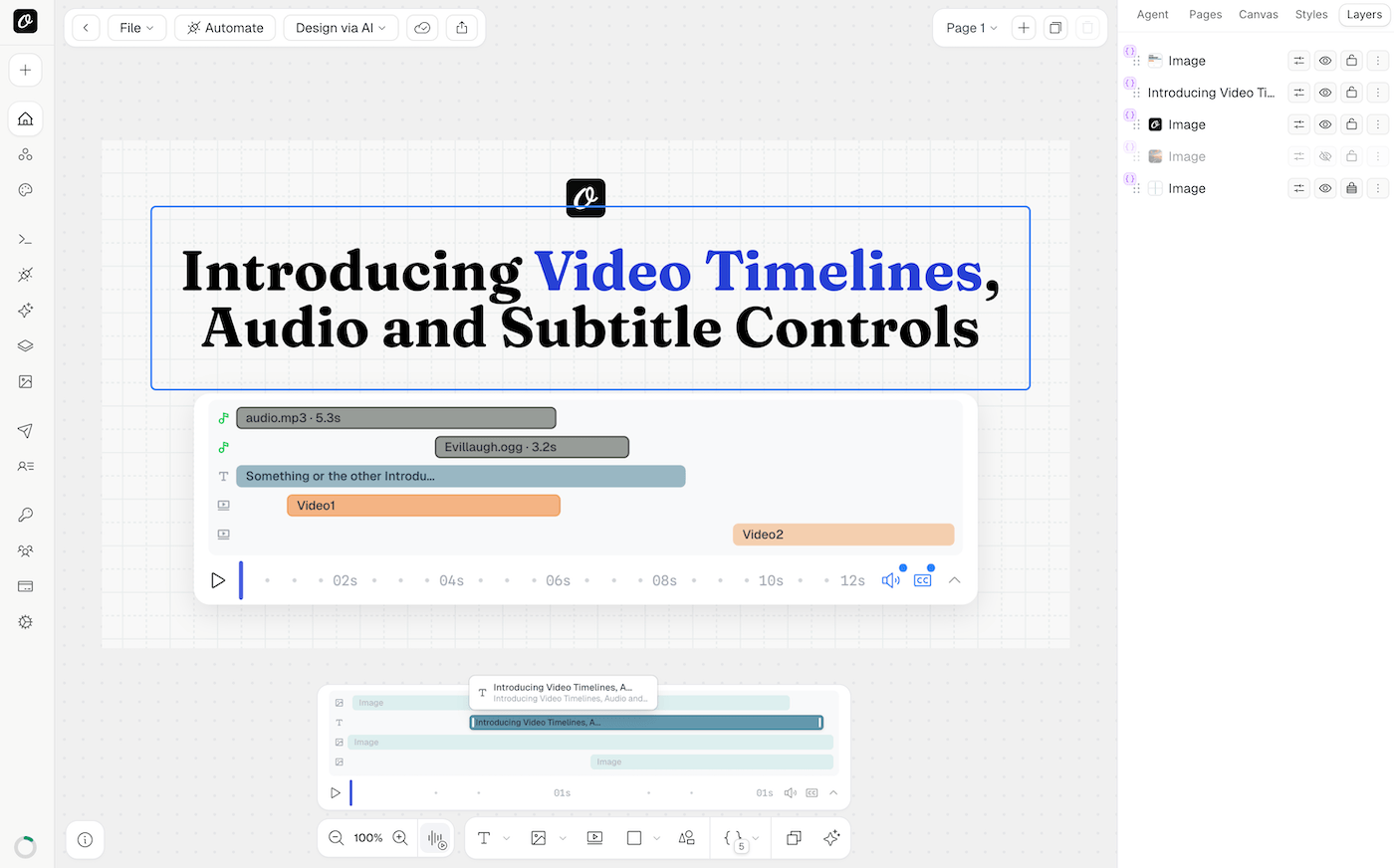
The timeline sits at the bottom of Studio and gives you a full picture of your video composition at a glance.
- **Drag layers** to reposition them in time — no more typing start/end values manually
- **Resize handles** to trim layer duration by dragging edges
- **Layer stacking** shows the visual order and overlap of every element
- **Scrub the playhead** to jump to any point in the video
Every layer — text, image, video, shape — appears on the timeline. You see exactly when each element enters, how long it stays, and when it exits. Adjustments that used to take multiple clicks now take a single drag.
## Multi-Track Page Audio
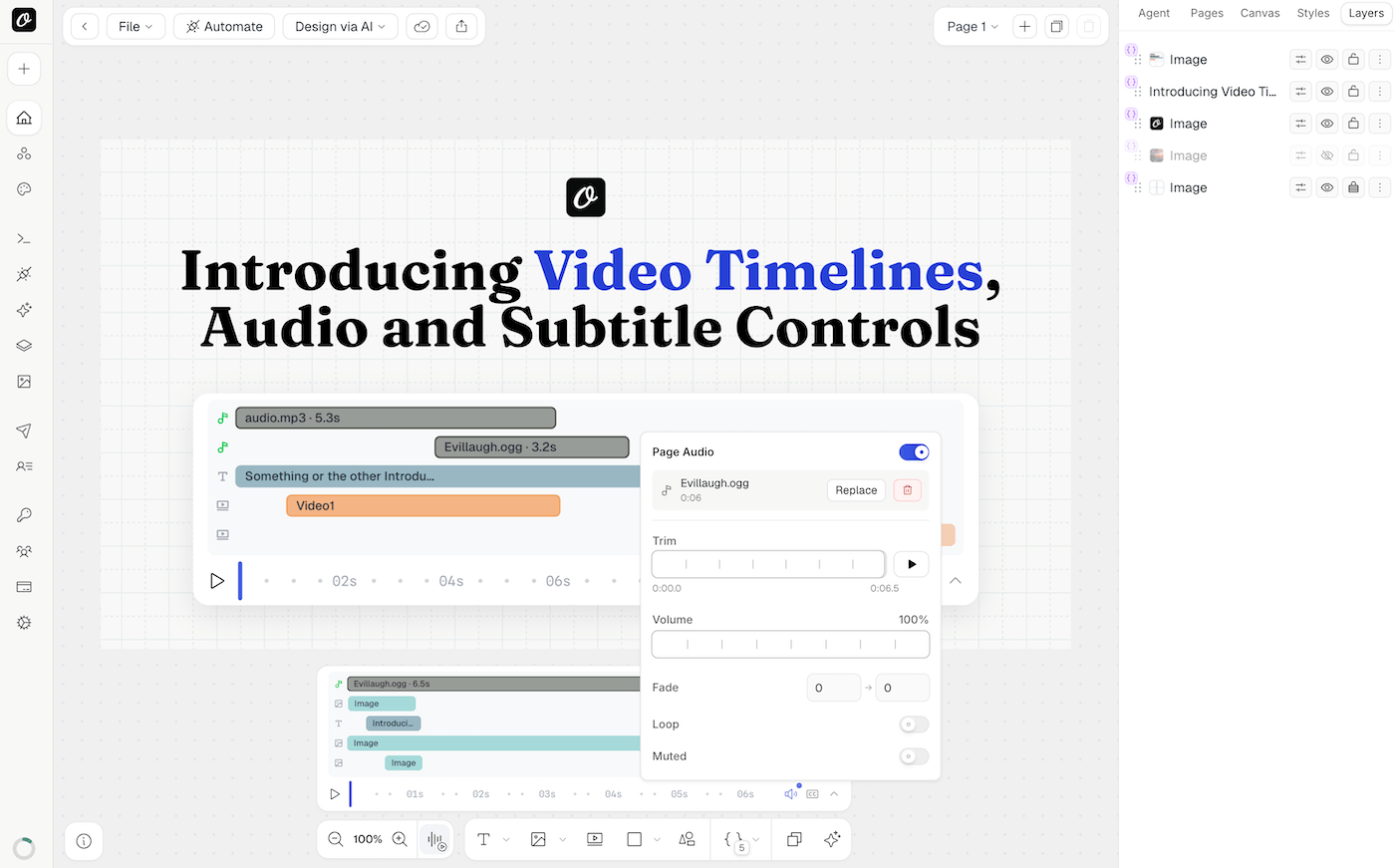
Each page now supports multiple audio tracks — layer background music with a voiceover, or combine ambient sound with narration. This is useful for:
- **Background music + voiceover** on the same page
- **Sound effects** layered with narration
- **Per-page audio** in multi-page videos (intro music, chapter themes)
Each track has independent controls: volume, trim, offset, fade, loop, and mute. Tracks appear as collapsible sections in the audio panel and as separate draggable bars in the timeline.
## Subtitle Support
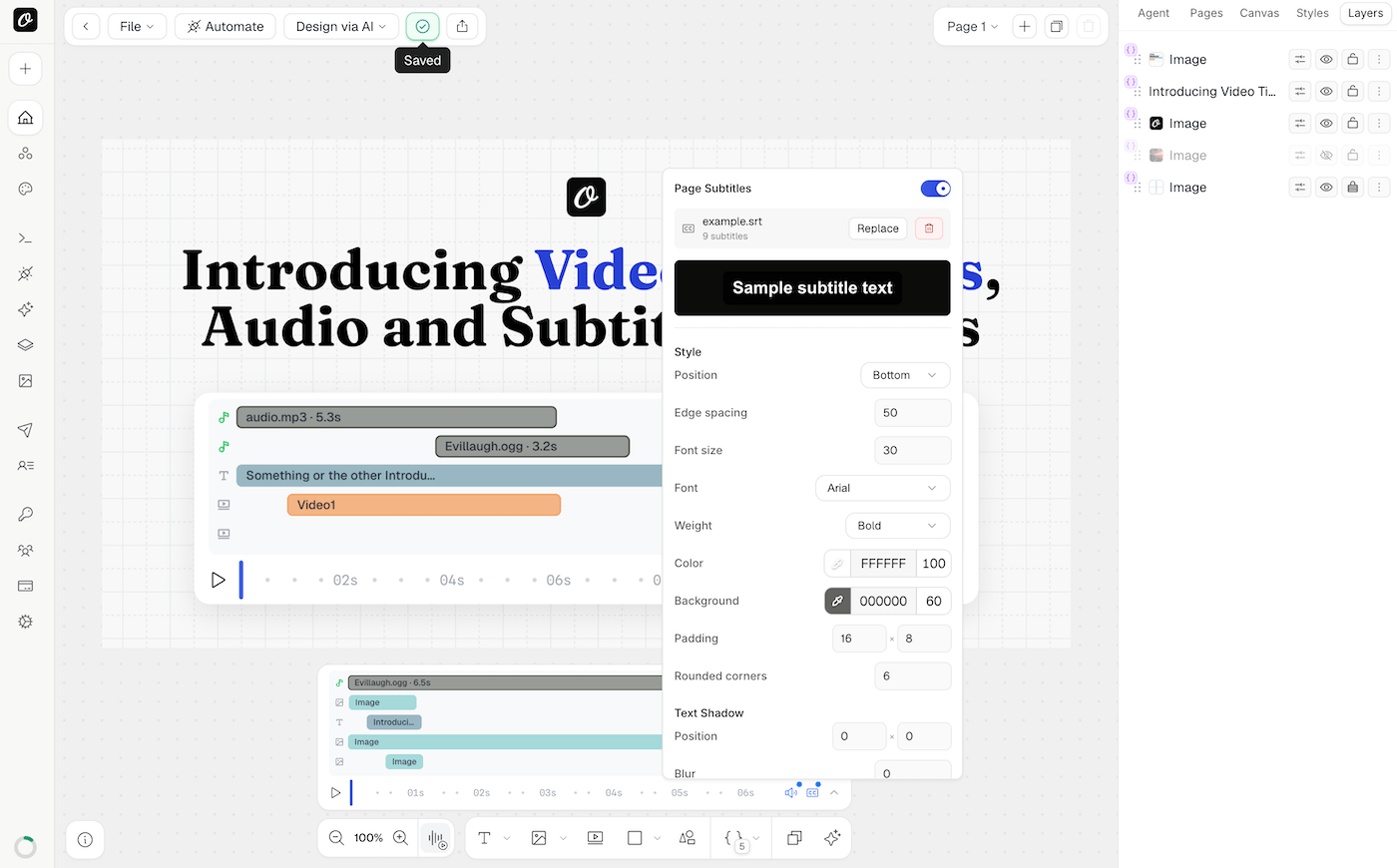
Add subtitles to your videos directly in Studio. You can:
- **Write subtitles manually** or paste an existing script
- **Auto-generate subtitles** from audio using AI transcription
- **Style subtitle text** — font, size, color, background, position
- **Time each subtitle** to appear and disappear precisely on the timeline
Subtitles render into the final video output, so they work everywhere your video plays — no separate subtitle files needed.
## API Support
Audio tracks and subtitles configured in Studio are automatically included when you render a video. For more control, the API lets you override audio, provide custom subtitle sources, and style subtitles per request.
### Custom Audio via API
Use `videoOptions.audioSource` to provide a custom audio URL at render time:```json
{
"templateId": "",
"modifications": {
"headline": "Welcome to Our Product"
},
"response": {
"format": "mp4",
"type": "url"
},
"videoOptions": {
"audioSource": "https://example.com/background-music.mp3"
}
}
```### Custom Subtitles via API
Use `videoOptions.subtitleSource` to provide a subtitle file:```json
{
"templateId": "",
"modifications": {
"headline": "Welcome to Our Product"
},
"response": {
"format": "mp4",
"type": "url"
},
"videoOptions": {
"audioSource": "https://example.com/voiceover.mp3",
"subtitleSource": "https://example.com/captions.srt",
"subtitleFontSize": "30px",
"subtitleColor": "#ffffff",
"subtitleBackground": "rgba(0,0,0,0.5)",
"subtitlePosition": "bottom"
}
}
```### Multi-Page Video with Per-Page Audio and Subtitles
For multi-page videos, pass per-page audio and subtitle sources as arrays. Each entry can use `page` (number) or `pageId` (UUID) — `pageId` is stable when pages are reordered:```json
{
"templateId": "",
"modifications": {
"intro_text": "Chapter 1",
"body_text": "The full story"
},
"response": {
"format": "mp4",
"type": "url",
"includePages": [1, 2, 3]
},
"videoOptions": {
"combinePages": true,
"pageTransition": "fade",
"pageTransitionDuration": 0.5,
"audioSource": [
{ "page": 1, "url": "https://example.com/intro-music.mp3" },
{ "page": 2, "url": "https://example.com/chapter-1-music.mp3" },
{ "page": 3, "url": "https://example.com/outro-music.mp3" }
],
"subtitleSource": [
{ "page": 1, "url": "https://example.com/intro.srt" },
{ "page": 2, "url": "https://example.com/chapter-1.srt" },
{ "page": 3, "url": "https://example.com/chapter-2.srt" }
],
"subtitleFontSize": "28px",
"subtitleColor": "#ffffff",
"subtitleBackground": "rgba(0,0,0,0.6)"
}
}
```### Muting Audio
To render a video without any audio (page audio tracks and video element audio), set `videoOptions.muted`:```json
{
"templateId": "",
"response": {
"format": "mp4",
"type": "url"
},
"videoOptions": {
"muted": true
}
}
```### Audio Controls in Studio
Each audio track supports fine-grained controls applied automatically during rendering:
| Control | Description |
| ---------- | --------------------------------------------------- |
| **Volume** | Mix level from 0% to 100% |
| **Trim** | Start and end points to use a specific portion |
| **Offset** | Delay when the audio starts playing within the page |
| **Fade** | Fade in and fade out duration in seconds |
| **Loop** | Repeat the audio to fill the full page duration |
These settings are configured visually in the timeline and respected during API renders.
## What This Changes
Before today, precise video choreography required switching between panels and previewing repeatedly. Now you design video timing the way editors expect: visually, on a timeline. Multi-track audio, custom audio sources via API, and subtitles round out what was missing for production-ready video output.
---
The video timeline and subtitles are available now in Orshot Studio on all plans. Multi-track audio is available on paid plans. Read the [video generation docs](https://orshot.com/docs/video-generation) for API details, or open [Studio](https://orshot.com/studio) and try it.