# Automate Invoice Generation: Python, API, Zapier, Make & n8n Guide
> The complete guide to automated invoicing. Learn to generate PDF invoices from templates using Python, REST API, or no-code workflows (Zapier, Make, n8n)
- **Author**: Rishi Mohan
- **Published**: 2025-11-23
- **Tags**: Tutorials, Automation
- **Read time**: 4 min read
- **URL**: https://orshot.com/blog/automated-invoice-generation
---
Manually creating invoices for every transaction is time-consuming and prone to errors. With automated invoice generation, you can generate professional invoices programmatically using templates and customer data.
This guide shows you how to set up automated invoice generation using Orshot's invoice templates and REST API.
## What you'll need
- [Orshot Account](https://orshot.com "target=_blank") (Free Trial): To design invoice templates and programmatically generate invoice PDF from API
- Basic knowledge of REST APIs
- Python 3.x or JavaScript/Node.js (for the examples)
## Step 1: Choose an Invoice Template
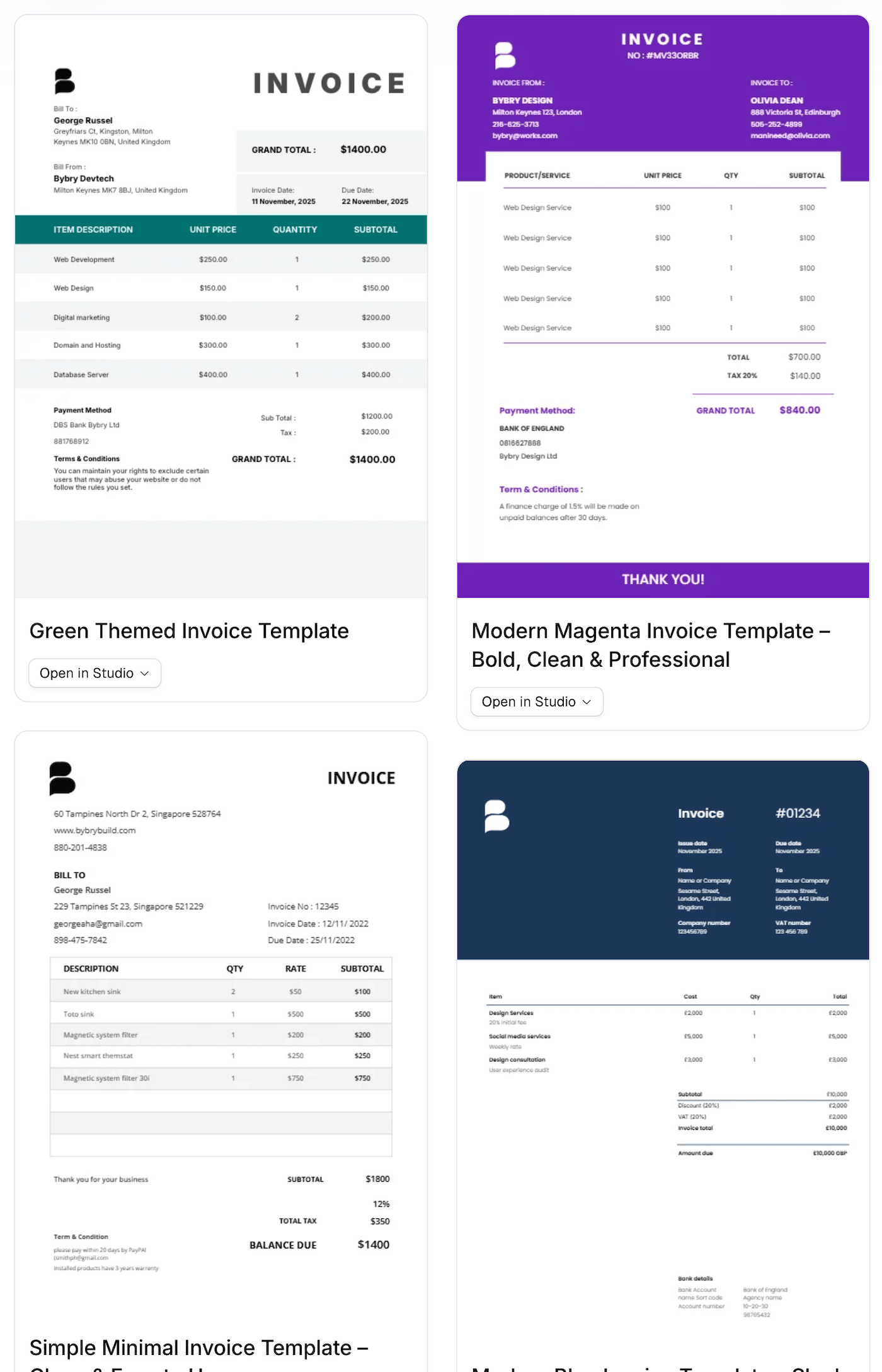
Orshot provides ready-to-use invoice templates that you can customize for your business needs.
[](/templates/g/invoice)
Browse the invoice template gallery and select a template that matches your branding. Click on **"Open in Studio"** to customize the selected template.
Here's a free template you can directly copy in your Orshot workspace to get started quickly:
## Step 2: Customize Your Invoice Template
In Orshot's Studio, you can customize your invoice template to match your brand:
1. **Update your logo**: Replace the placeholder logo with your company logo
2. **Customize colors**: Adjust colors to match your brand palette
3. **Parameterize dynamic fields**: Enable parameterization for fields that will change per invoice
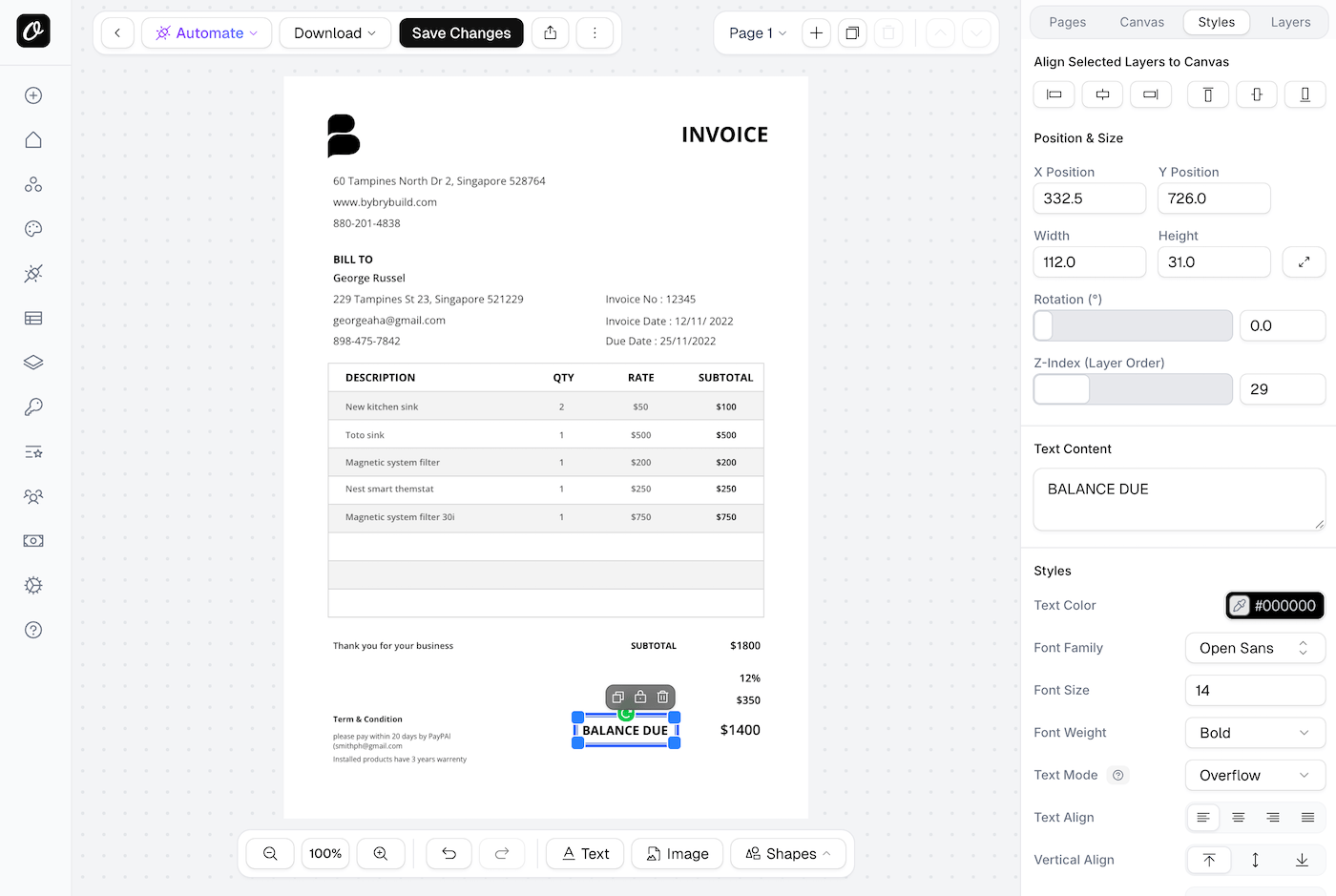
To parameterize a field (like customer name, invoice number, amounts):
1. Select the text layer or element
2. Toggle **"Parameterize"** in the properties panel
3. Assign a unique key (e.g., `customerName`, `invoiceNumber`, `totalAmount`)
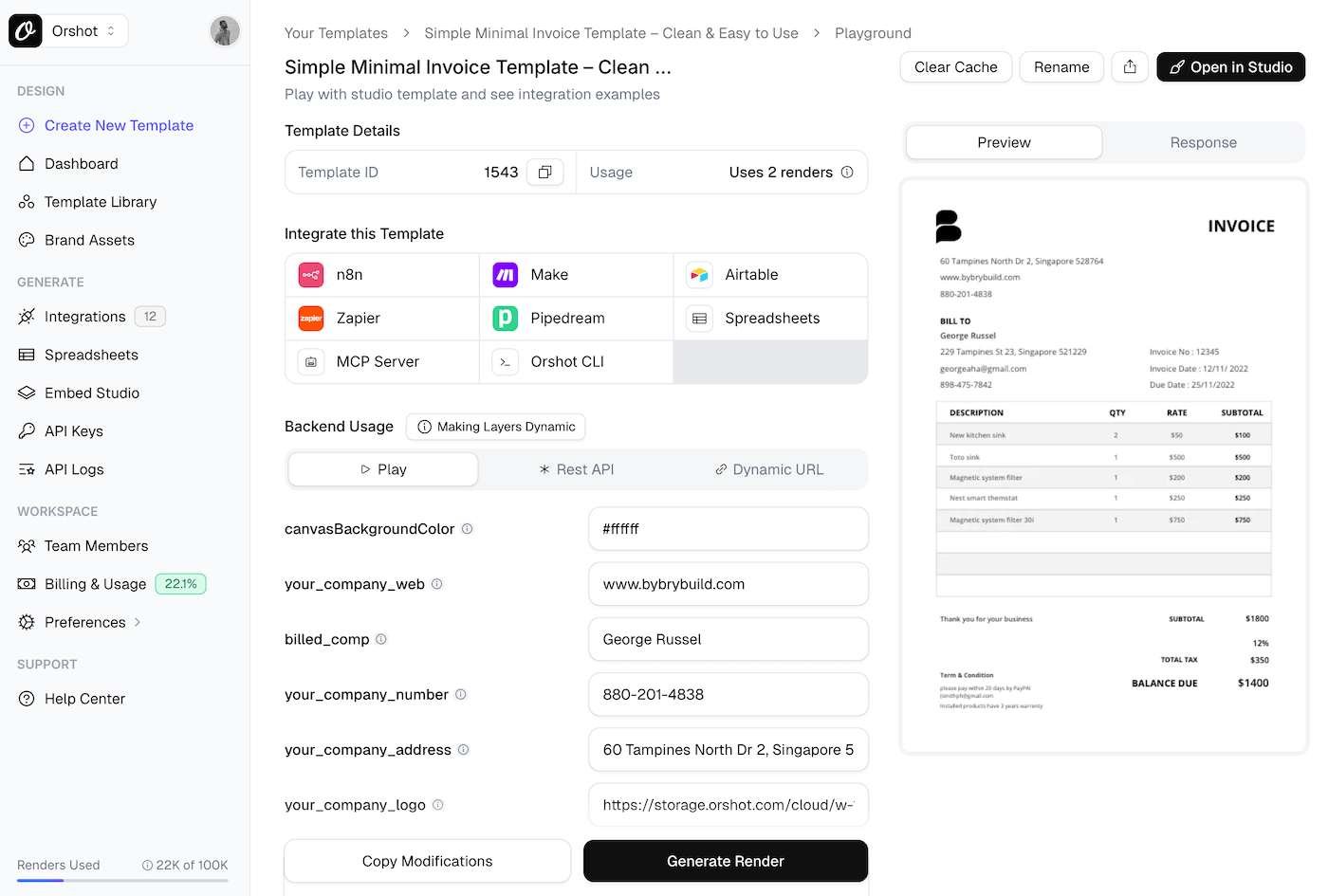
Once customized, save your template. Copy the **Template ID** from the template page—you'll need this for the API.
## Step 3: Generate Invoices Using REST API
Orshot's PDF Generation API allows you to generate invoices programmatically by sending invoice data to your customized template.
Template also has playground where you can try out different values for set parameters and generate the PDF preview for the invoice
### API Endpoint```
POST https://api.orshot.com/api/studio/render
```### Authentication
Get your API key from **Orshot Dashboard > Settings > API Keys**
Include it in the request header:```
Authorization: Bearer YOUR_API_KEY
```## Step 4: Code Examples
### JavaScript/Node.js Example```javascript
async function generateInvoice(invoiceData) {
const url = "https://api.orshot.com/api/studio/render";
const response = await fetch(url, {
method: "POST",
headers: {
Authorization: "Bearer YOUR_API_KEY",
"Content-Type": "application/json",
},
body: JSON.stringify({
templateId: "YOUR_TEMPLATE_ID",
modifications: {
customerName: invoiceData.customer_name,
invoiceNumber: invoiceData.invoice_number,
invoiceDate: invoiceData.date,
totalAmount: invoiceData.total,
item_title_1: invoiceData.item_title_1,
item_price_1: invoiceData.item_price_1,
item_title_2: invoiceData.item_title_2,
item_price_2: invoiceData.item_price_2,
},
responseFormat: "pdf",
responseType: "url",
}),
});
const result = await response.json();
return result.content; // Returns PDF URL
}
// Example usage
const invoiceData = {
customer_name: "John Doe",
invoice_number: "INV-001",
date: "2025-11-23",
total: "$1,250.00",
item_title_1: "Web Development",
item_price_1: "$1,000.00",
item_title_2: "Consulting",
item_price_2: "$250.00",
};
const pdfUrl = await generateInvoice(invoiceData);
console.log(`Invoice generated: ${pdfUrl}`);
```### Python Example```python
import requests
import json
def generate_invoice(invoice_data):
url = "https://api.orshot.com/api/studio/render"
headers = {
"Authorization": "Bearer YOUR_API_KEY",
"Content-Type": "application/json"
}
payload = {
"templateId": "YOUR_TEMPLATE_ID",
"modifications": {
"customerName": invoice_data["customer_name"],
"invoiceNumber": invoice_data["invoice_number"],
"invoiceDate": invoice_data["date"],
"totalAmount": invoice_data["total"],
"item_title_1": invoice_data["item_title_1"],
"item_price_1": invoice_data["item_price_1"],
"item_title_2": invoice_data["item_title_2"],
"item_price_2": invoice_data["item_price_2"]
},
"responseFormat": "pdf",
"responseType": "url"
}
response = requests.post(url, headers=headers, json=payload)
result = response.json()
return result["content"] # Returns PDF URL
# Example usage
invoice_data = {
"customer_name": "John Doe",
"invoice_number": "INV-001",
"date": "2025-11-23",
"total": "$1,250.00",
"item_title_1": "Web Development",
"item_price_1": "$1,000.00",
"item_title_2": "Consulting",
"item_price_2": "$250.00"
}
pdf_url = generate_invoice(invoice_data)
print(f"Invoice generated: {pdf_url}")
```### Batch Invoice Generation
For automated invoice generation at scale, process multiple invoices in a batch:```python
def generate_bulk_invoices(invoices_list):
generated_invoices = []
for invoice in invoices_list:
try:
pdf_url = generate_invoice(invoice)
generated_invoices.append({
"invoice_number": invoice["invoice_number"],
"pdf_url": pdf_url,
"status": "success"
})
except Exception as e:
generated_invoices.append({
"invoice_number": invoice["invoice_number"],
"status": "failed",
"error": str(e)
})
return generated_invoices
# Example: Generate invoices for multiple customers
invoices = [
{
"customer_name": "Acme Corp",
"invoice_number": "INV-001",
"date": "2025-11-23",
"total": "$2,500.00",
"item_title_1": "Service A",
"item_price_1": "$2,500.00"
},
{
"customer_name": "Tech Solutions",
"invoice_number": "INV-002",
"date": "2025-11-23",
"total": "$1,800.00",
"item_title_1": "Service B",
"item_price_1": "$1,800.00"
}
]
results = generate_bulk_invoices(invoices)
for result in results:
print(f"{result['invoice_number']}: {result['status']}")
```### Save Generated Invoices Locally
Download and save generated invoice PDFs to your local system:```python
import requests
def generate_and_save_invoice(invoice_data, output_path):
# Generate invoice
pdf_url = generate_invoice(invoice_data)
# Download PDF
pdf_response = requests.get(pdf_url)
# Save to file
with open(output_path, 'wb') as f:
f.write(pdf_response.content)
print(f"Invoice saved to: {output_path}")
# Example usage
invoice_data = {
"customer_name": "Jane Smith",
"invoice_number": "INV-003",
"date": "2025-11-23",
"total": "$3,200.00",
"item_title_1": "Project X",
"item_price_1": "$3,200.00"
}
generate_and_save_invoice(invoice_data, "invoices/INV-003.pdf")
```## Automate with No-Code Platforms
### Using n8n
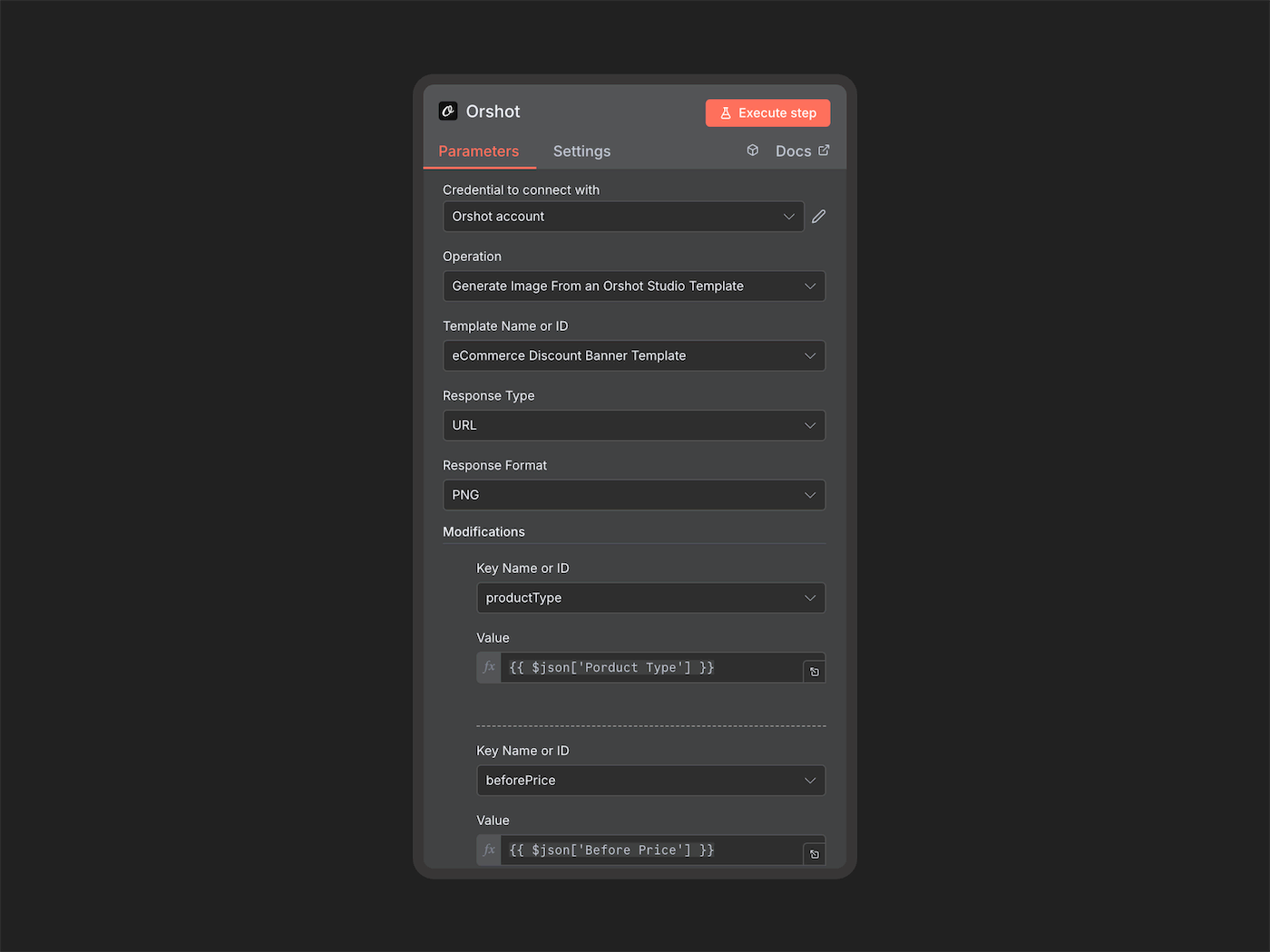
Orshot integrates with [**n8n**](https://orshot.com/integrations "target=_blank") for visual workflow automation:
1. Create a new workflow in n8n
2. Add a trigger (webhook, schedule, or data source like Google Sheets)
3. Add the **Orshot node** and connect your Orshot account
4. Select your invoice template and map dynamic fields
5. Add action nodes to send emails or save to cloud storage
### Using Make (formerly Integromat)
Automate invoice generation with [**Make**](https://orshot.com/integrations "target=_blank"):
1. Create a new scenario in Make
2. Add a trigger module (CRM, payment gateway, or schedule)
3. Add **Orshot** module and authenticate
4. Configure template ID and map invoice data from previous modules
5. Connect to email or storage modules to deliver invoices
### Using Zapier
Set up automated invoice generation with [**Zapier**](https://orshot.com/integrations "target=_blank"):
1. Create a new Zap in Zapier
2. Choose a trigger app (Stripe, PayPal, Google Sheets, etc.)
3. Add **Orshot** as the action app
4. Select "Generate from Studio Template" action
5. Map invoice fields from trigger data
6. Add actions to email invoices or save to Google Drive
## Conclusion
Automated invoice generation eliminates manual work and ensures consistency across all your invoices. With Orshot's invoice templates and REST API, you can set up automated invoice generation in minutes.
Whether you're processing hundreds of invoices monthly or building a complete billing system, Orshot's PDF Generation API provides the flexibility and reliability you need.
**Ready to automate?** Browse invoice templates and start generating invoices programmatically.