How to import a Figma design
Use the Orshot Figma plugin to send a frame straight into Studio as an editable template.
Updated
Orshot provides a Figma plugin that exports your designs in a format compatible with Orshot Studio. This allows you to design in Figma and seamlessly convert your work into dynamic, API-driven templates.
Ownership Notice: By importing a design, you confirm that you have the rights to use it and accept responsibility for any copyright issues.
Install the Figma Plugin#
Before importing, you'll need to install the Orshot Figma plugin:
- Open Figma and go to Plugins → Browse plugins in Community
- Search for "Orshot" or "Figma to Orshot"
- Click Install to add it to your plugins
Or visit the Orshot Figma Plugin page directly.
How to Import#
1. Open your design in Figma#
Navigate to the Figma file containing the design you want to export.
2. Select a frame or group#
Click on the frame or group you want to export. The plugin works best with:
- Top-level frames (artboards)
- Groups containing your design elements
- Component instances
3. Run the Orshot plugin#
- Right-click on your selection
- Go to Plugins → Orshot (or search for it)
- The plugin window will open and display the JSON export
4. Copy the JSON#
In the plugin window, click Copy JSON to copy the exported data to your clipboard.
5. Open Orshot Studio#
Go to Orshot Studio and click + New Template.
6. Choose "Import JSON"#
In the new template dialog, select the Import JSON option (also labeled as Import from Figma).
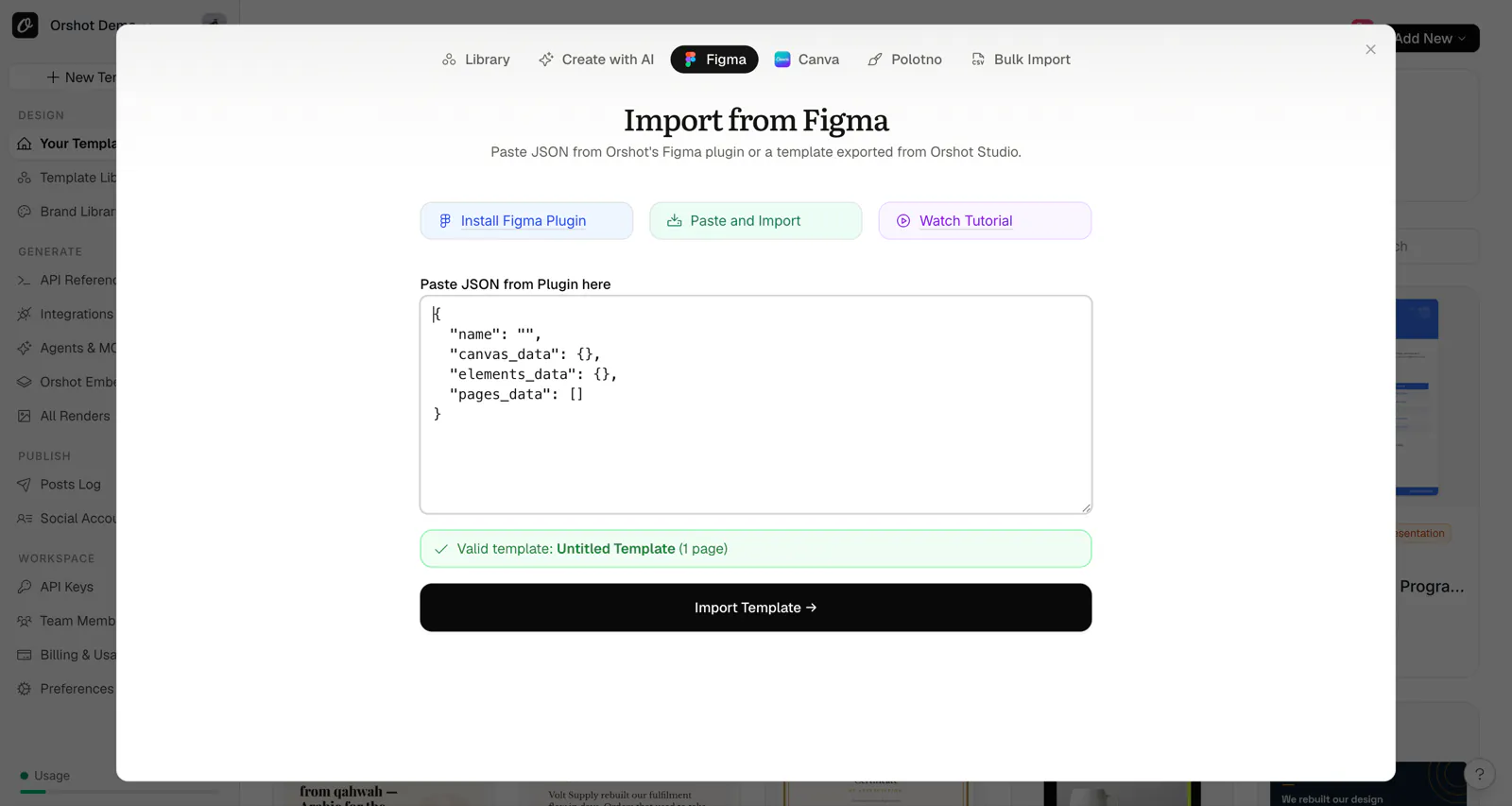
7. Paste the JSON and import#
Paste your copied JSON into the text area. The system will validate the JSON and show you details about the template. Click Import Template to create your template.
Video Tutorial#
Watch our step-by-step video tutorial for a visual guide:
▶️ Watch: How to Import from Figma to Orshot
What Gets Exported#
The Figma plugin exports:
- Text layers — with font family, size, weight, color, and alignment
- Images — embedded images and fills
- Rectangles — with fill colors, borders, and corner radius
- Frames — as container elements with backgrounds
- Groups — flattened into individual elements
- Canvas size — preserves your frame dimensions
Automatic Parameterization#
All text and image elements are automatically configured for API parameterization:
- Unique
parameterIdassigned to each element - Elements added to the modifications list
- Ready for dynamic content via the API
Limitations#
The plugin exports only elements supported by Orshot Studio:
- Vectors/Paths — Complex vector shapes may not export correctly
- Auto Layout — Auto layout properties are not preserved (positions are absolute)
- Constraints — Figma constraints are not transferred
- Effects — Shadows and blurs may be simplified
- Masks — Complex masking operations may not translate
- Components — Exported as their visual representation, not as linked components
- Styles — Figma styles are resolved to their values
Tips for Best Results#
- Use frames, not groups — Frames export more reliably than complex nested groups
- Flatten complex vectors — Convert complex shapes to images before exporting
- Use Google Fonts — These work seamlessly across both platforms
- Check the preview — Review the JSON stats in the plugin before importing
- Upload custom fonts — If using non-Google fonts, upload them to Orshot Brand Assets first
Missing Fonts Warning#
If your Figma design uses fonts not available in Orshot, you'll see a warning during import listing the missing fonts. To ensure text renders correctly:
- Upload the font files to your Brand Assets in Orshot
- Or substitute with a similar available font after import
Ready to automate?
Start rendering images, PDFs and videos from your templates in under 2 minutes. Free plan, no credit card.
Get your API key- Image, PDF and video generation via API
- Visual editor with AI and smart layouts
- Zapier, Make, MCP and 50+ integrations
- White-label embed for your own app
- 100 free credits a month, no credit card required