How to import a Canva design
Export from Canva and import into Studio. Text, images and layout carry over; some effects need a pass.
Updated
Orshot Studio allows you to import designs directly from Canva using a public share link. This makes it easy to convert your existing Canva designs into dynamic, API-driven templates.
Ownership Notice: By importing a design, you confirm that you have the rights to use it and accept responsibility for any copyright issues.
How to Import#
1. Open your design in Canva#
Navigate to the Canva design you want to import.
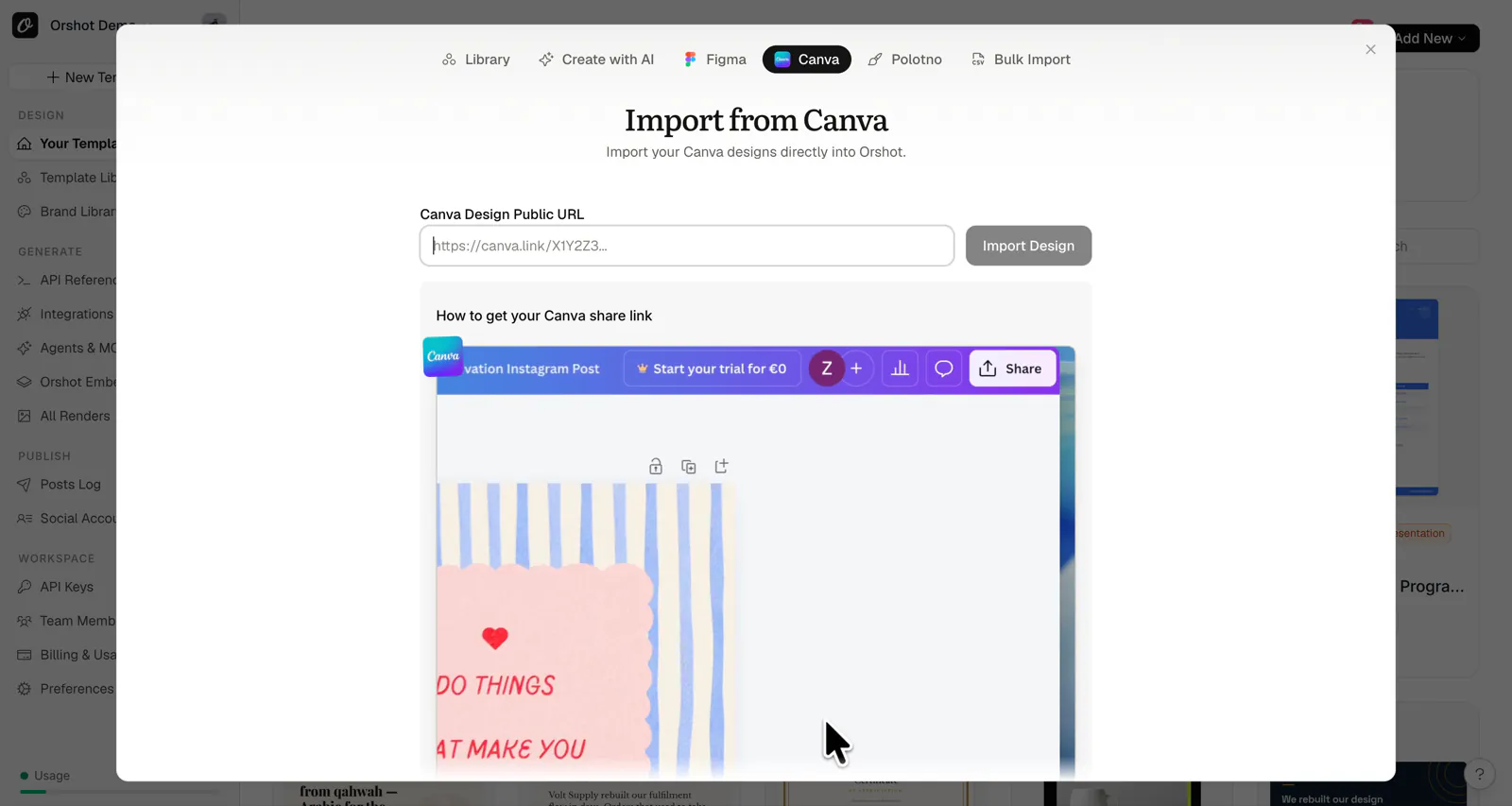
2. Get the public share link#
- Click the Share button in the top-right corner
- Click More at the bottom of the share options
- Select Public view link (or ensure "Anyone with the link can view" is enabled)
- Copy the link
The link should look something like:
https://www.canva.com/design/DAGxxxxxxxx/view3. Open Orshot Studio#
Go to Orshot Studio and click + New Template.
4. Choose "Import from Canva"#
In the new template dialog, select the Import from Canva option.
5. Paste the Canva link#
Paste your copied Canva share link into the input field and click Fetch Design.
6. Preview and import#
Once the design is fetched, you'll see a preview of all pages. Review the design and click Import Template to create your template.
What Gets Imported#
When importing from Canva, Orshot extracts:
- Text elements — with font family, size, color, alignment, and styling
- Images — including photos, graphics, and uploaded images
- Shapes — rectangles, circles, and other basic shapes
- Background colors — page backgrounds are preserved
- Multi-page designs — all pages in your Canva design are imported
Automatic Parameterization#
All text and image layers are automatically set up for parameterization. This means you can immediately use the API to dynamically change content without manual configuration.
Each element receives:
- A unique
parameterIdbuilt from the element's role in Canva and its page and position:title_1_2,heading_2_1,subtitle_1_7,text_1_6for plain paragraphs,img_1_3for images. Multi-page designs prefix the page, e.g.page2@heading_2_1. - Automatic inclusion in the template's modifications list. Text a designer marked "do not change" in Canva is imported but left out of the list.
Limitations#
Some Canva features may not translate perfectly to Orshot:
- Canva Pro elements — Some premium elements may not be accessible
- Complex effects — Advanced filters, shadows, and effects may be simplified
- Animations — Canva animations are not imported
- Brand Kit fonts — Custom brand fonts may need to be uploaded separately to Orshot
- Groups — Grouped elements are flattened into individual layers
- Frames/Masks — Complex masking may not be preserved
Tips for Best Results#
- Use standard fonts — Google Fonts work best for cross-platform compatibility
- Keep designs simple — Complex layering may need manual adjustment after import
- Check text alignment — Some text boxes may need minor positioning tweaks
- Upload missing fonts — If your design uses custom fonts, upload them to your Brand Assets in Orshot
Ready to automate?
Start rendering images, PDFs and videos from your templates in under 2 minutes. Free plan, no credit card.
Get your API key- Image, PDF and video generation via API
- Visual editor with AI and smart layouts
- Zapier, Make, MCP and 50+ integrations
- White-label embed for your own app
- 100 free credits a month, no credit card required