How to import a Placid template
Save your Placid template from its editor as a single file and upload it to Orshot. Layers become a Studio template with your layer names as API parameters.
Updated
Bring your Placid templates into Orshot as templates you can edit in Studio and render by API. Every text and picture layer becomes an API parameter on import, and the Placid layer names stay the same, so the keys you send today keep working.
Placid has no template export, but its editor page contains the whole design. Saving that page as a single file gives Orshot everything it needs.
Ownership Notice: Before you import, tick the box confirming you own the design and its assets, or hold the rights to use them. Orshot takes no responsibility for third-party content, so import only what is yours. The import button stays disabled until you do.
How to Import#
1. Open your template in the Placid editor#
In Placid, open the project, go to Templates and click Edit on the template you want to move.
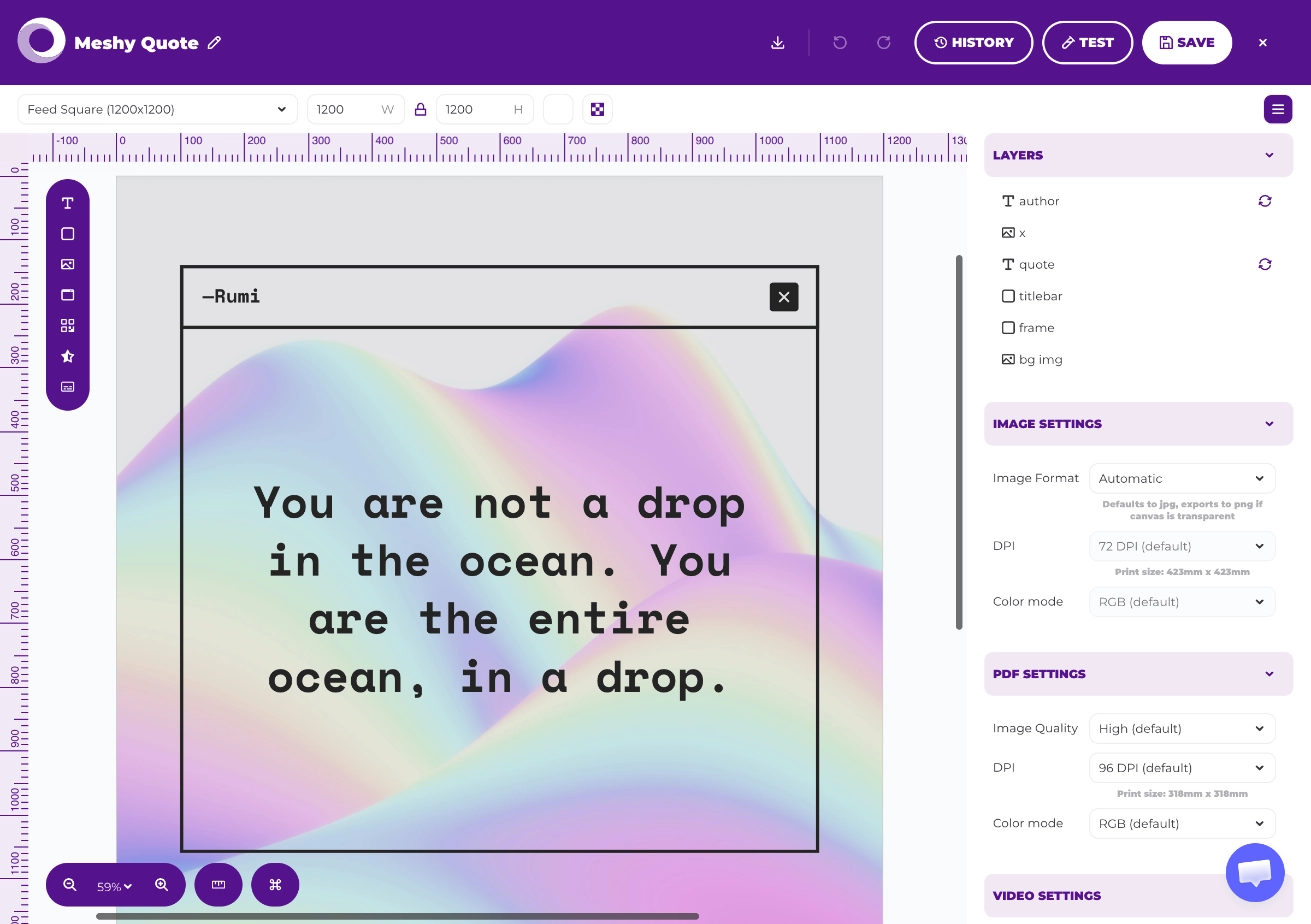
2. Save the page as a single file#
Press Cmd/Ctrl + S (or File → Save Page As…) and choose Webpage, Single File. Chrome saves a .mhtml file. Do not pick "HTML Only" or "Complete".
3. Open the New Template dialog#
In your Orshot dashboard, click + New Template in the sidebar.
4. Choose the Placid tab#
In the dialog, click the Placid tab. It opens Import from Placid with Single design selected.
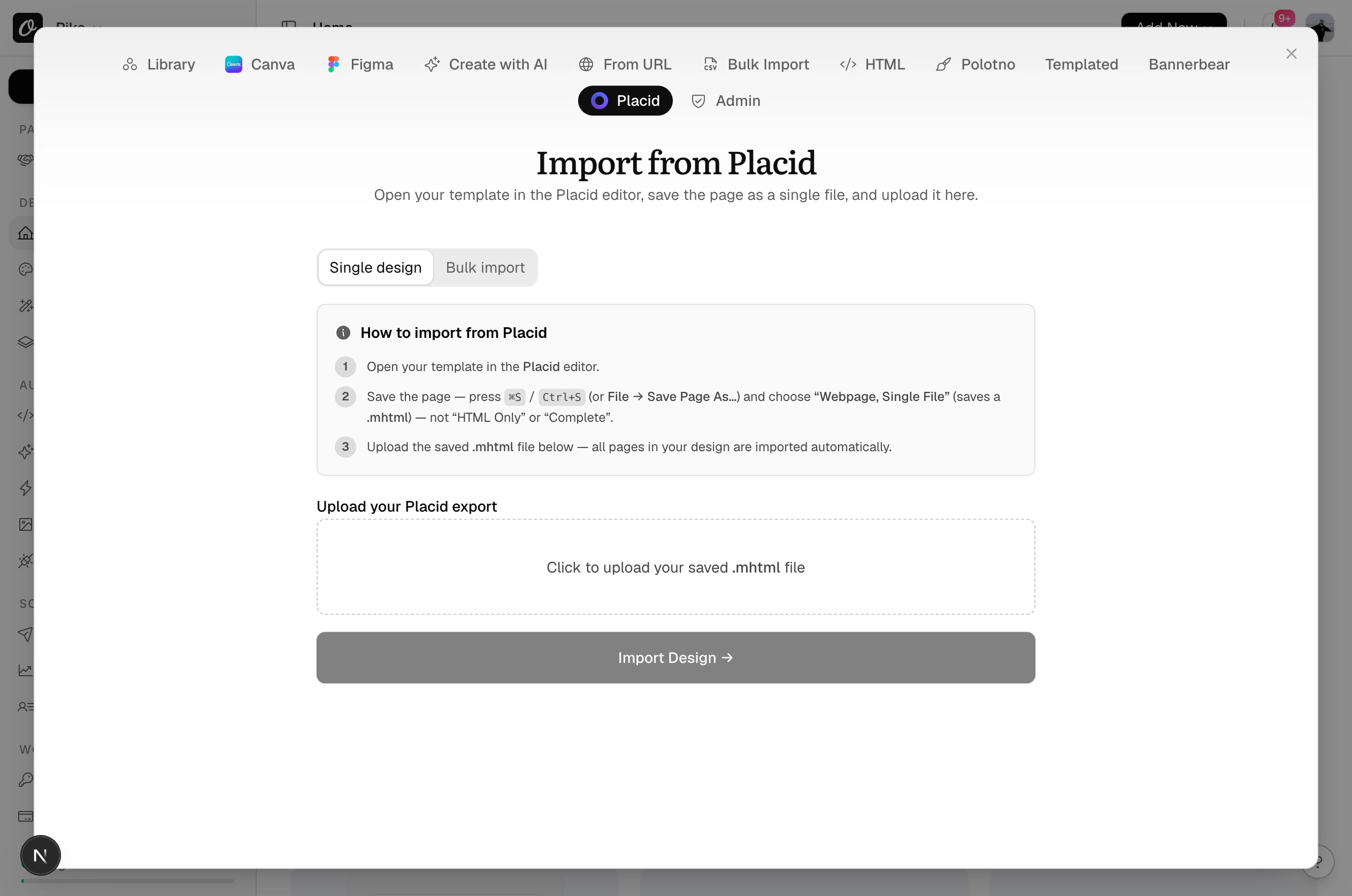
5. Upload the saved file#
Upload the .mhtml file. Orshot reads the design and shows:
- A Valid template message with the Placid template name
- A preview of the design, so you can compare it with Placid before you import
- Any layers that need attention (see below)
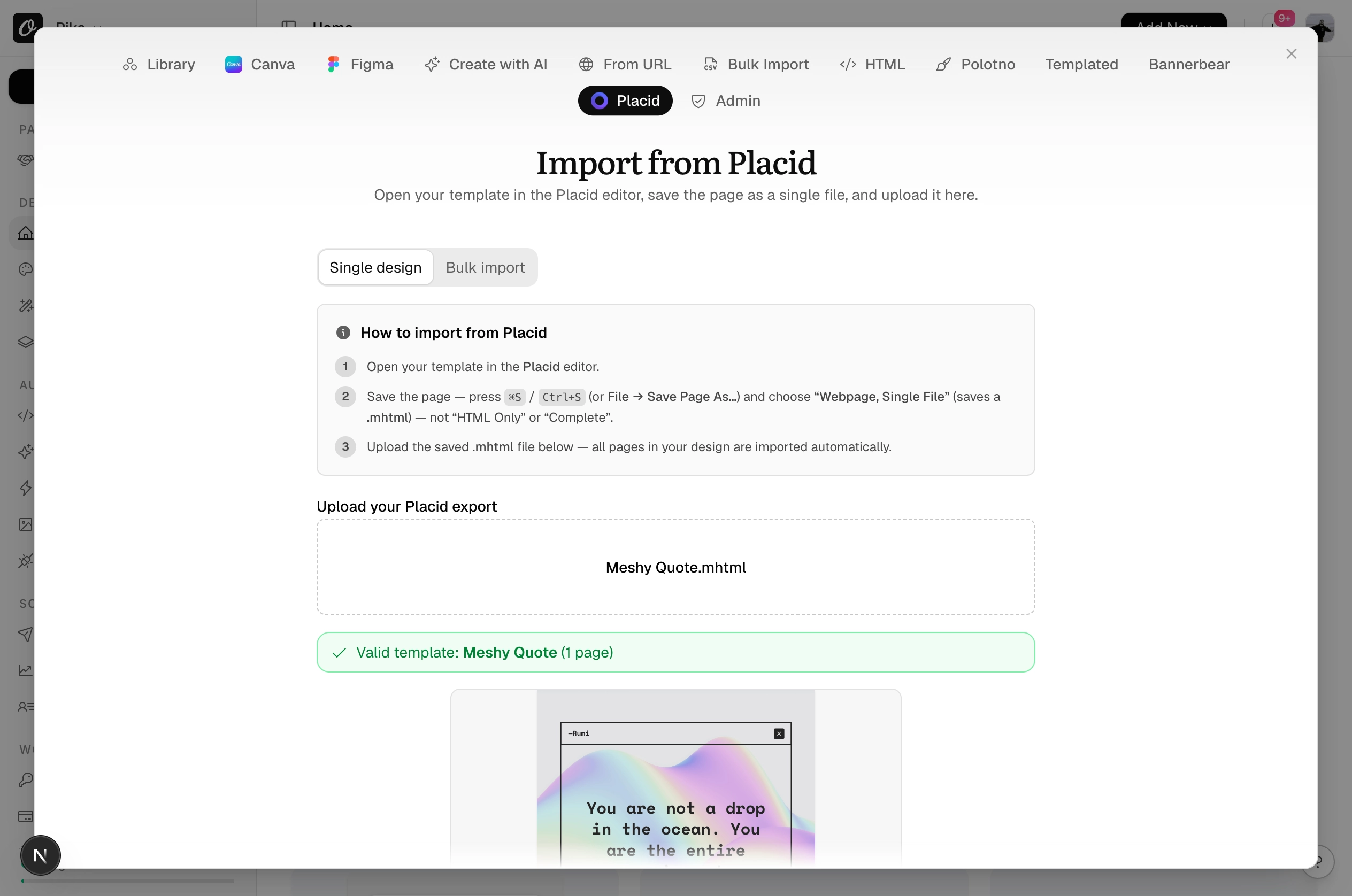
6. Import the template#
Tick the ownership box, then click Import Design →. Orshot copies the design's images into your Brand Library and opens it in Studio.
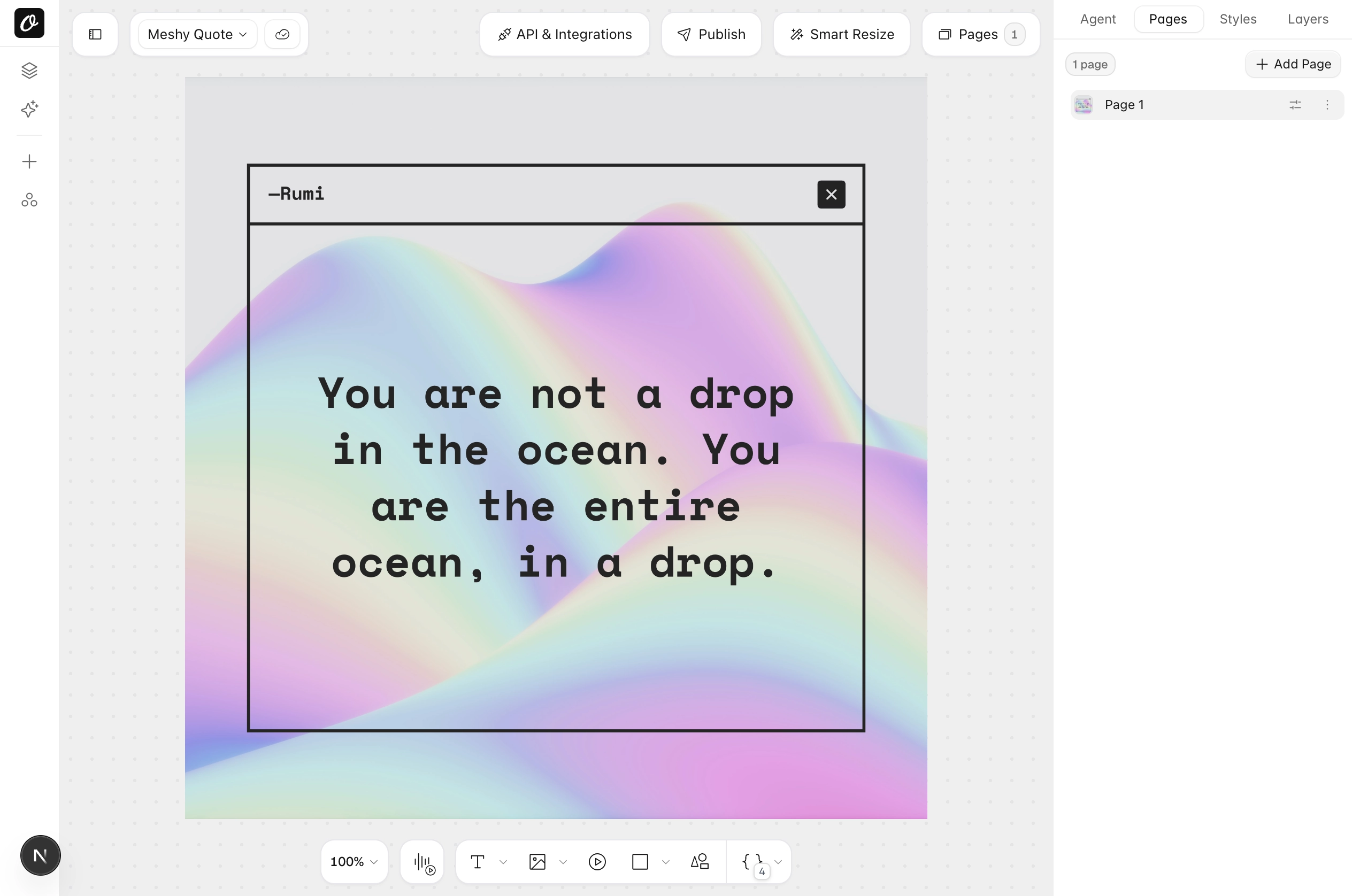
Studio saves it to Your Templates on its own a few seconds after it opens.
What Carries Over#
- Template: name, size and background colour.
- Text: copy, font, weight, size, colour, alignment, letter spacing, line height, text transform and opacity. Placid's fitted text uses Studio's Fit mode.
- Pictures: re-hosted into your Brand Library, with fit, rounding and opacity.
- Rectangles: fill, corner radius and border become Studio shapes.
- Subtitles: imported as text with the caption background.
- Ratings: imported as a static star image.
- Browser frames: the screenshot is imported as an image; the browser window itself is not drawn.
- Fonts: Google Fonts keep their name. Custom fonts uploaded to Placid are listed as missing; upload them to your brand kit.
Not Carried Over#
- Animations and video settings: Placid keeps these outside the page, so they cannot be read from a saved file. Add enter and exit animations again in Studio.
- Barcodes and QR codes: Placid draws them on a canvas that a saved page does not keep. Add them again in Studio.
- Tiled textures: an image set to repeat shows as one copy.
Import Several Templates at Once#
On a paid plan, you can import up to 10 saved pages in one go. Each file is saved straight to Your Templates, with no Studio step in between.
- In the Placid tab, switch to Bulk import
- Pick up to 10
.mhtmlfiles, one template per file (up to 40MB each) - Tick the ownership box and click Import
- When it finishes, click View templates →
Next Steps#
- Open the template in Studio and re-add any animation you had in Placid.
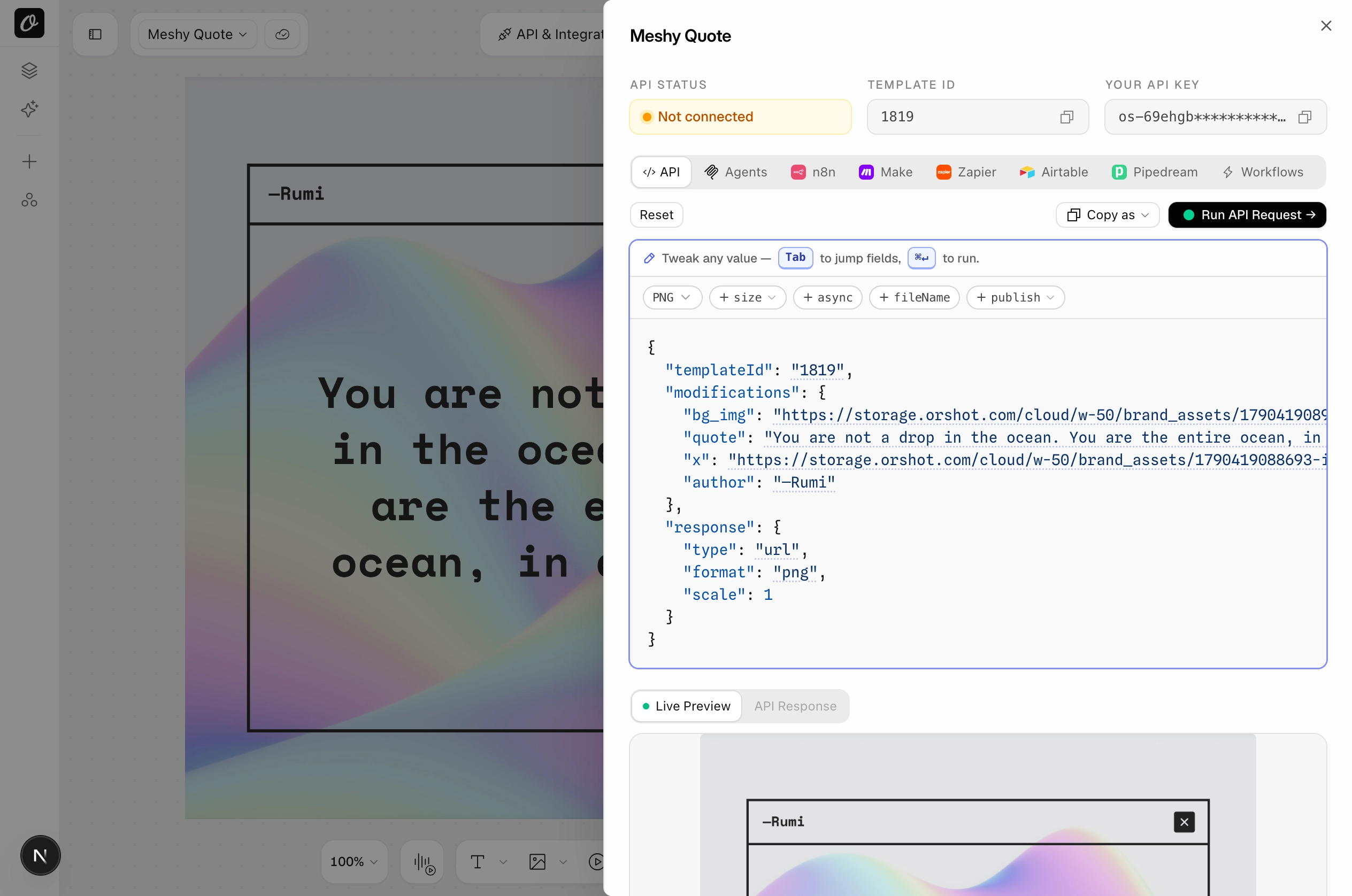
- Render it from the Orshot API or wire it into n8n, Make or Zapier. The layer names are your modification keys.
Ready to automate?
Start rendering images, PDFs and videos from your templates in under 2 minutes. Free plan, no credit card.
Get your API key- Image, PDF and video generation via API
- Visual editor with AI and smart layouts
- Zapier, Make, MCP and 50+ integrations
- White-label embed for your own app
- 100 free credits a month, no credit card required