How does social account auth work?
Each platform is authorized once per workspace. Tokens refresh automatically; here is what happens when one expires.
Published ·Updated
Connect a Social Account#
Before you can publish, you need to connect at least one social media account to your workspace.
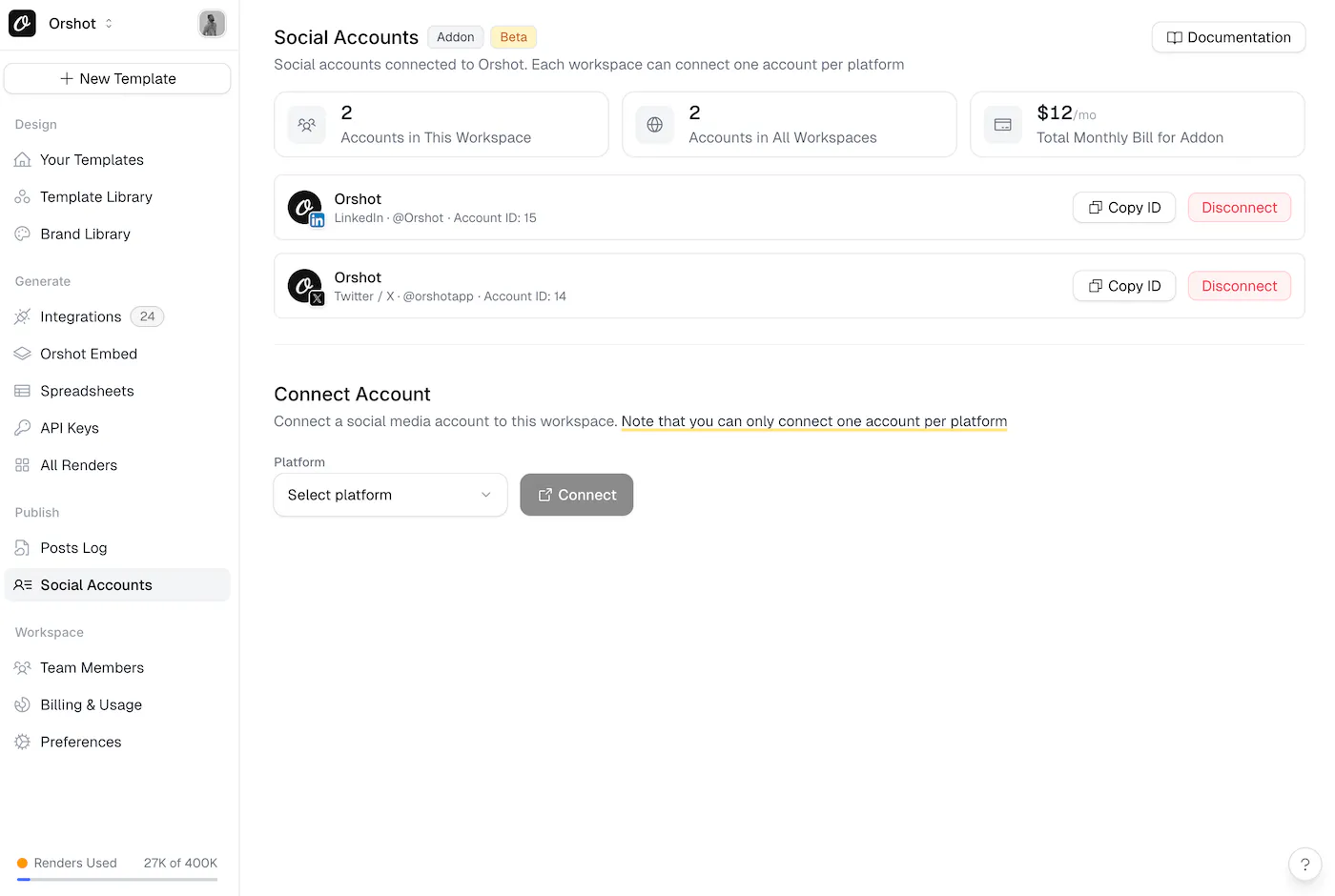
Steps#
- Go to your workspace dashboard
- Open Social Accounts from the sidebar under "Publish"
- Select a platform from the dropdown
- Click Connect
- You'll be redirected to authorize Orshot with the platform
- Once authorized, the account appears in your connected accounts list
Rules#
- Multiple accounts per platform — Connect multiple accounts from the same platform and choose exact account IDs when publishing
- Multiple workspaces — If you have multiple workspaces, each can have its own set of connected accounts
- Billing starts on connect — Each account adds $12/mo to your subscription immediately
- Billing stops on disconnect — Disconnecting removes the charge from the next billing cycle
Reconnecting#
If an account's token expires (e.g., you changed your password on the platform), you'll see a "Reconnect required" warning. Click Reconnect to re-authorize without losing your account setup.
Disconnecting#
To remove an account, click Disconnect next to it. This will:
- Remove the account from your workspace
- Stop posting to that account
- Reduce your monthly bill by $12
Account IDs#
Each connected account has a unique ID. You'll need these IDs when publishing via the API — they go in the publish.accounts array.
You can find your account IDs by calling GET /v1/social/accounts or from the Social Accounts page in the dashboard. See Publish from API for details.
Ready to automate?
Start rendering images, PDFs and videos from your templates in under 2 minutes. Free plan, no credit card.
Get your API key- Image, PDF and video generation via API
- Visual editor with AI and smart layouts
- Zapier, Make, MCP and 40+ integrations
- White-label embed for your own app
- 100 free credits a month, no credit card required