How do I publish to social via the API?
Render and post in one call, or post an existing render, with per-platform caption and scheduling fields.
Published ·Updated
Publish with a Render Request#
Add the publish object to any render request to post the output directly to your social accounts.
The rendered image is automatically uploaded and published — no extra API calls needed.
const response = await fetch("https://api.orshot.com/v1/studio/render", {
  method: "POST",
  headers: {
    "Content-Type": "application/json",
    Authorization: "Bearer <ORSHOT_API_KEY>",
  },
  body: JSON.stringify({
    templateId: 123,
    modifications: {
      title: "New blog post is live!",
      imageUrl: "https://example.com/cover.png",
    },
    response: {
      type: "url",
      format: "png",
    },
    publish: {
      accounts: [1, 2],
      content: "Check out our latest blog post!",
    },
  }),
});

const data = await response.json();

console.log(data.publish);
// [
//   { platform: "twitter", username: "acmehq", status: "published" },
//   { platform: "instagram", username: "acmeinsta", status: "published" }
// ]
This will render the template, upload the image, and post it to accounts 1 and 2 with the caption "Check out our latest blog post!".
Response#
When you include a publish object, the response includes a publish array with the status of each account:
{
  "data": {
    "content": "https://storage.orshot.com/...",
    "format": "png",
    "type": "url",
    "responseTime": 420.15
  },
  "publish": [
    { "platform": "twitter", "username": "acmehq", "status": "published" },
    { "platform": "instagram", "username": "acmeinsta", "status": "published" }
  ]
}
Each entry in the publish array has its own status and optional error field.
Publish Statuses#
| Status | Description |
|---|---|
published | Successfully posted to the platform |
scheduled | Post is scheduled for the specified time |
drafted | Saved as a draft (not published) |
partial | Some platforms published, others failed (overall status) |
failed | Publishing failed for this platform (check error field) |
Publish Object#
| Field | Type | Required | Description |
|---|---|---|---|
accounts | number[] | Yes | Array of social account IDs from your workspace |
content | string | No | Caption/text for the post |
isDraft | boolean | No | Save as draft instead of publishing (false by default) |
schedule.scheduledFor | string | No | ISO 8601 date to schedule the post |
timezone | string | No | Timezone for scheduling (e.g. "America/New_York") |
platformOptions | object | No | Per-account options keyed by account ID (see below) |
tiktokSettings | object | No | Root-level TikTok options. Use { autoAddMusic: true } to request TikTok recommended music for photo carousel posts. |
Platform Options#
Use platformOptions to set platform-specific fields for individual accounts. The keys are the account IDs from the accounts array.
| Platform | Field | Type | Description |
|---|---|---|---|
firstComment | string | Automatically posts a comment after publishing | |
disableLinkPreview | boolean | Disables the link preview card in the post | |
title | string | Pin title (separate from the caption) | |
link | string | Destination URL when someone clicks the pin |
publish: {
  accounts: [1, 3, 5],
  content: "Check out our new feature!",
  platformOptions: {
    3: { // LinkedIn account
      firstComment: "Link: https://example.com/blog",
      disableLinkPreview: true
    },
    5: { // Pinterest account
      title: "New Feature Launch",
      link: "https://example.com/feature"
    }
  }
}
Accounts without entries in platformOptions will use the default content as-is.
For TikTok image carousels, enable TikTok recommended music with the root-level
tiktokSettings — it applies to every TikTok photo post in the request:
publish: {
  accounts: [7],
  content: "New carousel",
  tiktokSettings: {
    autoAddMusic: true
  }
}
Finding Account IDs#
Find your account IDs on the Social Accounts page in your dashboard sidebar — each account displays its ID with a Copy ID button.
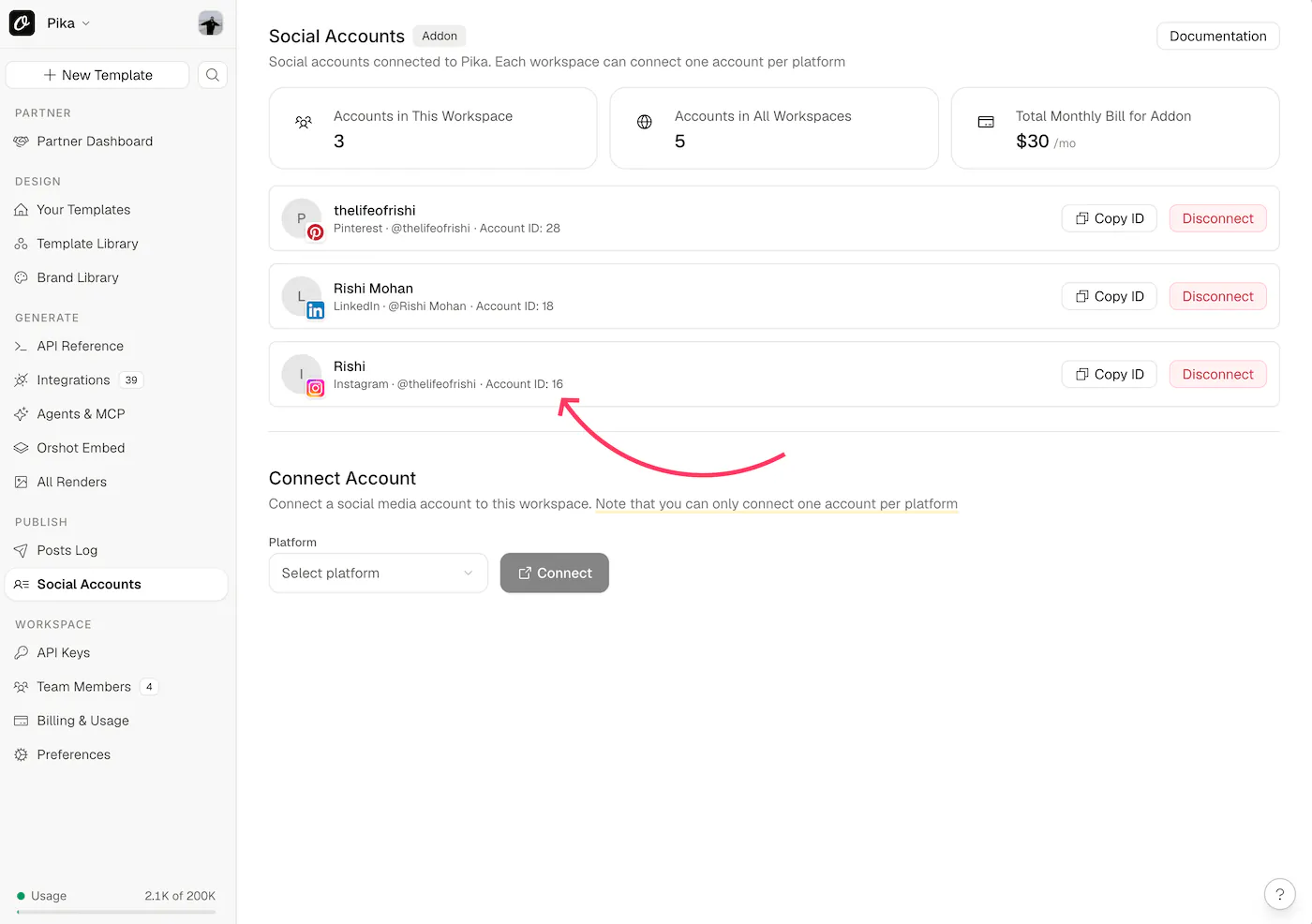
You can also fetch them programmatically via the List Social Accounts endpoint:
const res = await fetch("https://api.orshot.com/v1/social/accounts", {
  headers: { Authorization: "Bearer <ORSHOT_API_KEY>" },
});
const { data } = await res.json();
console.log(data);
// [
//   { id: 1, platform: "twitter", account_name: "Acme", account_username: "acmehq" },
//   { id: 2, platform: "instagram", account_name: "Acme", account_username: "acmeinsta" },
// ]
Use the id values in the publish.accounts array.
Examples#
Publish Instantly#
Post to Twitter (@acmehq) and LinkedIn right away:
publish: {
  accounts: [1, 3],
  content: "Just shipped a new feature! 🚀"
}
// → [{ platform: "twitter", username: "acmehq", status: "published" },
//    { platform: "linkedin", username: "acmehq", status: "published" }]
Save as Draft#
Create the post but don't publish it yet:
publish: {
  accounts: [1, 2],
  content: "Draft post — review before publishing",
  isDraft: true
}
// → [{ platform: "twitter", username: "acmehq", status: "drafted" },
//    { platform: "instagram", username: "acmeinsta", status: "drafted" }]
Schedule for Later#
Schedule the post for a future date:
publish: {
  accounts: [1, 2],
  content: "Launching next week!",
  schedule: {
    scheduledFor: "2030-01-15T14:00:00Z"
  },
  timezone: "America/New_York"
}
// → [{ platform: "twitter", username: "acmehq", status: "scheduled" },
//    { platform: "instagram", username: "acmeinsta", status: "scheduled" }]
Multi-Page Templates (Carousels)#
When rendering multi-page templates, all pages are automatically uploaded and posted as a carousel (on platforms that support it). No extra config needed — just include the publish object as usual.
await fetch("https://api.orshot.com/v1/studio/render", {
  method: "POST",
  headers: {
    "Content-Type": "application/json",
    Authorization: "Bearer <ORSHOT_API_KEY>",
  },
  body: JSON.stringify({
    templateId: 456,
    modifications: {
      "page1@slideTitle": "Slide 1",
      "page2@slideTitle": "Slide 2",
    },
    response: {
      type: "url",
      format: "png",
    },
    publish: {
      accounts: [2],
      content: "New carousel post!",
    },
  }),
});
Error Handling#
Publishing errors never block the render — you always get the rendered image back. The publish array tells you what happened on each platform.
Partial Publish#
When some platforms succeed and others fail, each entry has its own status:
"publish": [
  {
    "platform": "twitter",
    "username": "acmehq",
    "status": "published",
    "url": "https://twitter.com/acmehq/status/..."
  },
  {
    "platform": "instagram",
    "username": "acmeinsta",
    "status": "failed",
    "error": "Media processing failed: image format not supported"
  }
]
Token Expired / Reconnect Required#
If an account's OAuth token has expired, the error field includes a description and the action field tells you what to do:
"publish": [
  {
    "platform": "twitter",
    "username": "acmehq",
    "status": "failed",
    "error": "Account token expired — reconnect required",
    "action": "reconnect"
  }
]
Go to Social Accounts in your dashboard and click Reconnect on the affected account.
All Platforms Failed#
When every platform fails, all entries will have status: "failed" with their respective errors:
"publish": [
  {
    "platform": "twitter",
    "username": "acmehq",
    "status": "failed",
    "error": "Rate limited by platform"
  },
  {
    "platform": "instagram",
    "username": "acmeinsta",
    "status": "failed",
    "error": "Duplicate content"
  }
]
Common Publishing Errors#
| Error | Cause | Action |
|---|---|---|
| Account token expired | OAuth token needs refresh | Reconnect account in dashboard |
| Rate limited by platform | Too many posts in a short period | Wait and retry later |
| Media processing failed | File format/size not supported by platform | Check platform guidelines |
| Duplicate content | Platform rejected identical content | Modify the caption slightly |
| Permissions missing | Account lacks required permissions | Reconnect with proper scopes |
| Failed to upload media | Media couldn't be uploaded for publishing | Retry the request |
Notes#
- The render always completes and is returned — publishing errors never block the render response
- Each platform in the
publisharray has its ownstatus— one failure doesn't affect others - If an account needs reconnecting, only that account fails; working accounts still publish
- Posts (including failed ones) are logged in the Posts Log page in your dashboard
- Check Social Posting Guidelines for platform-specific requirements on captions, images, and formats
Ready to automate?
Start rendering images, PDFs and videos from your templates in under 2 minutes. Free plan, no credit card.
Get your API key- Image, PDF and video generation via API
- Visual editor with AI and smart layouts
- Zapier, Make, MCP and 40+ integrations
- White-label embed for your own app
- 100 free credits a month, no credit card required