How do I publish from the dashboard?
Render in the Playground and post or schedule it to any connected account.
Published ·Updated
Publish from Playground#
You can publish renders to your social accounts directly from the template playground in your dashboard — no code required.
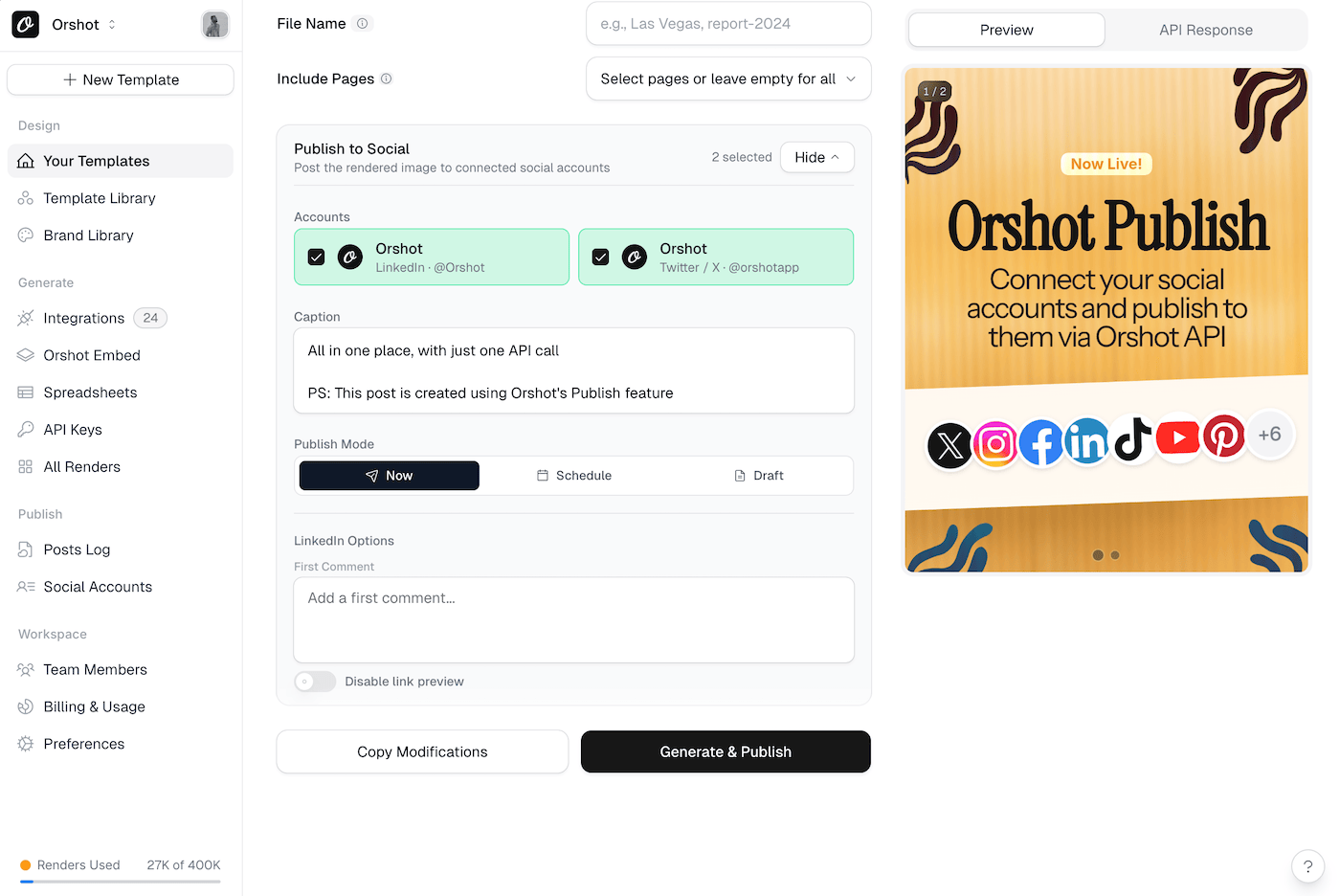
Steps#
- Open any template in your workspace
- Go to the Playground tab
- Fill in your template modifications as usual
- Scroll down to the Publish section in the playground
- Select the social accounts you want to post to
- Add a caption (optional)
- Choose to publish instantly, save as draft, or schedule for later
- Click Render & Publish
The template is rendered and immediately posted to your selected accounts.
What Happens#
- The template renders with your current modifications
- The rendered image is uploaded automatically
- A post is created on each selected social account
- The post appears in your Posts Log page
Scheduling#
To schedule a post from the playground:
- Toggle the Schedule option
- Pick a date and time
- Click Render & Publish
The render happens immediately, and the post is scheduled for your chosen time.
Drafts#
To save as draft:
- Toggle the Draft option
- Click Render & Publish
The render is created and the post is saved as a draft. You can publish it later from the Posts Log page.
Reposting#
Published posts can be reposted from the Posts Log page. Click Repost on any published post, select accounts, optionally update the caption, and publish again.
Ready to automate?
Start rendering images, PDFs and videos from your templates in under 2 minutes. Free plan, no credit card.
Get your API key- Image, PDF and video generation via API
- Visual editor with AI and smart layouts
- Zapier, Make, MCP and 40+ integrations
- White-label embed for your own app
- 100 free credits a month, no credit card required