How do I set permissions for embed users?
Lock actions like create, delete, upload or download for each embed user, in the dashboard or per session in the JWT you sign.
Published ·Updated
Choose what each embed user can do: create, save, rename, delete, upload, download and more. Set it once in the dashboard, or per session in the JWT your server signs.
Permissions saved in the dashboard need Per-User Data turned on, on a plan that includes embed users. Locks in a signed token work on any embed that uses JWT.
How Permissions Stack#
Every action passes four checks. Any of them can block it, and none can unblock what another blocked.
| Check | Where it's set |
|---|---|
| Your plan | Billing |
| Embed settings | Orshot Embed settings, such as Allow Template Delete |
| The user's permissions | Your Users, then Permissions |
| The session token | The permissions claim in your JWT |
Set Permissions in the Dashboard#
1. Open the user's permissions#
In Orshot Embed, go to Your Users and click Permissions next to the user. The number on the button shows how many actions are locked.
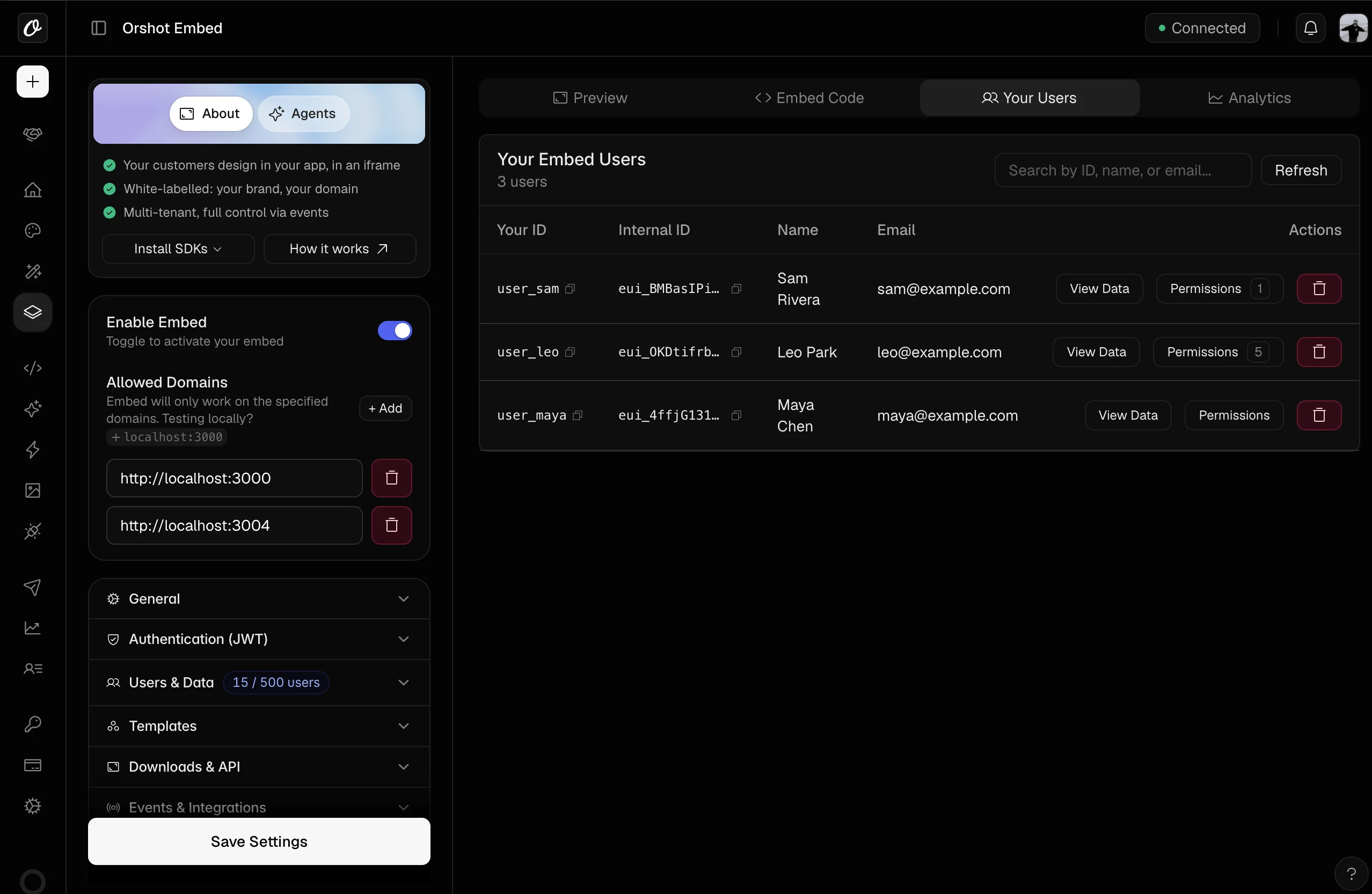
A user shows up here after they first open the embed. To lock someone before that, use a token.
2. Switch off what they shouldn't do#
Turn off each action, then click Save permissions.
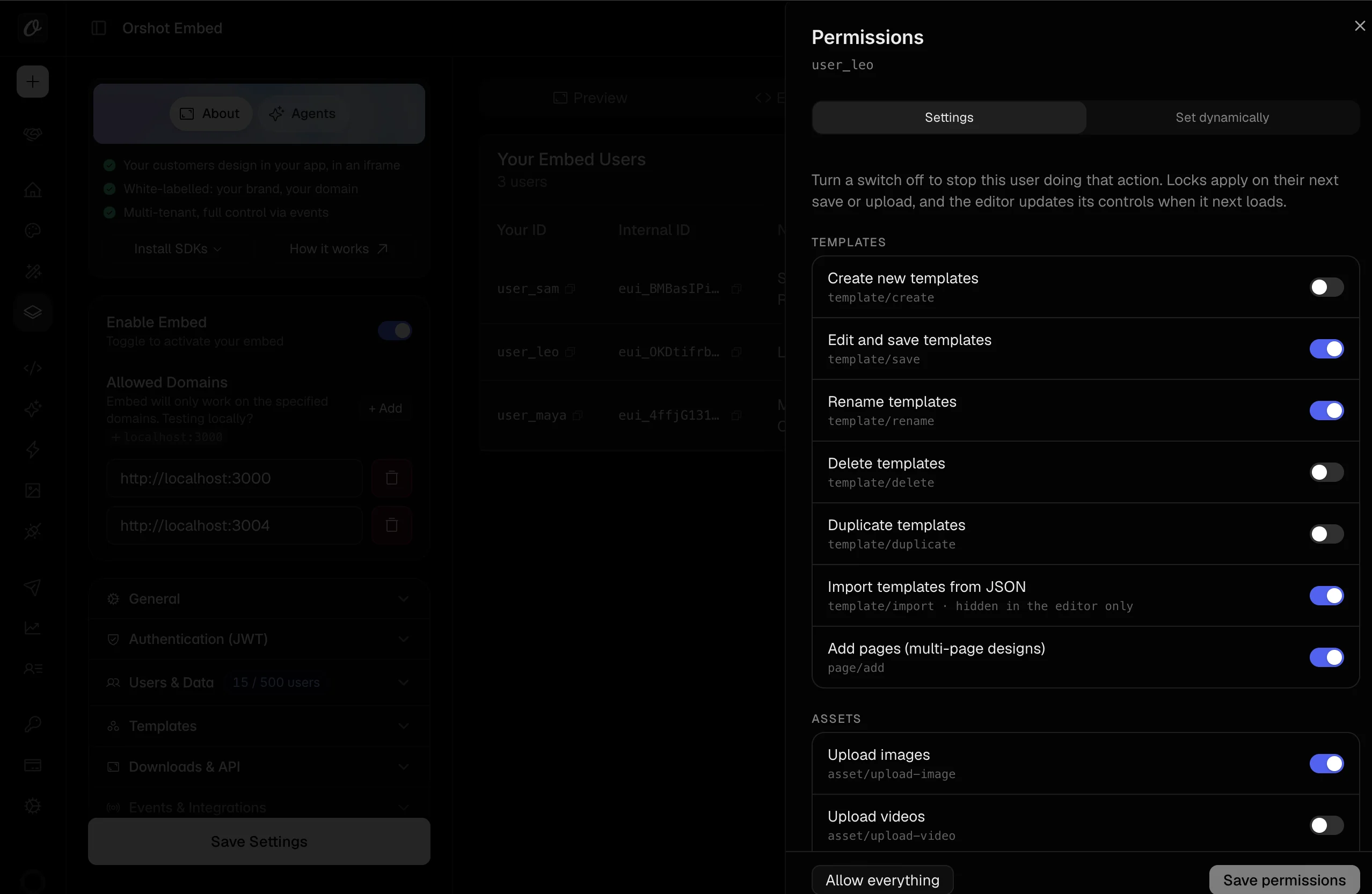
Locks apply on the user's next save, upload or delete, with no reload. The editor hides or shows controls when it next loads. Templates they already saved stay as they are.
Set Permissions per Session with JWT#
Use this when locks depend on your own app, such as the plan a user is on. It builds on JWT Authentication.
1. Add permissions to the token#
Sign the token on your server with the Signing Secret from Authentication (JWT). true blocks that action, and sub is your user's id.
import jwt from "jsonwebtoken";

const token = jwt.sign(
  {
    sub: "user_123",
    permissions: {
      "template/delete": true,
      "asset/upload-video": true,
    },
  },
  process.env.ORSHOT_EMBED_SECRET,
  { expiresIn: "15m" },
);
2. Load the embed with it#
<iframe
  src="https://orshot.com/embeds/YOUR_EMBED_ID?token=YOUR_TOKEN"
  title="Orshot Embed"
  width="100%"
  height="600"
  style="border: none;"
  allow="clipboard-write"
></iframe>
3. Turn on Require signed token#
In Authentication (JWT), turn on Require signed token and click Save Settings. The switch stays greyed out until a Signing Secret exists.
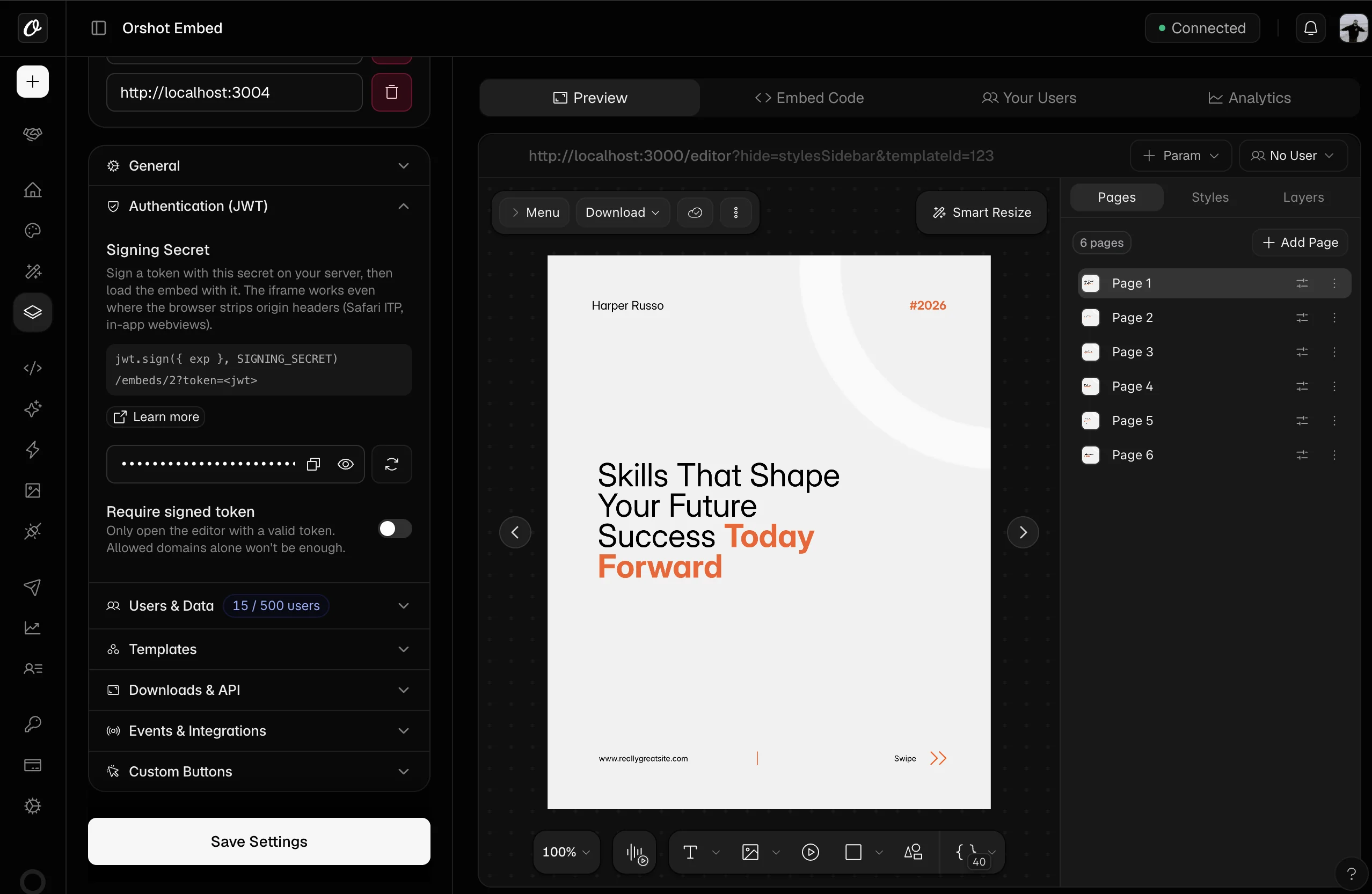
The embed then opens only with a valid token that has an expiry (exp), and takes the user from its sub. ?userId= is ignored, so a user can't reuse their token to open someone else's library.
sub follows the userId rules: up to 256 letters, numbers, _, -, @ or .. Numbers work too. An invalid sub refuses the load, and so does a missing one when per-user data is on.
With it off, a visitor can remove the token from the URL and the embed falls back to your allowed domains, without the token's locks. Locks saved in the dashboard still apply.
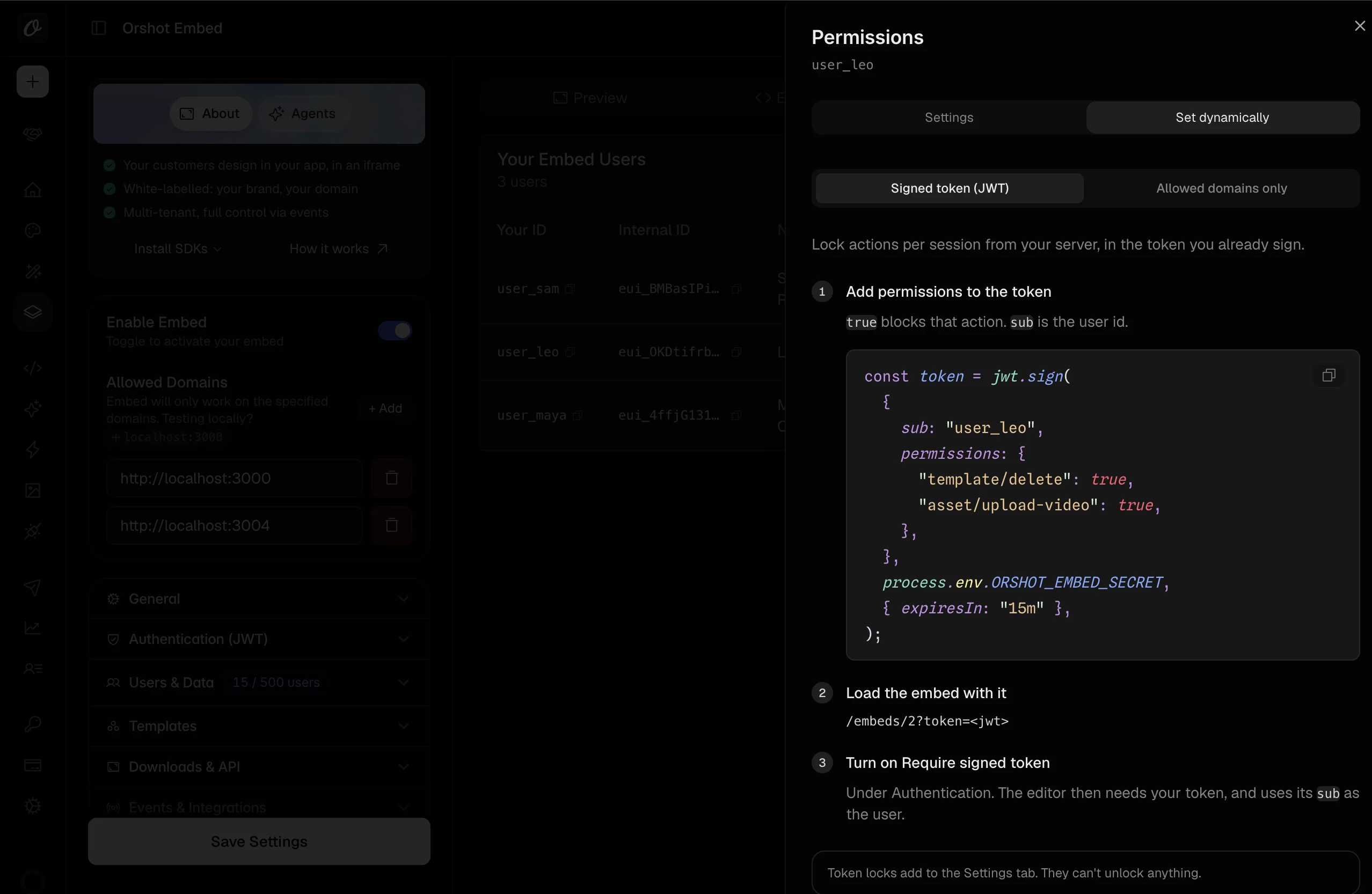
The Set dynamically tab in each user's Permissions panel shows these steps with that user's id filled in.
Set Permissions Without a Token#
With allowed domains only, each user gets exactly what's saved in the dashboard. Pass their id as ?userId= so the right permissions load.
Anyone viewing your page can edit ?userId=. When locks must hold against a determined user, use a signed token with Require signed token on.
Permission Keys#
| Key | What it blocks |
|---|---|
template/create | Creating a new template |
template/save | Saving changes to a template |
template/rename | Renaming a template (a save keeps the old name) |
template/delete | Deleting a template |
template/duplicate | Duplicating a template |
template/import | Importing a template from JSON (hidden in the editor) |
page/add | Adding pages to a design |
asset/upload-image | Uploading images |
asset/upload-video | Uploading videos |
asset/upload-audio | Uploading audio |
asset/upload-font | Uploading fonts |
asset/delete-font | Deleting fonts |
brand/color-save | Saving brand colors |
brand/color-delete | Deleting brand colors |
ai/translate | Translating text with AI (spends your workspace's AI credits) |
export/download | Downloading designs (hidden in the editor) |
In a token, unknown keys and any value other than true are ignored. A typo never locks anything by accident, but it also leaves that action allowed, so copy keys from this table.
What a Locked User Sees#
Most locked controls disappear from the editor. Upload and save-color controls stay, and tell the user that action is turned off. A request made anyway is refused with a 403:
{
  "error": "This action is not allowed: Delete templates",
  "code": "permission_denied",
  "capability": "template/delete",
  "source": "user"
}
source names the first check that blocked the action, in this order:
source | Locked by |
|---|---|
plan | Your plan does not include the action |
embed | An embed setting turns it off, such as Allow Template Delete |
user | The user's permissions in the dashboard |
token | The permissions claim in your JWT |
So an action locked both in the dashboard and in the token reports user.
Important Notes#
- Downloads run in the browser, so
export/downloadhides the download controls rather than refusing a request - Upload locks also cover assets your app sends through the Custom Asset Picker
- Stock photos and AI tools aren't covered by permissions yet
- Without Require signed token, a token's
subis ignored and the user comes from?userId=, as before
Related#
- Per-User Data: give each user a private template library
- JWT Authentication: sign tokens for your embed
- Template Protection: let users copy your master templates without changing them
Ready to automate?
Start rendering images, PDFs and videos from your templates in under 2 minutes. Free plan, no credit card.
Get your API key- Image, PDF and video generation via API
- Visual editor with AI and smart layouts
- Zapier, Make, MCP and 40+ integrations
- White-label embed for your own app
- 100 free credits a month, no credit card required