What are approval flows?
Approval flows let your team approve a template before your automations render it. Templates move through stages you name.
Published ·Updated
An approval flow is a set of stages your templates move through, like Draft, In review and Approved. Approvers approve a template or request changes. When the flow needs approval for automation, the API, your integrations, AI agents and the Playground render the template only once it's approved.
Why teams use approval flows#
A template that feeds an automation renders at volume. Change its design, and the next run of your n8n, Make or Zapier scenario, your REST calls or your AI agent renders the new version. Approval flows put a review between the studio and those renders:
- Designers keep working in the studio. Automation renders the template only after someone approves it.
- Brand, legal or a client approve in Orshot and leave comments on the template itself.
- Your automations keep calling the same template ID. Approved stages are locked, so they render the design that was approved.
How it works#
- 1
Add templates to a flow
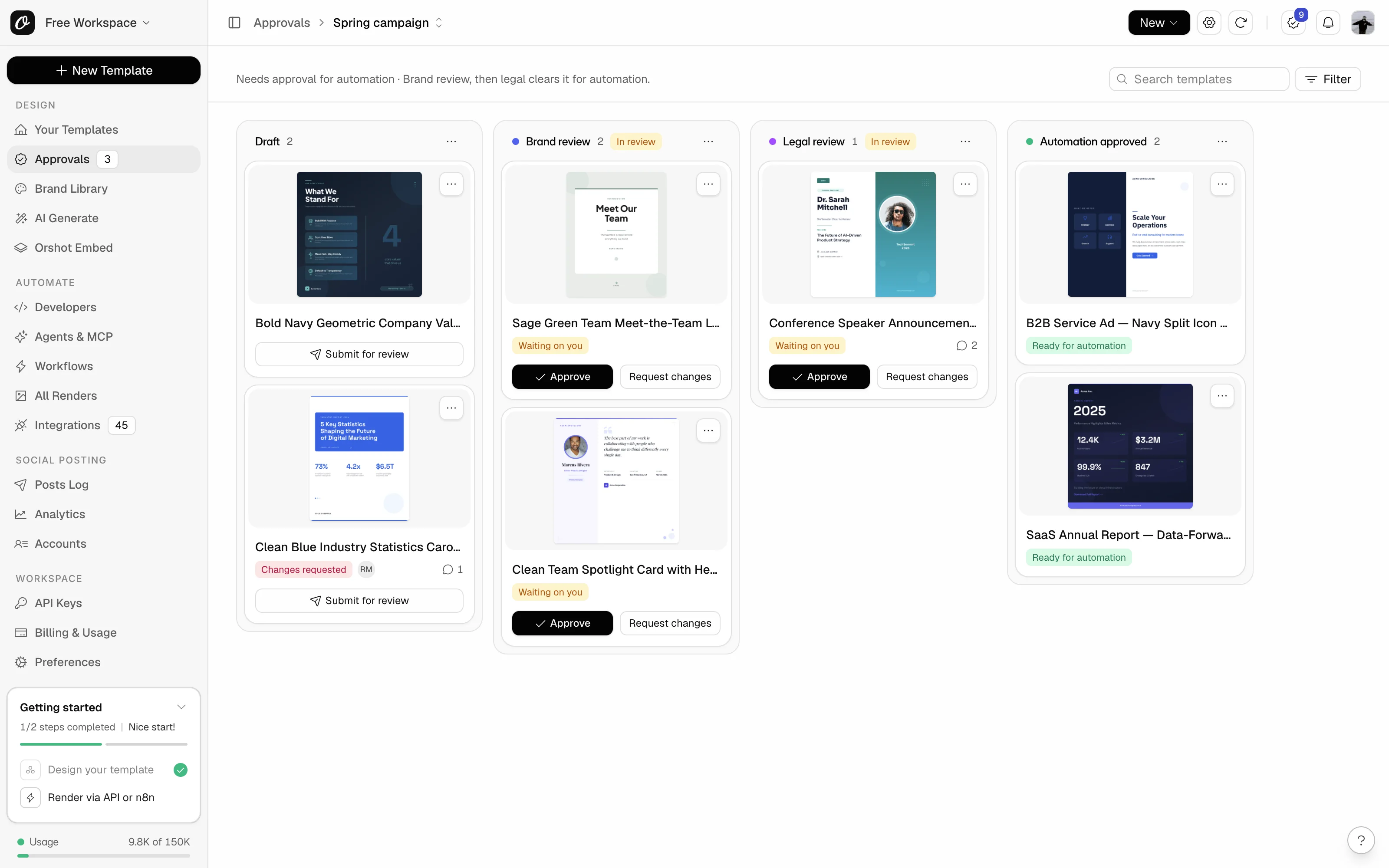
Add templates from the board, the studio or your templates list, or let the flow add templates from chosen folders or tags. A template keeps its ID and settings.
- 2
Move them through stages
You name the stages, like Draft, Brand review and Automation approved. Each stage has a type and rules: whether the design can be edited, what automation can render, and who can move templates in. A stage has no color until you pick one.
- 3
Approve or request changes
In a review stage, approvers approve the template or request changes. An approval moves it to the next stage. A change request sends it back, usually to Draft.
- 4
Automation needs approval
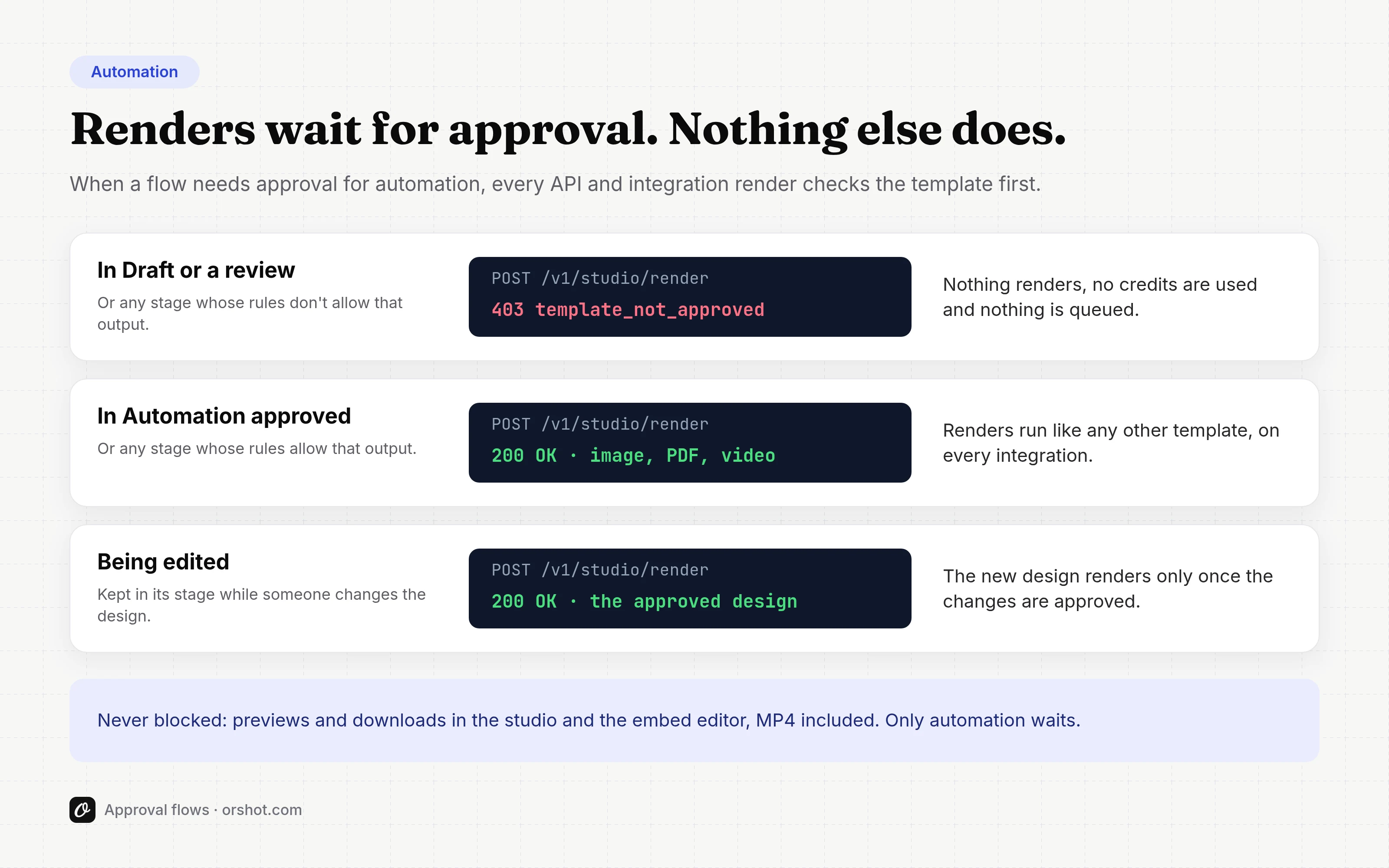
With Needs approval for automation on, a template renders for automation only from a stage that allows it. Until then, each render is blocked.
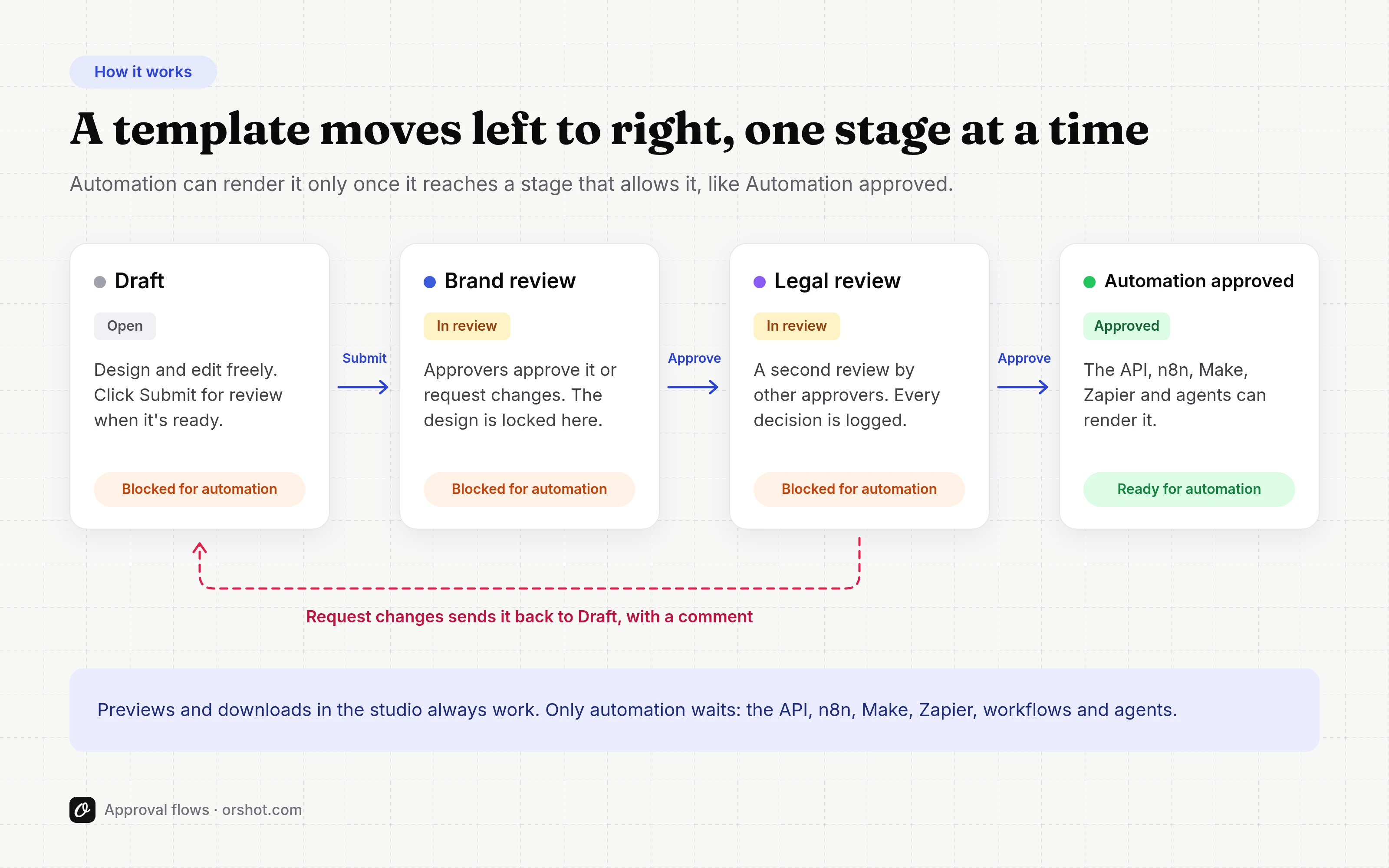
A blocked render renders nothing and uses no credits. Nothing is queued, so send the render again once the template is approved. The response names the approval flow, the stage and who can approve it: see Approval errors.
Automation is any render through the Orshot API: your API key and the SDKs, OAuth apps, Zapier, Make and n8n, automation workflows, the Orshot MCP server and AI agents, dynamic URLs and the Playground. Editing, previews and downloads in the studio are never blocked. See what counts as automation.
Templates that aren't in an approval flow render as they always have. A new flow starts empty, so creating one changes nothing until you add templates to it.
Who can use it#
Scale plan and above| Where | Plan |
|---|---|
| The Orshot app: the Approvals page, the studio, your templates and the Approvals inbox | Scale and Enterprise |
| The Orshot MCP server, acting as the person who connected it | Scale and Enterprise |
| The Approvals API, with an API key or your own OAuth app | Enterprise. See the Approvals API overview |
The Approvals API is available on Enterprise plans, or through first-party apps (the Orshot app and the Orshot MCP server).
Owners, admins and members work in approval flows with their workspace role. You can also invite outside approvers, like a client, as reviewers. See Roles and access.
Set up your first flow#
- Open Approvals in the sidebar and choose New approval flow.
- Pick a preset, name the flow and choose Create approval flow.
- On the board, open Flow settings (the gear) and go to the Access tab. Add the people who approve and give them Approve access.
- Choose New, then Add templates, and pick the templates to review.
The Help Center walks through it step by step: how to set up your first approval flow.
Owners and admins create approval flows. Every preset starts with Needs approval for automation on, and templates join by hand:
| Preset | Stages |
|---|---|
| Simple approval | Draft, In review, Automation approved |
| Brand and legal | Draft, Brand review, Design approved, Legal review, Automation approved |
| Agency and client | Draft, Internal review, Client review, Automation approved |
| Marketing production | In design, Design review, Design approved, Automation review, Automation approved |
In every preset, only 'Automation approved' lets automation render. 'Design approved' means the design is approved, but not yet for automation. You can rename, add and remove stages, and give each one a color, later on the Stages tab.
Next steps#
Key terms
Stages, stage types, approvers and what counts as automation
In the studio
Submit for review, approve and comment where you design
Roles and access
Who can approve, comment and move templates
Notifications
The Approvals inbox, emails and the daily digest
Plans and limits
Flows, stages and history on each Scale tier, and what a downgrade changes
How-to guides
Step by step in the Help Center: set up a flow, invite a client, approve
Ready to automate?
Start rendering images, PDFs and videos from your templates in under 2 minutes. Free plan, no credit card.
Get your API key- Image, PDF and video generation via API
- Visual editor with AI and smart layouts
- Zapier, Make, MCP and 50+ integrations
- White-label embed for your own app
- 100 free credits a month, no credit card required