How to set up your first approval flow
Pick a preset, choose who approves and add templates. Templates you don't add keep rendering as they do now.
Published Sep 29, 2026
A preset gives you a ready set of stages, like Draft, In review and Automation approved. Pick one, choose who approves and add templates. It takes a few minutes, and you can rename stages or change their rules later.
Approval flows are available on Scale and Enterprise plans. Owners and admins create them.
Create the flow#
- 1
Open Approvals
Click Approvals in the sidebar, then New approval flow. If a flow's board is open, click New, then Approval flow.
- 2
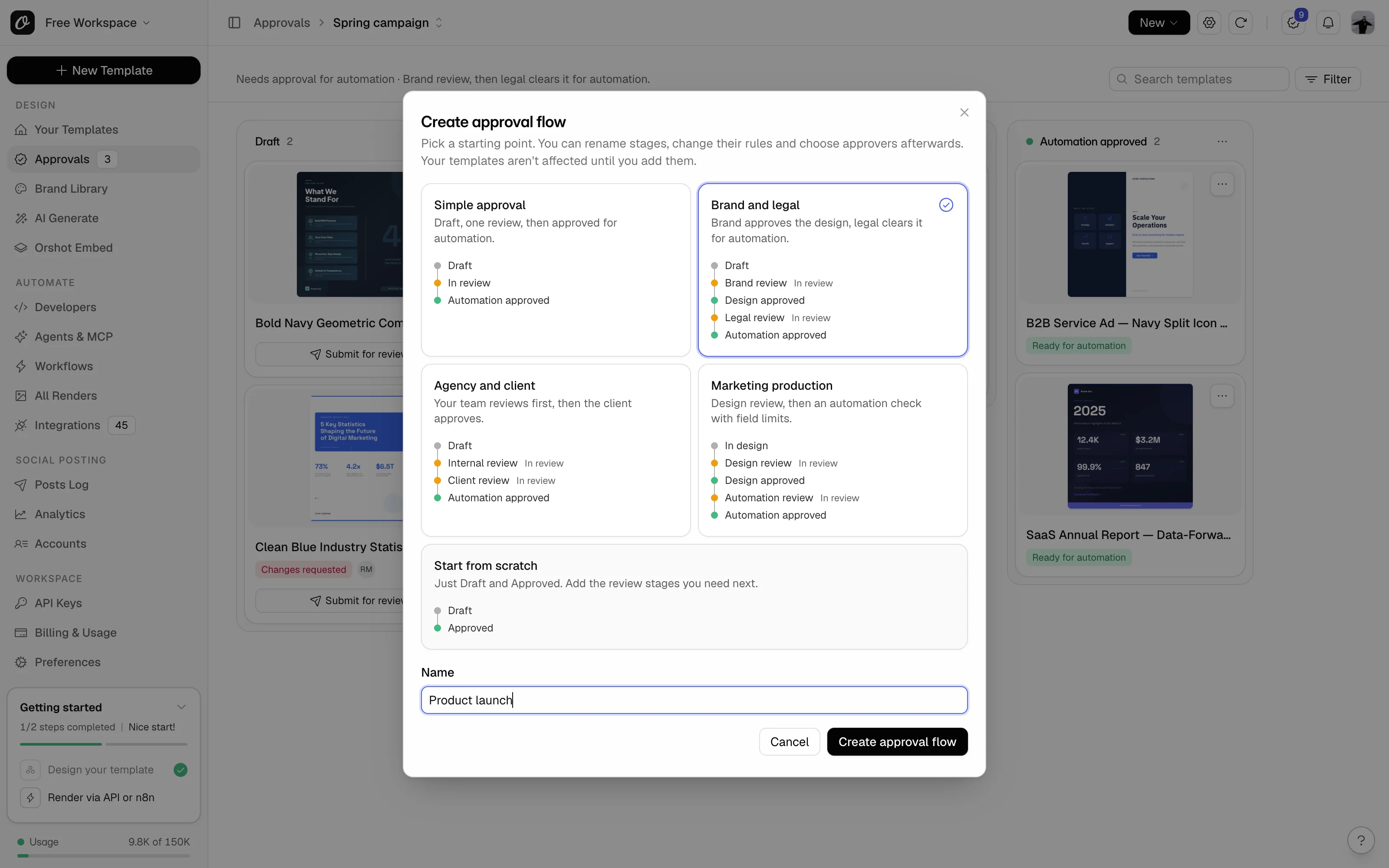
Pick a preset and name it
Pick the preset closest to how your team works (see the table below). Type a Name, like the team or client it's for, and click Create approval flow.
- 3
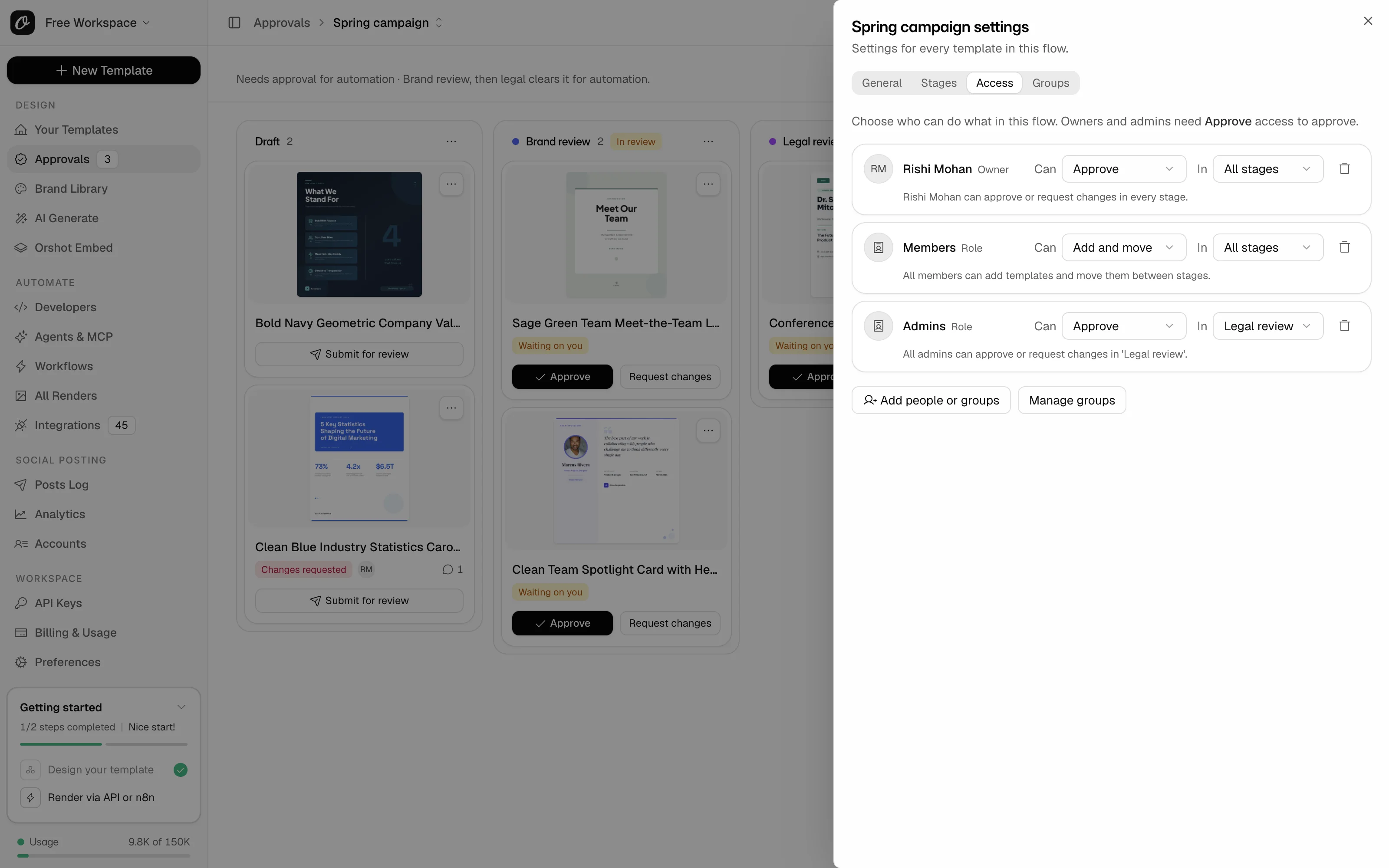
Choose who can approve
The board opens on the Access tab of its settings. Click Add people (Add people or groups on plans with groups), pick someone, keep Approve and click Save access.
- 4
Add templates
Close the settings, click New, then Add templates. Tick the templates, keep Start in on the first stage, and click Add templates.
Your templates now sit on the board as cards in their stage. Approvers see Approve and Request changes on the cards waiting on them.
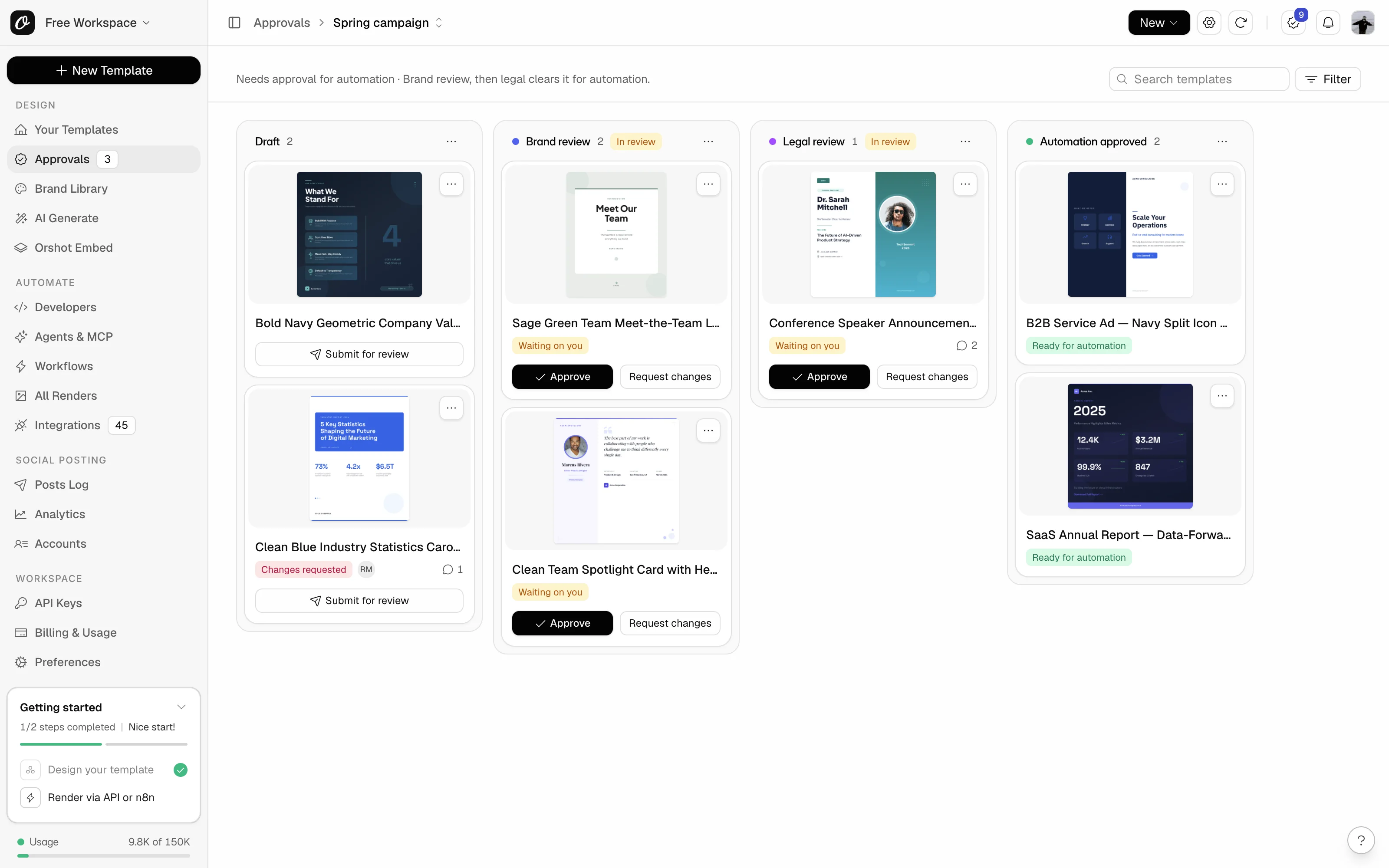
To add templates straight to a stage they can start in, open the menu on its column (the three dots) and pick Add templates. The same menu has Collapse stage for columns you don't need to watch.
Owners and admins can't approve until you give them Approve access too. To give each stage its own approvers, see how to choose who can approve.
Which preset to pick#
| Preset | Stages | Good for |
|---|---|---|
| Simple approval | Draft, In review, Automation approved | One person or team approves before automations use it |
| Brand and legal | Draft, Brand review, Design approved, Legal review, Automation approved | Two reviews in a row, design first |
| Agency and client | Draft, Internal review, Client review, Automation approved | Your team checks it, then the client approves |
| Marketing production | In design, Design review, Design approved, Automation review, Automation approved | Campaign templates with field limits on the values you send |
On plans with custom stages, Start from scratch gives you just Draft and Approved. The board then opens on the Stages tab, so you can add the review stages you need.
What changes#
- Every preset starts with Needs approval for automation on. Templates you add are blocked for automation until they're approved: see how to require approval for automation.
- Templates you didn't add keep rendering as they do now.
- Each stage is a column on the board. Stages have no color at first. To tell them apart, pick a color for a stage on the Stages tab of the settings.
Common problems#
| You see | What to do |
|---|---|
| New approval flow is greyed out: "Your plan includes 3 approval flows. Archive one to add another." | Archive a flow you no longer use in its settings, or see plans and limits. |
| "Nobody can approve in the 'In review' stage yet." above the board | Click Add approvers in that notice and give someone Approve access. |
| No Approvals in the sidebar | Approvals is on the Scale plan and above, and not in sandbox workspaces. See pricing. |
| Flow settings (the gear) on the board is greyed out | Only owners, admins and people with Manage access in the flow can change it. Reviewers don't see it at all. |
| Over your plan's limit under a flow's name (Over plan limit in the flow menu) | Your plan includes fewer flows than you have, so this one is read-only. See what happens after a downgrade. |
Related#
More in Approval flows
Ready to automate?
Start rendering images, PDFs and videos from your templates in under 2 minutes. Free plan, no credit card.
Get your API key- Image, PDF and video generation via API
- Visual editor with AI and smart layouts
- Zapier, Make, MCP and 50+ integrations
- White-label embed for your own app
- 100 free credits a month, no credit card required