How to generate visuals with Make
Render images, PDFs, and videos from your Orshot templates in a Make scenario — import a ready-made workflow or build it yourself
Published Jun 8, 2026
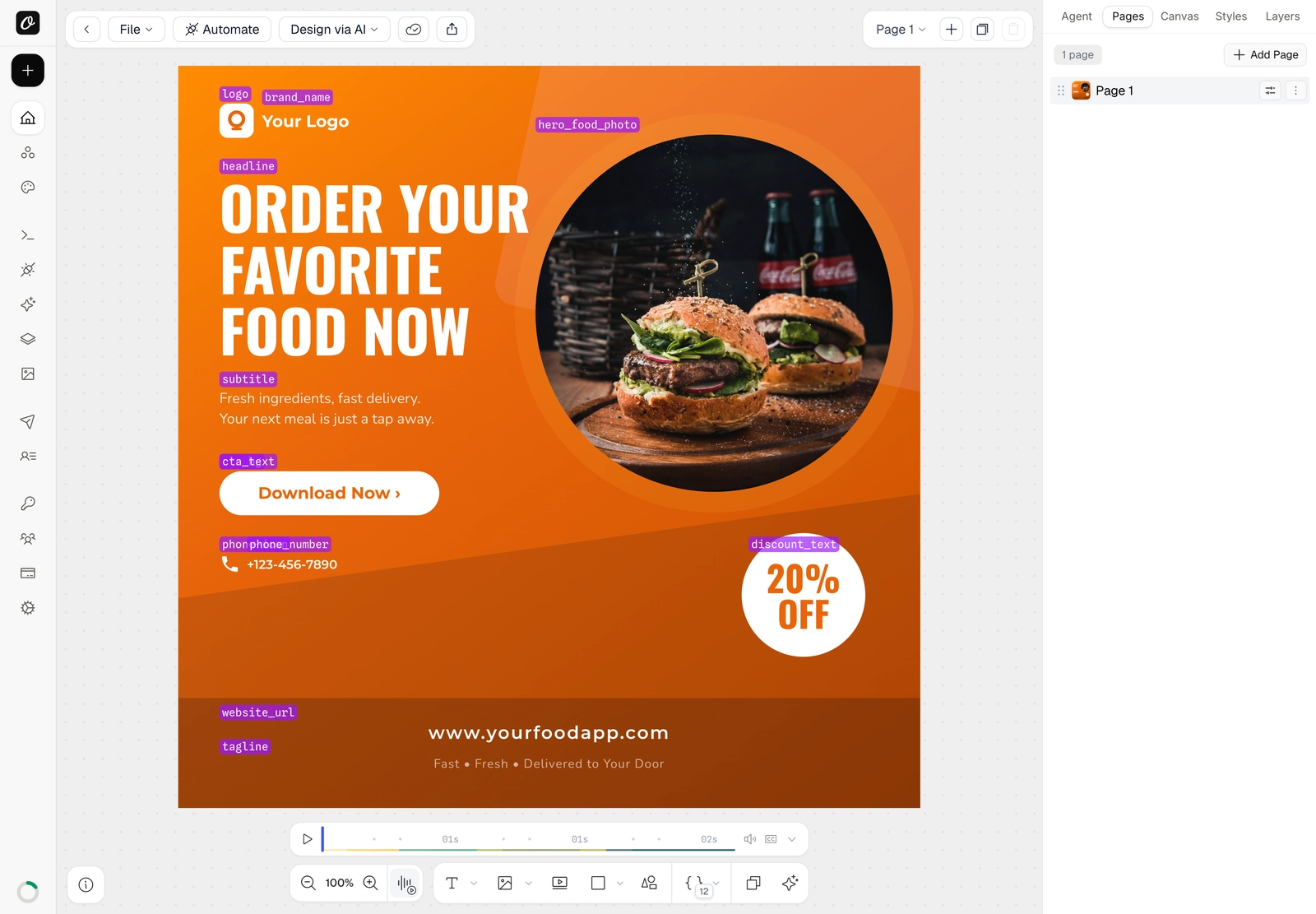
Make (formerly Integromat) builds visual automation scenarios. A scenario can render an image, PDF, or video from your Orshot template — and Orshot gives you a ready-made workflow to import, so you're running in about a minute. Here's the template we'll automate:

1. Know your template's parameters#
Open your template in Orshot Studio and press ⌘] (Toggle Parameter View). Every editable element is labelled with its parameter name — headline, hero_food_photo, brand_name, and so on. These are the values you'll set from Make. Any element can be made dynamic — see Make your template dynamic.
2. Grab the ready-made workflow#
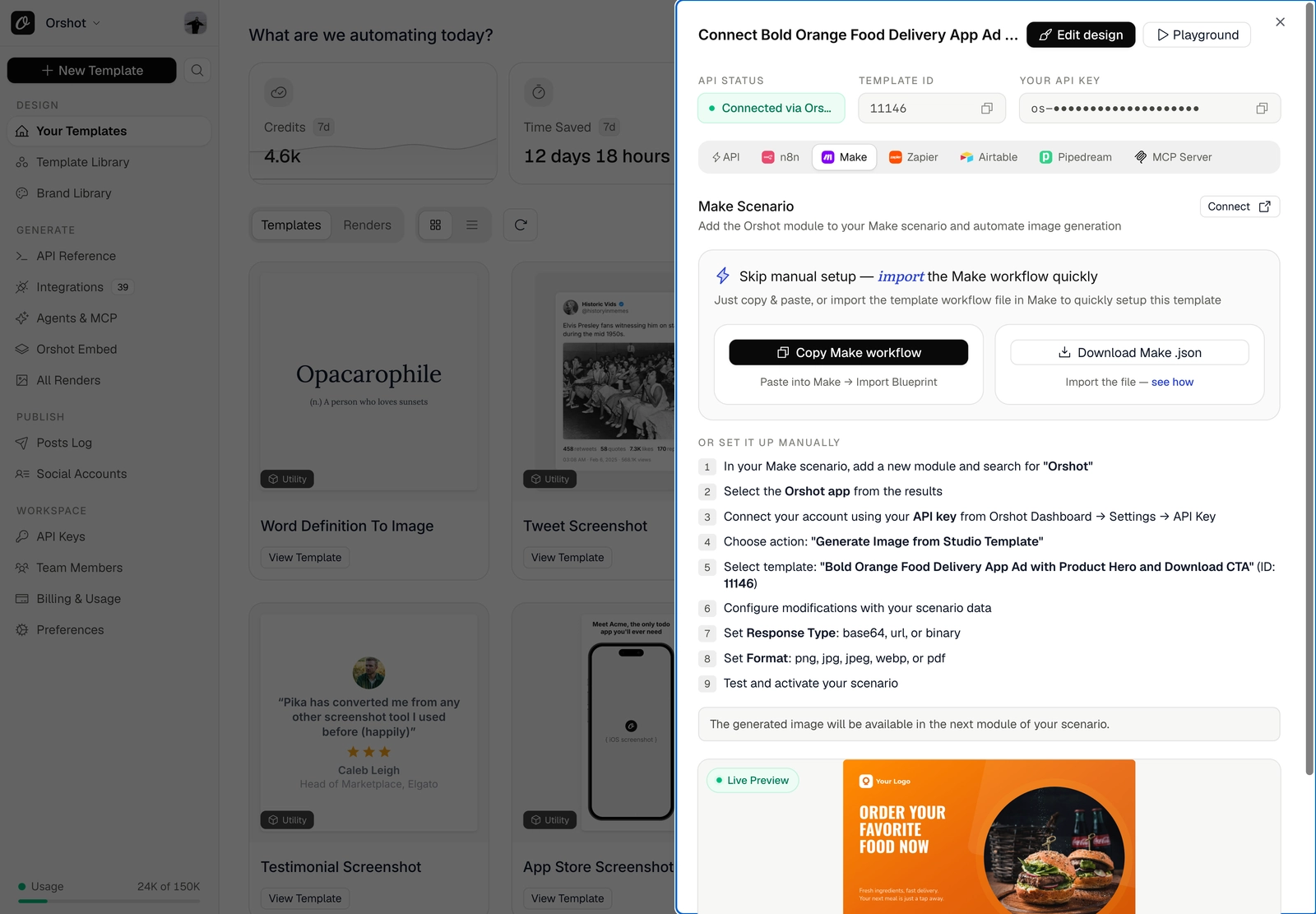
On the template's card, click Connect, then open the Make tab. You'll find your Template ID, API key, and — under Skip manual setup — a Copy Make workflow button and a Download Make .json file. New to API keys? See Find your API key and template ID.
3. Import the workflow into Make#
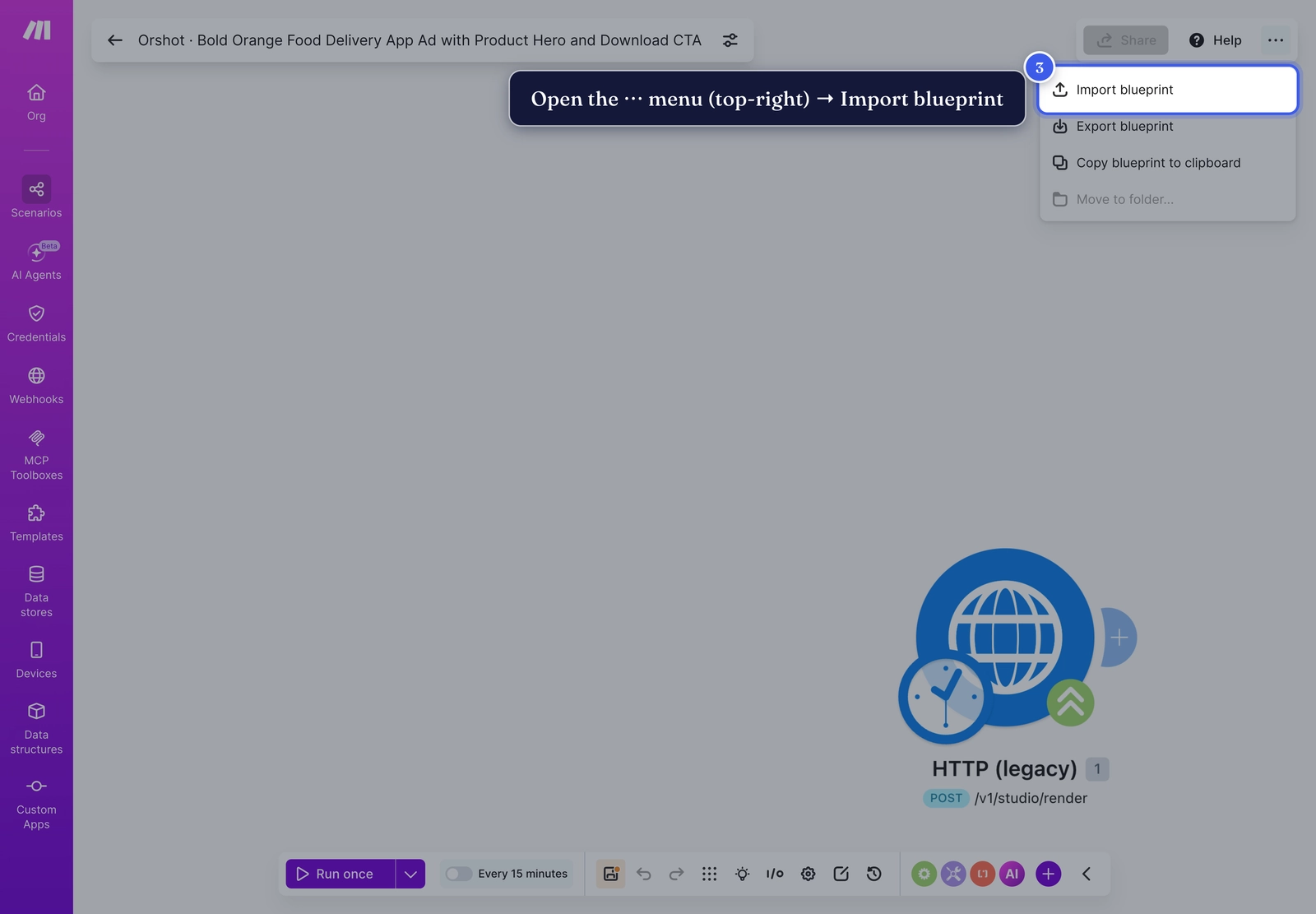
In Make, create a new scenario. Open the ⋯ menu (top-right) and choose Import blueprint, then drop in the .json you downloaded (or paste the copied workflow).
4. Your scenario is ready#
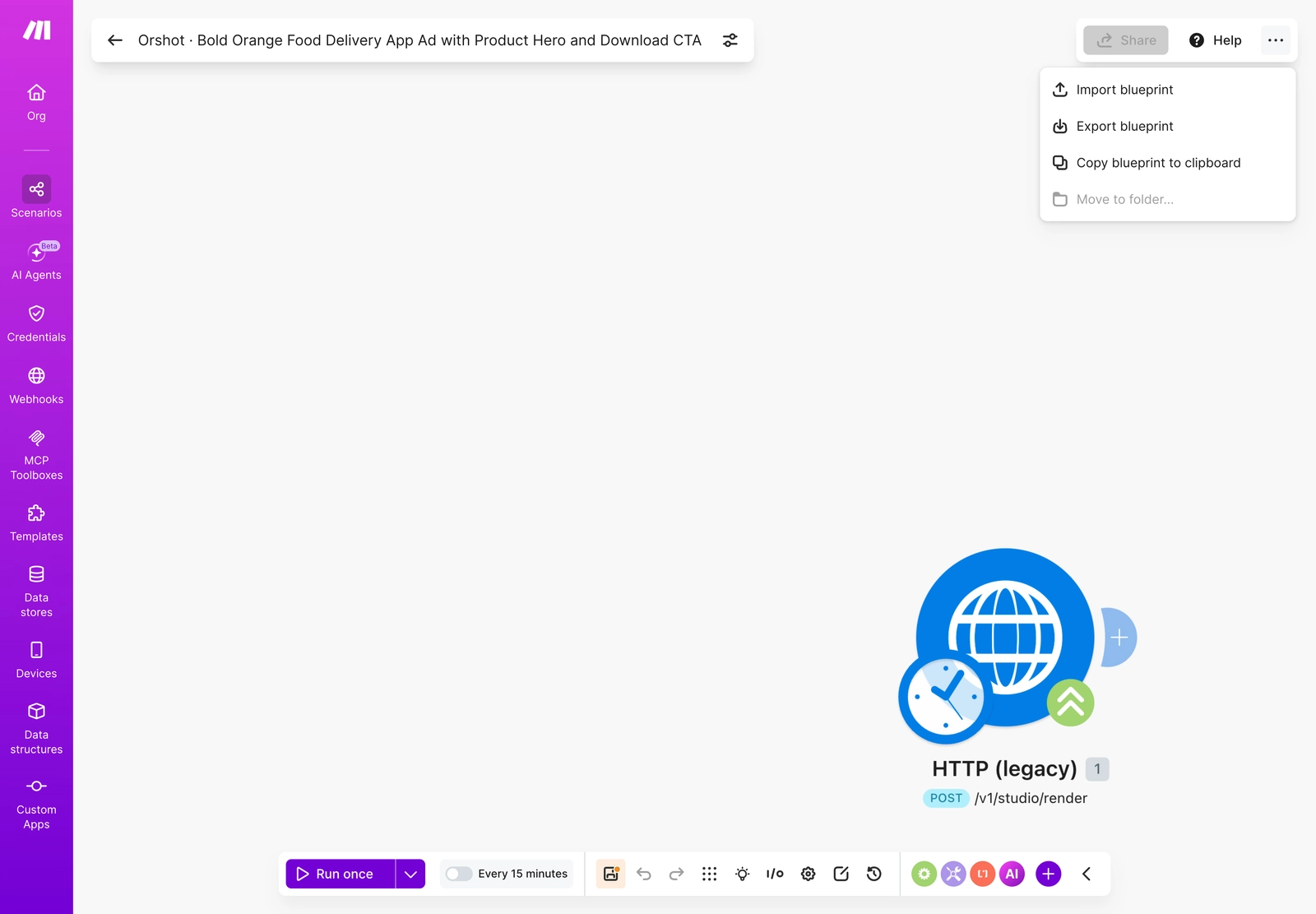
The blueprint loads a scenario that already calls Orshot's render endpoint with your template and its modifications — no wiring required.
5. Prefer to build it yourself?#
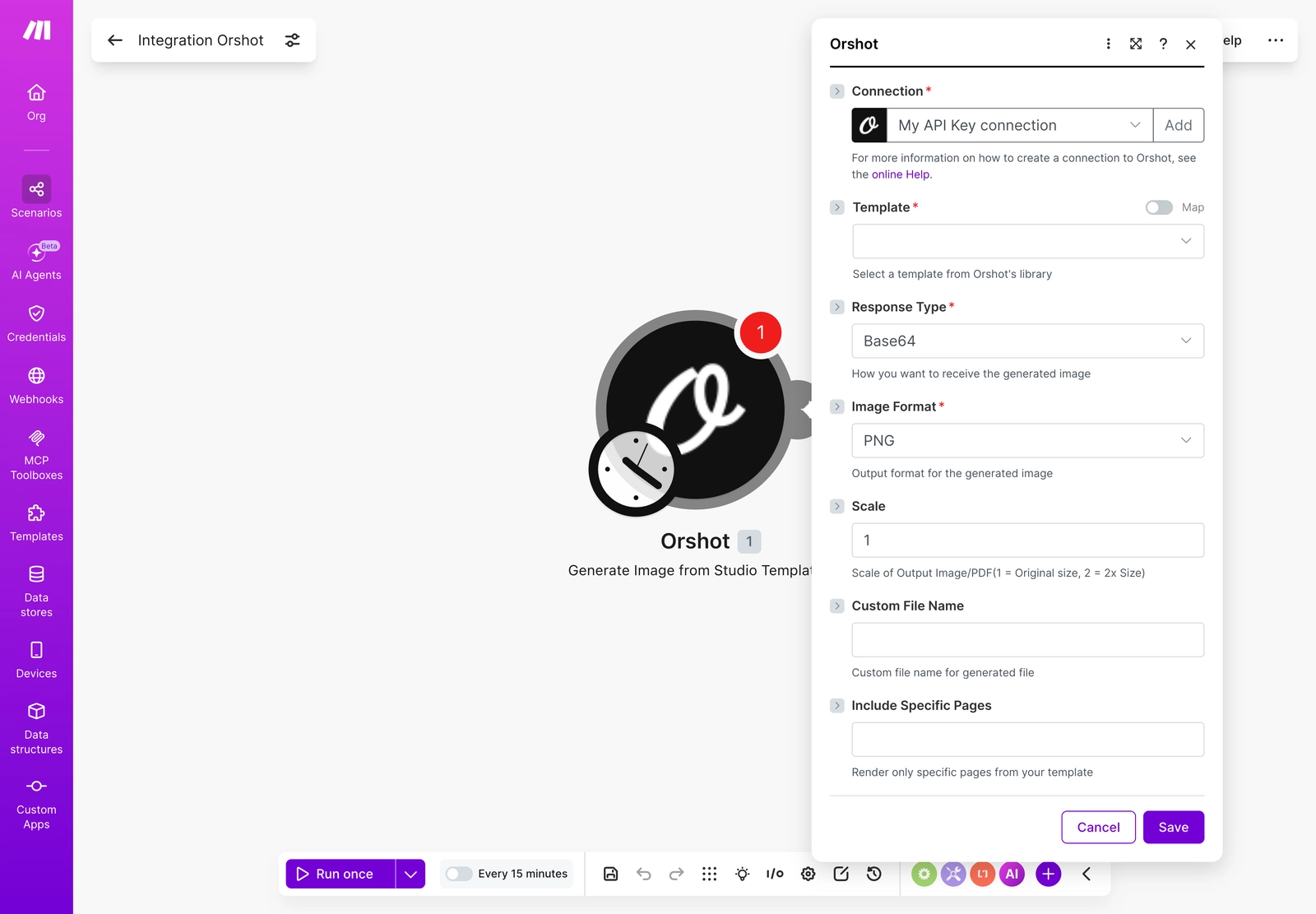
You can also add the step by hand: add a module, pick Orshot → Generate Image from Studio Template, and fill in the fields:
- Connection — your Orshot account (added once with your API key).
- Template — pick the template to render; its parameters appear as fields you can fill or map.
- Response Type —
URL(easiest to use downstream),Base64, orBinary. - Image Format —
png,jpg,webp,pdf, ormp4/webm/giffor animated templates. - Scale —
1for the template's size,2for 2× resolution.
6. Run it#
Click Run once. Orshot renders your template with its modifications and returns the result — a hosted URL when Response Type is URL. With the format set to gif/mp4, an animated template returns video:

7. Use it downstream#
Add more modules after Orshot and pass the returned image along — upload it to Google Drive, post it to a channel, attach it to an email — then turn the scenario on to run it on a schedule or trigger.
Tip
Keep Response Type on URL so the next module can use Orshot's output directly.
Related#

More in Automations
Ready to automate?
Start rendering images, PDFs and videos from your templates in under 2 minutes. Free plan, no credit card.
Get your API key- Image, PDF and video generation via API
- Visual editor with AI and smart layouts
- Zapier, Make, MCP and 40+ integrations
- White-label embed for your own app
- 100 free credits a month, no credit card required