How to work with multi-page templates
Add, duplicate, rename and reorder pages — for carousels, stories and documents
Published Jun 7, 2026
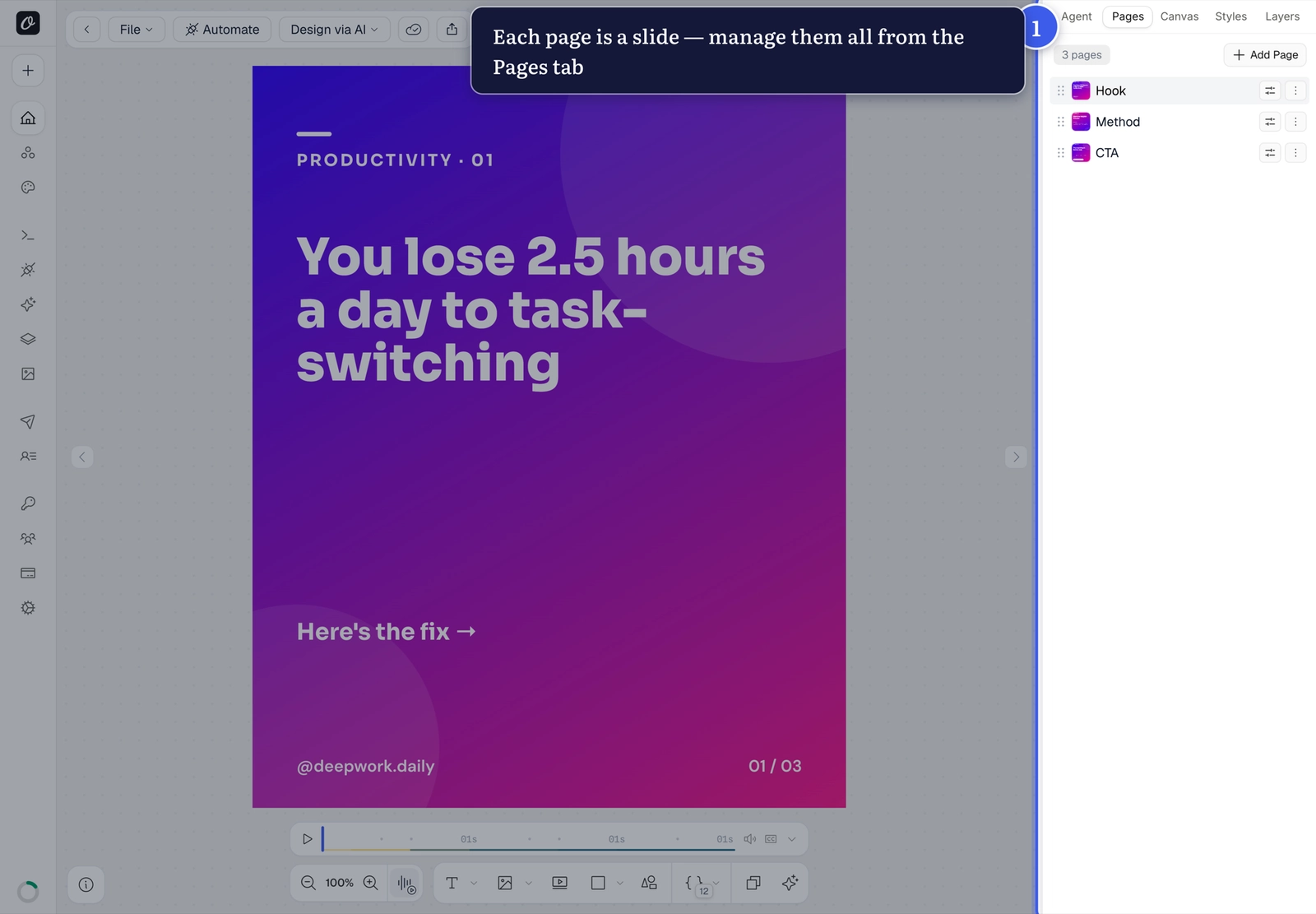
Pages turn one template into a carousel, a story sequence, or a multi-page document. Open your template in Studio and switch to the Pages tab in the right panel.
The Pages tab#
Every page is a slide with its own canvas. Give pages meaningful names — they make API targeting easier later:
Add a page#
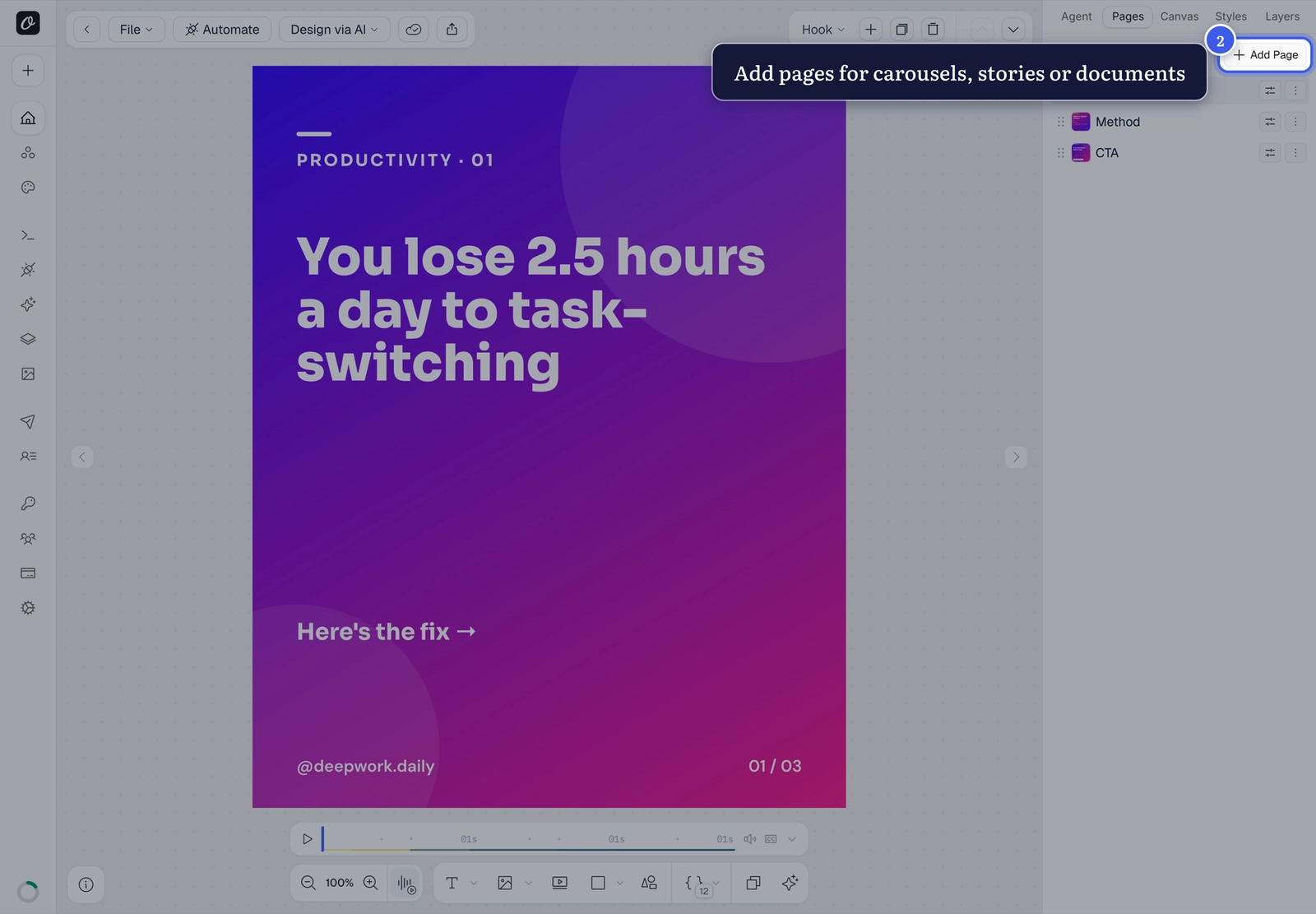
Click Add Page at the top of the panel:
Duplicate, rename, reorder#
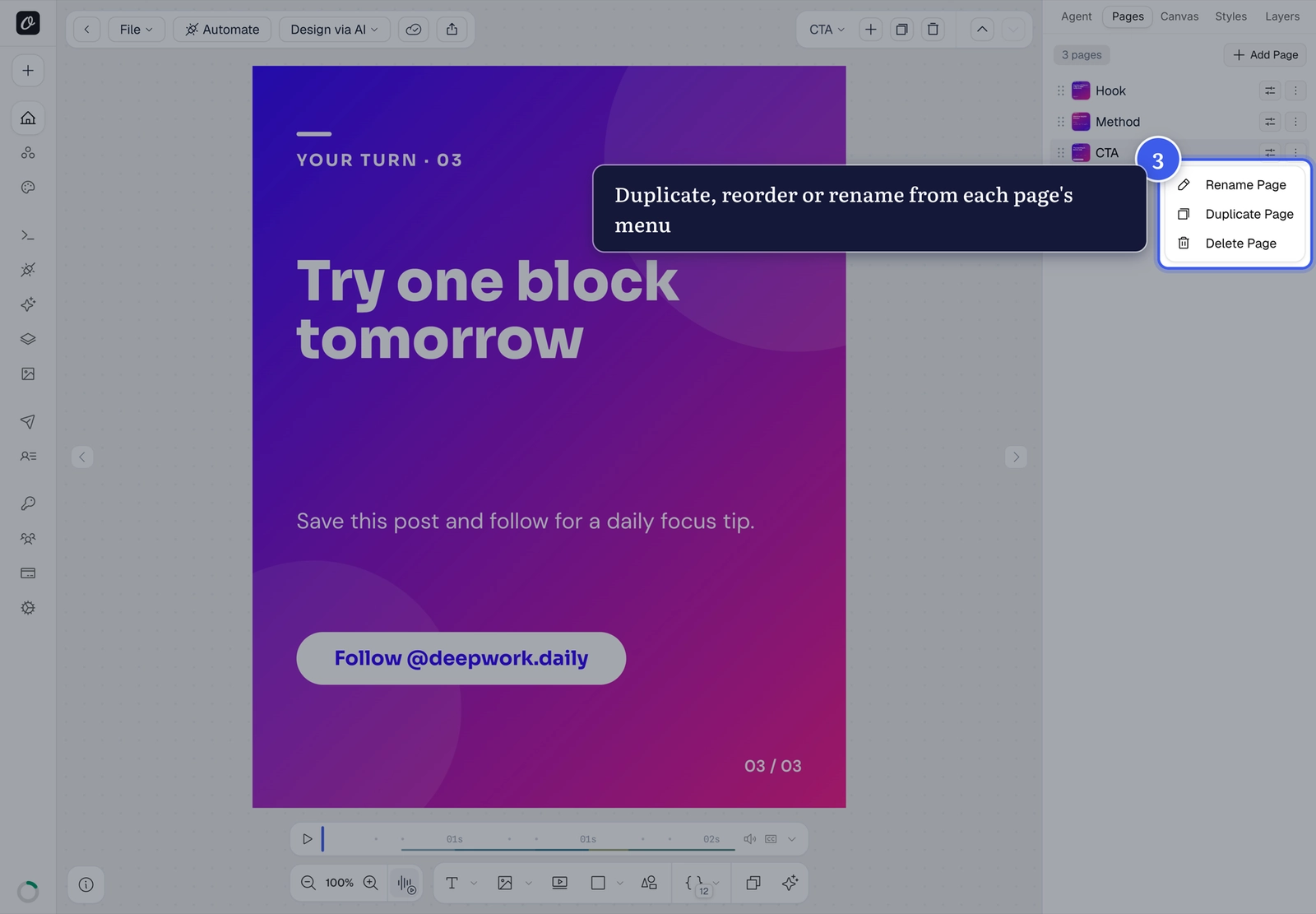
Each page row has a menu (⋮) — duplicate a page to reuse its layout, rename it, or drag rows to reorder:
Pages + the API
Target a specific page's parameters with a page prefix:
page1@headline, page2@headline. One render call fills the whole
carousel.
Related#
More in Orshot Studio
Was this page helpful?
Ready to automate?
Start rendering images, PDFs and videos from your templates in under 2 minutes. Free plan, no credit card.
Get your API key- Image, PDF and video generation via API
- Visual editor with AI and smart layouts
- Zapier, Make, MCP and 40+ integrations
- White-label embed for your own app
- 100 free credits a month, no credit card required