How to group layers in Orshot Studio
Combine layers into a group that selects, moves and organizes as one — without changing your renders
Published Jun 12, 2026
Groups keep related layers together: select the layers, group them, and they move as one. Grouping is pure organization — it never changes how your template renders or how the API sees it.
1. Group the layers#
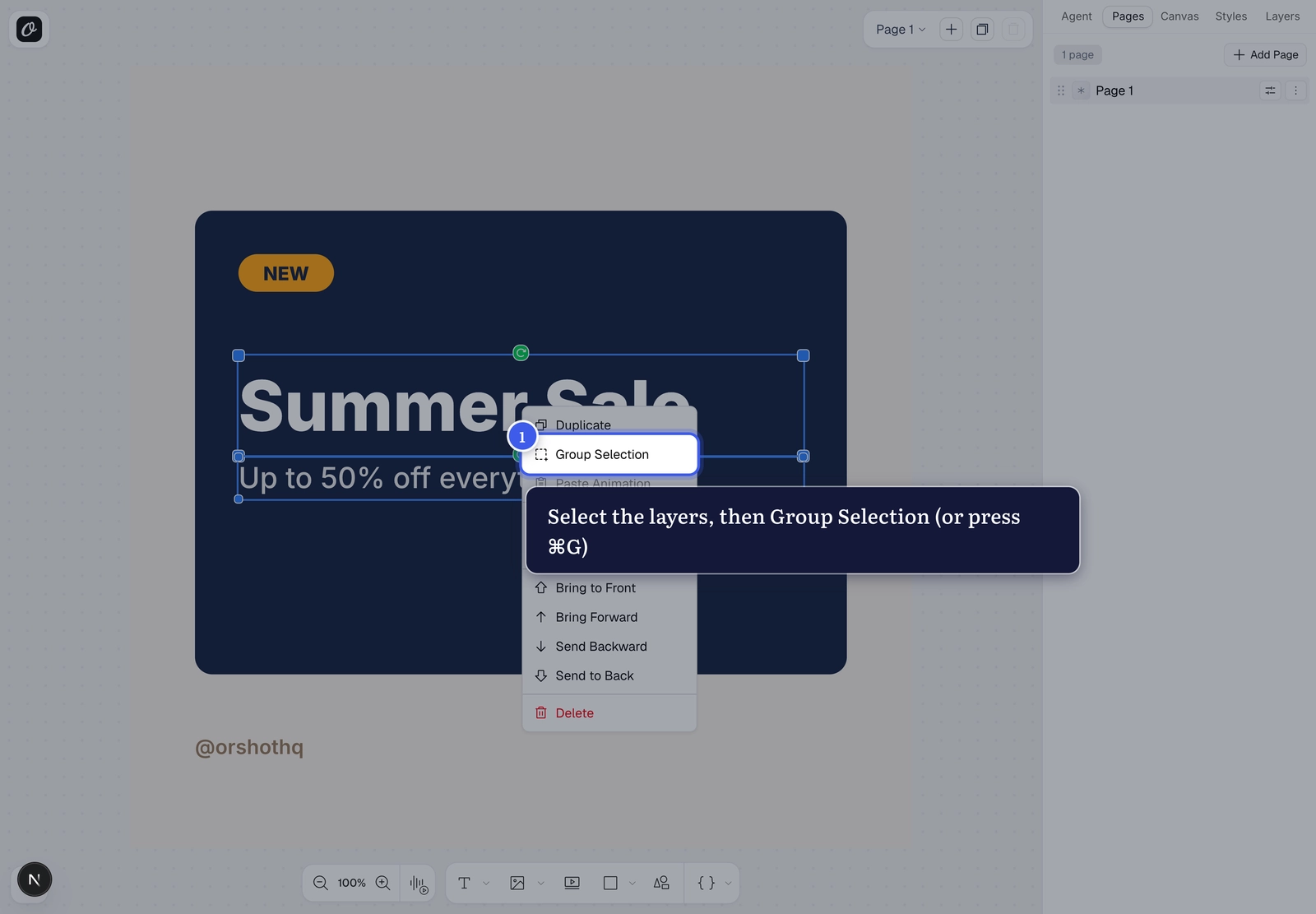
Select two or more layers (drag a selection box, or ⌘/Ctrl + click them one by one), then right-click and choose Group Selection — or just press ⌘G (Ctrl+G on Windows).
2. Select and move the group#
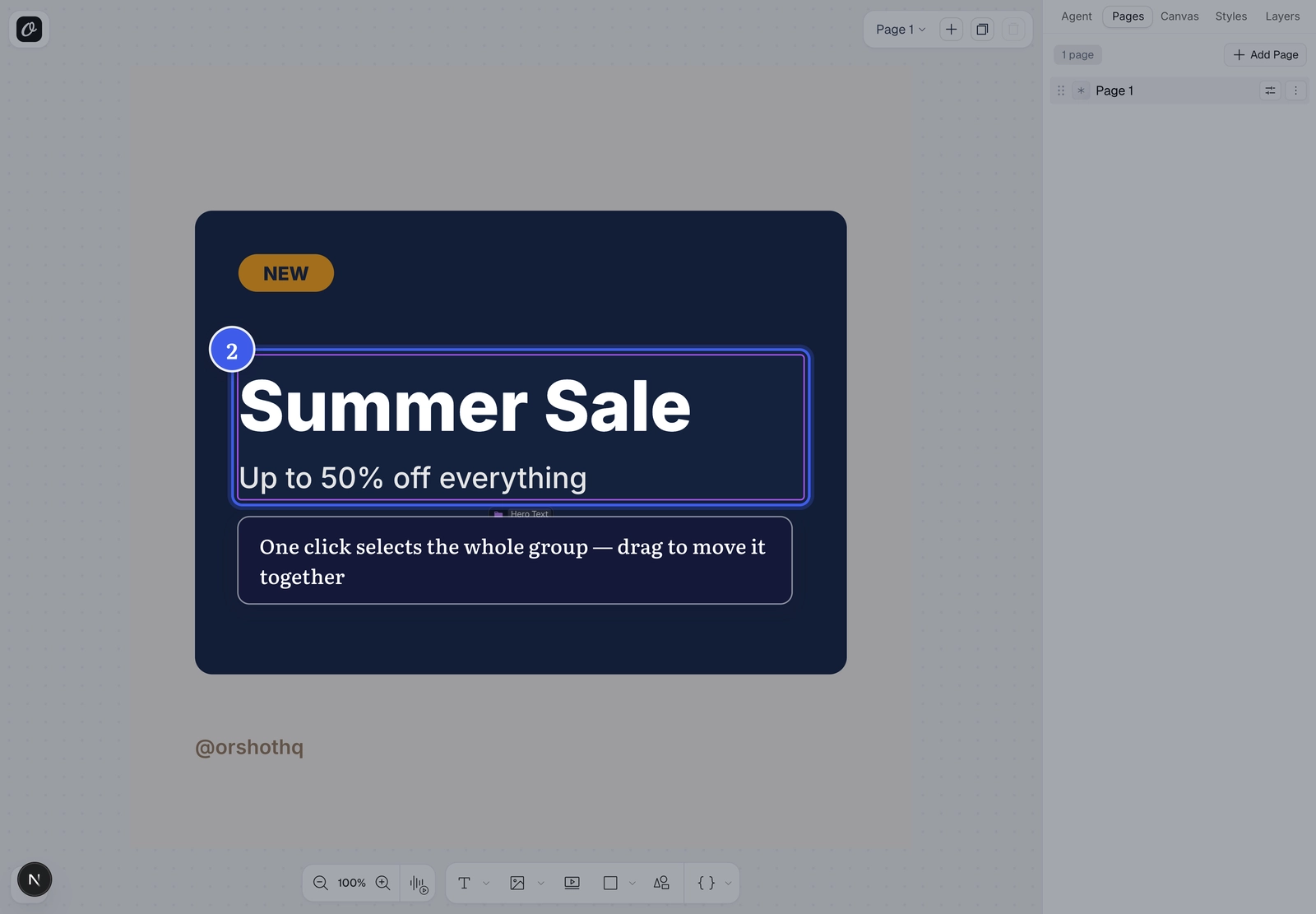
Clicking any layer in a group now selects the whole group — you'll see a single purple ring around it and the group's name underneath. Drag any layer to move the entire group together; alignment tools also treat the group as one block.
3. Edit a single layer inside#
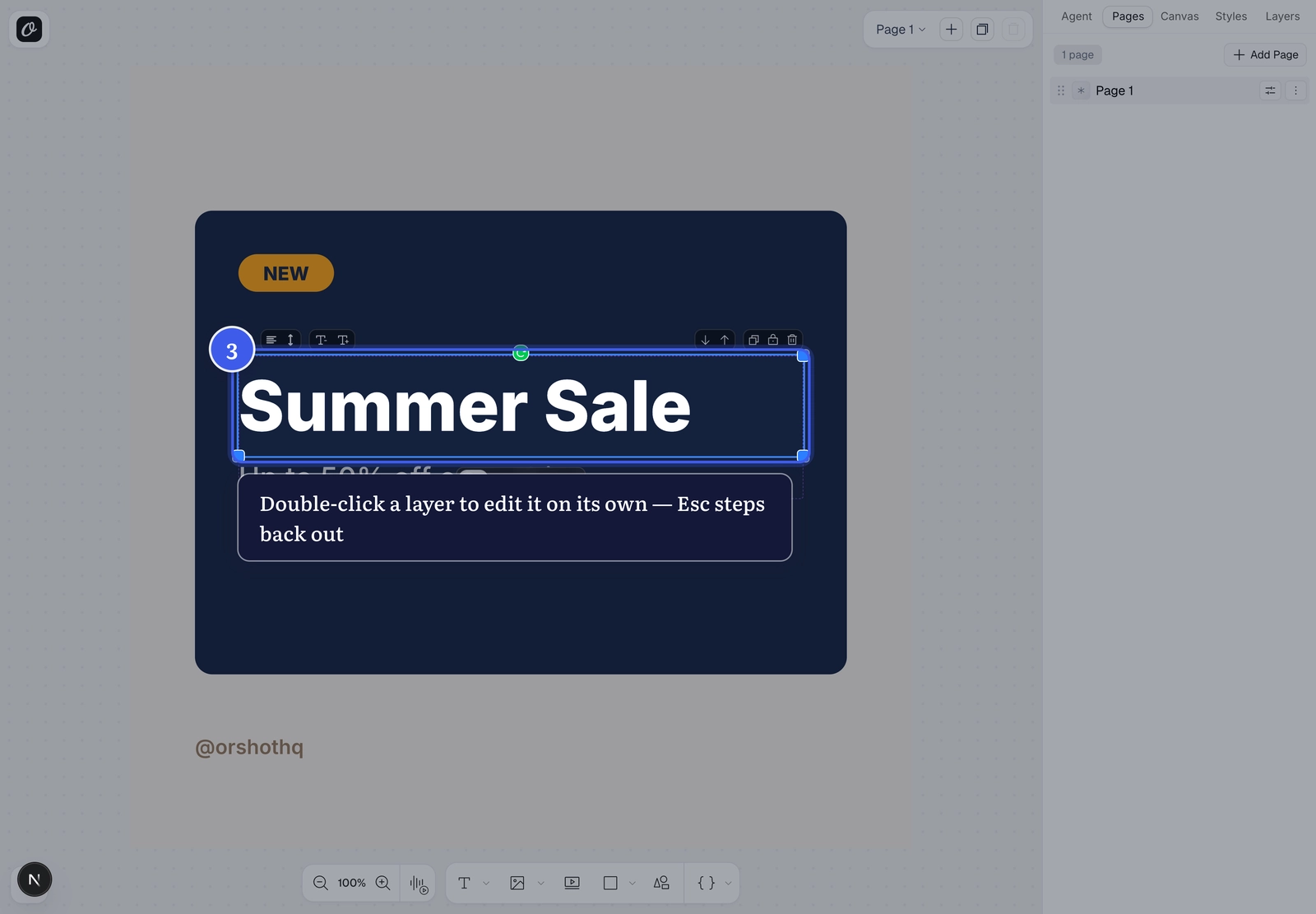
Double-click a layer to step inside the group and work on just that layer — move it, style it, or edit its text while the rest of the group stays put. A dashed outline reminds you which group you're in. Press Esc to step back out to the whole group.
4. Rename the group#
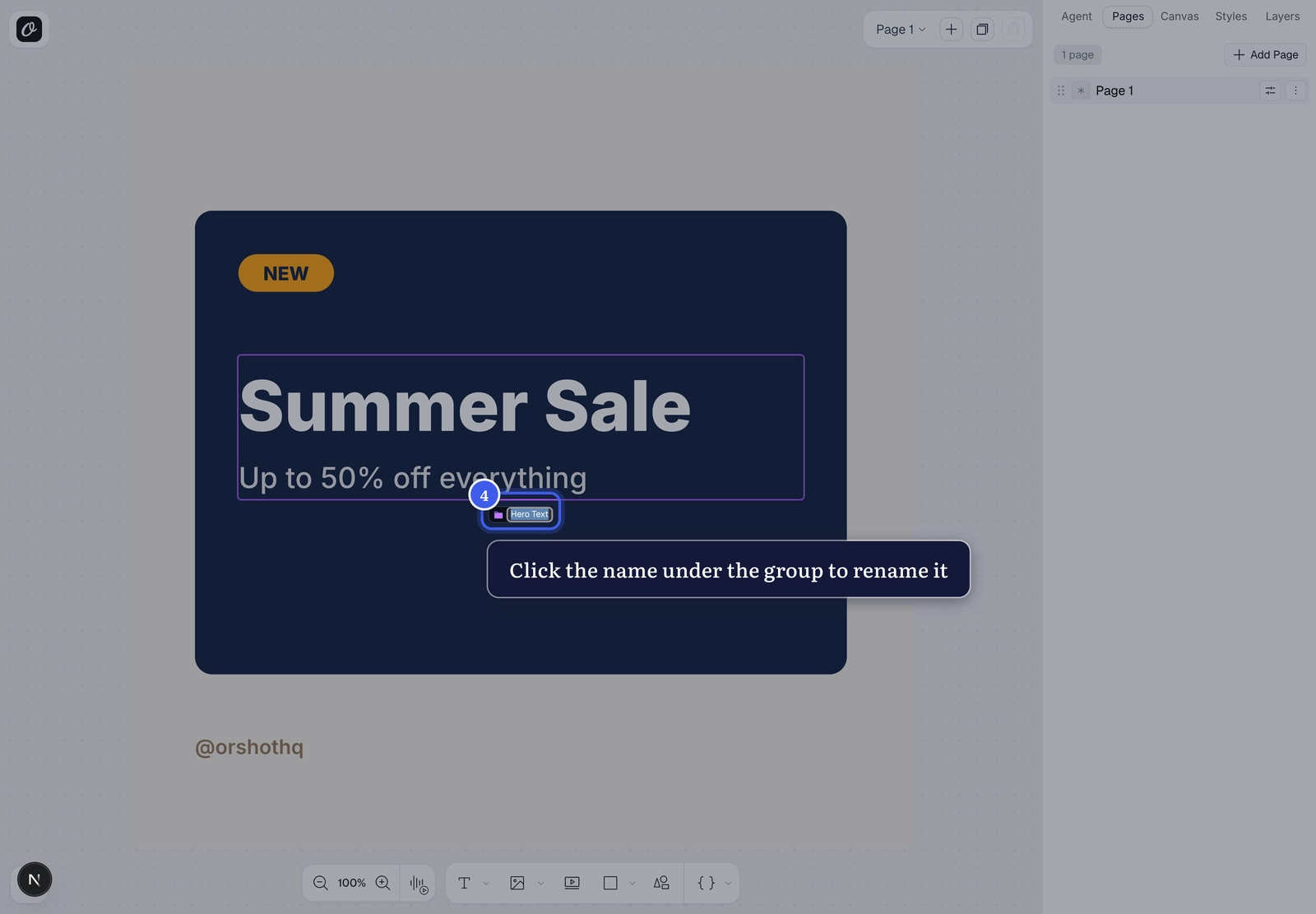
Click the name in the pill below the selected group and type a new one — Enter saves it. You can also rename from the group's row in the Layers panel.
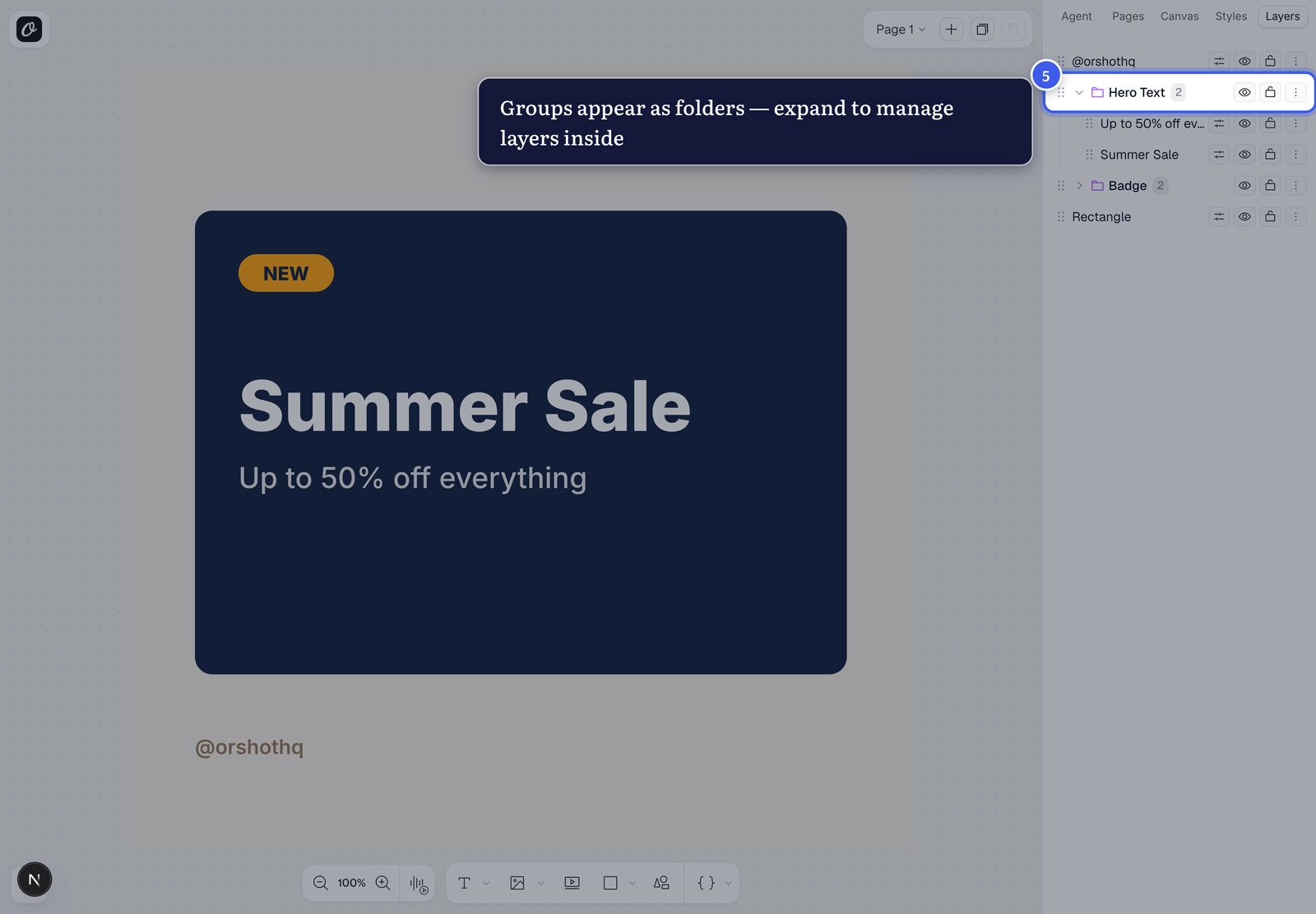
5. Manage groups in the Layers panel#
Groups show up as purple folders in the Layers panel. Expand one to reorder, hide, lock, or style the layers inside; the group row's own controls hide or lock every member at once. Drag the group row to move the whole group up or down the stack.
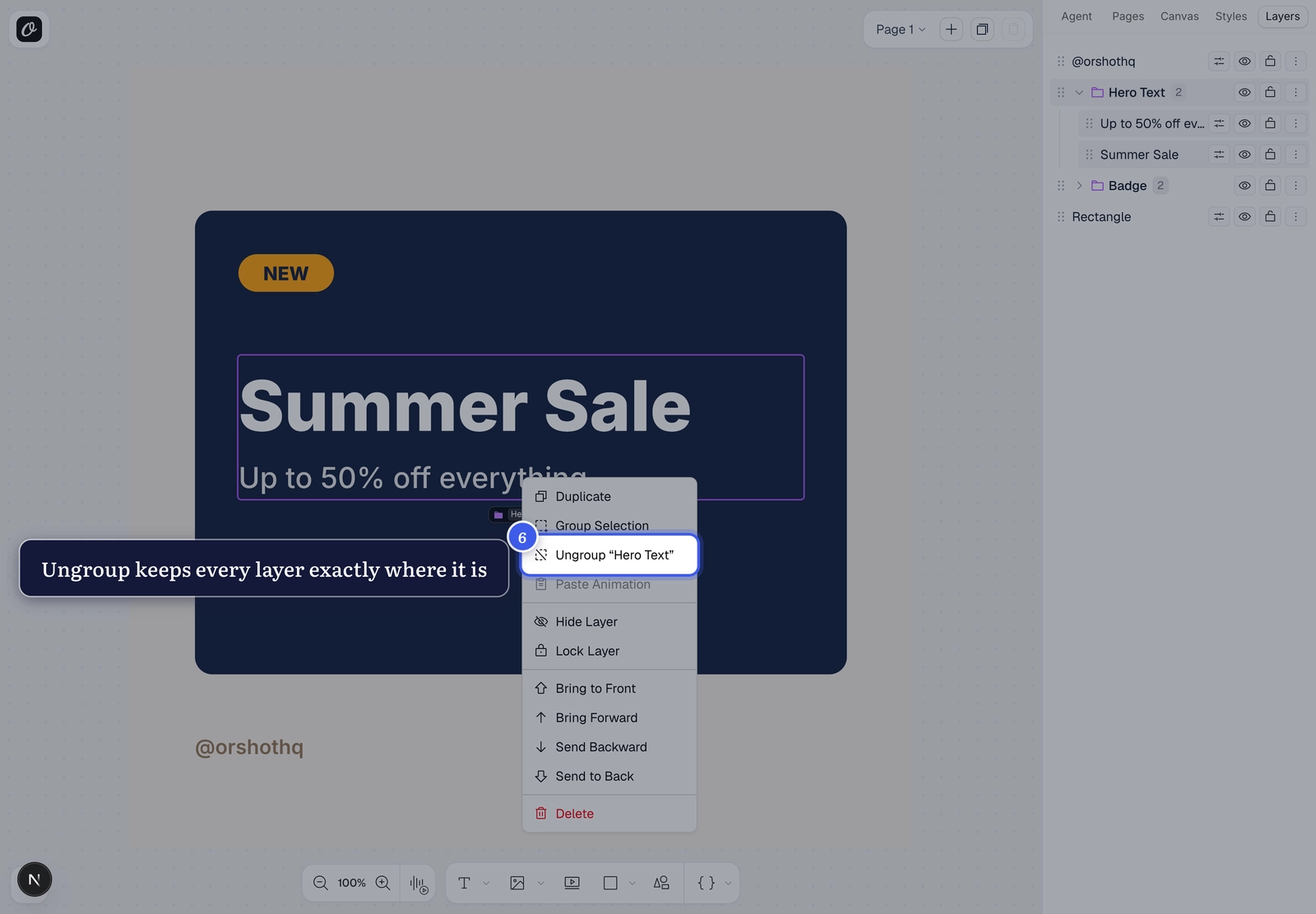
6. Ungroup anytime#
Right-click a grouped layer and choose Ungroup, or press ⌘⇧G. Every layer stays exactly where it is — only the grouping goes away.
Groups never affect your renders
Grouping is a Studio-only convenience. Renders, dynamic parameters, and API responses are identical whether layers are grouped or not — see Layer groups for the technical details.
Related#
More in Orshot Studio
Ready to automate?
Start rendering images, PDFs and videos from your templates in under 2 minutes. Free plan, no credit card.
Get your API key- Image, PDF and video generation via API
- Visual editor with AI and smart layouts
- Zapier, Make, MCP and 40+ integrations
- White-label embed for your own app
- 100 free credits a month, no credit card required