How to crop an image
Trim any image to exactly the part you want — without affecting its layer styles
Published Jun 7, 2026
Open your template in Studio, then:
- Select the image on the canvas
- In the Styles panel, find the Crop row and click Crop Image
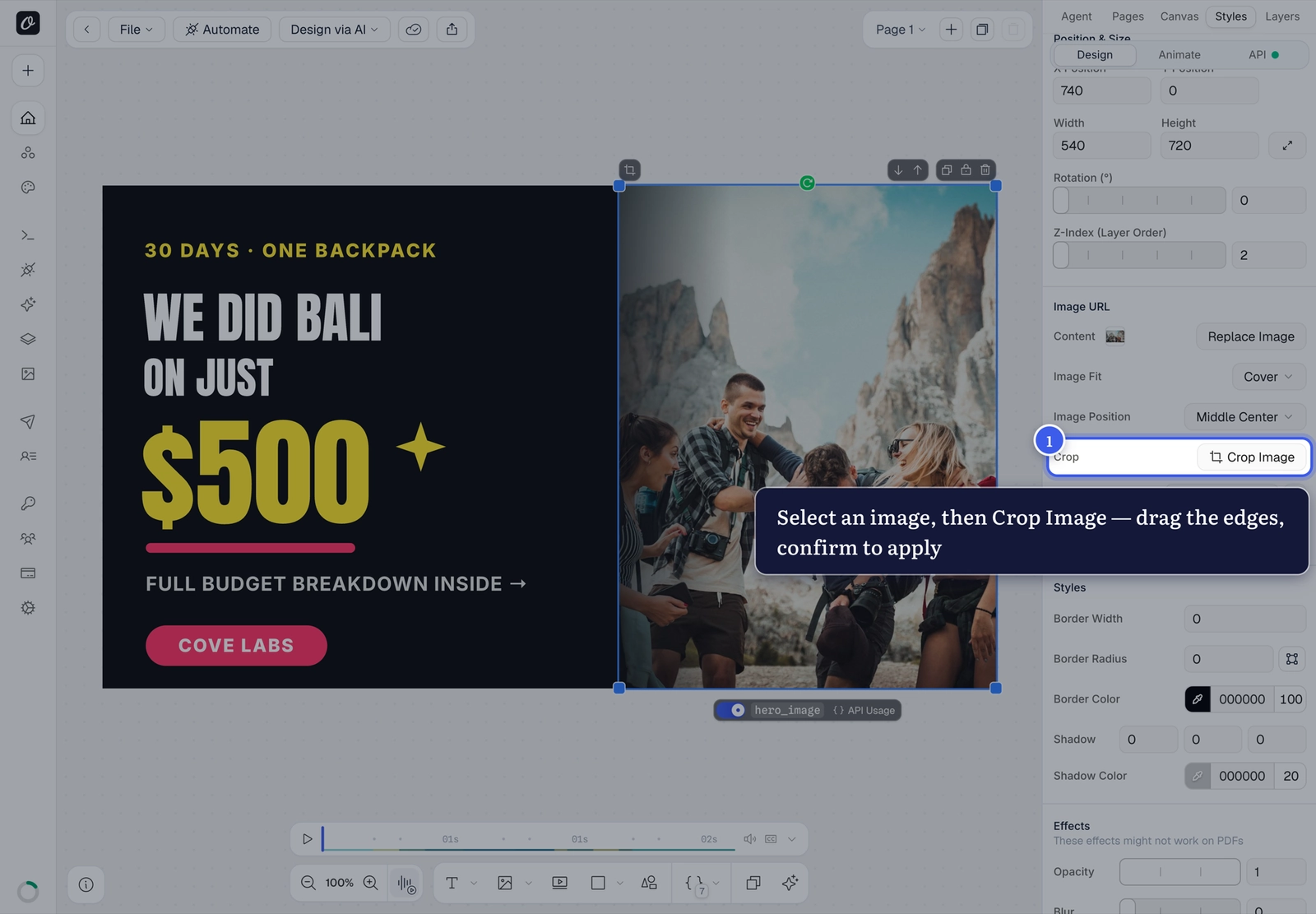
- Drag the edges of the crop frame to keep just the part you want
- Confirm to apply — or press
Escto cancel
The layer's position, size and styles stay put; only the visible part of the image changes.
Need a different image instead?
If cropping isn't enough, replace the image — the picker includes your assets, stock photos, URLs and AI generation.
Related#
More in Orshot Studio
Was this page helpful?
Ready to automate?
Start rendering images, PDFs and videos from your templates in under 2 minutes. Free plan, no credit card.
Get your API key- Image, PDF and video generation via API
- Visual editor with AI and smart layouts
- Zapier, Make, MCP and 40+ integrations
- White-label embed for your own app
- 100 free credits a month, no credit card required