How to generate images with AI in Orshot Studio
Create an image from a text prompt right inside the editor — from the asset picker's AI Generator tab
Published Jun 8, 2026
You can generate an image from a text prompt without leaving the editor. It lives in the asset picker — the panel that opens whenever you add or replace an image.
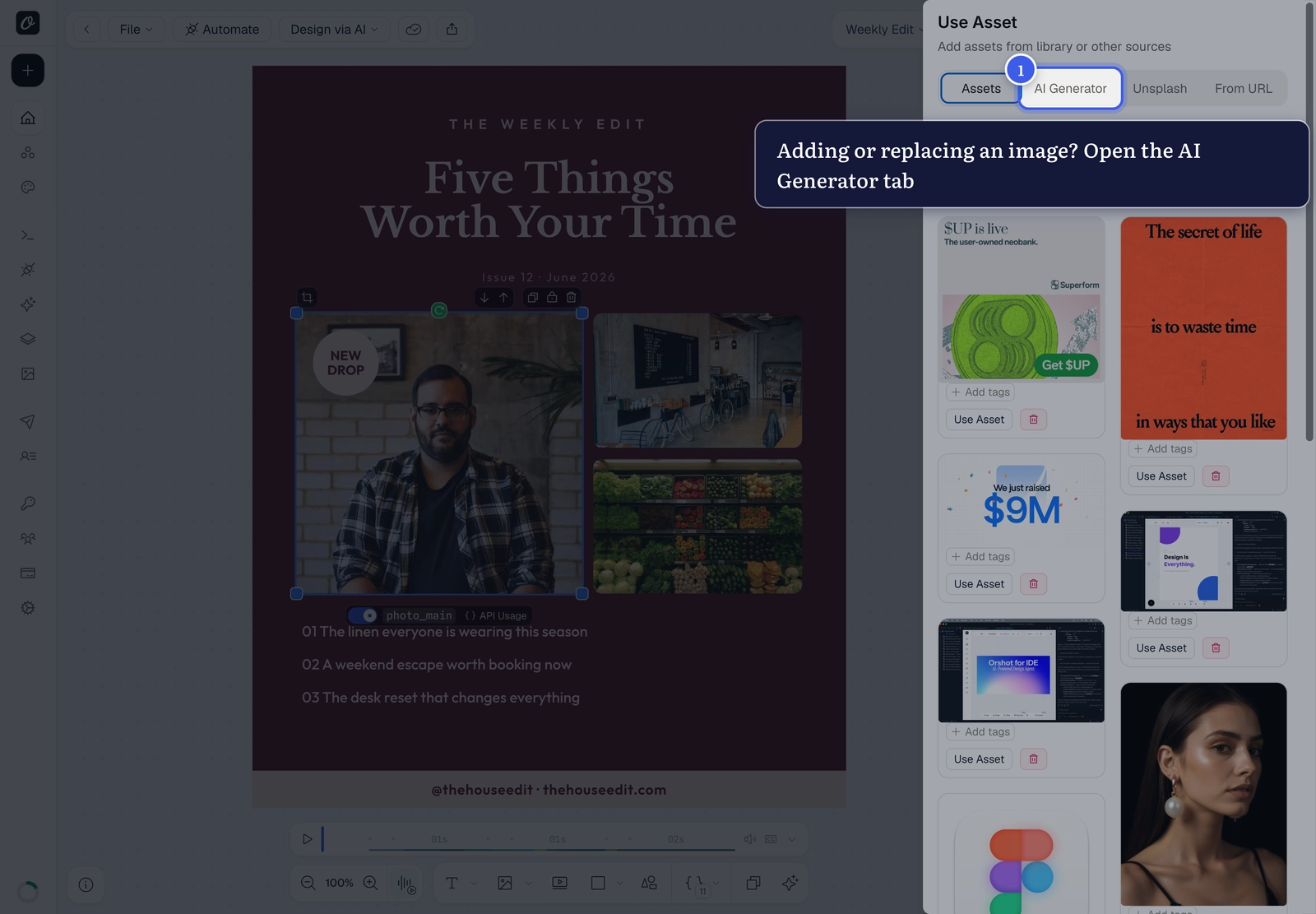
1. Open the AI Generator#
Add a new image, or right-click an existing image and choose Replace Image. In the Use Asset picker, switch to the AI Generator tab.
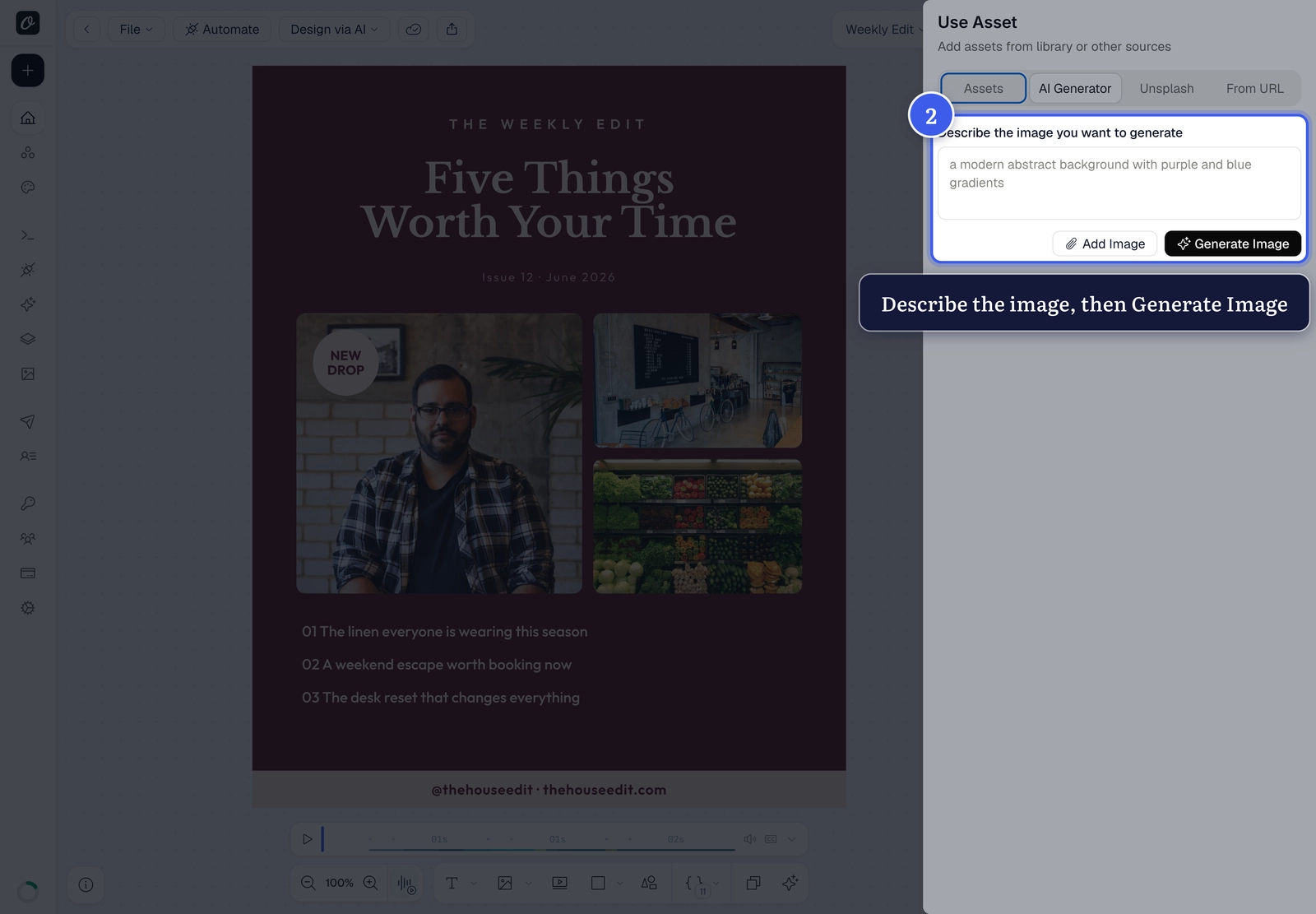
2. Describe and generate#
Type a description of the image you want, then click Generate Image — the result drops straight into your layer.
Good to know
AI generation uses an AI request from your plan. The same picker also has Stock and From URL tabs if you'd rather use an existing photo.
Related#
More in Orshot Studio
Ready to automate?
Start rendering images, PDFs and videos from your templates in under 2 minutes. Free plan, no credit card.
Get your API key- Image, PDF and video generation via API
- Visual editor with AI and smart layouts
- Zapier, Make, MCP and 40+ integrations
- White-label embed for your own app
- 100 free credits a month, no credit card required