How to set a canvas background in Orshot Studio
Give your whole template a background color or image — and an optional border — from the Canvas tab
Published Jun 8, 2026
Your template's background — the color or image behind every layer — lives in the Canvas tab, not on any single layer. Open the Canvas tab in the right panel to set it.
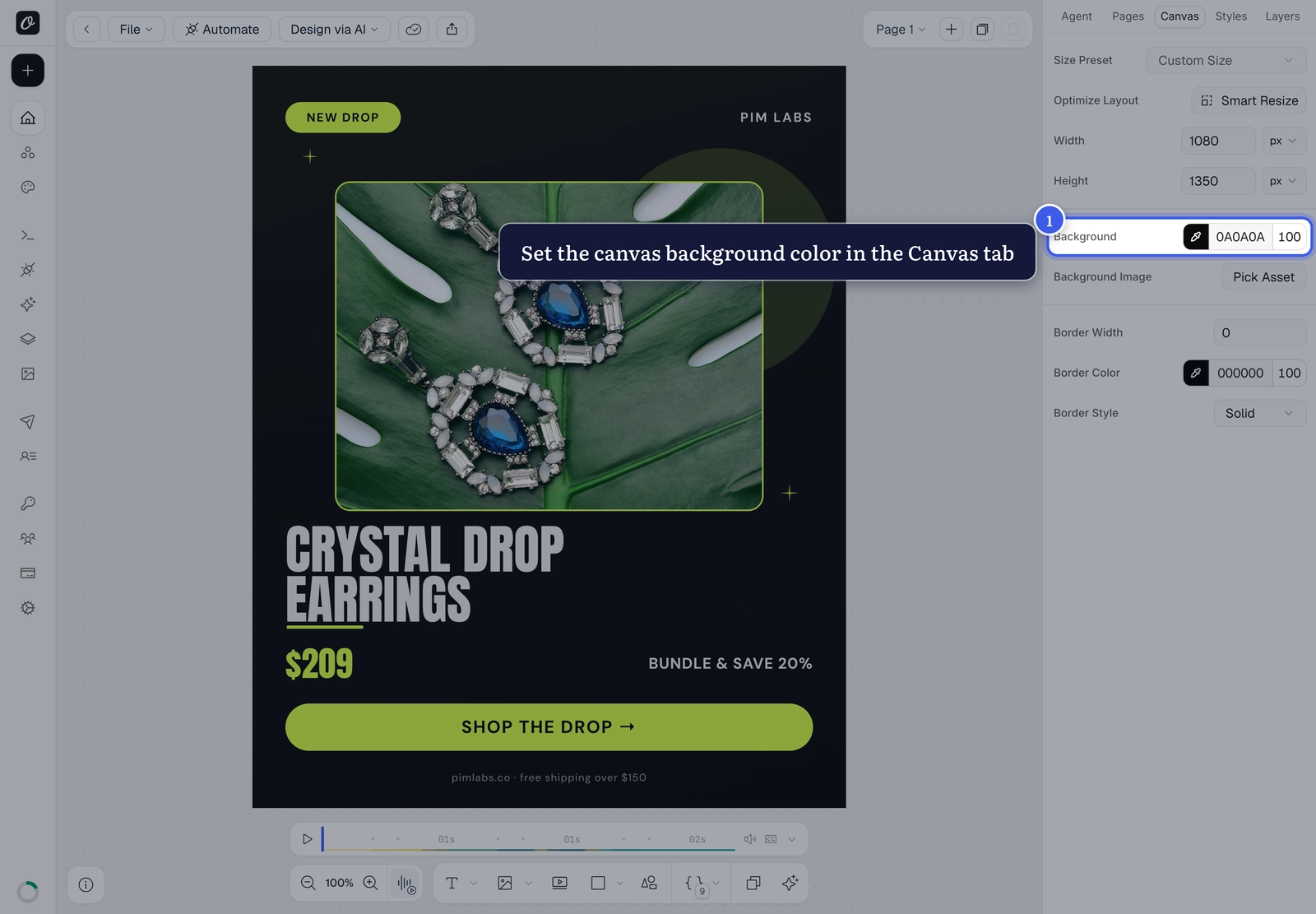
1. Set a background color#
Click the Background swatch and choose a color, or paste a hex value.
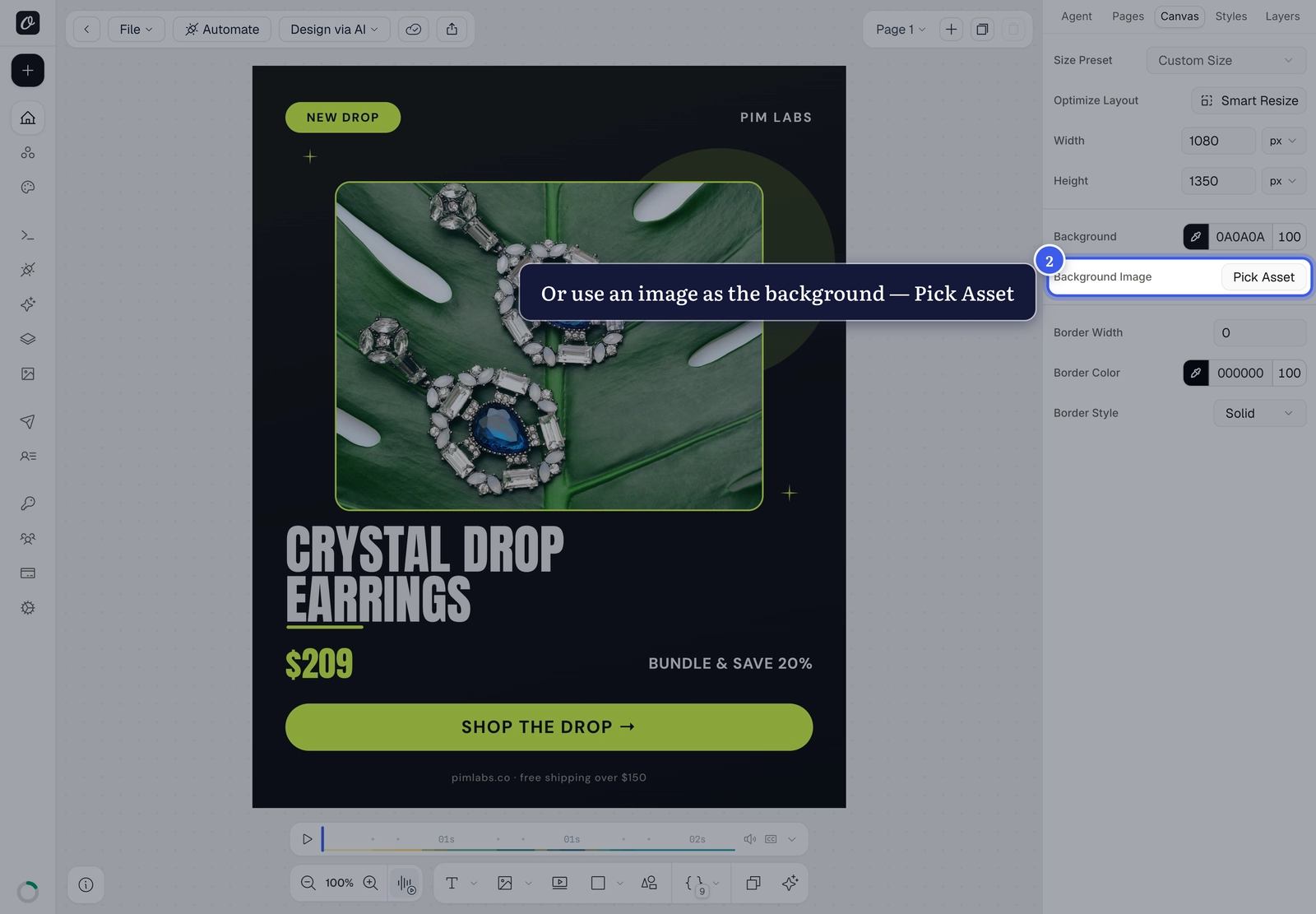
2. Use a background image#
To fill the canvas with an image instead, use Background Image — click Pick Asset to choose from your brand images or uploads.
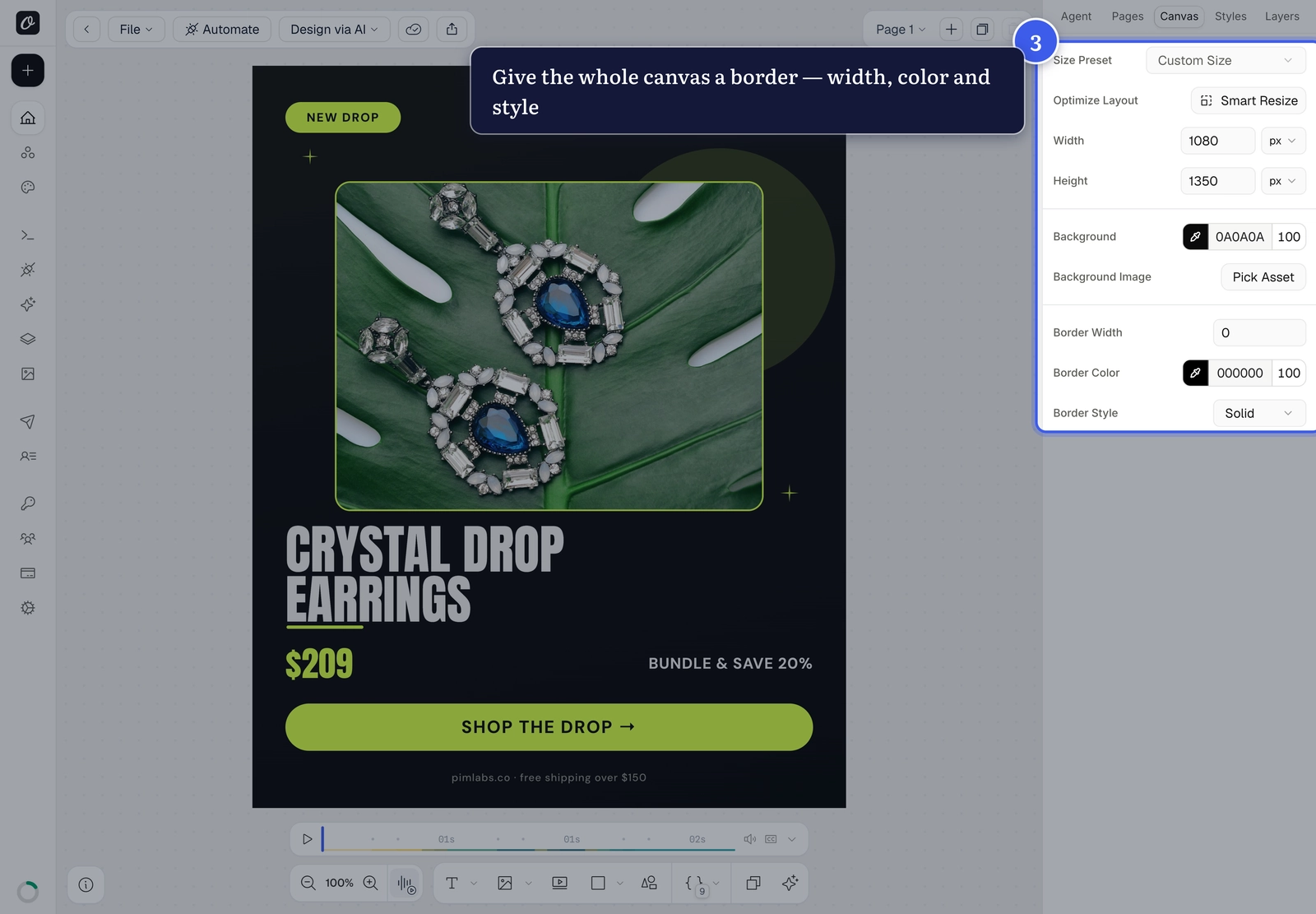
3. Add a canvas border#
Optionally frame the whole canvas: set the Border Width, Border Color, and Border Style — solid, dashed, dotted or double.
Background vs. a layer's fill
This sets the background for the entire canvas. To color a single shape or text box, select it and change its Fill in the Styles panel instead.
Related#
More in Orshot Studio
Ready to automate?
Start rendering images, PDFs and videos from your templates in under 2 minutes. Free plan, no credit card.
Get your API key- Image, PDF and video generation via API
- Visual editor with AI and smart layouts
- Zapier, Make, MCP and 40+ integrations
- White-label embed for your own app
- 100 free credits a month, no credit card required