How to add text, images, and shapes
Build your design from the Orshot Studio toolbar — text, images, video, shapes and dynamic elements
Published Jun 7, 2026
Everything you can place on the canvas lives in the toolbar at the bottom of Orshot Studio.
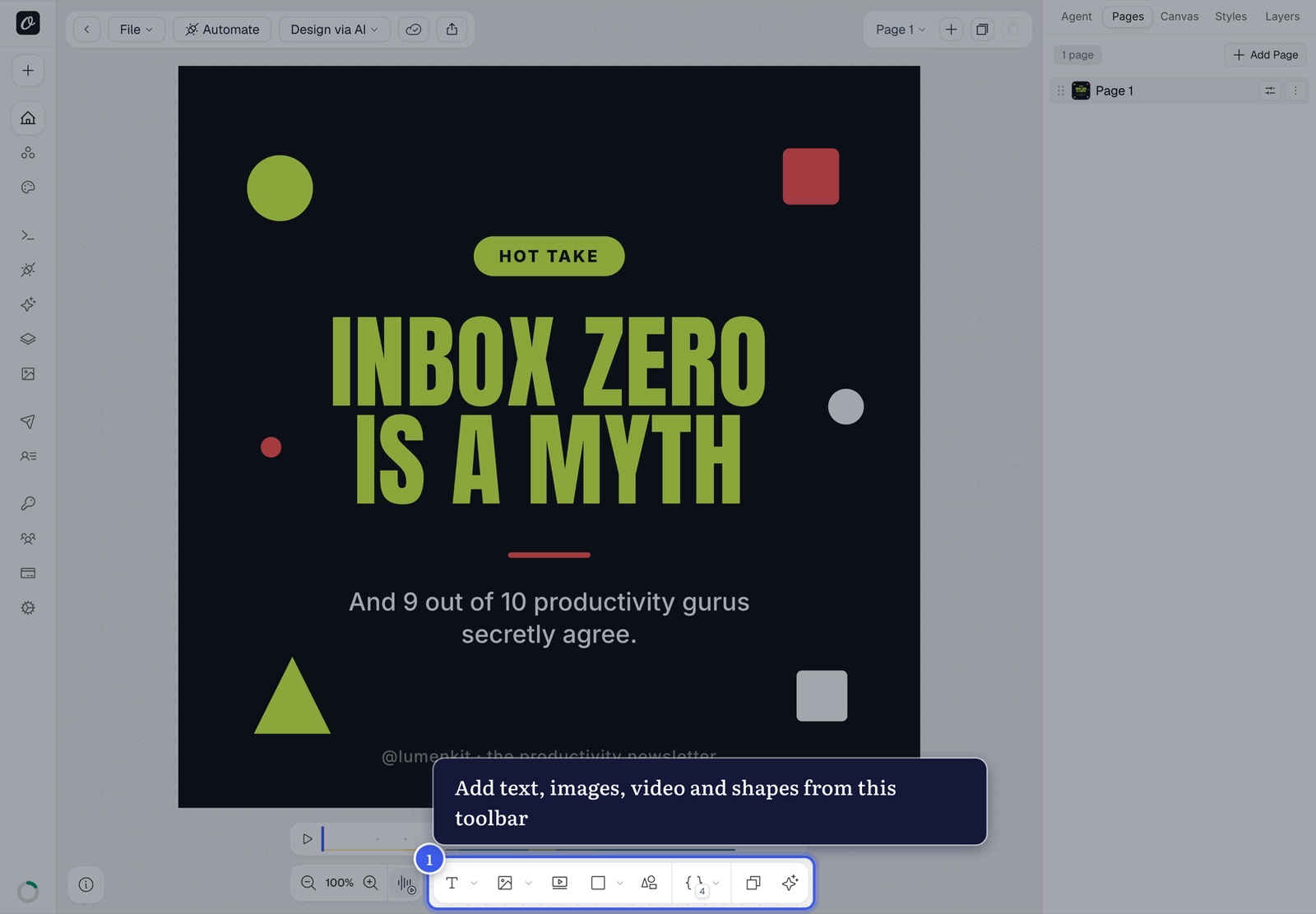
Add an element#
- Click a tool — Text, Image, Video, or Shapes
- The element appears on your canvas (or an insert panel opens for media)
- Drag it into place, then style it
Faster with shortcuts
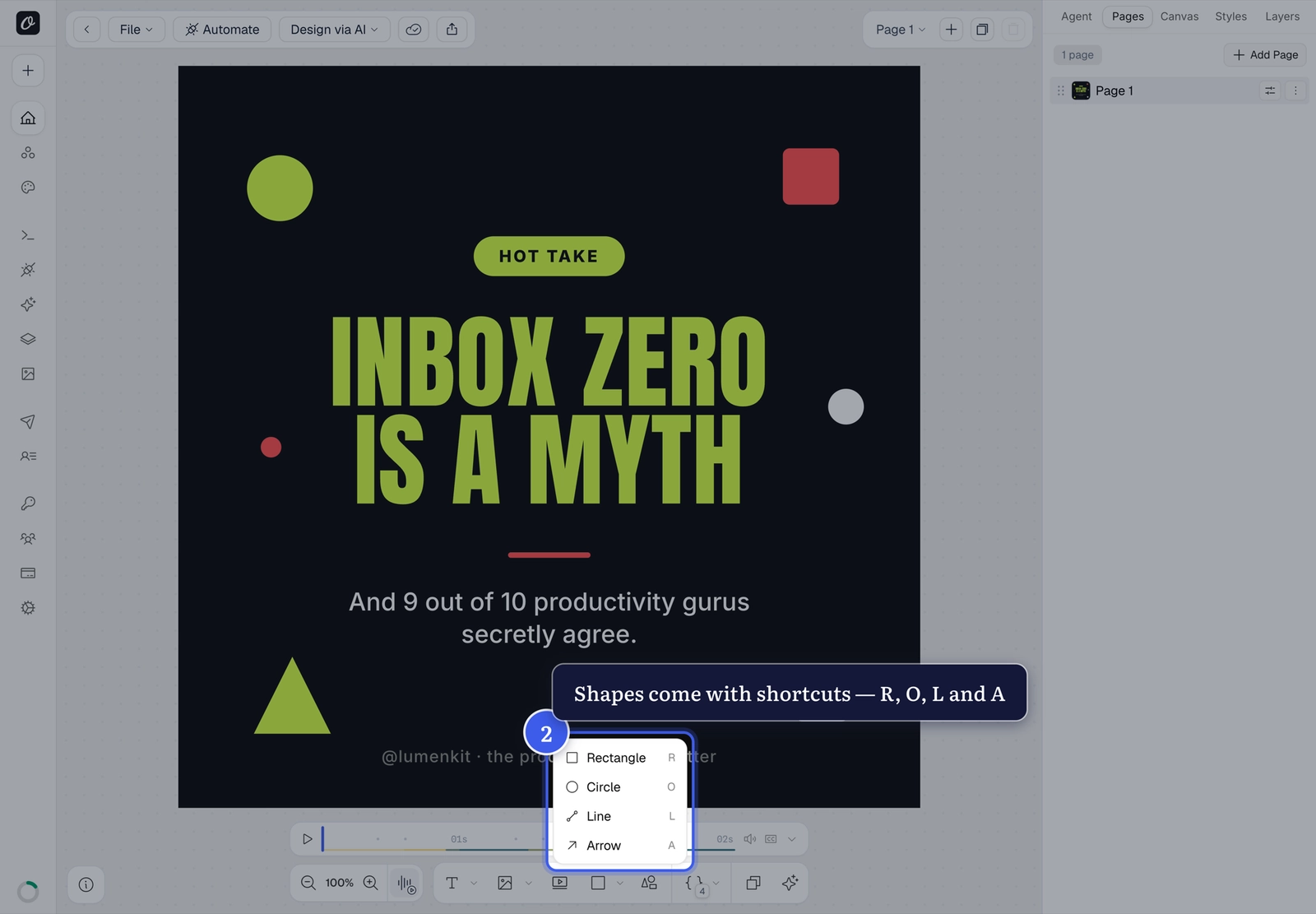
Press T for text, I for image, V for video — and for shapes: R rectangle, O circle, L line, A arrow.
Shapes#
The caret next to the shapes tool lists all of them, with their shortcuts:
Images and video#
Media tools open an insert panel — pick something you've already uploaded, or upload new files right there. Everything you upload is reusable across templates from your library.

Related#
More in Orshot Studio
Was this page helpful?
Ready to automate?
Start rendering images, PDFs and videos from your templates in under 2 minutes. Free plan, no credit card.
Get your API key- Image, PDF and video generation via API
- Visual editor with AI and smart layouts
- Zapier, Make, MCP and 40+ integrations
- White-label embed for your own app
- 100 free credits a month, no credit card required