How to generate visuals with n8n
Render images, PDFs, and videos from your Orshot templates in an n8n workflow — import a ready-made workflow or build it yourself
Published Jun 8, 2026
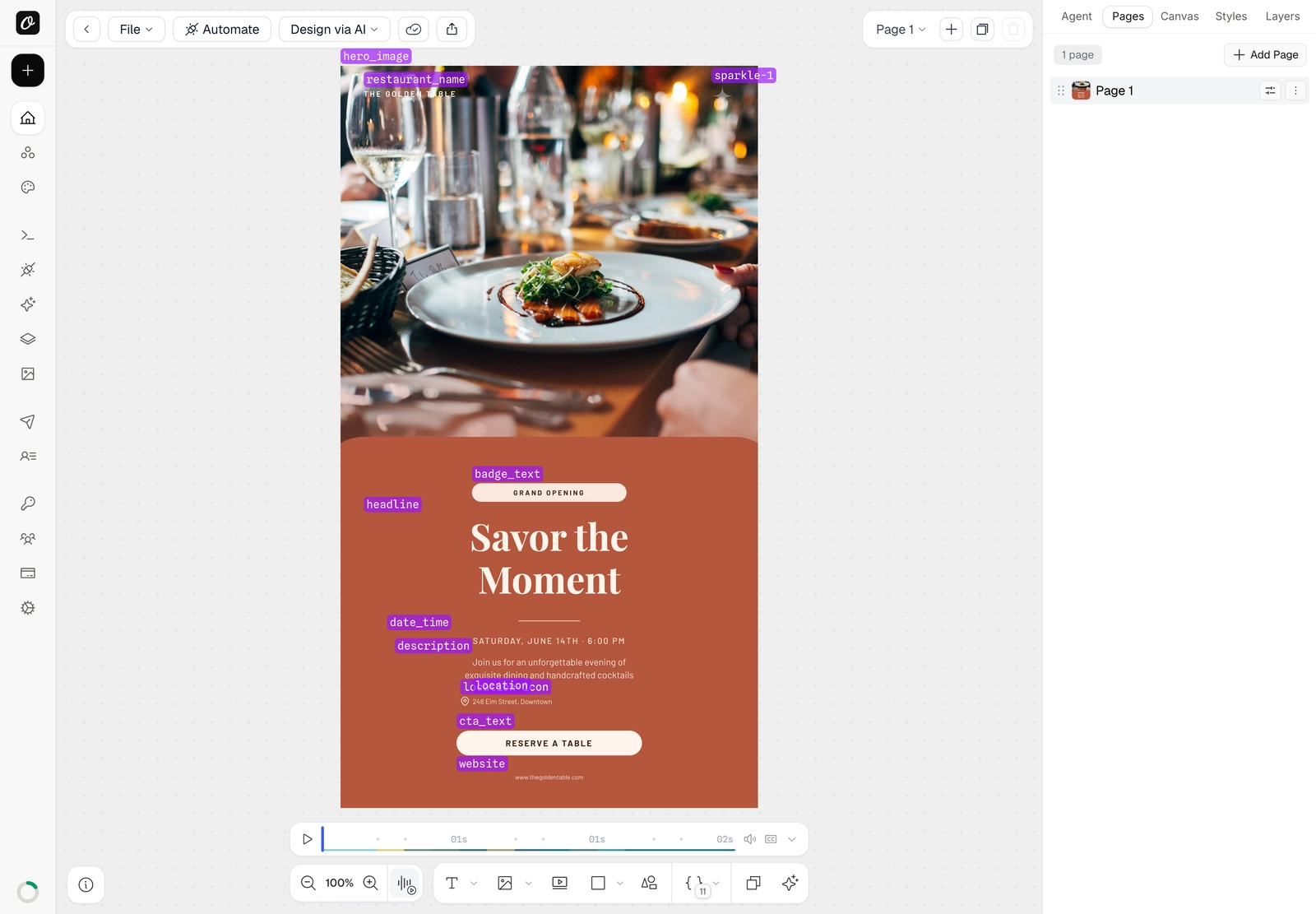
n8n is a workflow-automation tool you can self-host or run in the cloud. A workflow can render an image, PDF, or video from your Orshot template — and Orshot gives you a ready-made workflow you can paste straight onto the n8n canvas. Here's the template we'll automate:

1. Know your template's parameters#
Open your template in Orshot Studio and press ⌘] (Toggle Parameter View). Every editable element is labelled with its parameter name — headline, restaurant_name, hero_image, and so on. These are the values you'll set from n8n. Any element can be made dynamic — see Make your template dynamic.
2. Grab the ready-made workflow#
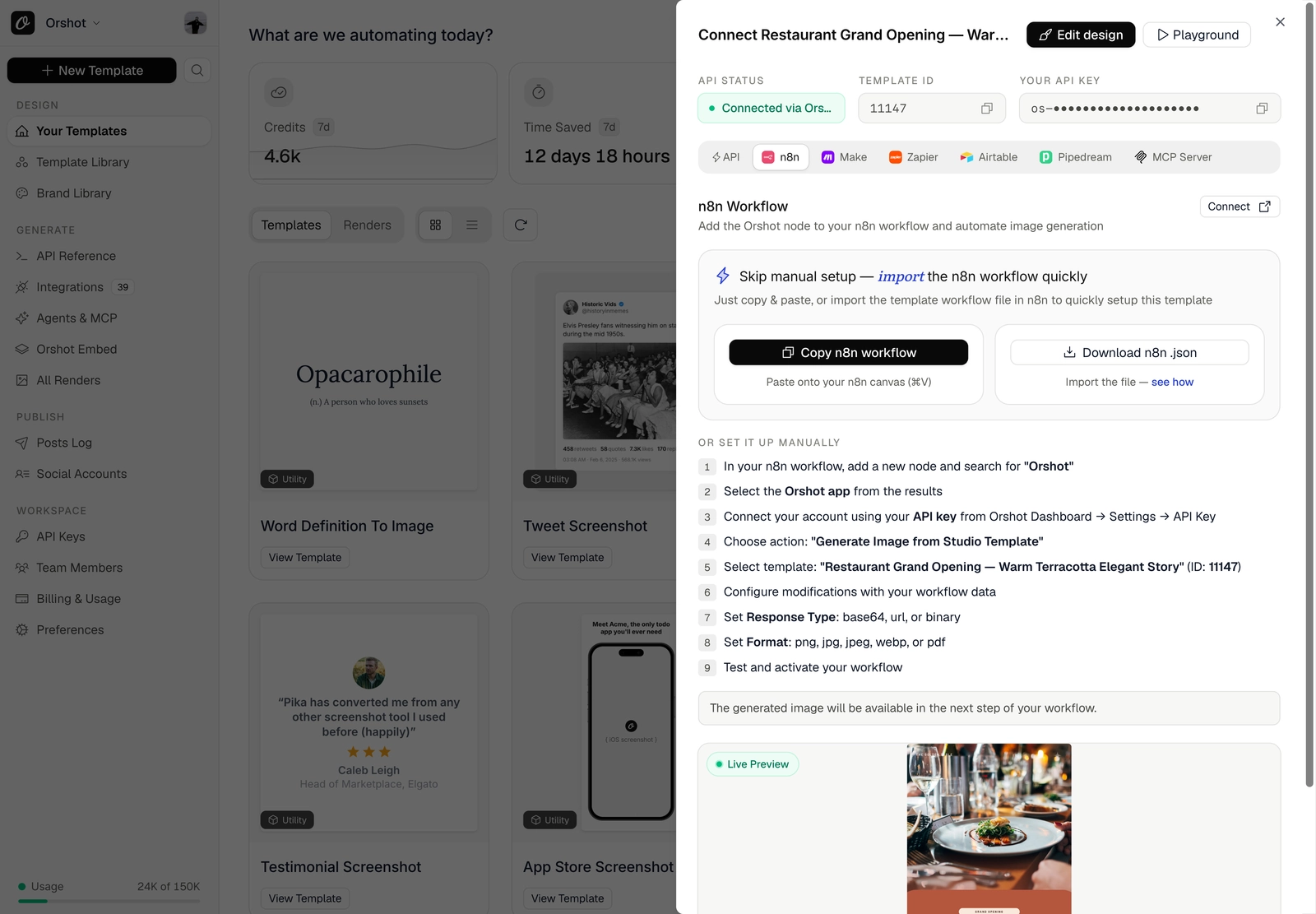
On the template's card, click Connect, then open the n8n tab. You'll find your Template ID, API key, and a Copy n8n workflow button plus a Download n8n .json file. The same panel also lists the manual steps if you'd rather build it yourself. New to API keys? See Find your API key and template ID.
3. Import it into n8n#
Create a new workflow in n8n. Click Copy n8n workflow in Orshot, then paste it onto the n8n canvas (⌘V / Ctrl+V). (Or use Download n8n .json and import the file from the workflow menu.)
4. Your workflow is ready#
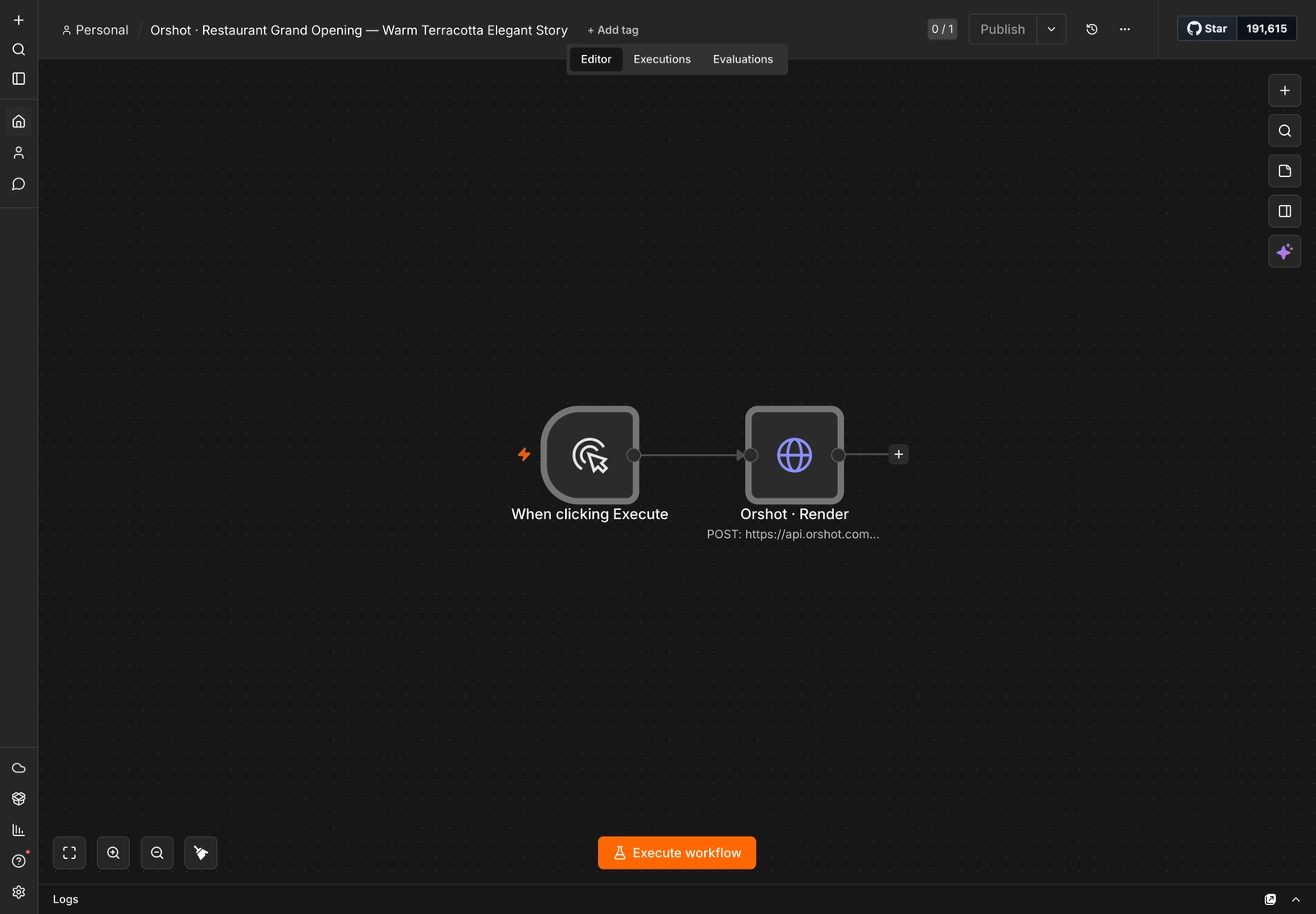
The workflow loads with a Manual Trigger wired to an Orshot · Render step that already targets Orshot's render endpoint with your template and its modifications.
5. Check the render step#
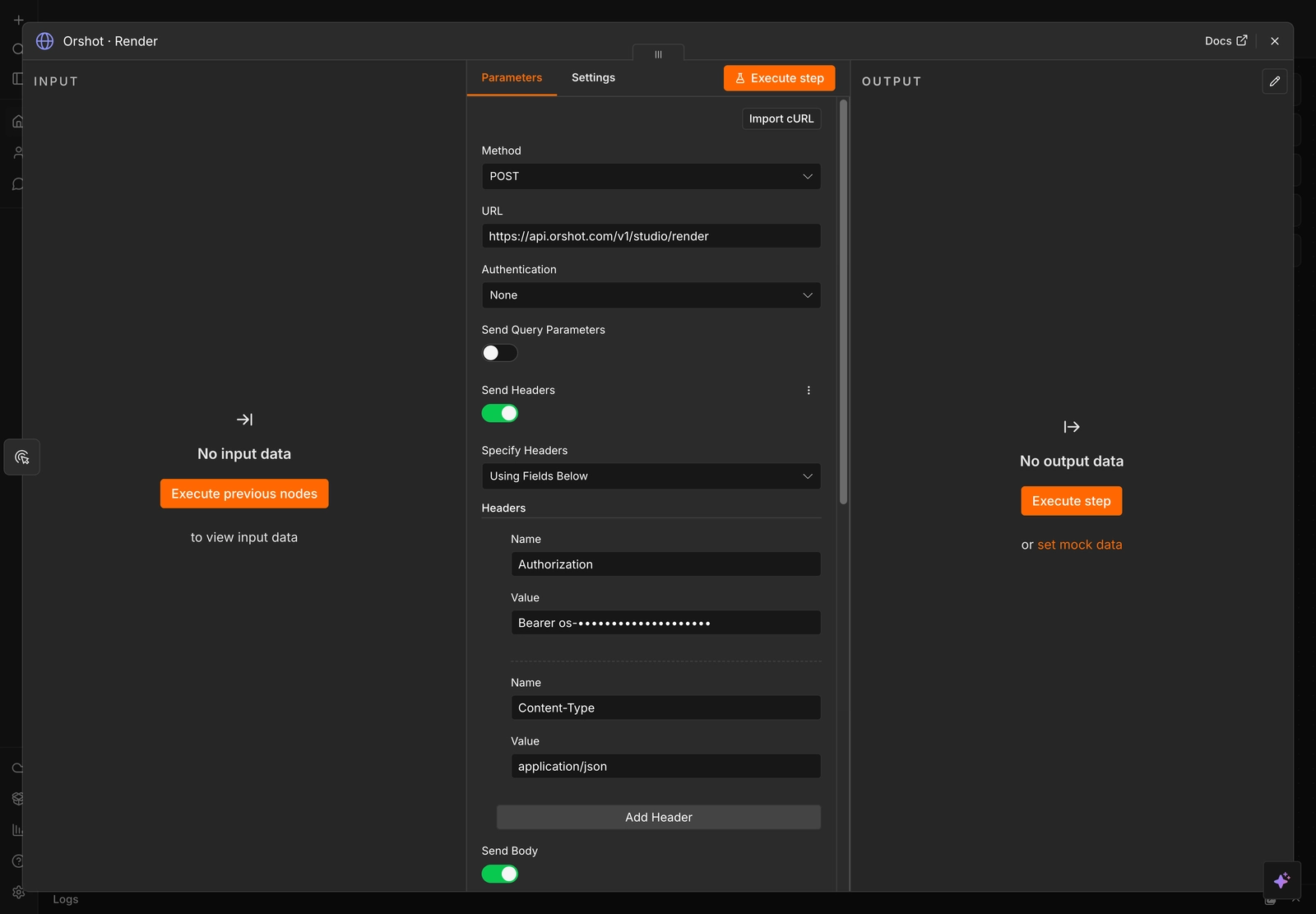
Open the Orshot · Render node to review it — and to tweak anything:
- Method / URL —
POSTto Orshot's render endpoint. - Headers — your API key as
Authorization: Bearer …, andContent-Type: application/json. - Body — the render request itself: the
templateIdand amodificationsobject (see below).
Set your modifications#
Open the node and scroll to Send Body → Body Content Type: JSON. The JSON field is where you set your modifications: it holds the templateId and a modifications object with one key per template parameter (the names from step 1).
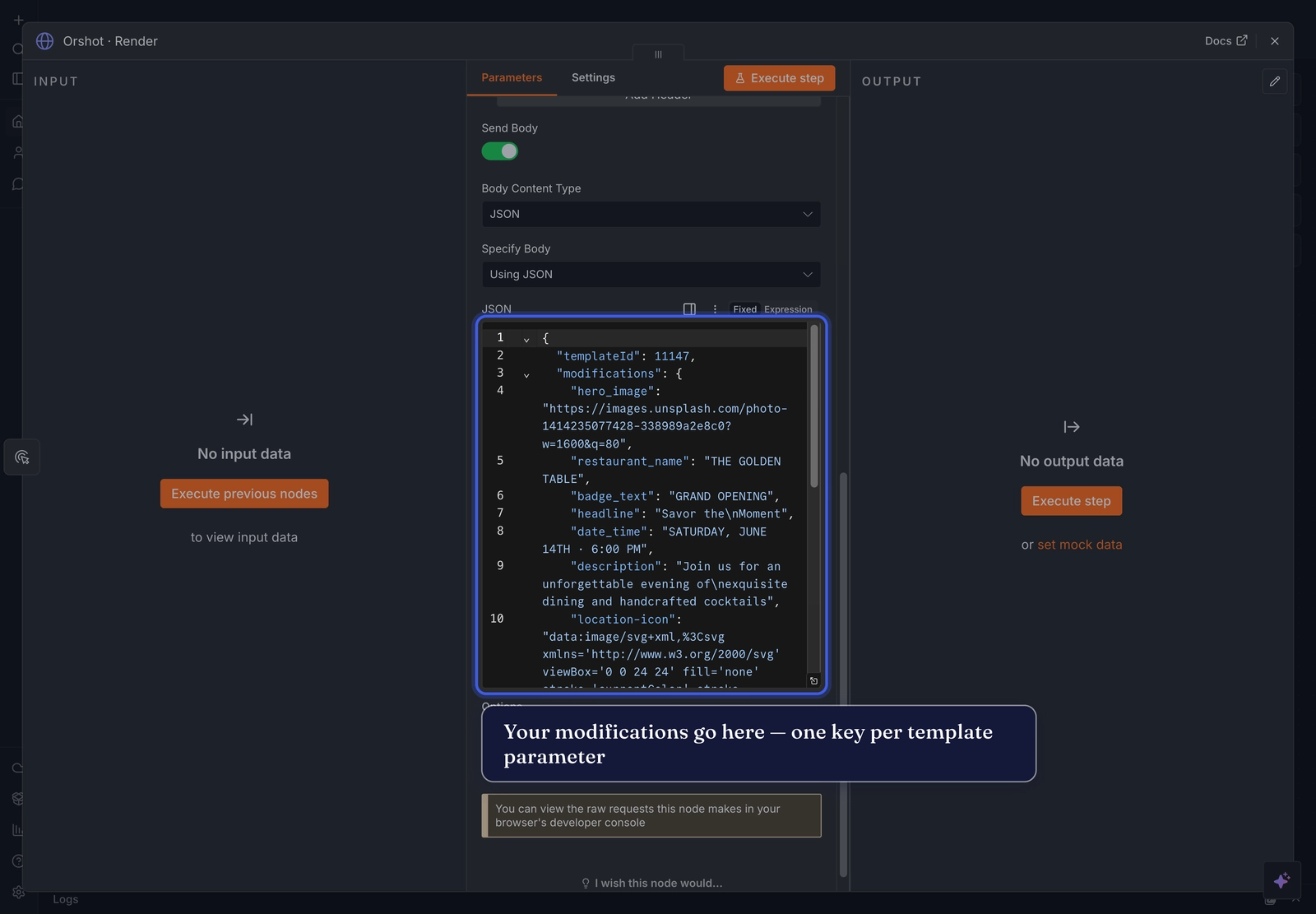
Edit any value, add the parameters you want to change, and set the output with "responseType" and "format":
{
  "templateId": 11147,
  "modifications": {
    "headline": "Savor the Moment",
    "restaurant_name": "THE GOLDEN TABLE",
    "hero_image": "https://images.unsplash.com/photo-1414235077428"
  },
  "responseType": "url",
  "format": "png"
}
To make a value dynamic, switch that field from Fixed to Expression (top-right of the JSON box) and reference data from your trigger or an earlier node, e.g. {{ $json.name }}.
Build it from scratch instead
Prefer not to import? Add a node, search Orshot, choose Generate Image from Studio Template, connect your account with your API key, then pick your template and fill its parameters — the manual steps are listed right in the Connect sheet.
6. Run it#
Click Execute workflow. n8n calls Orshot, which renders your template with its modifications and returns the result. With the body's format set to gif/mp4, an animated template returns video:

7. Use it downstream#
Add more nodes after Orshot and pass the rendered image along — save it, upload it, post it, or email it — then activate the workflow to run it on a schedule or trigger.
Related#

More in Automations
Ready to automate?
Start rendering images, PDFs and videos from your templates in under 2 minutes. Free plan, no credit card.
Get your API key- Image, PDF and video generation via API
- Visual editor with AI and smart layouts
- Zapier, Make, MCP and 40+ integrations
- White-label embed for your own app
- 100 free credits a month, no credit card required