How to choose who can approve each stage
On a flow's Access tab, give people, groups or roles Approve access in every stage or one, then set how many approvals each review stage needs.
Published Sep 29, 2026
Nobody approves by role alone, not even owners and admins. You pick approvers per flow on its Access tab, for the whole flow or one stage. Each review stage then sets how many of them have to approve.
Owners, admins and people with Manage access can change a flow's access. Manage doesn't let someone approve. Reviewers only comment, approve and request changes, so Manage and Add and move are greyed out in Can on their rows.
Give someone Approve access#
- 1
Open the Access tab
On the flow's board, click Flow settings (the gear), then Access.
- 2
Add them
Click Add people (or Add people or groups) and pick a person, a group, a role or a pending invite.
- 3
Set Can and In
Keep Can on Approve. Set In to All stages, or to one stage like Legal review.
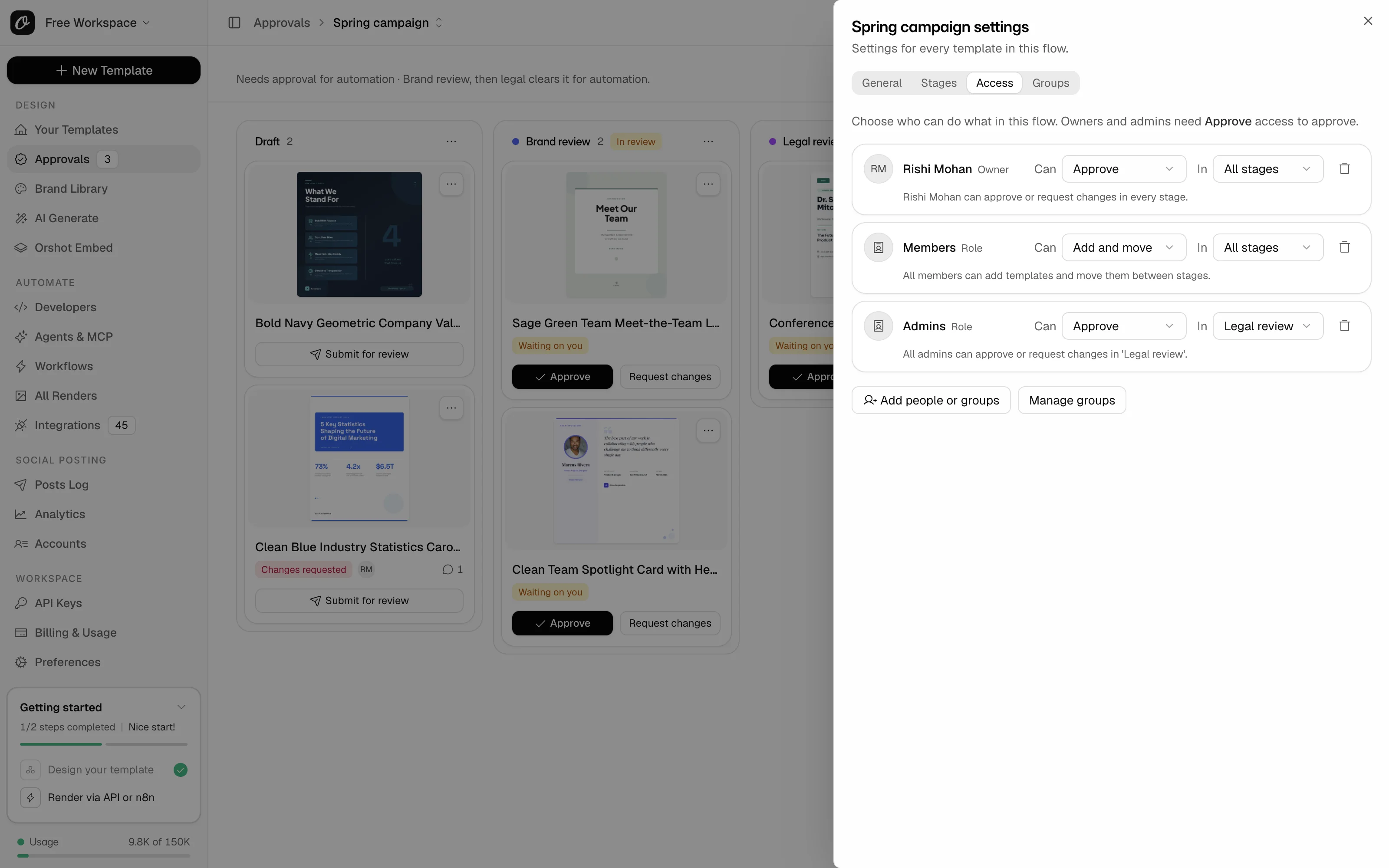
- 4
Save
Read the sentence under the row, like "Maya can approve or request changes in 'Legal review'." Click Save access.
Each person, group or role has one row. To have someone approve in two stages, pick All stages, or use one group per stage.
Use a group#
A group, like Legal, lets anyone in it approve, including people you add to it later. Groups are shared by every flow in the workspace.
- In the flow settings, open Groups. Type a name under New group and click Create.
- On the group's row, click Add people and pick each member.
- On Access, add the group, set Can to Approve and In to its stage, then click Save access.
The card then says who it waits on, like "Waiting on Maya and Legal".
Set how many approvals a stage needs#
In the flow settings, open Stages, click the arrow on a review stage and pick Approvals needed. Changes on this tab save as you make them.
| Approvals needed | The template moves on when |
|---|---|
| Any one approver | One person with Approve access approves |
| Every approver | Everyone who can approve there has approved, group members included |
| A set number of approvers | That many different people have approved (set How many approvals) |
The person who submitted the template doesn't count, unless you turn on People can approve templates they submitted in the same stage. Owners and admins can always approve templates they submitted.
Common problems#
| You see | Why, and what to do |
|---|---|
| "Nobody could approve in 'Legal review' after saving. Add someone with Approve access." | Every review stage needs an approver. Add one before you save. |
| The Groups tab says "Not included in this workspace's plan" | Your tier doesn't include groups. Give people and roles access one by one instead. |
| Every approver says "Not included in this workspace's plan" | Your tier only takes Any one approver. See plans and limits. |
| An owner can't approve | Owners and admins need Approve access, like everyone else. |
Related#
More in Approval flows
Ready to automate?
Start rendering images, PDFs and videos from your templates in under 2 minutes. Free plan, no credit card.
Get your API key- Image, PDF and video generation via API
- Visual editor with AI and smart layouts
- Zapier, Make, MCP and 50+ integrations
- White-label embed for your own app
- 100 free credits a month, no credit card required