How to invite a client to approve templates
Invite a client as a Reviewer. They see only the approval flows you pick, comment, and approve where you give them Approve access.
Published Sep 29, 2026
Reviewer is a workspace role for people outside your team, like a client. A reviewer views templates, comments, and approves or requests changes where you allow it. They can't edit, add or move templates, and they never see API keys, renders, billing, brand assets or settings.
The workspace owner and admins see the invite form. A reviewer takes a seat, like a member, and a pending reviewer invite holds its seat until it's accepted or cancelled. To keep a client to their own templates, set up an approval flow for them first, for example from the Agency and client preset.
Invite them#
- 1
Open Team Members
Click Preferences in the sidebar, then the Team Members tab. Scroll to Invite a member.
- 2
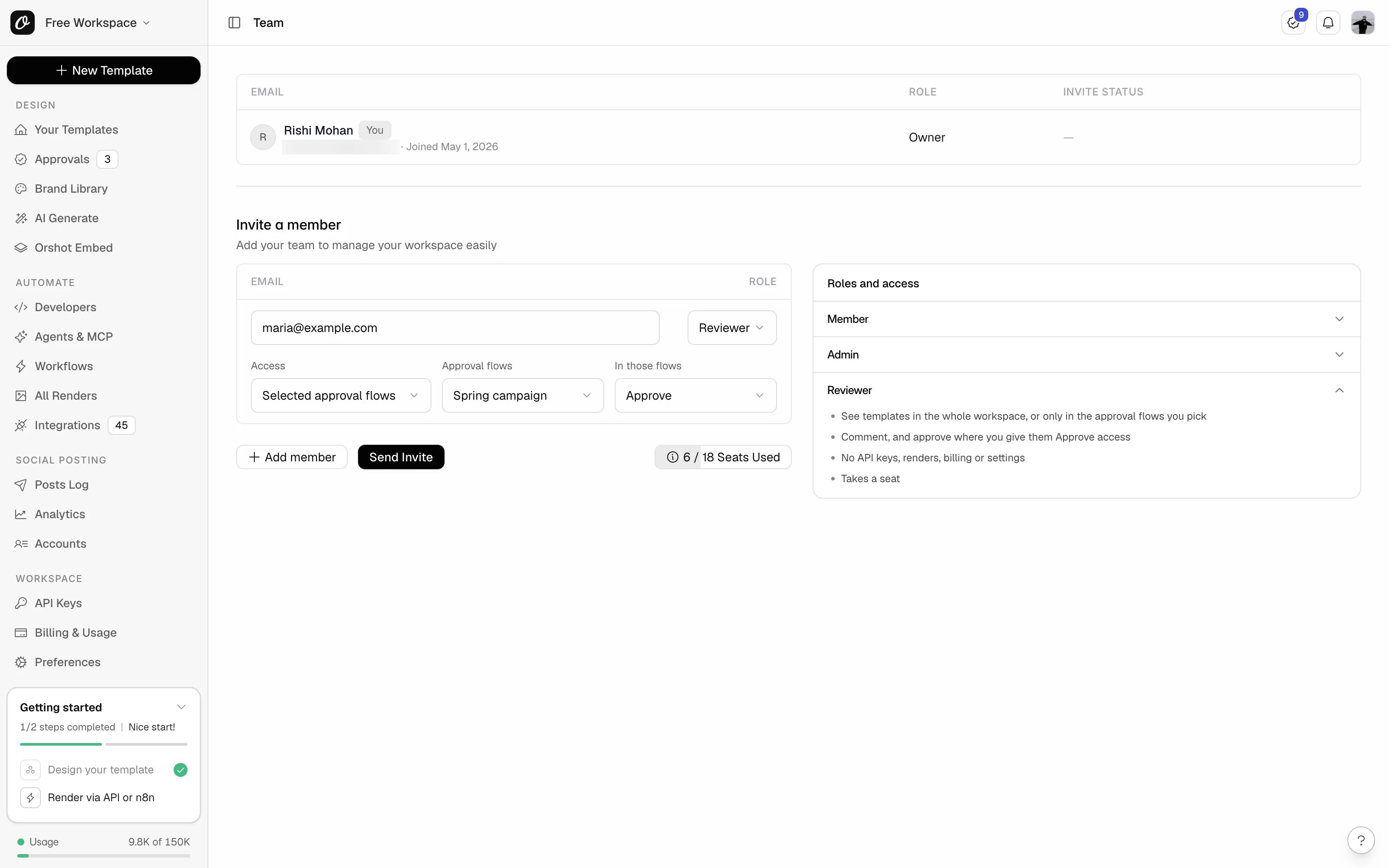
Enter their email and pick Reviewer
Type the client's email, then set Role to Reviewer. Three more fields appear.
- 3
Choose what they can see
Under Access, pick Selected approval flows for a client. Whole workspace lets them view every template.
- 4
Pick their flows and what they can do
In Approval flows, tick the client's flow. Set In those flows to Approve, or to Comment if they only give feedback.
- 5
Send the invite
Click Send Invite. They get an email to join your workspace.
The client's row shows Reviewer and Selected approval flows, with Pending until they accept. Use the second menu on the row to switch them to Whole workspace later.
Limit them to one stage#
The invite gives Approve access in every stage of the flow. To have the client approve only in Client review, open the flow's Flow settings (the gear), then Access. Find the client's row (until they join, its sentence starts with "Once they join"), set In to Client review and click Save access.
What the client sees#
- Your Templates and Approvals in the sidebar, and the Approvals inbox in the top bar.
- Templates waiting on them marked Waiting on you, with Approve and Request changes on the card.
- A "Review needed" email each time a template reaches their stage.
- The template in the studio marked View only, with comments and @mentions of your team.
- Download in the studio, for PNG and PDF.
- Your team's names, but not their email addresses.
Reviewers approve or request changes (with the buttons, or by dragging the card out of the review), comment and follow templates. The flow moves the template on from there. Whatever access you give them, they can't move templates between stages, add templates, take them out of a flow, or change or copy a flow.
A reviewer limited to selected flows sees nothing outside them. A template from another flow opens as "Template not found".
Common problems#
| You see | Why, and what to do |
|---|---|
| No Reviewer in the Role menu | Reviewers come with approval flows, on the Scale plan and above. See plans and limits. |
| "Choose at least one approval flow [their email] can see" when you send the invite | Tick a flow in Approval flows, or switch Access to Whole workspace. |
| You're out of seats | In the row menu on Team Members, cancel a pending reviewer invite or remove someone you no longer need. Or upgrade on pricing. |
| The client can't approve: "You're not an approver in the 'Client review' stage." | Give them Approve access in that stage on the flow's Access tab. |
| The client sees "Template not found" | The template isn't in a flow they can see. Add it to their flow. |
| No Transfer ownership in the client's row menu | Reviewers can't own a workspace. Change their role to Member or Admin first. |
Related#
More in Approval flows
Ready to automate?
Start rendering images, PDFs and videos from your templates in under 2 minutes. Free plan, no credit card.
Get your API key- Image, PDF and video generation via API
- Visual editor with AI and smart layouts
- Zapier, Make, MCP and 50+ integrations
- White-label embed for your own app
- 100 free credits a month, no credit card required