How to sign in with a password or a passkey
Set a password or add a passkey from Account and log in with it next to Google, GitHub and the email link. Passkeys use Touch ID, Face ID or a security key.
Published Oct 11, 2026
Every Orshot account can log in with Google, GitHub or an email link. You can add two more ways from Account: a password, and passkeys. Your existing methods keep working, so there is nothing to switch over.
Set a password#
- Open your avatar menu at the top right and click Account Settings.
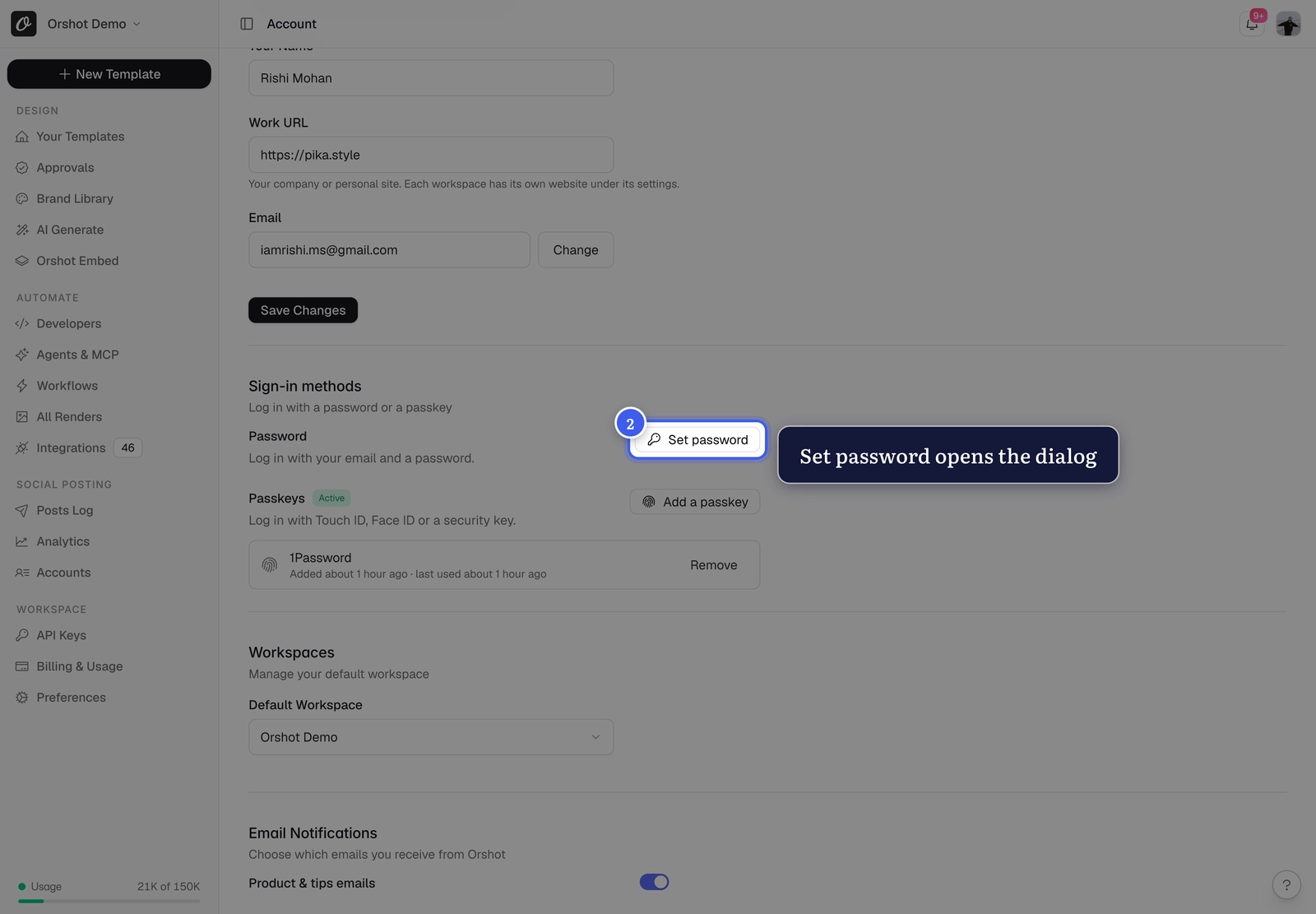
- Under Sign-in methods, click Set password.
- Enter a password of at least 8 characters, repeat it, and click Save password.
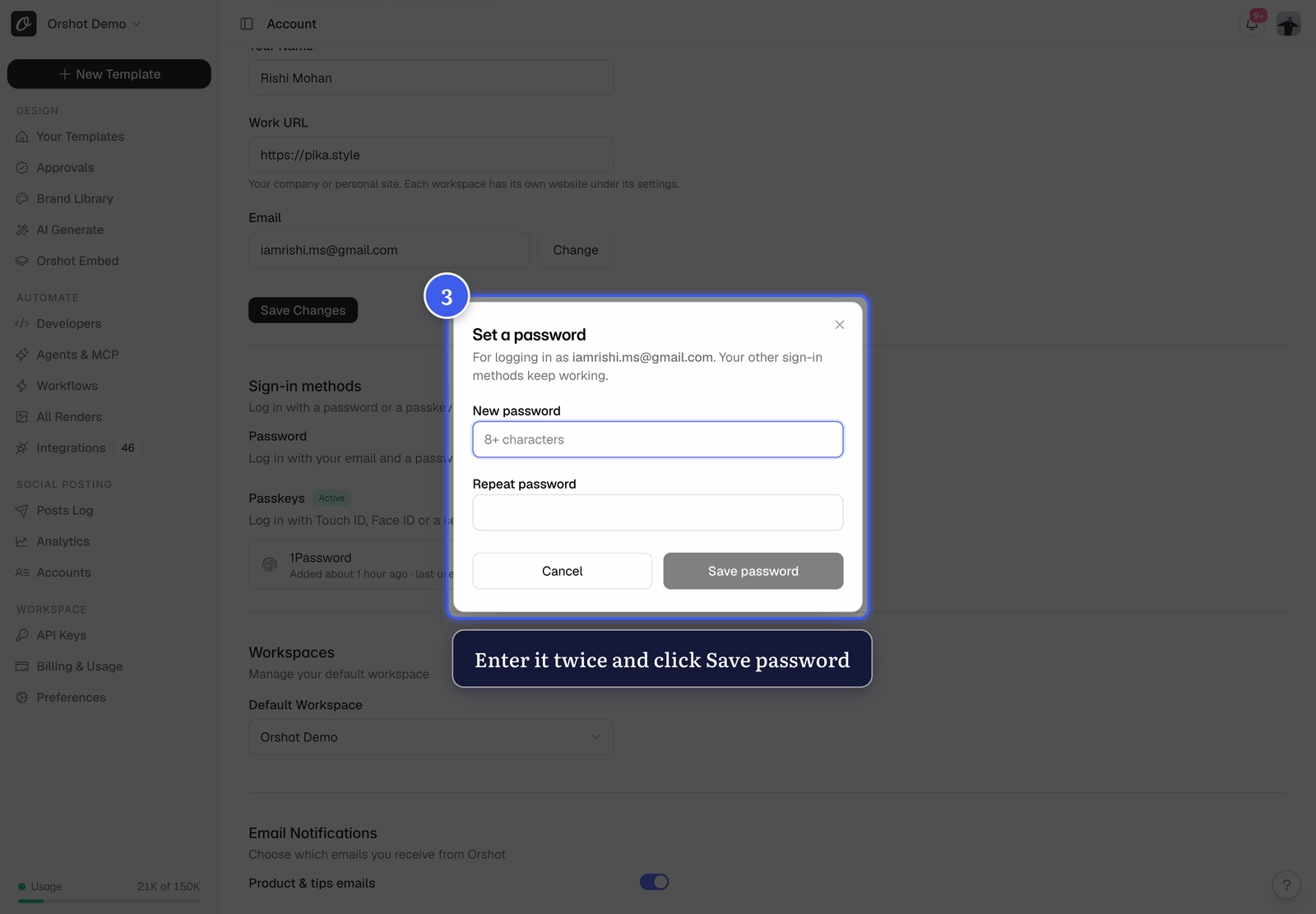
If you haven't signed in recently, Orshot emails you a 6-digit code first. Enter it in the dialog to confirm the change.
To change a password later, repeat the same steps. The new password replaces the old one.
Log in with your password#
On the login page, open the Password tab, enter your email and password, and click Login. You land in your last workspace.
You can also use the password on the signup page. Entering an email that already has an account logs you in instead of creating a second account.
Add a passkey#
A passkey is a login key stored on your device or in your password manager. You approve it with Touch ID, Face ID, Windows Hello or a security key, and there is nothing to remember or type.
- Open Account Settings and find Passkeys under Sign-in methods.
- Click Add a passkey.
- Your browser asks where to save it: this device, your phone, or a password manager like 1Password or iCloud Keychain. Approve the prompt.
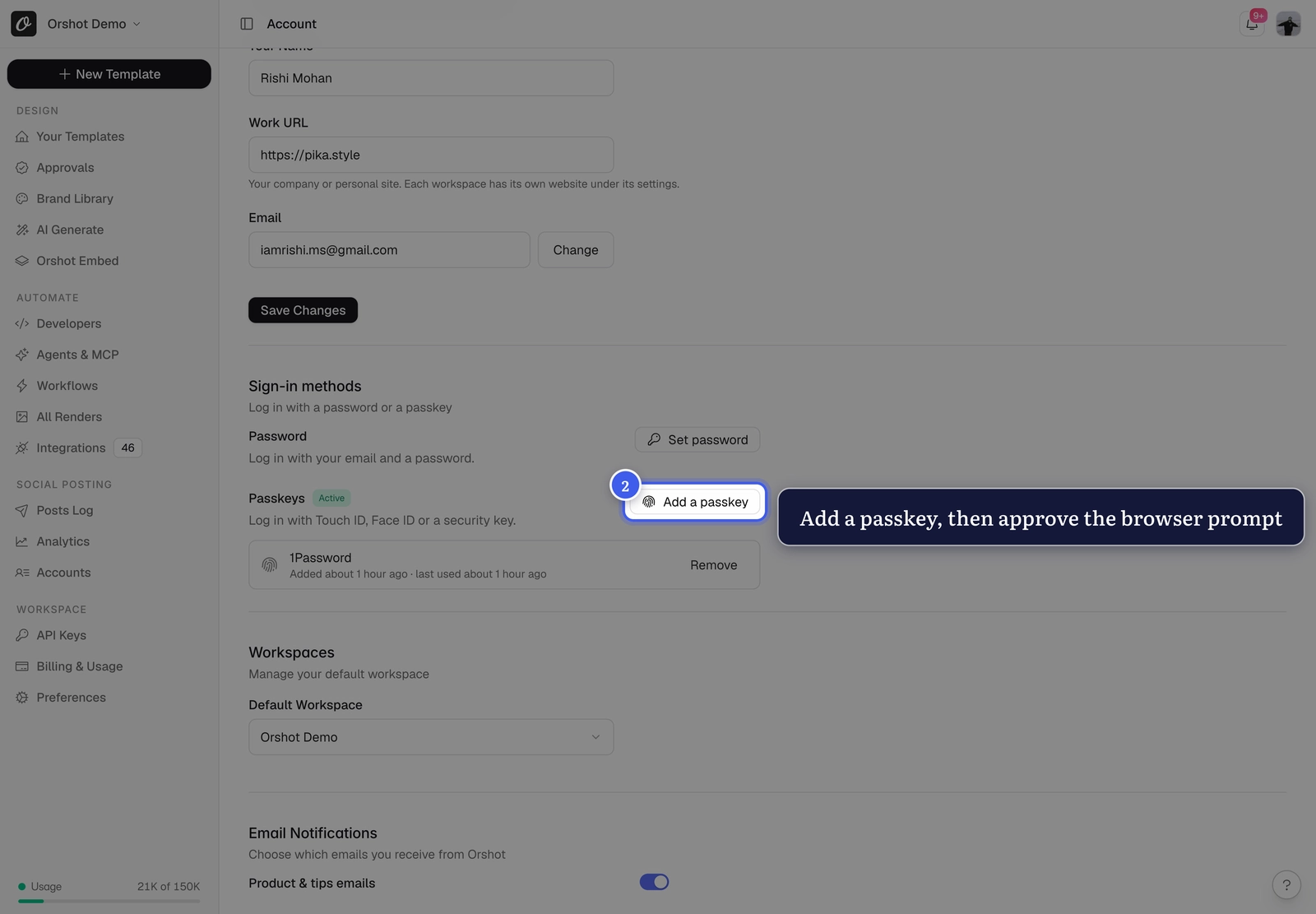
The passkey shows in the list with the device or manager it was saved to, when it was added and when it was last used. The badge next to Passkeys reads Active once you have one. You can add up to 10, one per device or manager.
Passkeys are added only from a signed-in account. There is no passkey signup.
Log in with a passkey#
On the login page, click Sign in with a passkey under the form. Pick the passkey in your browser's prompt and approve it. The same button is on the sign-in screen when you connect Orshot to an AI agent or to Shopify.
A passkey saved to iCloud Keychain or a password manager works on every device signed in to that account, so one added on your Mac also logs you in on your iPhone.
Remove a passkey#
In the passkey list, click Remove on its row, then Remove again to confirm. Do this when you lose a device or stop using a password manager. The passkey stays in your device's own settings until you delete it there too, but it no longer logs in to Orshot.
Support sessions
While Orshot support is viewing your account with you, the password and passkey controls are hidden. They come back when the support session ends.
Common problems#
| You see | Why, and what to do |
|---|---|
| "Use at least 8 characters." | Pick a longer password. |
| "We emailed you a code" when saving a password | You haven't signed in for a while. Enter the 6-digit code from the email to confirm the change. |
| "Confirm your email first" at login | You signed up with a password and haven't opened the confirmation email. Click Resend in the message to get a new one. |
| "This browser doesn't support passkeys." | Use a current Chrome, Safari, Edge or Firefox. Passkeys don't work in some in-app browsers. |
| "This device already has a passkey for your account." | Each device or password manager holds one passkey per account. Log in with the one you have, or remove it first. |
| "Couldn't sign in with that passkey." | The passkey may have been removed from your account. Log in another way, then add it again under Account. |
Related#
More in Account & Billing
Ready to automate?
Start rendering images, PDFs and videos from your templates in under 2 minutes. Free plan, no credit card.
Get your API key- Image, PDF and video generation via API
- Visual editor with AI and smart layouts
- Zapier, Make, MCP and 40+ integrations
- White-label embed for your own app
- 100 free credits a month, no credit card required