How to lock and hide layers in Orshot Studio
Hide a layer to keep it out of the render, or lock it so it can't be moved by accident — both from the Layers panel
Published Jun 8, 2026
Both controls live in the Layers panel on the right: hide a layer to keep it in your template but out of the render, and lock it so it can't be selected or moved by accident. Open the panel with the Layers tab.
1. Hide a layer#
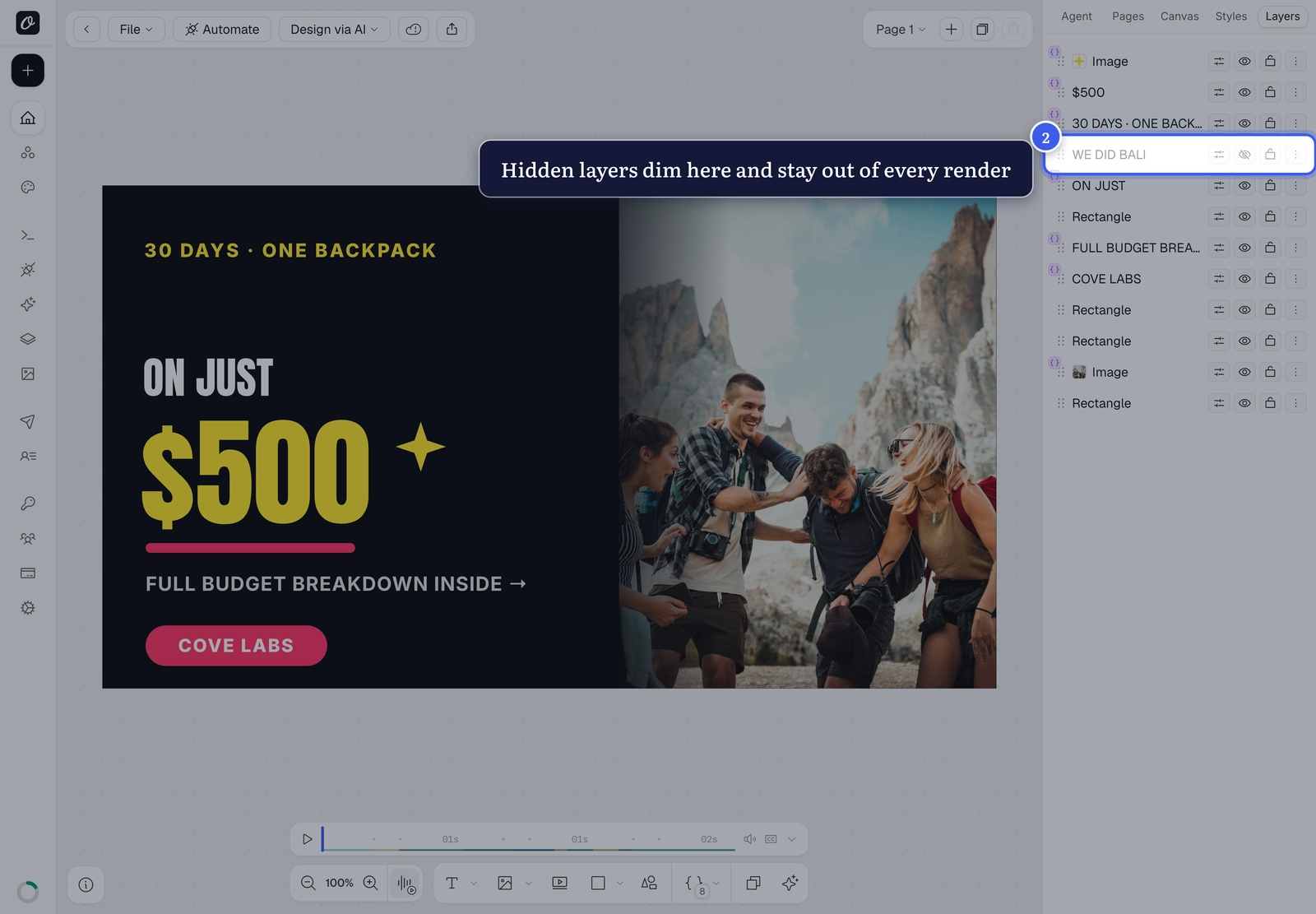
Click the eye next to any layer to hide it.

2. What hiding does#
The layer dims in the panel and disappears from the canvas — it stays in your template but is left out of every render. Click the eye again (now a slash) to bring it back.
Right-click works too
You can also right-click a layer on the canvas and choose Hide Layer — handy when the panel is scrolled.
3. Lock a layer#
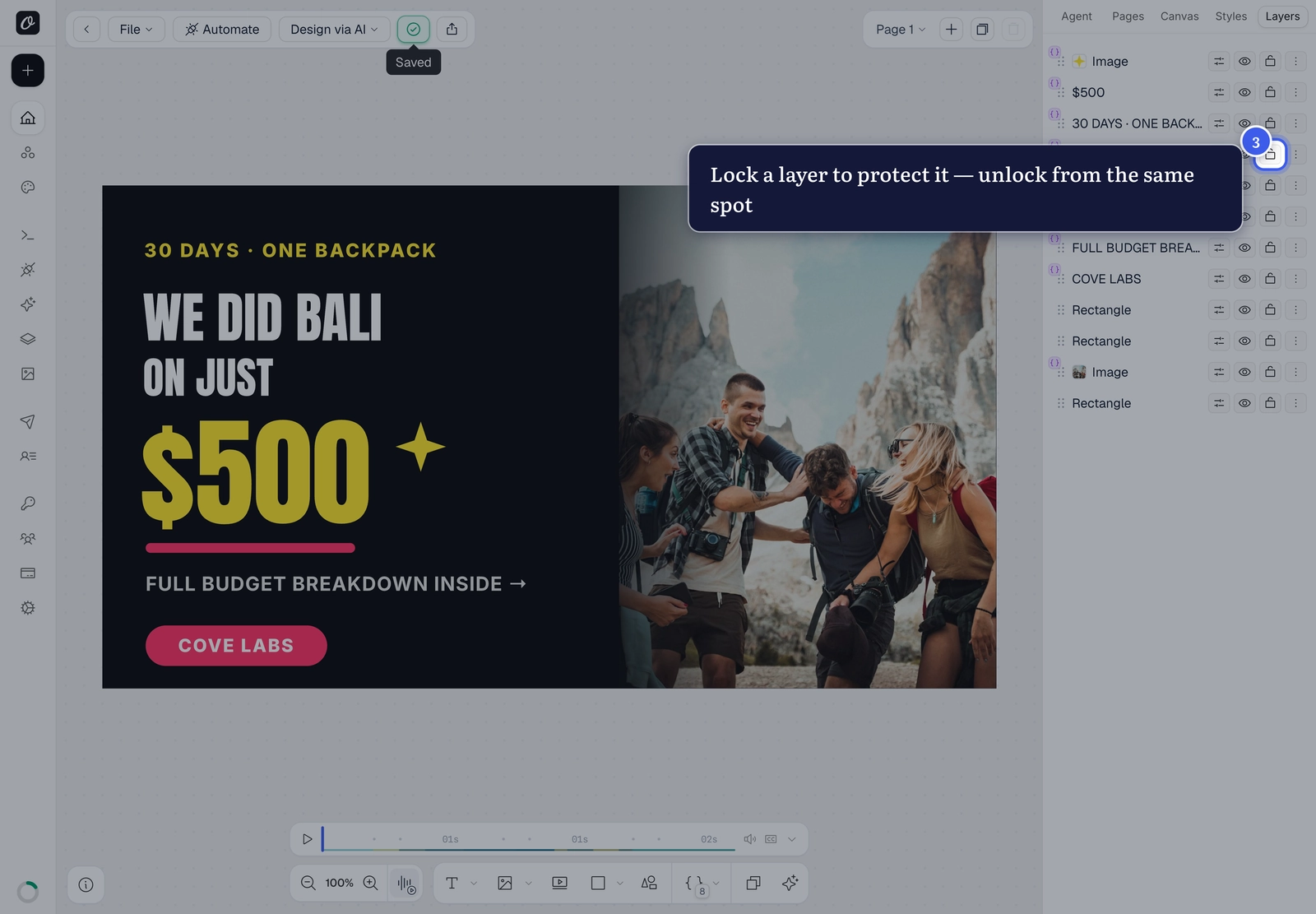
Click the lock to protect a layer. A locked layer can't be selected or moved on the canvas — useful for backgrounds you keep nudging by mistake. Since you can no longer click it on the canvas, unlock it from the same spot in the Layers panel.
Related#
More in Orshot Studio
Ready to automate?
Start rendering images, PDFs and videos from your templates in under 2 minutes. Free plan, no credit card.
Get your API key- Image, PDF and video generation via API
- Visual editor with AI and smart layouts
- Zapier, Make, MCP and 40+ integrations
- White-label embed for your own app
- 100 free credits a month, no credit card required