How to make your template dynamic
Turn any text, image, or color in your template into a parameter you can change via API or integrations
Published Jun 7, 2026
Dynamic parameters are what make Orshot templates powerful — the same design can produce thousands of variations by changing values at render time.
To get there: open your template from Your Templates on the dashboard — it opens in Orshot Studio.
The quick way: right on the canvas#
Select any layer — a small pill appears under it. Toggle it on and edit the parameter ID right there:
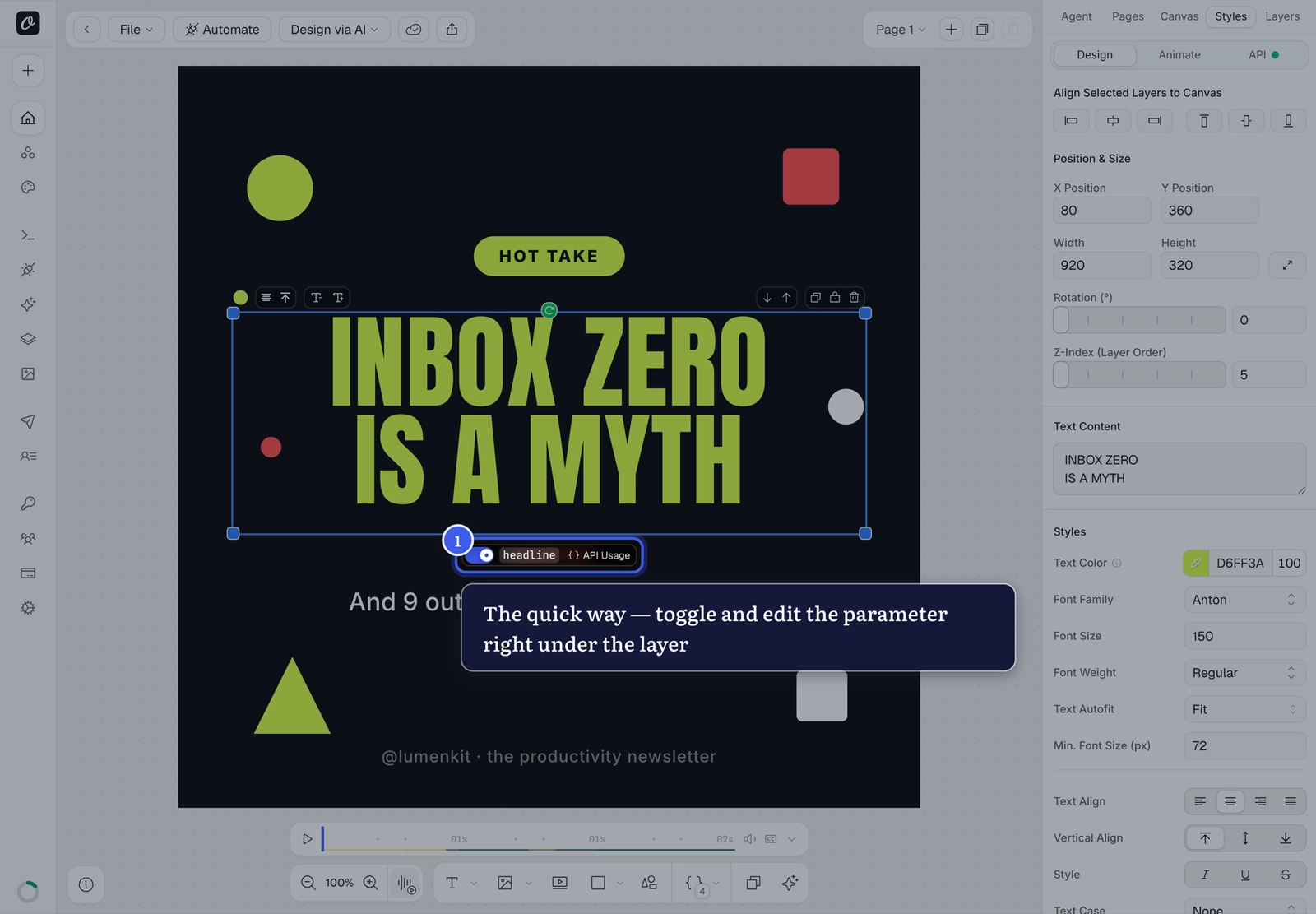
That's it — the layer is now dynamic.
Full options: the API tab#
For everything else (usage examples, advanced options), select the layer and open the API tab in the right panel:
- Turn on Parameterize
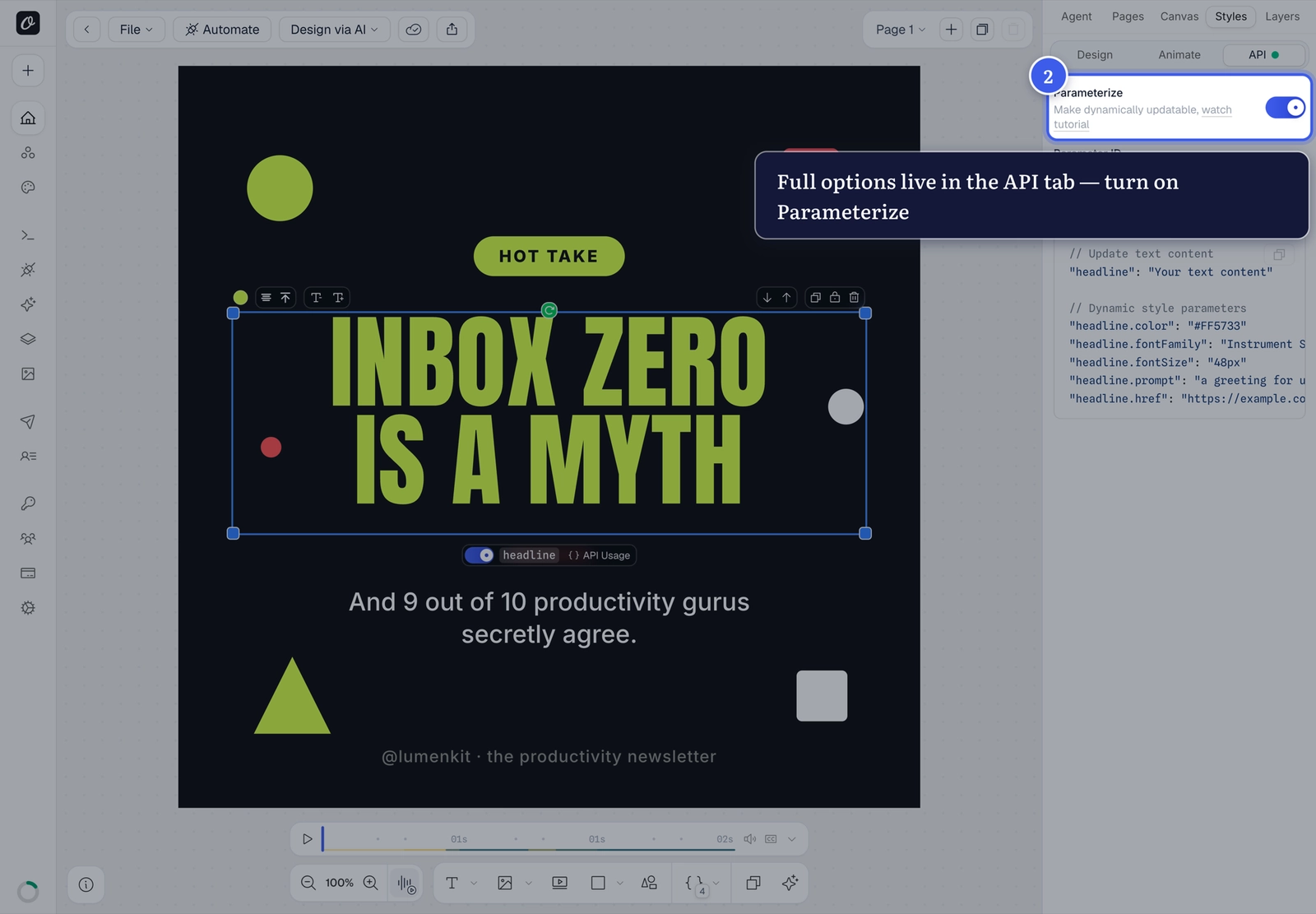
- Give it a clear, descriptive ID — like
headline,userName, orproductImage
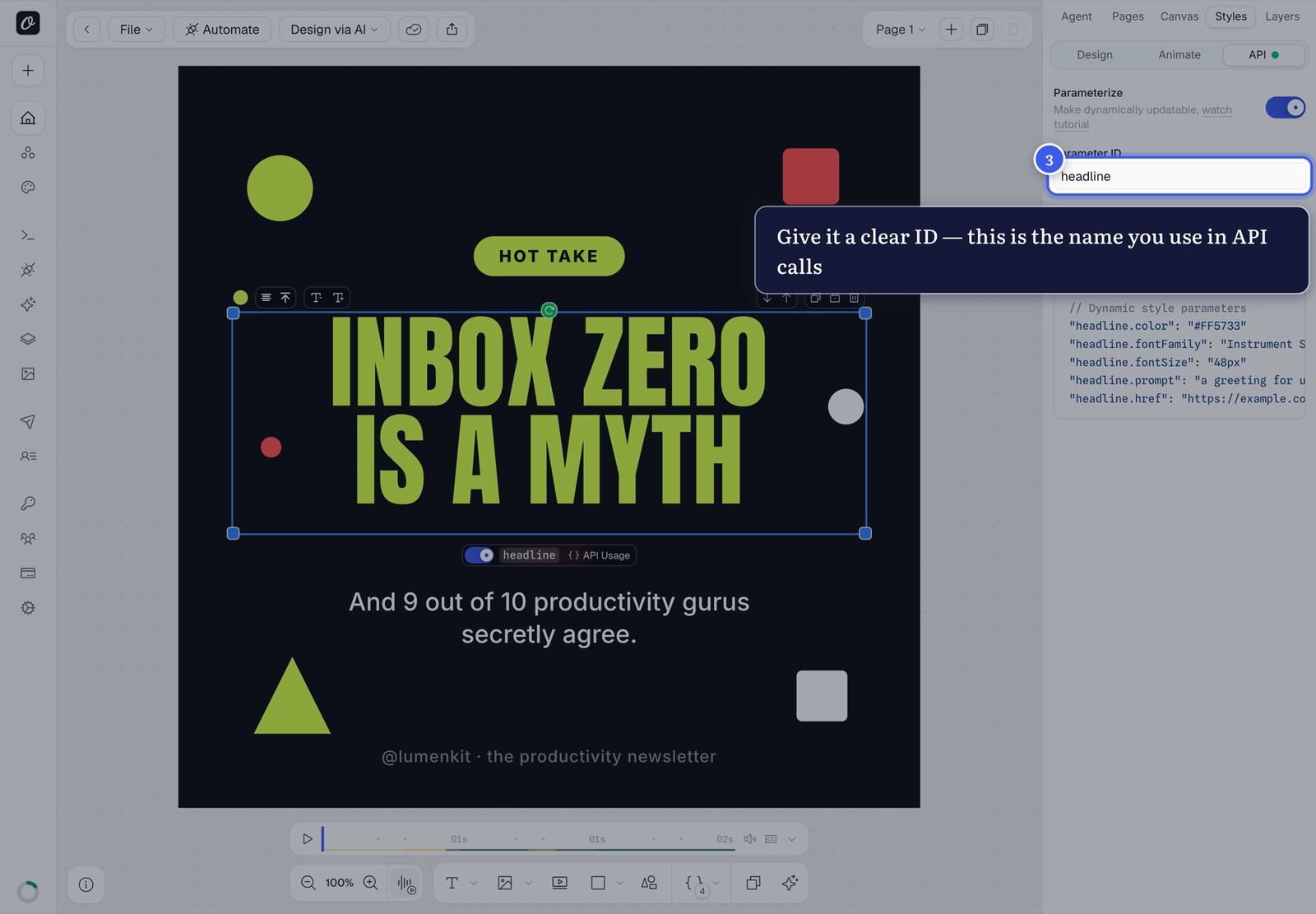
Naming tips
Use IDs that describe the content (price, avatarUrl) and keep them
consistent across templates. On multi-page templates, target a page with a
prefix like page1@headline.
Use the parameters#
The API tab shows ready-to-copy usage for the selected layer — including dynamic style parameters like headline.color and headline.fontSize, so you can change styling per render, not just content:
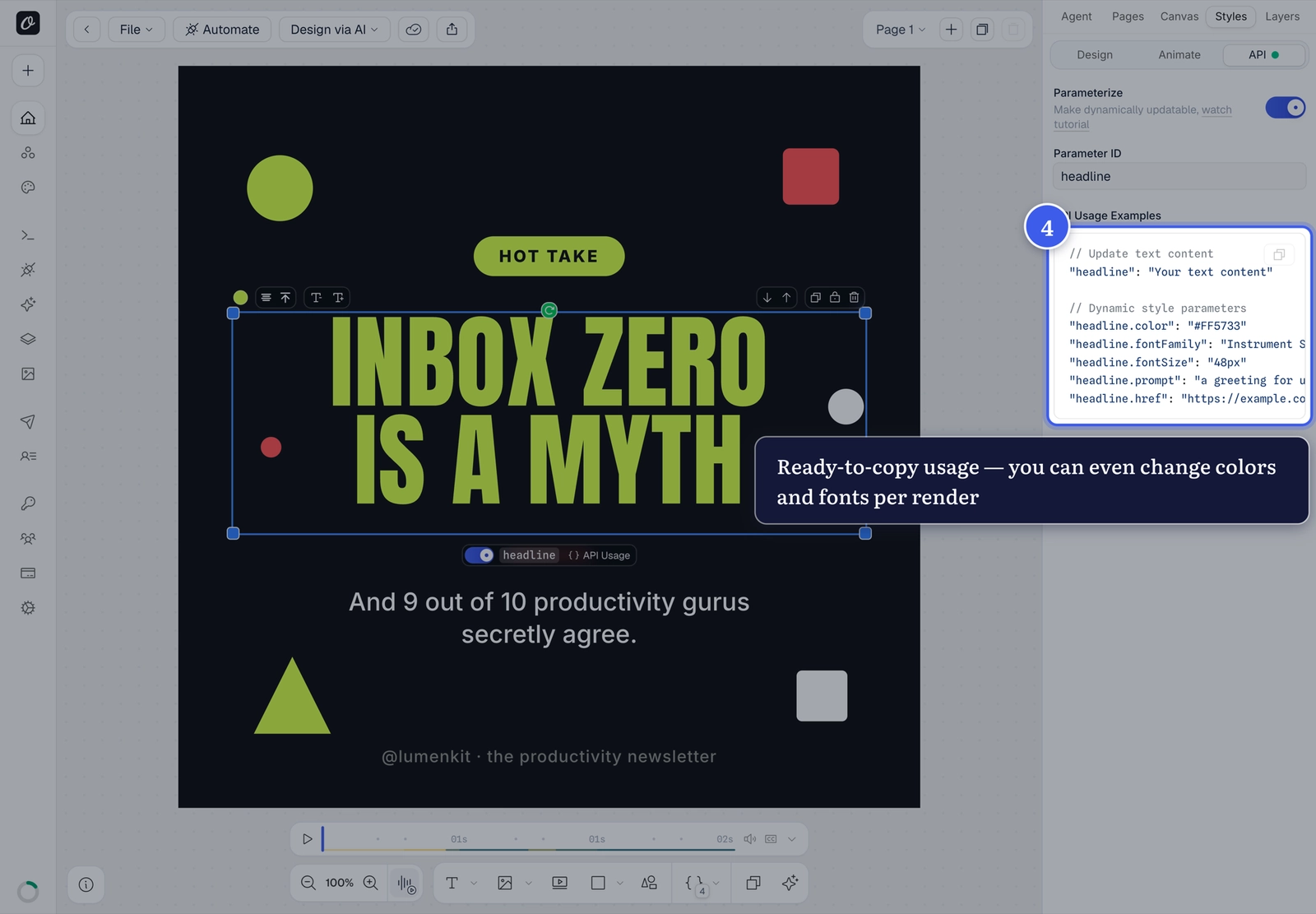
The same parameters appear automatically as fields in Quick Connect and the Playground, and as mappable fields in Zapier, Make, and other integrations.
Related#
More in Templates
Ready to automate?
Start rendering images, PDFs and videos from your templates in under 2 minutes. Free plan, no credit card.
Get your API key- Image, PDF and video generation via API
- Visual editor with AI and smart layouts
- Zapier, Make, MCP and 40+ integrations
- White-label embed for your own app
- 100 free credits a month, no credit card required