How to resize elements, the canvas, and any design
Set exact element sizes, switch canvas presets, and use Smart Resize to render one design at any size.
Published Jun 7, 2026·Updated Jun 14, 2026
Open your template in Studio. You can resize at three levels: a single element, the whole canvas, or your entire design at once with Smart Resize.
Resize an element#
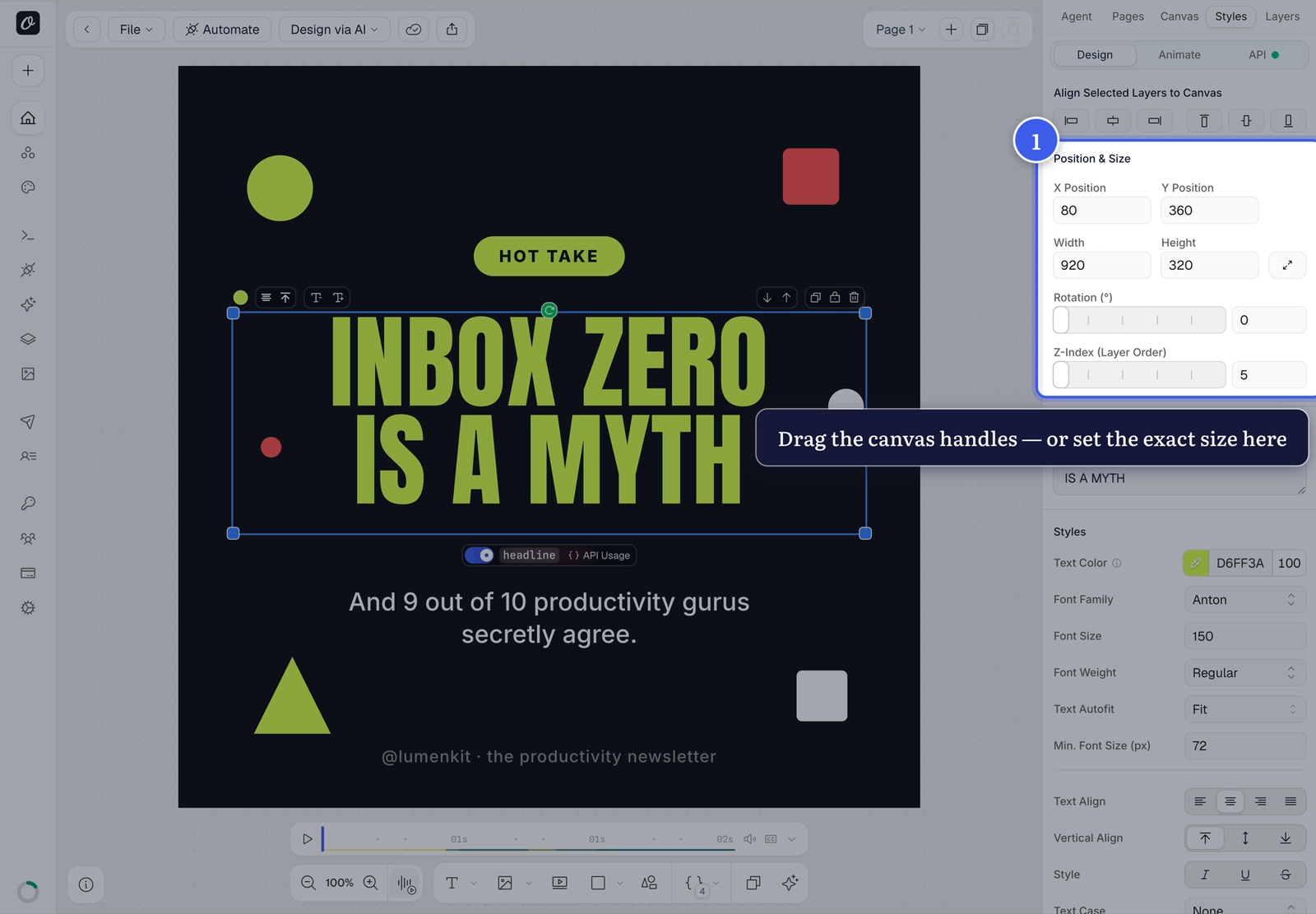
Select it and drag the corner handles — or set exact values in Position & Size:
Resize the canvas#
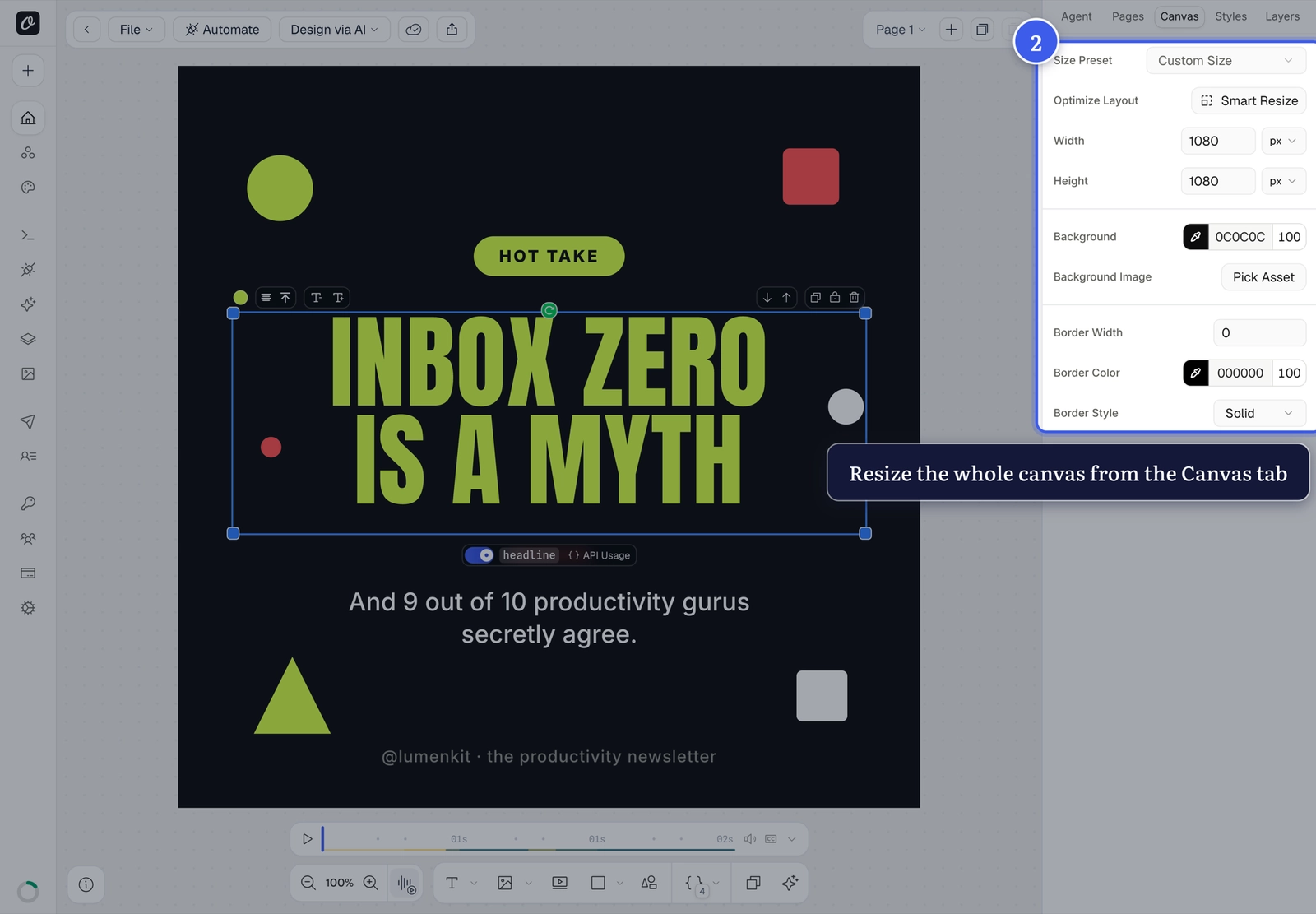
Switch to the Canvas tab for the artboard's width and height:
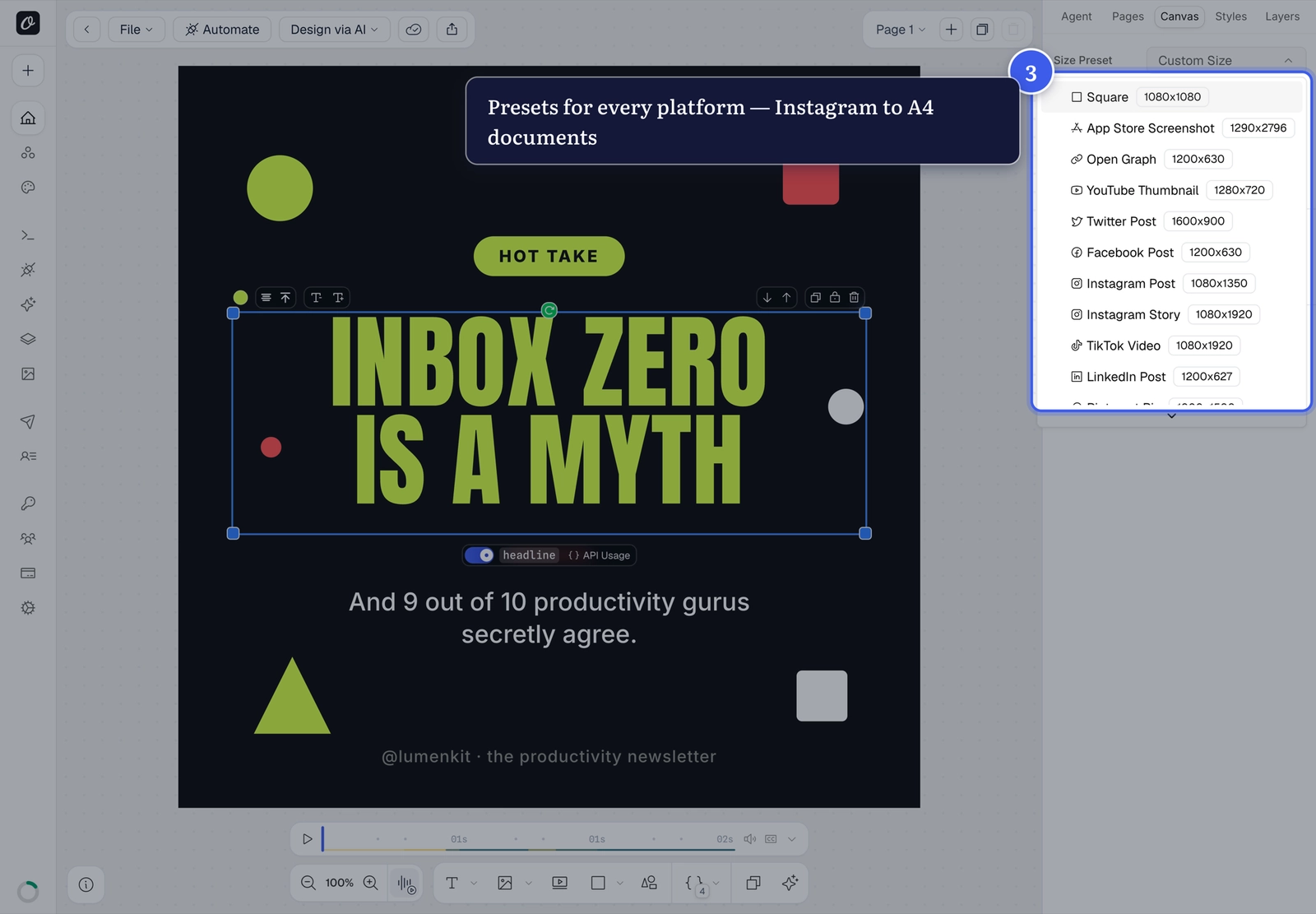
The Size Preset dropdown covers every platform — Instagram, YouTube, TikTok, LinkedIn, all the way to A4 documents:
Smart Resize — design once, render any size#
Need the same design at several sizes — a Story, a Square, an OG image, a YouTube thumbnail? Smart Resize takes one design and renders it at any size, without rebuilding it for each channel.
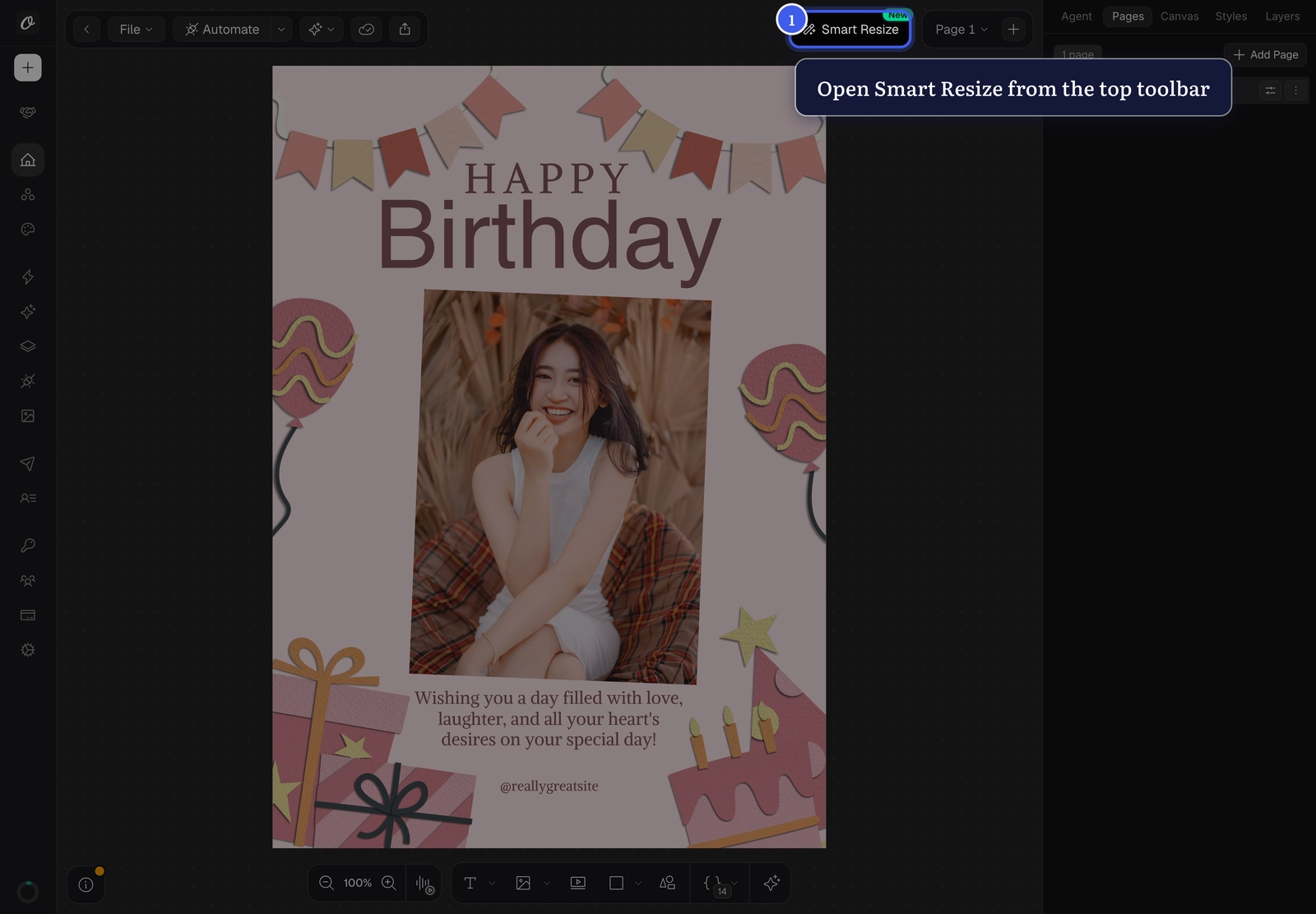
Click Smart Resize in the top toolbar (it carries a New badge):
In the Variants tab, click + Add Size and pick a preset (Story / Reel, Square Post, …) or enter a custom width × height:
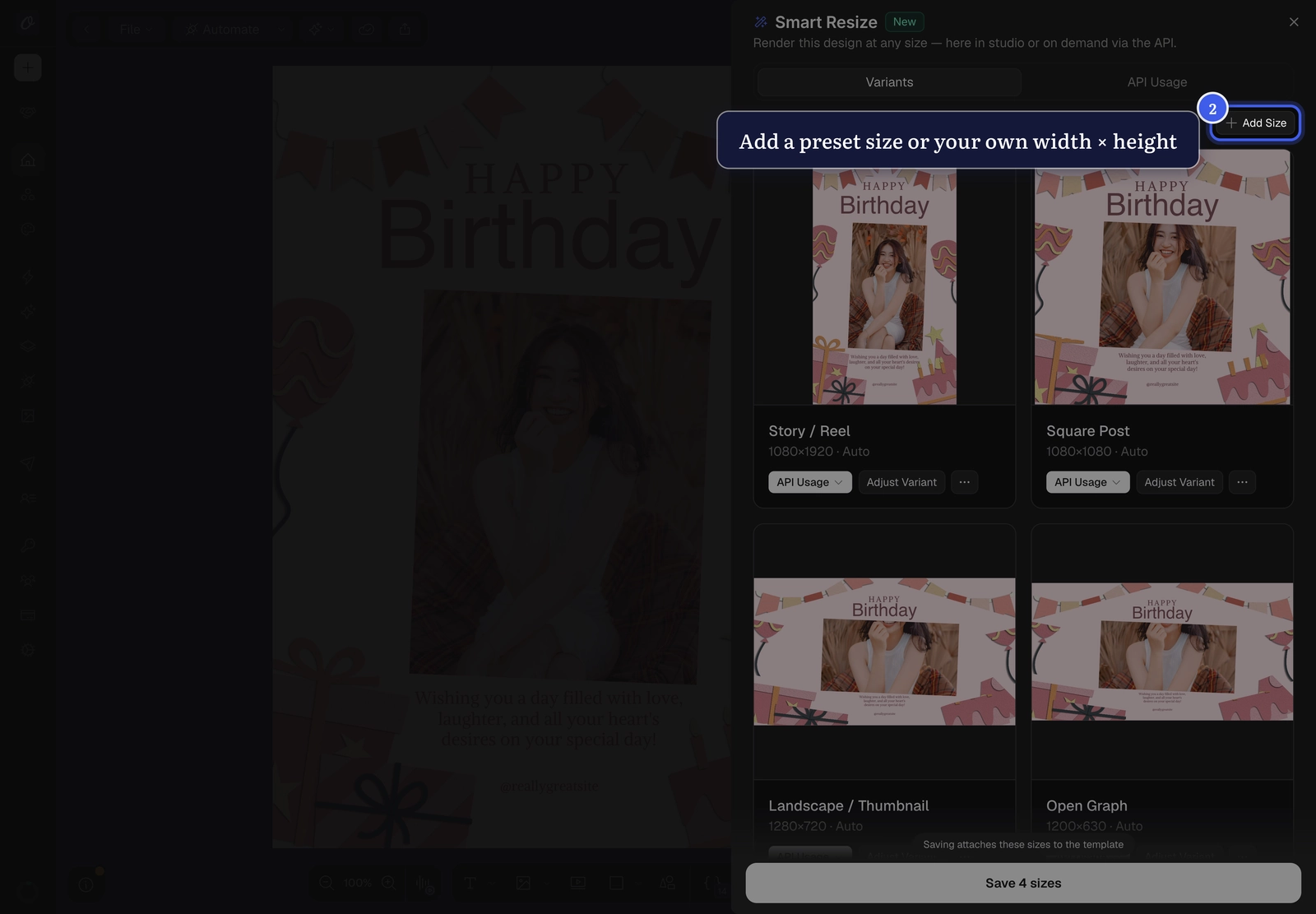
Each size becomes a card with an instant, true-to-render preview of your design at that size:
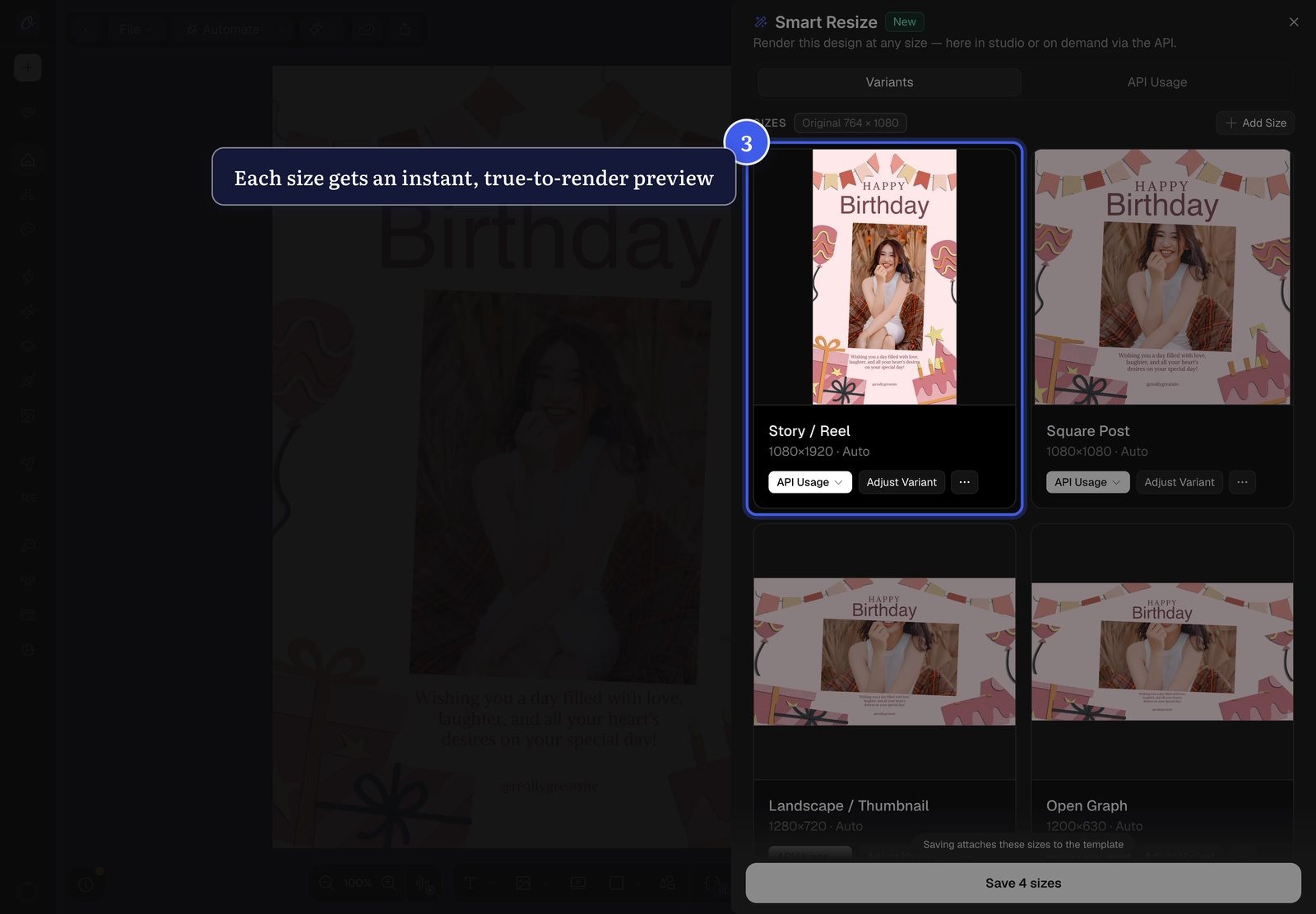
The adaptation is deterministic — elements scale together, re-anchor to the edge they were designed against (a top-left logo stays top-left), and never overlap. From there you can:
- Fine-tune a size by hand, or recompose it with AI.
- Save sizes and turn them into pages in your template.
- Render any size from the API on demand.
Related#
More in Orshot Studio
Ready to automate?
Start rendering images, PDFs and videos from your templates in under 2 minutes. Free plan, no credit card.
Get your API key- Image, PDF and video generation via API
- Visual editor with AI and smart layouts
- Zapier, Make, MCP and 40+ integrations
- White-label embed for your own app
- 100 free credits a month, no credit card required