How to approve or request changes
Approvers answer from the Approvals board, the studio or a Review needed email. Approve moves the template on, Request changes sends it back.
Published Sep 29, 2026
When a template waits on you, you have two answers. Approve says yes and moves it to the next stage. Request changes says not yet, and sends it back with a comment saying what to fix.
You need Approve access in the template's stage, owners and admins included (see how to choose who can approve). To find what's waiting on you, open the Approvals inbox (the seal with a check mark in the top bar) and pick Waiting on you.
From the board#
- 1
Find the card
Open Approvals. Cards waiting on you are marked Waiting on you, with Approve and Request changes buttons.
- 2
Check the design and its comments
Click the card to see it with a live preview. Click the comment count on the card to read the template's comments without leaving the board.
- 3
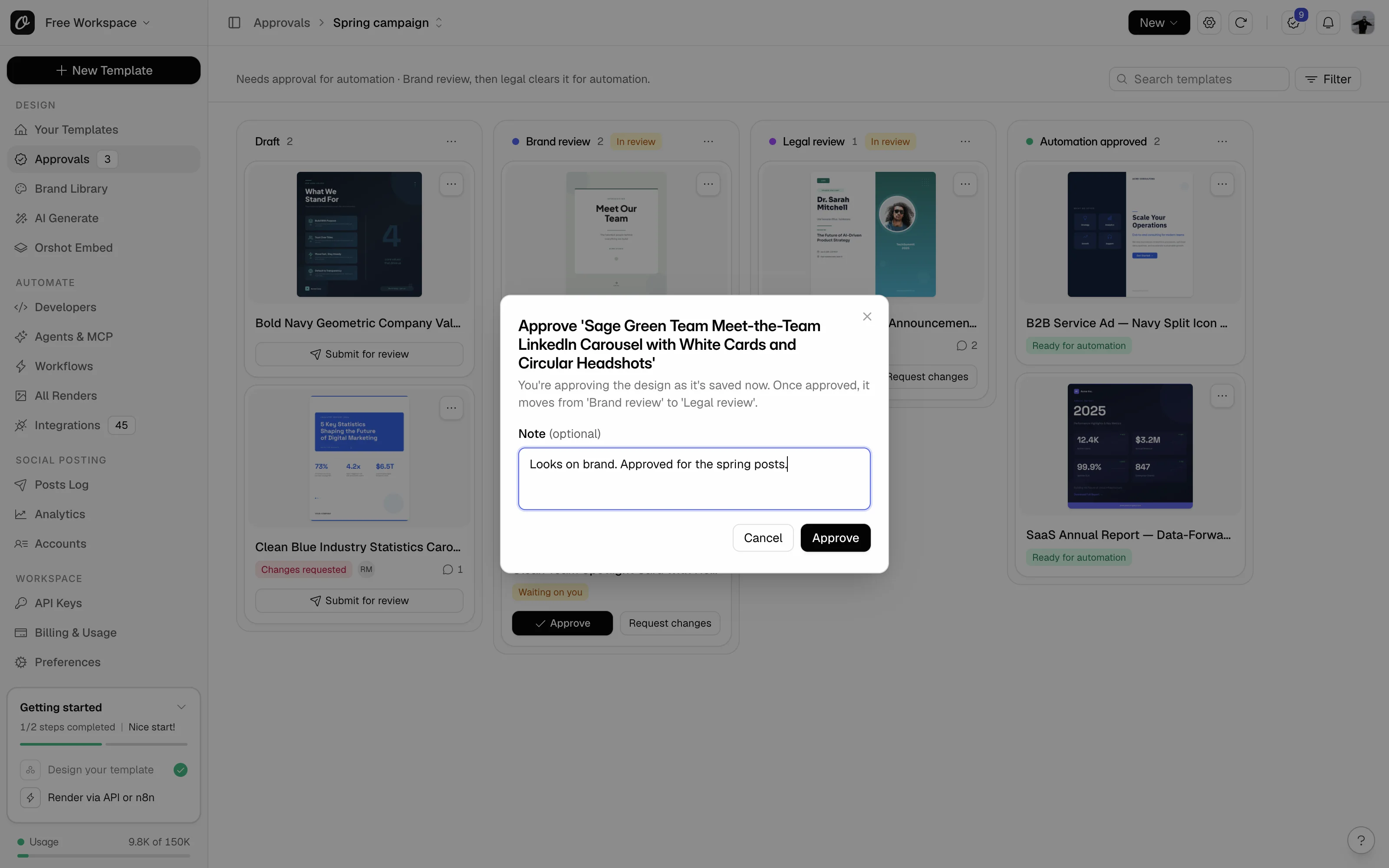
Approve it
Click Approve. The dialog says where the template goes next. Add a note if you like, then click Approve.
- 4
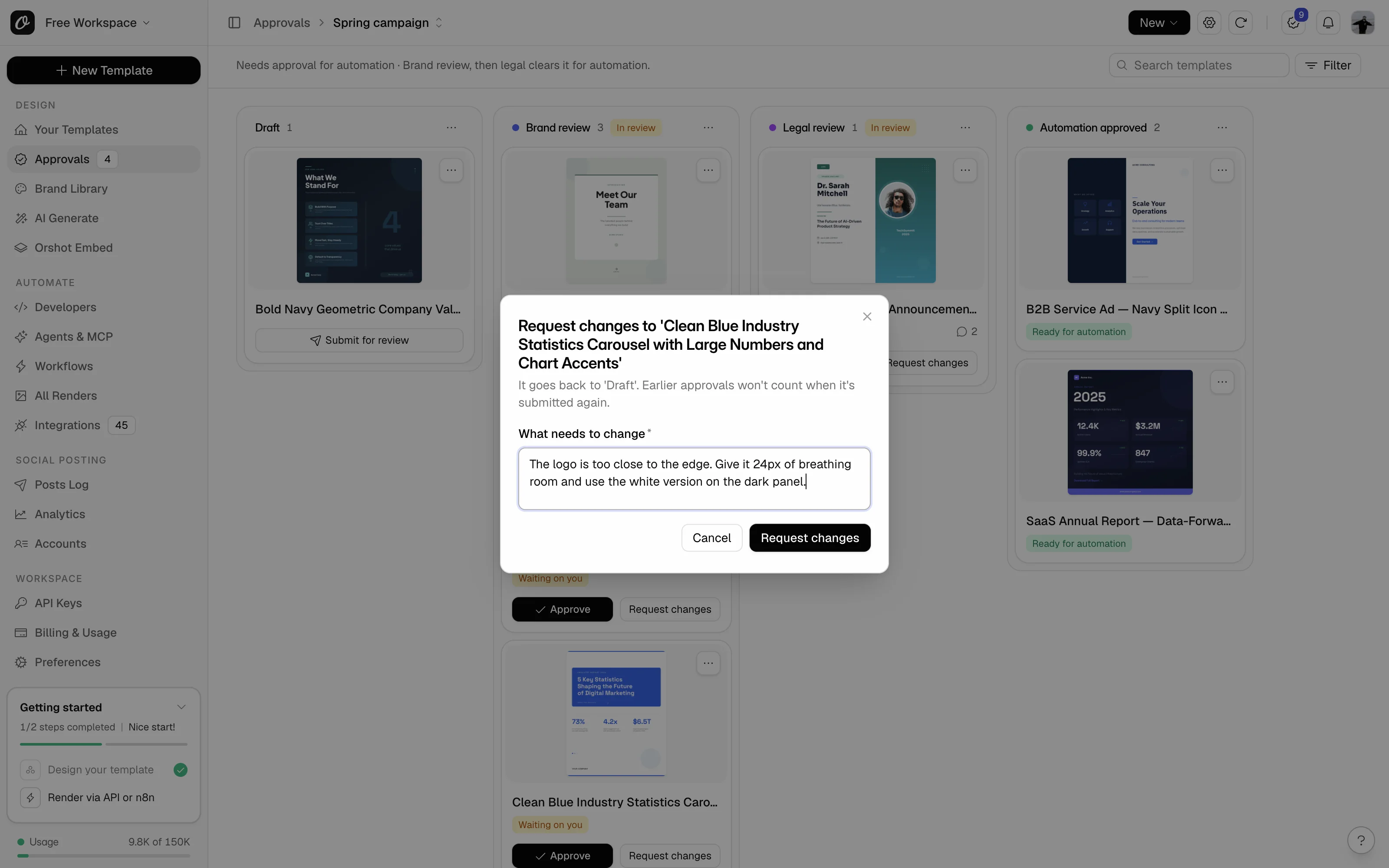
Or request changes
Click Request changes, write what needs to change, and click Request changes. A comment is required.
To approve several templates at once, tick their cards and click Approve in the bar at the bottom. It only works when every ticked template is waiting on you.
You can also drag a card: into the next approved stage to approve it, or back to Draft to request changes. That's all a reviewer's drag does. Reviewers can't move a card to any other stage.
From the studio or an email#
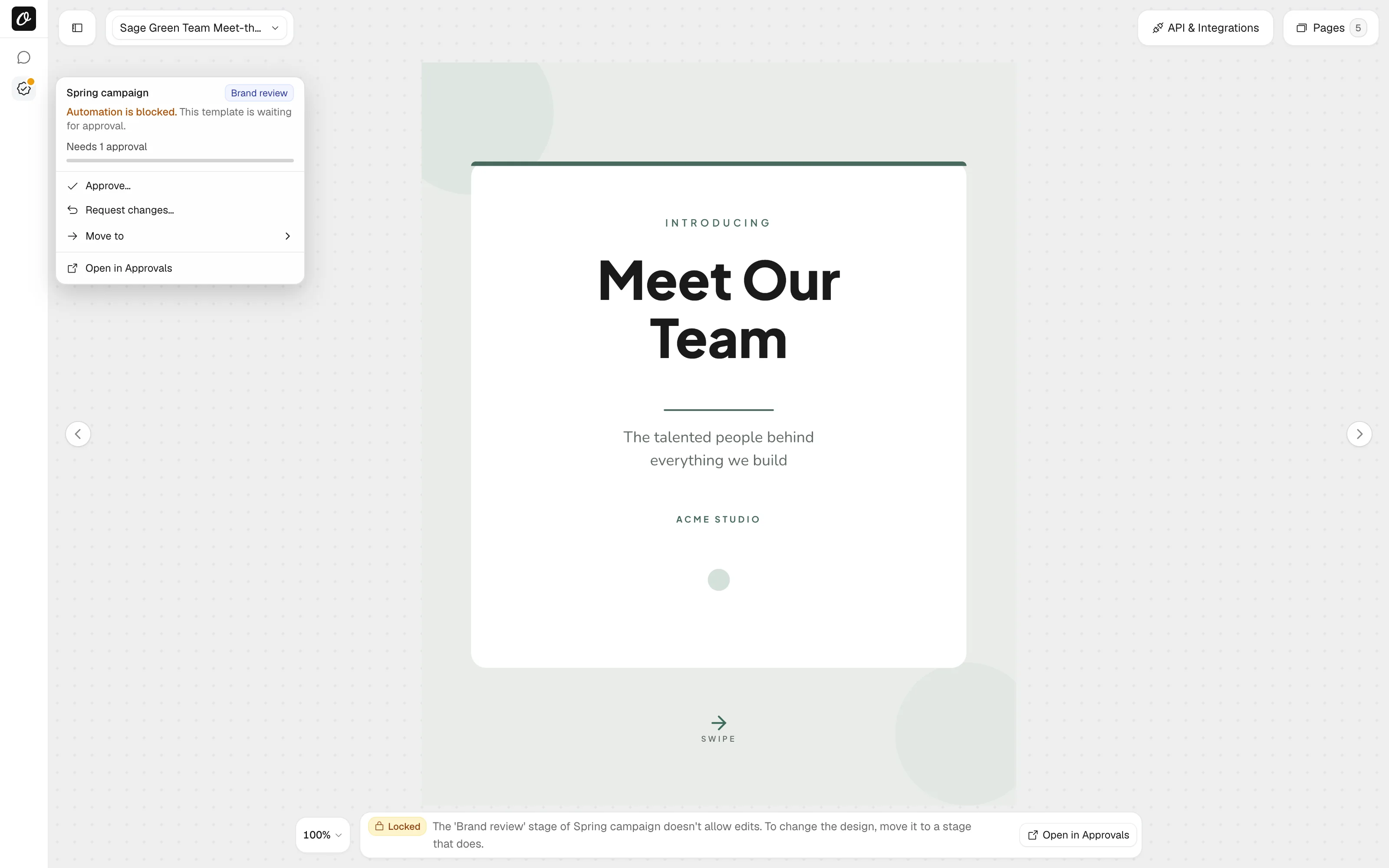
In the studio, click the Approvals icon on the left rail and pick Approve… or Request changes…. Your approval covers the design as it's saved, so save any changes first.
A "Review needed" email arrives when a template reaches a stage you approve in. Click Review to open it in the studio, then use the Approvals menu.
What happens next#
- "Approved." or "Approved. It's in 'Legal review' now." The template moves on by itself.
- If the stage needs more than one approver, the card shows progress like "1 of 2 approvals".
- After Request changes, the template goes back to Draft marked Changes requested, and whoever submitted it gets a "Changes needed" email with your comment.
Changed your mind? While the template is still in that review stage, open the card menu or the studio menu and pick Withdraw my approval.
Common problems#
| You see | Why, and what to do |
|---|---|
| "You're not an approver in the 'In review' stage. Maya can approve it." | You don't have Approve access there. Ask an owner or admin, or leave it to the people named. |
| "You submitted this template, and 'In review' needs someone else to approve it." | You can't approve your own submission in this stage. Someone else with Approve access can approve it, or someone who manages the flow can turn on People can approve templates they submitted for the stage. Owners and admins can always approve their own. |
| "Save your changes first, so your approval covers them." | Save the template in the studio, then approve. |
| "The design changed while you were reviewing it." | Someone saved a new version. Check it, then approve again. |
| "Reviewers can't move templates between stages. They approve or request changes." | You're a reviewer. Approve or request changes, and the flow moves the template on from there. |
| "You've added a lot of comments in a short time. Try again in 40 seconds." | Each person can post 20 comments a minute and 200 an hour. Try again after the time it names. |
| A comment with a long list of @mentions won't save | A comment can @mention up to 20 people. Mention fewer, or split it into two comments. |
Related#
More in Approval flows
Ready to automate?
Start rendering images, PDFs and videos from your templates in under 2 minutes. Free plan, no credit card.
Get your API key- Image, PDF and video generation via API
- Visual editor with AI and smart layouts
- Zapier, Make, MCP and 50+ integrations
- White-label embed for your own app
- 100 free credits a month, no credit card required