What to do right after importing a design
Three steps from imported design to automated template — check, parameterize, render
Published Jun 7, 2026
Your import landed in Orshot Studio as a normal template — every layer editable. Three steps make it production-ready:
1. Check the layers#
Open the Layers tab and click through your elements. Imports translate designs automatically — if something looks off, fix its styles or replace the image directly.
2. Make the changing parts dynamic#
Select each layer that should change per render — the pill under it toggles parameterization:
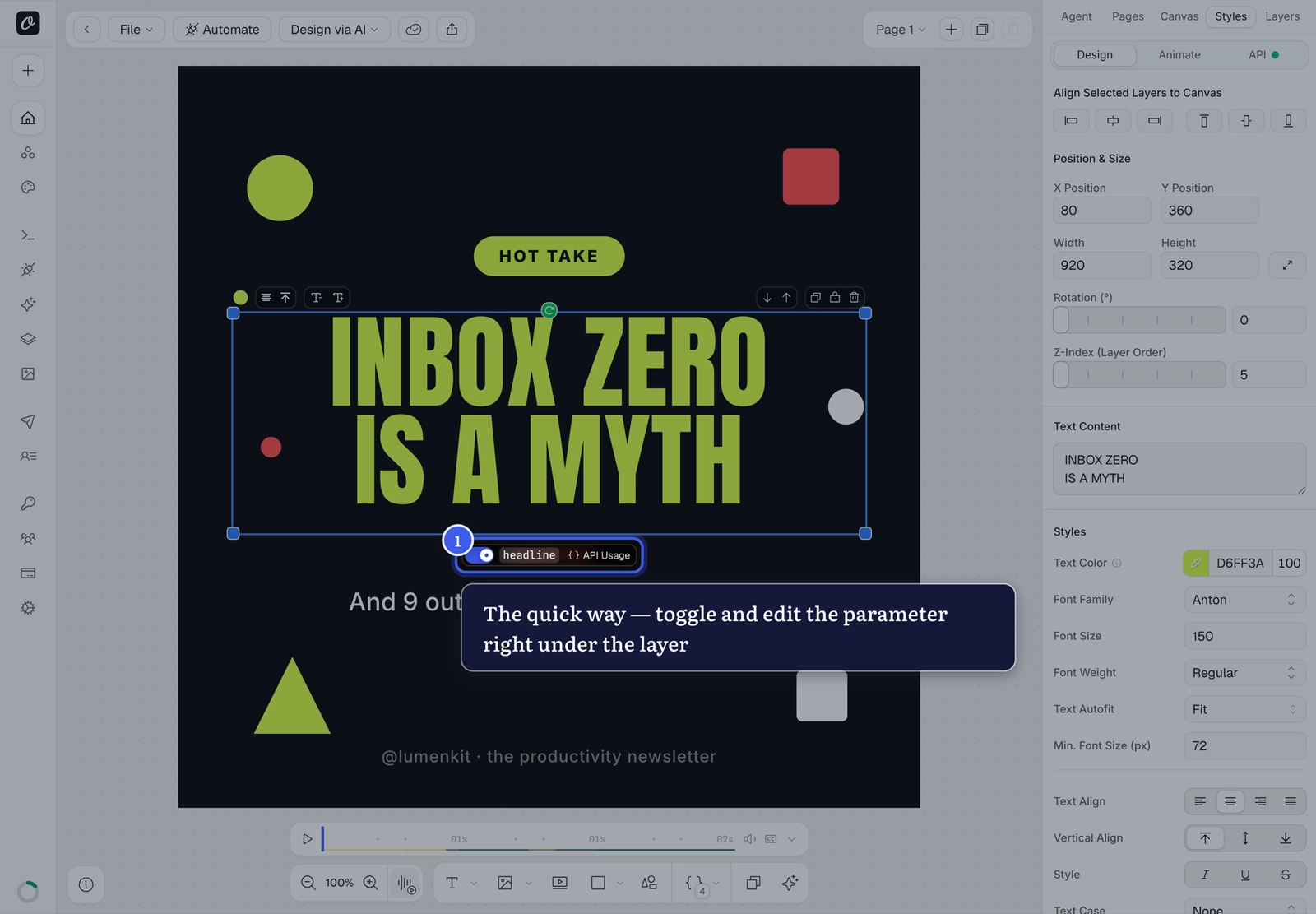
3. Save, then render#
⌘S to save, then click Connect on the template card to run your first render.
Check Text Autofit on dynamic text
Make sure dynamic text layers use Fit so long API values shrink instead of overflowing your design — a quick check per headline saves render surprises later.
Related#
More in Templates
Ready to automate?
Start rendering images, PDFs and videos from your templates in under 2 minutes. Free plan, no credit card.
Get your API key- Image, PDF and video generation via API
- Visual editor with AI and smart layouts
- Zapier, Make, MCP and 40+ integrations
- White-label embed for your own app
- 100 free credits a month, no credit card required