How to generate visuals with Pipedream
Render images, PDFs, and videos from your Orshot templates in a Pipedream workflow — using the Orshot app step
Published Jun 8, 2026
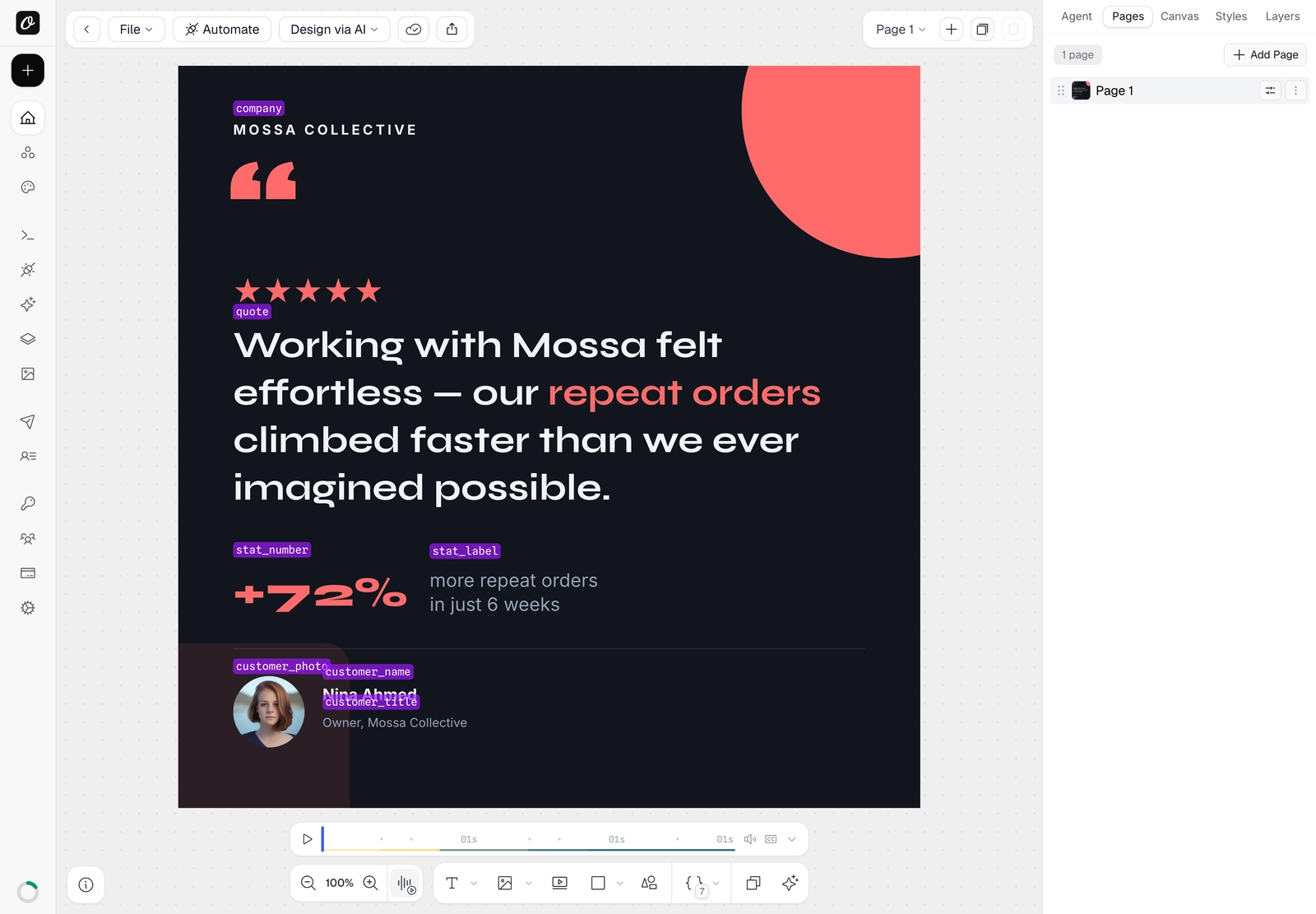
Pipedream is a developer-friendly automation platform. A workflow can render an image, PDF, or video from your Orshot template using the built-in Orshot app step — no code required. Here's the template we'll automate:

1. Know your template's parameters#
Open your template in Orshot Studio and press ⌘] (Toggle Parameter View). Every editable element is labelled with its parameter name — quote, customer_name, stat_value, and so on. These are the values you'll set from Pipedream. Any element can be made dynamic — see Make your template dynamic.
2. Grab your Template ID and API key#
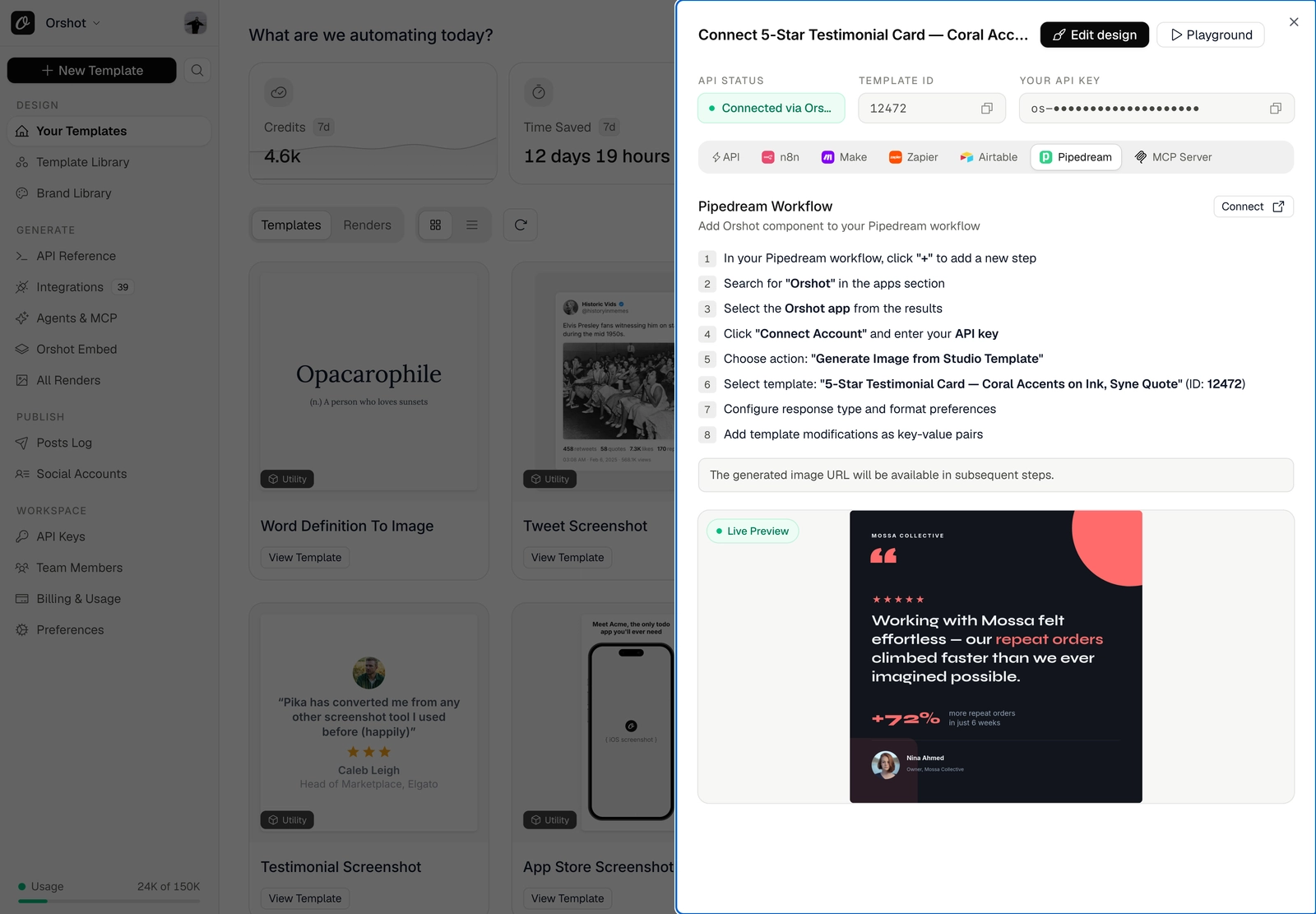
On the template's card, click Connect, then open the Pipedream tab. You'll find your Template ID, API key, and the exact step-by-step to add the Orshot step to a Pipedream workflow. New to API keys? See Find your API key and template ID.
3. Add the Orshot step#
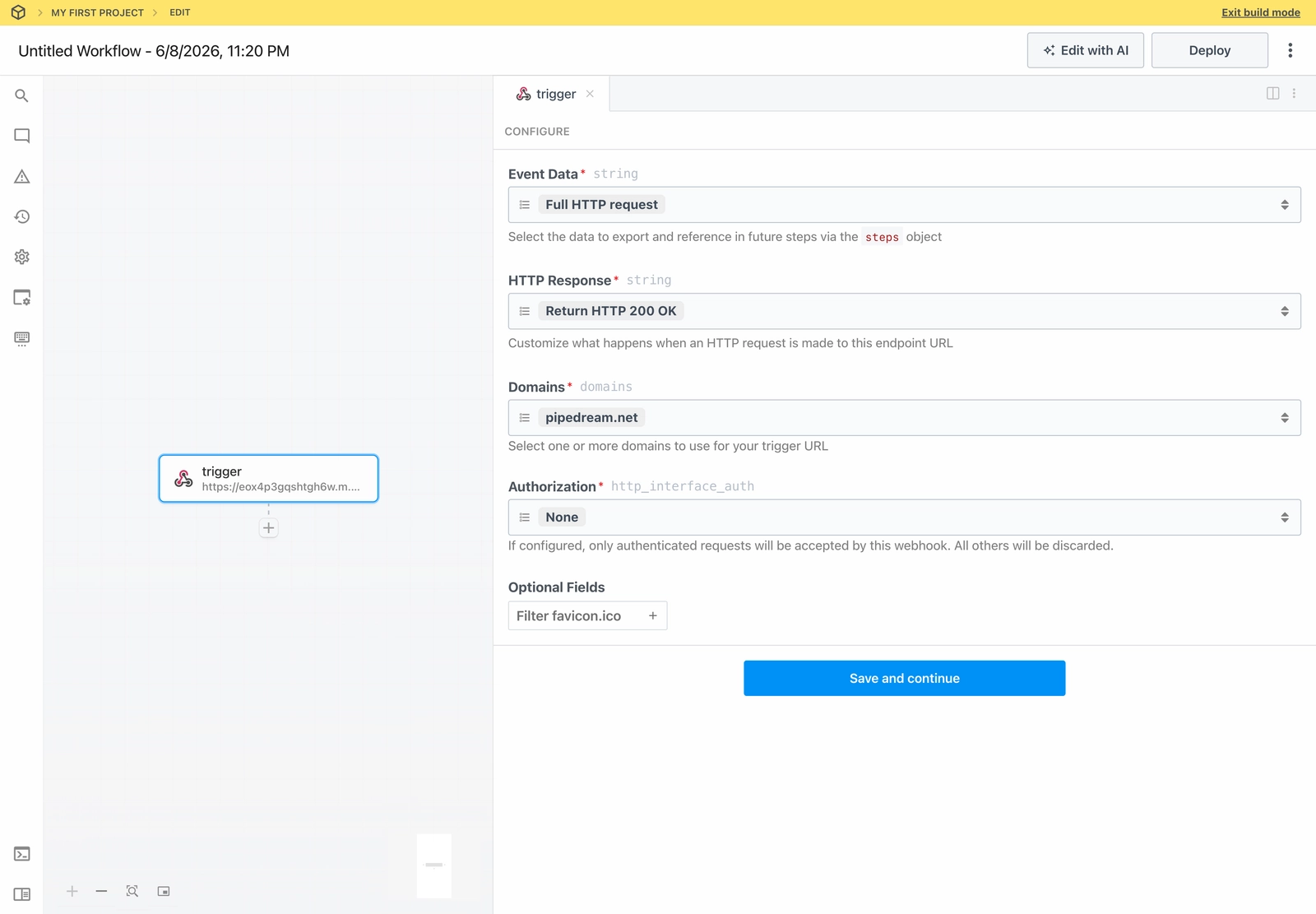
In the Pipedream workflow editor, start with a trigger (any trigger works — an incoming webhook, a schedule, a new row, etc.). Then click the + below it to add a step.
In the step search, type Orshot, select it, and choose the action Generate Image from Studio Template. The first time, click Connect Account and paste your API key.
4. Configure the render#
The Orshot step exposes the same fields as the Orshot action in every other tool:
- Template — pick the template to render (its ID is in the Connect sheet).
- Response Type —
URL(easiest to use in later steps),Base64, orBinary. - Image Format —
png,jpg,webp,pdf, ormp4/webm/giffor animated templates. - Modifications — your template's parameters as fields (the names from step 1). Type a value, or reference data from your trigger to make each run dynamic.
Setting modifications & mapping data
The modification fields and dynamic mapping work identically across Zapier, Make, n8n and Pipedream. See Generate visuals with Zapier for a step-by-step of filling each field and mapping trigger data into it.
5. Run it#
Deploy the workflow (or use Test). Orshot renders your template with its modifications and returns the result — a hosted URL when Response Type is URL. With the format set to gif/mp4, an animated template returns video:

6. Use it downstream#
Add more steps after Orshot and pass the returned image along — upload it, post it, email it, or store it — then the workflow runs automatically on every trigger.
Tip
Keep Response Type on URL so the next step can use Orshot's output directly.
Related#

More in Automations
Ready to automate?
Start rendering images, PDFs and videos from your templates in under 2 minutes. Free plan, no credit card.
Get your API key- Image, PDF and video generation via API
- Visual editor with AI and smart layouts
- Zapier, Make, MCP and 40+ integrations
- White-label embed for your own app
- 100 free credits a month, no credit card required