How to connect your social media accounts
Link social accounts to your workspace so you can publish renders directly from Orshot
Published Jun 7, 2026
Before you can publish renders to social media, connect at least one account to your workspace.
Connect an account#
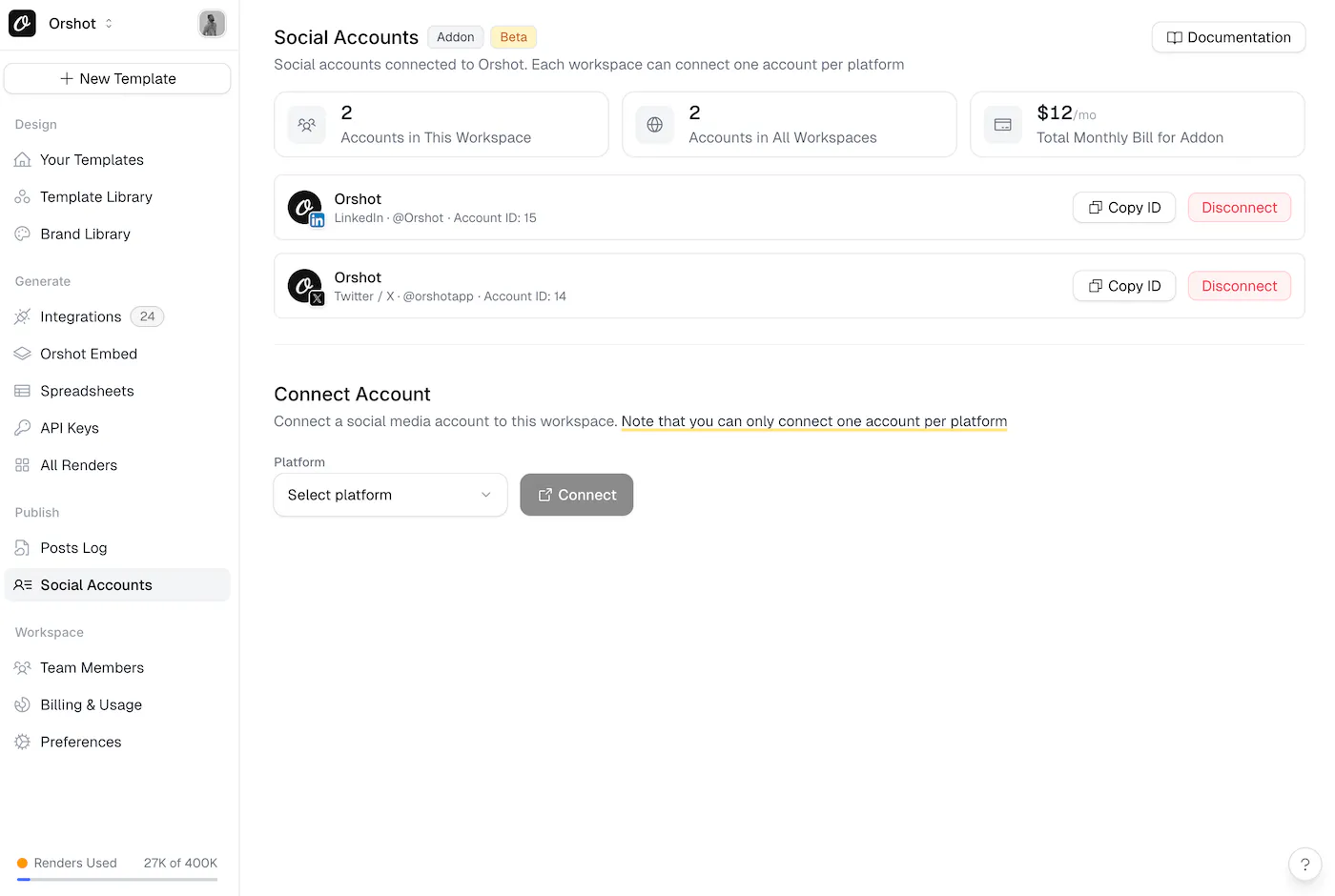
- Open Social Accounts from your workspace sidebar (under "Publish")
- Select a platform from the dropdown and click Connect
- Authorize Orshot with the platform when redirected
- The account appears in your connected list, ready for publishing
Good to know#
- Multiple accounts per platform — each workspace can connect and target multiple accounts from the same platform
- Billing starts when you connect — each connected account adds $12/mo, and the charge stops from the next billing cycle when you disconnect. See Publish pricing.
Token expired?
If you see a Reconnect required warning (e.g. after a password change on the platform), click Reconnect — your setup is kept.
Related#
More in Publishing
←→
Previous
How to generate visuals in HubSpot with Orshot
Next
How to see how your posts are performing
Was this page helpful?
Ready to automate?
Start rendering images, PDFs and videos from your templates in under 2 minutes. Free plan, no credit card.
Get your API key- Image, PDF and video generation via API
- Visual editor with AI and smart layouts
- Zapier, Make, MCP and 40+ integrations
- White-label embed for your own app
- 100 free credits a month, no credit card required