How to import from Canva, Figma or Polotno
Bring existing designs into Orshot Studio and turn them into dynamic, API-driven templates. Layout and styles are preserved.
Published Jun 7, 2026
Already have designs in another tool? You don't need to recreate them. Orshot imports designs from Canva, Figma, and Polotno with layout and styles preserved — ready to parameterize and automate.
Where to import#
- From your workspace dashboard, click New Template
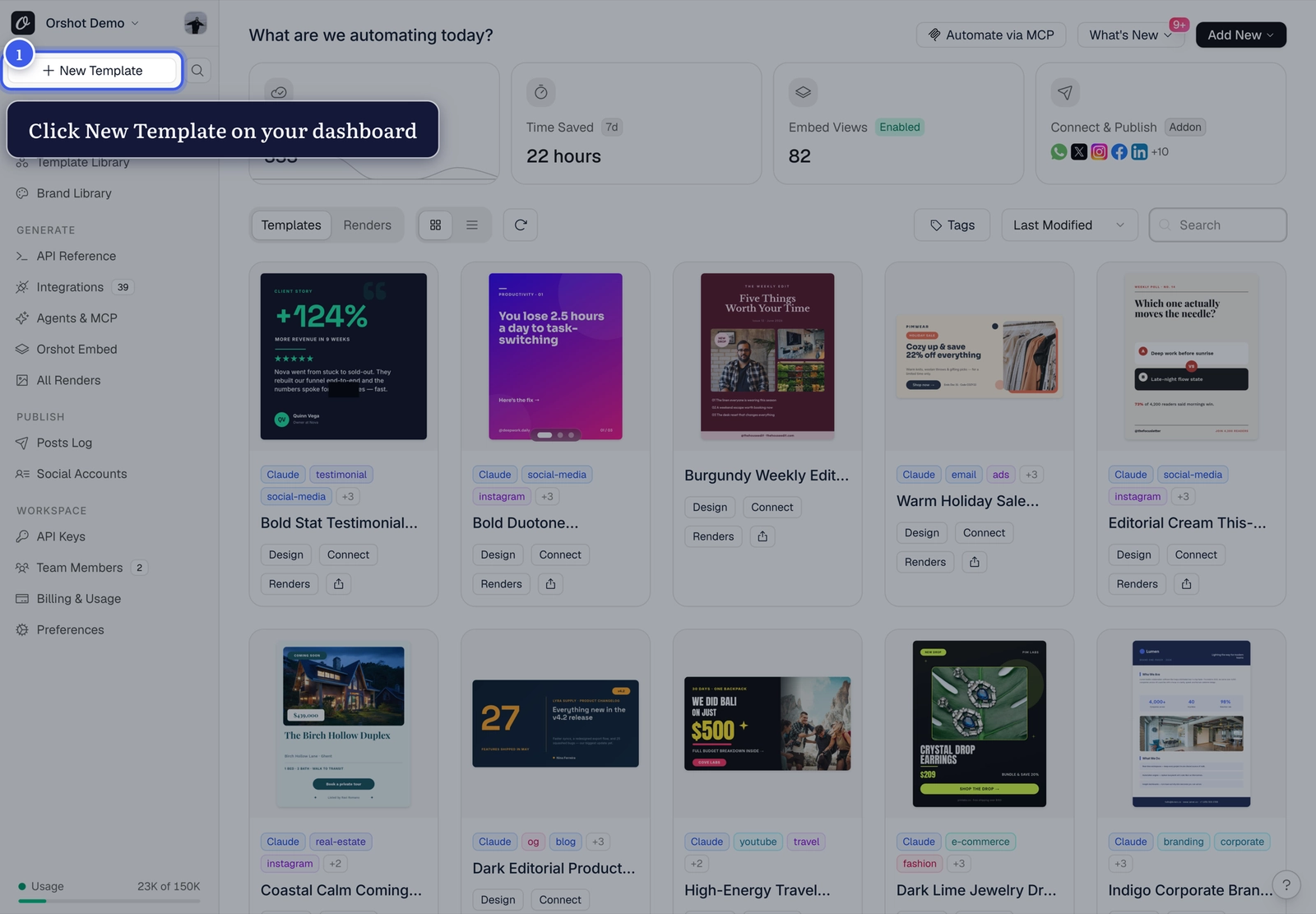
- Pick your source from the tabs at the top: Figma, Canva, or Polotno
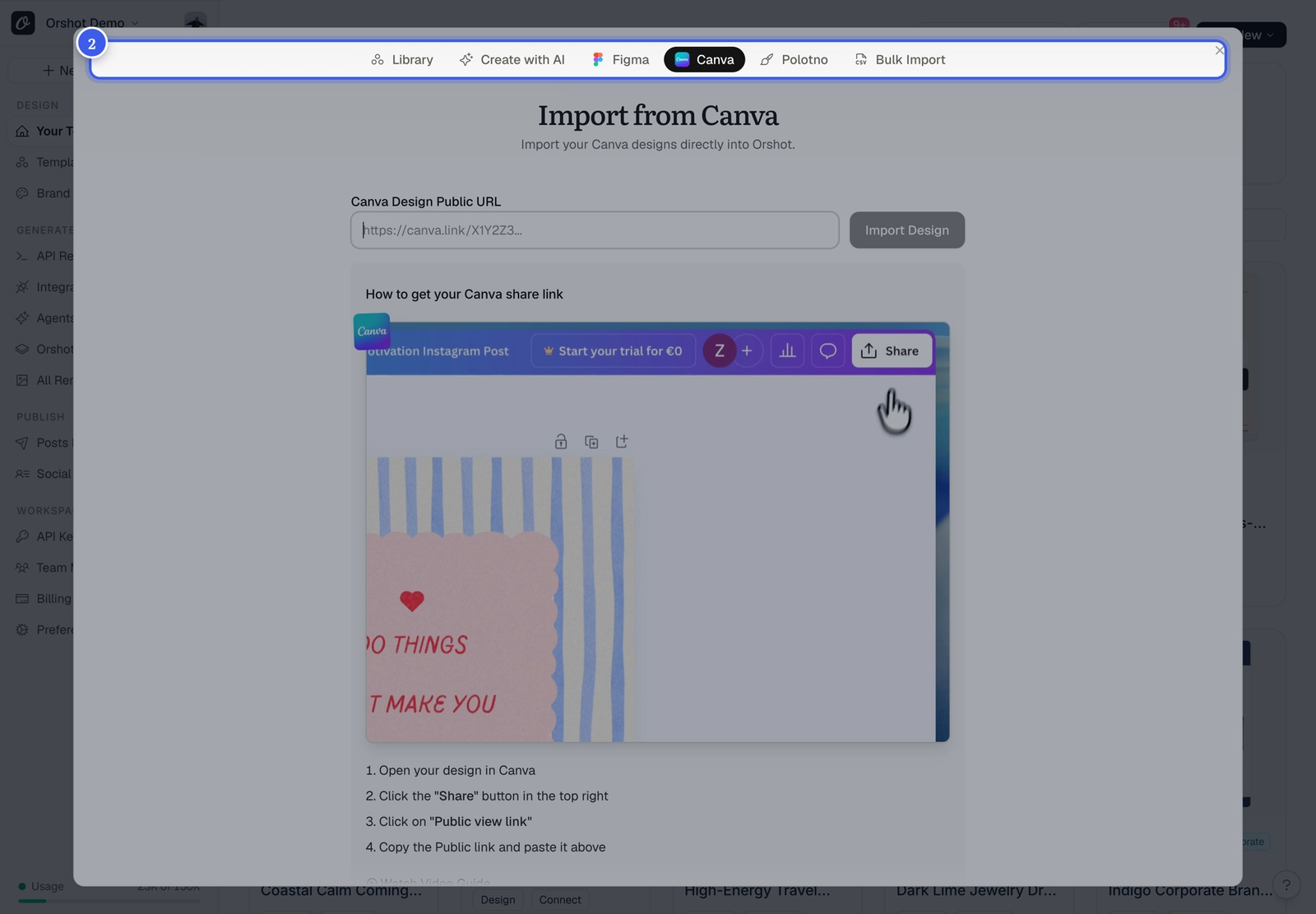
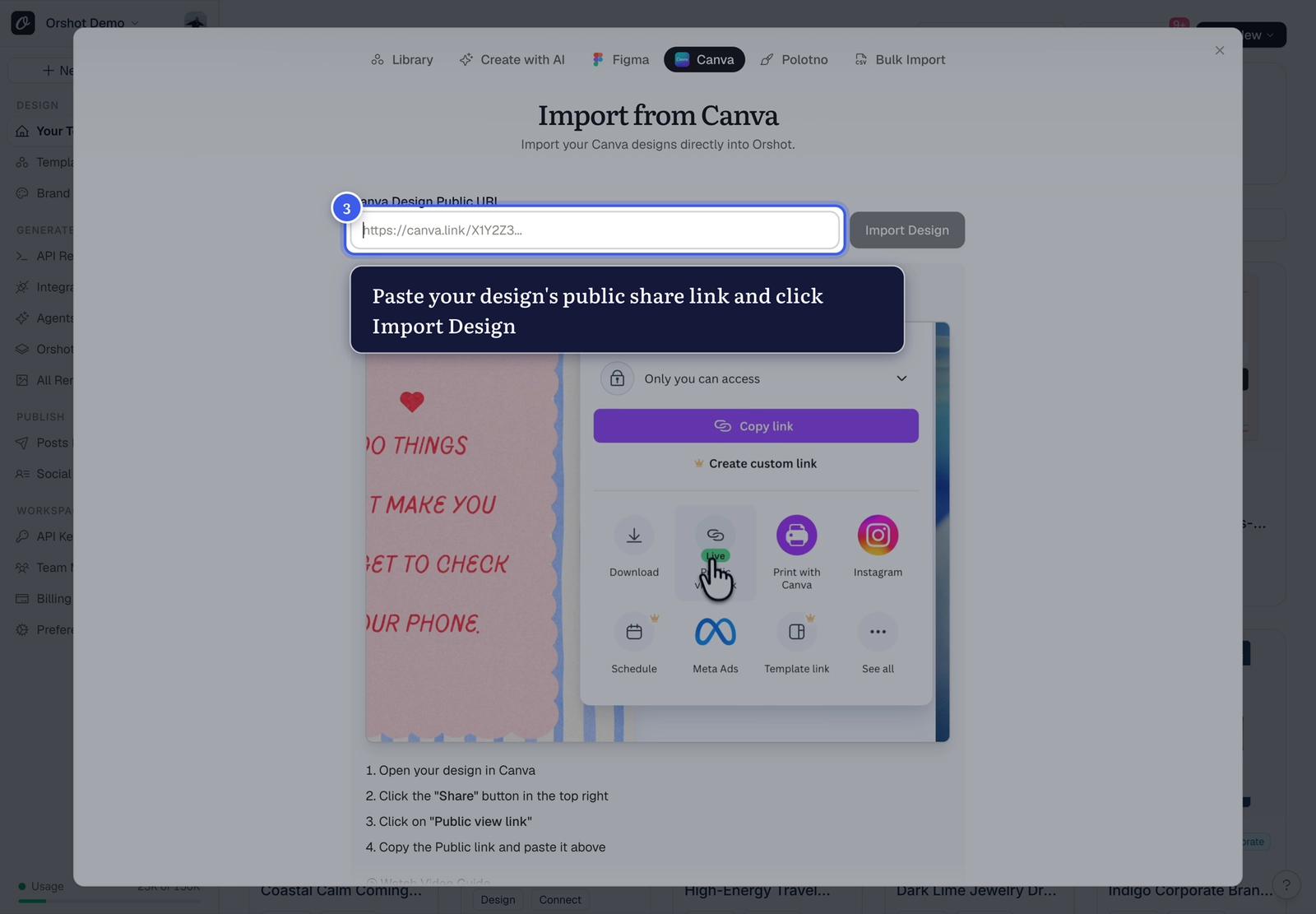
- Paste your design's public share link and click Import Design — the dialog shows you exactly where to find the share link in your design tool
Per-source guides#
Each source works a little differently — Canva takes a public share link directly, Figma uses the Orshot plugin to export your frames, and Polotno imports via a JSON export. Follow the guide for yours:
- Import from Canva — bring Canva designs in with layout and styles preserved
- Import from Figma — convert Figma frames into editable templates
- Import from Polotno — migrate Polotno projects
After importing#
Your imported design is now a normal Orshot template:
- Review the layers — text, images, and shapes are editable
- Make the parts you want to change dynamic
- Generate your first image from it
Something look off after import?#
Imports translate designs automatically, but complex effects can differ between tools — see why a template can look different after import for the quick fixes.
Related#
More in Templates
Ready to automate?
Start rendering images, PDFs and videos from your templates in under 2 minutes. Free plan, no credit card.
Get your API key- Image, PDF and video generation via API
- Visual editor with AI and smart layouts
- Zapier, Make, MCP and 40+ integrations
- White-label embed for your own app
- 100 free credits a month, no credit card required