How to generate visuals in HubSpot with Orshot
Connect HubSpot to Orshot and auto-generate personalized images, PDFs, and videos from your CRM data inside a workflow — no code
Published Jun 20, 2026
Connect HubSpot to Orshot once, and any HubSpot workflow can auto-generate an image, PDF, or video from one of your templates using that record's CRM data — a personalized quote card with the contact's name, a deal-won certificate, a renewal reminder — then return the file URL, save it to your File Manager, and write it straight onto the record. No code.
1. Connect HubSpot to Orshot#
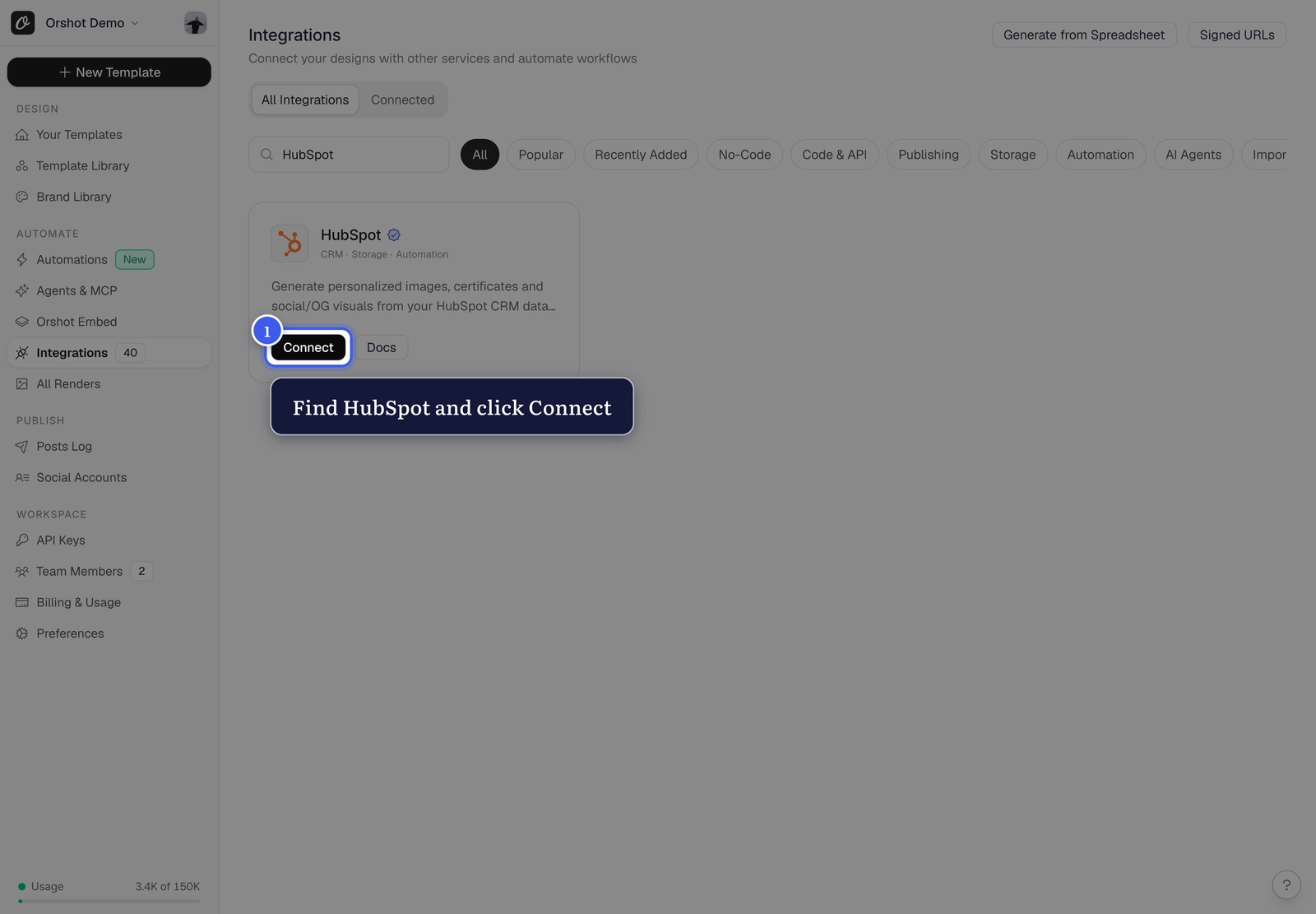
From your workspace sidebar, open Integrations, find HubSpot, and click Connect.
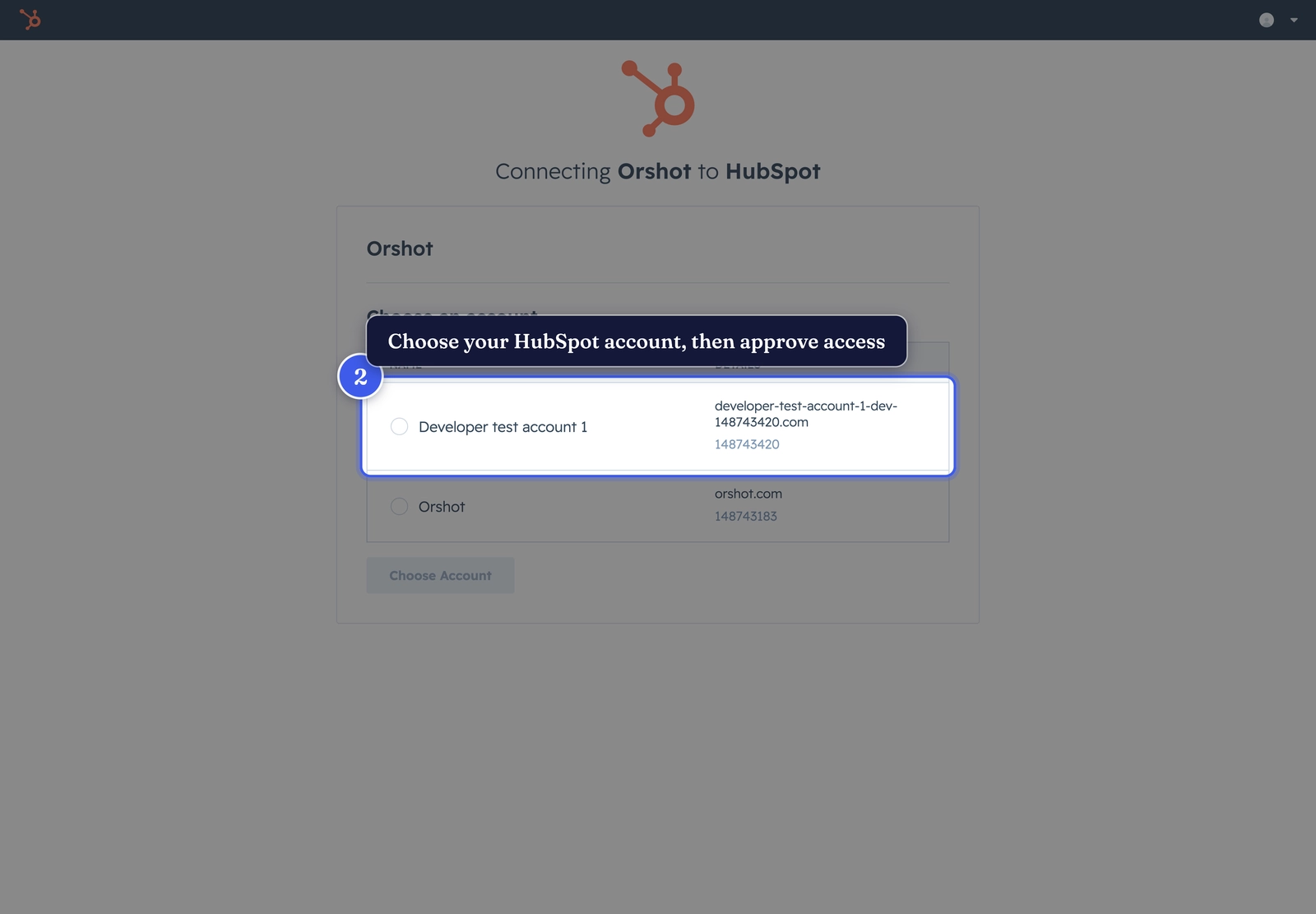
You'll be taken to HubSpot to choose the account you want to connect and approve access.
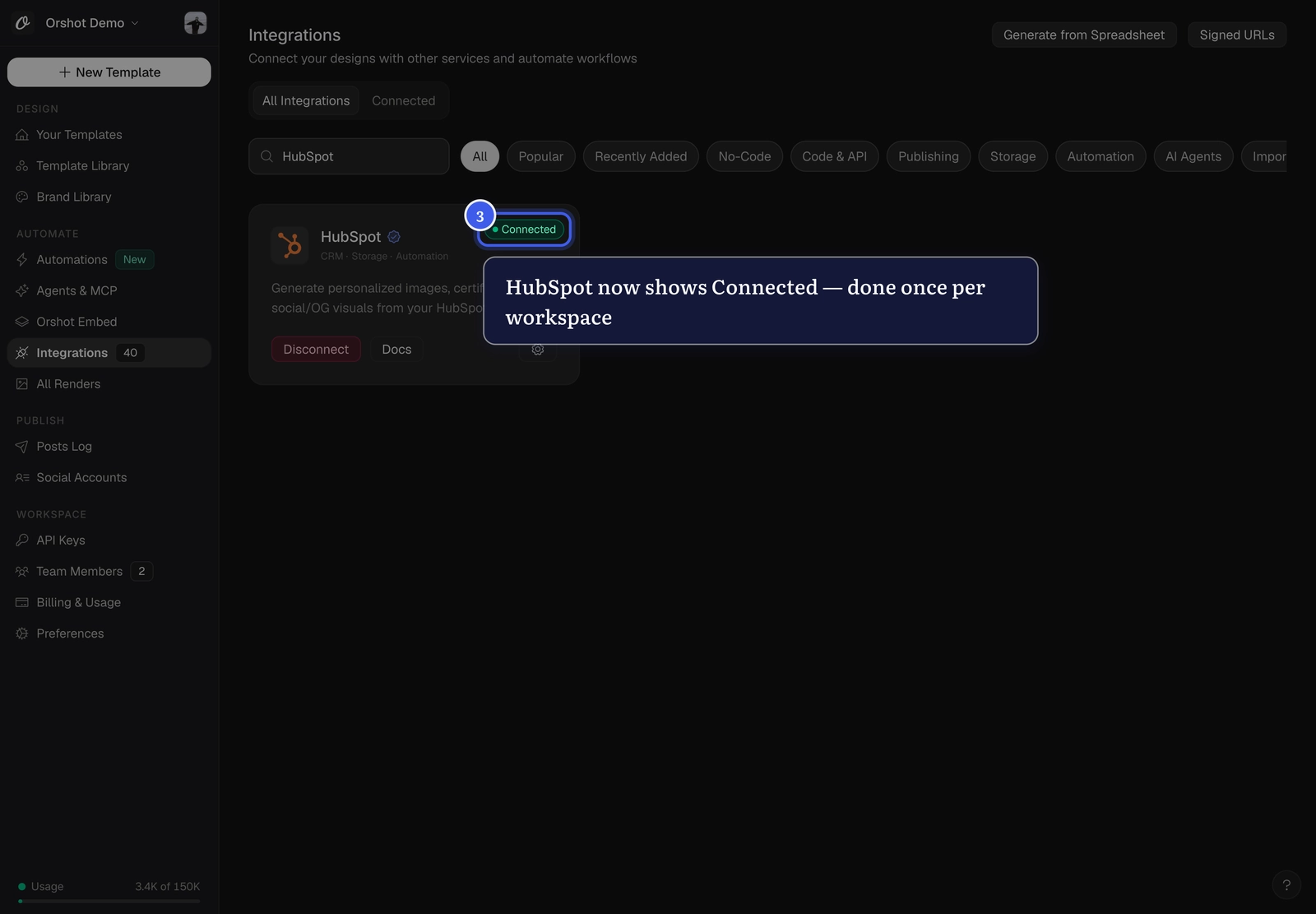
Back in Orshot, HubSpot now shows Connected. You only do this once per workspace.
Nothing to set up on your end
Connecting uses HubSpot's secure OAuth — you don't create a HubSpot app or copy any keys. Orshot requests only what it needs: read your contacts, companies and deals, write a property, and upload to your File Manager.
First-time 'unverified app' prompt
While the Orshot app is being reviewed for the HubSpot Marketplace, HubSpot shows a one-time "You're connecting an unverified app" screen asking you to type I accept the risk before continuing. That's HubSpot's standard notice for any app not yet listed — it's safe to proceed, and it goes away once the app is verified.
2. Know your template's parameters#
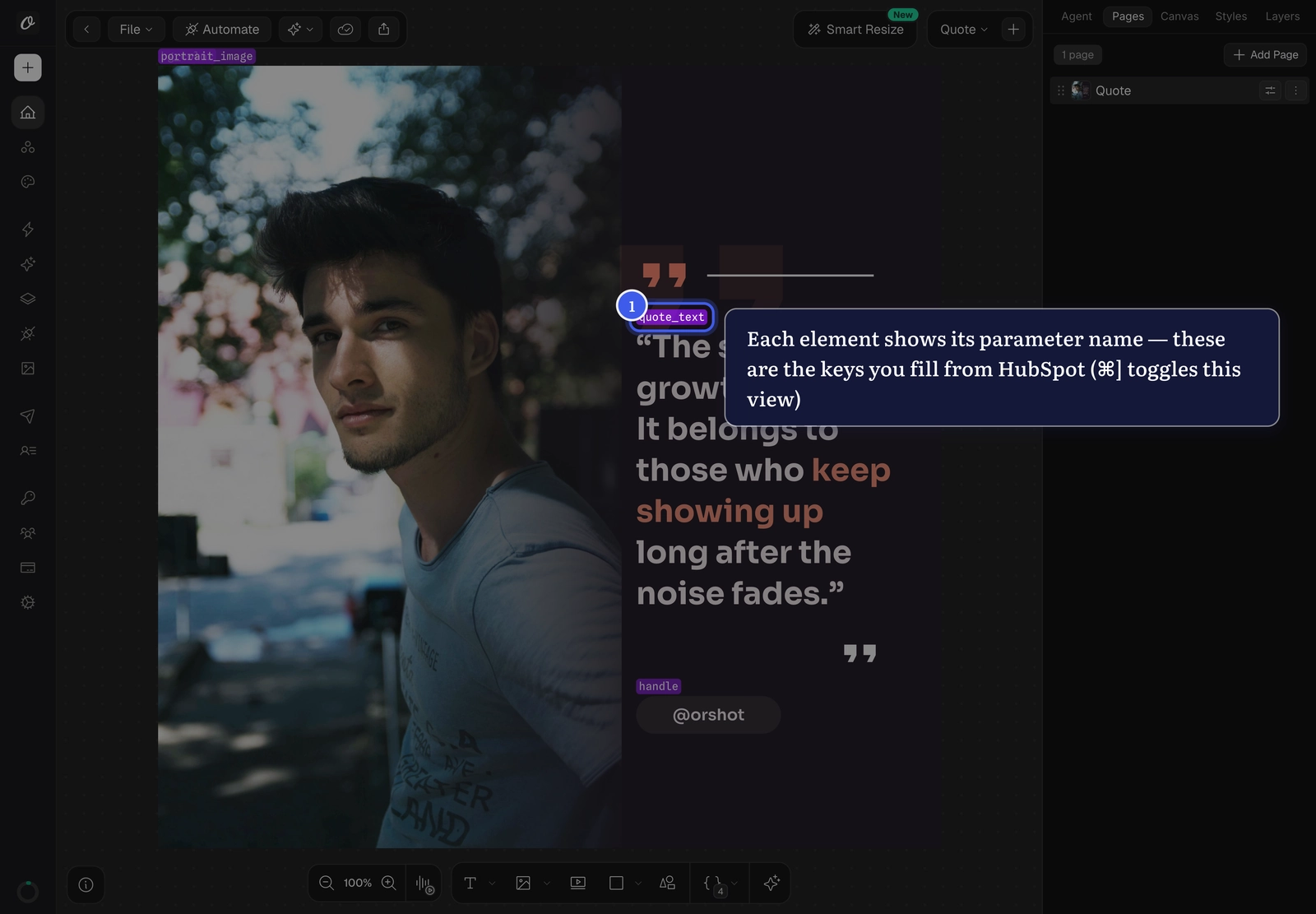
Open your template in Orshot Studio and press ⌘] (Toggle Parameter View; Ctrl + ] on Windows). Every editable element shows its parameter name — for this quote template that's quote_text, portrait_image, and handle. These names are exactly the fields you'll fill from HubSpot. Note the Template ID too (here, 13652).
Make any element dynamic
Any text or image can be turned into a parameter — see Make your template dynamic.
3. Add the Orshot action to a workflow#
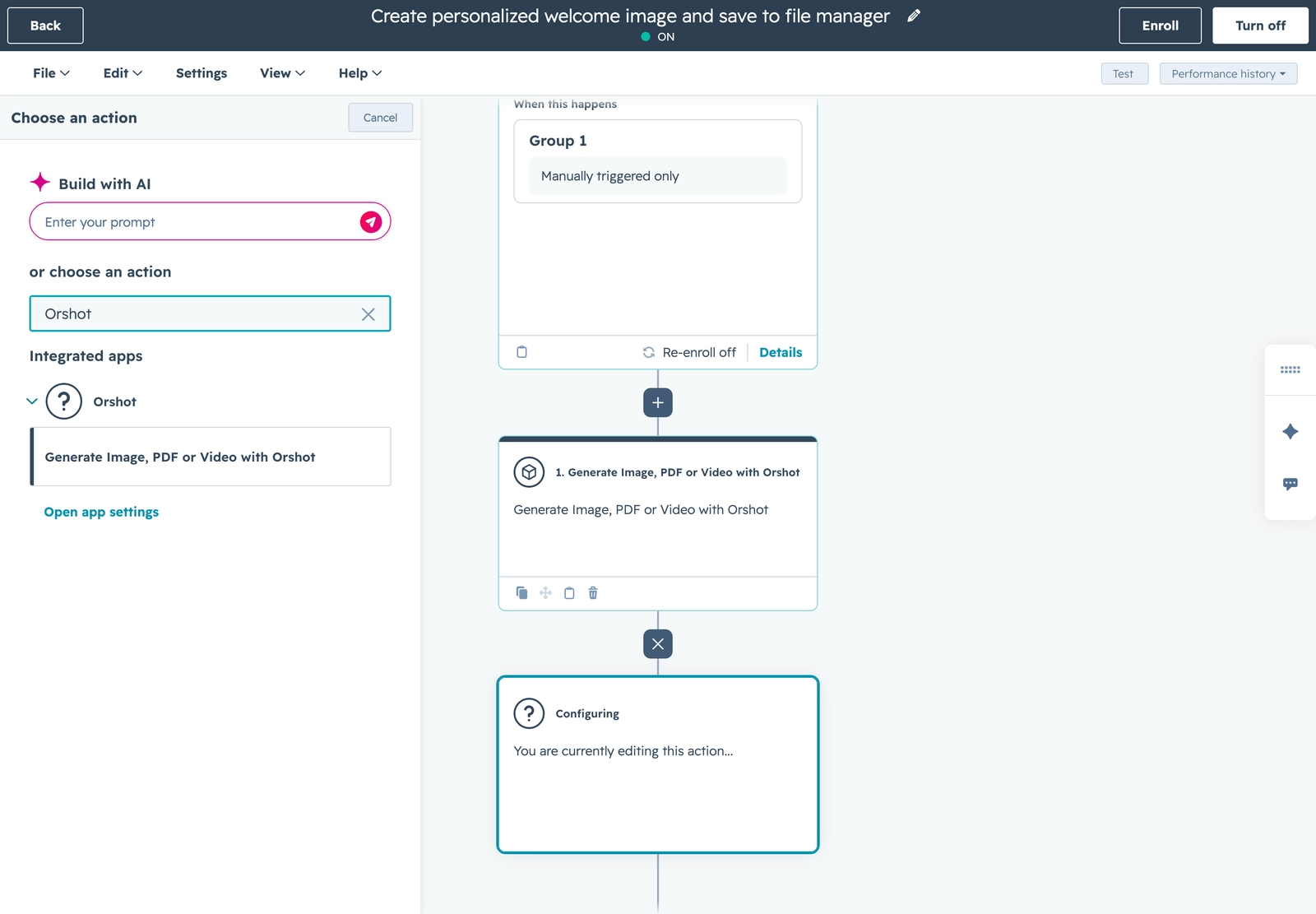
In HubSpot, go to Automation → Workflows and create or open a workflow (contact-, company-, or deal-based). Add an action, search for Orshot, and choose Generate Image, PDF or Video with Orshot under your connected apps.
4. Configure the action#
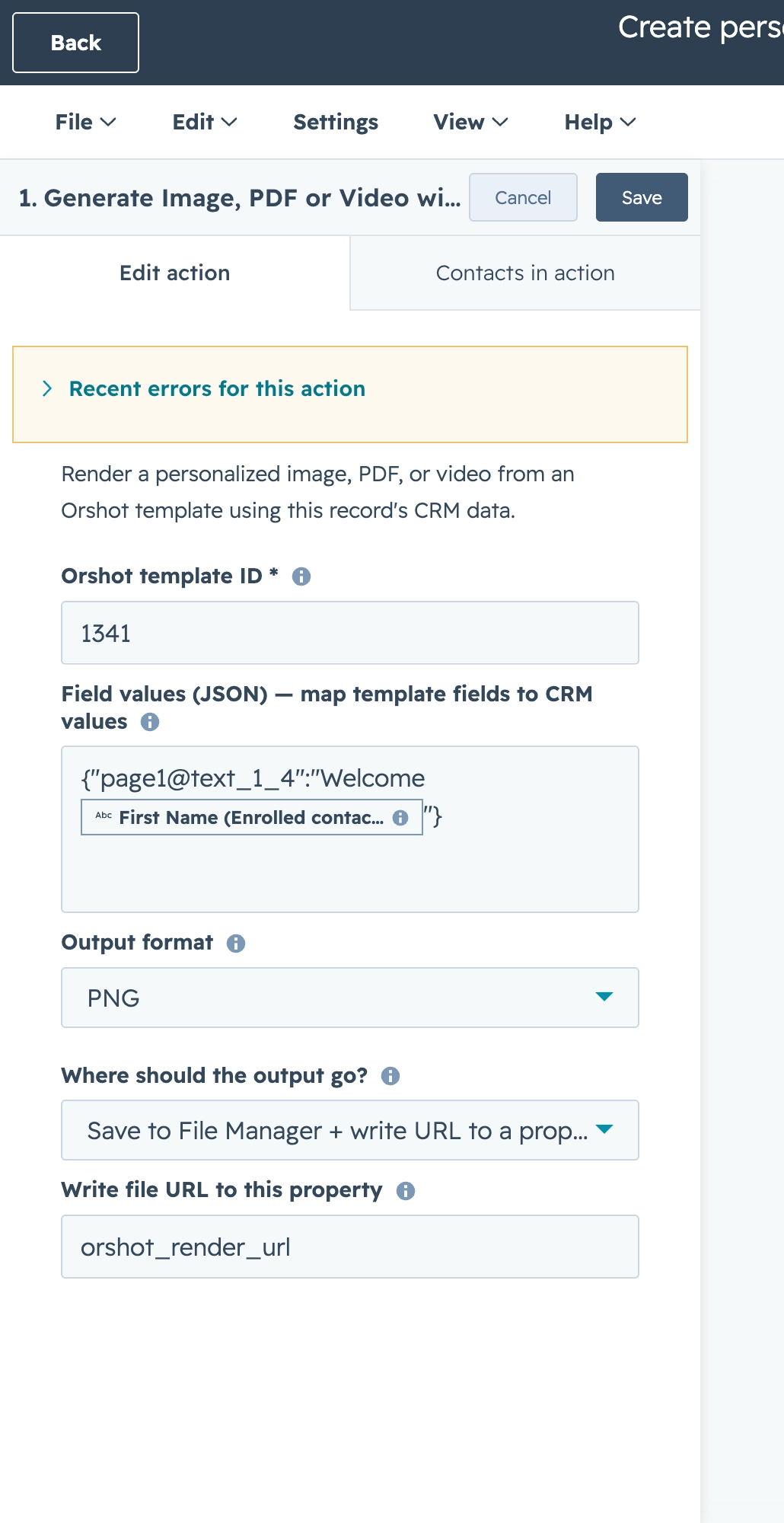
Everything is set on one panel:
- Orshot template ID — the template to render (e.g.
13652). - Field values (JSON) — map template parameters to values, e.g.
{"quote_text": "The strongest growth is quiet.", "handle": "@orshot"}. - Output format — PNG, JPG, WebP, PDF, or video (GIF / MP4 / WebM) for animated templates.
- Where should the output go? — return the file URL only, or save to File Manager and write the URL to a property.
- Write file URL to this property — the property to store the URL on (shown when you save to File Manager).
Video output
Video formats (GIF / MP4 / WebM) require a video-enabled Orshot plan, and play best when delivered as a File Manager link rather than inline in an email.
5. Personalize with CRM data#
This is what makes each run unique. In any Field values value, place your cursor where you want CRM data and insert a HubSpot personalization token — First name, Company name, or any property. HubSpot fills it in per-record at runtime, so every contact gets their own visual.
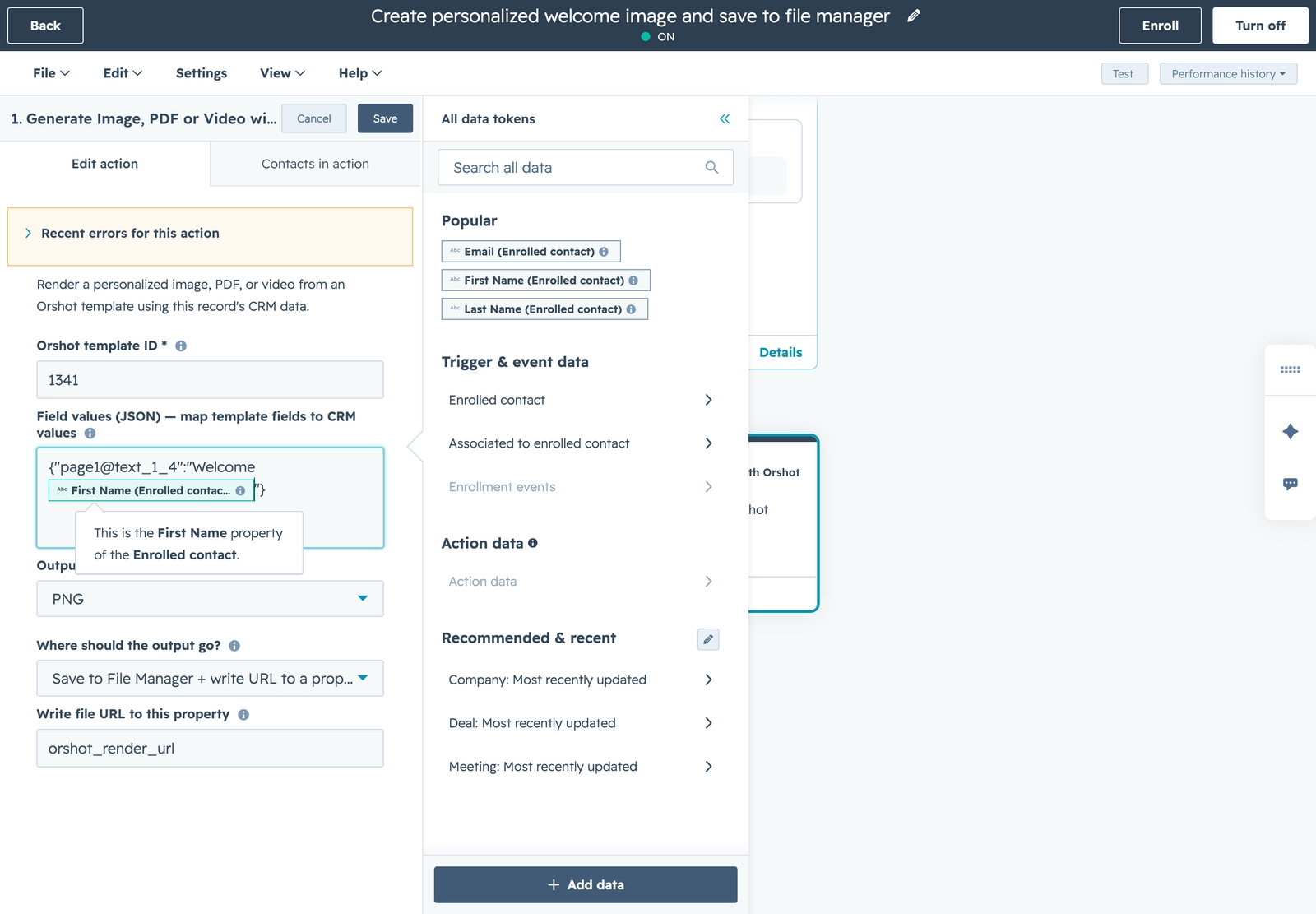
For example, "quote_text": "The strongest growth is quiet, {{ contact.firstname }}." renders each contact's first name into the card.
6. Turn it on and see the result#
Save, turn the workflow on, and enroll a record. Orshot renders the personalized visual, saves it to Files → Orshot Renders, and writes the URL to your property:
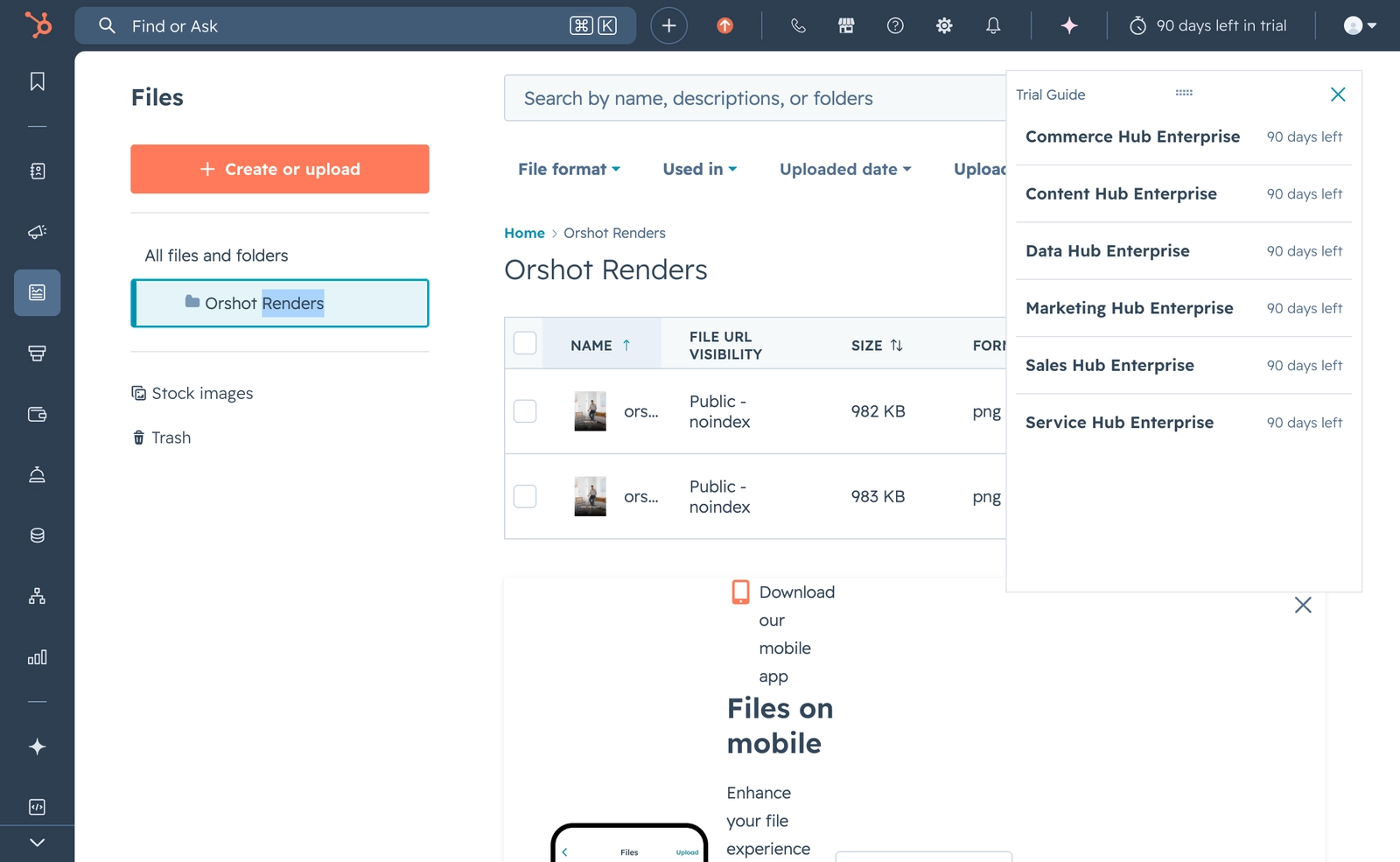
The action also returns a Generated file URL and HubSpot File ID you can use in later workflow steps — attach the image to an email, post it to Slack, or update another property.
Renders use your Orshot credits
Each run renders through your connected Orshot workspace and uses its credits (video bills per second). Serving an already-generated URL again is free.
Want per-recipient images in marketing emails?
You can also drop a personalized Orshot image directly into a HubSpot marketing email with a dynamic image URL that carries HubSpot tokens — each recipient's email renders their own image, no workflow required.
Related#

More in Automations
Ready to automate?
Start rendering images, PDFs and videos from your templates in under 2 minutes. Free plan, no credit card.
Get your API key- Image, PDF and video generation via API
- Visual editor with AI and smart layouts
- Zapier, Make, MCP and 50+ integrations
- White-label embed for your own app
- 30 free credits — no credit card required