What is a layer group?
A group moves and organizes layers together. Grouping never changes renders, parameters or API behaviour.
Published ·Updated
What are layer groups?#
Layer groups combine two or more layers into a unit that selects, moves, aligns, and organizes together in Orshot Studio — like groups in Figma. Grouping is a design-time convenience only: it has zero effect on rendering, dynamic parameters, or any API response.
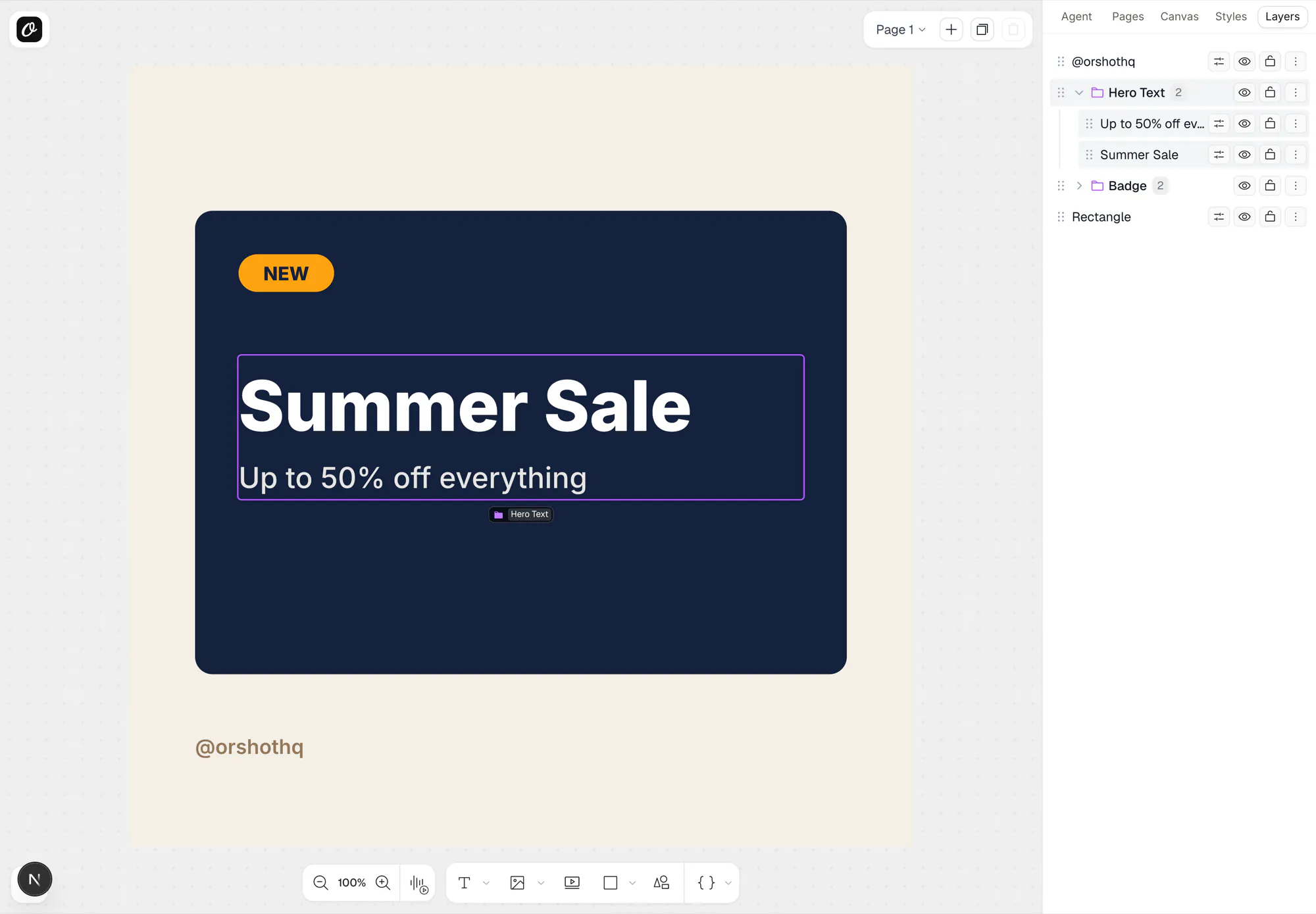
How groups work in the editor#
- Group: select 2+ layers and press
⌘G(Ctrl+G), or right-click → Group Selection - Select: clicking any member selects the whole group (single purple ring + name pill)
- Move: dragging any member moves every member by the same delta — relative layout is preserved
- Edit one layer: double-click a member to enter the group and work on it individually;
Escsteps back out - Align / distribute / gap / bulk position: a selected group is treated as one rigid block — its combined bounds align, members keep their relative positions
- Rename: click the name pill below the selection, or rename the group's row in the Layers panel
- Layers panel: groups render as expandable folders; the group row's visibility/lock controls apply to all members, and the group reorders as one unit
- Ungroup:
⌘⇧G(Ctrl+Shift+G) or right-click → Ungroup — members keep their positions and z-order
Duplicating or copy-pasting grouped layers creates a new group for the copies; they never join the original.
Groups and your renders#
Renders are byte-identical with or without groups. Grouping changes nothing about:
- Render output — images, PDFs, and videos render exactly the same
- Dynamic parameters — members keep their
parameterIds;modificationswork unchanged - Credits — grouping has no effect on usage
This is by design: the renderer reads element geometry and content, and simply ignores group metadata.
How groups are stored#
Groups live in the template's pages_data as two small, additive pieces of metadata:
- each member element carries a
groupId - the page carries a
groupsregistry with display names
{
  "pages_data": [
    {
      "elements": [
        { "id": "el-1", "type": "text", "groupId": "9f2c…", "parameterId": "heading" },
        { "id": "el-2", "type": "text", "groupId": "9f2c…", "parameterId": "subtext" },
        { "id": "el-3", "type": "shape" }
      ],
      "groups": [{ "id": "9f2c…", "name": "Hero Text" }]
    }
  ]
}
Everything else — the render pipeline, modifications extraction, template export/import, and the Design Agent — passes these fields through untouched. A group "exists" whenever two or more elements share a groupId; if members are deleted down to one, the group dissolves automatically.
Notes & limits#
- Groups are single-level — grouping a selection that includes grouped layers absorbs them into the new group
- Locked members move with the group (like Figma) but can't be selected or edited individually; hidden members also move with the group, though they're excluded from the group's selection bounds
- Duplicating a group preserves Smart Stacking relationships between members — the copies stack to each other; stacking to elements outside the group is dropped from the copy
- Group names are cosmetic — they never appear in API responses or rendered output
Related#
- Smart Stacking — position elements relative to each other for dynamic content
- Setting Parameters — make grouped or ungrouped layers dynamic
Ready to automate?
Start rendering images, PDFs and videos from your templates in under 2 minutes. Free plan, no credit card.
Get your API key- Image, PDF and video generation via API
- Visual editor with AI and smart layouts
- Zapier, Make, MCP and 40+ integrations
- White-label embed for your own app
- 100 free credits a month, no credit card required