How do I animate template layers?
Add enter and exit animations, visibility timing and staggered choreography for video and GIF output.
Published ·Updated
The Animate tab in the element editor lets you configure per-layer animations for video renders. Select any layer and switch from the Design tab to the Animate tab to access animation controls.
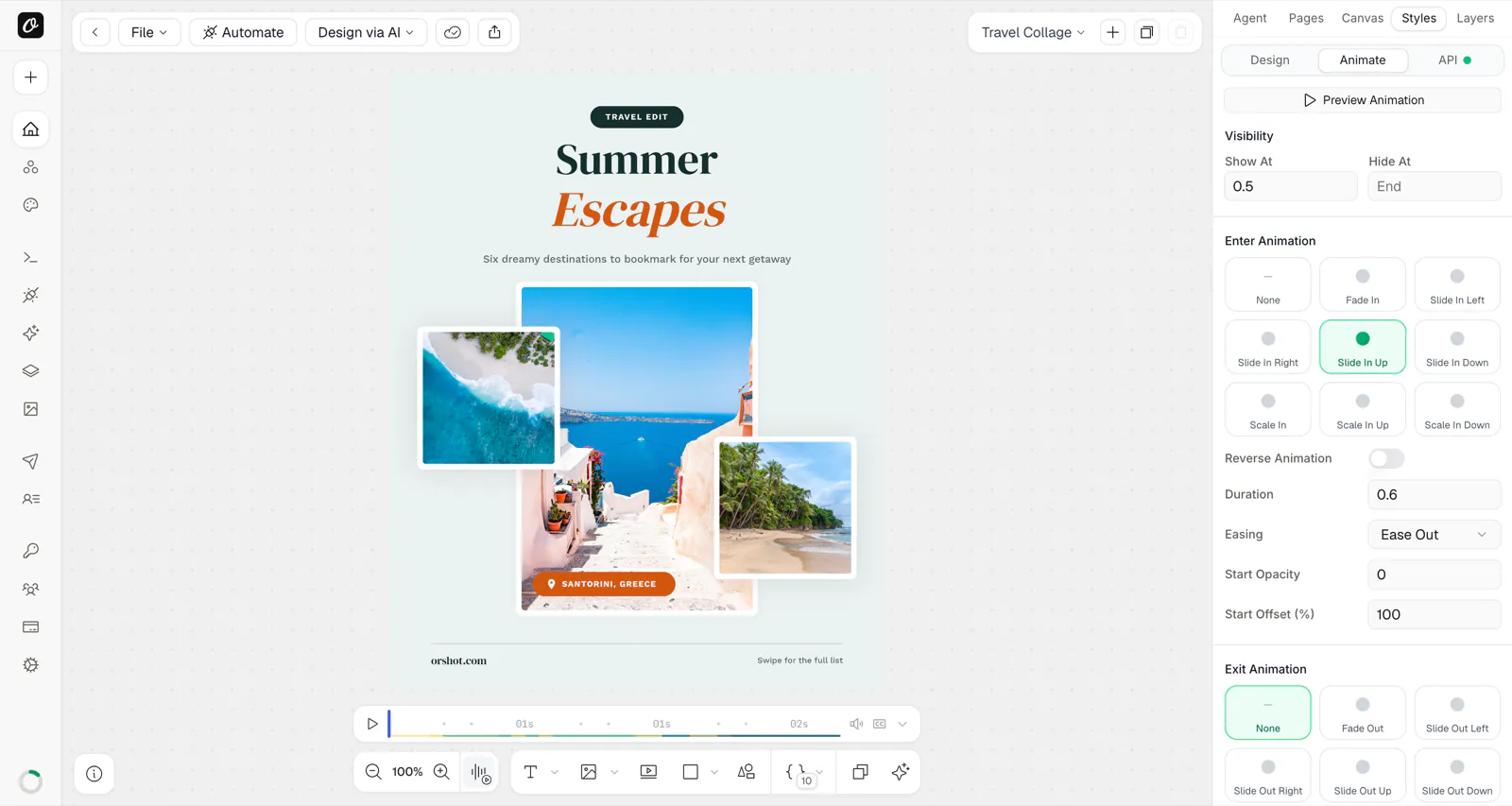
Visibility Timing#
Control when a layer appears and disappears in the video timeline.
| Property | Description |
|---|---|
| Show At | Time (in seconds) when the layer becomes visible. Default: 0 |
| Hide At | Time (in seconds) when the layer disappears. Default: end of video |
Layers are hidden outside their visibility window, so you can choreograph elements appearing and disappearing at different points in the video.
Start: chaining layers#
Below Show At / Hide At, the Start control chains this layer's entrance to another layer finishing its own. Choose "After layer" and an Offset (seconds, may be negative) instead of computing Show At by hand — the chain re-times itself automatically when the upstream layer's entrance changes length (a longer text reveal, for example). Layers that already depend on the current one are excluded from the list, so a timing cycle cannot be created. This writes motion.after — see Motion for the full choreography system.
Enter Animation#
The animation that plays when the layer first appears (at its Show At time).
Available Types#
| Type | Effect |
|---|---|
| None | No entrance animation |
| Fade In | Fades from transparent to opaque |
| Slide In Left/Right/Up/Down | Slides in from the specified direction |
| Scale In | Scales up from a smaller size |
| Scale In Up/Down | Scales in while sliding vertically |
Enter Options#
- Duration — How long the entrance takes (0.1s – 10s, default 0.5s)
- Easing — The acceleration curve: Linear, Ease, Ease In, Ease Out, Ease In Out, Spring
- Custom Values — Some animations expose additional parameters (e.g., slide distance, scale factor)
Exit Animation#
The animation that plays when the layer disappears (at its Hide At time). Same types as enter, but in reverse:
| Type | Effect |
|---|---|
| None | No exit animation |
| Fade Out | Fades from opaque to transparent |
| Slide Out Left/Right/Up/Down | Slides out in the specified direction |
| Scale Out | Shrinks away |
| Scale Out Up/Down | Scales out while sliding vertically |
Exit options (duration, easing, custom values) work identically to enter options.
Ambient Motion#
Mid-life motion that plays while the layer is on screen — between the enter and exit animations. Where enter/exit describe how a layer arrives and leaves, ambient motion keeps it alive in between, which is what makes rendered video read as video instead of a slideshow.
Available Types#
| Type | API value | Effect | Mode |
|---|---|---|---|
| None | none | No ambient motion | — |
| Ken Burns | kenBurns | Slow pan and zoom across the layer's whole visible window | Sustain |
| Pulse | pulse | Gentle scale up and back | Loop |
| Float | float | Vertical bob | Loop |
| Drift | drift | Slow circular wander | Loop |
| Wiggle | wiggle | Small rotation sway | Loop |
| Shake | shake | Quick horizontal jitter | Loop |
| Slow Rotate | slowRotate | Continuous full rotation (use Linear easing for a seamless loop) | Loop |
| Breathe | breathe | Subtle opacity + scale breathing | Loop |
Loop types repeat on a Cycle you control (default 4s). Sustain types (Ken Burns) run once, stretched across the layer's entire visible window — no cycle setting.
Ambient Options#
- Cycle — Loop length in seconds (loop types only)
- Easing — Same options as enter/exit; each type selects a sensible default
- Custom Values — Per-type parameters: Ken Burns exposes End Scale / Pan X / Pan Y, Float and Drift expose the offset, Wiggle the angle, and so on
Ambient motion starts when the enter animation completes and hands off to the exit animation — enter and exit always win over ambient motion for any property they both animate.
Behaviors#
Below the Ambient picker, the Behaviors section adds one-shot and stat behaviors from the motion engine:
- Count up — the layer's number counts from a start to an end value (From, To, Duration, Suffix). The stat primitive
- Press — a one-shot press dip at an exact second (a button being clicked)
- Leave early — the layer fades out at a chosen time, freeing the stage
- Draw in — SVG strokes draw themselves on (SVG layers)
Page-level film texture (Grain and Vignette) lives in the timeline's timer popover, under Look.
Preview#
Click Preview Animation to play the enter and exit animations directly on the canvas. The preview auto-plays whenever you change any animation value.
Multi-Layer Editing#
When you select two or more layers, the Animate tab applies changes to all selected layers at once:
- Changing any animation property (enter type, exit duration, easing, etc.) updates all selected layers
- Preview Animation plays the animation on all selected layers simultaneously, respecting each layer's individual
showAttiming
Stagger Delay#
When multiple layers are selected, a Stagger Delay section appears. This lets you create choreographed sequences where layers animate in one after another.
How It Works#
- Delay Between — Set the time gap between each layer's entrance (e.g., 0.2s)
- Animation Order — A drag-and-drop list of your selected layers. Reorder them to control which layer animates first
- Apply Stagger — Writes incremental
showAtvalues to each layer based on its position in the list
For example, with 3 layers and a 0.2s delay:
| Order | Layer | Show At |
|---|---|---|
| 1 | Title | 0.0s |
| 2 | Subtitle | 0.2s |
| 3 | Logo | 0.4s |
After clicking Apply Stagger, each layer's Show At is set automatically. Combined with an enter animation like Fade In, this creates a cascading entrance effect.
Copy & Paste Animations#
Right-click any layer to access Copy Animation and Paste Animation in the context menu. This copies the full animation configuration (enter, exit, timing) from one layer to another.
How Animations Render#
Animations are applied during video generation. What you see in the editor preview is exactly what you get in the rendered output.
- Animations render at full frame accuracy — every frame is precise, with no dropped or skipped transitions
- All configured animations are included automatically in video output formats (
mp4,webm,mov,mkv,gif) - Total video duration is calculated from the longest layer timeline (including its enter/exit animations) and any page-level audio, with a minimum of 0.5 seconds
API Usage#
Animation properties are part of the template configuration and render automatically — no additional API parameters needed. The video output (mp4, webm, mov, mkv, gif) includes all configured animations.
You can override transition values via the API using the style parameter syntax:
{
  "templateId": "your-template-id",
  "modifications": {
    "title": "Hello World",
    "title.showAt": 0.5,
    "title.hideAt": 3,
    "title.enterType": "fadeIn",
    "title.enterDuration": 0.8,
    "title.exitType": "fadeOut",
    "photo.ambientType": "kenBurns",
    "photo.ambientDuration": 4,
    "photo.ambientEasing": "ease-in-out"
  }
}
Ambient motion accepts ambientType (use the exact API value from the table above — the display names are not accepted), ambientDuration (the loop cycle in seconds; ignored for kenBurns, which stretches across the layer's visible window instead), and ambientEasing. An unrecognised ambientType is treated as none.
For cinematic motion beyond enter/exit/ambient — staggered text reveals, count-up stats, relational choreography, camera moves, film texture, and per-render motion overrides like stat.motion.count.to — see Motion.
Ready to automate?
Start rendering images, PDFs and videos from your templates in under 2 minutes. Free plan, no credit card.
Get your API key- Image, PDF and video generation via API
- Visual editor with AI and smart layouts
- Zapier, Make, MCP and 50+ integrations
- White-label embed for your own app
- 30 free credits — no credit card required