How do I go back to an earlier version of a template?
Every edit session, save, API change and restore is kept as a version. Open File → Version history to see what changed and put any earlier design back.
Published ·Updated
Orshot keeps the history of every studio template automatically. Nothing to switch on: from the moment you edit a template, the state before each change is kept, and you can go back to it from File → Version history in the studio.
What is kept#
| Version | When it is created |
|---|---|
| Editing session | When you close the tab, open another template or leave the studio, the design as you left it is kept. Coming back after 30 minutes away, or someone else writing, keeps it too |
| Autosaved | While you edit, a safety copy refreshed every 10 minutes, so a crash never costs more than that |
| Named | Versions you name with Save version. Never removed, always restorable on a paid plan |
| API change | The design as it was before an API call or an agent (Claude, Cursor, ChatGPT) changed it |
| Restore steps | Restoring adds "Before restoring vN" and "Restored from vN", so a restore can always be undone |
Each row shows what changed ("2 texts edited", "1 image replaced", "+1 page"), which pages were touched, who made the change and when. Hover a time for the exact date.
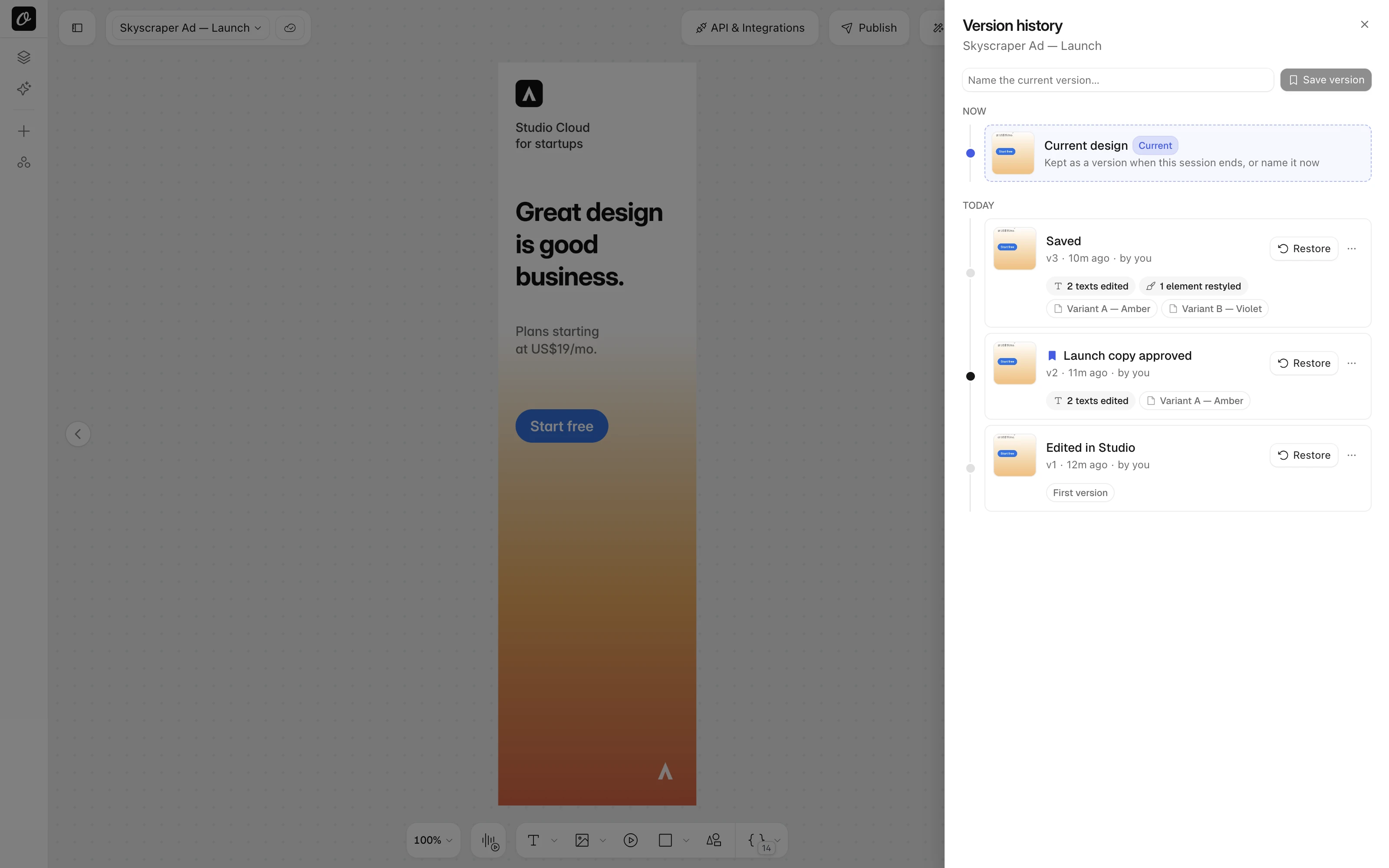
Older versions are thinned over time: everything from the last 24 hours, then one per day for a month, then one per week. Older automatic versions are removed once a template has more than 15, but never ones from the last 24 hours. Named versions are never thinned.
Restore an earlier design#
- Open the template in the studio and choose File → Version history.
- Find the version. Thumbnails show the pages that changed in that version.
- Click Restore. Unsaved edits are saved first, so nothing is lost.
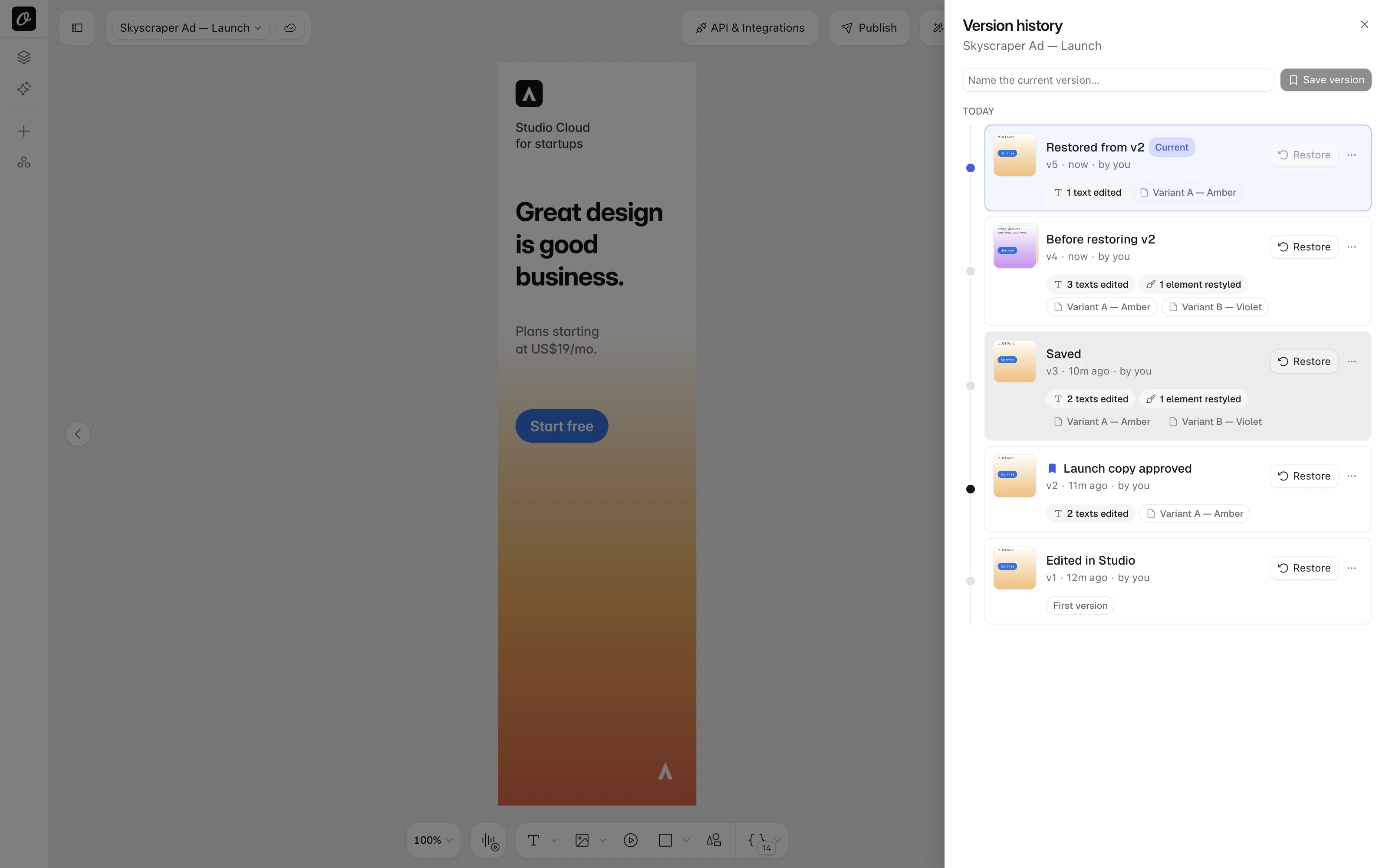
The design comes back on the canvas and a new "Restored from vN" step is added to the timeline. Name, description, tags, folder and sharing settings are not changed by a restore. Use Undo in the confirmation to go straight back.
Prefer to keep the current template as it is? Use ⋯ → Make a copy to create a new template from the version instead.
Name a version#
Type a name in the box at the top of the sheet and press Save version to keep the current design under that name, or use ⋯ → Name this version on any row. Named versions are never removed and are the ones to use for approvals and milestones.
Plans#
| Plan | Versions shown | Can restore | Named versions per template |
|---|---|---|---|
| Free | 5 | No, upgrade to restore | 0 |
| Launch | 15 | The newest 3 | 1 |
| Grow | 15 | The newest 8 | 3 |
| Scale | 15 | The newest 12 | 6 |
Versions are kept on every plan, so a Free workspace that upgrades can restore straight away. Rows outside the plan's reach stay visible with a lock.
Automate it#
Enterprise workspaces and first party agents can list, name, restore and copy versions through the API: start with List Template Versions.
Ready to automate?
Start rendering images, PDFs and videos from your templates in under 2 minutes. Free plan, no credit card.
Get your API key- Image, PDF and video generation via API
- Visual editor with AI and smart layouts
- Zapier, Make, MCP and 40+ integrations
- White-label embed for your own app
- 100 free credits a month, no credit card required