What is a template parameter?
A parameter marks a text, image or color layer as changeable, so the API can set its value on every render.
Updated
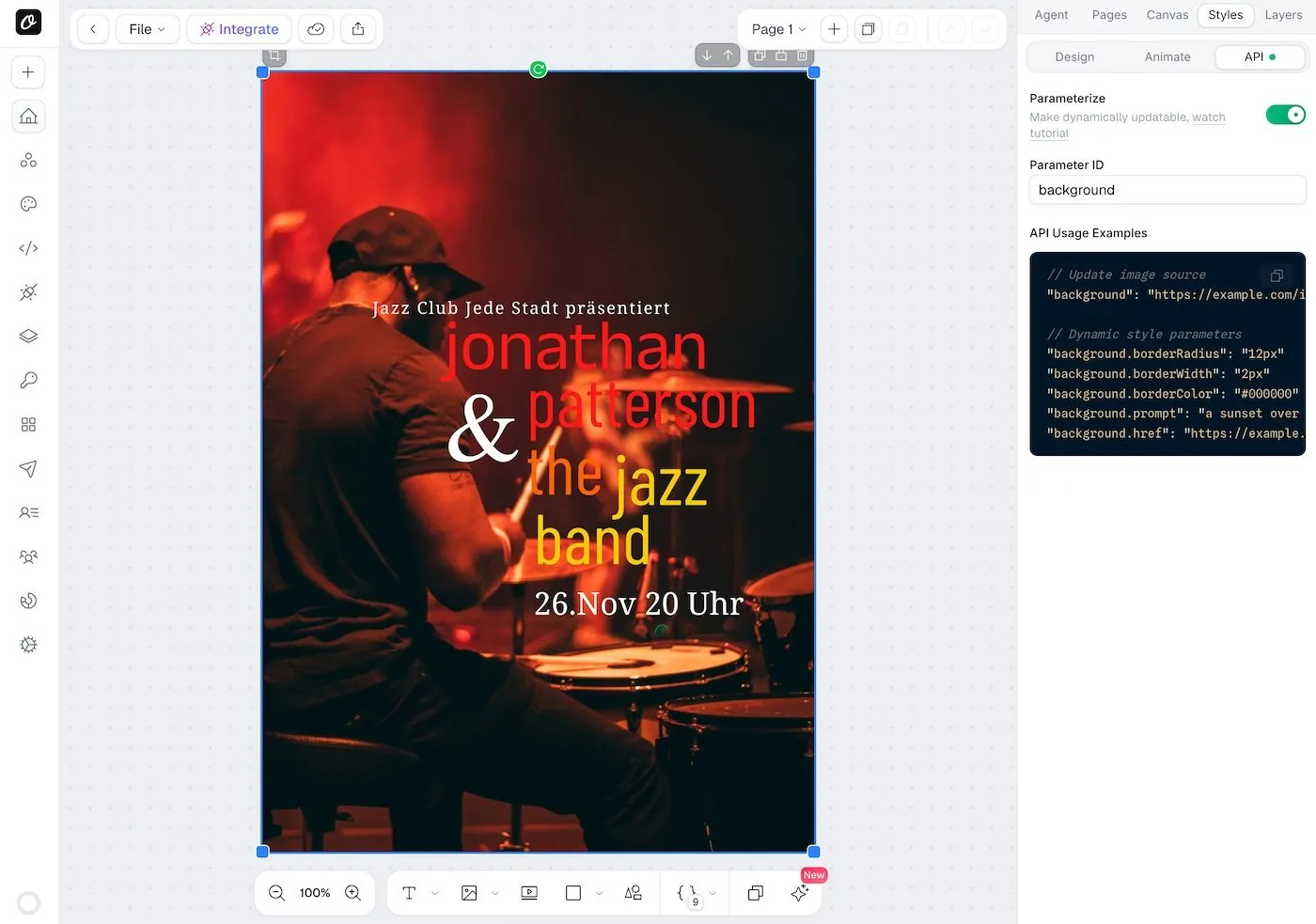
To make any element dynamic:
- Select the element on the canvas
- Open the Styles tab in the right sidebar
- Switch to the API sub-tab (next to Design and Animate)
- Toggle Parameterize on
- Set a unique Parameter ID
The API tab also shows usage examples for that element. A green dot appears on the API tab when the selected element has parameterization enabled.
Quick Parameterize from the Canvas#
The fastest way to parameterize an element is the quick bar that appears right below it when selected:
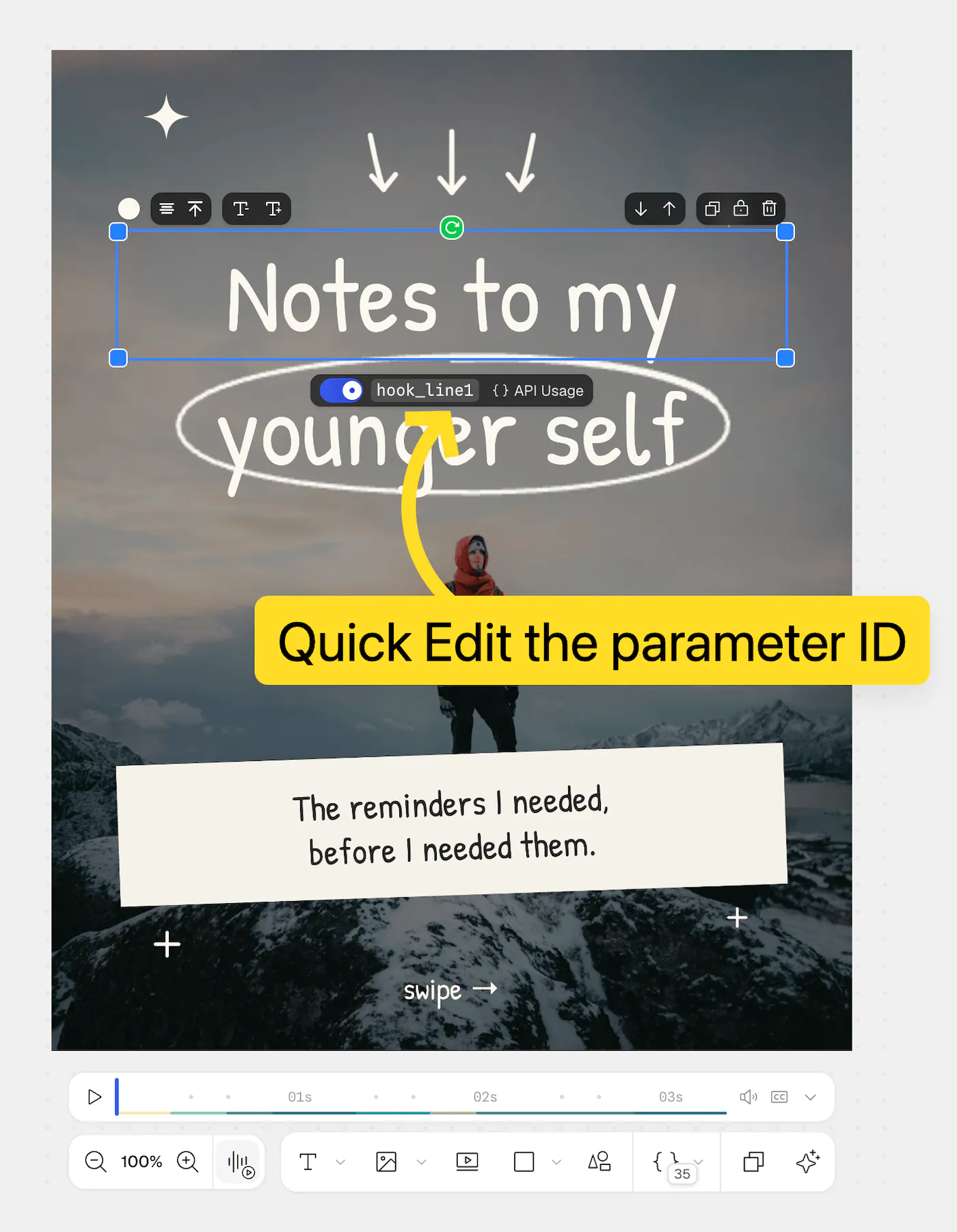
- Toggle Enable API Control to parameterize the element instantly — you'll drop straight into editing the auto-generated Parameter ID, so you can type a meaningful name and press Enter
- Click the parameter ID anytime to rename it inline. The same checks as the API tab run live as you type: reserved characters are flagged, sharing an ID with same-type elements is highlighted, and IDs used by a different element type are rejected
- Click API Usage to jump to the element's API tab with copyable usage examples
Inline Parameters#
You can embed placeholders like {{name}} directly inside a text element's content. At render time, pass values using colon notation — parameterId:placeholderName — and each placeholder gets replaced while the rest of the text stays as-is.
{
  "heading": "Hello {{name}}, welcome to {{city}}!",
  "heading:name": "Sarah",
  "heading:city": "New York"
}
Renders as: Hello Sarah, welcome to New York!
This is useful for certificates, invoices, personalized messages, and any text where the structure is fixed but specific values change per render. See the full Inline Parameters guide for setup details, multi-page support, and more examples.
Video Element Parameters#
When you add a video element to your template and set a parameter ID, you can dynamically control:
- Video URL - Pass a custom video URL using the parameter ID
- Trim Start - Set the start time using
{parameterId}.trimStart - Trim End - Set the end time using
{parameterId}.trimEnd - Muted - Control audio with
{parameterId}.muted - Loop - Enable looping with
{parameterId}.loop
Example#
If your video element has parameter ID bgVideo, you can pass:
{
  "bgVideo": "https://example.com/video.mp4",
  "bgVideo.trimStart": 5,
  "bgVideo.trimEnd": 15,
  "bgVideo.muted": false,
  "bgVideo.loop": true
}Ready to automate?
Start rendering images, PDFs and videos from your templates in under 2 minutes. Free plan, no credit card.
Get your API key- Image, PDF and video generation via API
- Visual editor with AI and smart layouts
- Zapier, Make, MCP and 50+ integrations
- White-label embed for your own app
- 30 free credits — no credit card required