Approval flow key terms
What stages, stage types, approvers, reviewers and automation mean in Orshot approval flows, in plain words.
Published
The words the Approvals page, the studio and the notifications use, and what each one does.
Approval flow#
A set of stages that templates move through. A workspace can have several, like Brand and Legal, and a template can be in more than one at once. Each flow has its own board on the Approvals page, its own stages and its own access.
Archiving a flow takes it off the Approvals page. Its templates no longer need approval to render, and its history is kept.
Stage#
One step of a flow, shown as a column on the board. You name stages (Draft, Legal review, Automation approved) and can rename them any time. A template sits in one stage per flow.
Edits never move a template. People move it, from the board or the studio.
A stage has no color by default. To tell stages apart, pick one on the Stages tab of the flow settings: click the dot at the start of the stage's name. The color shows everywhere the stage does: a dot on its board column, and its chip on template cards, in the Connect sheet and in the studio. A stage with no color shows as a plain chip.
Each column has a menu (the three dots) with Collapse stage, and Add templates on the stages a template can start in, which adds templates straight to that stage.
Stage type#
Every stage has a type. The type sets what happens in the stage, and the name is only a label.
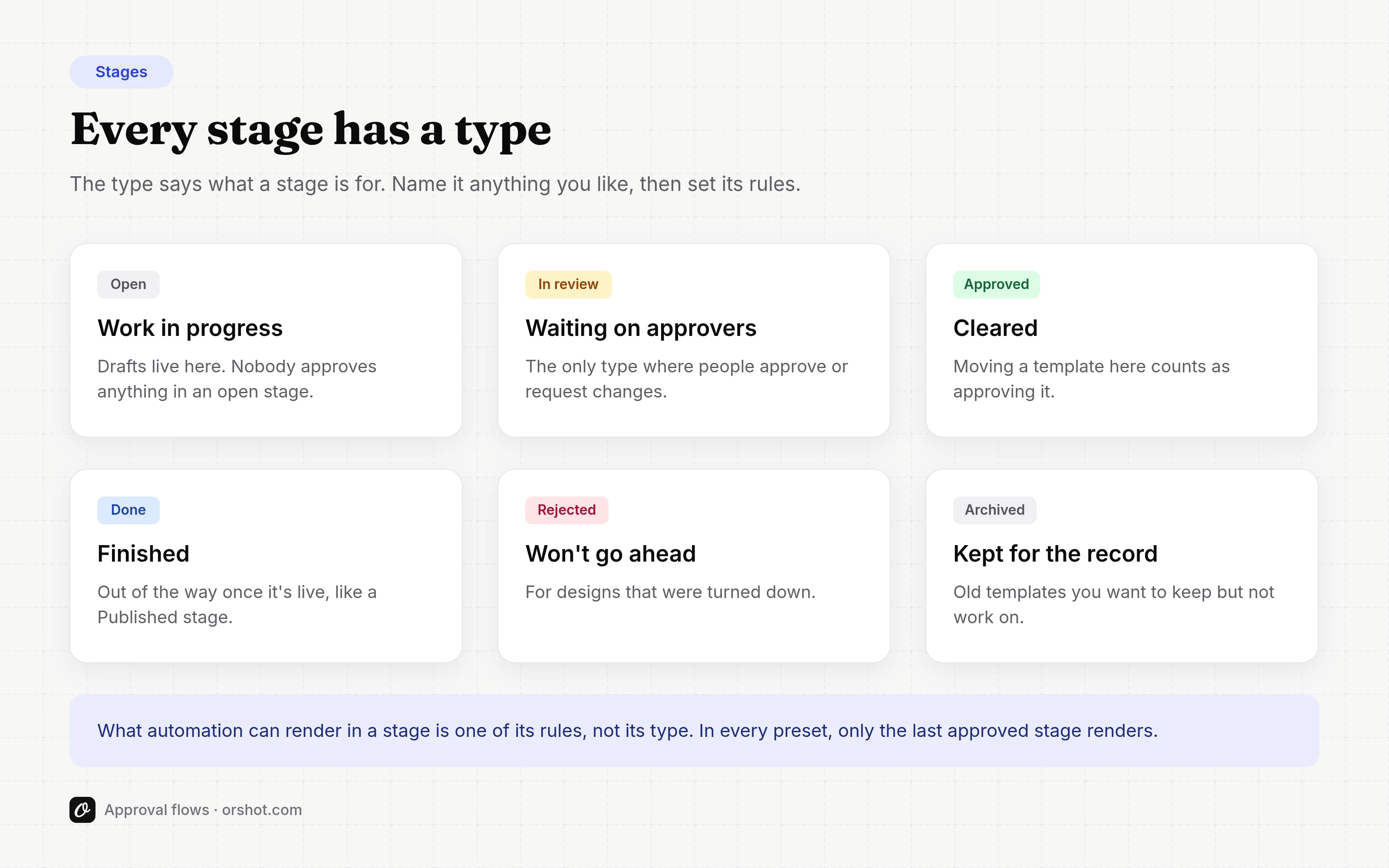
| Stage type | What it means |
|---|---|
| Open | Work in progress, like Draft or In design. No approvals happen here. |
| In review | Waiting on approvers to approve or request changes. The only type where people approve. |
| Approved | Moving a template here counts as approving it. |
| Done | Finished and out of the way, like Published. |
| Rejected | Won't go ahead. |
| Archived | Kept for the record. |
The type shows as a chip on the column header, so 'Legal review' and 'Client review' both read In review.
Stage rules#
Each stage has rules, set on the Stages tab of the flow settings:
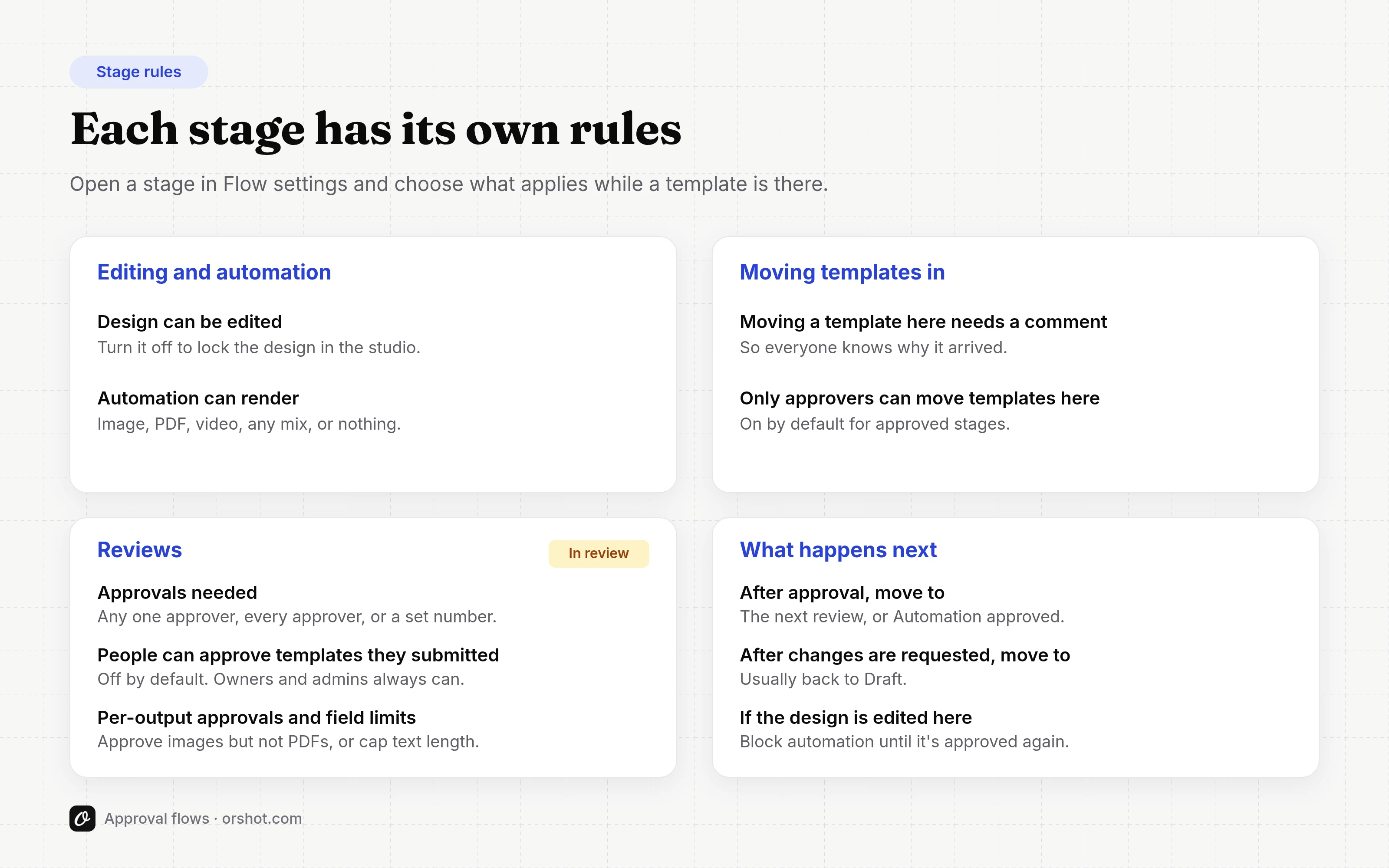
| Rule | What it does |
|---|---|
| Design can be edited | When off, the template shows as Locked in the studio. |
| Automation can render | Image, PDF or video: what automation can render while a template is in this stage. |
| Moving a template here needs a comment | People add a comment when they move a template in. |
| Only approvers can move templates here | When off, anyone who can move templates can. |
Review stages add how many approvals they need, whether people can approve their own templates, and where a template goes after an approval or a change request.
New stages start with the rules of their type. Review, approved and done stages start locked, and only approvers can move templates into approved stages. Automation can render starts off in every new stage, including done stages. If your automations should keep rendering templates you move to a stage like Published, turn it on there.
Approve and request changes#
- Approve says yes to the design as it's saved now. Once a review stage has the approvals it needs, the template moves to the next stage.
- Request changes says what needs to change and sends the template back, usually to Draft. Earlier approvals won't count when it's submitted again.
- Withdraw my approval takes back your own approval. If your approval was what moved the template on, it moves back to the review stage.
Moving a template into an Approved stage also counts as approving it, so only approvers can do it.
Approvals needed#
How many approvals a review stage needs before the template moves on:
- Any one approver (the default)
- Every approver
- A set number of approvers
By default, the person who submitted a template can't approve it. Someone else has to.
Approvers, reviewers and team roles#
- Team roles are owner, admin and member. The role sets what someone can do in every flow before you add anything.
- An approver is anyone who can approve in a stage, because they have Approve access there. Owners, admins, members, reviewers and groups can all be approvers. Owners and admins aren't approvers until you give them Approve access.
- A reviewer is a workspace role for outside approvers, often clients. Reviewers view templates, comment and follow them, and approve or request changes where you give them Approve access. They can't add, move or take out templates, or change flows. They take a seat.
See Roles and access for what each one can do, and how to choose who can approve to set it up.
Automation#
Automation is any render that goes through the Orshot API. When a flow needs approval for automation, all of these wait until the template is approved:
- Renders with your API key, from the REST API or an SDK
- OAuth apps, and Zapier, Make, n8n and other integrations
- Automation workflows
- The Orshot MCP server and AI agents
- Dynamic URLs
- The Playground, on a template's Connect sheet and the Developers page
- Spreadsheet generation, and social posts made from a template
Editing and previews in the studio are never blocked. Neither are downloads from the studio or the embed editor, MP4 videos included: a person downloading a design isn't automation.
Needs approval for automation#
Each flow has a switch on its General tab: Needs approval for automation.
- On: automation renders a template only once it's in a stage that allows it. Until then, the template is blocked for automation. Editing in the studio isn't affected.
- Off: templates in this flow render as they do now. The flow is for review only.
Step by step: how to require approval for automation.
When a render isn't allowed, it's blocked: nothing renders, no credits are used and nothing is queued. Send it again once the template is approved. A template in several flows renders only when every flow that requires approval allows it.
Labels on the board and in the studio#
| Label | Meaning |
|---|---|
| Waiting on you | The template needs your approval. |
| Changes requested | An approver asked for changes. |
| Waiting for approval | Not approved yet, so it's blocked for automation. |
| Blocked for automation | Automation can't render it right now. Shows in the studio and on approved cards. |
| Edited since approval | The design changed after it was approved (see below). |
| Being edited | Someone is editing it where it is. Automation keeps rendering the approved design. |
| Ready for automation | In an approved or done stage, and automation can render it. |
Design approved and automation approved#
The presets keep two approvals apart. Design approved means the design is approved, and automation still renders nothing. Automation approved means automation can render images, PDFs and videos from it. Approving a design never lets automation render it on its own.
Outputs#
Image, PDF and video. A stage can let automation render some outputs only. In a stage where Approvers choose which outputs they approve is on, each approval names its outputs under Approve for, and automation renders only those. See how to approve images but not PDFs or videos.
Field limits#
In a stage where Approvers can add field limits is on, an approver can attach limits to their approval: a Max length for a text field, Can't be changed for a field, and Allowed image hosts for image URLs. Every render for automation has to keep to them, or it's blocked with the field that broke the limit.
Editing a template that's ready for automation#
A template in a locked stage that automation renders from, like Automation approved, may be in production. Editing it starts with a choice of what happens after the edit: keep it in its stage and approve the changes (approvers of the stage, owners and admins), send it to the review before its stage, or send it to Draft. While it's edited in place, it shows Being edited and automation keeps rendering the approved design until the changes are approved or submitted. See how to edit a template after it's approved.
Edited since approval#
Approved stages are locked in every preset. If you turn on Design can be edited in an approved stage and someone edits the design, the template stays where it is and shows Edited since approval. A design changed outside the studio after it's approved counts as edited too, even in a locked stage.
What happens to automation depends on the stage's If the design is edited here rule:
- Block automation until it's approved again (the default). To render it, send the template through review again.
- Keep rendering the approved version. Automation renders the design as it was approved until the new one is approved.
See how to edit a template after it's approved.
Move without approval#
Owners and admins can move a template past its approvals in an emergency. They give a reason, admins get notified, and the name and reason stay in the flow's history.
Comments and activity#
Every template has Comments, with replies, @mentions and resolved threads. On the board, the comment count on a card opens them. The Activity tab lists what happened to it: when it joined a flow, every move, approval and change request, edits while it's in a flow, and blocked renders. Each line says who did it and how, like "by Josh" or "via API".
Approvals inbox#
The Approvals inbox sits in the top bar. Notifications lists everything that involves you. Waiting on you lists the templates that need your approval. See Notifications.
Follow and mute#
Follow a template to hear about everything that happens to it. Mute it to hear nothing, not even mentions or approval requests. Default tells you only what involves you. See how to choose your approval notifications.
Ready to automate?
Start rendering images, PDFs and videos from your templates in under 2 minutes. Free plan, no credit card.
Get your API key- Image, PDF and video generation via API
- Visual editor with AI and smart layouts
- Zapier, Make, MCP and 50+ integrations
- White-label embed for your own app
- 100 free credits a month, no credit card required