How do I review a template in the studio?
See which approval flows a template is in, submit it for review, approve or request changes, and comment with @mentions without leaving the studio.
Published ·Updated
Everything you do on the Approvals board, you can also do from the template itself in the studio.
See where a template is#
Open the template in the studio. The rail on the left has two icons for this:
- Comments (the speech bubble) opens the template's comments and activity.
- Approvals (the seal with a check mark) opens the approval menu. Point at it to see the stage and flow, like "Approvals: 'Draft' in Brand and legal".
An amber dot on the Approvals icon means this template is blocked for automation. The top of the menu says why, and who can approve it.
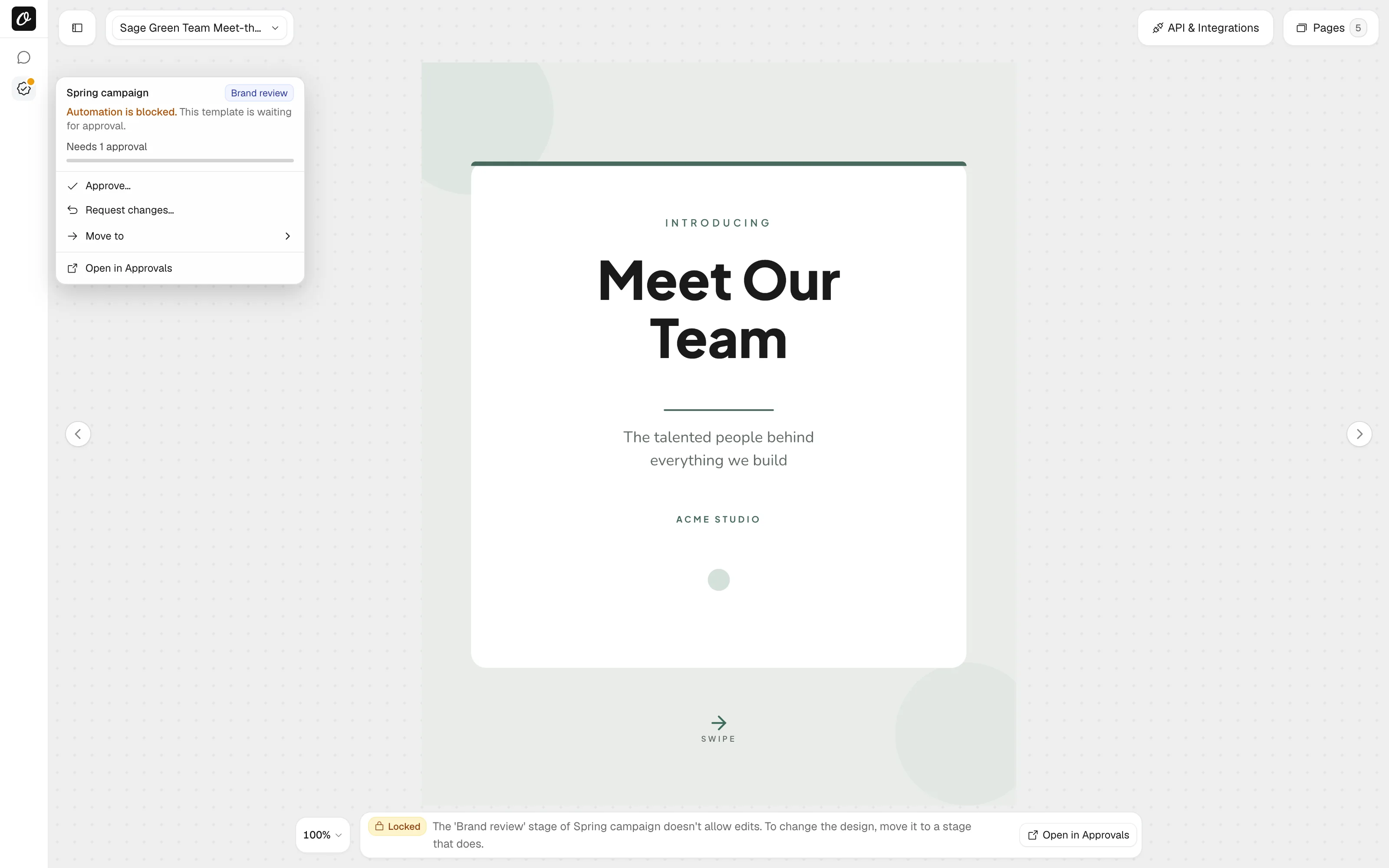
The menu starts with the flow, the stage and, in a review stage, who has approved so far. A template in several flows lists each flow with its stage. Open one to act in that flow. On a phone, the same controls sit in the top bar.
Add a template to a flow#
If the template isn't in a flow yet, the Approvals menu lists the flows you can add it to. Pick one and confirm with Add to flow.
If that flow needs approval for automation, the dialog says so first. Until the template is approved, automations that use it get a 'template not approved' error.
You can also add templates from the board with Add templates, or select them on your templates page and choose Approval flow.
Change the stage#
The Approvals menu shows only the actions you can take:
| Action | What it does |
|---|---|
| Submit for review | Moves the template to the next review stage, named under it ("To 'In review'"). Its approvers get notified. |
| Approve… | Approves the saved design. With the approvals the stage needs, it moves to the next stage. |
| Request changes… | Asks for changes in a comment and sends the template back, usually to Draft. |
| Withdraw my approval | Takes back your approval. |
| Move to | Moves it to another stage. "Approvers only" and "Needs a comment" mark stages with those rules. |
| Move back to Draft… | Takes back a template you submitted, with a comment. Shows when you're not an approver in its stage. |
| Open in Approvals | Opens the template's card on the flow's board. |
Move back to Draft… is the same action as on the board card. It asks for a comment, and the approvers of the review stage get notified. Approvers send templates back with Request changes instead, which records a change request. Step by step: how to submit a template for review and how to approve or request changes.
The approve dialog takes an optional note, where you can @mention people. Some stages also ask which outputs you approve (Approve for: Image, PDF, Video) or let you add field limits. See Key terms.
An approval covers the design as it's saved. With unsaved changes, Approve and Request changes ask you to save first, so your approval covers them.
When the design is locked#
If the template's stage doesn't allow edits, you can view the design in the studio but not change it. The bar under the canvas shows Locked and names the stage:
The 'In review' stage of Brand and legal doesn't allow edits. To change the design, move it to a stage that does.
Open in Approvals in the same bar takes you to the template on the board. Review and approved stages are locked in every preset. To change an approved design, move it back to Draft. It's blocked for automation until it's approved again.
If someone moves the template to a locked stage while you have it open, the studio tells you. Your edits are still on the canvas, and you can save them as a new template.
This lock comes from the stage. It's not the Lock on a layer in the Layers panel.
Reviewers always see View only: they can view the design and comment, but not edit it. They approve or request changes, but can't move templates between stages. From Download they can save the design as PNG or PDF.
A reviewer limited to some approval flows who opens a template outside them sees Template not found, with Back to dashboard and Go to Approvals, where their templates are.
Comments and @mentions#
Open Comments in the rail. Type in the box at the bottom, and type @ to mention someone. The people you mention get notified. One comment can mention up to 20 people. On the Approvals board, the comment count on a card opens the same comments.
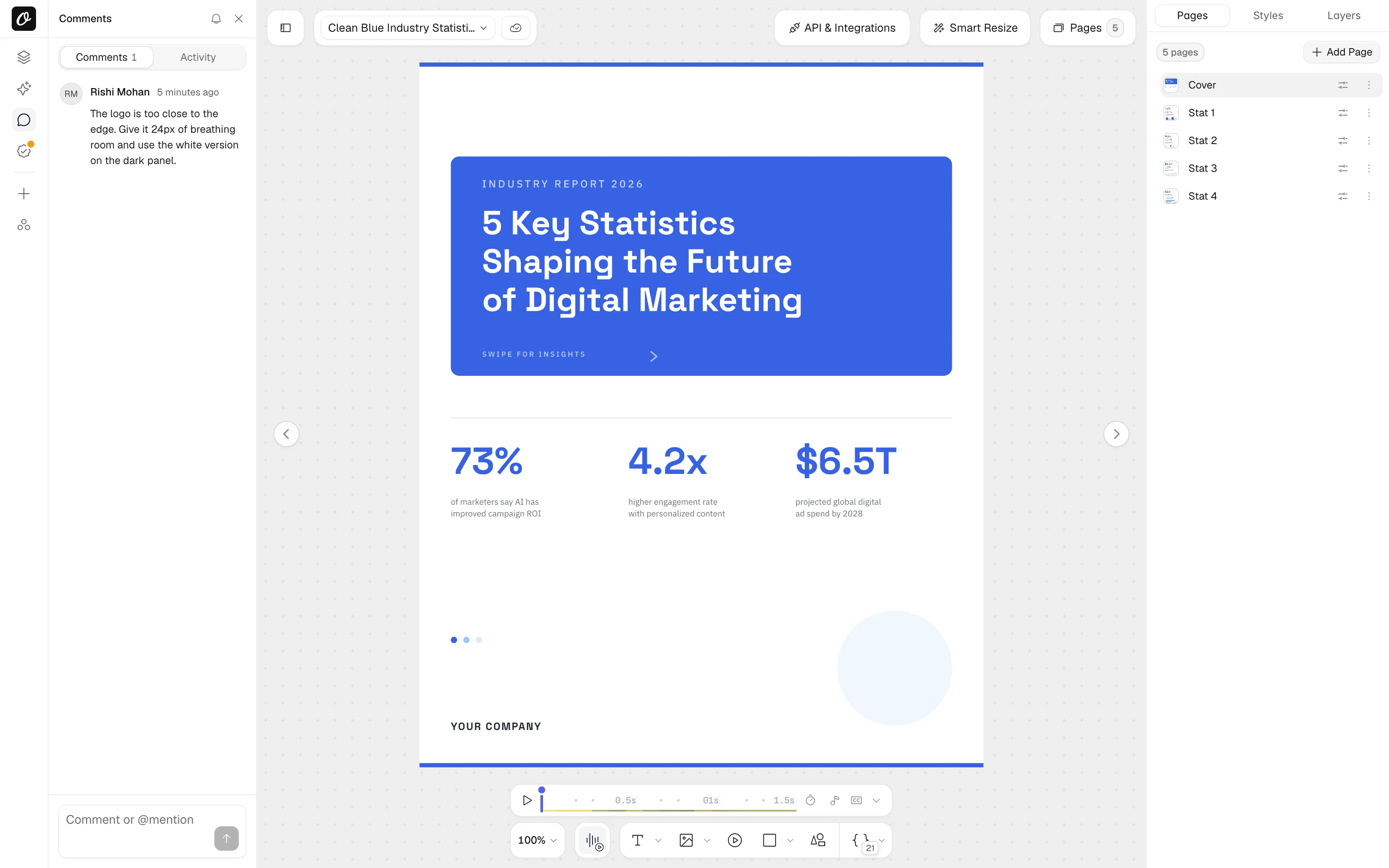
- Reply to a comment to keep a thread together.
- Resolve a thread once it's handled, and Reopen it if it isn't. Resolved threads collapse under "Resolved".
- Edit or Delete your own comments. Owners and admins can Hide someone else's.
Reviewers can comment and mention people too. Comments work on every template in the workspace, whether or not it's in an approval flow.
The bell at the top of the panel sets your notifications for this template: Follow for everything, Mute for nothing, or Default for only what involves you.
Activity#
The Activity tab, next to Comments, is the template's history. It lists when the template joined a flow, every move, approval and change request, withdrawn approvals, edits while it's in a flow, and blocked renders.
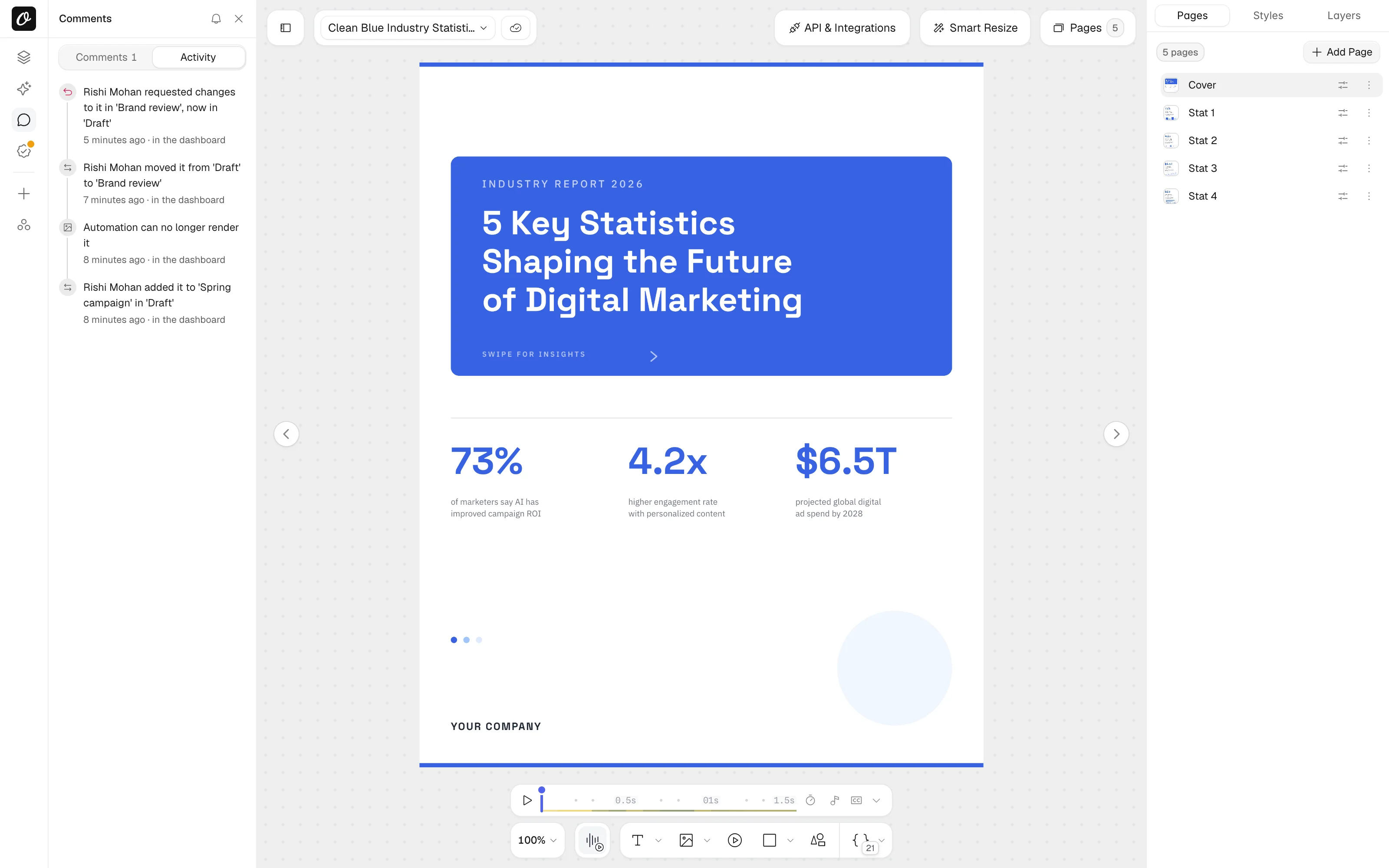
Each line says who did it and how, like "via API" or "by Josh via Claude". How long history is kept depends on your plan: see Plans and limits.
Ready to automate?
Start rendering images, PDFs and videos from your templates in under 2 minutes. Free plan, no credit card.
Get your API key- Image, PDF and video generation via API
- Visual editor with AI and smart layouts
- Zapier, Make, MCP and 50+ integrations
- White-label embed for your own app
- 100 free credits a month, no credit card required