Buffer
Send images, carousels, PDFs and videos rendered from your Orshot templates to Buffer as queued, scheduled or draft posts, from the API, workflows or Studio.
Published
Introduction#
Orshot renders images, carousels, PDFs and videos from your templates. The Buffer integration sends each render to your Buffer account, so it lands in the queue, on a schedule, as a draft for review, or as an idea in Buffer's Create space. Buffer then publishes it to the channels you connected there.
Use it when your team already plans posts in Buffer and you want the visuals to arrive there on their own: a new product in a sheet, a weekly stats card, a quote of the day, a client report.
What you can do#
- Render and send in one API call: add
publish.bufferto any render request. - Send an existing render: post media URLs to
POST /v1/buffer/posts. - Automate it in a workflow: the Send to Buffer step sends every row's render, with a caption, time and channels per row if you want.
- Send from Studio: Post to Social → Buffer in the editor renders the design and sends it.
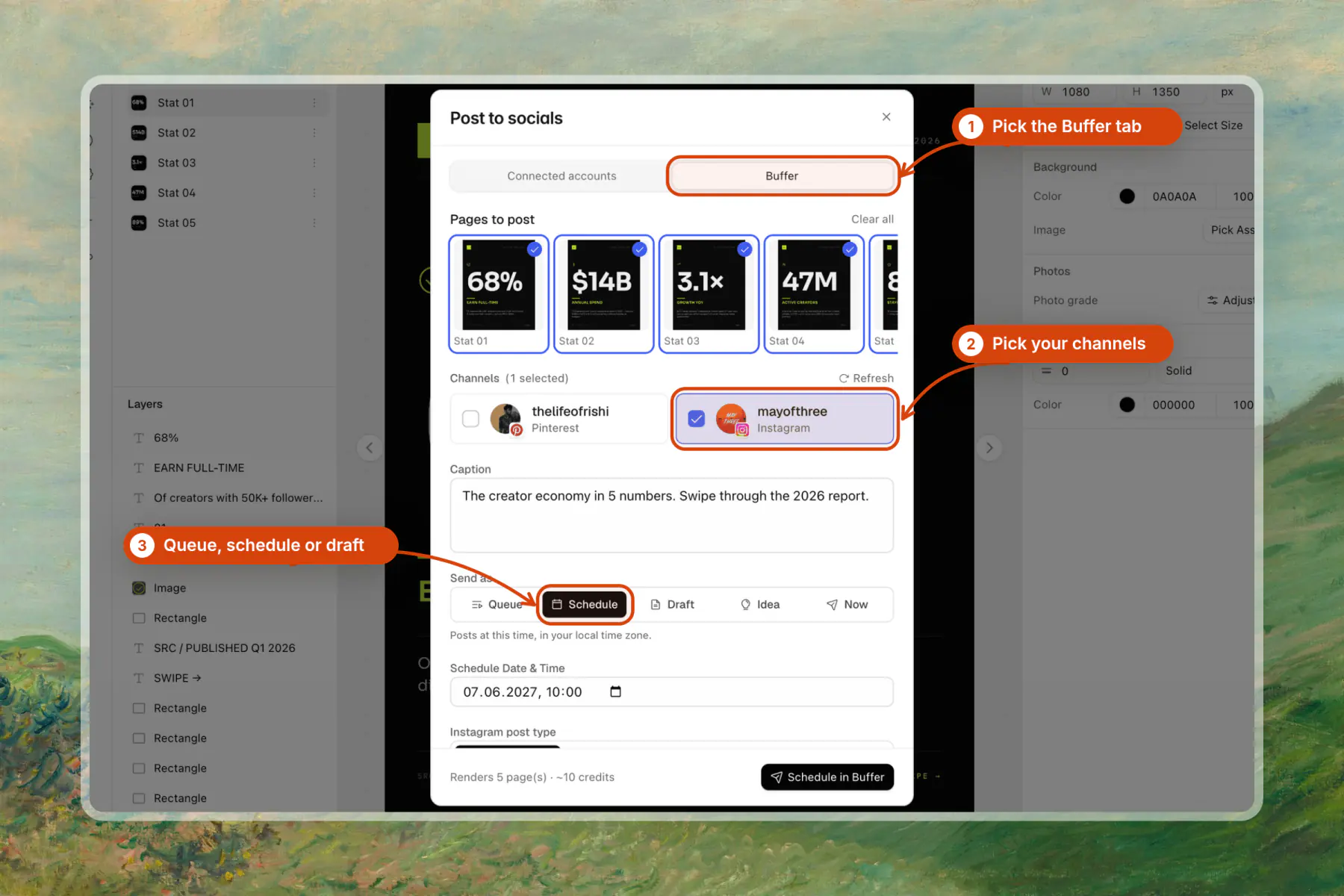
- Pick how it lands: add to queue, schedule for a time, save as a draft, save as an idea, or share now.
Connect Buffer#
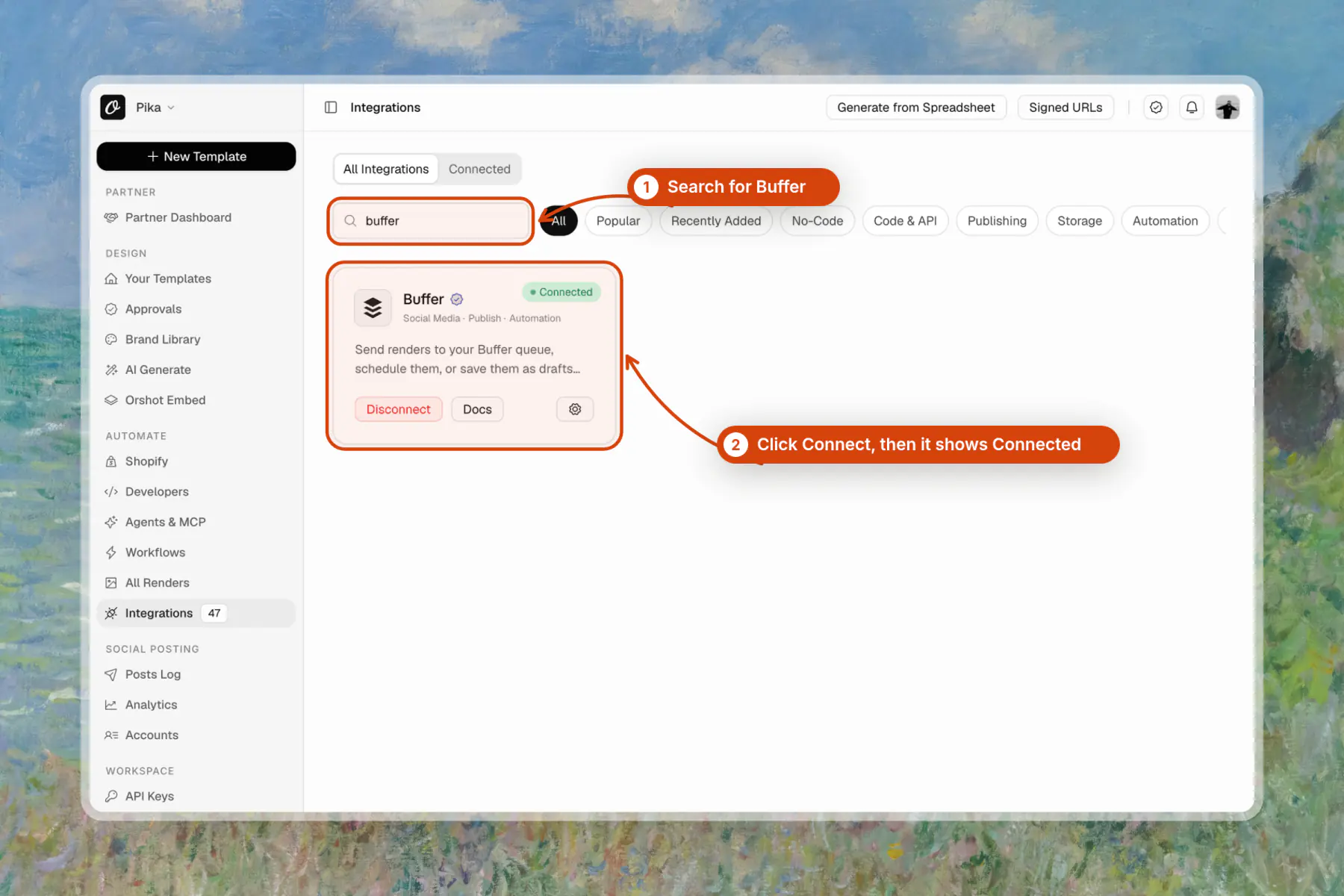
- In Orshot, open Integrations from your workspace sidebar.
- Find Buffer and click Connect.
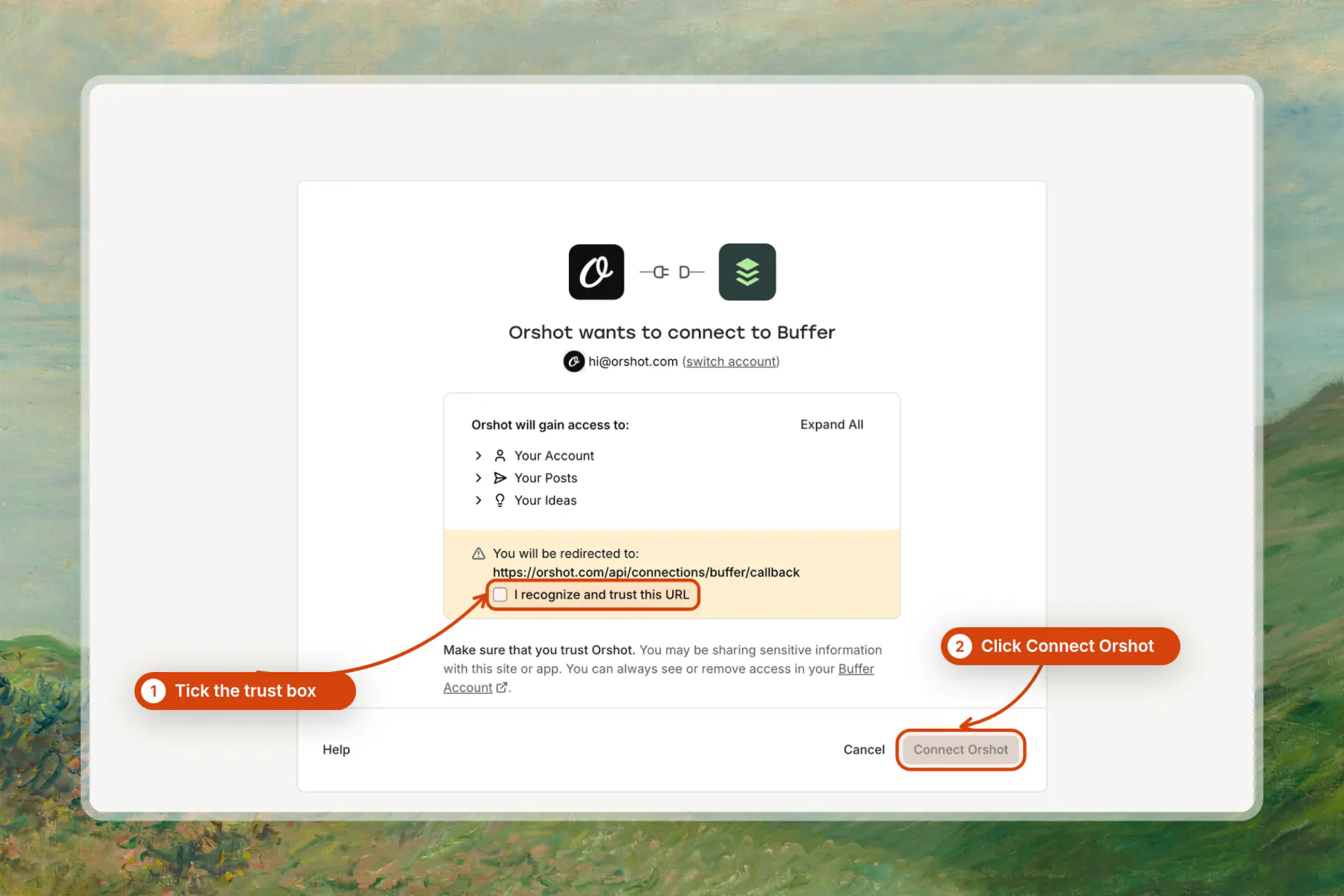
- Sign in to Buffer, tick I recognize and trust this URL and click Connect Orshot. You return to Orshot as Connected, with your Buffer channels listed.
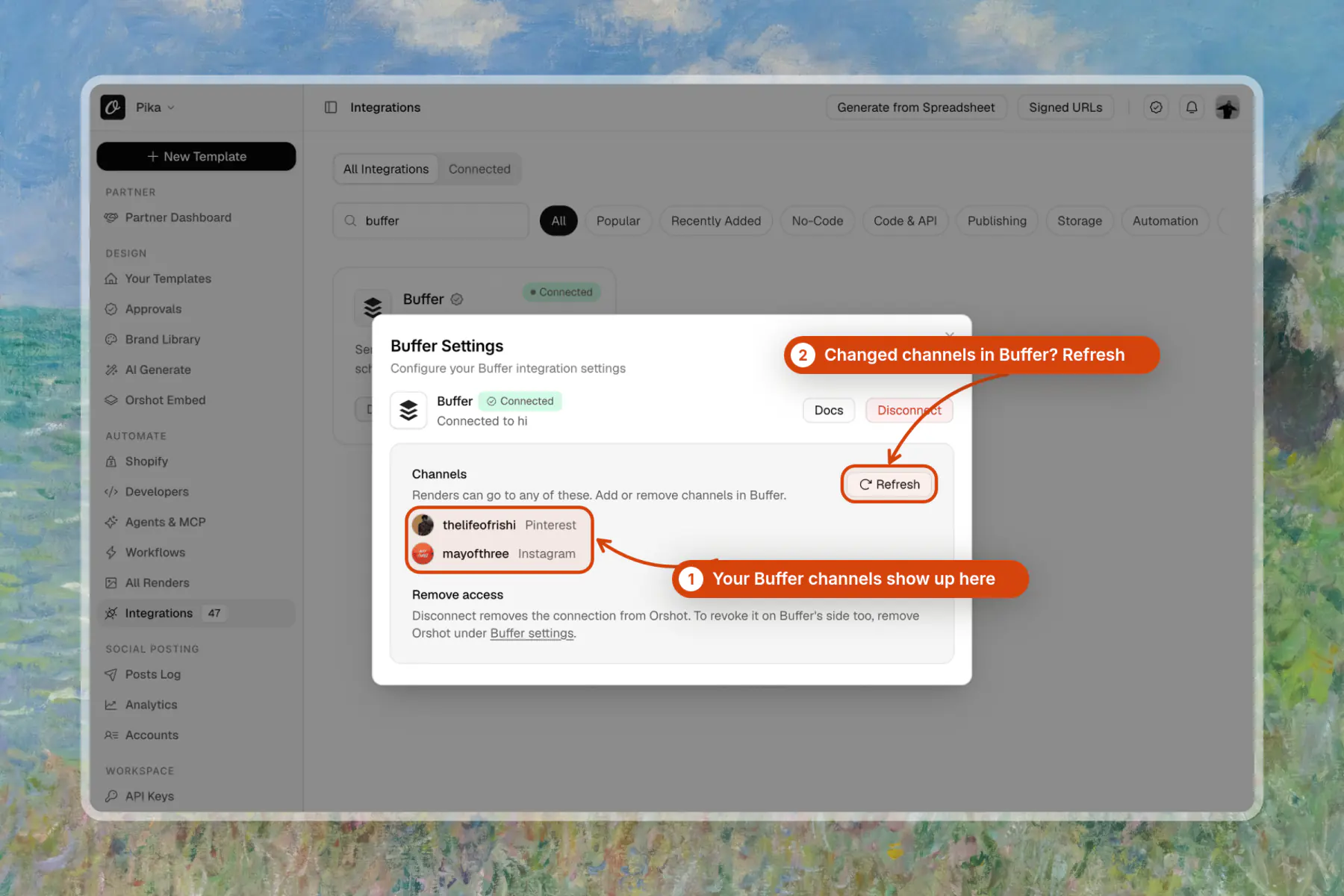
Only workspace owners and admins can connect or disconnect, and each workspace has one Buffer connection. Every Orshot plan can send to Buffer.
To add or remove channels, change them in Buffer, then click Refresh on the Buffer card in Orshot. Disconnect removes the connection from Orshot. To revoke access on Buffer's side too, remove Orshot in your Buffer account settings.
Send from Studio#
In the Orshot editor, click Post to Social and switch to the Buffer tab. Pick the pages, the channels and how it lands, then send. A multi-page design goes as one carousel, and the toast links to the post in Buffer.
Send modes#
mode | What happens in Buffer |
|---|---|
queue (default) | Added to the next free slot of each channel's queue. |
scheduled | Posts at scheduled_for (ISO 8601 date-time). |
draft | Saved as a draft for review. |
idea | Saved as one idea in Buffer's Create space. Images only. Channels are optional and tag the idea with their networks. |
now | Buffer publishes it right away. |
Render and send in one call#
Add publish.buffer to a render request. Orshot renders the template, stores the file and sends it to Buffer. Multi-page templates send every page as one carousel.
const response = await fetch("https://api.orshot.com/v1/studio/render", {
  method: "POST",
  headers: {
    "Content-Type": "application/json",
    Authorization: "Bearer <ORSHOT_API_KEY>",
  },
  body: JSON.stringify({
    templateId: 123,
    modifications: { headline: "New arrivals are live" },
    response: { type: "url", format: "png" },
    publish: {
      buffer: {
        channels: ["6aeec232e29c69a1718f94c7"],
        text: "New arrivals are live. Link in bio.",
        mode: "queue",
      },
    },
  }),
});

const { publish } = await response.json();
// {
//   destination: "buffer",
//   status: "sent",
//   mode: "queue",
//   posts: [{ postId: "...", service: "instagram", status: "scheduled", dueAt: "..." }],
//   failed: [],
//   openUrl: "https://publish.buffer.com"
// }
You can send to Buffer and to your Orshot social accounts in the same request: keep accounts and content next to buffer, and the response holds { social, buffer }.
Send an existing render#
curl -X POST https://api.orshot.com/v1/buffer/posts \
  -H "Authorization: Bearer <ORSHOT_API_KEY>" \
  -H "Content-Type: application/json" \
  -d '{
    "channels": ["6aeec232e29c69a1718f94c7"],
    "text": "Our October numbers",
    "media_urls": ["https://storage.orshot.com/cloud/w-1/renders/report.png"],
    "mode": "scheduled",
    "scheduled_for": "2026-12-01T09:00:00Z"
  }'
Answers 201 when every channel accepted the post, 207 when some did, 422 when Buffer refused the input on every channel and 502 when Buffer could not be reached.
Fields#
| Field | Description |
|---|---|
channels | Buffer channel IDs, up to 10 per send. Required except for idea. |
text | The post caption. |
media_urls | Public https URLs: up to 10 images (a carousel), or one video, or one PDF. Not needed on a render request. |
mode | queue, scheduled, draft, idea or now. |
scheduled_for | ISO 8601 date-time, for scheduled. |
alt_text | Alt text for images. |
title | Idea title, for idea. |
options | Per-network settings, keyed by network (instagram) or channel ID. See below. |
List your channels#
GET /v1/buffer/channels returns every channel in the connected Buffer account with its id, name, service and whether Orshot can post to it (postable). Add ?refresh=true after changing channels in Buffer.
Read a post's status#
GET /v1/buffer/posts/:postId returns the post's current Buffer status, due time and live link once it is sent.
Network options#
| Network | Options |
|---|---|
instagramType: post, reel or story (defaults to post, or reel for a video). firstComment. | |
facebookType: post, reel or story. firstComment. | |
firstComment. | |
| YouTube | youtubeTitle (defaults to the caption's first line), youtubeCategoryId, youtubePrivacy. Needs a video. |
pinterestBoard (board ID, needed when the channel has more than one board), pinterestTitle, pinterestLink. | |
| TikTok | tiktokTitle for photo posts. |
"options": {
  "instagram": { "instagramType": "reel" },
  "pinterest": { "pinterestBoard": "1234567890" }
}Workflows#
Add Send to Buffer after a Render step. Pick the channels and how each render should land.
- Caption: one caption for every row, with
{{steps.…}}values from earlier steps. - Caption column, Post-at column: take each row's own caption or time from a column.
- Channels column: for agencies sending each row to a different client's channels. Put Buffer channel IDs in the column, separated by commas.
- Spread posts: with Scheduled, post one render per interval (every hour up to once a week) starting at Post at. A sheet of 7 rows with one a day becomes a week of posts. If Post at is already past, the first post moves to the next free slot at the same time of day, so a recurring workflow keeps working. A row's own time from the Post-at column wins over the spread.
One run sends at most 25 renders to Buffer.
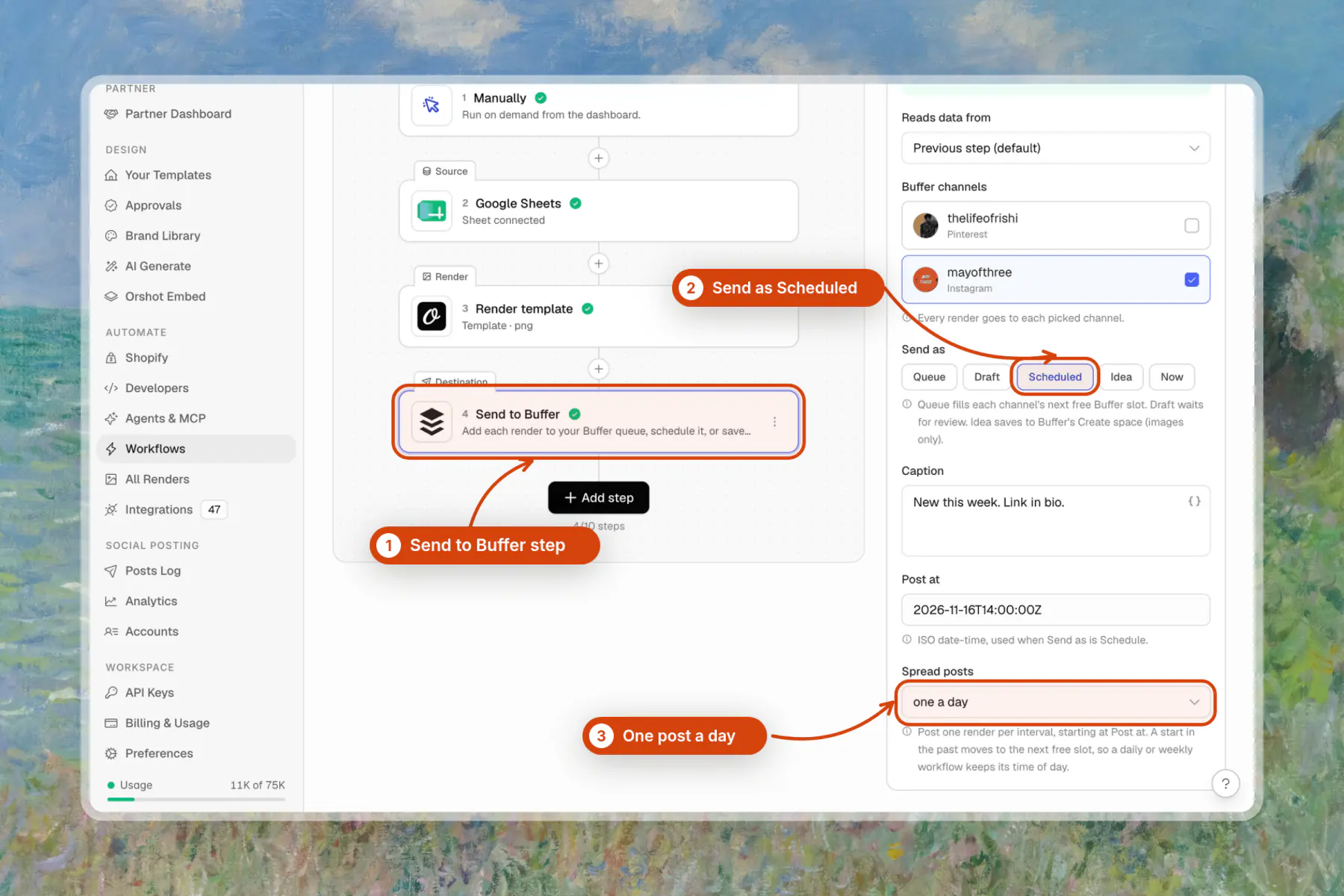
To start fast, pick a Buffer template in Workflows → Explore, for example Turn a spreadsheet into a week of scheduled Buffer posts or Add a new post to your Buffer queue every day from a sheet.
Limits#
- Each workspace can send 100 posts to Buffer per day.
- Buffer's own plan limits apply. For example, first comments need a paid Buffer plan, and a queue that is full refuses new posts. Orshot returns Buffer's message in
failed[].message. - Media must stay online until the post goes out, because Buffer fetches it again at publish time. Orshot render URLs are permanent, and temporary uploads are copied to permanent storage before sending.
- Orshot does not edit or delete posts in Buffer. Manage them in Buffer.
Errors#
code | Meaning |
|---|---|
BUFFER_NOT_CONNECTED | Connect Buffer in Integrations first. |
BUFFER_RECONNECT_REQUIRED | Buffer stopped accepting Orshot's access, for example after Orshot was removed in Buffer. Reconnect in Integrations. |
BUFFER_INVALID_INPUT | A field is wrong or Buffer refused the post. The message says why. |
BUFFER_RATE_LIMITED | The daily send limit or Buffer's request limit was reached. Retry after retryAfter seconds. |
BUFFER_UPSTREAM_ERROR | Buffer did not answer. Try again. |
Ready to automate?
Start rendering images, PDFs and videos from your templates in under 2 minutes. Free plan, no credit card.
Get your API key- Image, PDF and video generation via API
- Visual editor with AI and smart layouts
- Zapier, Make, MCP and 40+ integrations
- White-label embed for your own app
- 100 free credits a month, no credit card required