Google Drive
Automatically store rendered files in your Google Drive folders
Updated
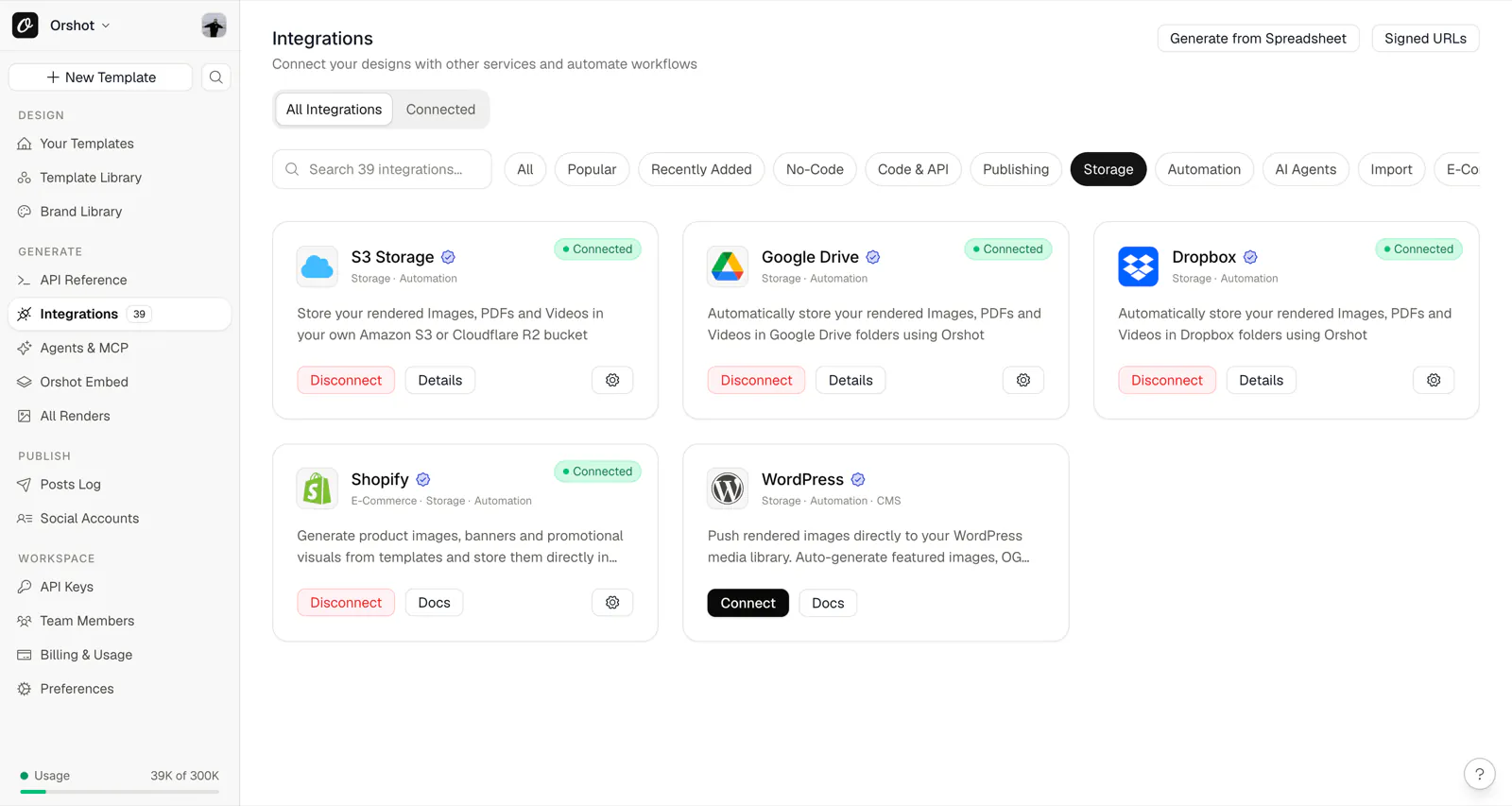
The Orshot Google Drive integration allows you to automatically save generated files directly to your Google Drive account. When enabled, every render (images, PDFs, videos) via the API can be stored in a specified Google Drive folder, making it easy to organize, share, and access your generated content.
Connecting Google Drive#
- Navigate to Workspace > Settings > Storage in your Orshot dashboard
- Click Connect Google Drive
- Authorize Orshot to access your Google Drive account
- Select or create a default folder for storing renders
Video Tutorial#
Using Google Drive in API Requests#
If Google Drive is enabled on the Storage page, all your renders will automatically be uploaded to Google Drive — no need to add connections in your API request.
To explicitly control the upload, add the connections parameter to your render request:
{
  "templateId": 25,
  "modifications": {
    "headline": "Hello World"
  },
  "response": {
    "type": "url",
    "format": "png"
  },
  "connections": [
    {
      "type": "storage",
      "provider": "google-drive"
    }
  ]
}
Unlike Dropbox, Google Drive does not support specifying a custom folder path in API requests. The folder you select in your workspace settings will be used for all uploads.
Custom File Names#
Use response.fileName to set a custom name for the uploaded file:
{
  "templateId": 25,
  "modifications": { "headline": "Hello" },
  "response": {
    "type": "url",
    "format": "png",
    "fileName": "marketing-banner-001"
  },
  "connections": [
    {
      "type": "storage",
      "provider": "google-drive"
    }
  ]
}
API Response Examples#
Successful Upload#
{
  "data": {
    "content": "https://store.orshot.com/cloud/w-50/renders/images/abc123.png",
    "type": "url",
    "format": "png",
    "responseTime": "1.2s"
  },
  "connections": [
    {
      "type": "storage",
      "provider": "google-drive",
      "path": "Orshot Renders",
      "status": "success"
    }
  ]
}
Multi-Page Upload#
When rendering multi-page templates, each page is uploaded separately:
{
  "data": [
    {
      "page": 1,
      "pageId": "a1b2c3d4-5e6f-7890-abcd-ef1234567890",
      "content": "https://storage.orshot.com/cloud/w-50/renders/images/abc123.png"
    },
    {
      "page": 2,
      "pageId": "b2c3d4e5-6f78-9012-bcde-f23456789012",
      "content": "https://storage.orshot.com/cloud/w-50/renders/images/def456.png"
    }
  ],
  "format": "png",
  "type": "url",
  "responseTime": 3166.01,
  "totalPages": 2,
  "renderedPages": 2,
  "connections": [
    {
      "type": "storage",
      "provider": "google-drive",
      "path": [
        { "page": 1, "path": "Orshot Renders" },
        { "page": 2, "path": "Orshot Renders" }
      ],
      "status": "success"
    }
  ]
}
Upload Failed (with Warning)#
Connection issues return warnings but don't block the render:
{
  "data": {
    "content": "https://store.orshot.com/cloud/w-50/renders/images/abc123.png",
    "type": "url",
    "format": "png",
    "responseTime": "1.2s"
  },
  "warnings": [
    {
      "title": "Failed to upload to google-drive: Token expired",
      "details": ""
    }
  ],
  "connections": [
    {
      "type": "storage",
      "provider": "google-drive",
      "path": null,
      "status": "error",
      "error": "Token expired"
    }
  ]
}
Google Drive Not Connected#
{
  "data": {
    "content": "https://store.orshot.com/cloud/w-50/renders/images/abc123.png",
    "type": "url",
    "format": "png"
  },
  "warnings": [
    {
      "title": "Google Drive connection not found for this workspace",
      "details": ""
    }
  ]
}
Connection Parameters#
| Parameter | Type | Required | Description |
|---|---|---|---|
type | string | Yes | Must be "storage" |
provider | string | Yes | Must be "google-drive" |
Notes#
- Non-blocking: Google Drive upload failures won't block your render—you'll still get the image URL
- Automatic refresh: Access tokens are automatically refreshed when they expire
- Folder selection: Select your target folder from the Storage settings page
- Supported formats: PNG, JPG, JPEG, WebP, AVIF, PDF, MP4, WebM, MOV, MKV, GIF
Need Help?#
- Contact support at hi@orshot.com or use the chat button in your Orshot dashboard
Ready to automate?
Start rendering images, PDFs and videos from your templates in under 2 minutes. Free plan, no credit card.
Get your API key- Image, PDF and video generation via API
- Visual editor with AI and smart layouts
- Zapier, Make, MCP and 50+ integrations
- White-label embed for your own app
- 30 free credits — no credit card required