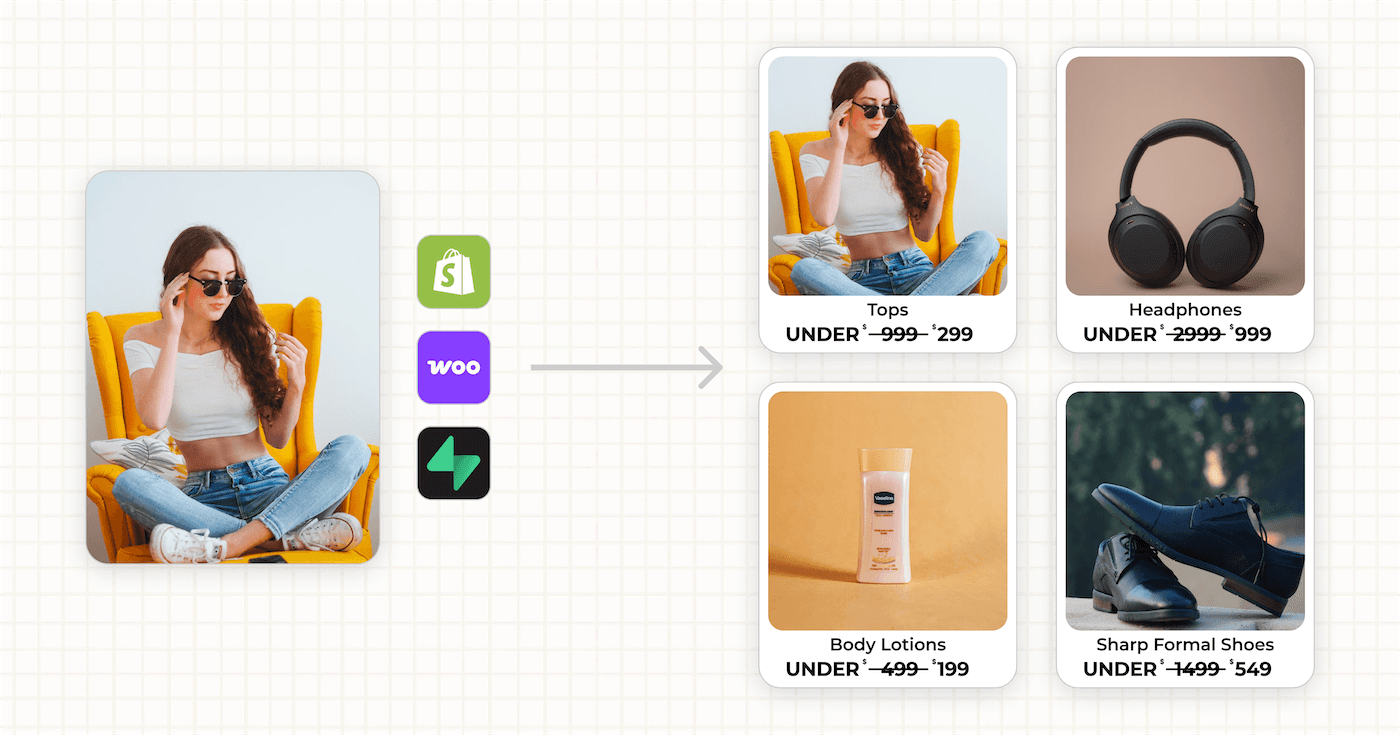
To bulk create in Canva, open a design, click Bulk create, upload a CSV, an XLSX file or a Canva Sheet, connect each column to a text box or image frame, and click Generate. Canva makes one design per row.
Bulk Create needs a paid plan such as Canva Pro (US$144 a year), works on desktop only and caps each batch at 300 rows and 150 columns. Image URLs come through as plain text.
The data is a one-time upload, so next week's batch starts over. If you run the same batch every week, import the Canva design into Orshot and let a Google Sheet fill it on a schedule.
Canva Bulk Create vs Orshot at a Glance
Canva Bulk Create turns rows of data into Canva designs that you then download.
Orshot imports the same Canva design as a template and fills it from a Google Sheet, an API call or an AI agent, as often as the data changes.
| Canva Bulk Create | Orshot | |
|---|---|---|
| Plan needed | Pro, Teams, Business, Enterprise, Education or Nonprofit | Free plan, 100 credits a month |
| Data | CSV, XLSX, Canva Sheet or a typed table, uploaded each time | A Google Sheet read on a schedule or when rows change |
| Rows | 300 rows and 150 columns per batch | 50 rows per run on Free, more on paid plans |
| Images | Uploaded to Canva; image URLs read as text | An image URL in the cell |
| Output | Canva designs you download | File URLs, written back to the sheet or posted to socials |
| Automation | Autofill API on Pro and up | REST API, Zapier, Make, n8n, workflows, AI agents |
Canva facts are from Canva's Bulk Create help page and pricing page, checked November 8, 2026.
1. Bulk Create in Canva Step by Step
Pick this if you need one batch of designs, you already pay for Canva Pro, and the batch fits in 300 rows.
Canva Bulk Create links your data, in rows and columns, to placeholder elements on one design page. Each column is a field, like a product name or a photo. Each row becomes one copy of the design.
Step 1: Open Bulk Create in the side panel
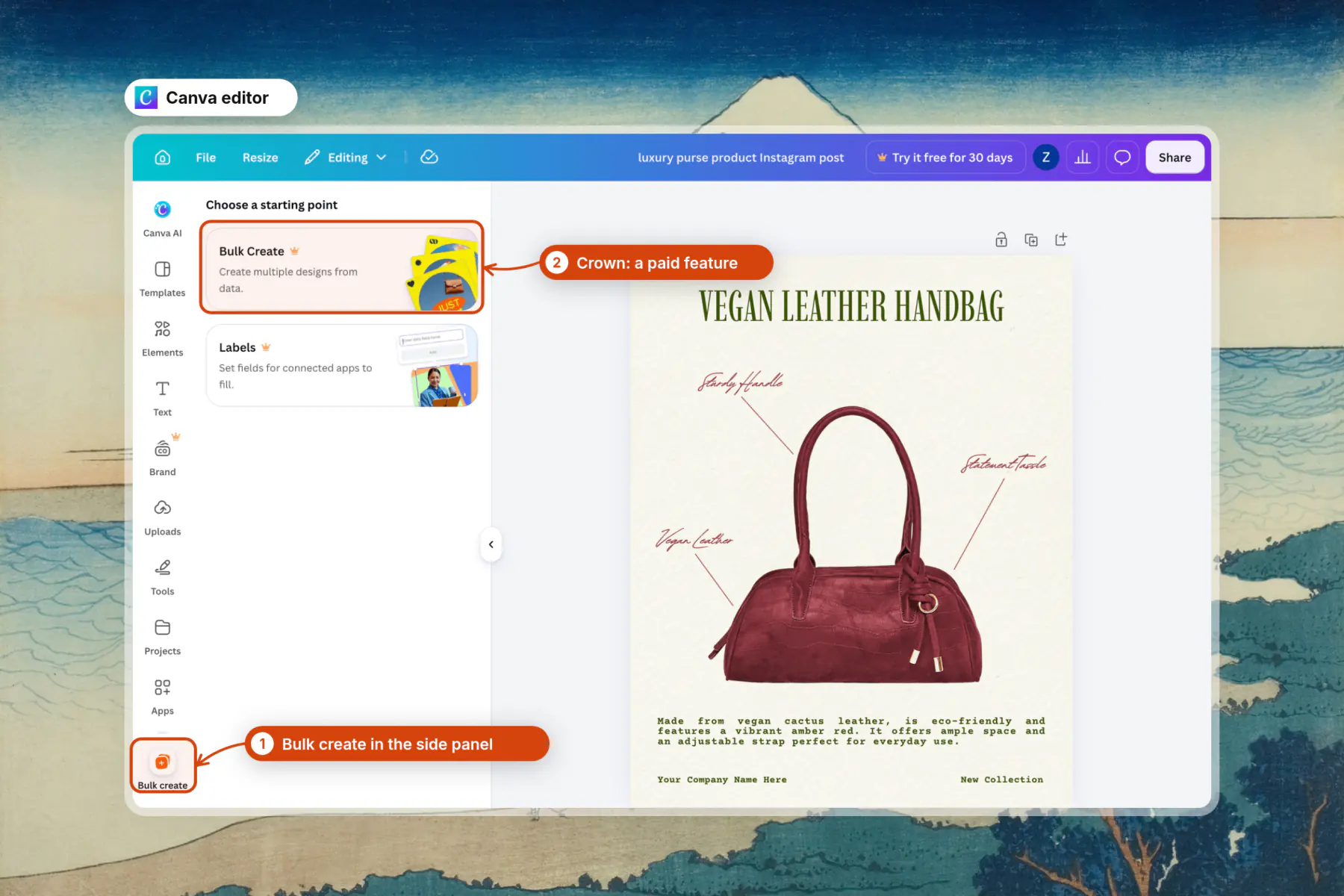
Open the design in Canva on a desktop browser or the desktop app. Click Bulk create in the left side panel; if it isn't pinned there, find it under Apps. Then pick Bulk Create as the starting point.
Step 2: Add your data
Canva takes data four ways: a Canva Sheet, a CSV or XLSX upload, a connected app, or a table you type in. A Google Sheet has to be downloaded as CSV or XLSX first.
- Put each field in its own column with a clear header, such as
name,priceandphoto. - Add images inside the sheet or from your Canva uploads. Canva reads an image URL as plain text.
- Keep each column to one type of content. Only the first image in a cell is used.
Step 3: Connect fields and generate
Right-click a text box or image frame and pick Connect data, then choose its column. Click Continue, review the matches, and click Generate. Canva creates one multi-page design or one design per row, ready to download.
Canva Bulk Create Limits
| Limit | Canva Bulk Create |
|---|---|
| Rows and columns | 300 rows and 150 columns per batch |
| Plans | Pro, Teams, Business, Enterprise, Education, Nonprofit |
| Devices | Desktop web and the desktop app only |
| Images | Uploaded or embedded; image URLs not supported |
| Updates | One-time upload; the next batch starts again |
Things that bite:
- The 300-row cap means a 1,000-row catalog is four separate batches.
- Auto-match pairs a column with the wrong field when two headers look alike, so check every match.
- Nothing runs on its own. Each new batch is another upload, another generate and another download.
- Built into the Canva editor, no new tool to learn
- Works with every Canva element, font and animation
- Fine for a one-off batch of certificates, name badges or posts
- Paid plans only, desktop only
- 300 rows per batch, image URLs read as text
- A manual upload and download every time the data changes
Best for: one-off batches under 300 rows on a Canva Pro or team plan.
Is Canva Bulk Create Free?
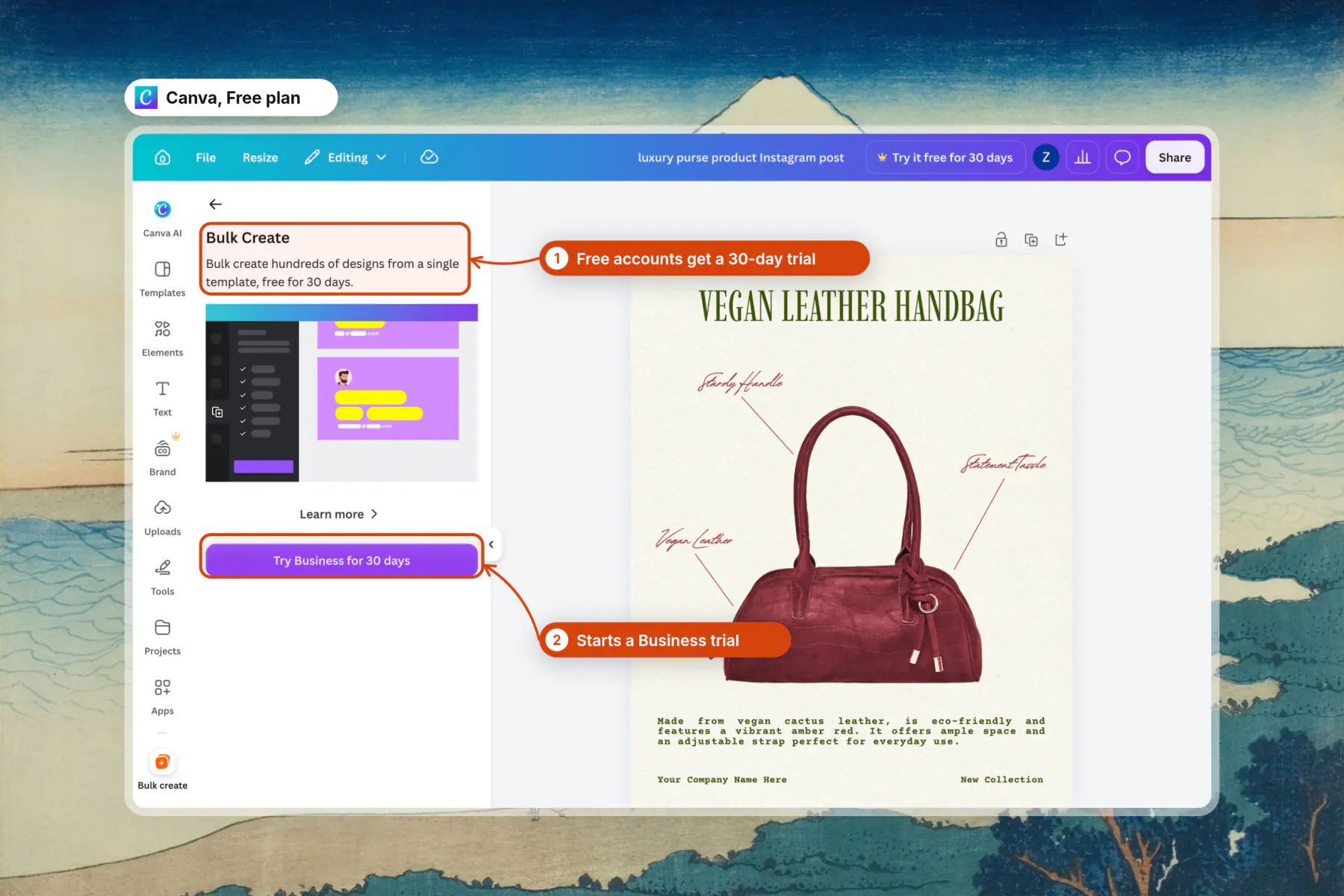
No. Canva Bulk Create is part of Canva Pro, Teams, Business, Enterprise, Education and Nonprofit. On a Canva Free account the Bulk create panel offers a 30-day Business trial instead of opening.
Canva Pro costs US$144 a year and Canva Business US$250 a year per person, checked on Canva's pricing page November 8, 2026. Orshot's free plan includes 100 credits every month, and one credit makes one image.
2. Bulk Create from a Google Sheet on a Schedule with Orshot
Pick this if the same Canva batch repeats every week, your images live at URLs, or you have more rows than Canva takes in one go.
Orshot is an API that turns design templates into images, PDFs and videos. You import the Canva design once.
After that, an Orshot workflow reads your Google Sheet, renders one design per row and can post each one, with no download step.
Step 1: Copy the Canva design's public view link
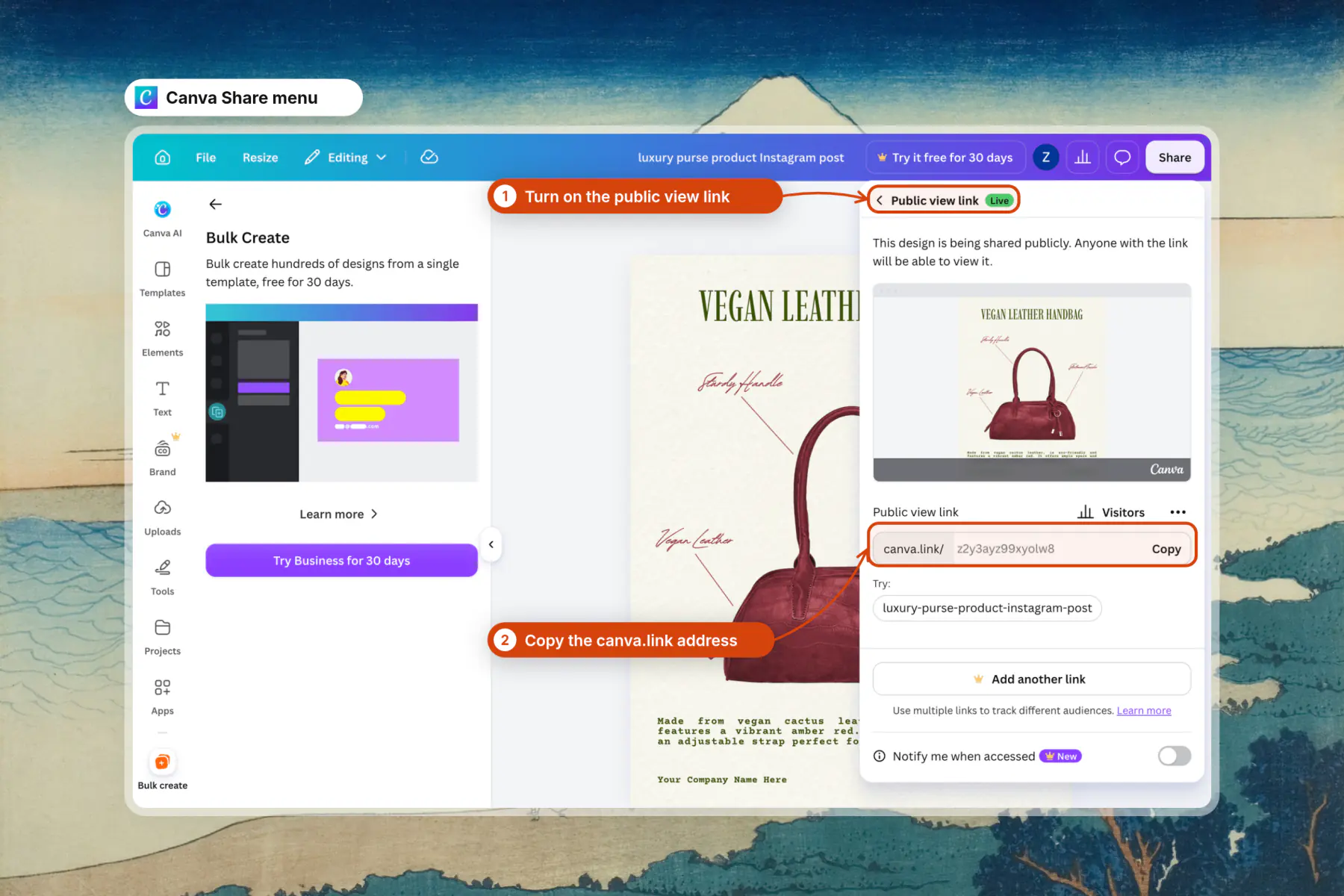
In Canva, click Share, then Public view link, then Create public view link. Copy the canva.link/… address. Orshot reads the design from this link, so the editor URL won't work.
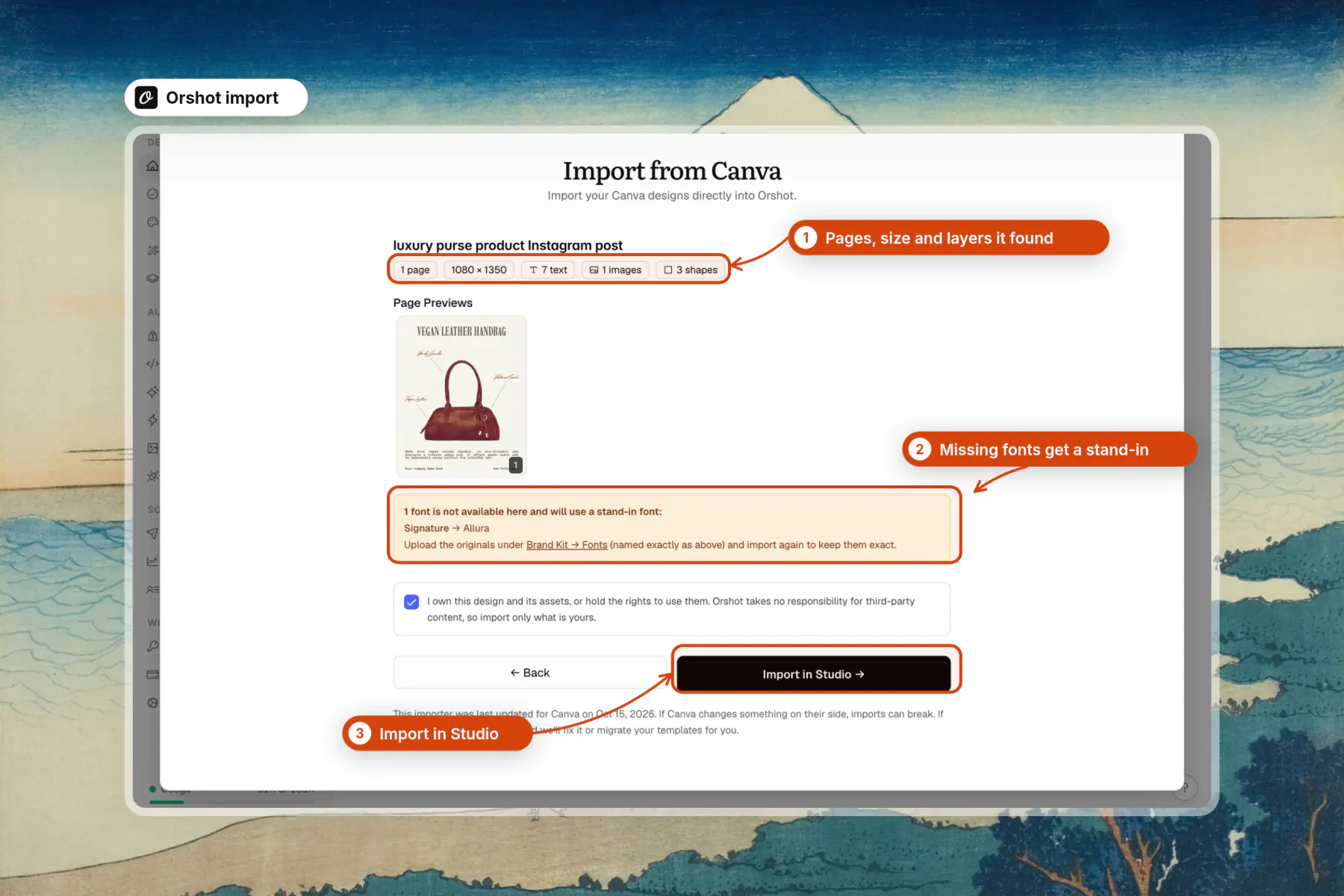
Step 2: Import the design into Orshot
Paste the link below to preview the import, no sign-up needed. In your Orshot workspace, the same box is under New Template, then Canva.

In Canva: Share → “Public View Link” → copy the link.
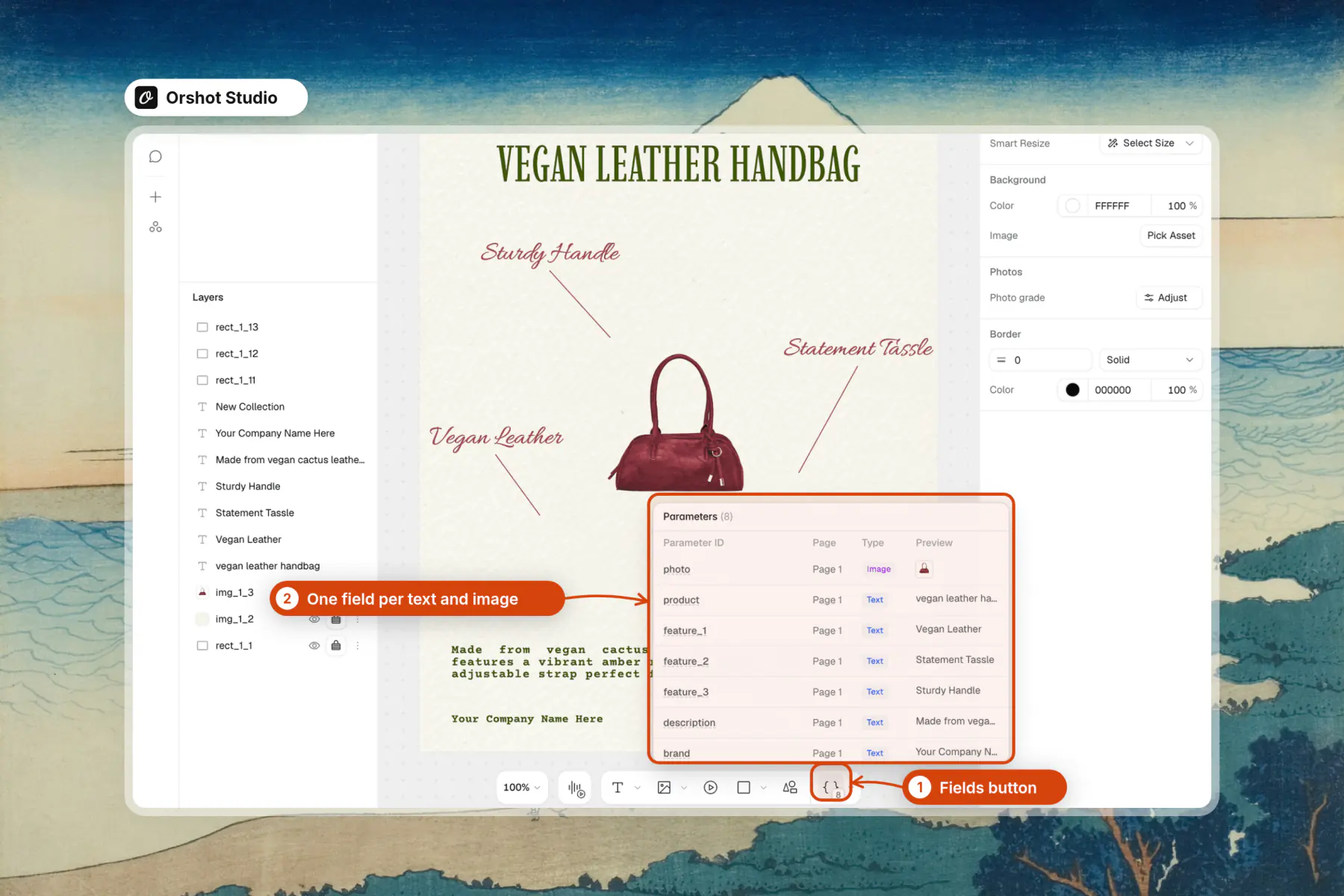
Step 3: Check the fields Orshot made
Every text box and image in the Canva design becomes a field you can fill. Click the Fields button at the bottom of Studio to see them all.
Rename each one to match a column header, like product, description and photo.
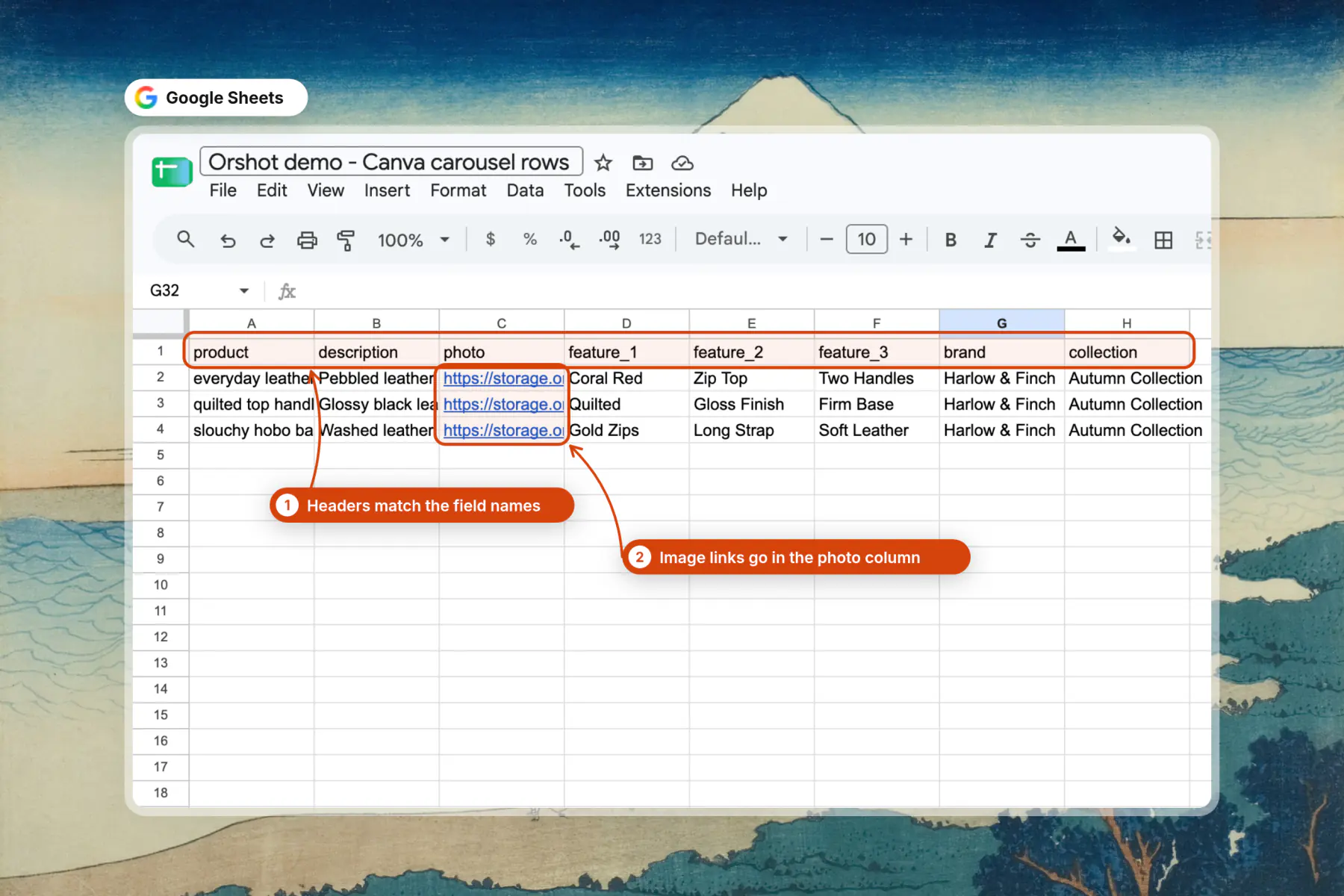
Step 4: Put your rows in a Google Sheet
Add one column per field and one row per design. Put image links straight in the photo column; Orshot downloads each one at render time.
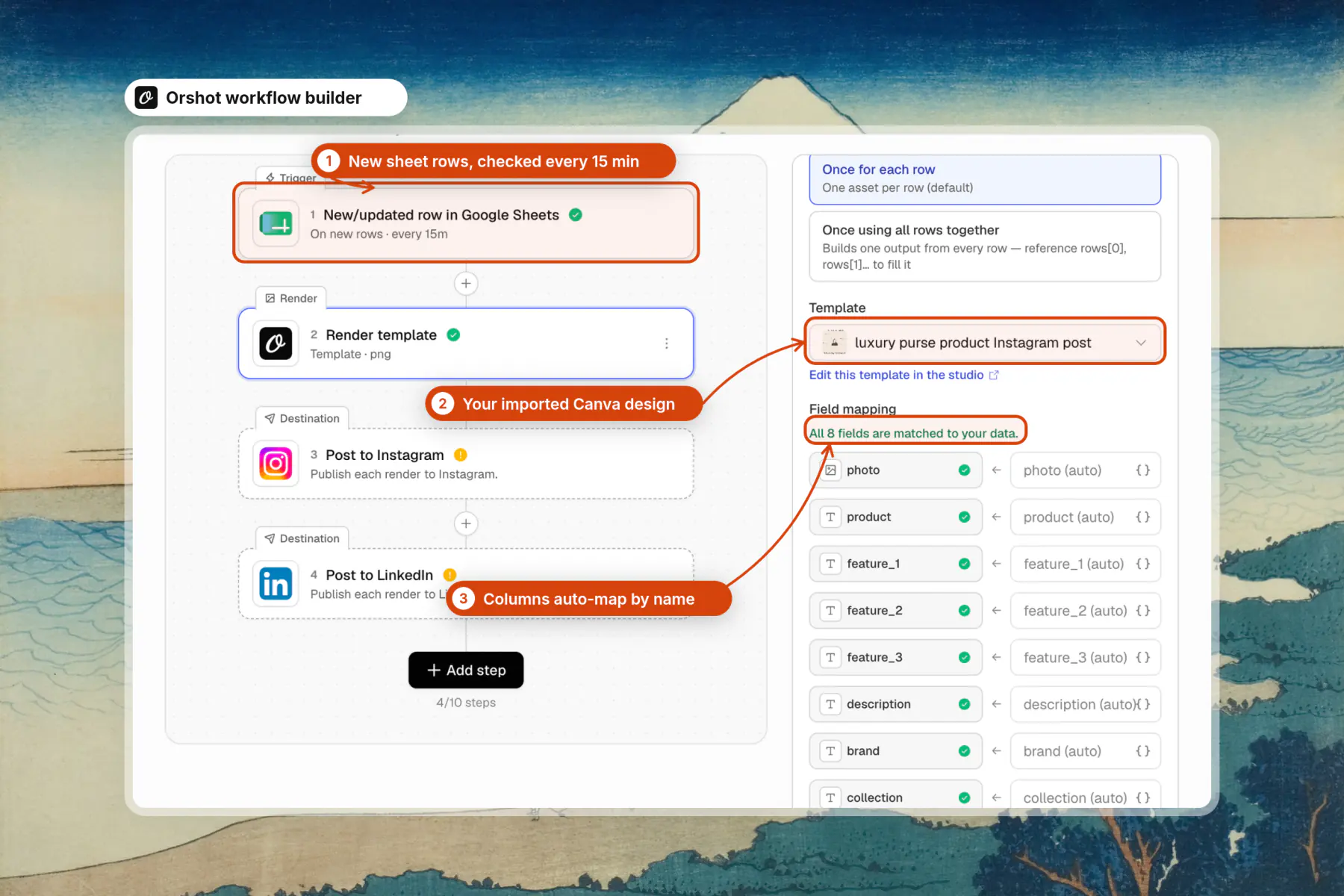
Step 5: Build the workflow
In Orshot, open Workflows and click New workflow. Start from scratch, or from "Turn spreadsheet rows into Instagram carousels" under Explore.
- Set the trigger to Google Sheets, connect your Google account and pick the spreadsheet and tab.
- Add Render template and pick the imported Canva design. Fields map themselves to columns with the same name.
- Add Post to Instagram or Post to LinkedIn and pick the account, or skip it to keep the files only.
Step 6: Test it, then turn it on
Click Test this step on the Render step. It renders the first row of the sheet so you can check the result. Then save the workflow and switch it to Active; it runs whenever a row is added or edited.
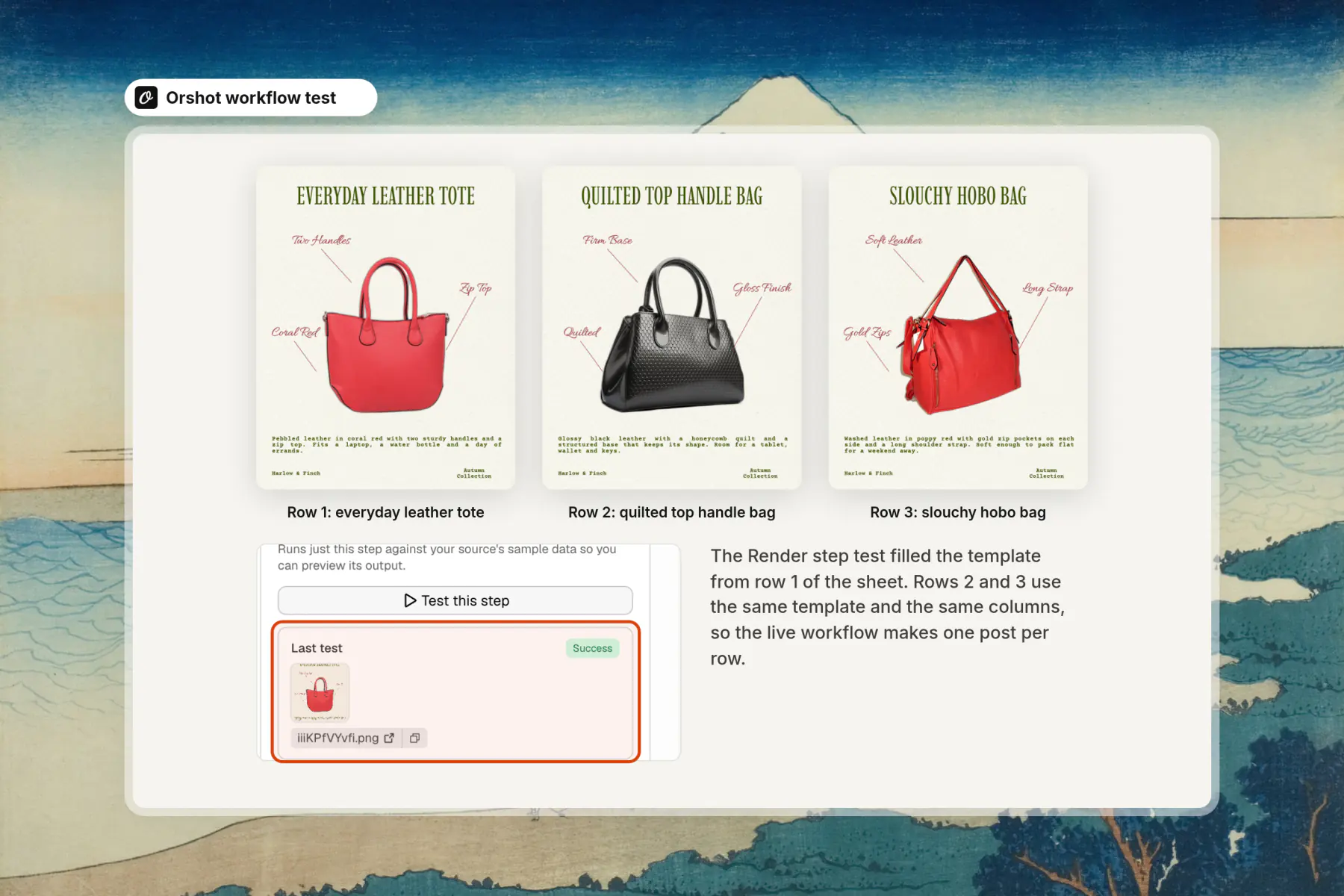
On the free plan a sheet trigger checks for new rows every 15 minutes and reads up to 50 rows per run.
Paid plans check every 10 minutes on Launch down to every 2 minutes on Scale, and read 500 to 5,000 rows per run, as of November 2026.
Things that bit me:
- The template used Canva's Signature font, which Orshot doesn't have, so it came in as Allura. Upload the font under Brand Library, then import again.
- Import from the public view link, not the editor address. A design that was never shared has no link until you create one.
- The importer handles image designs. Canva animations and video don't come across.
- Decorative text, like the "Sturdy Handle" labels, also came in as fields. Turn off the field on text you never change, so the workflow only asks for the columns you have.
- Runs on its own whenever a row is added to the Google Sheet
- Image URLs work, so product photos never need uploading
- The same render can post to Instagram, LinkedIn, TikTok and more
- Canva animations, video and some effects don't import
- Fonts Orshot doesn't have get a stand-in until you upload them
- The free plan runs one active workflow, checked every 15 minutes
Best for: teams that make the same Canva graphic every week from a product list, a content calendar or a price sheet.
3. Post Every Design to Social Accounts
Canva Bulk Create ends with a download. In an Orshot workflow, the step after Render can post each design to Instagram, LinkedIn, TikTok, Facebook, X, Pinterest and more, or save it as a draft for review.
Add a caption column to the sheet and the post uses it as the text.
Paid plans include 1 on the $39 plan, 2 on $99, 3 on $160 and up to 10 on $600, and each extra account is $12 a month. The ready-made workflow below reads a sheet, renders a carousel and posts it to Instagram and LinkedIn:
Best for: brands that post the same layout every week with new products, offers or quotes.
4. Bulk Create from Code with an API
Canva and Orshot both have an API for filling designs with data. They differ in what you get back and how many you can make.
Canva's Autofill API
Canva's Autofill API fills a design or brand template with your data and returns a new Canva design. It works for users on Canva Pro, Teams and Enterprise, through an app with OAuth.
The Autofill API is limited to 60 requests a minute per user, and Canva says usage limits will follow.
Each Autofill job makes a design inside Canva. You then call the export API to get a PNG or PDF, so one finished file is several calls.
Orshot's render API
Orshot's render API takes the template ID and your data, and returns the file URL in the same response. It works on every plan with an API key.
const res = await fetch("https://api.orshot.com/v1/studio/render", {
  method: "POST",
  headers: {
    "Content-Type": "application/json",
    Authorization: "Bearer YOUR_API_KEY",
  },
  body: JSON.stringify({
    templateId: 12345,
    modifications: {
      product: "everyday leather tote",
      description: "Pebbled leather in coral red with two sturdy handles.",
      photo: "https://example.com/tote.png",
    },
    response: { type: "url", format: "png" },
  }),
});
const { data } = await res.json();
console.log(data.content); // the image URL
The Canva template to API page shows the same request from n8n, Make and Zapier.
Import New Canva Designs on a Schedule
If your designers keep working in Canva, Orshot's Canva import API turns each new design into a template from its public link, with one call.
A nightly job can pick up every new Canva link and make it ready to render the next morning.
Text like {{city_name}} in the Canva design becomes a field on import. The Canva import API is a paid add-on and part of the Enterprise plan; email hi@orshot.com to turn it on.
Best for: apps and agencies that turn a stream of Canva designs into renders without anyone opening Orshot.

How I Tested
I checked every Canva claim on November 8, 2026, from Canva's own pages, and ran the Orshot side end to end the same day.
- Bulk Create limits, plans and data sources come from Canva's Bulk Create and Bulk Create from Sheets help pages.
- Prices come from Canva's pricing page in US dollars.
- The Autofill plans and rate limit come from Canva's developer docs.
- I opened Bulk create on a Canva Free account to capture what Free users see.
- On Orshot I imported the same Canva design, built the sheet workflow and ran its test. Every screen is a 2x capture from that day.
When Canva Bulk Create Fits Better
Canva Bulk Create is the better pick in these cases:
- You run a batch a few times a year. Canva Pro at US$144 a year costs less than any paid Orshot plan.
- The design uses Canva-only parts. Animations, video, charts and some effects don't import.
- Everyone already works in Canva and the output is reviewed and downloaded by hand anyway.
- The data is small and changes rarely, like one round of event badges.
If the batch repeats weekly, the images live at URLs, or the files should land somewhere without a download, Orshot fits better.
Canva Bulk Create FAQ
Is Canva Bulk Create free?
How many rows can Canva Bulk Create handle?
Can Canva Bulk Create use image URLs?
Can I bulk create in Canva from Google Sheets?
Is there a mail merge in Canva?
Why don't I see Bulk Create in Canva?
Is there a Canva Bulk Create API?
Can I bulk create videos from a Canva design?
What is Orshot?
Run Your First Canva Batch from a Sheet
Sign up, paste one Canva public link, and connect the sheet you'd upload to Bulk Create today. The free plan's 100 credits a month cover a real test, with no card.
If an import doesn't look right, hit the chat button. I'm usually the one on the other end, and we can move your templates for you.