How do I transfer workspace ownership?
Transfer a workspace to another user from Workspace Settings. Templates, assets and billing move with it.
Updated
Workspace transfer lets you hand over ownership of a workspace to someone else. All templates, brand assets, and settings stay with the workspace. Only the owner changes.
When to Use This#
- Handing off a project to a client or contractor
- Transferring ownership within your organization
- Selling or giving away a workspace to another user
Requirements#
For the current owner:
- You must be the workspace owner to initiate a transfer
For the new owner:
- Must have an active paid Orshot plan
- Must have available workspace slots in their plan
- If transferring with team members, must have enough member slots
- Can't be a reviewer in the workspace. Change their role to Member or Admin first
How to Transfer#
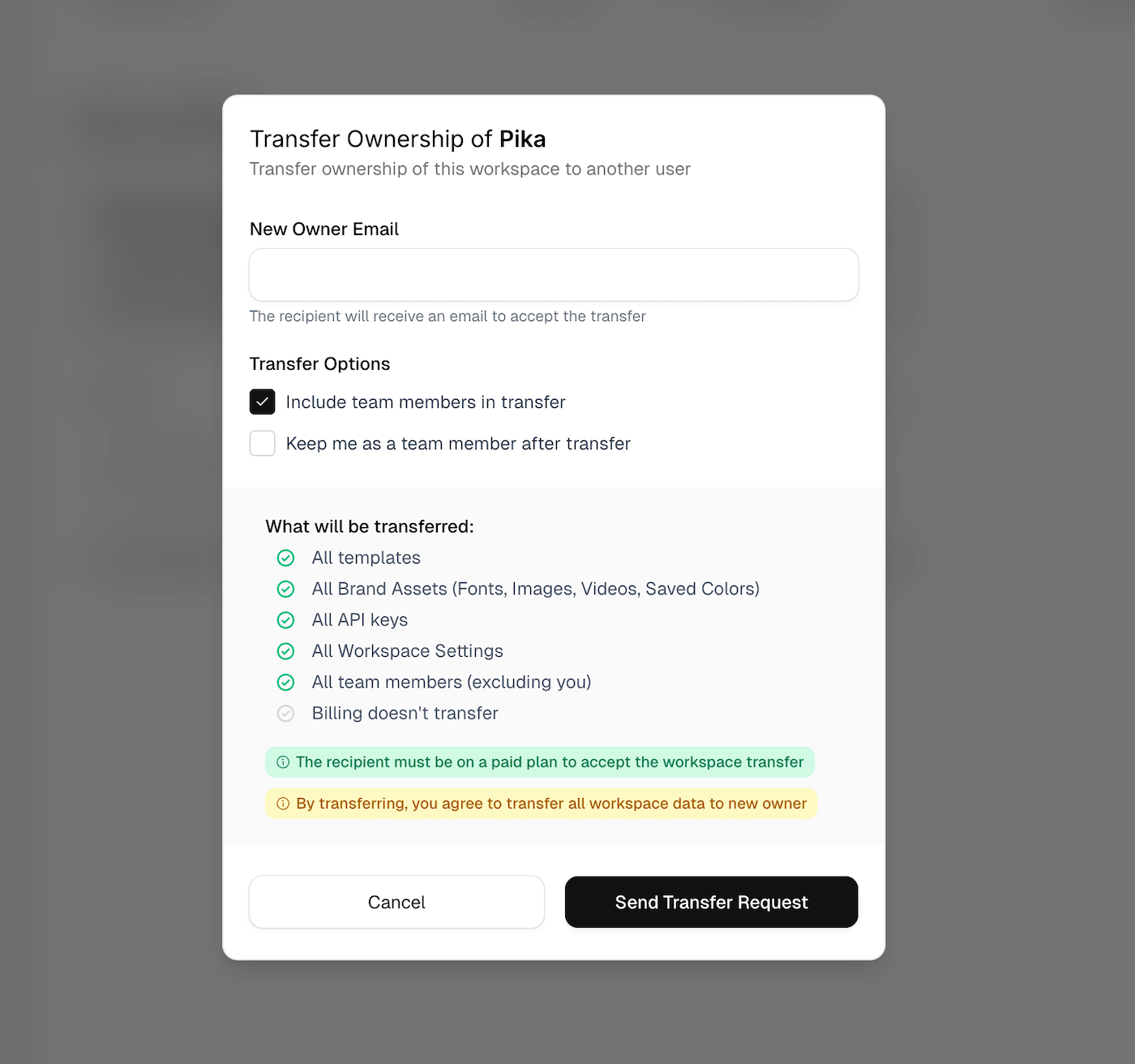
- Go to Workspace Settings → General
- Scroll to Transfer Workspace section
- Enter the email address of the new owner
- Choose your transfer options (see below)
- Click Send Transfer Request
You can also start a transfer from Team Members: open the ... menu on an admin's or member's row and pick Transfer ownership.
The recipient will receive an email with a link to accept the transfer. They'll need to log in with the same email address you specified.
You can resend the invite or cancel the transfer anytime before it's accepted.
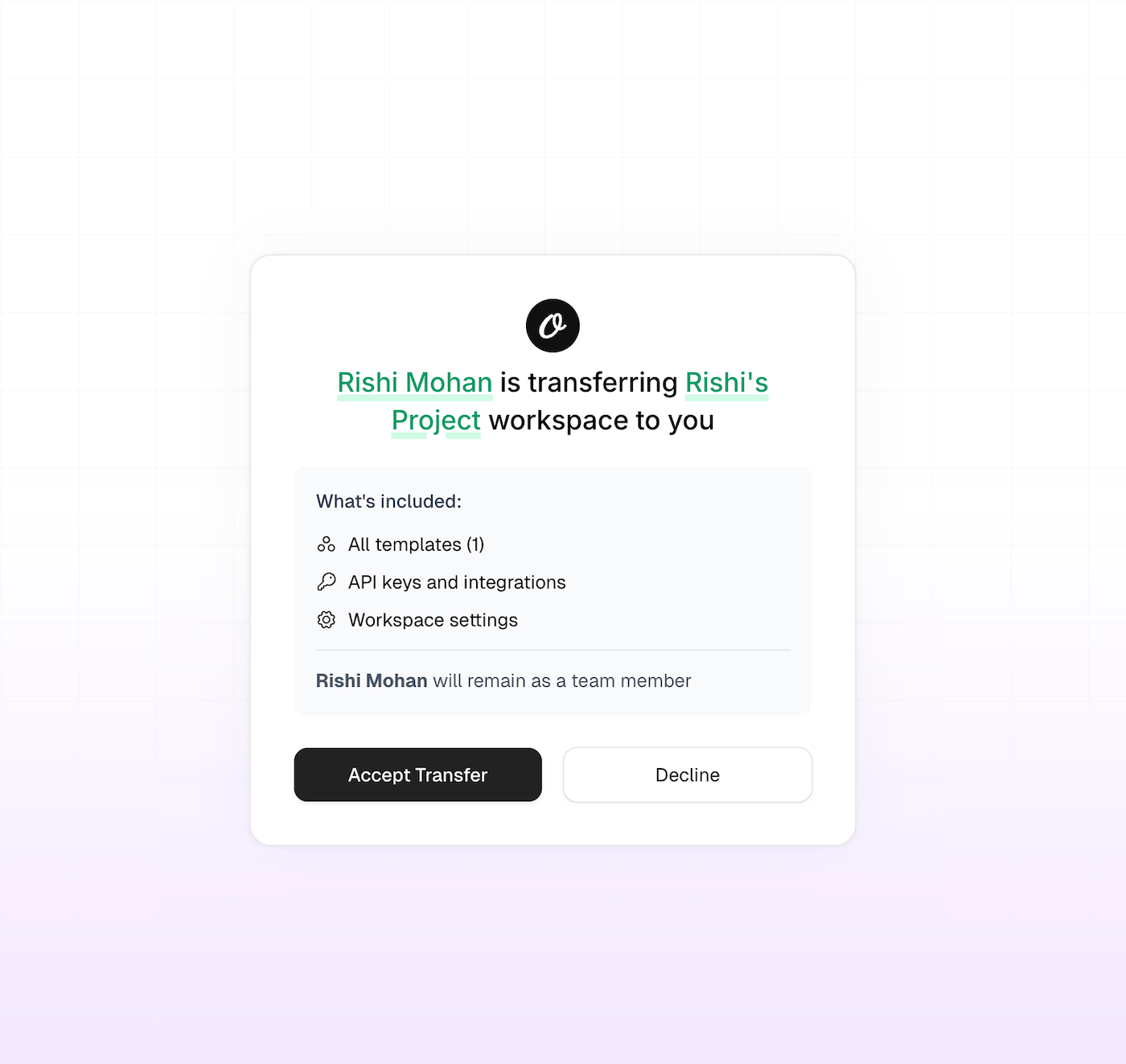
Transfer Options#
Include Team Members#
When enabled, all team members stay in the workspace after transfer. The new owner takes over management of the team.
When disabled, all team members are removed and pending invites are cancelled. Only the new owner will have access.
Keep Me as a Team Member#
Stay in the workspace as a regular member after handing over ownership. Useful when you want to continue contributing without admin responsibilities.
What Gets Transferred#
Everything tied to the workspace moves to the new owner:
- Templates and template settings
- Brand assets (logos, colors, fonts)
- Custom fonts
- Videos and media
- API keys and usage history
- Workspace settings
What gets reset: Storage integrations (Dropbox, Google Drive) are disconnected since they're tied to personal accounts. The new owner will need to reconnect their own.
Common Errors#
"You need a paid plan to accept this workspace"#
The recipient needs an active paid subscription. They should upgrade their plan before accepting.
"Would exceed workspace limit"#
The recipient already has the maximum number of workspaces their plan allows. They need to either upgrade to a higher plan or delete an existing workspace.
"Would exceed member limit"#
When transferring with team members, the recipient's plan doesn't have enough member slots. They can either upgrade their plan or you can transfer without team members.
"This transfer was sent to [email]"#
The recipient is logged in with a different email than the one you sent the invite to. They need to log in with the correct email address.
Transfer expired or not found#
Transfer invites don't expire, but they can be cancelled by the original owner. Ask them to resend the invite if needed.
Ready to automate?
Start rendering images, PDFs and videos from your templates in under 2 minutes. Free plan, no credit card.
Get your API key- Image, PDF and video generation via API
- Visual editor with AI and smart layouts
- Zapier, Make, MCP and 40+ integrations
- White-label embed for your own app
- 100 free credits a month, no credit card required