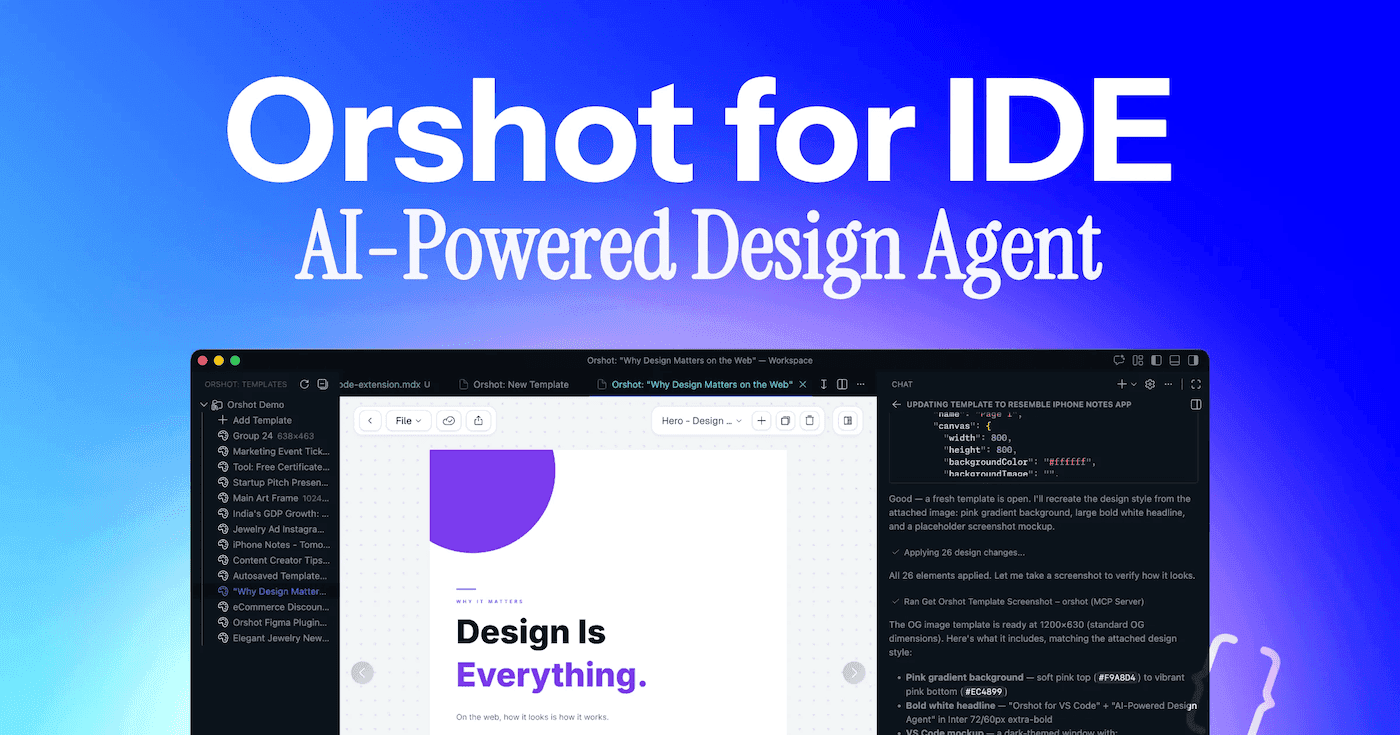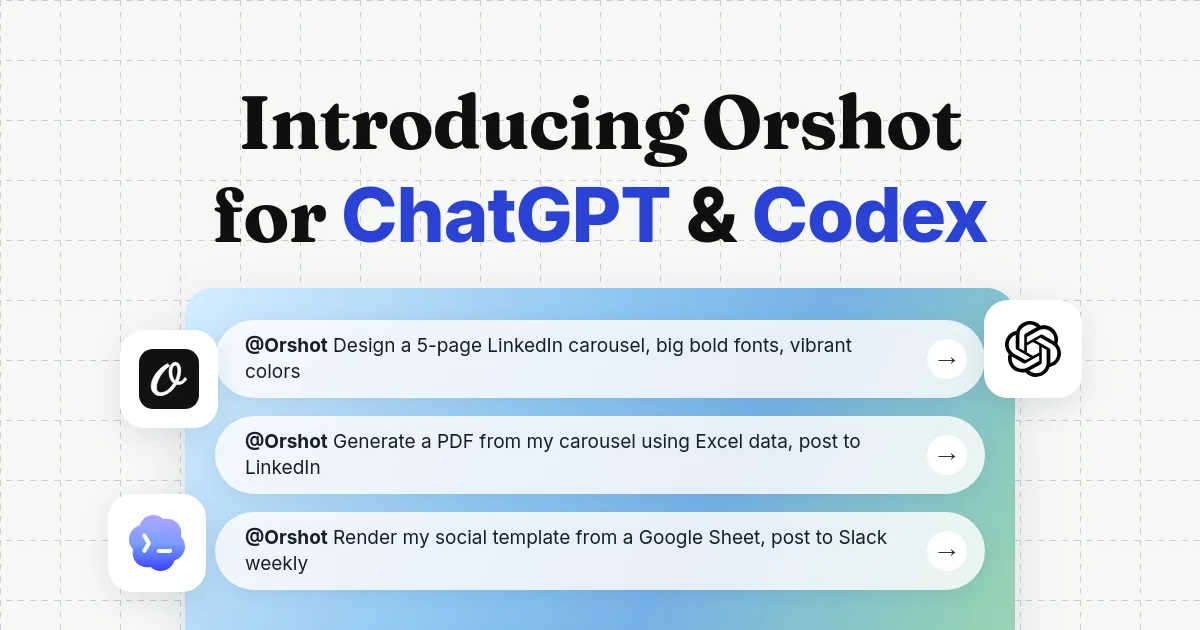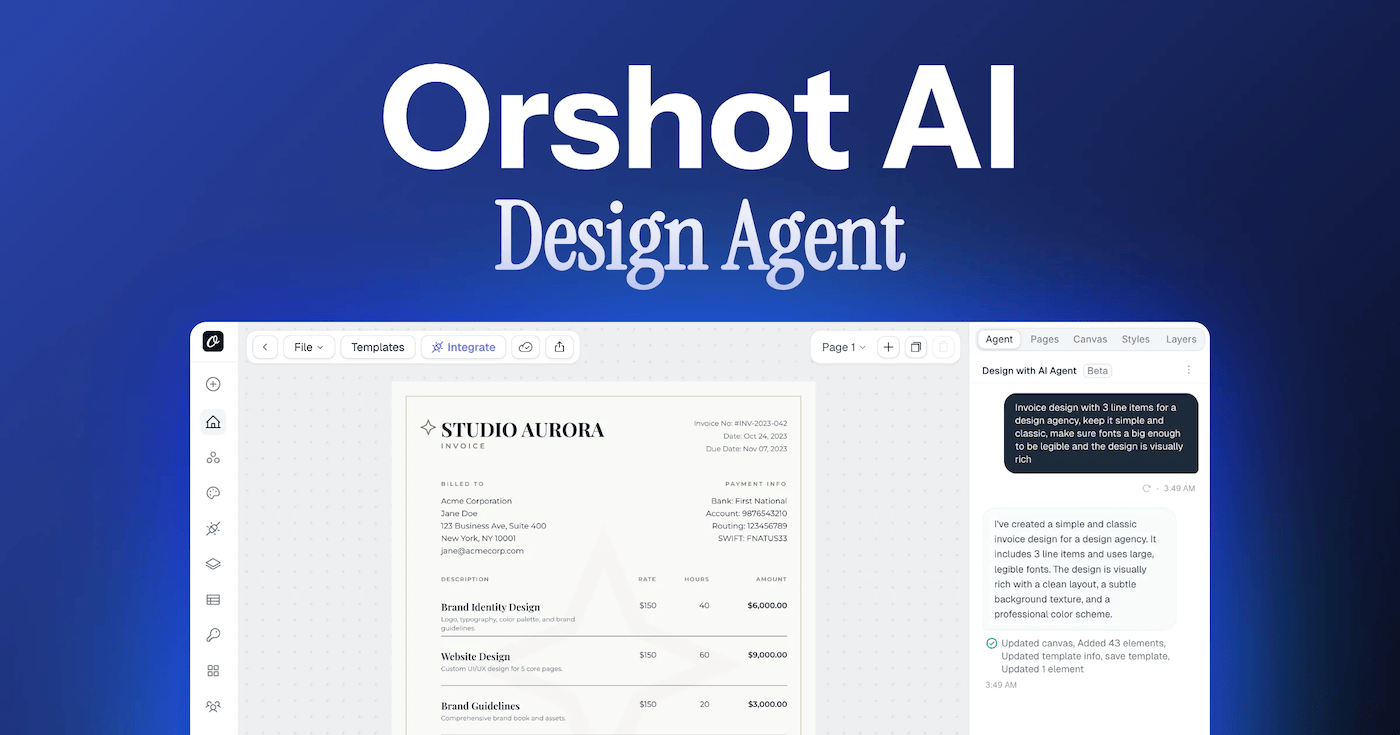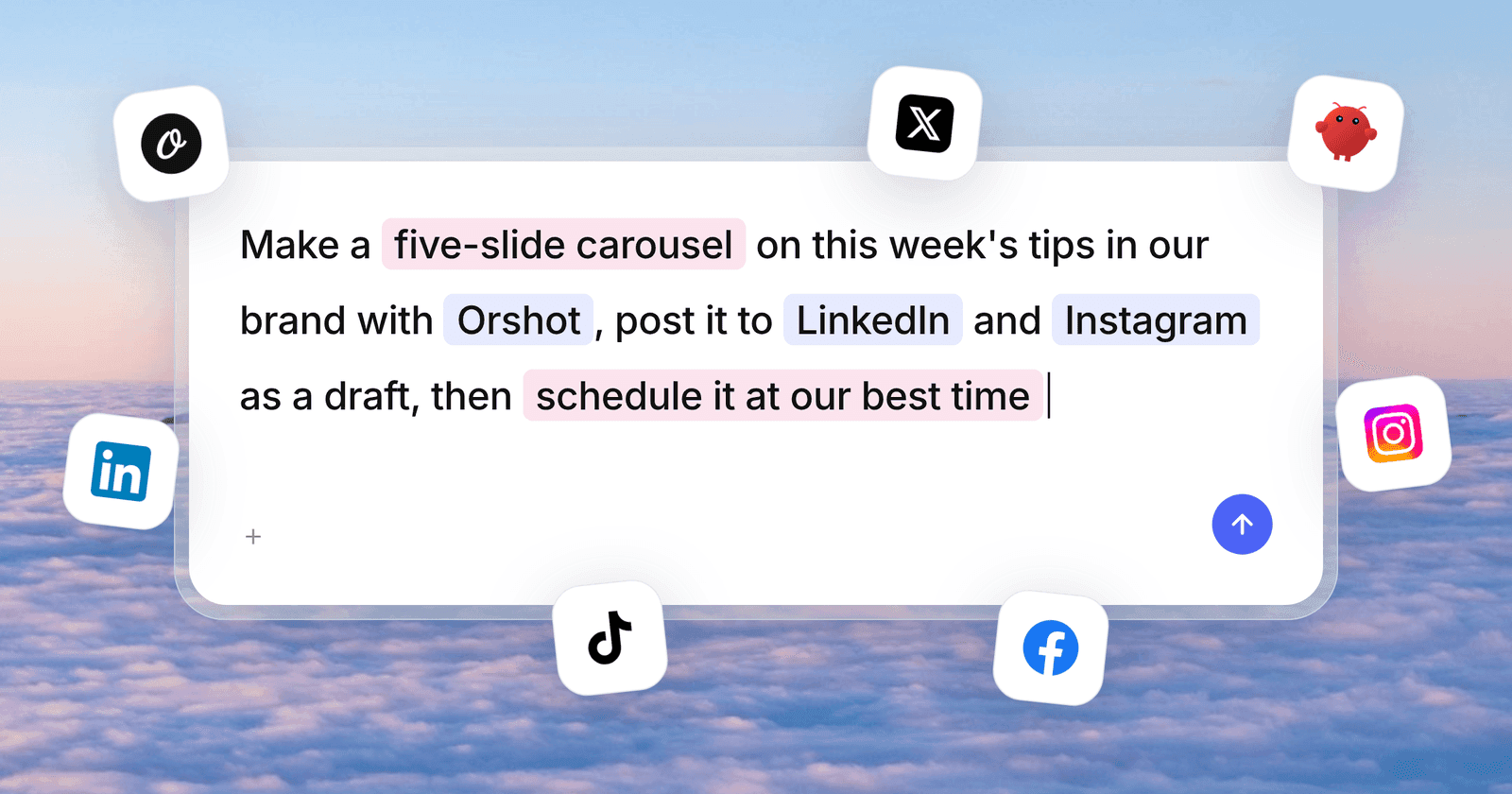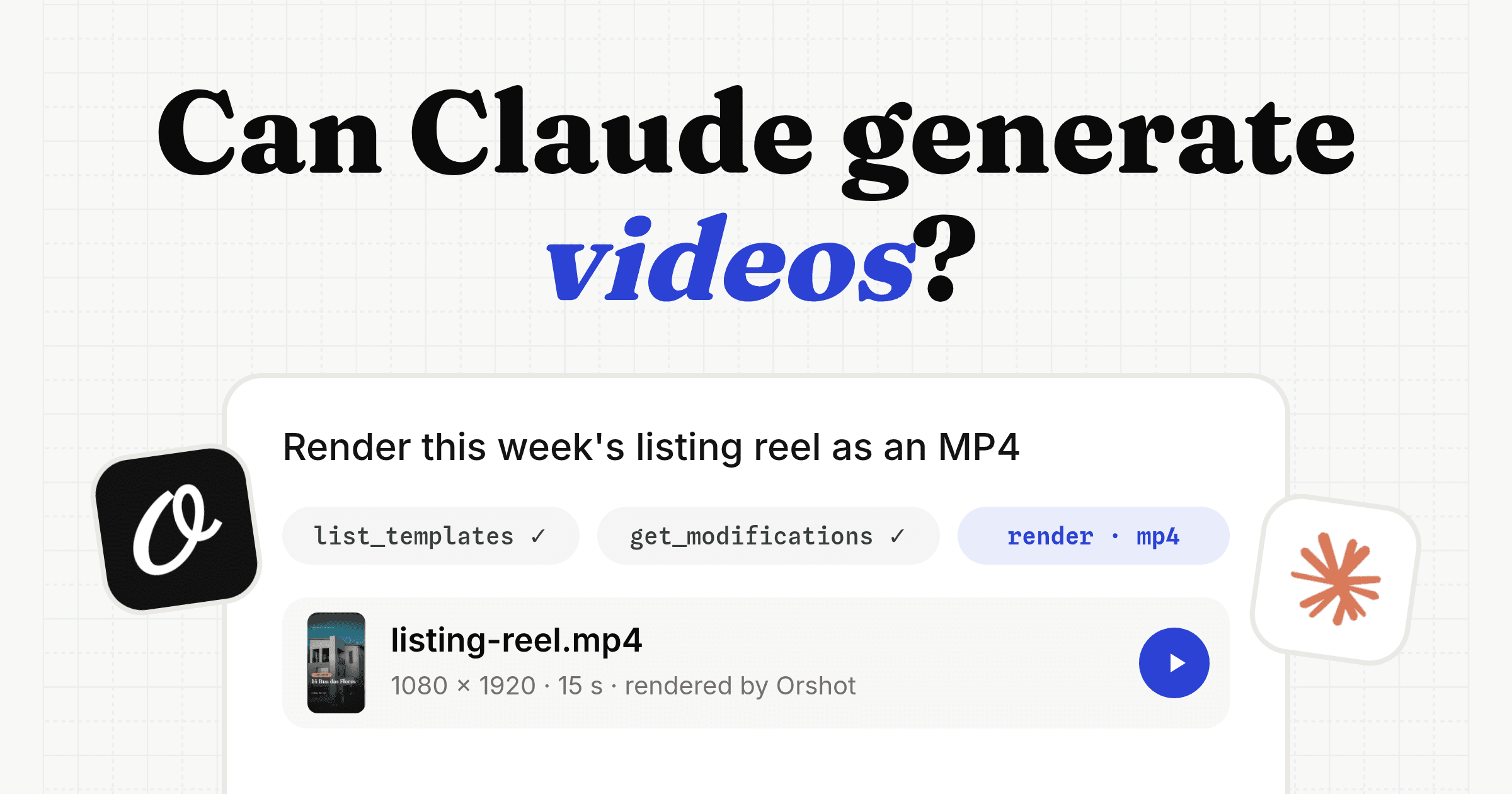
We are excited to announce the Orshot Remote MCP Server. You can now connect Orshot's image and video generation capabilities to your favorite AI coding agents—like Cursor, Windsurf, and Claude—without installing anything on your machine.
Use natural language to generating mockups, screenshots, PDFs, and videos directly within your coding or writing workflow.
Why Remote?
Previously, using our Model Context Protocol (MCP) server required cloning a repository, installing Node.js dependencies, and running a local process.
With the new Remote MCP (SSE) support, connection is instant. No terminal commands, no maintenance. Just add one URL and you are ready to go.
How to Connect
Cursor (Agent Mode)
- Go to Settings > General > MCP Servers.
- Click + Add new MCP server.
- Select SSE as the type.
- Enter the URL:
https://mcp.orshot.com/mcp
Claude
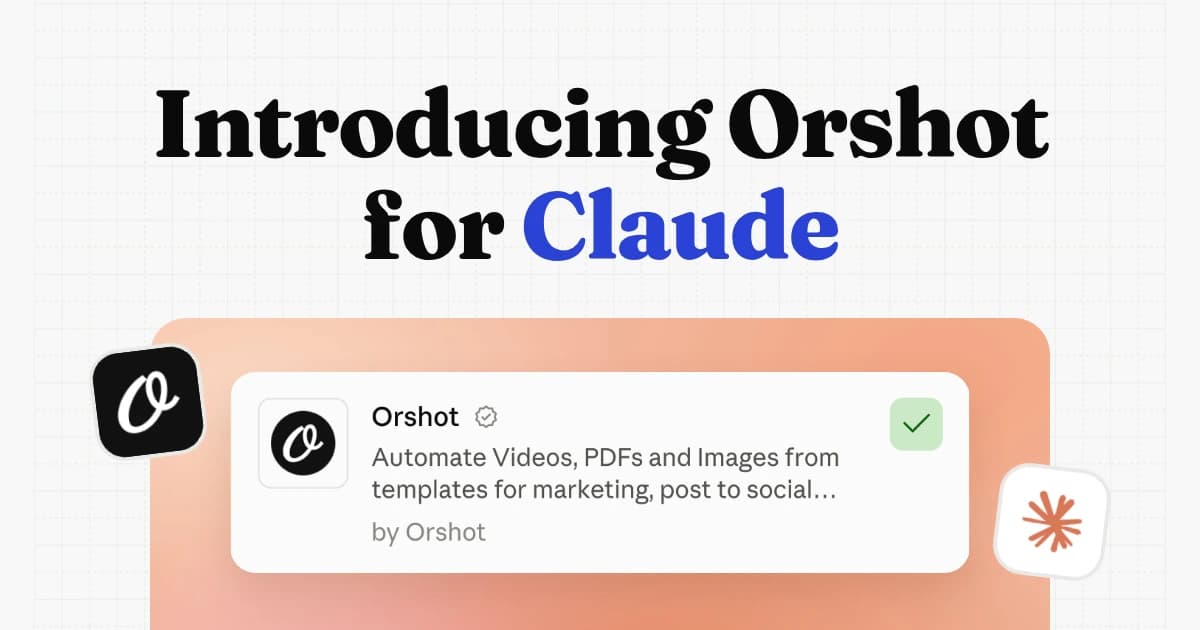
Orshot is in the Claude connectors directory. Open the Orshot listing and click Connect. In Claude Code, run claude mcp add orshot --transport http https://mcp.orshot.com/mcp.
Windsurf & VS Code
Look for "Remote MCP" or "SSE" configuration in your settings and use the same URL: https://mcp.orshot.com/mcp.
For VS Code users with the MCP extension, you can also add this to your .vscode/mcp.json or global configuration:
{
  "servers": {
    "orshot": {
      "type": "sse",
      "url": "https://mcp.orshot.com/mcp"
    }
  }
}
How to Use
Since the remote server is shared, it doesn't know your API key by default. You simply provide it in your prompt when you ask for a task.
Example Prompts:
- "Generate a website screenshot of apple.com. Here is my API key: os-..."
- "List all my studio templates and pick one to generate a mockup using this logo. API Key: os-..."
- "Create a PDF certificate for 'John Doe' using the 'Certificate' template. API Key: os-..."
- "Generate a 5-second MP4 video from my 'Intro' template. API Key: os-..."
Capabilities
The server exposes powerful tools to your AI agent:
- Unified Generation: Automatically detects if you are using a Library or Studio template.
- Multimedia Support: Generate Images (PNG/JPG/WEBP/AVIF), Videos (MP4/WebM/GIF), and PDFs.
- Documentation Access: The agent can look up Orshot API docs for you to answer technical questions.
- API Utilities: Check your API status and validate your key.
Learn More
To learn more about configuration options and detailed usage instructions, check out the documentation.