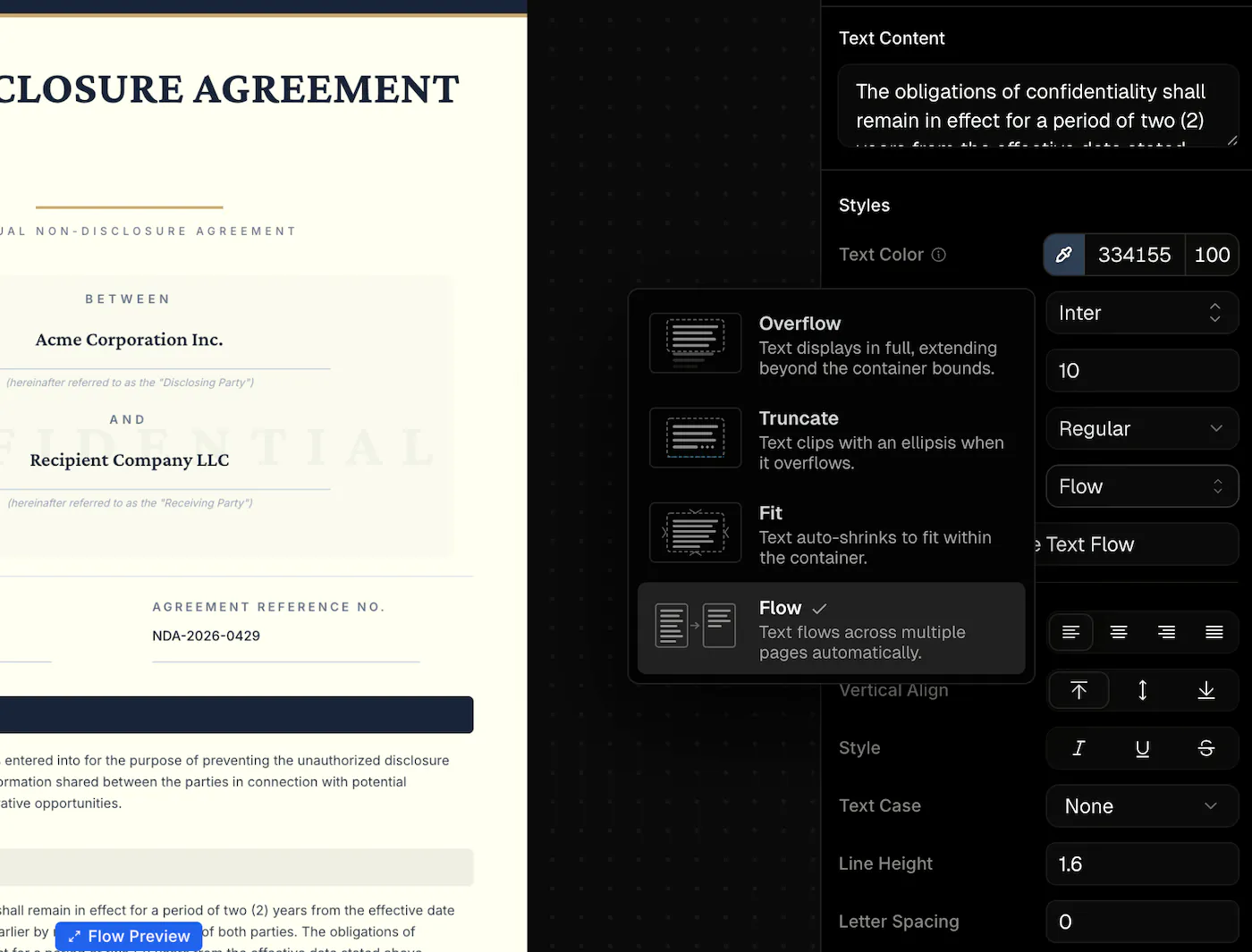
Until now, if your text didn't fit on a page, you had three options: shrink it (Fit), clip it (Truncate), or let it overflow outside the container. None of these helped when you actually needed that text to continue on the next page.
Today we're launching Flowing Content — a new text mode in Orshot Studio that automatically splits long text across multiple pages. Design one page, and the engine generates as many overflow pages as the content needs.
What It Does
Set any text element to Flow mode, and it just works:
- Write an article, paste an invoice body, or pass a long string via API
- Orshot figures out where the page breaks fall and creates overflow pages
- Headers, footers, logos — anything marked as repeating — shows up on every page
- Page numbers (
{{_page_number}}/{{_total_pages}}) update automatically
You design a single template page. The engine does the rest.
How It Works
Why It Matters
If you generate reports, certificates, invoices, or any document where the amount of text changes per render, you've probably hit this wall: a 3-paragraph summary fits on one page, but a 10-paragraph one needs three. Before flowing content, you'd either truncate the text or build multiple fixed-length templates.
Now you don't have to think about it. One template handles 1-page and 20-page documents equally.
Common use cases:
- Reports and articles — quarterly summaries, blog-to-PDF pipelines, whitepapers
- Invoices and receipts — line item lists that vary from 5 to 500
- Certificates — course descriptions that change per program
- Legal and compliance docs — terms, contracts, policy documents
How to Set It Up
- Open your template in Orshot Studio
- Select the text element that should flow
- In the Styles panel, set Text Autofit to Flow
- Mark any headers, footers, or logos as Repeat on overflow pages
- Optionally add
{{_page_number}}/{{_total_pages}}to a repeating text element for page numbers
That's it. Preview the template and you'll see overflow pages appear as you add more text.
How It Works via API
The API request is the same as any other render — just pass your text in modifications:
{
  "templateId": "<YOUR_TEMPLATE_ID>",
  "modifications": {
    "body": "Your long-form content goes here..."
  },
  "response": {
    "format": "pdf",
    "type": "url"
  }
}
The response tells you how many pages were generated:
{
  "data": [
    { "page": 1, "content": "https://..." },
    { "page": 2, "content": "https://...", "flowPage": 1 },
    { "page": 3, "content": "https://...", "flowPage": 2 }
  ],
  "totalPages": 3,
  "flowTotalPages": 2
}
Works with all output formats — PNG, JPEG, WebP, PDF, and even video.
Fine-Tuning
For most templates the defaults work great. But if you need more control:
- Flow Zones let you define exactly where text should appear on overflow pages (custom Y position and height per page)
- Page break controls let you choose break granularity (line, word, or character) and set minimum lines before/after a break to prevent orphans and widows
- Rich text is fully supported — bold, italic, colored text, inline styles all carry over correctly across page breaks
Credit Costs
Each page in the output costs 1 credit, same as carousel pages. A flow template that produces 5 pages costs 5 credits. Use includePages to render only the pages you need.
Flowing content is available now in Orshot Studio on all plans. Read the full documentation for detailed setup instructions, or jump into Studio and try it.