TL;DR: Most carousel "automation" guides stop at static PNGs glued together from four or five tools — and the AI-image ones can't even render your headline without typos. This one goes end-to-end with two tools: a Google Sheet holds your content calendar, Make watches for new rows, and one Orshot API call renders all four branded slides, optional animated reels, or one combined video — and publishes the carousel straight to Instagram. No design tool, no Cloudinary, no separate scheduler.
Grab the working files:
- 🎨 Open the carousel template — the exact 4-page animated template used below; preview it, play with the parameters, and use it in your workspace
- 📋 Copy the Google Sheet template — the exact content calendar used below
- 📥 Download the Make blueprint (JSON) — import, paste your API key, done
- ⚡ Use the Make template: the same flow as a one-click Make template, with a setup wizard
- 📥 Download the n8n workflow (JSON) — same flow in two n8n nodes
What we're building
Picture a creator who posts a weekly "notes to my younger self" carousel — a hook cover, three pinned-note slides, a follow CTA. The content changes every week; the design never does. That's the exact situation where you should stop opening a design tool.
Instead, the words live in a Google Sheet — one row per carousel. When a new row appears, Make sends it to Orshot, which drops each cell into a designed multi-page template, renders all four slides, and posts them to Instagram as a carousel with the caption from the same row:
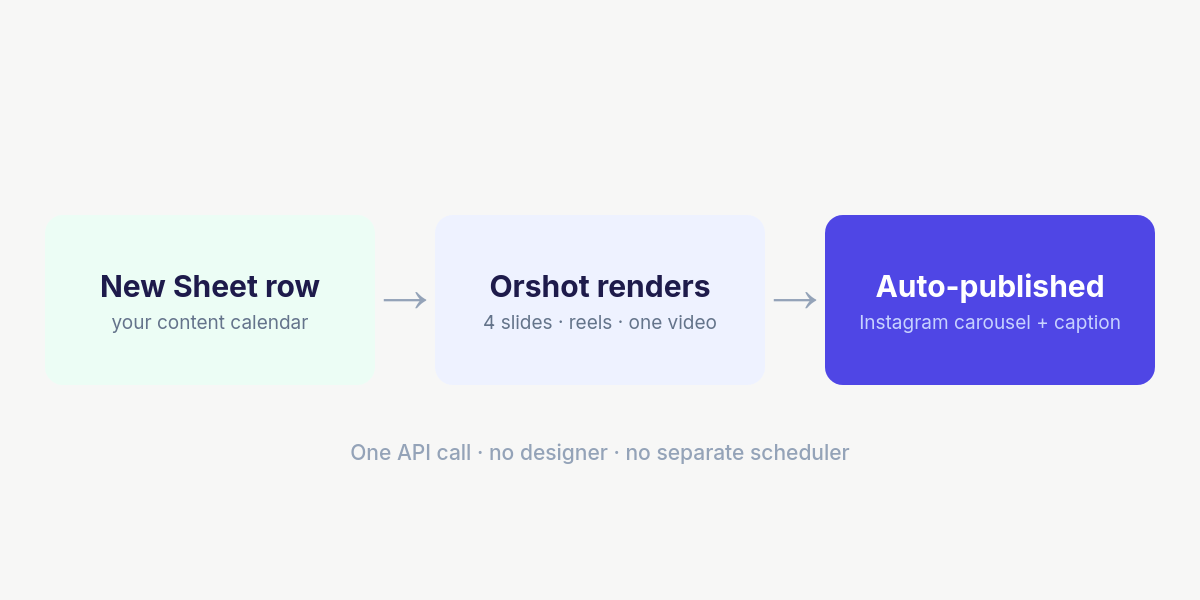
The same row can also come out as four animated reels or one combined video of all slides — we'll cover all three output modes below, from the same template and the same API call.
The output: one Sheet row, four branded slides
Here's the real rendered output from row 2 of the demo sheet — a 4-page carousel, 1080×1350, with the photos, handwriting, and pinned-note design fully intact (no AI-generated text glitches, because nothing here is AI-imaged — it's a designed template):
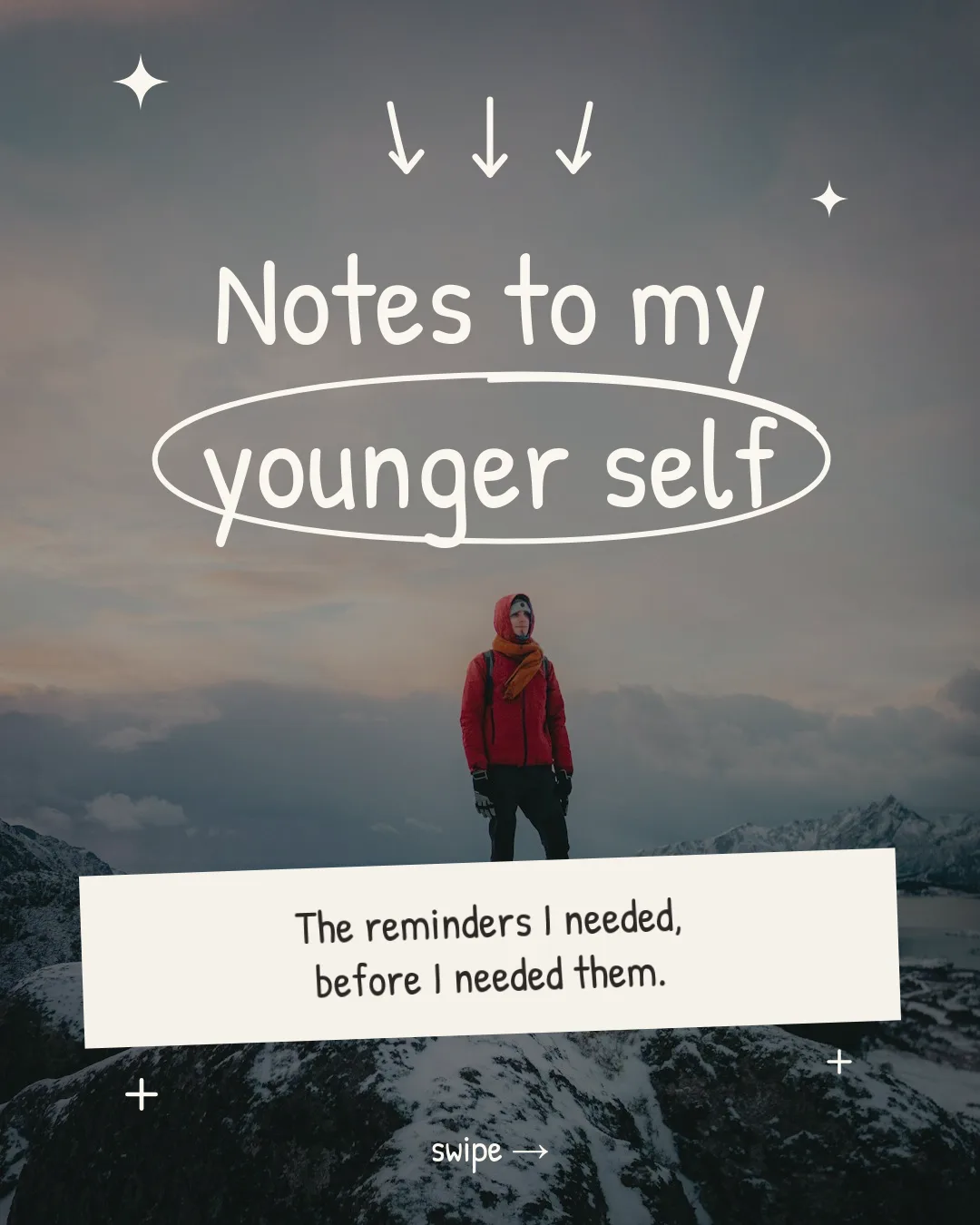
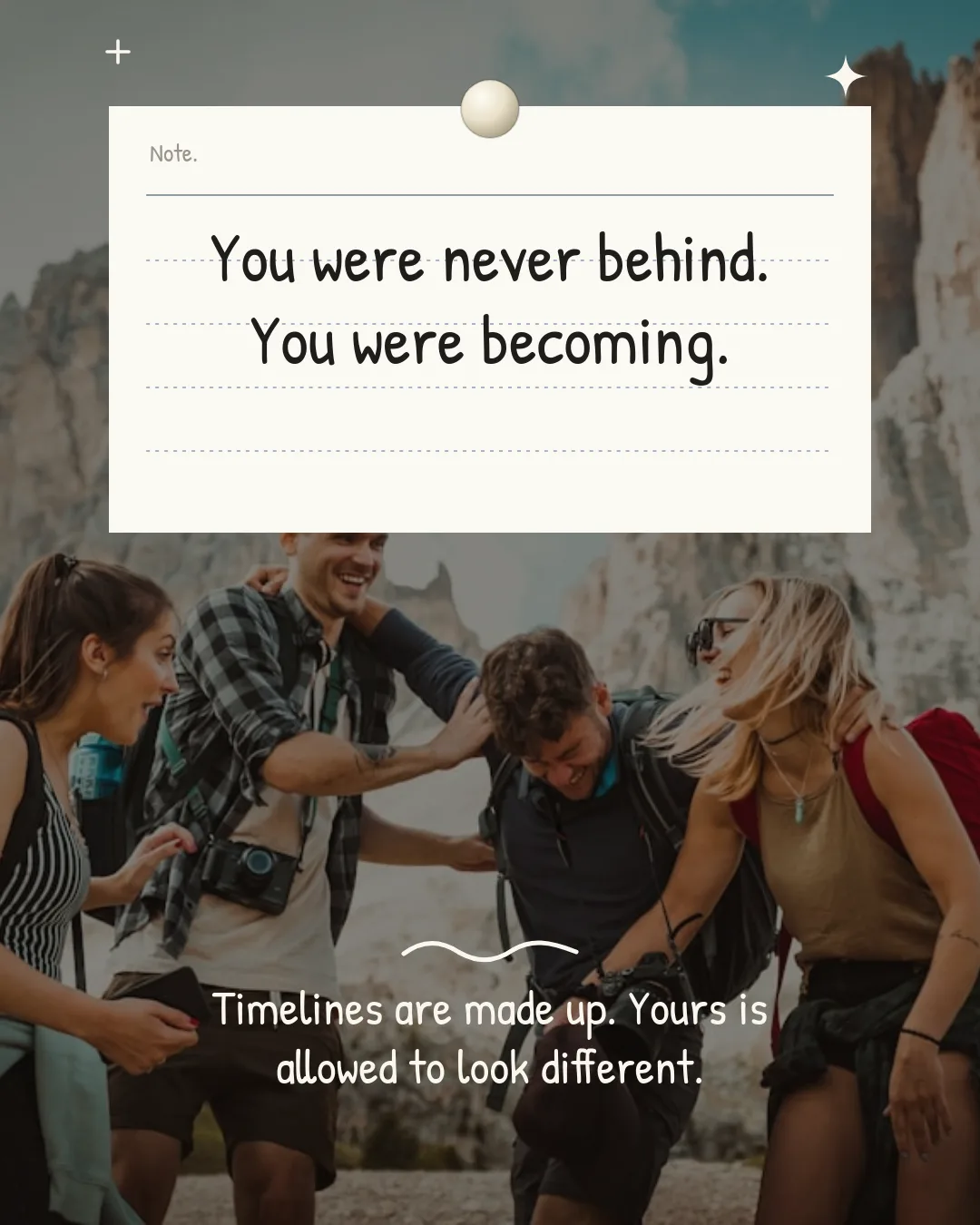
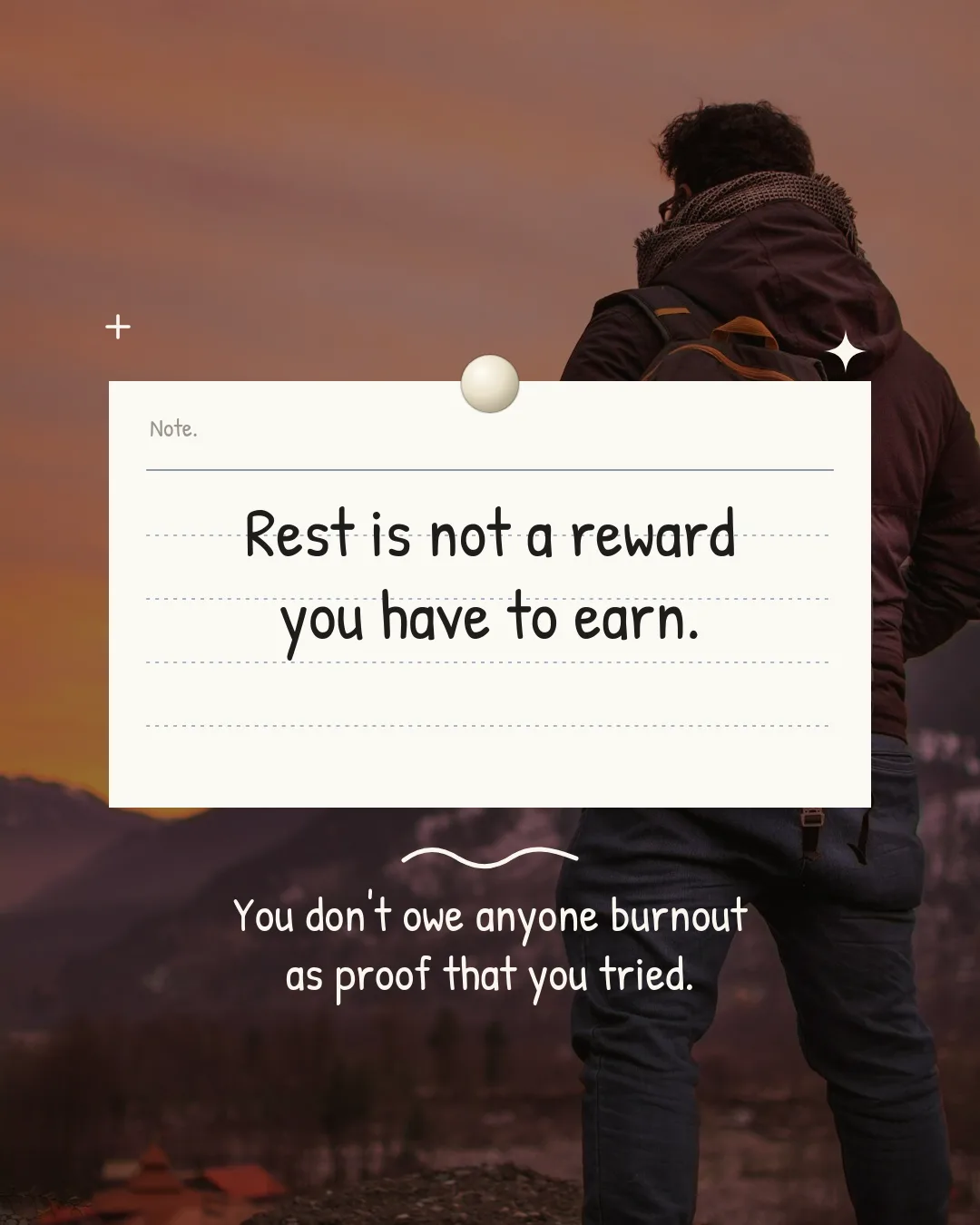

And because the template has layer animations built in, the same render request with format: "mp4" returns each slide as a short animated reel.
Why a render API beats AI image generators (and Canva)
If you've searched for "create instagram carousel automatically", you've seen the other approaches. Here's the honest comparison:
| Orshot (this guide) | AI image workflows | Canva Bulk Create | Schedulers (Buffer etc.) | |
|---|---|---|---|---|
| Designed, on-brand slides | Inconsistent — AI re-imagines your brand every run | Limited to static layouts | ||
| Accurate text on slides | Typos on long headlines (a known AI-image failure) | n/a — you bring finished images | ||
| Multi-slide carousels from a spreadsheet | Manual CSV upload each time | |||
| Animated reels from the same template | ||||
| One combined video of all slides | ||||
| Auto-publish to Instagram | Needs Meta Graph API setup + image host | |||
| Tools required | 2 (Sheets + Make) | 4–6 (LLM, image AI, host, scheduler…) | 2–3 | 2–3 |
The structural difference: AI-image workflows generate every slide from scratch (so brand and text drift), and schedulers only post what you've already designed. A template render sits in the middle — pixel-exact design, dynamic content, and native publishing from the same call.
What you'll need
- A Google account (for the Sheet) and a free Make account — the whole flow fits in Make's free tier
- An Orshot account with an API key — the free tier's 100 credits a month are plenty to build and test this end to end
- An Instagram account connected to Orshot (Workspace → Social Accounts) for the publishing step
Step 1 — The carousel template (design once, reuse forever)
Everything starts with a multi-page template in Orshot Studio. Ours is a 4-page, 1080×1350 "pinned notes" design — full-bleed photos, handwritten type, a note card pinned with a pearl tack:
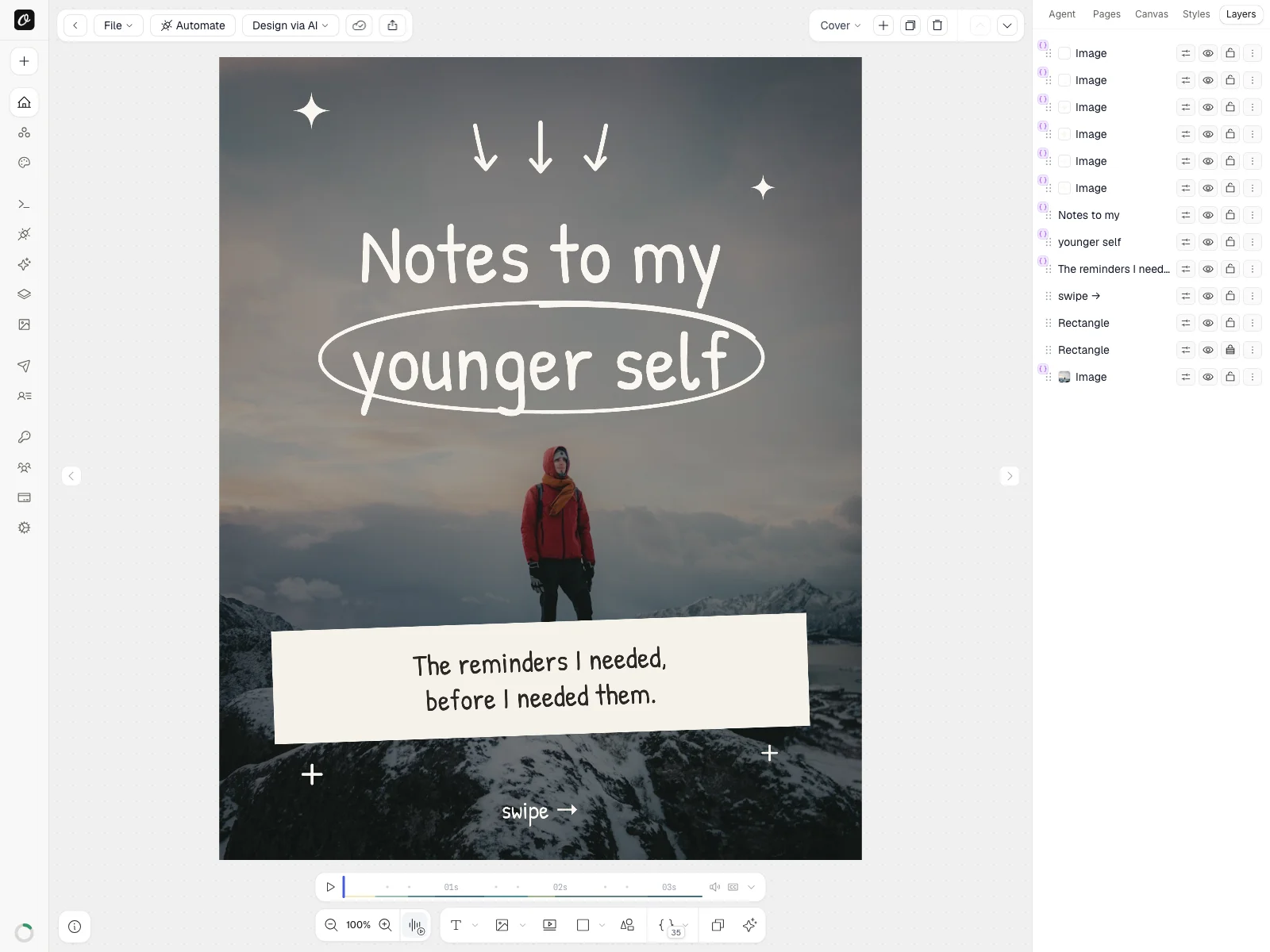
The pages panel shows the whole carousel — cover, two note slides, and the CTA page:
Two things make a template automation-ready:
1. Dynamic parameters. Any layer can be marked parameterizable with a clean ID — note_text, bg_image, subtitle. For multi-page templates, the API addresses them with a page prefix: page1@hook_line1, page2@note_text, page4@bg_image. The fixed stuff (your handle, the design, the decorations) never appears in the spreadsheet at all — defaults fill anything you don't send.
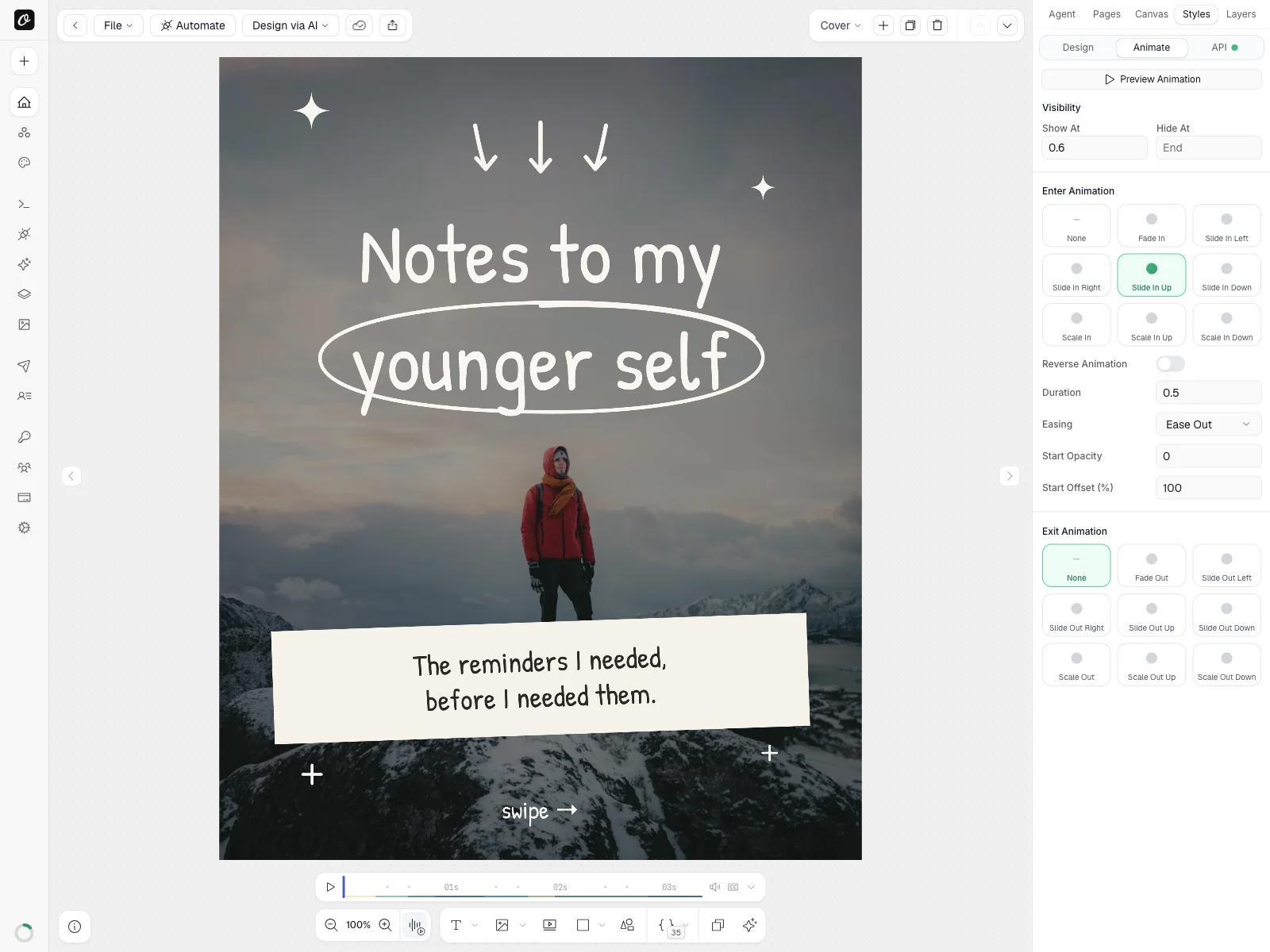
2. Layer animations. Every layer in this template has an entrance — the arrows drop in, the note card springs up, the pin presses in, sparks pop last. Configure it once in the Animate tab and it's what makes the same template render as video:
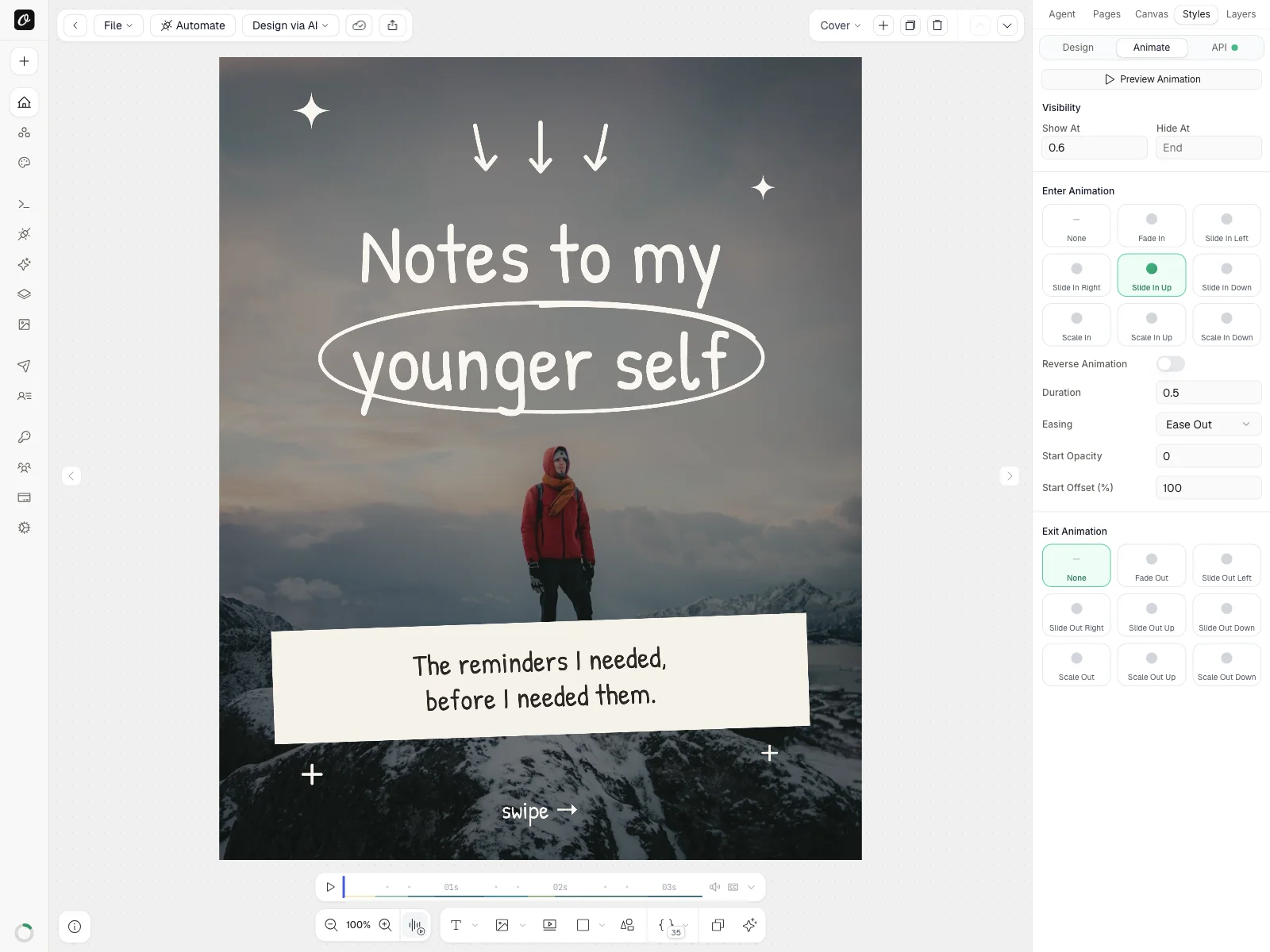
You don't have to design this yourself: open the exact template from this tutorial — animations, parameters and all — try the parameters live, and use it in your own workspace. Or start from one of the 2,000+ designs in the template library, or import an existing design and add parameters to it.
Step 2 — Set up the Google Sheet content calendar
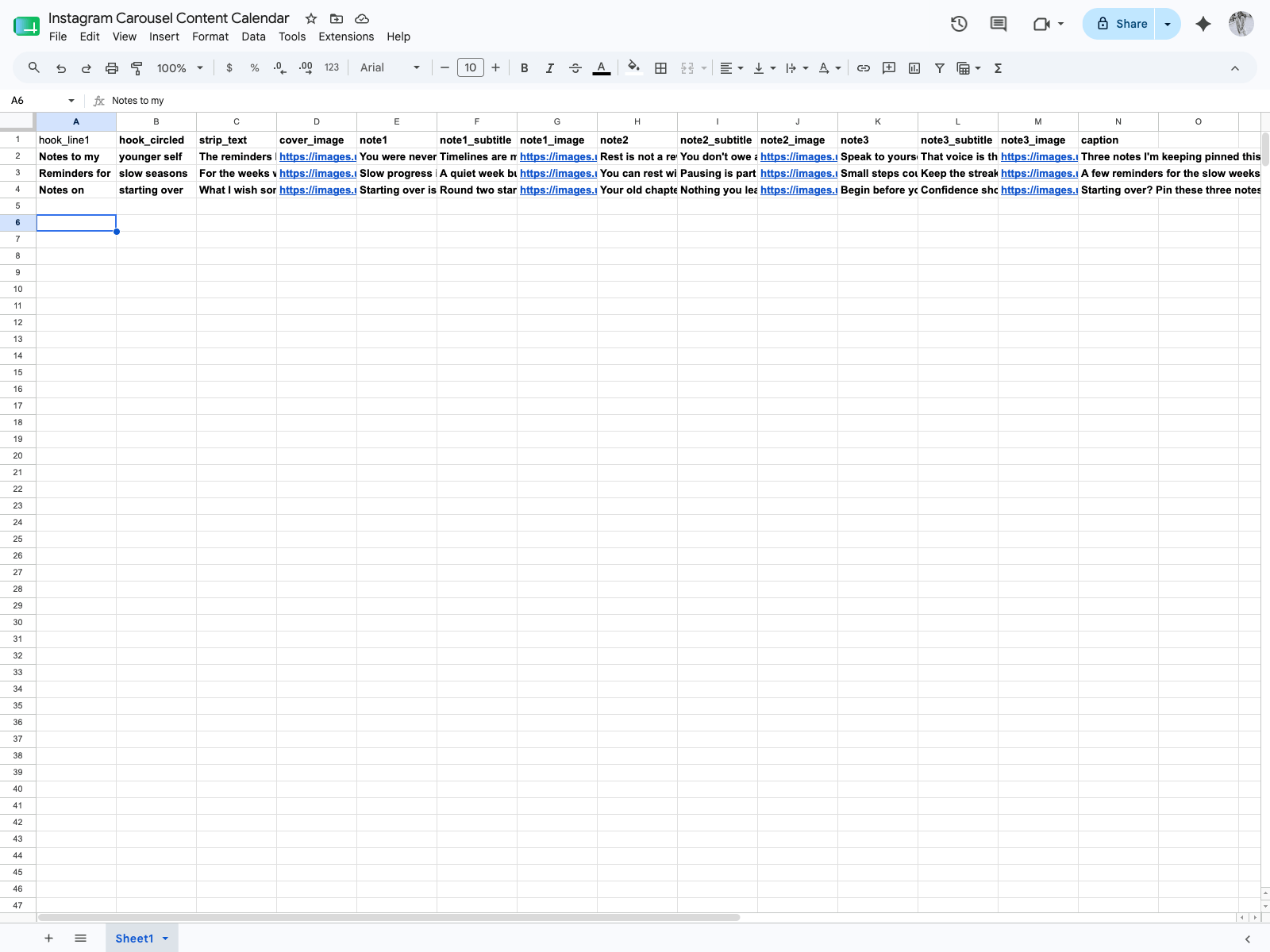
The Sheet is the entire editorial workflow: one row = one carousel. Our demo calendar has 14 columns — the words for each slide, a photo URL per page, and the Instagram caption:
| Columns | What they fill |
|---|---|
hook_line1, hook_circled, strip_text, cover_image | The cover slide (the circled word gets the hand-drawn scribble) |
note1–note3, note1_subtitle–note3_subtitle, note1_image–note3_image | One pinned-note slide each |
caption | The Instagram caption for the whole post |
Copy this exact Sheet — it comes pre-filled with three demo rows so you can test before writing your own content. Batch-write a month of rows on a Sunday and the rest of this pipeline turns them into posts.
Step 3 — Grab your Orshot API key
In your Orshot workspace, go to Workspace → API Keys and create a key. You'll paste it into exactly one place in Make (the Authorization header). Treat it like a password — anyone with it can render on your account.
Step 4 — Build the Make scenario (just 2 modules)
This is the part other guides turn into a six-module maze. It's two:
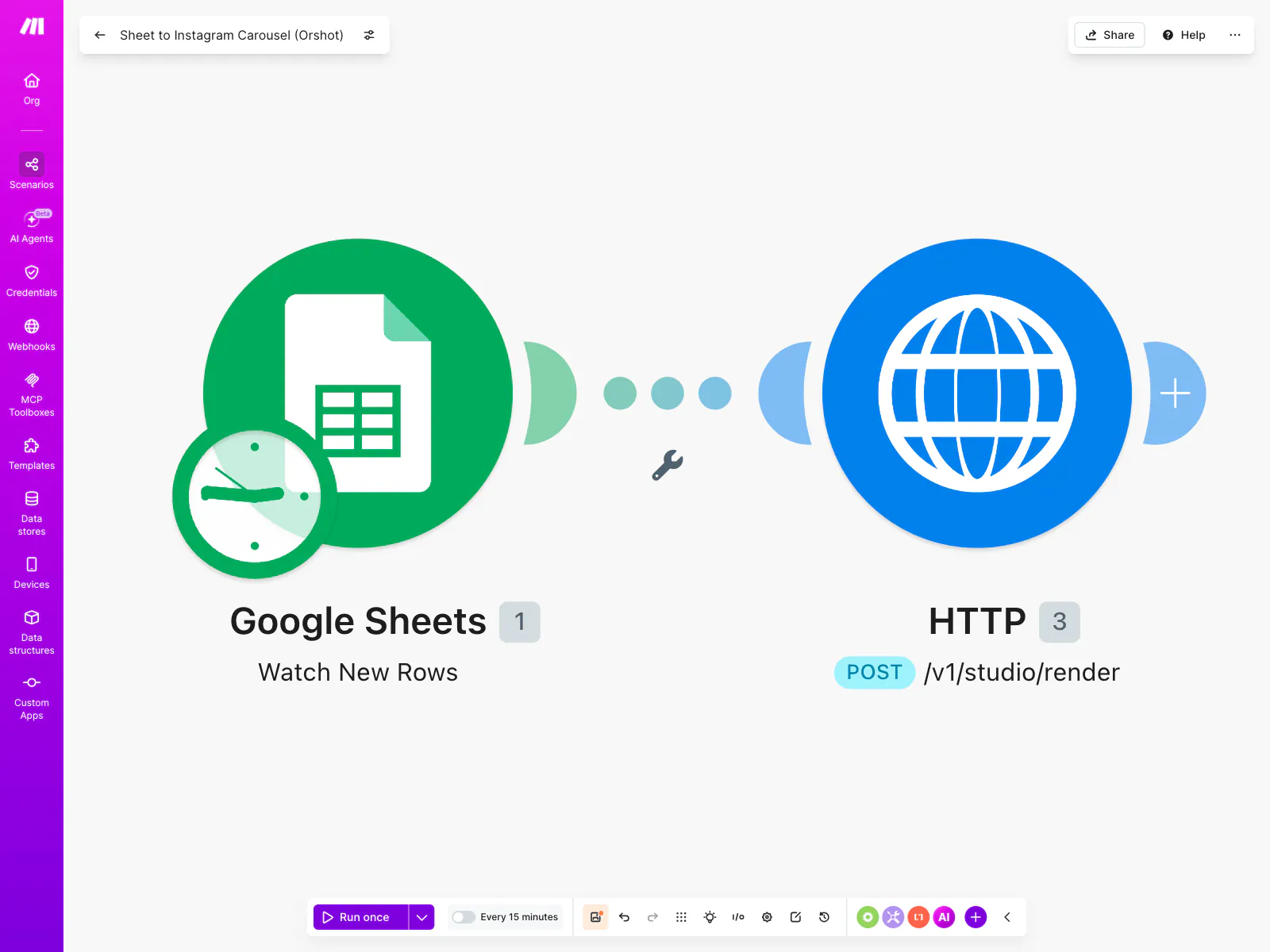
The fastest path is to import the blueprint (Make → scenario menu → Import blueprint), connect your Google account, point the trigger at your copy of the Sheet, and paste your API key. If you'd rather build it by hand:
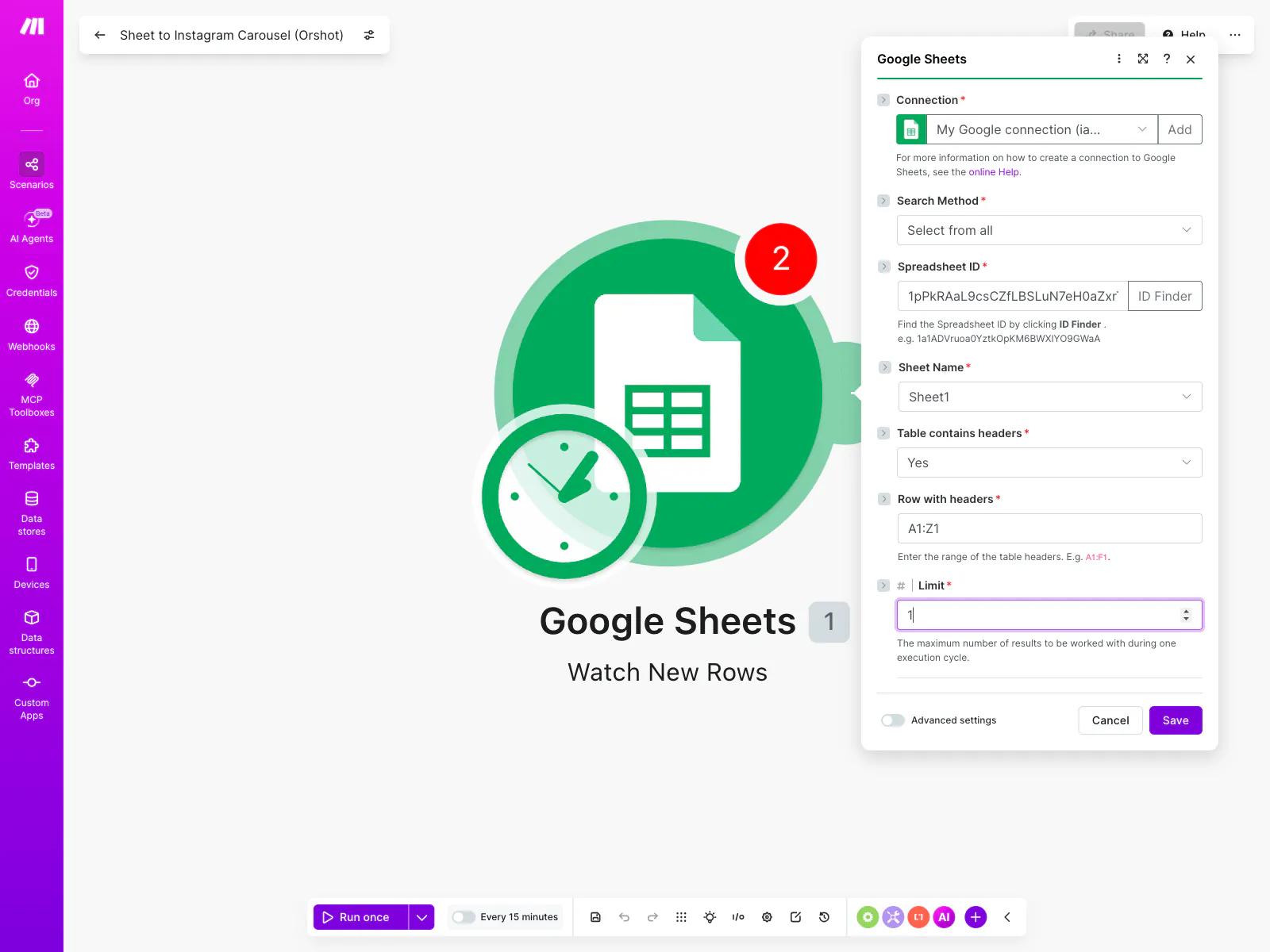
Module 1 — Google Sheets → Watch New Rows. Pick your spreadsheet and Sheet1, keep Table contains headers on, and set the limit to 1. When Make asks where to start, choose All so your existing demo rows count as new on the first run:
Module 2 — HTTP → Make a request. This is the single call that does everything. Method POST, URL https://api.orshot.com/v1/studio/render, two headers:
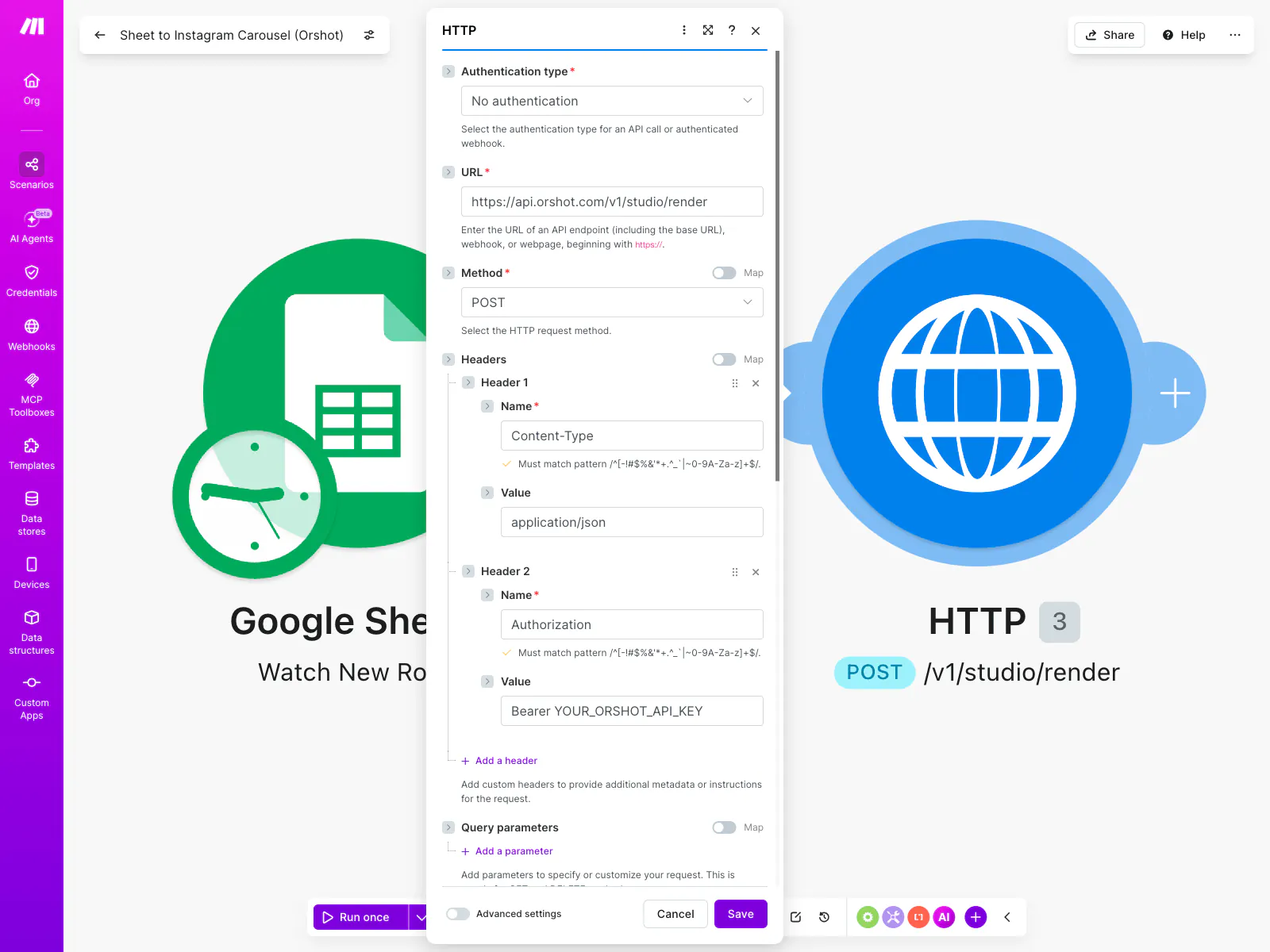
Then set Body content type to application/json, Body input method to JSON string, and paste the request body — mapping each field to its Sheet column (type the {{ }} tokens or click the green pills from the mapping panel):
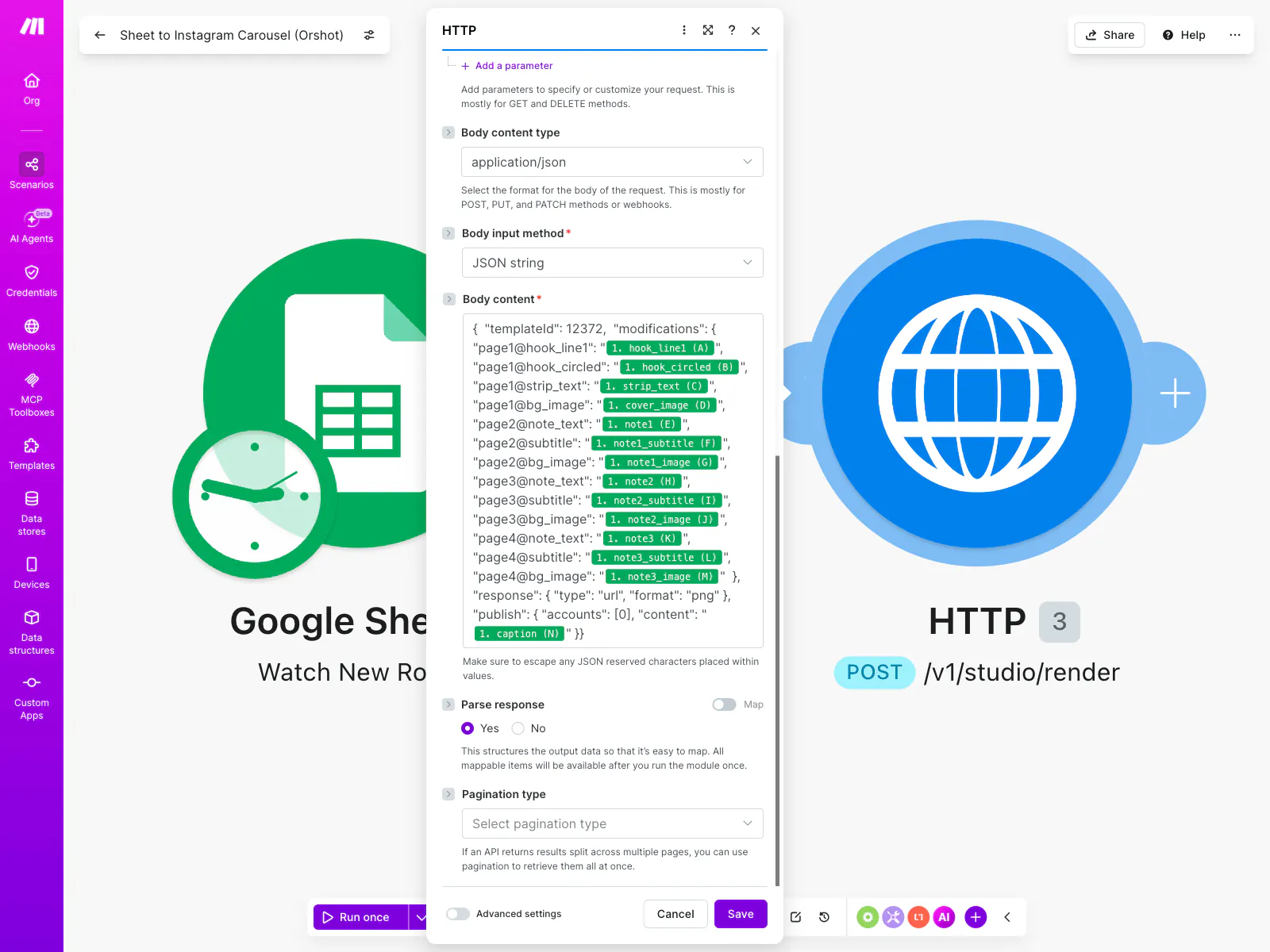
{
  "templateId": 12372,
  "modifications": {
    "page1@hook_line1": "{{hook_line1}}",
    "page1@hook_circled": "{{hook_circled}}",
    "page1@strip_text": "{{strip_text}}",
    "page1@bg_image": "{{cover_image}}",
    "page2@note_text": "{{note1}}",
    "page2@subtitle": "{{note1_subtitle}}",
    "page2@bg_image": "{{note1_image}}",
    "page3@note_text": "{{note2}}",
    "page3@subtitle": "{{note2_subtitle}}",
    "page3@bg_image": "{{note2_image}}",
    "page4@note_text": "{{note3}}",
    "page4@subtitle": "{{note3_subtitle}}",
    "page4@bg_image": "{{note3_image}}"
  },
  "response": { "type": "url", "format": "png" },
  "publish": {
    "accounts": [0],
    "content": "{{caption}}"
  }
}
Two values to make your own: templateId — 12372 is our demo template, and yours is shown in the studio URL and at the top of its playground — and the 0 in publish.accounts, which you'll swap for your Instagram account ID in Step 6 (until then, 0 safely renders without posting anything).
That's the whole automation. No image-hosting module, no iterator, no array aggregator — the things that derail most Make carousel attempts simply aren't needed, because Orshot treats the multi-page render and the carousel upload as one operation.
Step 5 — One API call, three output modes
The response.format field decides what comes back. Same template, same modifications — three different deliverables.
Static carousel images (PNG)
With "format": "png", a multi-page template returns one image per page:
{
  "data": [
    {
      "page": 1,
      "pageId": "page-1",
      "content": "https://storage.orshot.com/.../slide1.png"
    },
    {
      "page": 2,
      "pageId": "page-2",
      "content": "https://storage.orshot.com/.../slide2.png"
    },
    {
      "page": 3,
      "pageId": "page-3",
      "content": "https://storage.orshot.com/.../slide3.png"
    },
    {
      "page": 4,
      "pageId": "page-4",
      "content": "https://storage.orshot.com/.../slide4.png"
    }
  ],
  "format": "png",
  "totalPages": 4
}
These are the four slides you saw at the top of this post.
Render each carousel page as an animated reel (MP4)
Switch to "format": "mp4" and every page renders as its own video, with the template's layer animations playing out frame-perfectly — the cover runs 3.3 seconds, the note slides about 2.5 each:
{
  "data": [
    {
      "page": 1,
      "content": "https://storage.orshot.com/.../page1.mp4",
      "videoDuration": 3.3
    },
    {
      "page": 2,
      "content": "https://storage.orshot.com/.../page2.mp4",
      "videoDuration": 2.5
    }
  ],
  "format": "mp4",
  "totalVideoDuration": 11.25
}
Use these as standalone reels, Stories, or video slides inside a mixed carousel (Instagram allows mixing photos and videos in one carousel post).
Combine all slides into one Instagram video
This is the one no other carousel workflow offers: add videoOptions.combinePages and the API stitches every page into a single video, with an optional transition between pages:
{
  "templateId": 12372,
  "modifications": { "...same as above..." },
  "response": { "type": "url", "format": "mp4" },
  "videoOptions": {
    "combinePages": true,
    "pageTransition": "fade",
    "pageTransitionDuration": 0.4
  }
}
Unlike the per-page render, the response comes back with a single video URL instead of an array:
{
  "data": {
    "content": "https://storage.orshot.com/.../combined.mp4",
    "type": "url",
    "format": "mp4",
    "videoDuration": 10.05
  }
}
▶ Watch the real combined render (10s MP4) — all four slides in one video: each page plays its animations, then fades to the next. That's a ready-to-post reel summarizing the whole carousel, from the same Sheet row.
Transitions include fade, slideleft, circleopen, dissolve and more — or omit it for hard cuts. (combinePages works for mp4 and webm; GIFs always come back per-page.)
You can try all three modes without touching Make: the template's Template Form lets you fire test renders from the browser:
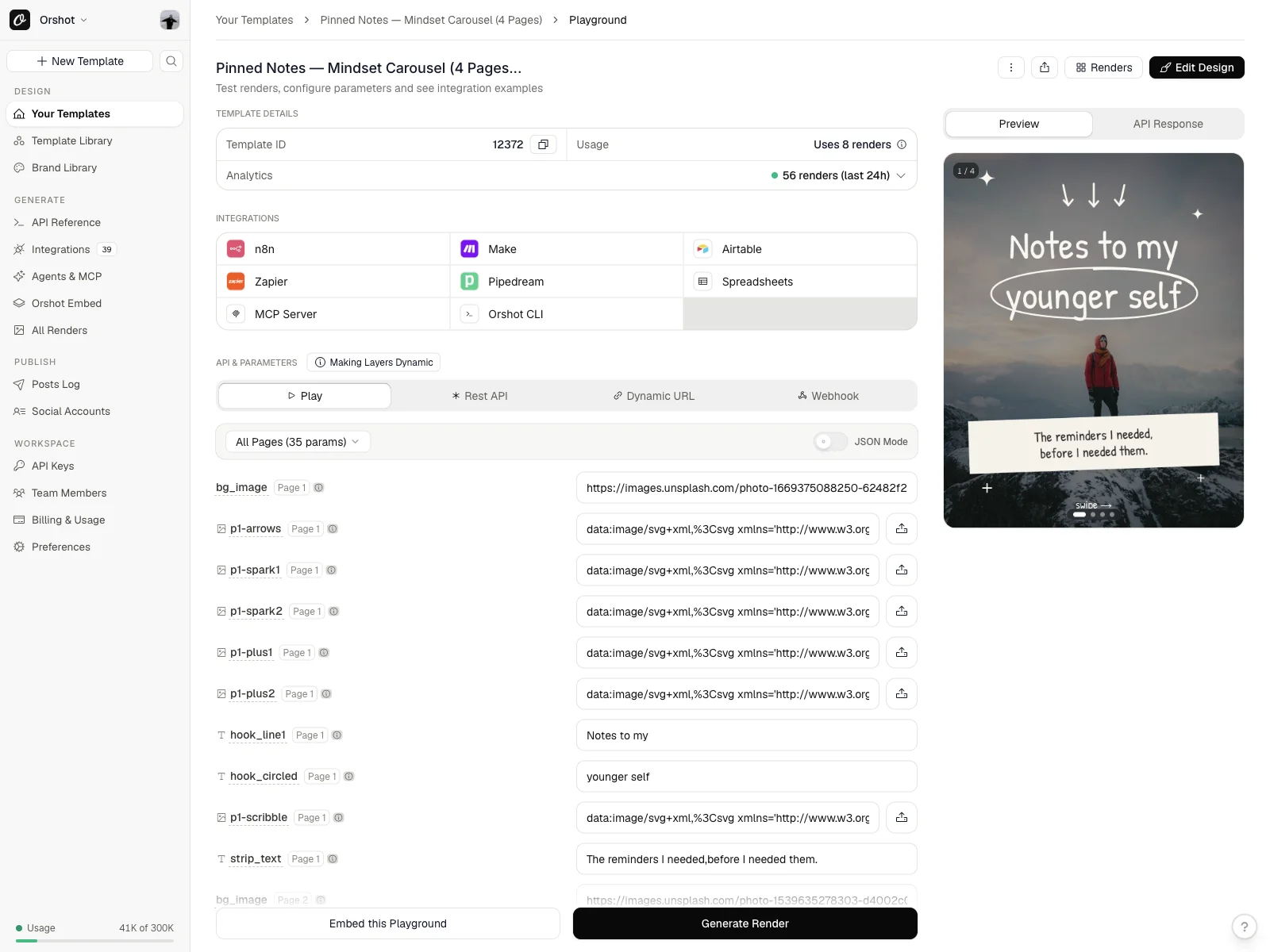
Step 6 — Auto-publish to Instagram as a carousel
Here's the part every render-API competitor leaves you to figure out alone: getting slides posted. With Orshot, the publish object inside the render request handles it — for multi-page templates, all pages are automatically uploaded and posted as a carousel. No extra calls, no Graph API setup, no image host.
First connect Instagram under Social Accounts and copy the numeric account ID:
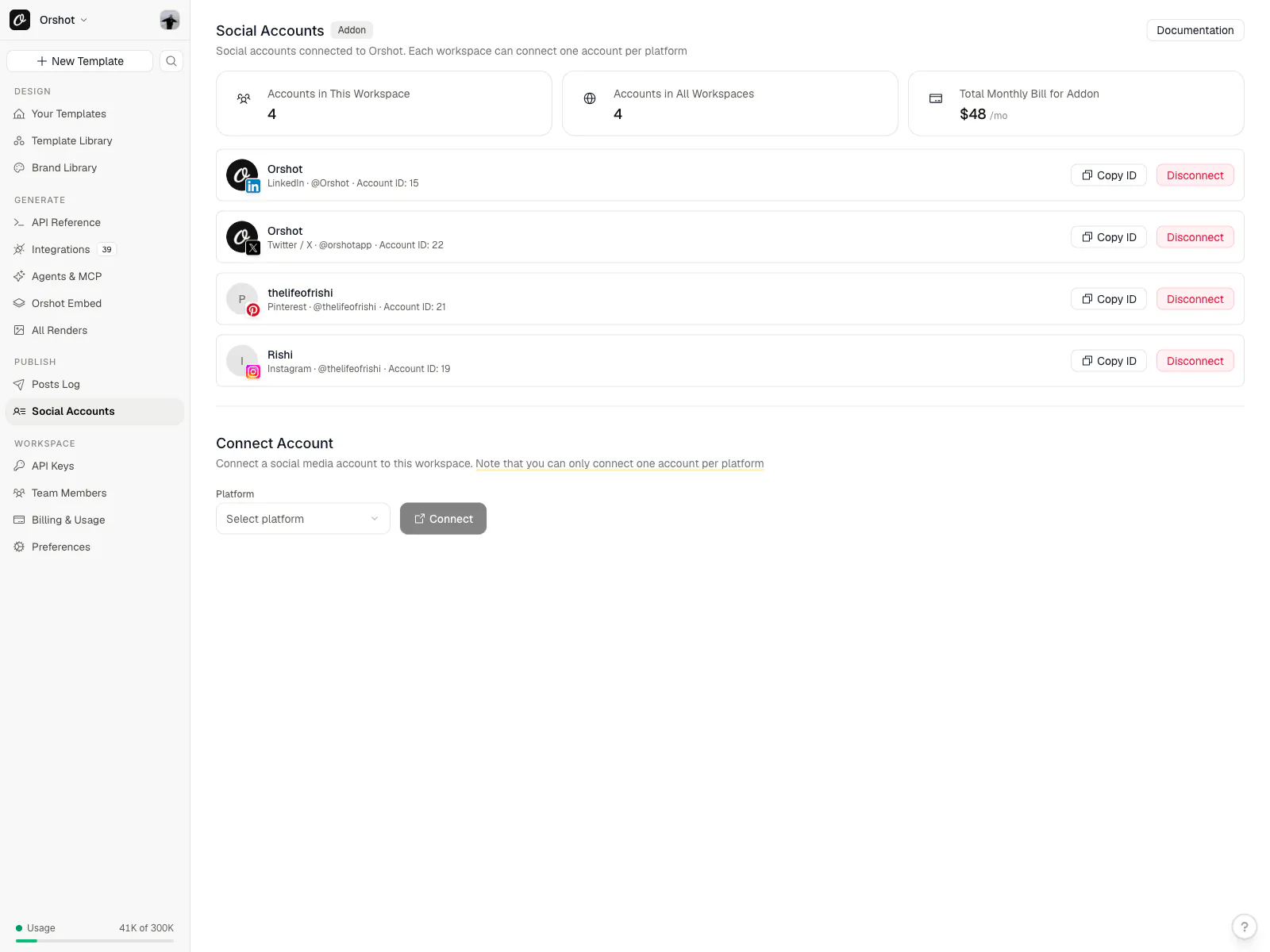
Then the publish block from Step 4 does the rest:
"publish": {
  "accounts": [19],
  "content": "Three notes I'm keeping pinned this week 📌 Save the one you need."
}
The response tells you exactly what happened per account — published, scheduled, or failed — and you can pass schedule.scheduledFor to queue the post for a specific time instead of publishing immediately. The same block works for LinkedIn, X, Pinterest and the rest of the supported platforms; video formats publish as reels.
Test safely: while you're experimenting, leave
publishout entirely (you'll get render URLs back, nothing is posted) — or keepaccounts: [0], which fails harmlessly. Add your real account ID only when the renders look right.
Make it run on its own
Flip the scenario's scheduling toggle on and Make checks the Sheet on an interval (every 15 minutes on the free plan). From then on the workflow is: write a row → carousel appears on Instagram. Your "posting tool" is a spreadsheet.
Writing rows is also automatable — anything that can add a Google Sheets row can now post carousels: a form tool, an automation from your CMS, or an LLM that drafts next week's notes straight into the sheet.
Prefer to skip Make entirely? This same Sheet-to-carousel pipeline ships as a ready-made workflow inside Orshot. Click Use this workflow and it shows up in your workspace with the trigger, render, and publish steps prewired, waiting to be pointed at your sheet.
Bulk-create a month of carousels
Because the trigger processes rows in order, batching is just… pasting rows. Drop in 30 rows, set the limit to 1 per cycle, and the scenario drips one carousel per run; or temporarily raise the limit and schedule posts at specific times with schedule.scheduledFor per row (add a post_at column and map it).
For one-off bulk runs without Make at all, the same render endpoint accepts the rows from any script — see bulk image generation for the spreadsheet-only version of this pattern.
What it costs
Honest math: Make's free tier (1,000 operations/month) is far more than this needs — a daily carousel uses ~60 operations a month. On the Orshot side, each rendered page costs 1 credit, and the free tier's 100 credits a month are enough to build, test, and post your first week of carousels before paying anything. No other tools, hosts, or per-seat design licenses are involved — that's the point.
What this can't do (yet)
- Instant triggers. Google Sheets polling means minutes, not seconds, between row and post. For real-time, swap the trigger for a webhook.
- Per-slide captions or alt text. The caption applies to the whole carousel post, not individual slides.
- Design changes from the Sheet. The spreadsheet changes content, not layout. New look = edit the template (once).
- Engagement. This posts; it doesn't reply to comments or analyze performance. Pair it with your analytics tool of choice.
Prefer n8n? Same flow, two nodes
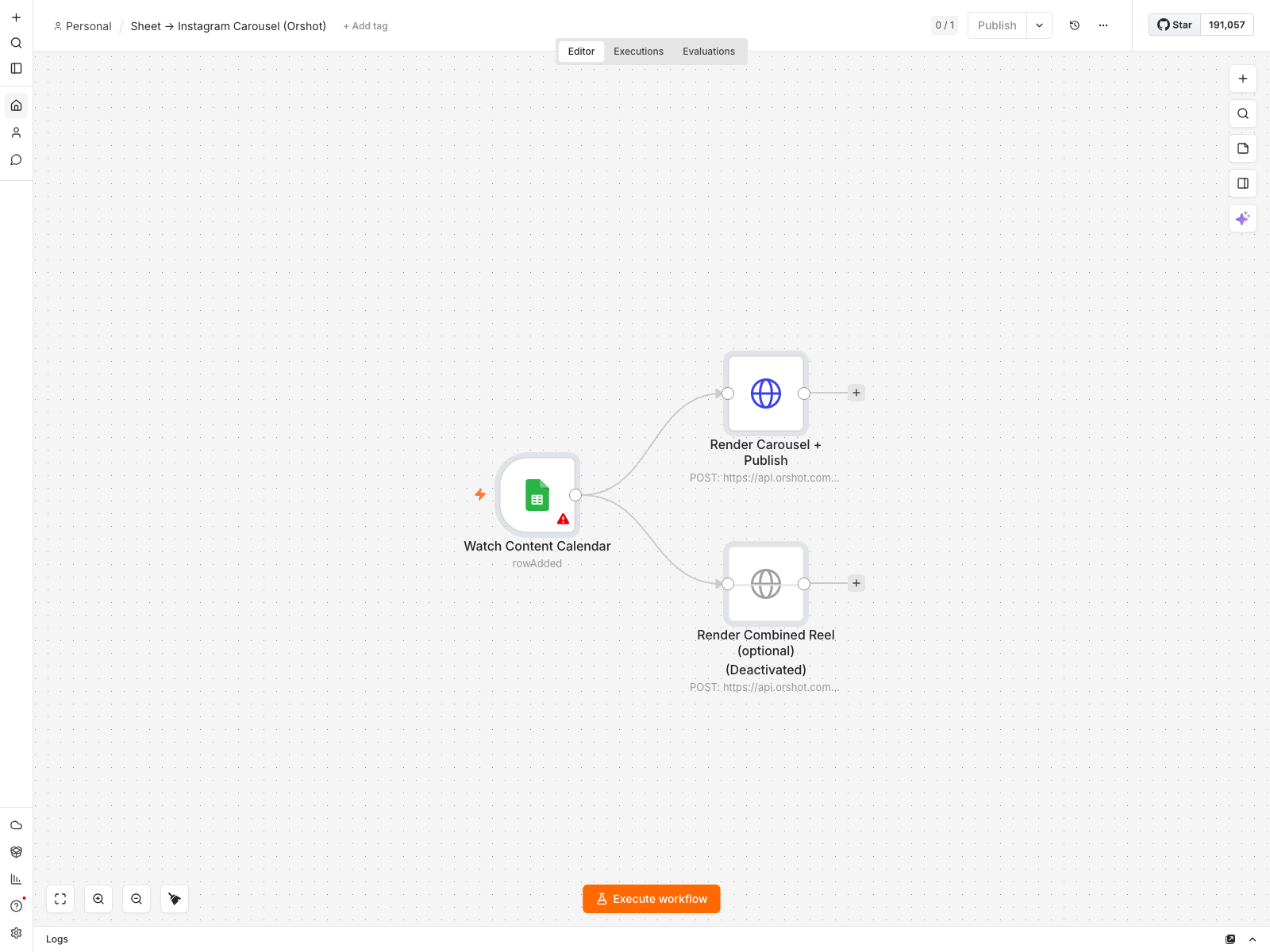
If your automations live in n8n, the identical pipeline is a Google Sheets Trigger plus one HTTP Request node — download the workflow JSON and import it. It ships with a third, deactivated node that renders the combined video, so nothing fires until you enable it:
For a deeper n8n walkthrough (including rendering image + video variants and posting to LinkedIn), see the full n8n marketing automation tutorial.
FAQ
Can you fully automate Instagram carousels end to end?
How many slides can an Instagram carousel have?
Can an Instagram carousel mix images and videos?
Do all carousel slides need the same aspect ratio?
Should I use Make or n8n for this?
Why use a template render API instead of an AI image generator?
Can I schedule carousels instead of posting immediately?
Do I need a Facebook/Meta developer app to auto-post?
How do I turn the carousel into a single video or reel?
What happens if a render or post fails?
The bottom line
A carousel-a-day habit is one of the highest-leverage formats on Instagram — and the actual bottleneck was never ideas, it was production. With a designed template, a Sheet, and two Make modules, production rounds to zero: the same row becomes branded slides, animated reels, or one combined video, posted without you touching a design tool.
Design your carousel template once, connect your sheet, and let the calendar post itself — start free with 100 credits a month.