





← All Workflows

Turn your Notion content calendar into LinkedIn carousels

Add a page to your Notion calendar and a finished carousel posts to LinkedIn as a PDF document, with the post link written back to the page.

See all workflows
Trigger1New/updated page in NotionRun when a page is added or edited in a database.
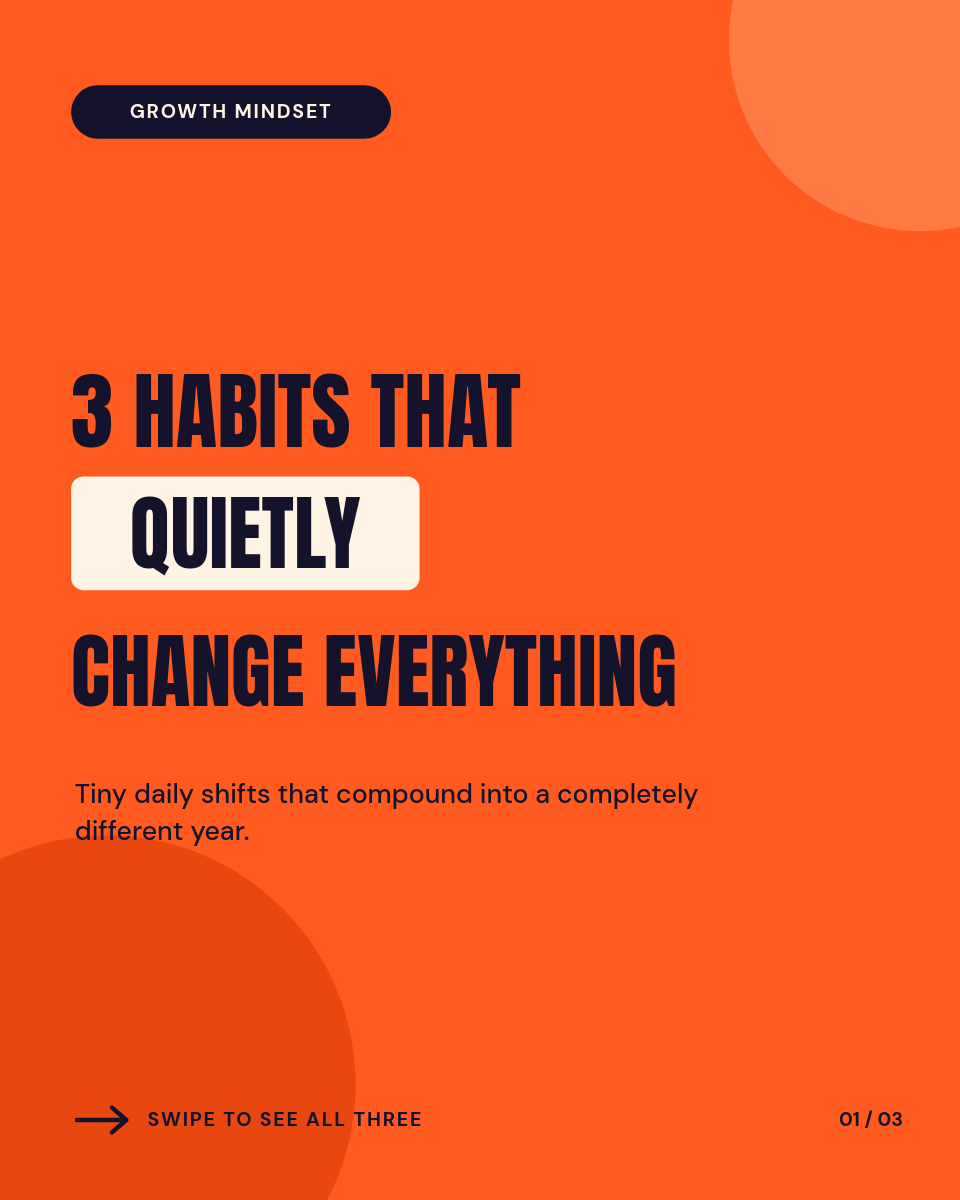
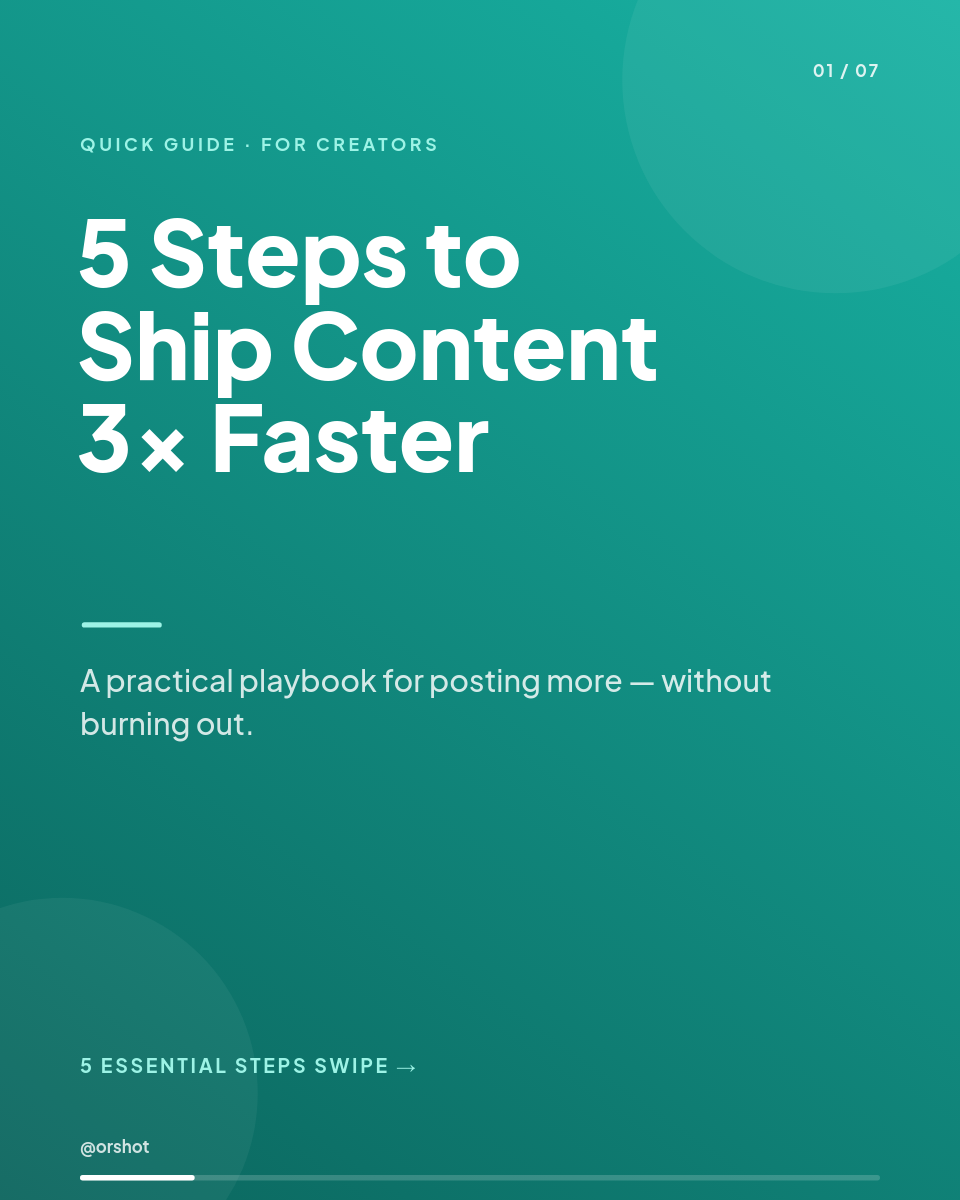
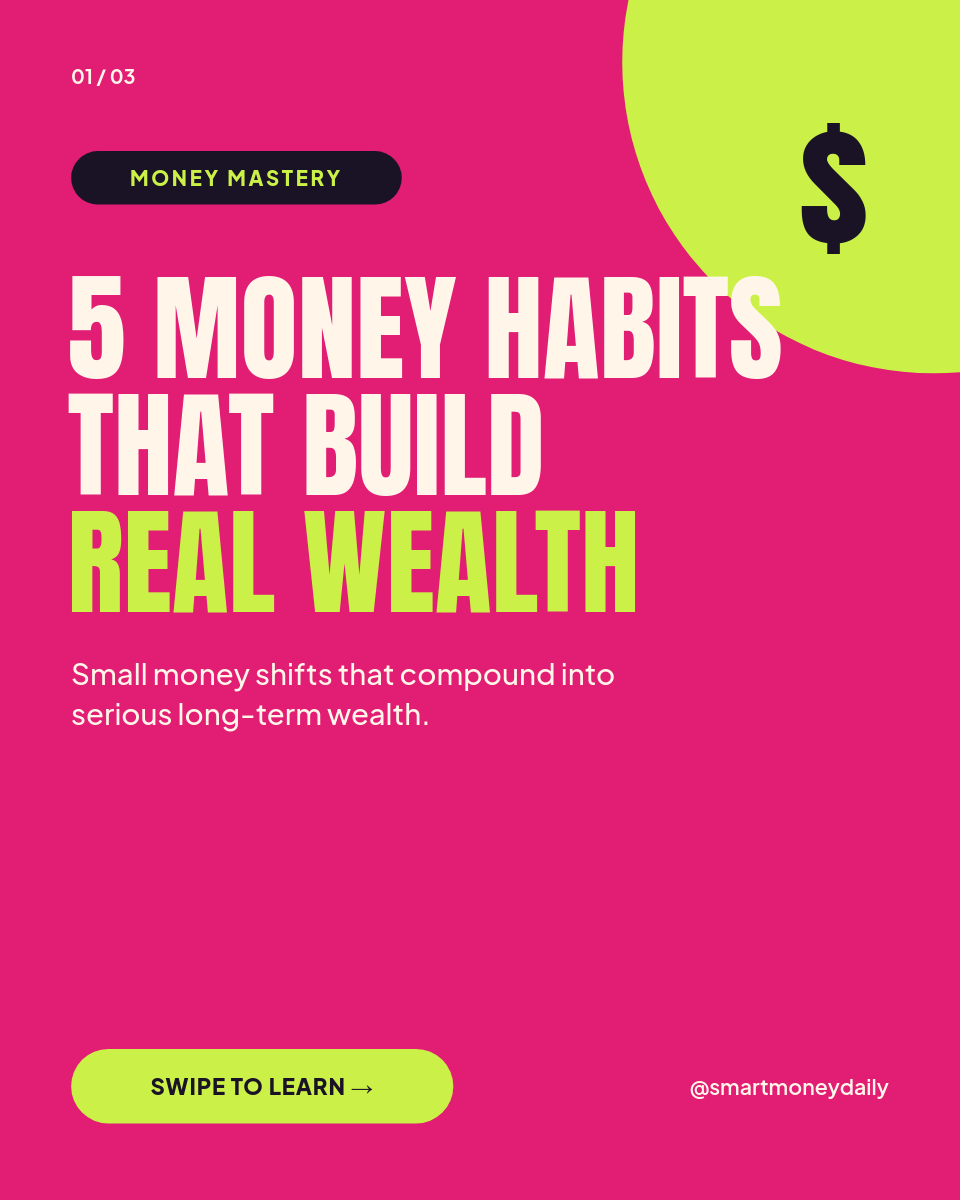
Render2Bold Red Reading-List Carousel — Anton Condensed Caps, Yellow Circle & Swipe System, 6 SlidesExample template. Swap in your own design.
Destination3Post to LinkedInPublish each render to LinkedIn.
Destination4Write to NotionWrite results (like the render URL) back to the source page.

Draft in Notion, publish to LinkedIn

If your content calendar already lives in Notion, the last thing you want is a second place to manage carousels. This workflow keeps Notion as the one source. You draft the post as a page, and Orshot renders it into a native LinkedIn carousel, posts it, and writes the link back so the page shows exactly what shipped.

What happens when you add a page

  1. You add a page to your Notion content calendar, with the slide copy in its properties.
  2. Orshot renders a PDF carousel, filling each slide of your template from that page.
  3. LinkedIn publishes it as a native swipeable document.
  4. The post link is written back onto the same Notion page, so the calendar records where it went.

Because the new page is the trigger and the data at once, there is no export, no spreadsheet, and no copying links between tools.

Who runs it this way

Content and social teams
The Notion calendar they already plan in becomes the publish button, with the live link written back for reporting.
Founders and creators
Draft a carousel between meetings, mark it ready, and let it post itself without opening LinkedIn.
Agencies
Client calendars in Notion drive posting, and every published link lands back on the page for approval trails.
Marketing managers
One database runs the whole carousel cadence, so nothing slips between planning and publishing.

Plan where you already plan, and let the page you add do the rest.

How it works, step by step

  1. Set up your Notion database

    Use the content calendar database you already keep, with properties for each slide's text, like a hook, points, and a CTA.

  2. Connect the carousel template

    Choose a multi-page carousel template and map each Notion property to the matching slide.

  3. Connect LinkedIn

    Link the LinkedIn profile or page you want carousels posted to.

  4. Add a page to trigger it

    When a new page appears, the workflow renders a PDF carousel, posts it, and writes the post link back to that page.

Frequently asked

How do I publish LinkedIn carousels from Notion?

Keep your content calendar as a Notion database and map each page's properties to the slides of a carousel template. When you add a page, this workflow renders a native PDF carousel, posts it to LinkedIn, and writes the post link back onto the Notion page so your calendar stays the record of truth.

Does adding a page really trigger the post?

Yes. The workflow watches your Notion database for new pages. Each new page is the carousel, so there is no separate spreadsheet or upload step. Draft it in Notion and it goes out.

Where does the post link end up?

Back on the same Notion page. After the carousel posts, the workflow writes the LinkedIn URL into the page, so your calendar shows what shipped and where without you copying links around.

Can I hold a page as a draft first?

Yes. Only pages that meet your trigger conditions post, so you can keep works in progress in a different status and let the workflow act on the ones marked ready.

Do all my carousels stay on brand?

Yes. Every carousel renders from the same template, so fonts, colors, and layout are identical from one page to the next no matter who drafted the copy.