Orshot templates can now color grade the photos and videos inside them, in Studio or through the API. Adjust light and color on one layer, pick one of 12 looks, or grade every photo on a page at once.
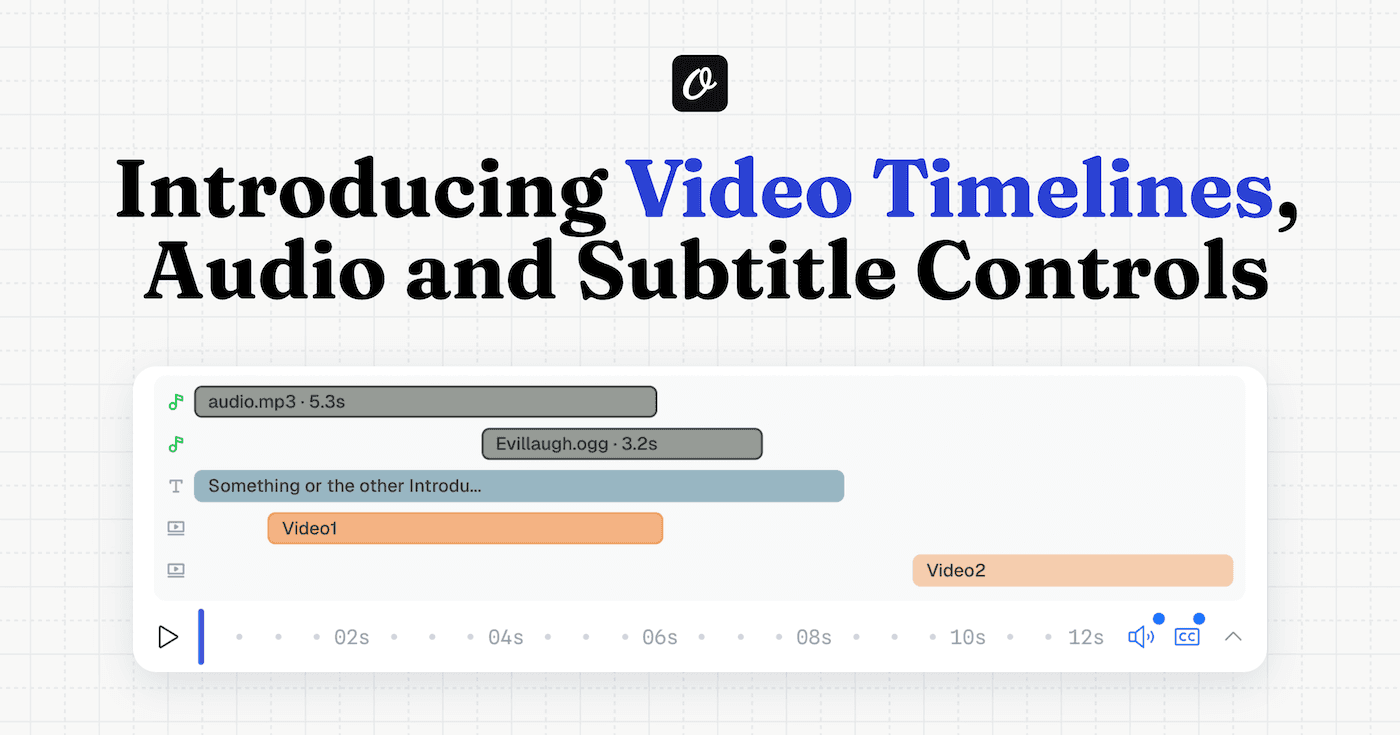
The launch film below was built through the Orshot MCP from real Studio screens. It also has the second change in this update: sound picked by the motion, with the same click on every press.
AI agents that build templates with Orshot now grade their photos to match the design.
All 286 sound effects in the Audio Library were also measured and labelled with the motion they fit. An agent now uses one sound per action, only on the moments that matter.
Adjust Light and Color on a Photo
Select a photo or video layer in Orshot Studio and open Edit image (or Edit video), then Adjust. The Adjust tab groups the sliders the way photo apps do:
- Light: exposure, brightness, contrast, highlights, shadows, whites, blacks and fade.
- Colour: saturation, vibrance, temperature, tint, hue, grayscale and sepia.
- Colour wash and Duotone to pull a photo into your brand colors.
- Finish: vignette, sharpen and grain, plus an overall strength.
A dot marks every slider you changed, and its reset button takes the change back out. The same grade engine draws the canvas and the render, so the API returns what you see.

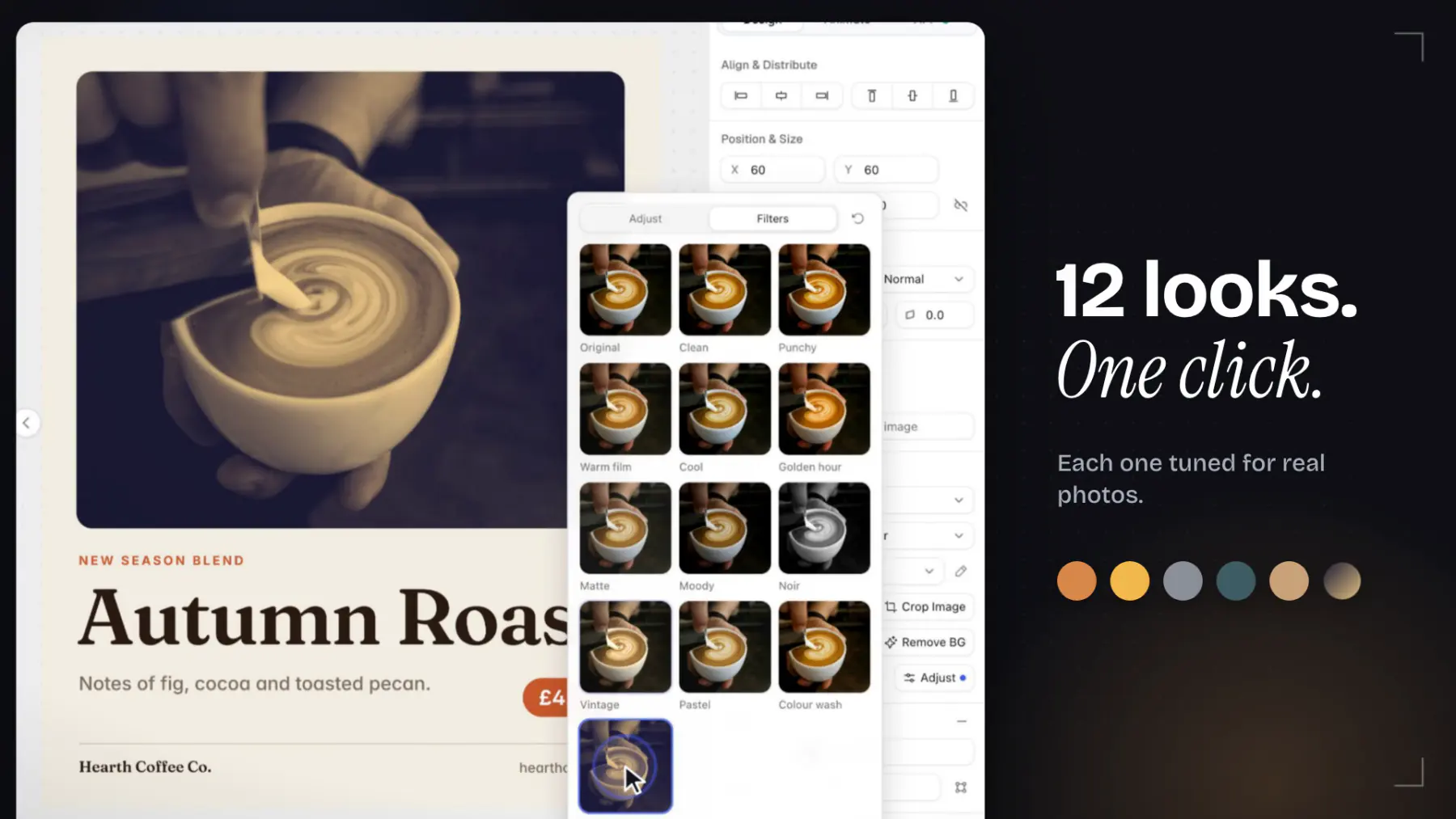
Pick One of 12 Looks
The Filters tab shows 12 looks previewed on your own photo: clean, punchy, warm film, cool clean, golden hour, faded matte, moody, noir, vintage, pastel, brand wash and brand duotone. A strength slider sets how far the look goes.
A look is a starting point. Any slider you move after picking it overrides that one value, so "warm film, but a little brighter" is two clicks.
Grade Every Photo on a Page at Once
A page grade colors every photo and video on the page with one setting. Open the page's canvas settings and use Photos > Photo grade. A layer's own adjustments still apply on top of it.
Logos, cut-outs and stickers stay as they are. The page grade skips PNG, GIF and SVG layers unless you grade them on the layer itself. In a multi-scene video, a film grade does the same for every scene.

Animate the Grade in a Video
In a video, the grade can move. Open Animate on a photo or video layer and turn on Colour grade under Behaviors. There are 11 effects:
- Colour in: starts black and white, then the color comes in.
- Develop: starts bright and washed out, like a print developing.
- Warm up, Cool down and Fade to mono move the grade and hold it.
- Flash and Light leak add a quick beat on a cut.
Still renders (PNG, JPG and PDF) show the layer's own grade without the animation.
Change the Grade on Every API Render
Every grade value is a style key on the layer, so it works in render modifications like any other field. One template can render the same photo in a different look per request:
{
  "templateId": "<YOUR_TEMPLATE_ID>",
  "modifications": {
    "photo": "https://example.com/new-product.jpg",
    "photo.gradeLook": "warm-film",
    "photo.temperature": 20
  },
  "response": { "type": "url", "format": "png" }
}
That makes the grade part of your automation. A weekly menu post from n8n can go warm in autumn, and a sale banner can switch to your brand duotone. The photo a client uploads still looks like it belongs.

Every key, range and look is listed on the photo grading docs page, including page.grade, film.grade and the grade animations.
Agents Grade Photos to Match the Design
When Claude, ChatGPT or Cursor builds a template through Orshot for agents, Orshot's plan for the design now includes a page grade that matches its palette.
The agent grades every photo on the page with it, so stock photos stop looking like stock.

The grade is one part of why these look designed. The others are real ad details (a deadline sticker, the store line) and fonts that pair.

Agent Videos Now Sound Designed
Sound effects in agent videos used to be the weak part. An agent would put a different click on every press and a pop on every pill, and the video sounded random. Three changes fixed it.
- Every effect is labelled. All 286 sound effects in the Audio Library were measured for loudness and timing. Each one now says which motion it fits (a scene cut, a pointer click, a card entrance), its style (clean, cinematic, playful or edgy) and its length.
- One sound per action. An agent picks the sound for an action once and uses it every time that action plays: every press the same click, every cut the same whoosh. The sound's length matches the motion, so a long light sweep gets a long whoosh.
- Effects only where they matter. Cuts, the hero entrance, presses and the logo get a sound. Supporting motion like pills and fly-ins stays silent. Two effects don't land on the same beat, and a build into a logo is one sound made for it.
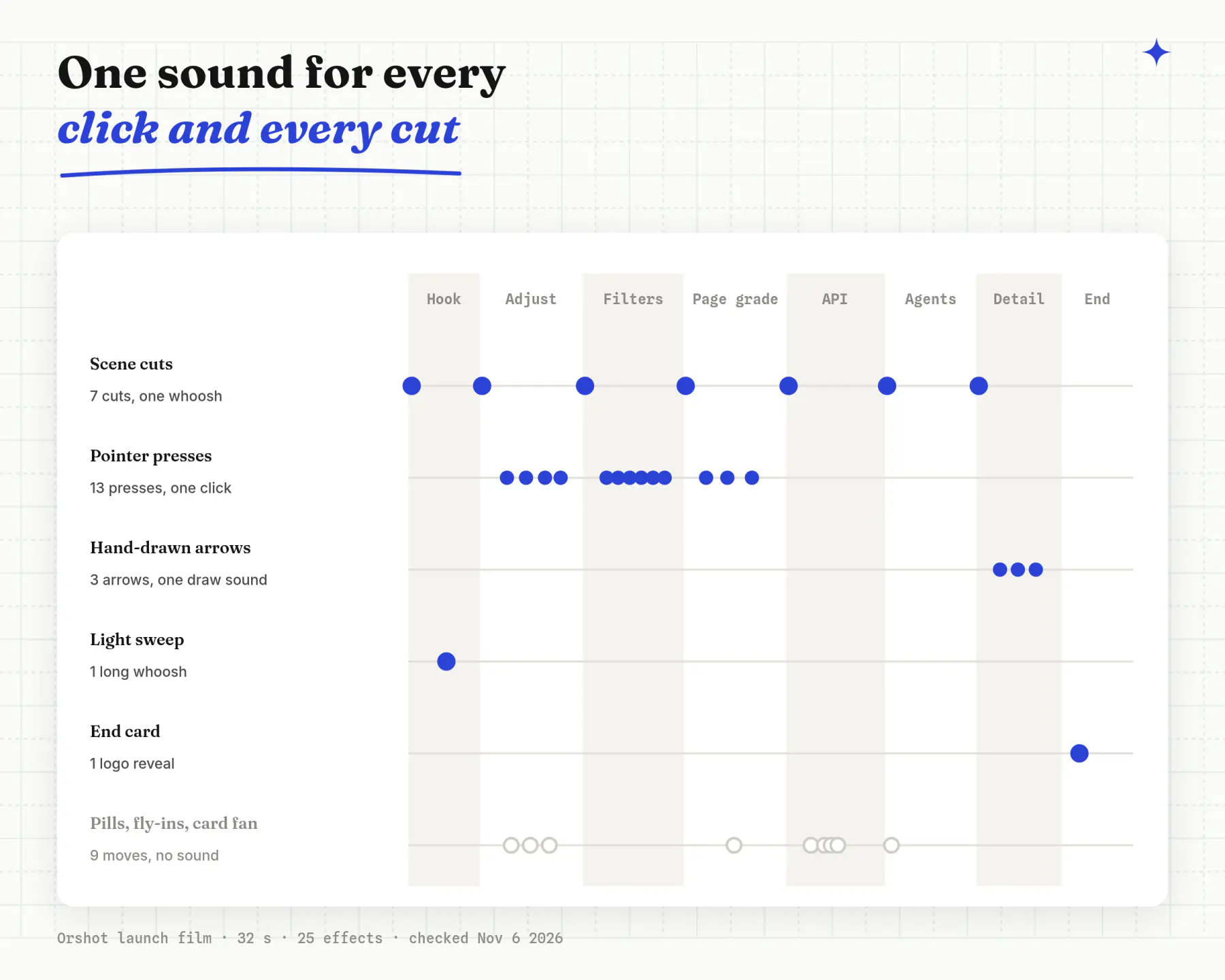
The style follows the video. A launch film or brand video gets cinematic sounds, a product or presentation video gets clean ones, and playful pops are kept for kids, party and fun videos.
Agents check their own work. Orshot's design check flags presses that click only some of the time, two sounds stacked on one moment, or more effects than a scene can carry. The agent fixes them before you see the video.
This builds on the films, transitions and Audio Library from the improved video templates update.
What Stays the Same
- Templates without a grade render exactly as before. Nothing changes until you set a grade.
- Templates you already made keep their sounds. The new labels change which sounds agents and searches pick from now on.
- Grading works on photos and video. SVG art is never graded.
Open any template in Orshot Studio, select a photo and press Adjust, or ask your agent for a design and see the grade it picks. See pricing for what each plan includes.