Generate Blog Images with Claude or Any Agent
Give your agent a post. It returns the cover, OG image, social sizes and in-article images, with real logos and numbers, on your brand.
100 free credits a month · no credit card · works in Claude, ChatGPT, Codex, Cursor and more
Use the Orshot blog and marketing images skill: https://orshot.com/agents/skills/blog-images.md. Make a cover image and 3 in-article images for this post:
 Claude
 ChatGPT
Your agent reads the skill from /agents/skills/blog-images.md and renders through Orshot. First time? It asks you to sign in once.
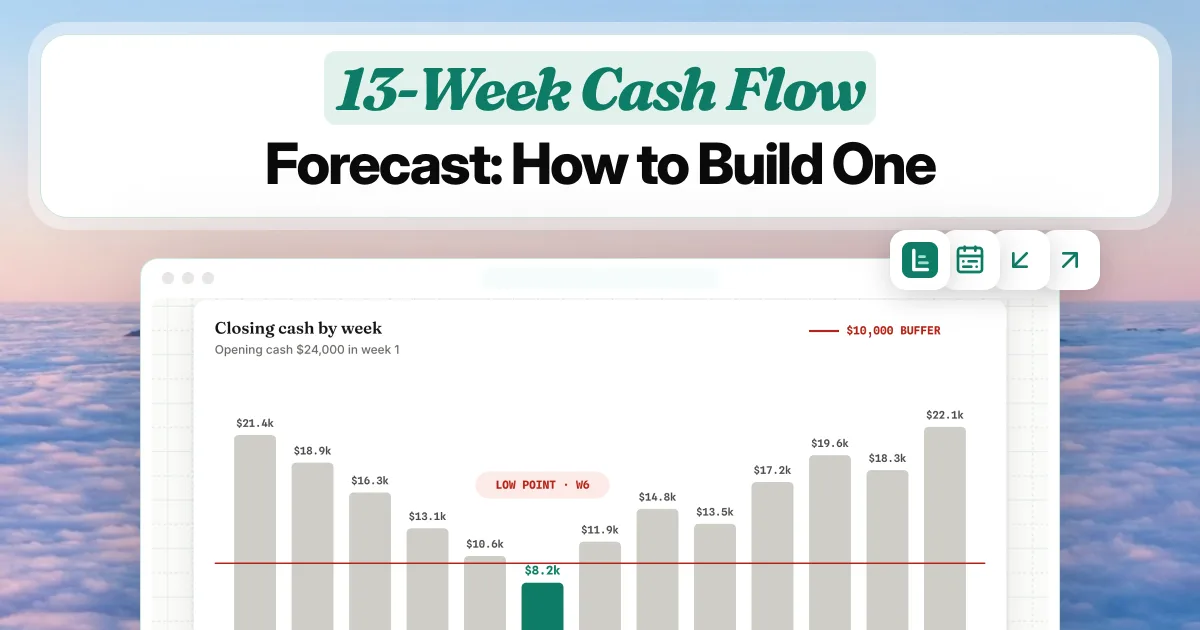
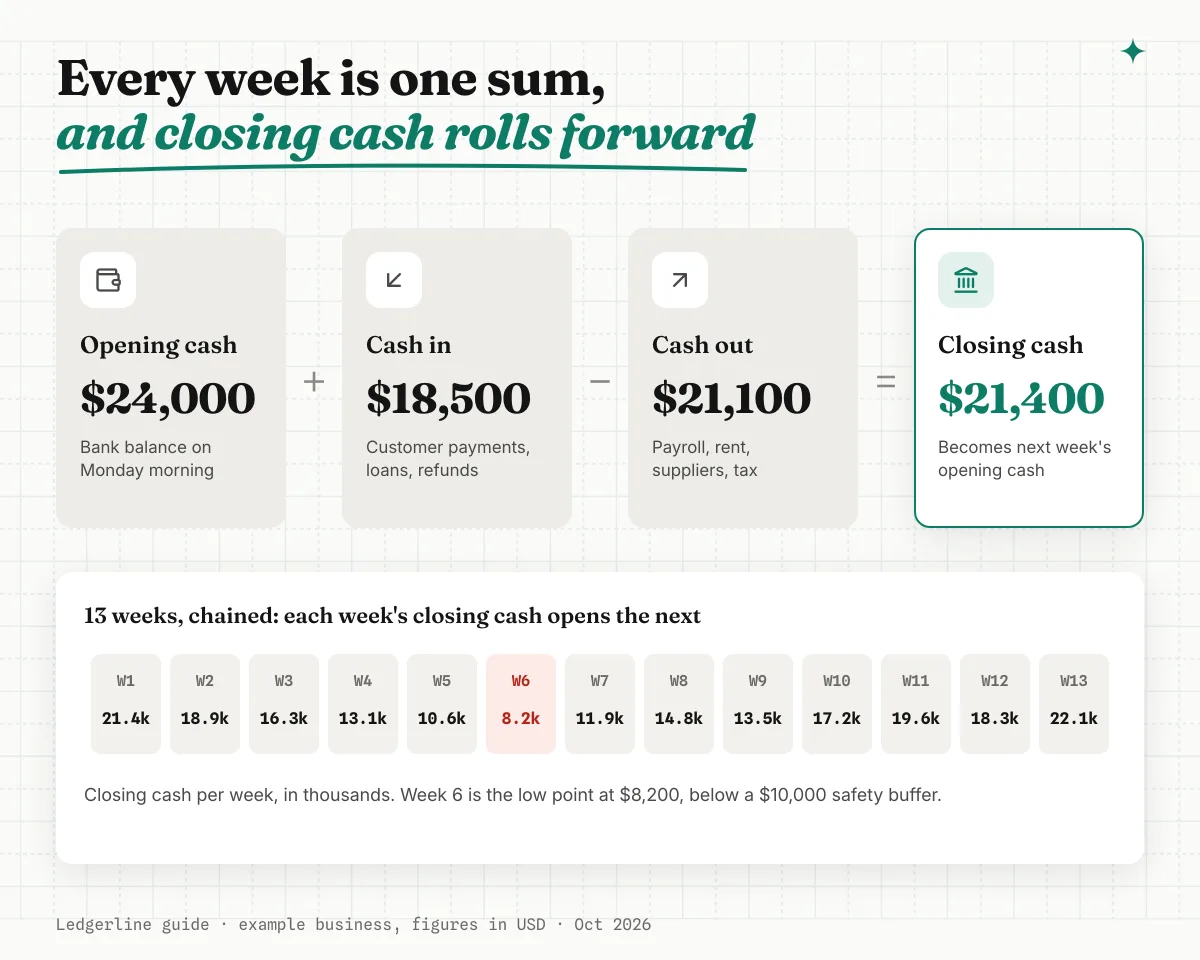
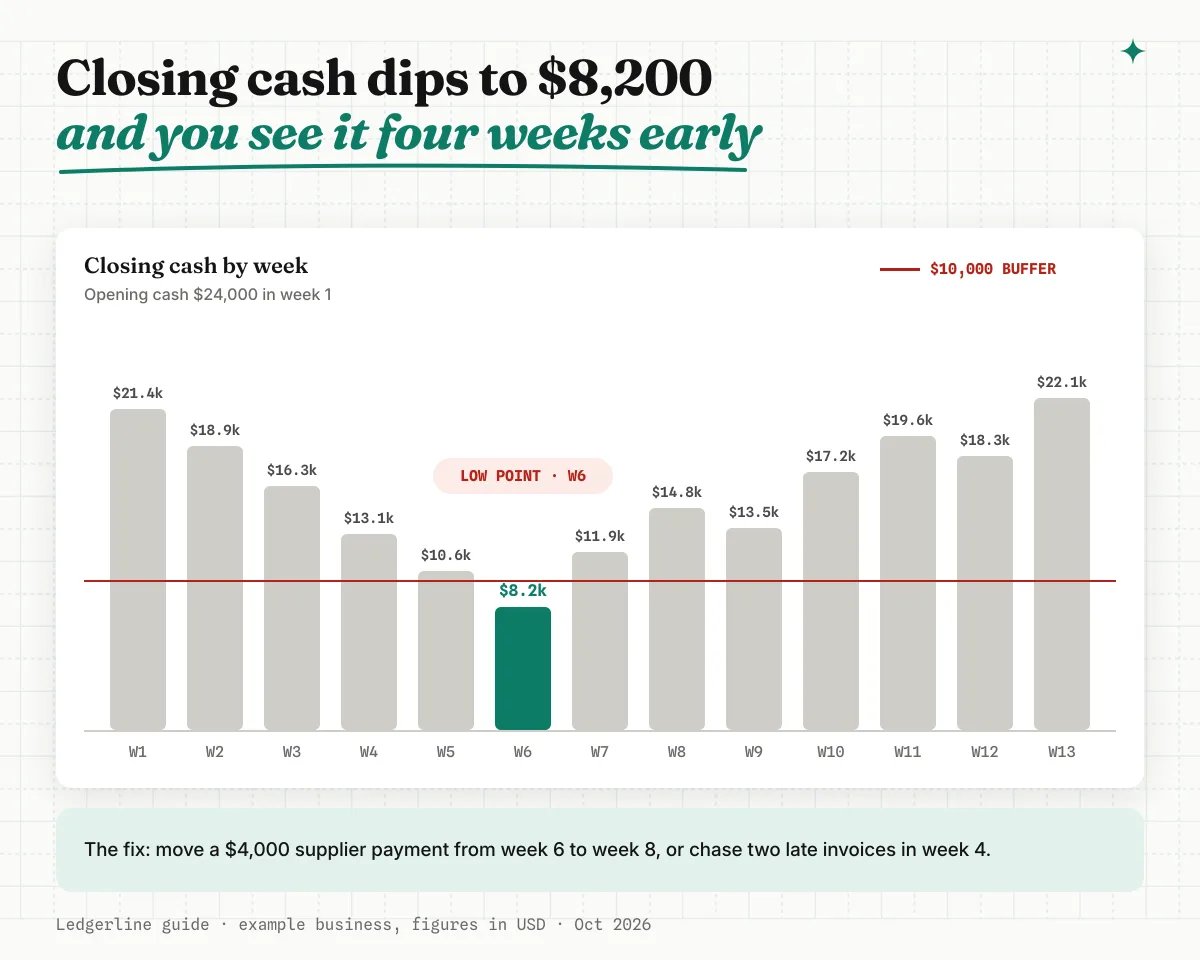
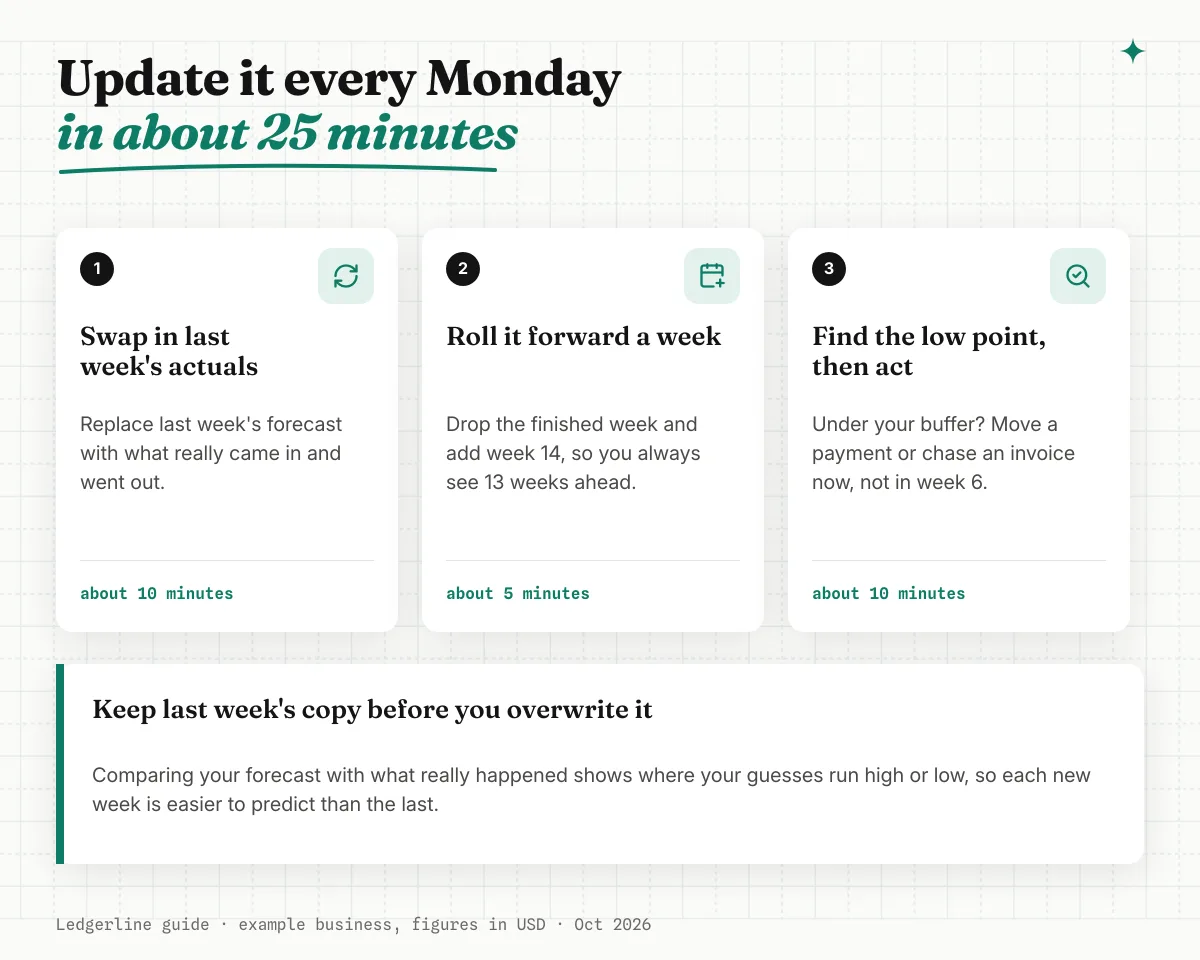
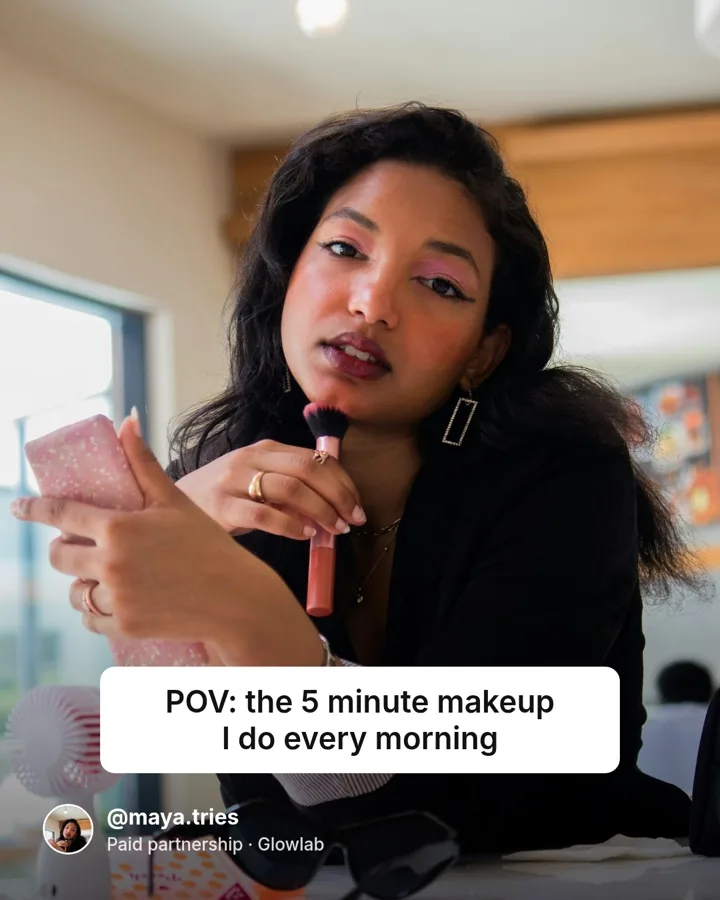
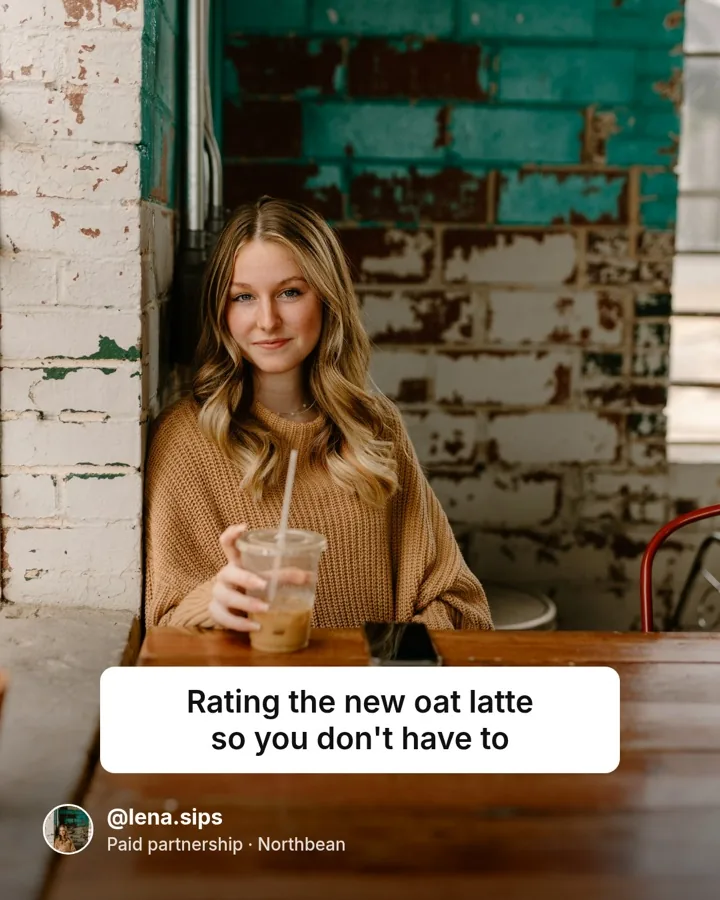
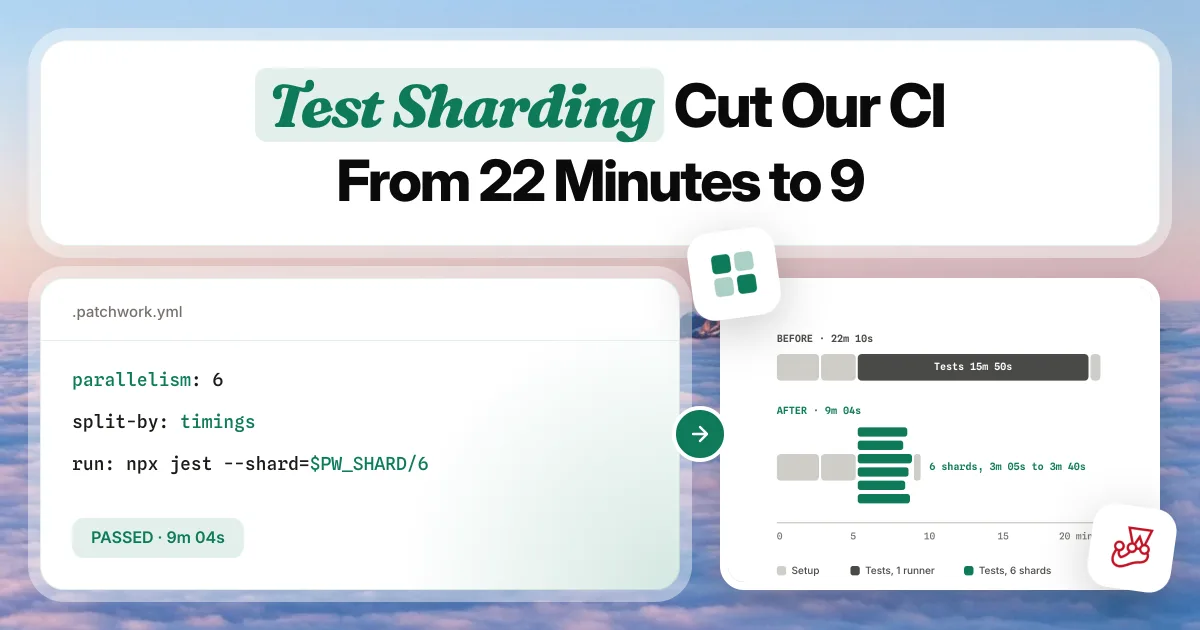
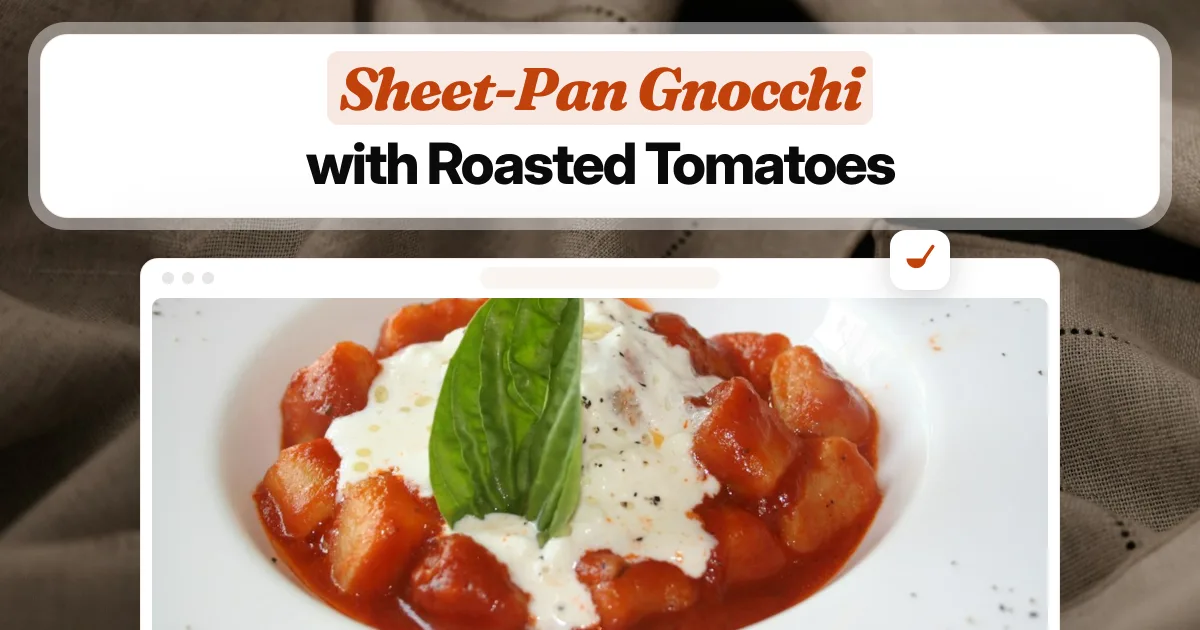
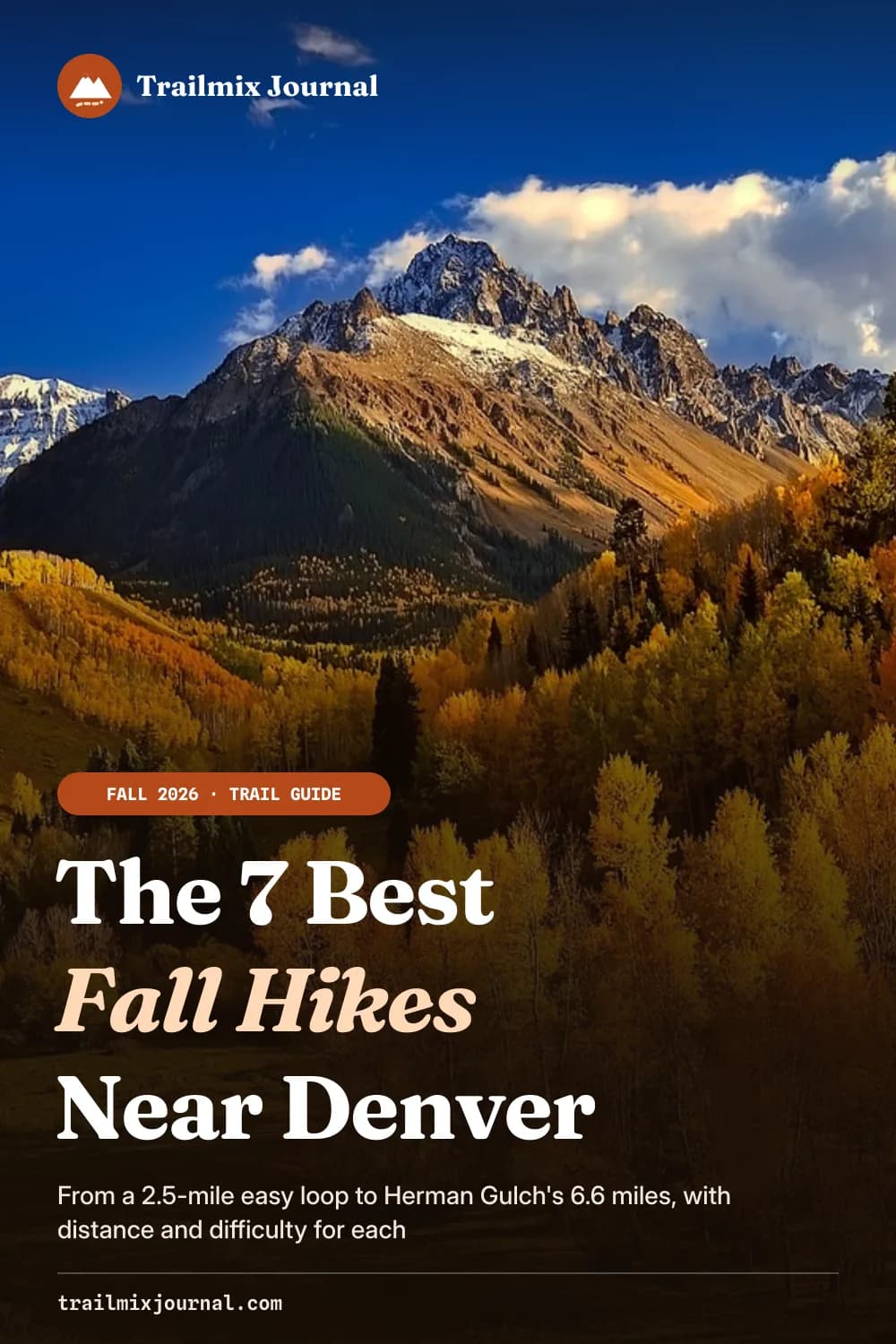
Real outputs, rendered with this skill.
Every image here came from a template and a render call, not from a mockup. Drag or scroll the row, and click one to see it full size.

What your agent does, step by step.
The skill tells the agent which Orshot tools to call and in what order. You see each result before the next step.
- Step 1
Reads the post
Finds the keyword for the cover and the 3 to 6 moments that need an image: the answer at a glance, then one per main section.
your draft, file or URL - Step 2
Takes your brand
Pulls colors, fonts and logo from your brand kit, or scans your website once, and plans the palette and type for the set.
orshot_get_brand_kitorshot_scan_brand_websiteorshot_plan_design - Step 3
Renders the cover
Makes a 6-style cover template once, then renders one page per post with the title and the logos the post covers.
 orshot_create_template_designorshot_render_template
 - Step 4
Builds the article set
Writes each image's copy, builds the pages from 7 layouts, checks every thumbnail for overlaps, and saves PNGs with alt text.
 orshot_create_template_designincludeThumbnails
Say it like this. The skill does the rest.
Not for carousels (use the carousel skill), ad creatives (use the ad-creative skill), YouTube thumbnails (use the youtube-thumbnail skill) or a one-off illustration or photo (use an image model skill).
Cover and article images
Use the Orshot blog images skill. Make a cover and 4 in-article images for my post at <URL>. Use my brand kit, save the PNGs to /public/blog/<slug>/ and add alt text.
Covers for old posts
Make covers for my last 10 blog posts with the Orshot blog images skill. Same cover style for all, the post keyword in the chip, and the logos of the tools each post covers.
A comparison image
Turn the pricing table in this post into one in-article image with the compare-rows layout: three volumes, two price pills each, and a source line.
Cover for social too
Render this post's cover, plus LinkedIn, Instagram square and Story sizes from the same design.
- Open Graph image · 1200×630 · PNG
Blog OG image
Create a 1200×630 Open Graph image for our engineering blog: category pill, post title, author photo, date and read time on a dark background with a soft glow.
A cover for every new post. No agent in the loop.
The cover template has dynamic fields, so your CMS, a GitHub Action, n8n, Make or Zapier can render it the moment a post is published and write the URL to the featured image field.
curl -X POST https://api.orshot.com/v1/studio/render \
  -H "Authorization: Bearer $ORSHOT_API_KEY" \
  -H "Content-Type: application/json" \
  -d '{
    "templateId": 123,
    "modifications": {
      "page1@title_line_1": "How to Send Invoices",
      "page1@title_line_2": "Automatically from Stripe",
      "page1@logo_1": "https://cdn.simpleicons.org/stripe/635BFF"
    },
    "response": {
      "type": "url",
      "format": "png"
    }
  }'
How the Orshot blog uses this skill
Every post on orshot.com/blog since October 2026 gets its images this way. One Blog Cover System template holds six cover styles; each post renders one page with its own title and logos.
Each post also gets its own template of 5 to 13 in-article images. When a price or a step in the post changes, we edit that page and render it to the same file name, so the images never go stale.
See a post made with itRead it before you install. It is one file.
This is the SKILL.md your agent loads, word for word. It names every tool call, the layout rules and the gotchas.
Orshot-HQ/orshot-agent-skills---
name: orshot-blog-images
description: "Featured image and OG image generator for blog posts with Orshot: an on-brand cover for every post (WordPress featured image, Open Graph image) plus 3 to 6 in-article images, rendered from templates with the post's real title, logos and numbers. Works with WordPress (the Orshot plugin sets the featured image on publish), Webflow, Ghost, Next.js, Astro and MDX blogs. Sets a cover on each new post through n8n, Make, Zapier or a webhook, fills old posts that have no featured image, gives each page an og:image URL, and resizes the cover for LinkedIn, X and Instagram. Use when: \"make a featured image for this post\", \"generate OG images for my blog\", \"auto-generate featured images in WordPress\", \"add featured images to my old posts\", \"OG image for every page\", \"blog cover image\", \"images for my article\". NOT for carousels (use orshot-carousel), ad creatives (use orshot-ad-creative), YouTube thumbnails (use orshot-youtube-thumbnail) or a one-off illustration or photo (use an image model)."
homepage: https://orshot.com/agents/skills/blog-images
license: MIT
metadata:
author: Orshot
version: "1.1.0"
openclaw:
emoji: "📝"
homepage: https://orshot.com/agents/skills/blog-images
primaryEnv: ORSHOT_API_KEY
requires:
env: []
bins: []
envVars:
- name: ORSHOT_API_KEY
required: false
description: Orshot API key. Only for REST and scheduled jobs. Not needed over the hosted MCP server with OAuth.
---
# Orshot Blog Images: featured images, OG images and in-article images for every post
Give this skill a blog post (a draft, a file or a URL). It returns a cover image and 3 to 6 images that sit inside the article, all on the user's brand, as PNG files ready to drop into the post.
Image models draw pictures; they cannot be trusted with words, numbers, logos or a layout that matches the last 40 posts. Blog images are mostly words, numbers and logos. So this skill designs **templates** once and **renders** them per post with Orshot: the text is real text, the logos are real logos, and post 41 looks like post 1.
- No API key over the hosted MCP server or the Orshot WordPress plugin. Both sign in with OAuth.
- The credit cost comes first. Say it before rendering more than 10 pages.
- Nothing goes live without a yes. Ask before publishing a post or setting a cover on a live one.
## This skill or another?
| The job | Use |
|---|---|
| Featured image, OG image or in-article images for a post or page | This skill |
| Turn the post into Instagram, LinkedIn or TikTok slides | `orshot-carousel` |
| A thumbnail for the video version of the post | `orshot-youtube-thumbnail` |
| Ads in every size from the post | `orshot-ad-creative` |
| A one-off illustration or photo | An image model |
## Example prompts
- "Make a featured image for this post: https://blog.fernleafcoffee.com/cold-brew-ratio"
- "Every time we publish on our Ghost blog, set an OG image with the post title. Build it in n8n."
- "Our WordPress site has 140 posts with no featured image. Make covers for all of them in our brand colors, and show me five before you do the rest."
- "The Tallyhop docs run on Next.js. Give every page its own OG image in the same style as the blog."
- "This post compares three payroll tools. Make the cover and an in-article image for the comparison table."
- "We changed our brand color to green. Re-render every cover and keep the file names."
## What you get per post
| Output | Size | How |
|---|---|---|
| Cover (featured image, OG image) | 1200x630 PNG | One page of the user's Blog Cover System template, rendered with the post's title |
| In-article images | 1200x960 PNG, 3 to 6 | One template per post, one page per image, built from the layouts in `references/blueprints/` |
| Social sizes of the cover (optional) | wide sizes such as `twitter-post`; a page of its own for a Pinterest pin, a square or a story | `extraSizes` for wide sizes, a designed page for tall or square ones |
| Alt text and file names | text | Written by you from the image content |
## Setup
1. Connect the Orshot MCP server at `https://mcp.orshot.com/mcp` (OAuth in the browser, no key). Setup per client: https://orshot.com/docs/integrations/mcp-server.md. Headless or scheduled jobs use REST with `ORSHOT_API_KEY` (example below). The `orshot` skill covers both.
2. Get the brand: `orshot_get_brand_kit`. If it is empty and the user has a website, `orshot_scan_brand_website` with their URL, then use the colors, fonts and logo it finds. Ask before importing anything into their brand kit.
3. `orshot_plan_design` with the brief, `job: "blog cover image for <the post>"`, the size and `on_brand: true`, once per template set: it returns the plan (palette, fonts, type scale) and a layout. Read `orshot_get_design_spec` topic `template-json` once per session; it is the template JSON reference, also at https://orshot.com/docs/definitions/template-json.md. Load the `orshot-design` skill for design craft beyond the style guide here.
## Step 1. Read the post and plan the images
- Find the **keyword**: the 1 to 3 words a reader searched for. It goes in the colored chip on the cover.
- Pick the **cover style** (all six are in one template, see Step 3):
| Page | Style | Best for |
|---|---|---|
| 1 | Prompt card: title in a card over a photo, 4 logo tiles around it | roundups, comparisons, "best X" (default) |
| 2 | Product window: title card over a product screenshot | tutorials, feature posts |
| 3 | Flow: your stack's logos, an arrow, your product, the outputs | integrations, how it works |
| 4 | Output collage: title left, three real outputs fanned right | examples, galleries, templates |
| 5 | Code and result: code card next to the output it made | developer posts, API guides |
| 6 | Prompt chips: a typed prompt with highlighted words, app icons around it | AI and agent posts |
- Plan the **in-article images**: one right after paragraph 1 or 2 that answers the post's question at a glance, then one per main section. Skip a section when an image would only repeat its heading. Each one must show something real (see the style guide).
Pick a layout per image from `references/blueprints/`:
| Blueprint | Shows |
|---|---|
| `article-hero-stat` | the answer: two stat cards plus the real output |
| `article-compare-rows` | a table as cards: label, value A, value B |
| `article-picker-grid` | "pick X by Y": 6 numbered cards with a logo each |
| `article-step-cards` | 3 numbered steps with time or effort |
| `article-before-after-flow` | two pipelines, before and after, as chips with logos |
| `article-request-result` | code on the left, the output it produced on the right |
| `article-side-by-side` | the same thing in two formats or two options |
`references/blueprints.md` lists every blueprint's dynamic fields.
## Step 2. Fit the blueprints to the brand
The blueprints use one accent family. Swap it for the brand's primary color everywhere it appears:
| Blueprint value | Role | Replace with |
|---|---|---|
| `#2B42D4`, `#2B3FC4`, `#4C63F6` | accent (headline line 2, buttons, chips) | brand primary |
| `#E6EAFE`, `#EBEEFB`, `#D9DFF7`, `#E4E7F2`, `#E3E7F8` | accent tint (chip backgrounds, card borders) | brand primary at about 12% on white |
| `#F3F5FE`, `#F4F6FF`, `#ECF0FE`, `#E9EDFF`, `#E2E7FE`, `#D5DCFD`, `#C3CDFB`, `#9DA8F5` | the product window's mesh gradient | the brand tint, lighter to darker in the same order |
| `rgba(76,99,246,...)`, `rgba(43,66,212,...)`, `rgba(233,237,255,0)` and the other transparent blues | glow | brand primary, same alpha |
| `#FCE4EE` | prompt chip highlight | a second, lighter brand tint |
| `{{LOGO_URL}}` | the user's logo | brand kit logo `direct_url`; no logo file, hide the layer with `.opacity: "0"` |
| `{{PRODUCT_IMAGE_URL}}` | a real product screenshot or output | a brand kit image, a screenshot, an Orshot render, or the post's own photo. A logo tile covers its top-left corner, so crop to the part that matters. When it is one of the post's in-article images, make those first |
| `stock://unsplash/photo/uae3DujB2lw` | cover background photo | keep, or `orshot_search_stock_media` for another: a `stock://` ref works inside the template, while a render-time modification needs the URL from `orshot_use_stock_media` |
Keep the inks (`#141414`, `#4A4A48`, `#6B6A66`) and the warm greys. Fonts: Fraunces for headlines and Inter for body work for most brands; swap to the brand kit fonts if the brand has a display font. Logos of other tools: `https://cdn.simpleicons.org/<name>/<hex>` or the favicon URL `https://t3.gstatic.com/faviconV2?client=SOCIAL&type=FAVICON&fallback_opts=TYPE,SIZE,URL&url=https://<domain>&size=256`.
## Step 3. The cover: one template, made once, rendered per post
1. `orshot_list_studio_templates` with search `Blog Cover System`. Found it? Skip to 3. One system per brand or blog: a workspace with two blogs gets `Blog Cover System (<brand>)` for each.
2. Create it once: `orshot_create_template_design` named `Blog Cover System`, `pages_data` = the six `cover-*.json` blueprints in the order of the table above, brand swaps from Step 2 applied, `includeThumbnails: true`. Look at the six thumbnails. Fix real problems with one `orshot_update_template_design` call.
3. Render one page per post. REST body below; over MCP, `orshot_render_template` takes the same `modifications` with `format`, `scale`, `includePages` and `extraSizes` as top-level arguments.
```json
{
"templateId": 123,
"modifications": {
"page1@overline": "<span style=\"background-color:#E6EAFE;border-radius:999px;padding:6px 14px\">Guides</span>",
"page1@title_line_1": "How to Send <span style=\"background-color:#E6EAFE;border-radius:12px;padding:0px 12px;font-family:Fraunces;font-style:italic;font-weight:800;color:#2B3FC4\">Invoices</span>",
"page1@title_line_2": "Automatically from Stripe",
"page1@logo_1": "https://cdn.simpleicons.org/stripe/635BFF",
"page1@logo_2": "https://cdn.simpleicons.org/gmail/EA4335",
"page1@logo_3": "https://cdn.simpleicons.org/googlesheets/34A853",
"page1@logo_4": "https://cdn.simpleicons.org/zapier/FF4F00"
},
"response": { "type": "url", "format": "png", "scale": 2, "includePages": [1] }
}
```
Title rules: line 1 holds the keyword chip, line 2 finishes the promise. 8 words or fewer in total. Fewer logos? Hide a slot with `"page1@logo_4.opacity": "0"` and `"page1@tile_4.opacity": "0"`.
Want the cover for social too? For a wide size, add it to `extraSizes` (inside `response` over REST, a top-level argument over MCP). Smart Resize keeps the layout and scales it, so a tall pin, a square or a story leaves the cover small in empty space: add a page designed for that size to the template instead (full-bleed photo, large title). Presets and the response shape: https://orshot.com/docs/api-reference/render-from-studio-template.md#smart-resize.
Photo-led posts (recipes, travel, roundups of places): use the Product window or Prompt card with the post's photo, hide the tool tiles with `.opacity: "0"`, and move the crop with `<image layer>.objectPosition`, such as `"50% 85%"`.
## Step 4. In-article images: one template per post
1. Write the copy for each planned image first: a two-line headline (line 2 is the takeaway, in the accent italic), the cards' text, and a footer line with the source and the month. 60 words or fewer per image.
2. Build the pages: start from each chosen blueprint, replace every text and image with the post's real content, keep the positions, and apply the Step 2 swaps. Delete cards you do not need and re-space the rest so no card is half empty. Rules in `references/style-guide.md`.
3. `orshot_create_template_design` named `Blog: <post slug> images`, all pages in one call, `includeThumbnails: true`.
4. Look at every thumbnail. Check: nothing overlaps, nothing wraps badly, no text under 14px, at least one real visual per image. Fix with one `orshot_update_template_design` (`page_operations`) call.
## Step 5. Render and save
- `orshot_render_template`, PNG, `scale: 2`. Over MCP, one call renders every page; the result has one URL per page.
- Look at each render before saving it. Re-render rather than ship an overlap.
- Save next to the post: `<images dir>/<post-slug>/<name>.png` (in-article) and `<images dir>/<post-slug>.png` (cover). Use the blog's own folder (`public/blog/` in Next.js, the media library in WordPress, `content/images/` in Ghost).
- Optional, smaller files: `cwebp -q 85 in.png -o out.webp` for in-article images; covers stay PNG for social previews (resize to 1600 wide and compress to about 250 KB).
- Write alt text that names what the image shows: "Three cards comparing Stripe, Paddle and Lemon Squeezy fees at 1,000 sales a month".
- Put the cover in the post's frontmatter (`image`, `cover`, `featured_image` or `og:image`, whatever the blog uses) and each in-article image right after the paragraph it belongs to.
## Automate it: one cover per new post
The cover template has dynamic fields, so any job can render it. Pick the road by where the blog lives. Each docs path opens as `https://orshot.com/docs/<path>.md`.
| Blog runs on | Road | Docs |
|---|---|---|
| WordPress | The Orshot WordPress plugin. The user installs it, connects it under Settings > Orshot (OAuth), turns on Auto Featured Image, picks a page of the Blog Cover System and maps Post Title to the cover's text field. It renders when a post is published or updated, adds the file to the Media Library and sets it as the featured image. Its Open Graph option writes the `og:image` tag. | `integrations/wordpress` |
| Webflow | An Orshot Workflow from the preset "Give every Webflow CMS item its own Open Graph image". It writes each render onto the item's Image field. Bind the collection's Open Graph image to that field once in Webflow. | `integrations/webflow` |
| Ghost, or WordPress through n8n, Make or Zapier | Render over REST (below), upload the file to the CMS, then set the cover. | the CMS's own API docs |
| Next.js, Astro, Lovable or any site you deploy | A dynamic image URL in the `og:image` tag (section below). No render step at publish. | `integrations/dynamic-urls` |
| MDX in a repo | A GitHub Action on new MDX files renders the cover and saves it next to the post. | this page |
The REST road, from a CMS webhook, n8n, Make or Zapier:
```bash
curl -s -X POST https://api.orshot.com/v1/studio/render \
-H "Authorization: Bearer $ORSHOT_API_KEY" -H "Content-Type: application/json" \
-d '{
"templateId": 123,
"modifications": {
"page1@title_line_1": "How to Send <span style=\"...\">Invoices</span>",
"page1@title_line_2": "Automatically from Stripe"
},
"response": { "type": "url", "format": "png", "includePages": [1] }
}'
```
The response holds the image URL. Credits per render: https://orshot.com/docs/definitions/credits-usage.md. Then:
1. **Upload before you set the cover.** WordPress takes a media id, not a URL, for the featured image: upload the PNG to the Media Library (`POST /wp-json/wp/v2/media`), then set the post's `featured_media` to the id it returns. Ghost's n8n node does not take an external image URL as the feature image: upload the PNG with Ghost's Admin API image upload, then set `feature_image` to the URL Ghost returns.
2. **One render per post.** Fire only when the post has no featured image yet, so a hand-made cover is never replaced. Write the URL or media id back to the post right away, so a retried webhook does not render twice. The pattern: "Run once per item" in the `orshot` skill's [`references/recurring-automation.md`](https://github.com/Orshot-HQ/orshot-agent-skills/blob/main/skills/orshot/references/recurring-automation.md).
3. **Review before it goes live.** For a fully automated blog, set the cover while the post is still a draft and send the user the image URL. Publish only after a yes.
## Backfill: covers for old posts
1. List the posts that have no featured image (the WordPress or Ghost API, the Webflow collection, or MDX files with no cover field). Tell the user the count and what the run costs in credits.
2. Render the first 3 to 5, show them, and wait for a yes.
3. Render the rest: `orshot_batch_render_template` over MCP, or one REST call per post. Batch options: the Rendering section of https://orshot.com/docs/integrations/mcp-server.md.
4. Upload and set each cover as in the REST road above. Never replace an existing featured image without asking.
On Webflow, the preset "Backfill Open Graph images across a Webflow collection" does this in one workflow.
## An OG image per page with a dynamic URL
For Next.js, Astro or Lovable sites that want one OG image per page or per route, without a render step at publish:
1. `orshot_create_dynamic_url` with the cover template's `templateId`. It returns a signed URL that renders on request. Every render it makes spends credits, so set a cache window and a render cap when you create it.
2. Set the page's `og:image` (and `twitter:image`) to that URL with the page title as a URL-encoded query parameter. In Next.js that is `generateMetadata`; in Astro, the layout's `<head>`.
3. The Blog Cover System has six pages: add `page=<n>` and prefix the keys with `page<n>@`. Send plain title text; the keyword chip `<span>` belongs to the REST road.
4. Link previews read the HTML the server sends and do not run JavaScript. The tag must be in that HTML.
URL format, signing and limits: https://orshot.com/docs/integrations/dynamic-urls.md
## Keep images current
When a number in the post changes, edit that page of the post's `Blog: <slug> images` template and re-render it to the same file name, so images never go stale.
When the brand changes, apply the new colors to the Blog Cover System once (the Step 2 swaps), say what re-rendering every cover costs, then re-render each one to the same file name.
## Gotchas
1. The keyword chip is a `<span style="background-color:...">` inside the title's content, so it moves with the words. Standalone pills are a shape behind the text.
2. Card shadows on shapes use the `dropShadow*` style keys, as the blueprints do. The renderer draws `boxShadow*` only on image and video layers.
3. Title lines with `<span>` tags are rich text, where `\n` is not converted. Use `<br>` there; plain text takes `\n`. Line-break and other field rules: https://orshot.com/docs/definitions/template-json.md.
4. Multi-page keys need the `pageN@` prefix: gotcha 2 in the `orshot` skill. A bare style key (`logo_4.opacity`) applies to every page that has that layer. Details: https://orshot.com/docs/image-generation/multi-page-images.md.
5. Small layout fixes do not need a full update. `orshot_patch_template_elements` with `layer_operations` adds, edits, moves or deletes any layer by `element_id`. Whole pages go through `orshot_update_template_design` with `page_operations`. Ids come back in the `pageMap` of the create or update result.
6. Never put a credit line or watermark on the images.
7. Do not create a new cover template per post. Reuse the one Blog Cover System template.
## Safety
- Ask before importing a website into the brand kit, and before overwriting existing image files.
- Ask before publishing a post, or setting or replacing the featured image of a live post.
- Say how many credits a run costs before rendering more than 10 pages.
- Use only logos and screenshots the post is actually about.
Related skills: `orshot` (connection, REST, render options), `orshot-design` (design craft), `orshot-carousel` (turn the post into a carousel), `orshot-social-media-scheduler` (post the cover to LinkedIn and X).Blog and Marketing Images skill questions
Can Claude generate images for my blog?
What does the skill make for each post?
Will the images match my brand?
Does it work with WordPress, Ghost or Webflow?
What does it cost?
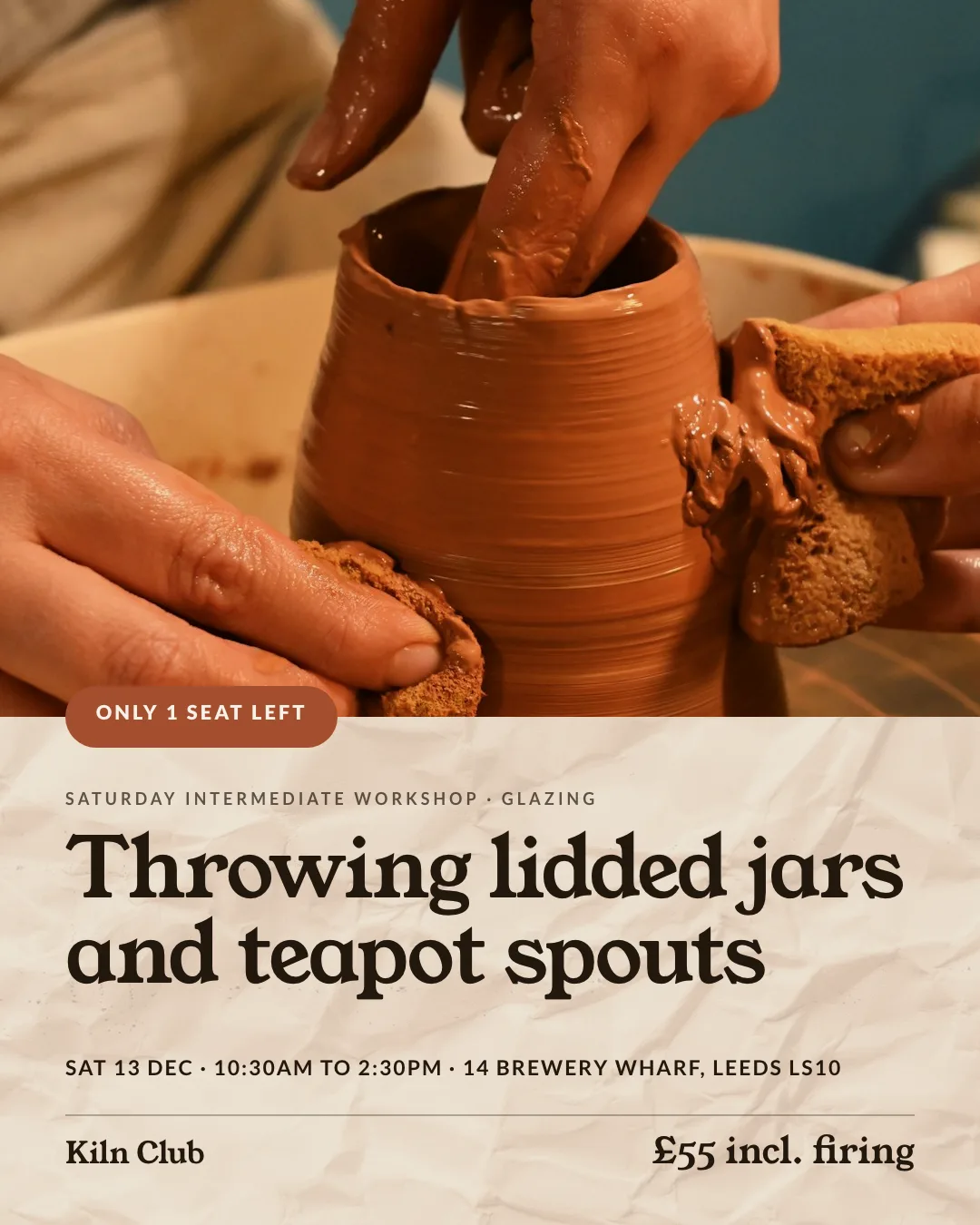
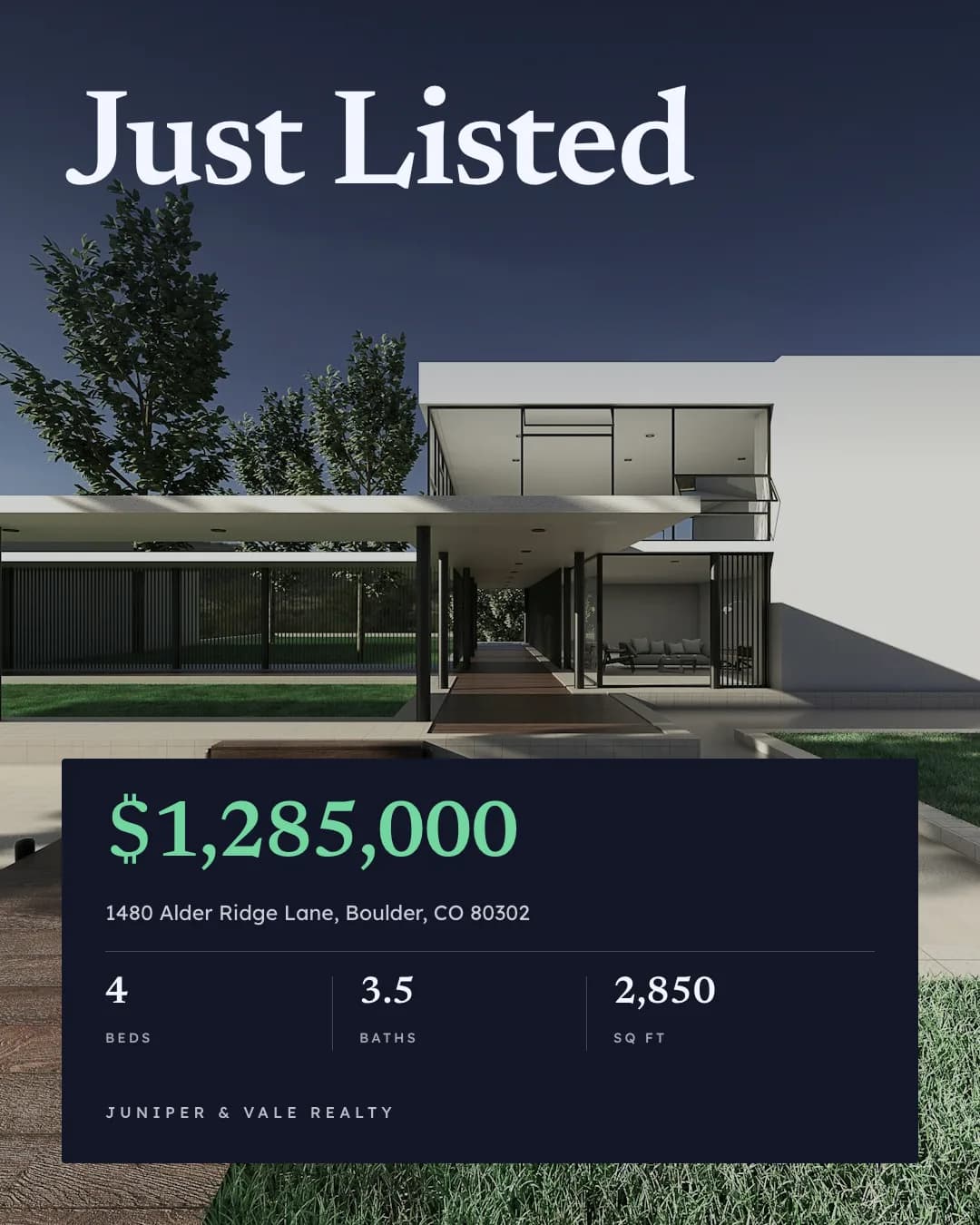
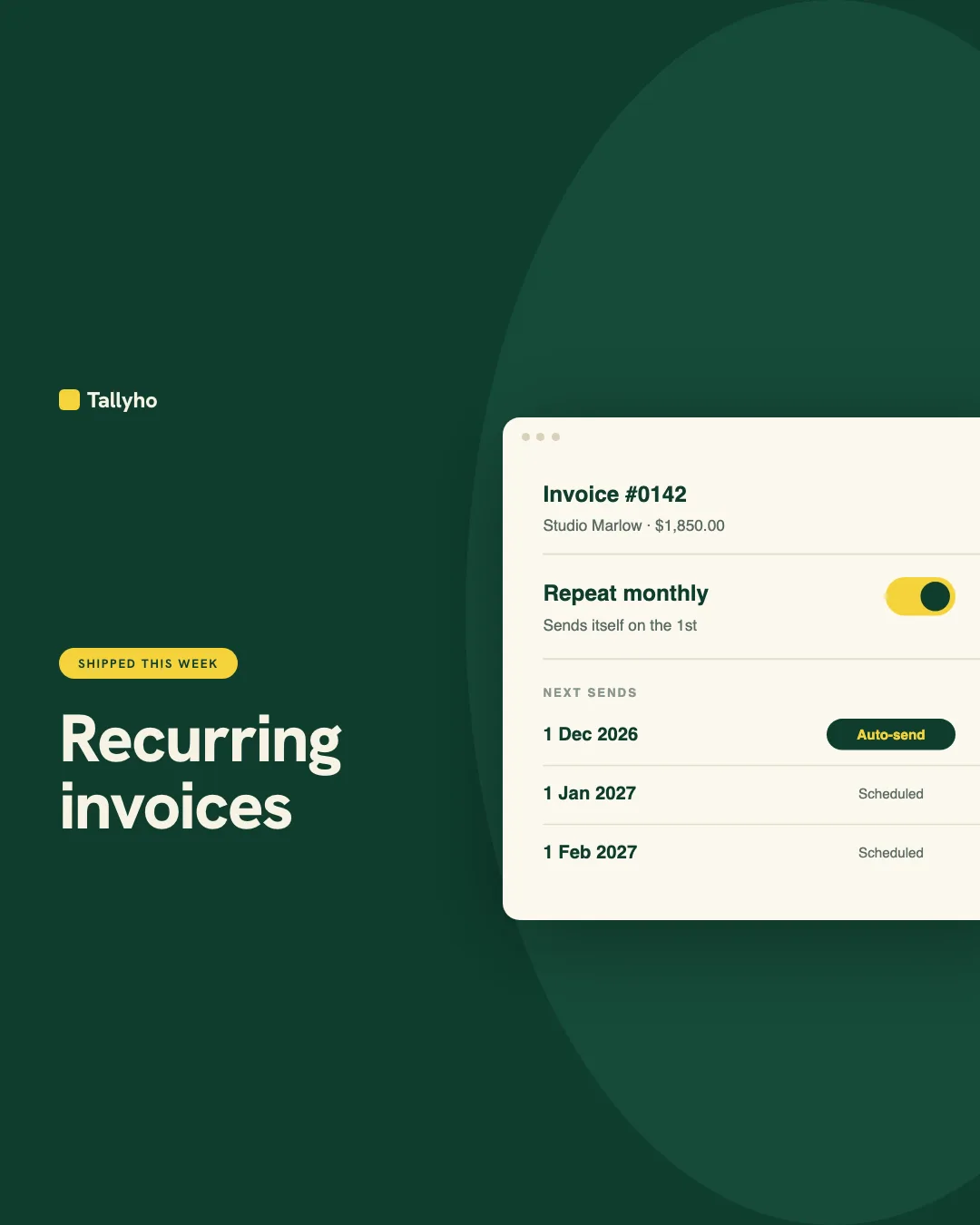
Same templates, other jobs.
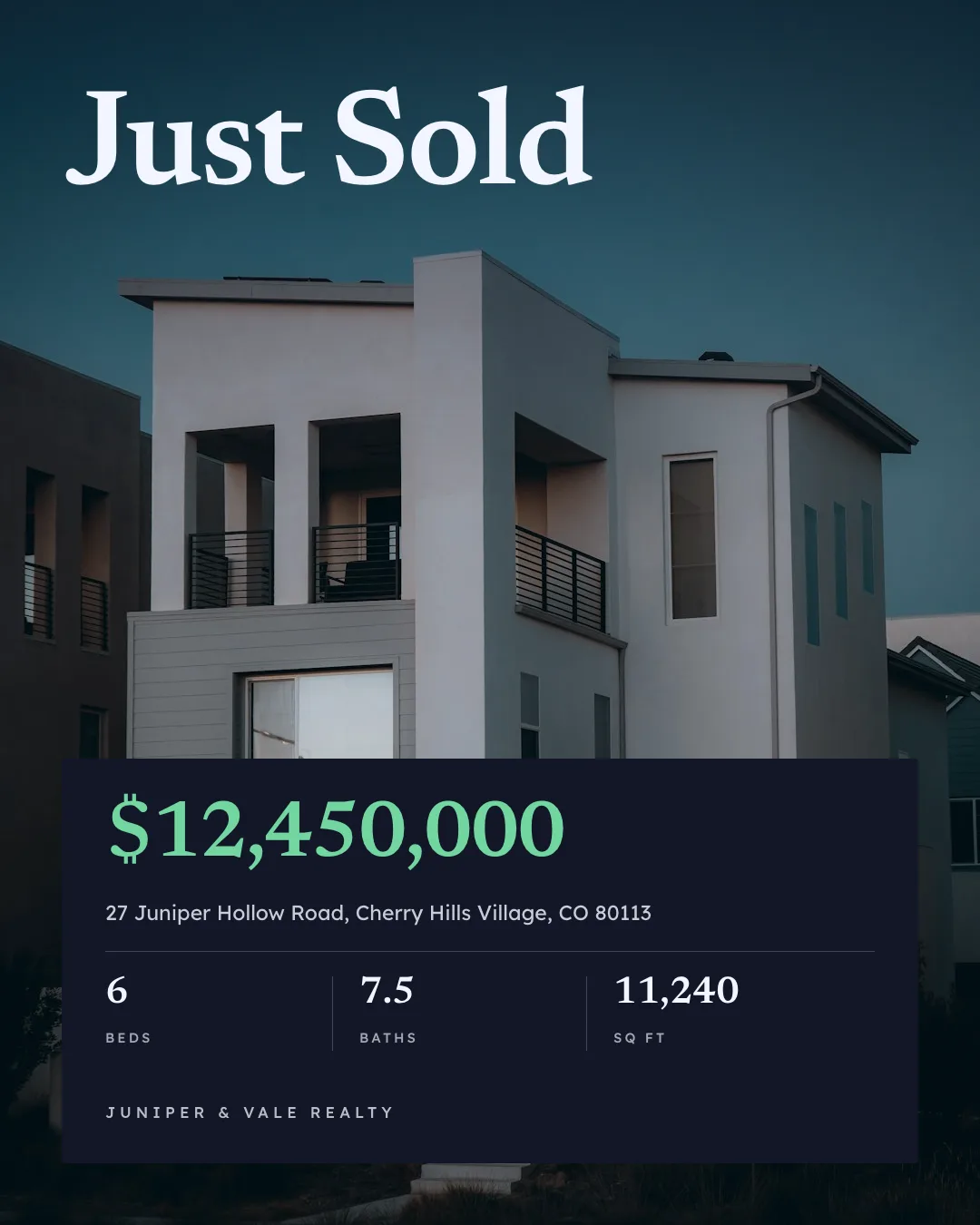
Social Media Content
On-brand Instagram, LinkedIn and Facebook posts from one prompt
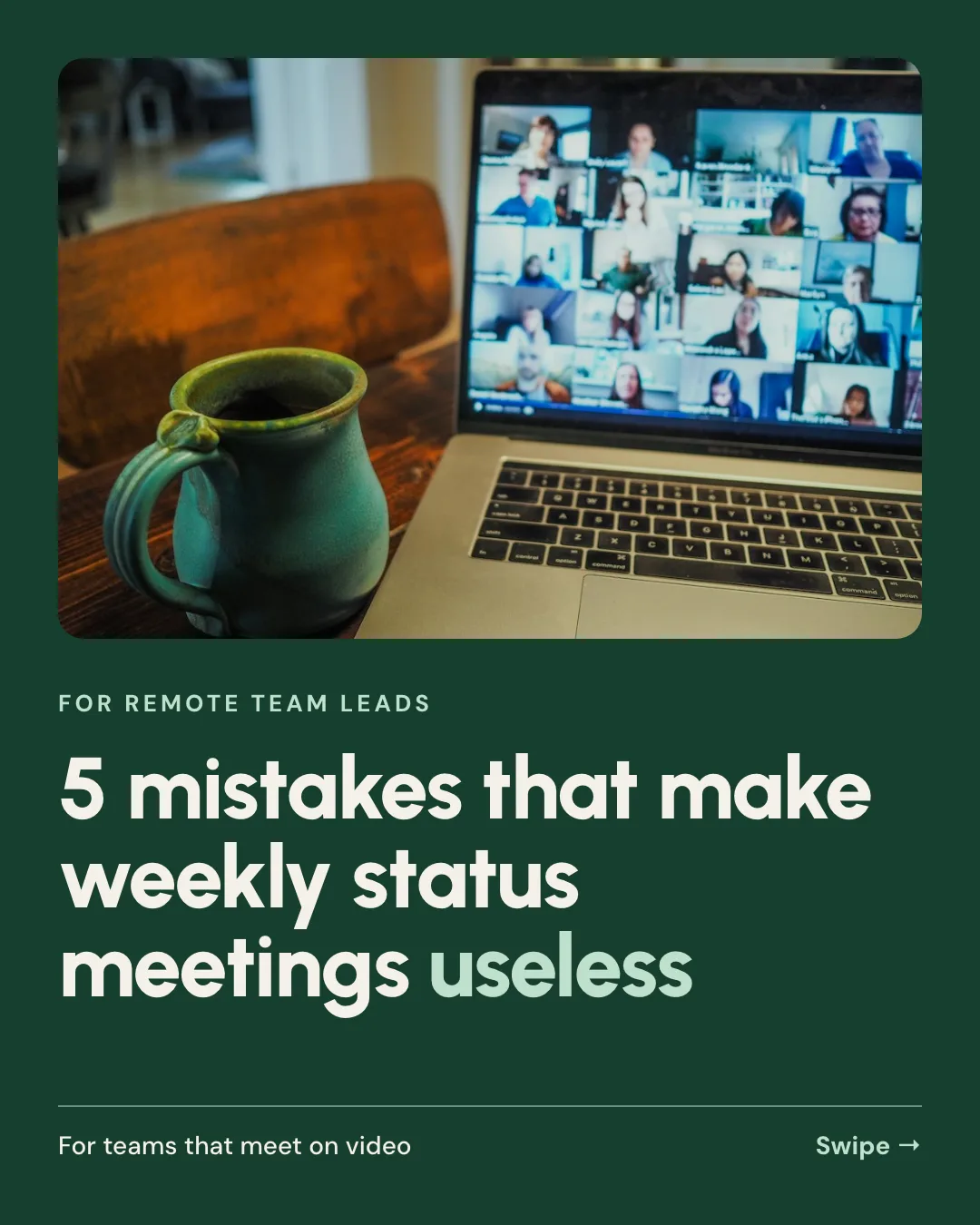


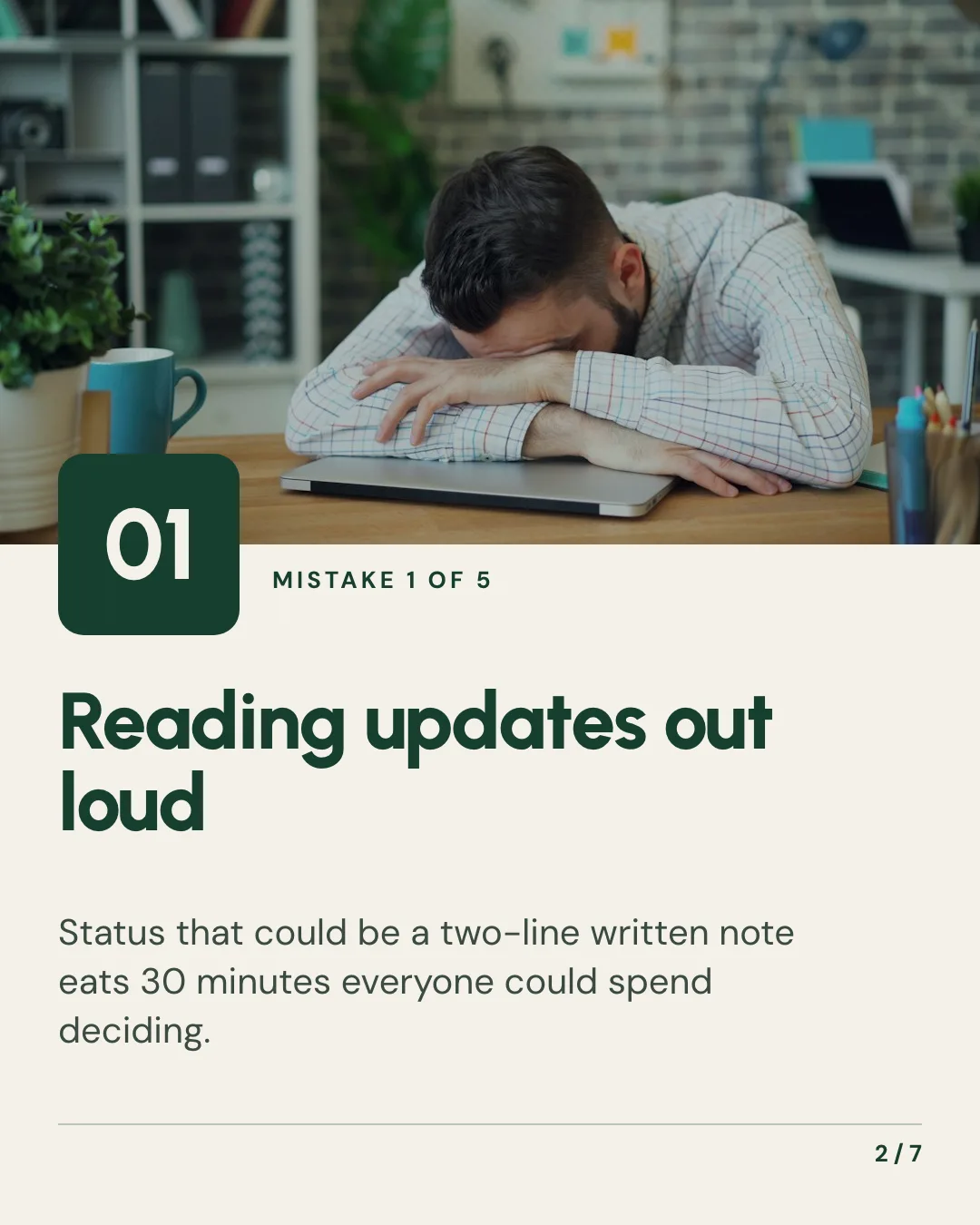
Carousel
Swipeable Instagram and LinkedIn carousels from any idea or post




YouTube Thumbnail
YouTube thumbnails in your channel style, with A/B variants
Give your agent the blog and marketing images skill. 100 free credits every month.
No credit card. Paste the link into your agent, sign in to Orshot once, and get your first render in the same chat.