Automate Social Media Posts from Your Agent
Render the image, carousel or video and post it in the same call. Drafts first, then a schedule at your best time, then the numbers to learn from.
100 free credits a month · no credit card · works in Claude, ChatGPT, Codex, Cursor and more
Use the Orshot social media scheduler skill: https://orshot.com/agents/skills/social-media-scheduler.md. Schedule this post to LinkedIn and X at our best time:
 Claude
 ChatGPT
Your agent reads the skill from /agents/skills/social-media-scheduler.md and renders through Orshot. First time? It asks you to sign in once.











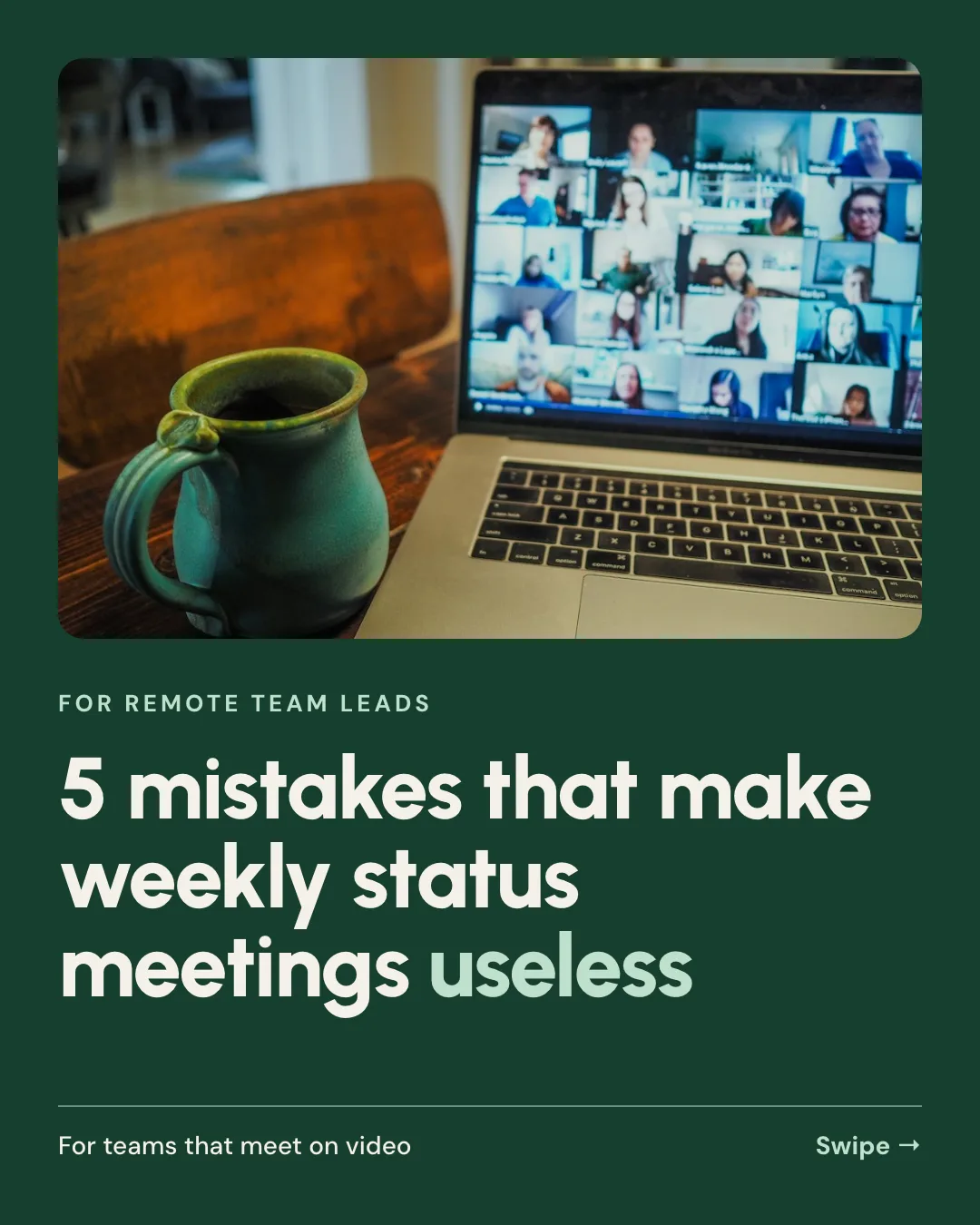
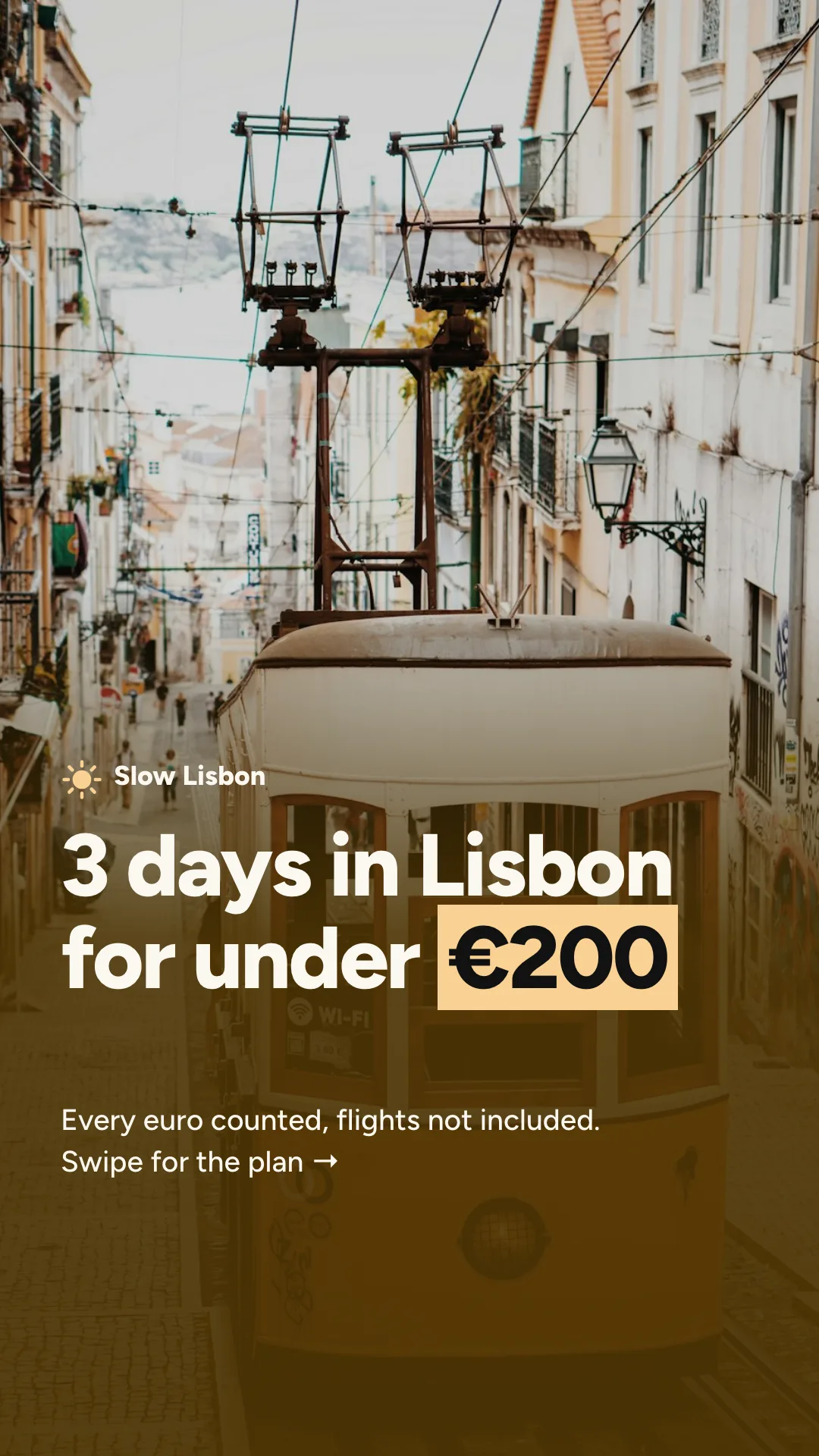
Real outputs, rendered with this skill.
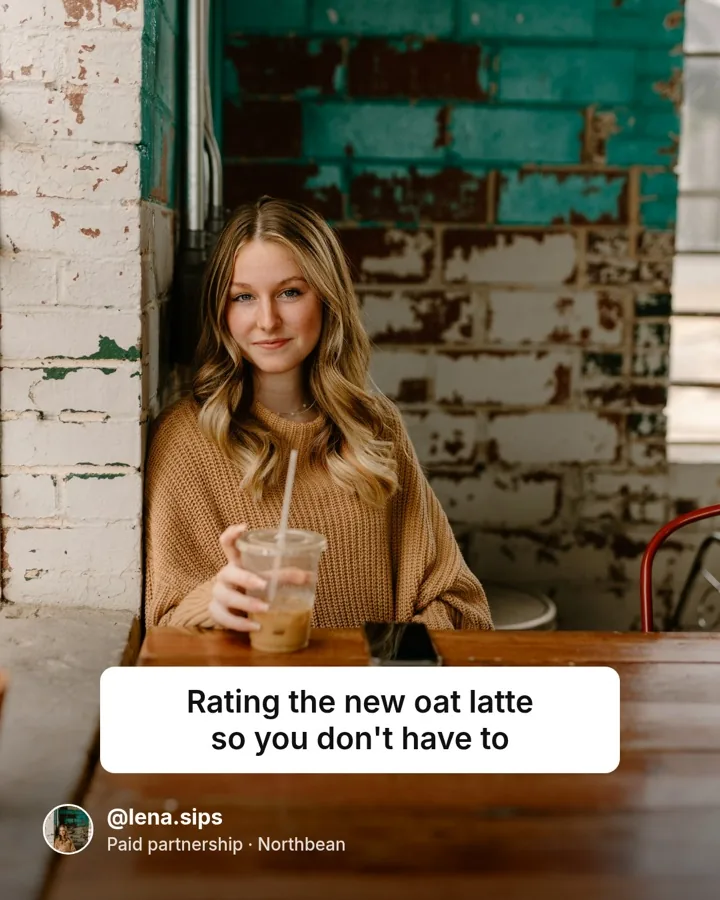
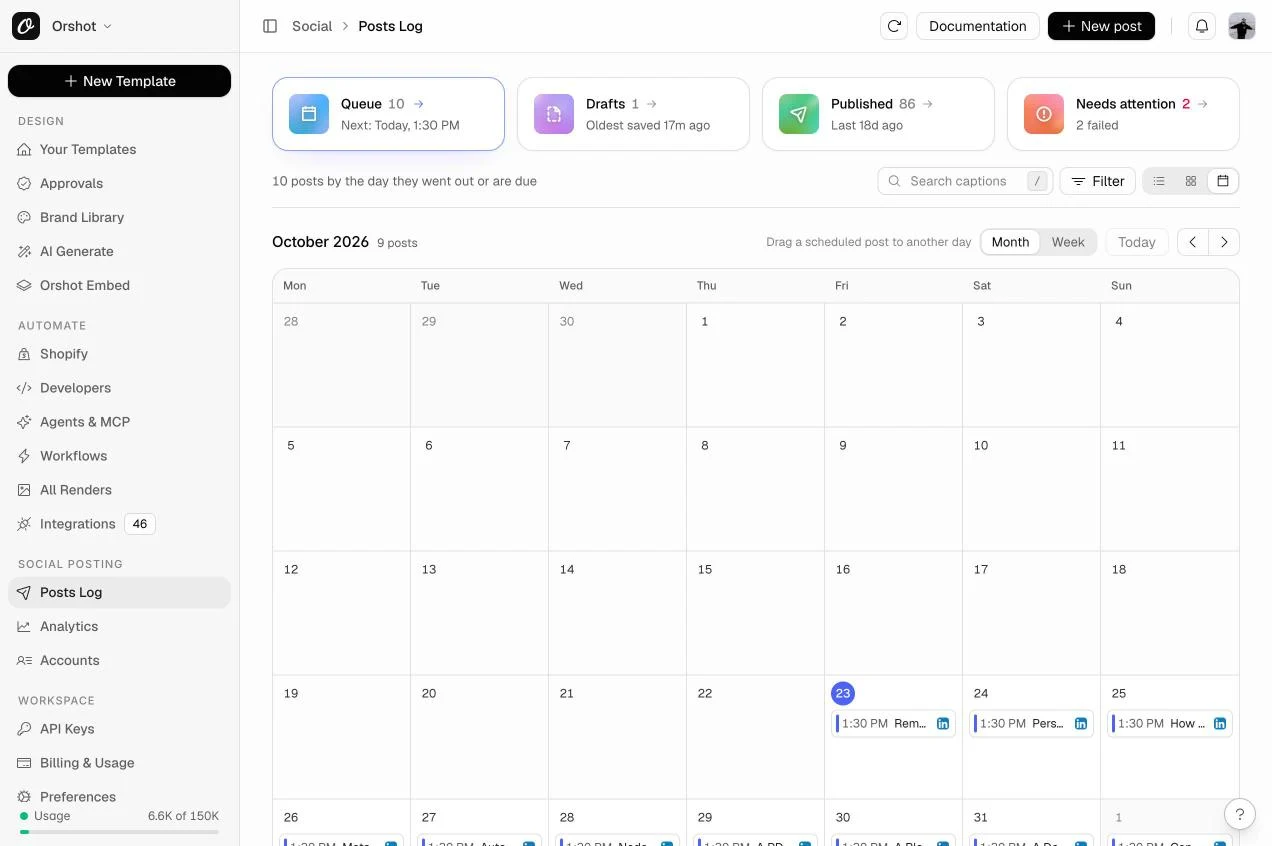
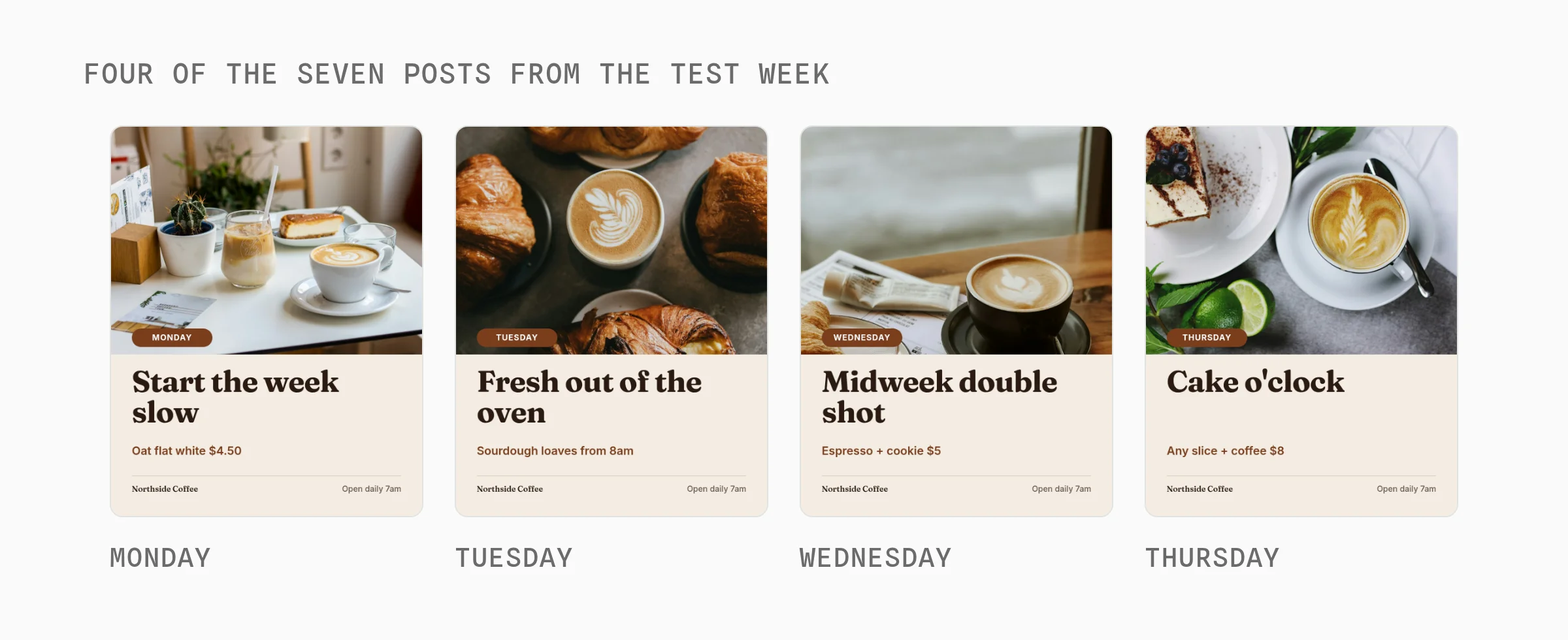
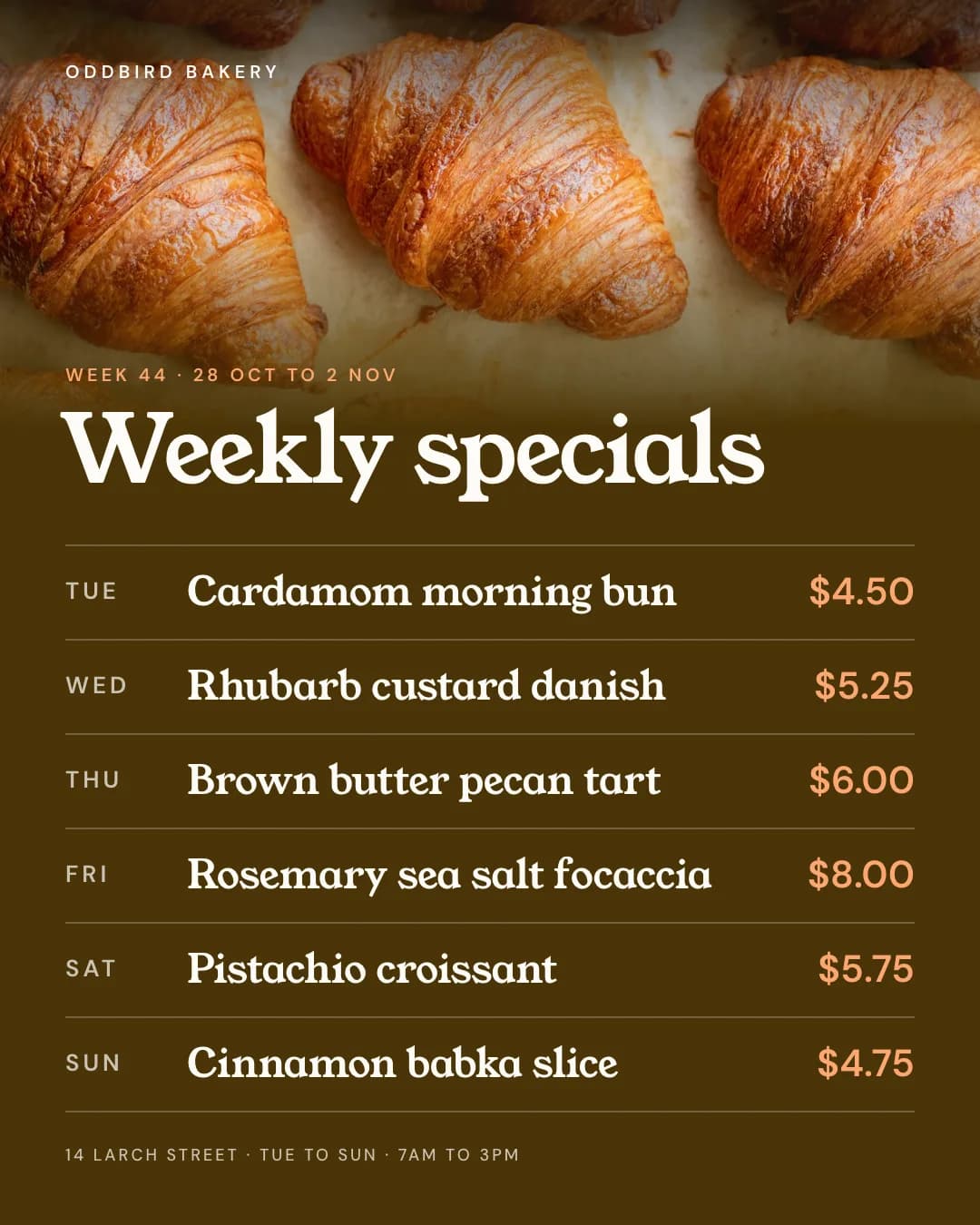
Orshot's publish screens, then posts this skill scheduled from a template. Drag or scroll the row, and click one to see it full size.
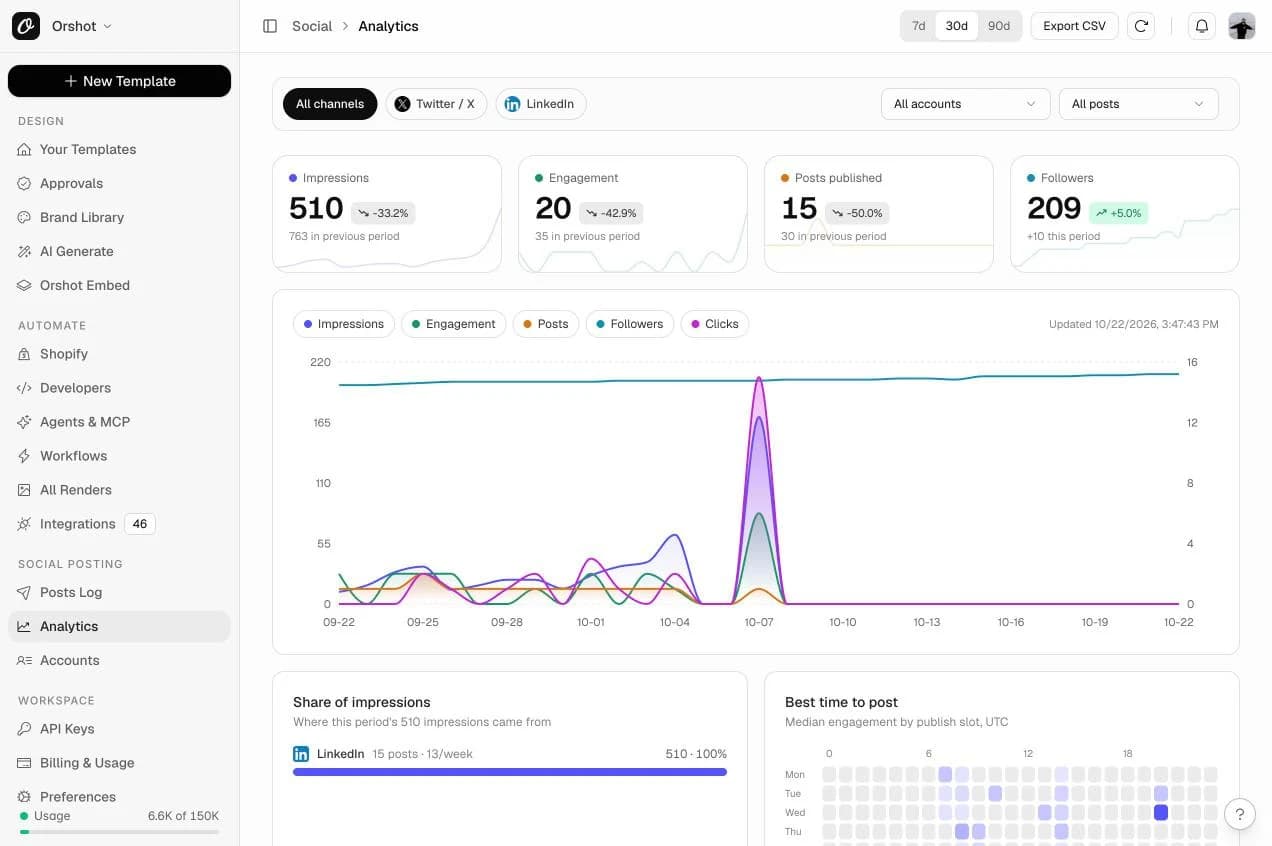
What your agent does, step by step.
The skill tells the agent which Orshot tools to call and in what order. You see each result before the next step.
- Step 1
Finds your accounts
Lists connected accounts and asks which ones to use.
orshot_list_social_accounts - Step 2
Renders and drafts
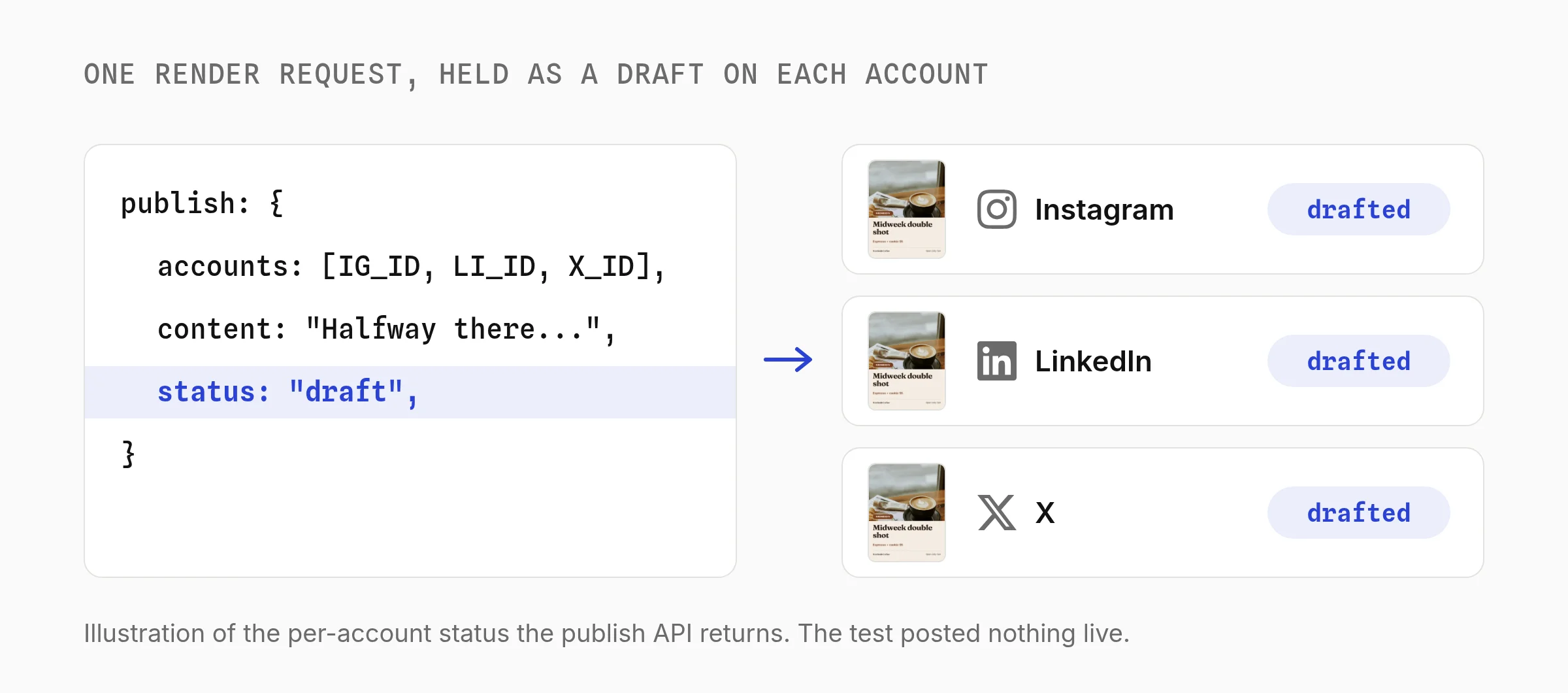
Adds publish to the render, so the post and its media are created in one call, as a draft.
orshot_render_templatepublish: draft - Step 3
Schedules at the best time
Reads your best time to post and schedules after you approve.
 orshot_get_best_time_to_postorshot_update_social_post
Orshot turned content production from an hour-a-piece design exercise into something that runs off our existing workflow.
Consistent, on-brand, and fast enough that we actually ship daily.

Say it like this. The skill does the rest.
Not for designing the image or video itself (use the social-media-content, orshot-carousel or orshot-video-generator skill).
Weekly calendar
Use the Orshot social media scheduler skill. Plan next week's posts from my content sheet, render each one, and schedule them as drafts at our best time on LinkedIn and Instagram.
What worked
Read the last 30 days of post analytics and tell me which hooks and formats got the most engagement on each platform.
Post on a schedule. No agent in the loop.
A weekly job renders the week's posts and queues them as drafts for one review.
curl -X POST https://api.orshot.com/v1/studio/render \
  -H "Authorization: Bearer $ORSHOT_API_KEY" \
  -H "Content-Type: application/json" \
  -d '{
    "templateId": 123,
    "modifications": {
      "headline": "Ship day",
      "stat": "2,000 renders"
    },
    "response": {
      "type": "url",
      "format": "png"
    }
}'Read it before you install. It is one file.
This is the SKILL.md your agent loads, word for word. It names every tool call, the layout rules and the gotchas.
Orshot-HQ/orshot-agent-skills---
name: orshot-social-media-scheduler
description: "Social media scheduler and auto-poster with Orshot: schedule posts or auto-post to Instagram, TikTok, LinkedIn, X, Facebook, YouTube, Pinterest, Threads, Bluesky, Reddit, Telegram, Snapchat and Google Business, with the image, carousel or video rendered from a template in the same call, so the queue never runs empty. Plans a week of posts as drafts you approve once, cross-posts, schedules at the best time and reads post analytics, from Claude, Codex or any MCP client over the hosted Orshot MCP server (OAuth, no key), or REST for n8n, Make and cron jobs. Use when: \"schedule this week's posts\", \"auto-post to instagram and tiktok\", \"schedule posts from claude\", \"cross-post to every platform\", \"let me approve before it posts\", \"social media scheduler\", \"best time to post\". NOT for designing the image or video itself (use orshot-social-media-content, orshot-carousel or orshot-video-generator)."
homepage: https://orshot.com/agents/skills/social-media-scheduler
license: MIT
metadata:
author: Orshot
version: "1.3.1"
openclaw:
emoji: "📣"
homepage: https://orshot.com/agents/skills/social-media-scheduler
primaryEnv: ORSHOT_API_KEY
requires:
env: []
bins: []
envVars:
- name: ORSHOT_API_KEY
required: false
description: Orshot API key from Workspace Settings > API Keys. Only for REST. Not needed over the hosted MCP server with OAuth.
---
# Orshot Social Media Scheduler: render, post, schedule, learn
Orshot renders an image, carousel or video from a template and posts it to the user's connected accounts in the same request. It also holds drafts, schedules, edits and reports analytics, so an agent can run a content calendar without a second tool. It can post any public media URL too, so it works with images made elsewhere.
Most schedulers hold posts someone already made, so the queue runs empty on the days nobody made one. Here the post is rendered and scheduled in the same call: one template and a list of topics become a week of posts.
Supported platforms, pricing and per-platform limits are in the docs. Do not guess them:
- Platforms and how publishing works: https://orshot.com/docs/publish/introduction.md
- Pricing (paid add-on per connected account): https://orshot.com/docs/publish/pricing.md
- Caption, image and video limits per platform: https://orshot.com/docs/publish/social-posting-guidelines.md
## What people ask for
- "Schedule this week's posts for Bloomfield Bakery on Instagram and Facebook, one a day around lunch. Show me them before anything goes out."
- "Codex made five images for our launch. Post them to LinkedIn and X tomorrow at 9, with the link in the first comment on LinkedIn."
- "Auto-post a new quote card to TikTok every morning from my Google Sheet."
- "Cross-post this announcement to every account we have connected."
- "Which posts did best last month, and when should I post next week?"
- "The Instagram post didn't go out. What happened?"
## Step 1: connect
Connect the Orshot MCP server at `https://mcp.orshot.com/mcp` (OAuth, no key). Setup per client: https://orshot.com/docs/integrations/mcp-server.md. Headless jobs (cron, n8n, a server script) call REST with `ORSHOT_API_KEY`. The `orshot` skill covers both.
## Step 2: check the accounts
`orshot_list_social_accounts` (REST: https://orshot.com/docs/api-reference/social-accounts-list.md). Note each account's numeric `id`. You publish by id, never by platform name.
- Check that the accounts belong to the brand the user named. If the only connected accounts are someone's personal profile or another brand, say so before you draft anything.
- If a brand has two accounts on one platform (two Facebook Pages, say), ask which one. Do not guess.
- Accounts belong to the active workspace. If the user keeps each brand or client in its own workspace, switch with `orshot_set_active_workspace` before you list accounts.
Over REST, `include_health=true` adds a `requires_reconnect` flag per account. If it is `true`, the user must reconnect that account before you post to it. Check it before you schedule a batch, not after a post fails.
**An empty list means a human has to connect accounts.** The API cannot do it. A draft or scheduled post can still be saved now with `platforms` instead of `accounts` (any plan); once an account on that platform is connected, add it with `orshot_update_social_post` and send the post. Publishing now needs an account. Send the user to the Orshot dashboard, sidebar "Social Posting" > "Accounts", where each platform connects with its own login: https://orshot.com/docs/publish/connect-account.md. It is a paid add-on and the free plan cannot connect accounts, so link https://orshot.com/docs/publish/pricing.md once. Then wait. The next `orshot_list_social_accounts` call shows the new account.
## Step 3: the posting loop
1. **Decide the media.** Render from a template (`orshot_render_template`, then its URL goes in `mediaUrls`) or use media you already have. Either way the post is `orshot_publish_social_post` with `mediaUrls`. Images from Canva, Codex or an image model go in `mediaUrls` as public URLs. Orshot render URLs are already public, so no S3 bucket or Drive share link is needed.
Before rendering, check that every image field gets the user's own image. A field left empty keeps the template's sample picture, which can put a stranger's face over a customer's name. With no image yet, use a picture with no person in it, or a template without that field, and tell the user.
2. **Draft first.** `orshot_publish_social_post` publishes immediately unless you pass `status: "draft"`. Pass it unless the user clearly said to post now. A draft holds no time: keep the agreed times in your summary and set `scheduledFor` only when you schedule. The result carries the post id.
3. **Show the user** the post. `orshot_get_social_post` renders a visual card with the media, caption, accounts and status.
4. **Edit** what they change with `orshot_update_social_post`. Editing never re-renders and costs nothing.
5. **Send.** `orshot_publish_social_draft` posts it now. To schedule instead, `orshot_update_social_post` with `status: "scheduled"` and `scheduledFor`.
6. **Confirm.** Some platforms finish asynchronously, so a post can read `processing` at first. `orshot_get_social_post` refreshes in-flight posts from the platforms. Report the final status, not the first one.
7. **Learn.** Read analytics a day later, and the best-time slots before the next schedule.
### Approve the batch once
For a batch (a week of posts, a launch), do not ask for a go-ahead post by post. Hold every post as a draft and show them together. Repeat the accounts, captions and times once for the whole batch. The user's approval covers those posts only. Anything added or changed later needs a new go-ahead.
Post review in Orshot is the draft step. Orshot approval flows approve templates before automations render them, not posts: https://orshot.com/docs/approval-flows/introduction.md.
## Image and caption split
The image carries one idea in a few words (a name, a number, a date, a short headline). The caption carries the rest: the details, the link, the hashtags. Do not repeat the image's words as the caption.
- First line of the caption is the hook, since the platforms cut the rest behind "more". Lead with what changed, what is on, or the number.
- Dates, prices, addresses and names in the caption must match the image. Both come from the same values the user gave.
- When the targets need different captions (a long LinkedIn caption, a short X one), make one draft per platform: `content` is shared by every account in a call, and `platformOptions` only adds extras such as a LinkedIn first comment. Limits per platform are on the limits page above.
## MCP tools
| Job | Tool |
| --- | --- |
| list accounts | `orshot_list_social_accounts` |
| render | `orshot_render_template` (renders only) |
| post a render or any media URL | `orshot_publish_social_post` |
| list or read posts | `orshot_list_social_posts`, `orshot_get_social_post` |
| edit, send, discard a held post | `orshot_update_social_post`, `orshot_publish_social_draft`, `orshot_discard_social_post` |
| analytics | `orshot_get_social_analytics`, `orshot_get_social_analytics_daily`, `orshot_get_social_followers`, `orshot_get_social_post_analytics` |
| best time to post | `orshot_get_best_time_to_post` |
MCP arguments are camelCase (`mediaUrls`, `scheduledFor`, `tiktokSettings`). REST bodies use the names on each docs page. Each tool's schema lists its own arguments.
## Examples
### A week of posts in one conversation
The user: "Schedule this week's posts for Bloomfield Bakery on Instagram and Facebook, one a day around lunch. Show me them first."
1. `orshot_list_social_accounts`. Confirm the Instagram and Facebook accounts by username.
2. Agree on seven topics with the user (Monday sourdough, Tuesday staff pick, and so on), and give each its post type: product, staff pick, opening hours, a customer quote.
3. `orshot_list_studio_templates` for a template per post type. Missing ones are made first with `orshot-social-media-content`, which picks each layout from a format brands really post. Seven posts from one layout read as a repost, so the week uses at least two or three layouts. When every post is the same type, rotate two or three templates that share field names.
4. Seven `orshot_render_template` calls, each with its template and its own `modifications`, then one `orshot_publish_social_post` per render with its URL in `mediaUrls`, `accounts`, `content` and `status: "draft"`.
5. `orshot_list_social_posts` with `status: "draft"`, then `orshot_get_social_post` for the cards. Number them 1 to 7.
6. The user approves by number ("all but 4, and shorten 4's caption"). Make the edits with `orshot_update_social_post`. Show post 4 again before it counts as approved.
7. `orshot_get_best_time_to_post` for each platform, because the user said "around lunch" and not an exact time. When the user names a time, use it. Pick a lunchtime slot per day and spread the posts across those slots. Then `orshot_update_social_post` with `status: "scheduled"` and `scheduledFor` for each approved post.
8. Report the schedule as a short table: day, time in the user's timezone, accounts, first words of the caption.
### Render and hold a draft (MCP)
Two calls. `orshot_render_template` returns the image URL:
```json
{ "templateId": 123, "modifications": { "headline": "Ship day", "stat": "2,000 renders" }, "format": "png" }
```
Then `orshot_publish_social_post`:
```json
{ "mediaUrls": ["<the render's url>"], "accounts": [1, 3], "content": "We shipped it.", "status": "draft" }
```
For a scheduled post use `"status": "scheduled"` with `"scheduledFor": "2026-11-01T14:00:00Z"`.
### Render and schedule (REST)
The render `publish` object reads `isDraft` and `schedule.scheduledFor`. It ignores `status` and `scheduled_for`, and with neither set it posts immediately. Full object: https://orshot.com/docs/publish/publish-from-api.md.
```js
await fetch("https://api.orshot.com/v1/studio/render", {
method: "POST",
headers: { "Content-Type": "application/json", Authorization: `Bearer ${process.env.ORSHOT_API_KEY}` },
body: JSON.stringify({
templateId: 123,
modifications: { headline: "Ship day", stat: "2,000 renders" },
response: { type: "url", format: "png" },
publish: {
accounts: [1, 3],
content: "We shipped it.",
schedule: { scheduledFor: "2026-11-01T14:00:00Z" },
timezone: "America/New_York",
platformOptions: { "3": { firstComment: "https://example.com" } },
},
}),
});
```
Read the `publish` array in the response even when the render succeeded. A failed post does not fail the render.
### Post media you already have (REST)
`POST /v1/social/publish` takes `status` and `scheduled_for`, unlike the render `publish` object. Fields, format rules and the response: https://orshot.com/docs/api-reference/social-publish.md.
```bash
curl -s -X POST https://api.orshot.com/v1/social/publish \
-H "Authorization: Bearer $ORSHOT_API_KEY" -H "Content-Type: application/json" \
-d '{
"accounts": [2],
"content": "Six things nobody tells you",
"media_urls": ["https://.../1.png", "https://.../2.png", "https://.../3.png"],
"status": "draft"
}'
```
Held posts (list, read, edit, send, discard) are under https://orshot.com/docs/api-reference/social-posts-list.md and the pages next to it. Analytics endpoints: https://orshot.com/docs/api-reference/social-analytics-list.md.
## Patterns
1. **Weekly calendar as drafts.** The worked example above: seven drafts from two or three templates, one approval for the batch, then schedule. One update per caption or time change.
2. **Schedule at the best time.** `orshot_get_best_time_to_post` for the platform, when the user has not named a time. Slots are UTC; convert to the user's timezone when you show them. Convert each date on its own: daylight saving can change the offset in the middle of a week (9am New York is 13:00 UTC on 30 October 2026 and 14:00 UTC on 2 November). Pass the chosen time as `scheduledFor`. Empty slots mean too little history, so ask the user for a time instead of inventing one.
3. **Cross-post.** One `accounts` array with every id. Per-account extras go in `platformOptions` keyed by account id: https://orshot.com/docs/publish/publish-from-api.md. Check the caption against the shortest limit among the targets on the limits page. TikTok photo posts use the caption as the title, which has its own limit there.
4. **Carousel.** Render a multi-page template with `pageN@` keys, then post the page URLs together in `mediaUrls` (over REST, add `publish` to the render). Each page becomes one image in the post. Image counts per platform are on the limits page. The `orshot-carousel` skill has the slide formula.
5. **Learn from results.** `orshot_get_social_analytics` with `source: "orshot"` and `sort: "engagement"`. Keep the hooks of the top posts, drop the bottom ones, write next week's drafts. Keep a short log the user can read. Analytics are rate limited, so ask once and reuse the answer.
6. **Recover a failure.** A per-account result with `action: "reconnect"` means the user must reconnect that account in the dashboard. Keep the post as a draft and retry with `orshot_publish_social_draft` after they confirm. For any other error, show it as is and do not retry blindly. If a publish call timed out, check `orshot_list_social_posts` before you call it again. The post may already exist, and a second call can create a second post.
7. **Run it without the agent.** "Every morning" or "whenever I add a row" is a job for a schedule, not a chat. The `orshot` skill's [`references/recurring-automation.md`](https://github.com/Orshot-HQ/orshot-agent-skills/blob/main/skills/orshot/references/recurring-automation.md) builds it as an Orshot Workflow or in the user's own n8n, Make or Zapier. Ready-made examples: https://orshot.com/workflows/images-from-sheet-to-social and https://orshot.com/workflows/random-drive-photo-to-tiktok.
## Safety
- Never publish without an explicit go-ahead for that post, or for the batch it was shown in. "Prepare", "draft" and "show me" mean `status: "draft"`.
- Before sending, repeat back the exact accounts (platform and username), the caption and the time.
- Do not discard posts the user did not ask you to discard.
- Mention the per-account add-on once before suggesting the user connect more accounts.
- Over REST, keep the API key in the environment. Never echo it.
Related skills: `orshot` (connection, REST, render options), `orshot-social-media-content` and `orshot-carousel` (the media), `orshot-video-generator` (video posts).Social Media Scheduler skill questions
Can Claude post to social media?
Can I automate social media posts without a chat open?
Is social posting included in every plan?
Same templates, other jobs.

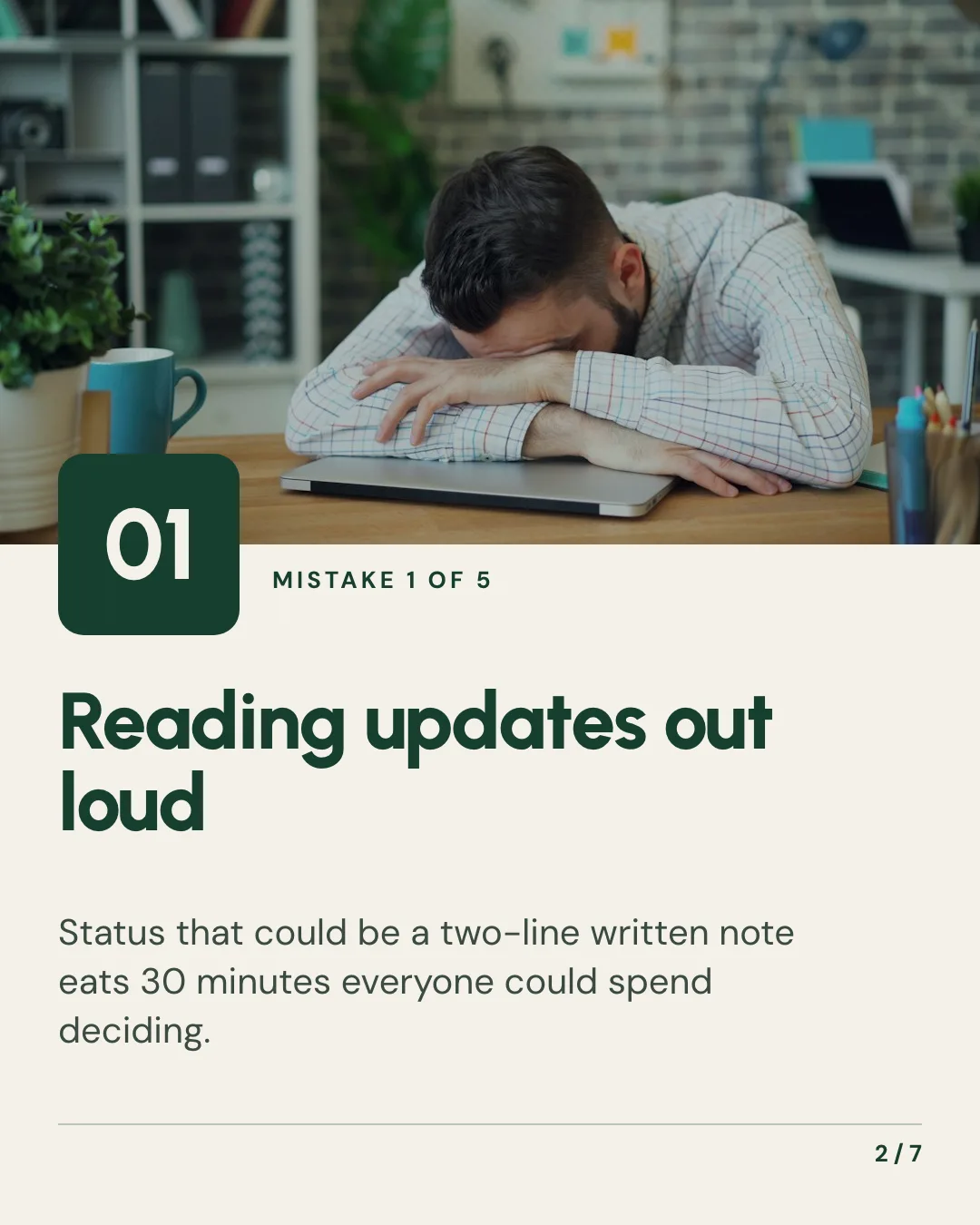
Carousel
Swipeable Instagram and LinkedIn carousels from any idea or post

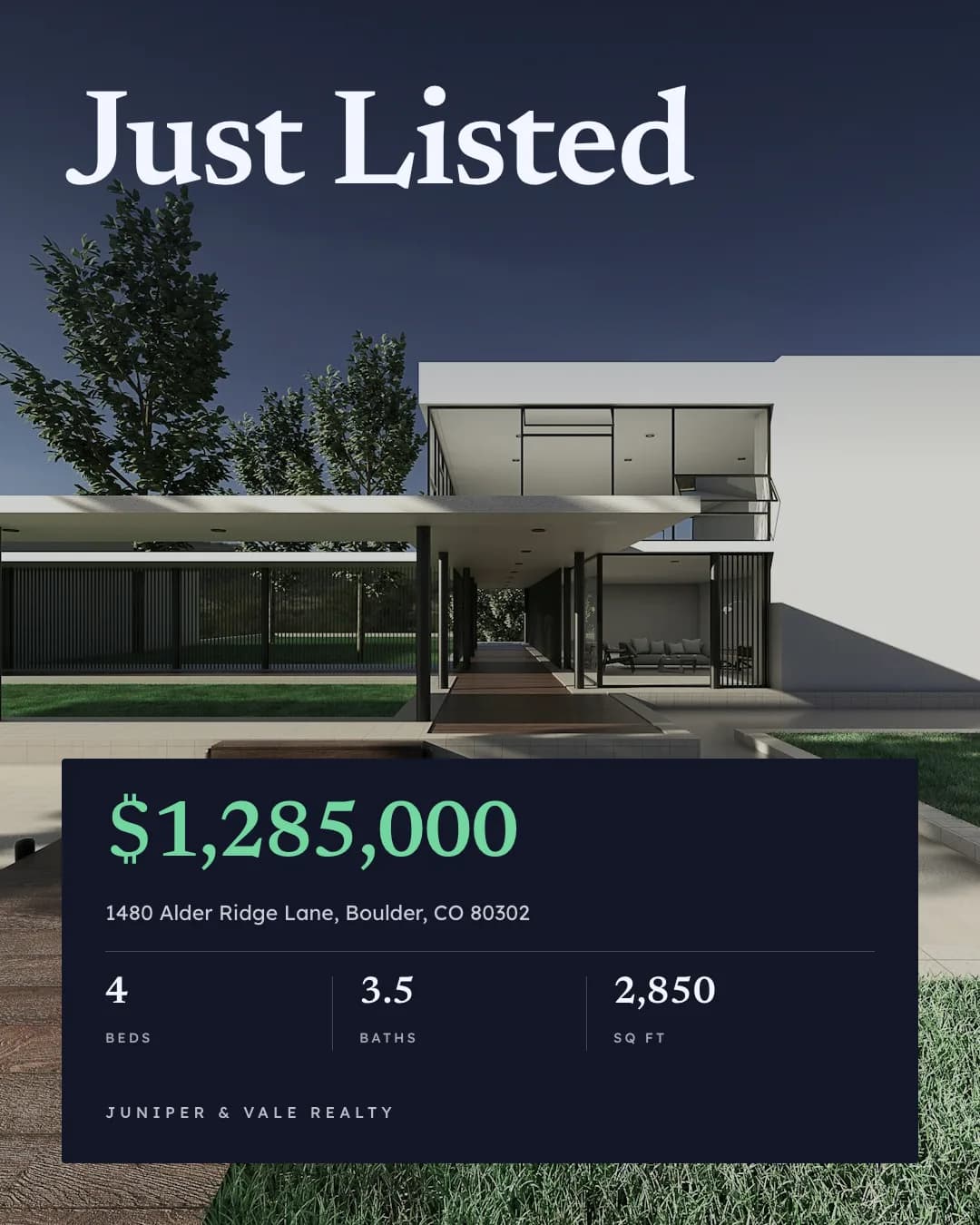
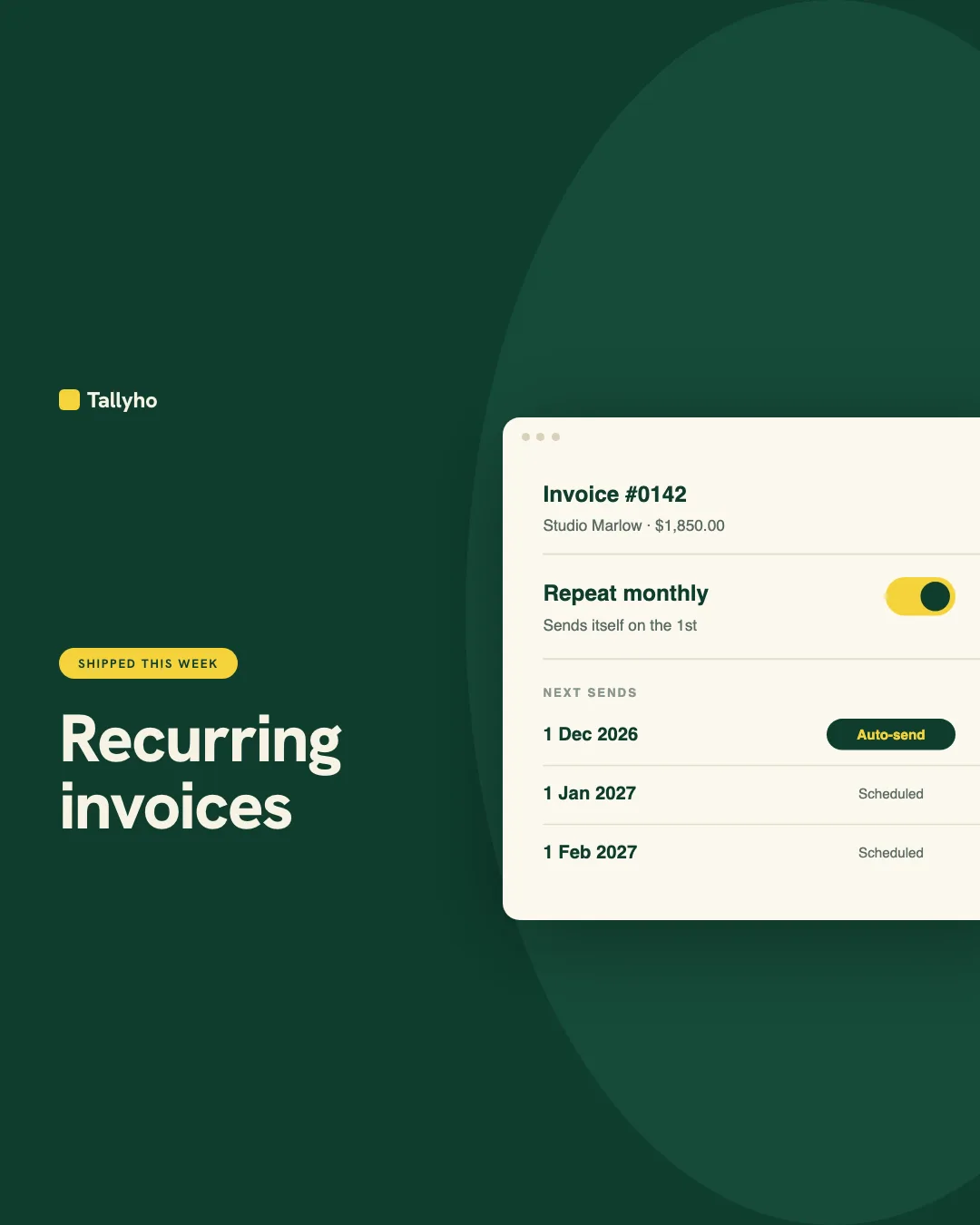
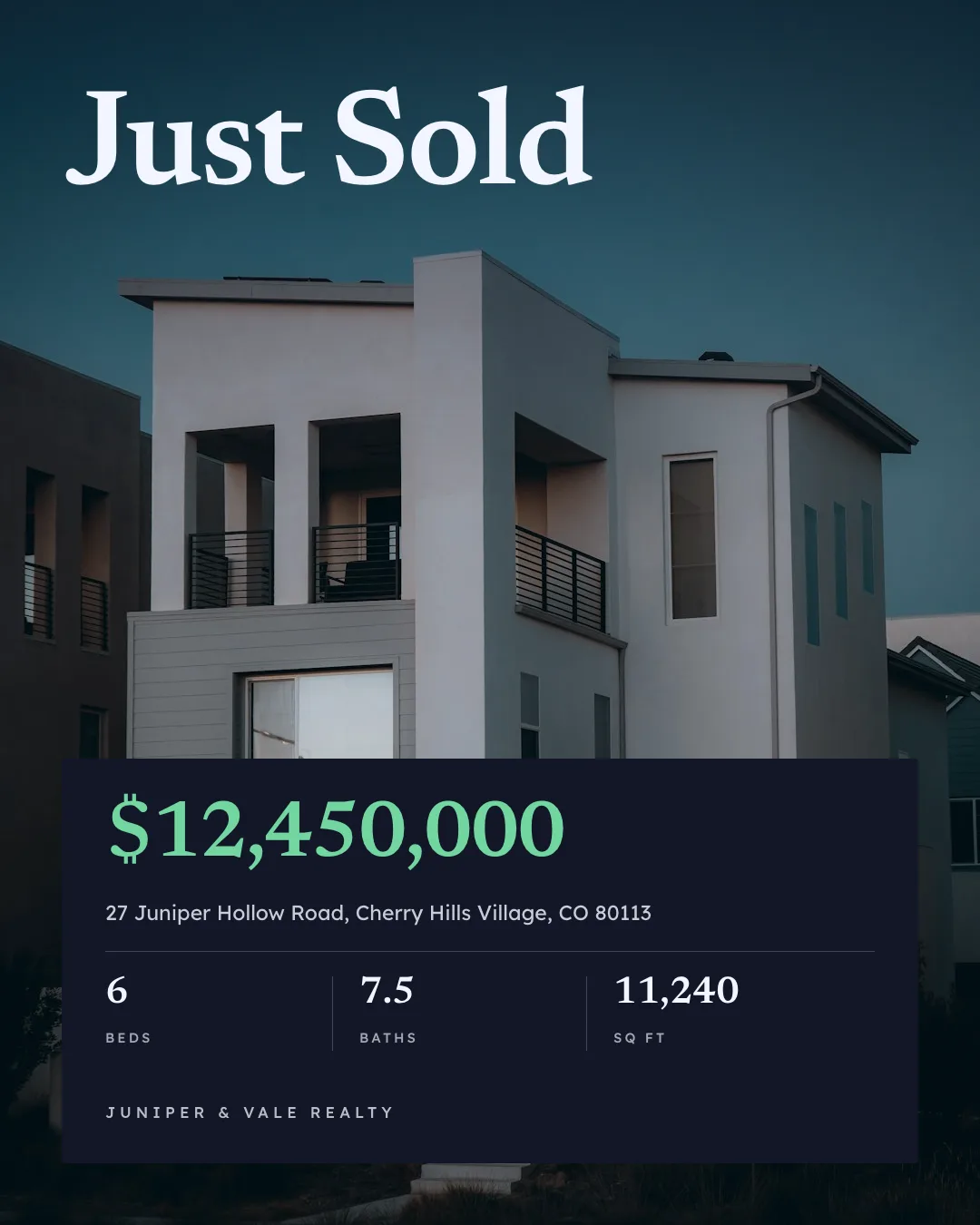
Social Media Content
On-brand Instagram, LinkedIn and Facebook posts from one prompt

Video Generator
Reels, Shorts, product and listing videos and animated chart films
Give your agent the social media scheduler skill. 100 free credits every month.
No credit card. Paste the link into your agent, sign in to Orshot once, and get your first render in the same chat.